**Prerelease information:** macOS 27 is currently in preview. Apple may change the supported-device list before the final release. Review [Apple’s macOS 27 compatibility page](https://www.apple.com/os/macos/) before making final upgrade or replacement decisions.
## Apple’s macOS 27 compatibility list Apple’s current list contains only Apple-silicon Macs: - MacBook Neo (2026) - MacBook Air with Apple silicon (2020 and later) - MacBook Pro with Apple silicon (2020 and later) - iMac with Apple silicon (2021 and later) - Mac mini with Apple silicon (2020 and later) - Mac Studio (2022 and later) - Mac Pro (2023 and later) The significant change from macOS 26 is that macOS 27 drops the remaining Intel-based Macs, including Intel MacBook Pro, iMac, and Mac Pro models that could run macOS 26. ## How the reports classify Macs Both definitions are limited to inventory records whose operating-system type is `OSX`. - **Compatible:** the Mac reports **Is Apple Silicon = true**, matches a known Apple-silicon model identifier, or is already running macOS 27. - **Incompatible:** the record is a Mac and none of the compatible checks match. The model-identifier fallback covers early Apple-silicon inventory such as `MacBookAir10,*`, `MacBookPro17,*`, `MacBookPro18,*`, `iMac21,*`, `Macmini9,*`, and `Mac13,*` through `Mac18,*`. It also includes the MacBook Neo identifier `Mac17,5`.**Scope:** These reports classify Apple’s published hardware compatibility only. They do not evaluate free disk space, application compatibility, backup readiness, or FileWave support for prerelease macOS builds.
## Ingredients - FileWave Central access with permission to manage Reports. - The compatible and incompatible JSON files below.| Report | Download | Purpose |
|---|---|---|
| macOS 27 Compatible | [macos27\_compatible.json](https://kb.filewave.com/attachments/537) | Find managed Macs matching Apple’s current macOS 27 hardware list. |
| macOS 27 Incompatible | [macos27\_incompatible.json](https://kb.filewave.com/attachments/538) | Find managed Macs that do not match the current list. |
**Historical reference:** The previous macOS 26 Custom Field remains in this page’s **Attachments** panel. Use the macOS 27 JSON files above for current compatibility planning.
## Directions ### Import in FileWave Central (recommended) 1. Download both JSON files from the table above. 2. Open **Reports** in FileWave Central. 3. Choose **Import Reports** in the toolbar, or right-click within the report list and choose **Import Report**. 4. Select `macos27_compatible.json` and complete the import. 5. Repeat the import with `macos27_incompatible.json`. 6. Open the imported reports and compare the results with your managed Mac inventory. 7. Validate representative Apple-silicon and Intel Macs before using the results for upgrade planning. [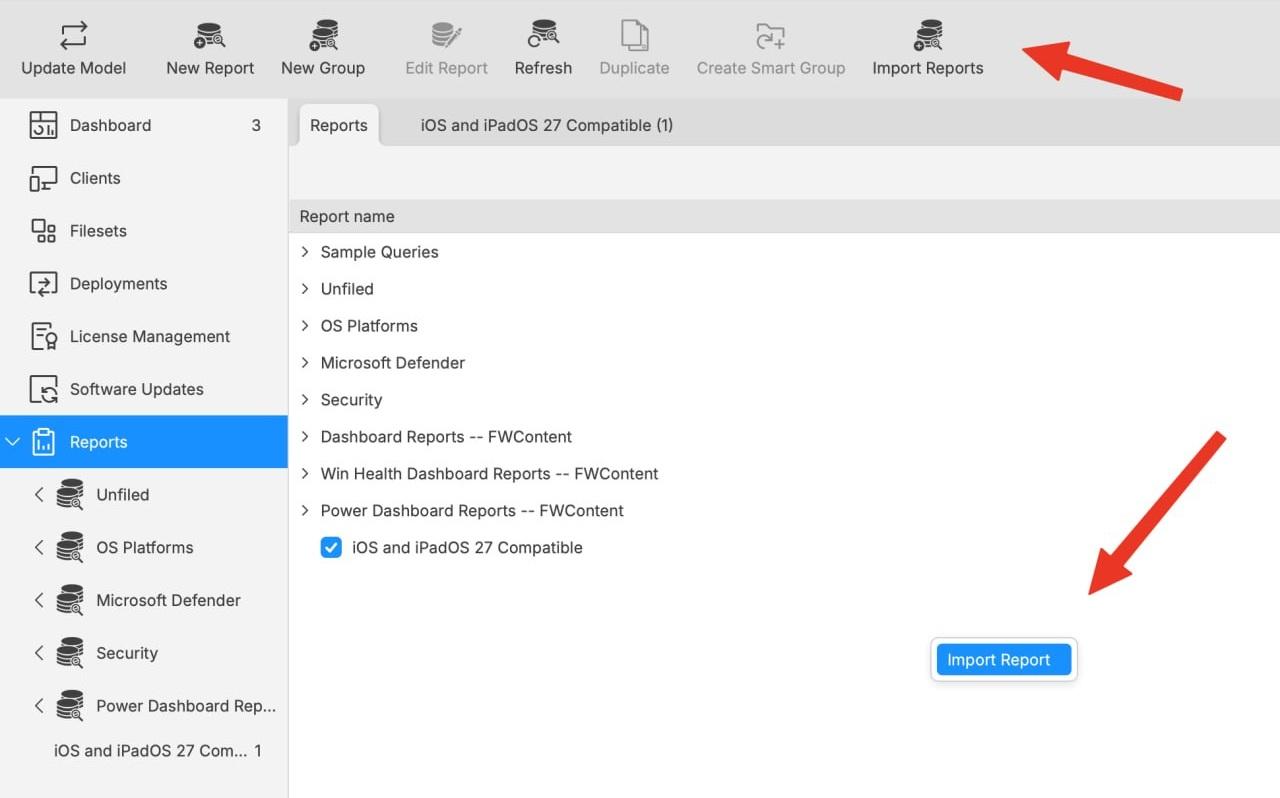](https://kb.filewave.com/uploads/images/gallery/2026-07/WpCp4ZmFTG1ZQaxl-filewave-central-import-reports-two-ways.jpg)Both controls open the report-import workflow. The toolbar uses the label **Import Reports**; the right-click action uses **Import Report**.
For general report import and export guidance, see [Exporting & Importing Inventory Reports](https://kb.filewave.com/books/filewave-central-anywhere/page/exporting-importing-inventory-reports). For automated JSON deployment, see [Command Line API (v1): Import an Inventory Report definition from JSON](https://kb.filewave.com/books/application-programming-interface-api/page/command-line-api-v1#bkmrk-import-report-json). ## Validation notes - Apple Silicon Macs should appear in the compatible report even when running macOS 26 or earlier. - Intel Macs should appear in the incompatible report. - A Mac already running macOS 27 remains compatible even if its model identifier is newer than the report’s fallback list. - Windows devices are excluded, including Windows installations running on Apple hardware.