Microsoft General Info
The Microsoft General Info section is a valuable resource for topics related to FileWave and managing Microsoft devices that don't fit into other categories. It covers a range of subjects, including tips, insights, and updates on Microsoft products, services, and device management. Discover helpful information to optimize your Microsoft device management strategies and stay informed about the latest developments in the Microsoft ecosystem.
- Windows 11 Compatible Devices
- Using Native Windows Tools to Troubleshoot
- Windows 64-Bit Client and Fileset Behavior
- Plan FileWave Compatibility for Windows Enterprise LTSC
Windows 11 Compatible Devices
Description
Microsoft have provided their list of supported Windows 11 requirements:
https://www.microsoft.com/en-gb/windows/windows-11-specifications
Including links to subcategories, for example processor compliance:
https://docs.microsoft.com/en-gb/windows-hardware/design/minimum/windows-processor-requirements
The variety of machines that could be either complaint or non-compliant is vast. The recipe here allows for a scripted method to confirm the status of compliance and is based upon Microsoft's Readiness PowerShell script, details of which are highlighted in the following documentation:
Two of the methods provided are edited versions of the original supplied Microsoft script. One is a straight forward Custom Field, whilst the other uses a more advanced method to achieve the same result. The script for both methods will provide an output of Pass or Fail in the Custom Field value. Please choose as desired.
Custom Field values may be added to the Client View:

Unaltered Version
Unaltered version of the Microsoft supplied readiness script. Output will include all text as dictated by Microsoft. As a Custom Field, this information can be lengthy, but inventory Queries may be configured to identify the word 'Fail'.
Ingredients
- Following Custom Field
Directions
- Download the provide Custom Field: 'Windows 11 Readiness Unaltered'
- Open the Custom Field Editor: FileWave Admin > Assistants > Custom Fields > Edit Custom Fields
- Select Import and choose the downloaded Custom Field from step 1
- Change Name if desired
- Save
Example failed value:
{"returnCode":1,"returnReason":"TPM, Processor, ","logging":"Storage: OSDiskSize=98GB. PASS; Memory: System_Memory=4GB. PASS; TPM: TPMVersion=False. FAIL; Processor: {AddressWidth=64; MaxClockSpeed=2494; NumberOfLogicalCores=4; Manufacturer=GenuineIntel; Caption=Intel64 Family 6 Model 70 Stepping 1; }. FAIL; SecureBoot: Capable. PASS; ","returnResult":"NOT CAPABLE"}Simplified Method
The information output by the default script is lengthy and can be considered as inappropriate as a single Custom Field value. This method alters the script, which when used as a Custom Field will return either Pass or Fail. However the details of why it failed will not be provided.
Ingredients
- Following Custom Field
| ↓ Windows |
|---|
Directions
- Download the provide Custom Field: 'Windows 11 Readiness'
- Open the Custom Field Editor: FileWave Admin > Assistants > Custom Fields > Edit Custom Fields
- Select Import and choose the downloaded Custom Field from step 1
- Change Name if desired
- Save
Advanced Method
Since the hardware of the device will rarely change, it is unnecessary to have the Custom Field script run on every inventory. Additionally, the information output by the default script is lengthy and can be considered as inappropriate as a single Custom Field value. The following method involves building an Administrator Custom Field and the script will be added as a Fileset instead. This Fileset will update the Custom Field value when ran, the details will be stored in a local log file on the device, yet the Custom Field will merely show Pass or Fail once the script has ran on a Windows device.
As a Fileset, the script will run only once without intervention, preventing the script from unnecessarily running over and over again.
Ingredients
- Administrator Custom Field with an internal name of 'windows_11_compatible'
| ↓ Windows |
|---|
- Following Fileset:
| ↓ Windows |
|---|
Directions
Custom Field
- Download the provided Custom Field: 'Windows 11 Compliance'
- Open the Custom Field Editor: FileWave Admin > Assistants > Custom Fields > Edit Custom Fields
- Select Import and choose the downloaded Custom Field from step 1
- Change Name as desired, but ensure the Internal Name is not altered and association is to all devices
- Save
- Once configured, the Fileset may then be associated and pushed to devices
Fileset
- Download the provided Fileset
- Edit the Fileset's script Environment Variables (details below)
- Associate to devices for testing and then once satisfied push to all devices
Fileset Editing
- Open the Fileset, select the script and choose Get Info
- Select the Executable tab and then Environment Variables
- Replace the Values as appropriate
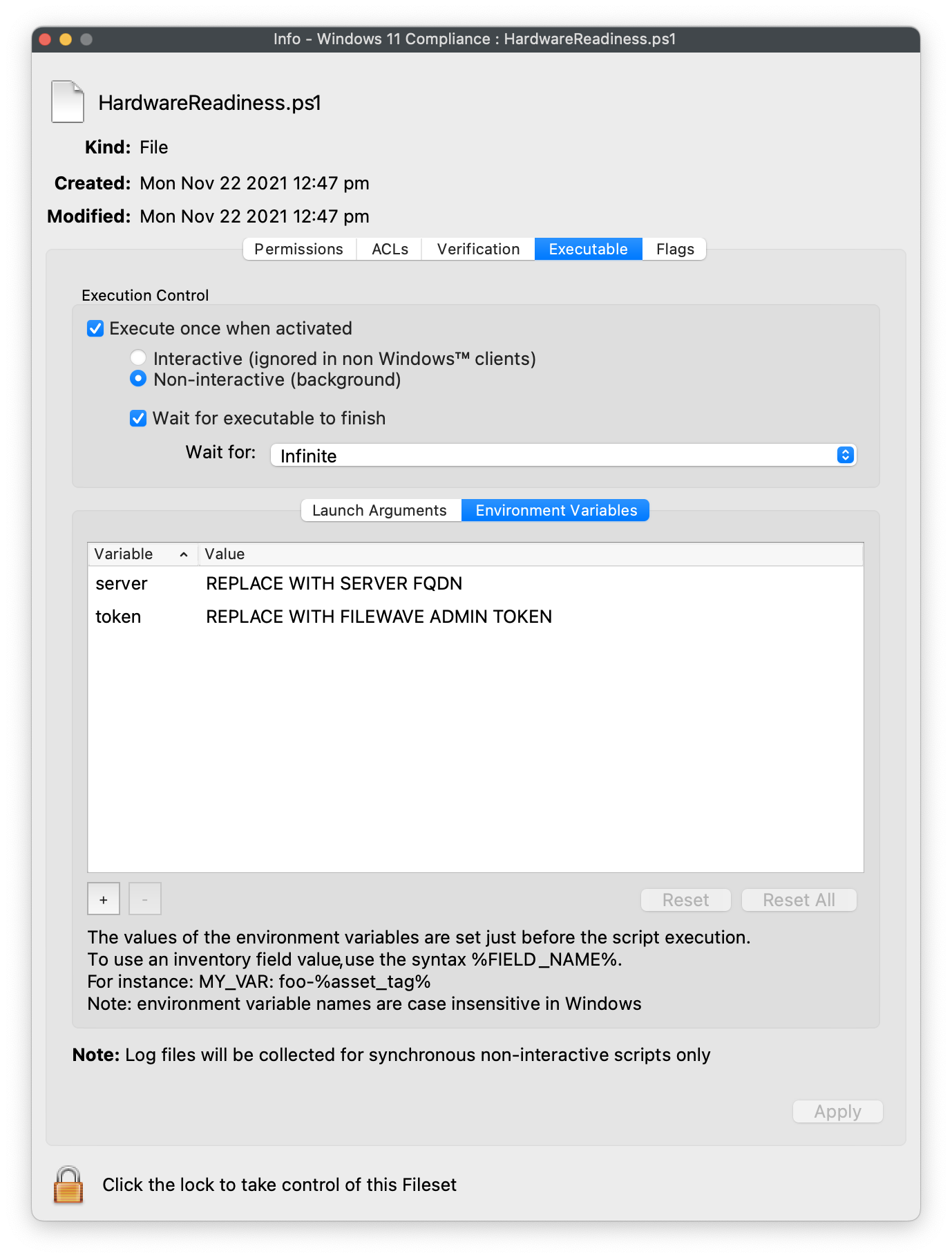
- The 'value' for the 'server' variable should be replaced with the name of the server as seen in Preferences > Mobile of the Admin console
- The 'value' for the 'token' should be replaced with a chosen Admin token from: Assistants > Manage Administrators > (Chosen Account Name) > Application Tokens. Copy the 'Token (base64)'
Additional Information
The Fileset will use the FileWave API to report back the current status of the device's compatibility during Fileset activation. If devices are addressed to change their compatibility status, it is possible to run a 'Reinstall Fileset' which will cause the API to update the current information, refreshing the Custom Field.
The full output of the script will be available in the script log, accessible from the right click menu item of a Fileset's script status view from Client Info (local network between Admin device and selected machine is required). A failure example:
{"returnCode":1,"returnReason":"TPM, Processor, ","logging":"Storage: OSDiskSize=98GB. PASS; Memory: System_Memory=4GB. PASS; TPM: TPMVersion=False. FAIL; Processor: {AddressWidth=64; MaxClockSpeed=2494; NumberOfLogicalCores=4; Manufacturer=GenuineIntel; Caption=Intel64 Family 6 Model 70 Stepping 1; }. FAIL; SecureBoot: Capable. PASS; ","returnResult":"NOT CAPABLE"}
Self-Signed Certs
The Fileset Activation Script 'HardwareReadiness.ps1' must be edited to allow for Self-Signed Certificates. The following section should have the mentioned lines updated to remove the leading hashes. After removal it should look like the following:
#####################################################
# Beginning of ammendment for FileWave Custom Field report

# REMOVE HASHES FROM FOLLOWING 12 LINES IF USING A SELF-SIGNED CERTIFICATE
add-type @"
using System.Net;
using System.Security.Cryptography.X509Certificates;
public class TrustAllCertsPolicy : ICertificatePolicy {
public bool CheckValidationResult(
ServicePoint srvPoint, X509Certificate certificate,
WebRequest request, int certificateProblem) {
return true;
}
}
"@
[System.Net.ServicePointManager]::CertificatePolicy = New-Object TrustAllCertsPolicy
The client must be able to reach the server on port 443 to be able to post the API update back to the server.
Result
The Custom Field for the Simplified and Advanced methods actually provides 3 possible values:
- NA – Default value
- Fail — One or more items failed the check
- Pass – All items passed the check and the device is ready for Windows 11
Notes
These options are by no means the only options available. The script could be used within an Upgrade Fileset for Windows 11, for example, and the script may run prior to confirm if the device satisfies the requirements. However, requirement scripts should only be used where they will eventually become true, to prevent them from running forever and being a constant draw on the server.
Using Native Windows Tools to Troubleshoot
What
Things break, thank goodness! If they didn't all IT engineers would be out of work. But what do you do when things break? Specifically, if a FileWave client on a Windows device isn't working right, what tools are available to help? Turns out there are tons of options!
When/Why
We'll turn to other tools whenever we need an alternate method of confirming things with remote machines. This list isn't meant to be all-inclusive, but is a great "starter pack" of tools you can use!
Note that access to remote Windows tools is always reliant on being logged in with a MSFT account that has rights to perform those actions.
How
Here is a list of super-helpful tools:
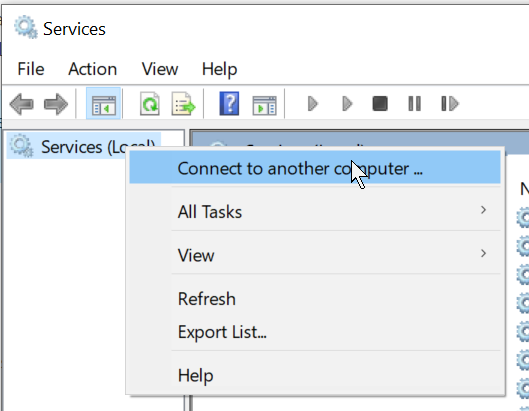
- Services App: Everyone knows the services app, but did you know you can use it against remote machines too? Just right-click on Services and choose to connect to another computer (by name or IP). Great for checking, starting and stopping services.

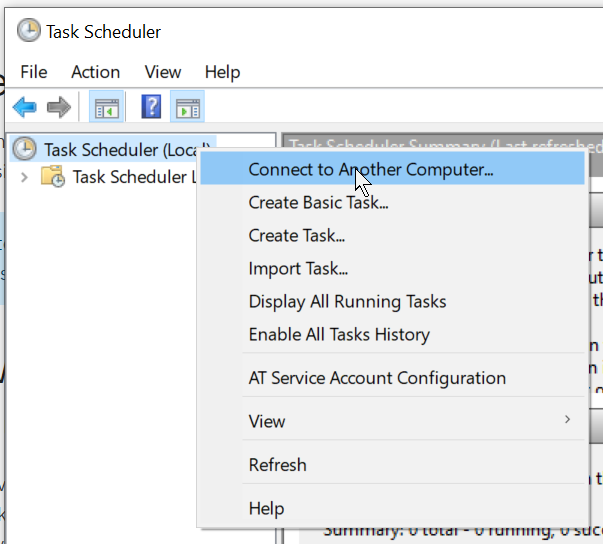
- Task Scheduler: Task scheduler is also available for remote connection:
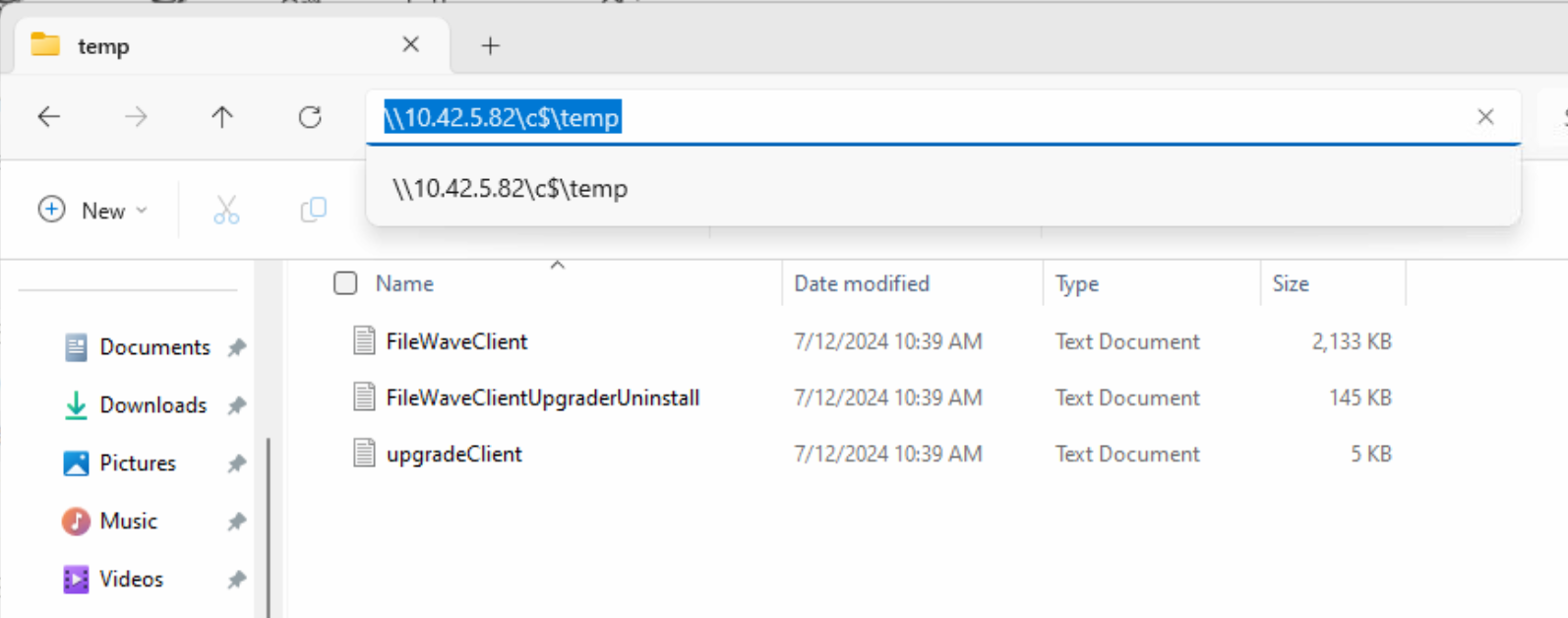
- The remote file system: Yep, you read that right, you can actually browse the remote machine's files. In explorer, just navigate to \\ip(or name)\c$. Great for looking at log files and generally just checking file status.
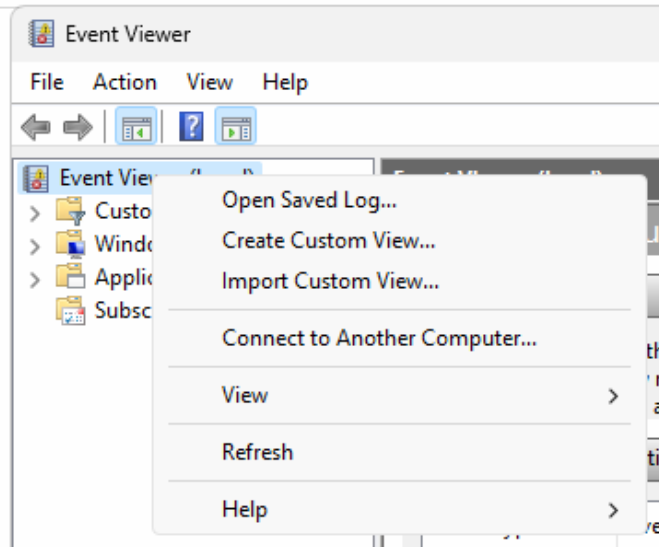
- Event Viewer: You can also remotely connect to Event Viewer, which is an excellent tool for MSI troubleshooting in particular:
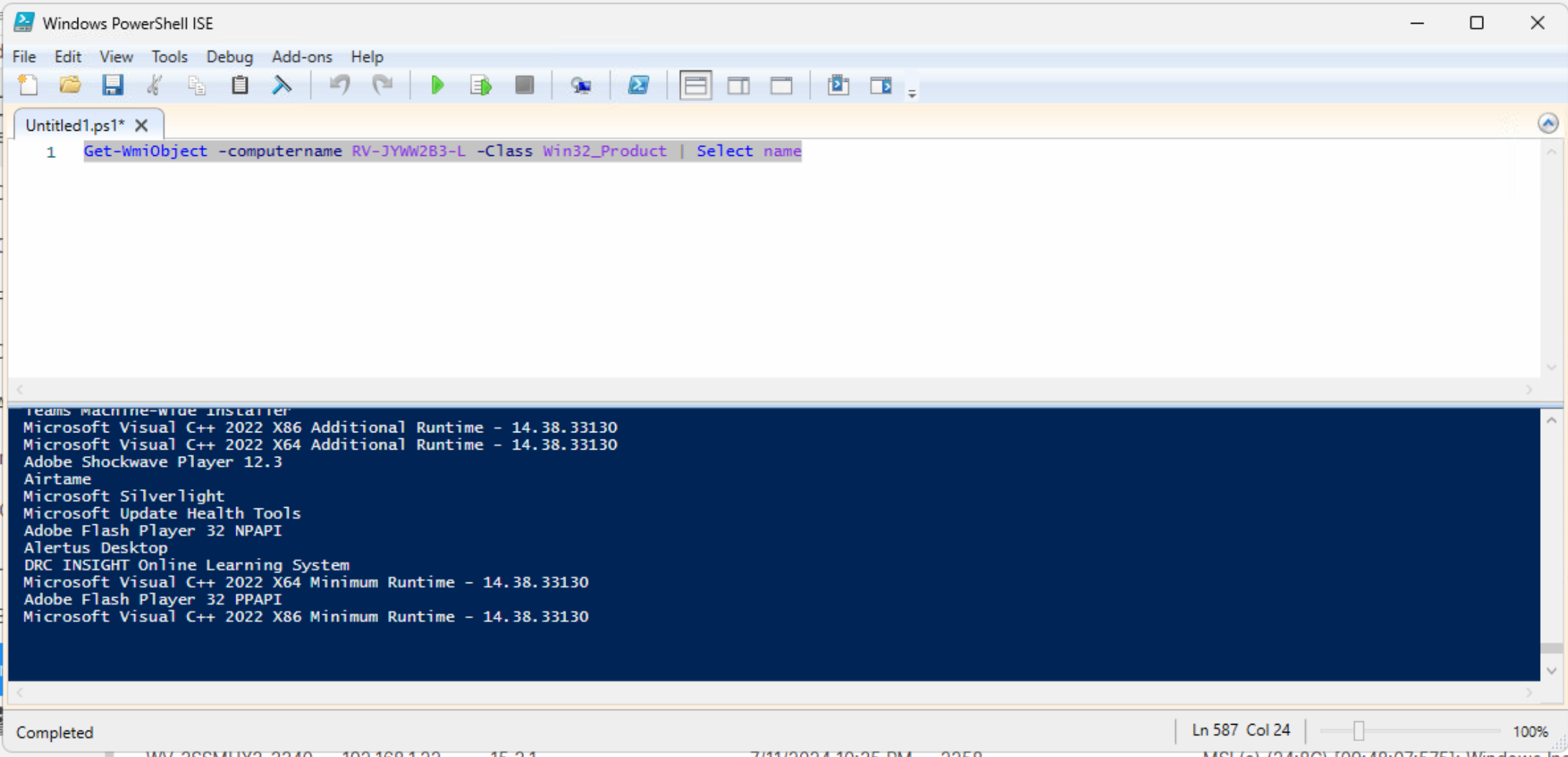
- PowerShell: PowerShell is a fantastically helpful tool, and you can do almost anything with it. For instance, you can't use the Add/Remove Programs tool to remotely access another machine, but you can use PowerShell to remotely connection and see what is installed:
- PSTools: PSTools aren't native to Windows, but they are an excellent source for a wide range of utilities, PSEXEC in particular. (Link below about using PS Tools)
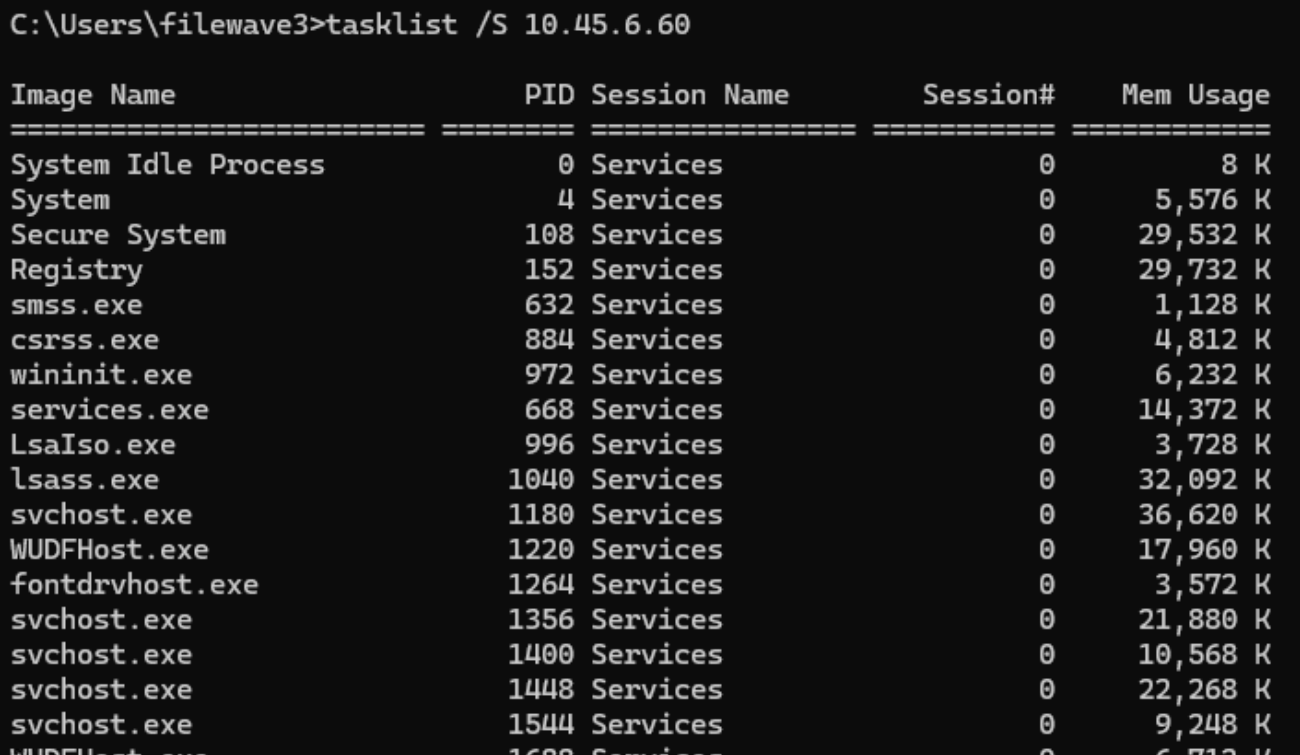
- Tasklist and Taskkill: These are old school DOS commands, but are super helpful to see running processes on remote machines (and to kill them if necessary. Do tasklist /? or taskkill /? for instructions:
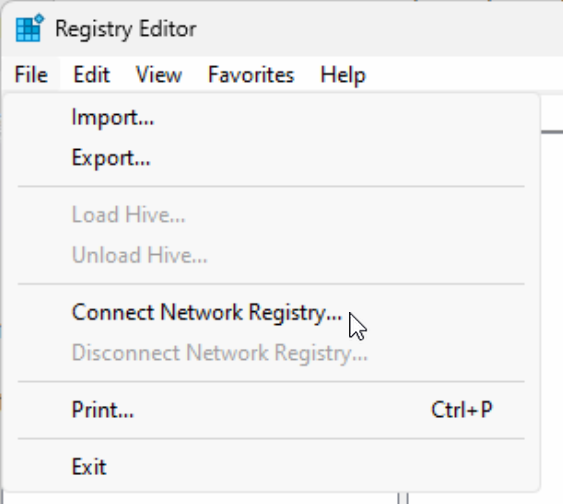
- Regedit: Yes, even regedit can connect to remote registries. For FileWave specifically this is helpful to change client preferences if client monitor isn't working:

Related Content
- PSExec as a Helper in Troubleshooting
- Script Best Practices
- Using PowerShell to Remotely Check the Windows FileWave Client Status
Windows 64-Bit Client and Fileset Behavior
What
With the release of FileWave 15.5, significant changes have been made to enhance security and performance on Windows platforms. FileWave now relies on updated open-source components, notably Qt 6, which supports only 64-bit operating systems. This shift means that FileWave Client, FileWave Booster, and FileWave Central are now exclusively 64-bit applications on Windows. As a result, FileWave 15.5 and later cannot run on Windows 32-bit editions.
The 64-bit transition affects FileWave component compatibility, Fileset file paths, Registry views, and script execution. Review older Windows Filesets before changing their architecture behavior.
Current FileWave Windows Client versions run 64-bit. Custom Fields can also run 64-bit when On Windows, run as 64-bit is enabled. Older Custom Fields may remain configured for 32-bit execution after an upgrade so existing scripts continue to behave as before. Enable 64-bit execution only after validating PowerShell modules, Registry views, paths, executables, and other external dependencies. See Running Built-in PowerShell Commands with Custom Fields for the detailed Custom Field workflow.
When to review Windows architecture
When to Be Aware
- Upgrading FileWave Components on Windows: If you plan to upgrade the FileWave Client, Booster or Central on Windows devices to version 15.5 or newer.
- Managing Windows Devices: When deploying filesets to Windows devices, especially during the transition from 32-bit to 64-bit clients and servers.
Why This Change Matters
- Performance Improvements: 64-bit applications can handle more memory and may perform better than their 32-bit counterparts.
- Future-Proofing: Aligns FileWave with modern operating systems, many of which are phasing out 32-bit support.
However, this change necessitates adjustments in how filesets are configured and deployed, particularly concerning file system paths and registry entries on Windows devices.
How
Impact on Fileset Delivery and Management
On Windows systems, the installation paths differ between 32-bit and 64-bit architectures:
- 32-bit Windows: Applications install to C:\Program Files\
- 64-bit Windows:
- 32-bit Applications: Install to C:\Program Files (x86)\
- 64-bit Applications: Install to C:\Program Files\
To maintain compatibility with legacy 32-bit applications, Windows uses a system called WOW64 (Windows On Windows 64). This system automatically redirects file system calls from 32-bit applications attempting to access C:\Program Files\ to C:\Program Files (x86)\, ensuring that older applications function correctly on 64-bit systems.
Previous Behavior with FileWave 15.4 and Earlier
- FileWave Client, Booster, and Central on Windows were 32-bit applications.
- Due to the FileWave Client running in 32bit mode it would sometimes lead to confusion about paths used by the OS for someone new to FileWave until an administrator would remember to always factor that in.
- This redirection affected file deployment locations, registry entries, and script execution environments.
Configure current Windows Filesets
New Windows Filesets use 64-bit execution by default. For existing content, open the Fileset properties in FileWave Central and choose the architecture behavior deliberately:
- Enabled — On Windows, run as 64-bit: Use when the payload or script needs native 64-bit PowerShell modules, Windows components, Registry view, or normal 64-bit path behavior.
- Disabled — preserve 32-bit execution: Use only when the application, COM component, script, Registry view, executable, or path behavior deliberately depends on the 32-bit environment.
- File paths: 64-bit applications normally use
C:\Program Files\; 32-bit applications normally useC:\Program Files (x86)\. - Registry: 32-bit processes can be redirected to
Wow6432Node. Test the exact Registry view your Fileset changes. - Scripts: Use
Sysnativeonly when a 32-bit process must reach the native 64-bitSystem32tools. It is not required for scripts already running 64-bit.
Configure Windows Blocker Scripts
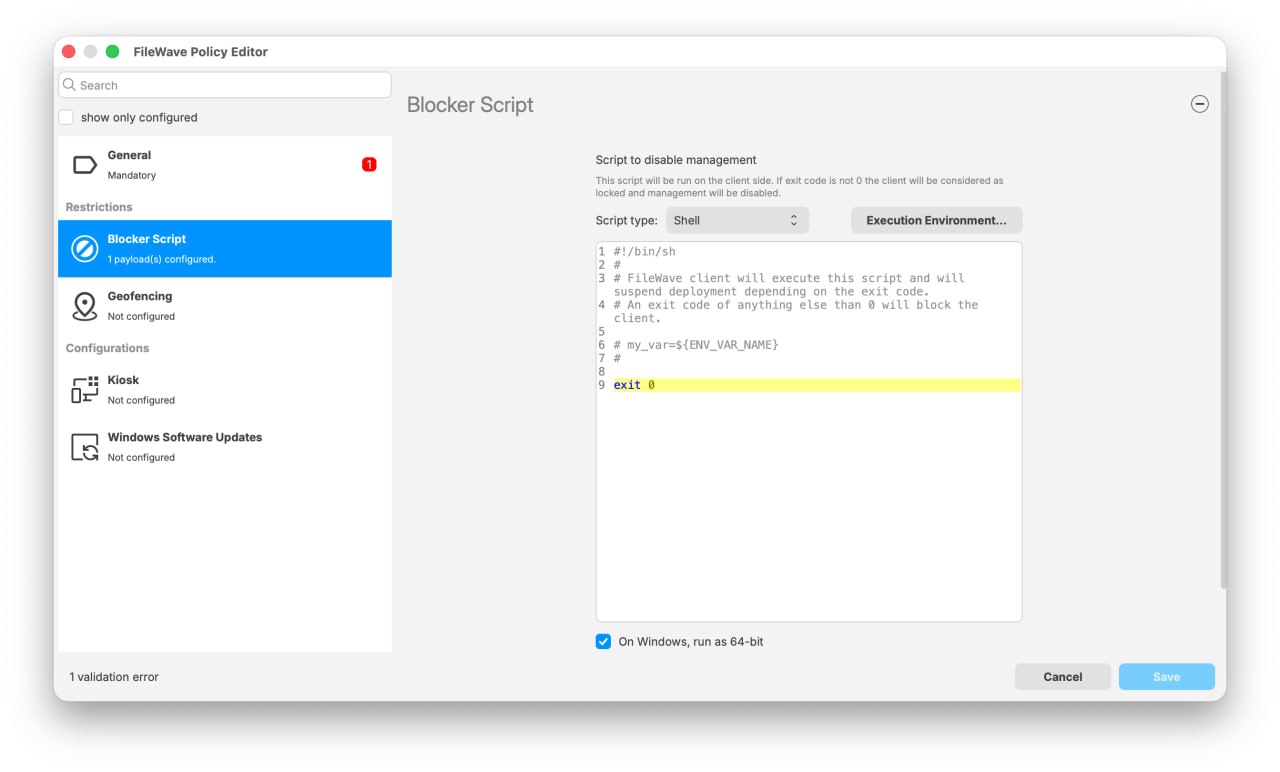
Blocker Scripts have the same On Windows, run as 64-bit control in the FileWave Policy Editor. The setting is checked by default for a new Blocker Script.
Older Blocker Scripts remain unchecked after upgrade so they continue to run with their existing 32-bit behavior. Do not enable 64-bit execution on an older script merely to match the new default. First review and test its PowerShell modules, Registry view, paths, executables, COM components, and other dependencies; then enable the setting when the script has been updated and validated for 64-bit execution.
Migration Considerations
To facilitate the transition:
- New Filesets:
- Filesets created with FileWave 15.5 or later default to 64-bit.
- Existing Filesets:
- Filesets created before FileWave 15.5 are automatically marked as 32-bit during the upgrade to maintain their original behavior.
- You can change these filesets to 64-bit if necessary by editing their properties.
A script that depends on a 32-bit path, Registry view, or executable may need changes before you switch its Fileset to 64-bit execution.
Before wide deployment, test filesets to ensure they install correctly on target Windows devices with the appropriate architecture settings.
Impact on FileWave Booster and Central
The transition also affects FileWave Booster and FileWave Central on Windows:
- FileWave Booster:
- Now a 64-bit application on Windows, requiring a 64-bit Windows operating system.
- Ensure that the hardware and OS of the server running the Booster are compatible before upgrading.
- FileWave Central:
- Also transitioned to 64-bit on Windows, necessitating updates to any Windows systems running this component.
- Verify system compatibility.
Careful planning and testing are essential to ensure a smooth transition and to prevent deployment errors on Windows devices.
Related Content
Plan FileWave Compatibility for Windows Enterprise LTSC
What Windows Enterprise LTSC is
Windows Enterprise Long-Term Servicing Channel (LTSC) is intended for special-purpose devices that perform a fixed task, such as medical systems, digital signs, or kiosks.
These systems usually need a stable feature set for years and should have little dependence on apps that change frequently.
LTSC receives monthly quality updates, including security fixes, but does not receive the regular feature updates delivered to the general availability channel. New feature sets arrive in later LTSC releases.
Microsoft's Windows Enterprise LTSC overview lists each LTSC release, its equivalent general availability release, and the servicing model.
App and feature availability differs by LTSC release. Check the documentation for the exact release instead of relying on a blanket list of included or missing apps.
Microsoft recommends the general availability channel for ordinary user PCs that need current Windows features and broad third-party application support.
Microsoft does not recommend LTSC for most or all PCs in an organization. Use it for a defined special-purpose workload with a tested application and management plan.
Browser availability also differs by release. For example, Windows 11 Enterprise LTSC 2024 includes Microsoft Edge and does not include Internet Explorer.
How does this impact FileWave?
Microsoft gives this compatibility warning for LTSC releases:
"Since the feature set for LTSC doesn't change for the lifetime of the release, over time there might be some external tools that don't continue to provide legacy support."
FileWave must support changes in current Windows releases and in the third-party components used by FileWave Client.
An LTSC release can remain under Microsoft support after an external library or management component stops supporting that Windows generation. Microsoft lifecycle support therefore does not guarantee compatibility with every FileWave Client release.
Security or supplier support may require FileWave to replace a dependency, and the replacement may not run on an older LTSC release.
Check the exact LTSC release against the platform-support table for the FileWave version you plan to deploy. Do not infer FileWave compatibility from Microsoft's end-of-support date alone.
Taking a look at some lifetime examples, Windows 10 2016 LTSB was Microsoft's offering, pre-dating LTSC:
| Release Date | Mainstream End Date | Long Term End Date | |
| Windows 10 2016 LTSB (1607 equivalent) | Aug 2, 2016 | Oct 12, 2021 | Oct 13, 2026 |
Microsoft lists mainstream support for Windows 10 2016 LTSB through October 12, 2021 and extended support through October 13, 2026. FileWave Client behavior outside the tested platform list may change before Microsoft's extended-support date.
FileWave's Downloads pages list operating systems that are fully tested and those expected to work for each release.
If an LTSC release is absent from those tables, treat it as unverified and test it before changing either the FileWave Server or Client.
Record the Windows edition, LTSC release, FileWave Client version, and required device workflow in the test plan. The word LTSC alone is not a compatibility result.
Plan upgrades
Before upgrading FileWave, pilot the target Server and Client combination on representative LTSC devices. Older FileWave Clients can often communicate with newer Servers, but feature support and minimum-version requirements still need verification.
If the newest Client is not compatible, hold the Client version only on the affected LTSC devices while you test an operating-system or application replacement plan.
Review the target FileWave release page for minimum Client and Server compatibility before production rollout. Test inventory, Fileset deployment, remote actions, and any device-specific workflow the LTSC system must keep performing.
Do not leave the FileWave Server unpatched solely to preserve an old LTSC endpoint. Escalate the compatibility decision to FileWave Technical Support and plan isolation or replacement for the affected device.
Retest the LTSC workflow before every FileWave upgrade. Prior success proves only the versions and functions that were tested at that time.