Configuration Service Providers (Profiles)
Windows MDM uses CSPs which are profiles that configure Windows.
Windows MDM Policies (aka Profiles)
What
Windows configuration policies let you define and enforce settings on Windows devices that are enrolled in MDM. They are the Windows equivalent of a profile and cover settings such as BitLocker, Bluetooth, connectivity, cloud and storage, and device restrictions.
When/Why
Use a Windows profile when you want to apply Windows policy settings through FileWave to MDM-enrolled devices. The available categories will continue to expand over time, but the workflow stays the same.
How
To create a Windows profile in the web admin:
-
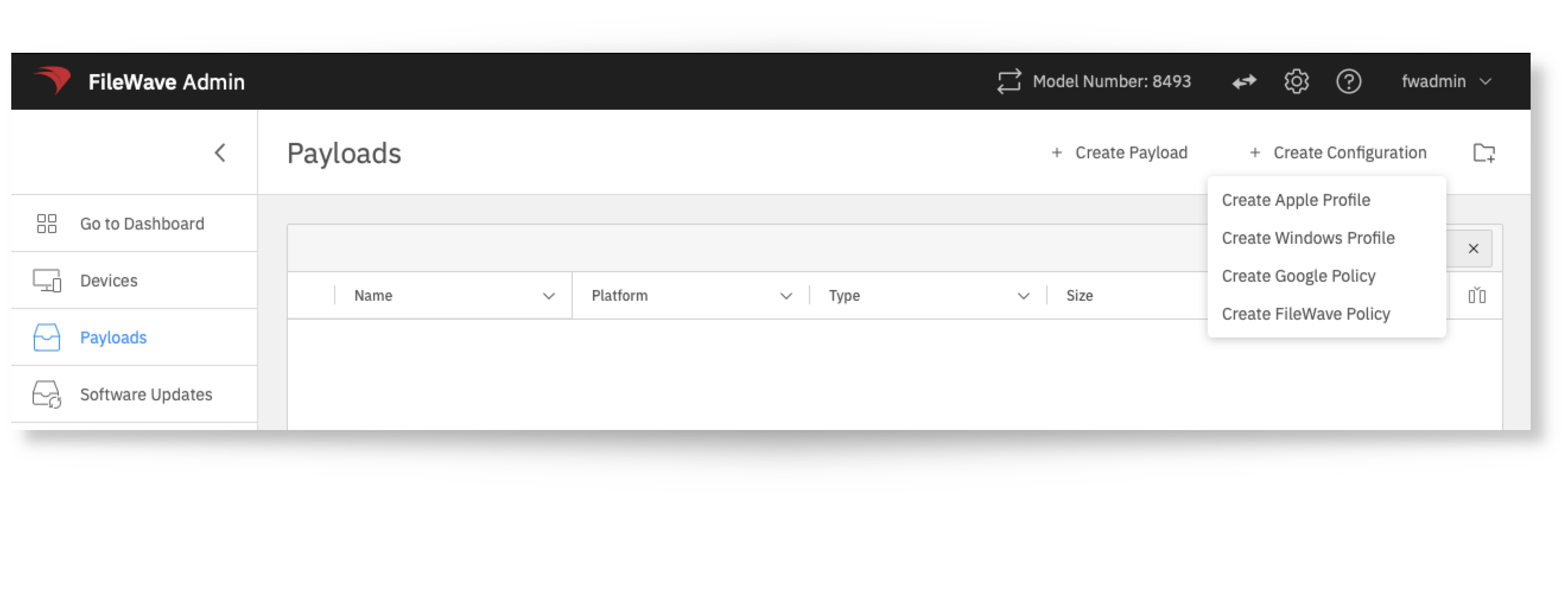
Open Payloads and click the + button.
-
Select Create Profile, then choose Create Windows Profile.

-
Configure the profile settings you want to enforce. The General category is mandatory, the profile must include at least one payload category before it can be saved, and the Installation Scope can be set to System or User.

-
Save the profile, then deploy it to the target device or device group from the deployment view.
-
Windows profiles require Windows devices that are enrolled through MDM.
You have now deployed a Windows profile.
FileWave does not currently show policy installation command history for Windows MDM profiles in the admin UI.
Windows MDM Software Updates CSP
What
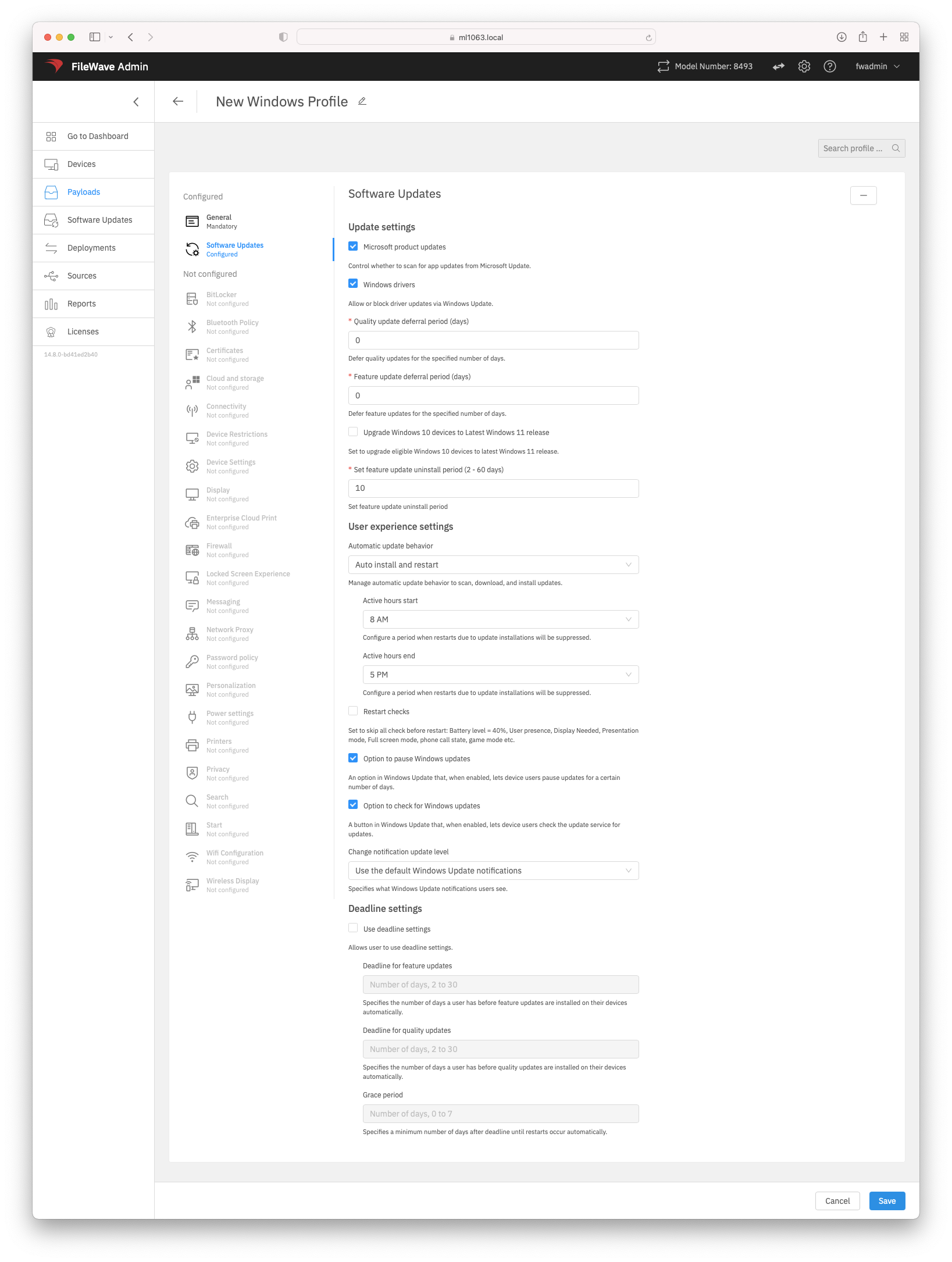
Windows Software Updates in a Windows Profile uses Microsoft's Update Policy CSP to manage Windows Update behavior on enrolled Windows devices. The profile can control settings such as Microsoft product updates, driver updates, feature and quality update deferrals, Windows 10 to Windows 11 targeting, automatic update behavior, active hours, restart checks, user access to pause/check updates, notification level, and deadline/grace-period settings.
When/Why
Use this payload when Windows 10 or Windows 11 devices are enrolled with Windows MDM and you want FileWave to deliver Windows Update policy through MDM instead of relying on local device settings. Windows Profiles are created and edited in FileWave Anywhere; if you open a Windows Profile from FileWave Central/Admin, editing is handed off to Anywhere Admin.
How
- In FileWave Anywhere, open Payloads.
- Select Create Windows Profile.
- Open the Software Updates section and configure the update settings that match your update policy.
- Save the profile, then deploy it to the appropriate Windows MDM devices.
Each option in the Software Updates payload includes inline help in the UI. Review Microsoft’s Update Policy CSP documentation if you need the underlying CSP path or Windows behavior for a specific setting.