# Microsoft Windows MDM Setup
Integration of FileWave with Microsoft Windows MDM requires some initial setup. This is likely a one-time configuration for your environment, depending on complexity.
On initial setup, we'll need to make sure we can satisfy the licensing pre-requisites, publish a custom FileWave client, set our acceptable use terms, and finally create and configure the AAD MDM application itself.
# Pre-Requisites of Windows MDM Setup
## What
FileWave can use Microsoft Windows MDM to enroll and manage Windows endpoints through Microsoft Entra ID. Microsoft licensing and tenant prerequisites are outside FileWave and must be in place before Windows MDM enrollment will work.
## When/Why
Confirm Microsoft licensing before you plan Windows MDM enrollment. FileWave still requires a FileWave Client license for each managed endpoint. On the Microsoft side, the key requirement is access to Microsoft Entra ID automatic MDM enrollment, typically through Microsoft Entra ID P1 or P2 or a Microsoft 365, Education, Enterprise Mobility + Security, or equivalent bundle that includes that capability.
Microsoft Intune is not required just because you are using Windows MDM with FileWave. Microsoft’s setup screens and documentation often live in the Intune or endpoint-management admin areas, but FileWave can be configured as the MDM service for the scoped users. If you also use Intune or another MDM, do not scope the same users or devices to both services for MDM enrollment; a Windows device should be enrolled in one MDM service at a time.
## How
Before configuring FileWave Windows MDM, confirm these Microsoft-side requirements:
- A Microsoft Entra ID tenant is available for the organization.
- The enrolling users have Microsoft Entra ID P1/P2, or a bundle that includes the required automatic MDM enrollment functionality. The older name was Azure Active Directory Premium P1/P2; Microsoft now uses Microsoft Entra ID P1/P2.
- The users who should enroll through FileWave are included in the FileWave MDM application’s **MDM user scope** in Microsoft Entra ID.
- The same users are not also scoped to Intune or another MDM service for MDM enrollment unless you are intentionally separating user groups by MDM provider.
- For Windows Autopilot workflows, the tenant and devices also meet Microsoft’s Autopilot software, networking, licensing, and configuration requirements.
### Microsoft Entra integration with MDM
[Microsoft Entra integration with MDM | Microsoft Learn](https://learn.microsoft.com/en-us/windows/client-management/azure-active-directory-integration-with-mdm)
Microsoft documents how Windows uses Microsoft Entra ID with third-party MDM providers. In FileWave’s setup, the FileWave MDM application provides the Terms of Use and MDM discovery/enrollment URLs.
### Windows Autopilot requirements
[Windows Autopilot requirements | Microsoft Learn](https://learn.microsoft.com/en-us/autopilot/requirements)
Windows Autopilot is the Microsoft framework that lets Windows devices enroll during initial setup. Microsoft’s Autopilot licensing requirements include Microsoft Entra ID and an MDM service such as Microsoft Intune or an alternative MDM service.
### Microsoft Intune and endpoint management
[Endpoint Management at Microsoft | Microsoft Learn](https://learn.microsoft.com/en-us/mem/endpoint-manager-overview)
Use Microsoft Intune documentation when the customer is also using Intune-managed workflows. Do not treat Intune as a required FileWave Windows MDM prerequisite.
Microsoft Store for Business and Microsoft Store for Education were retired by Microsoft. Do not treat Store for Business access as a current Windows MDM prerequisite.
# Configure the FileWave Client Package for Windows MDM
#### **What**
FileWave Windows MDM uses both Microsoft's MDM protocol and the native FileWave Client. MDM handles enrollment and policy commands, while the FileWave Client provides Filesets, inventory, and other client-based management.
#### **When/Why**
Configure the Windows Client enrollment package before enrolling Windows devices so the native FileWave Client can be installed automatically. FileWave Server 16.4.0 and later builds and stores the package directly in FileWave Central. FileWave Server 16.3.x and earlier requires a separately built custom MSI to be uploaded.
**Enrollment package:** This package is for new Client installations and Windows MDM enrollment. It is not the workflow for upgrading an already enrolled FileWave Client.
#### **How**
**Before you begin:** Confirm that the FileWave Server is healthy and backed up, uses a valid trusted certificate, has saved Preferences at least once, and has completed at least one Model Update. Saving Preferences creates required shared settings; Model Update creates the internal URLs used by this workflow.
| FileWave Server version | Windows Client package workflow |
|---|
| **16.4.0 and later** | Build the package on the **Mobile > Windows** settings page in FileWave Central. No separate upload is required. |
| **16.3.x and earlier** | Build the MSI with the [Customer Installer Builder](https://custom.filewave.com/py/custom_client_win.py), then upload it on the **Mobile > Windows** settings page. |
##### FileWave Server 16.4.0 and later: Build the package in Central
1. Open FileWave Central, then open **Preferences**.
2. Open **Mobile > Windows**.
3. Select **Show settings** and review the enrollment-package configuration.
4. Select **Build Windows client package**.
5. Wait for the page to show **Ready for Enrollment**. The package is now stored for Windows MDM enrollment; there is no separate upload step.
6. Use **Download Windows client package** only when you need a standalone copy of the generated installer.
7. Enable **Keep the package up to date** if FileWave should automatically regenerate the Windows Client package after a Server upgrade.
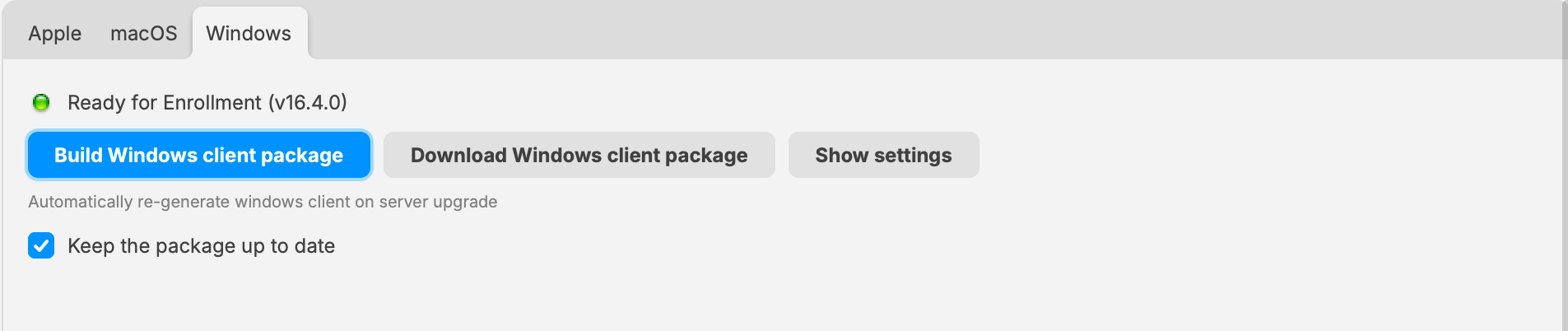
*FileWave 16.4.0 and later builds and stores the Windows Client package directly on Mobile > Windows.*
##### FileWave Server 16.3.x and earlier: Upload the custom MSI
1. Build the custom Windows Client MSI with the [Customer Installer Builder](https://custom.filewave.com/py/custom_client_win.py).
2. Open FileWave Central, then open **Preferences**.
3. Open **Mobile > Windows**.
4. Upload the custom Client MSI as shown below.
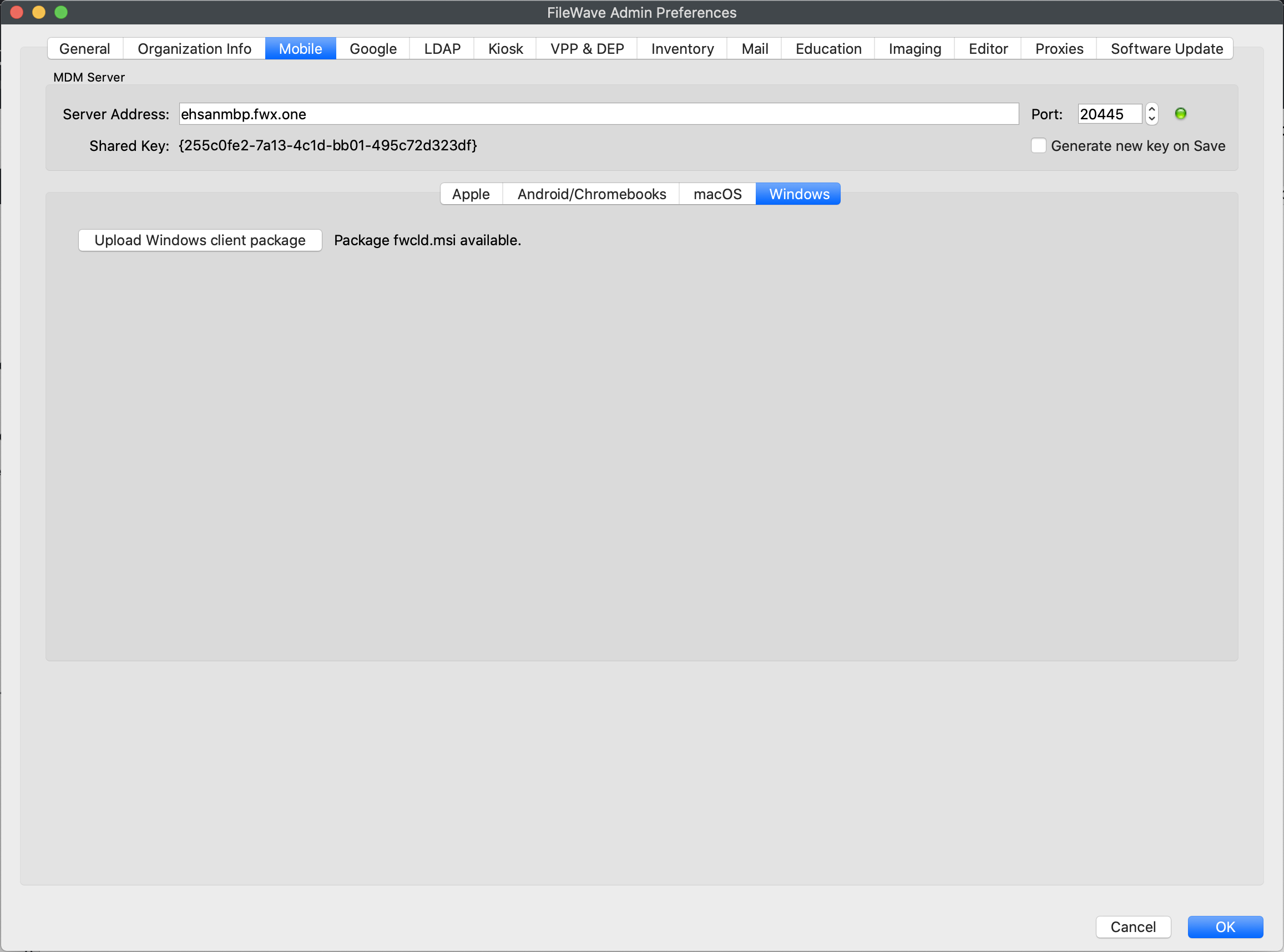
*FileWave 16.3.x and earlier uses the upload workflow shown in this older interface.*
# Part 2: Configure Windows MDM Terms and Conditions
#### **What**
Configure the Terms & Conditions page before users enroll Windows devices through FileWave Windows MDM. The enrollment flow displays the title and content you publish here.
#### **When/Why**
Use this page to explain what users are agreeing to and what management actions your organization may perform on an enrolled device. Have the final wording reviewed under your organization's policy before enrollment begins.
#### **How**
##### Edit the page in FileWave Anywhere
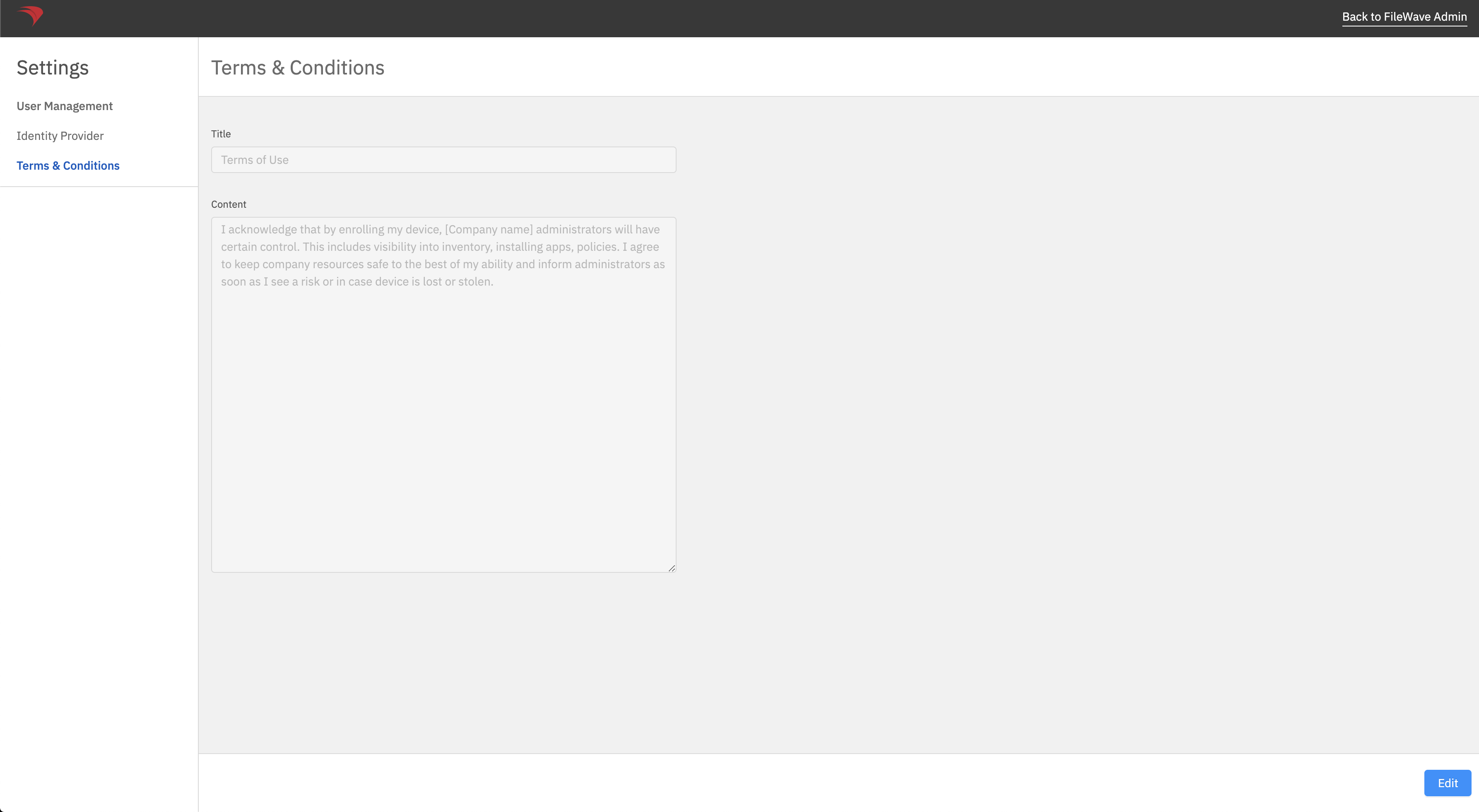
FileWave Anywhere provides separate **Title** and **Content** fields for the enrollment page.
1. In FileWave Anywhere, open **Settings**.
2. Select **Terms & Conditions**.
3. Select **Edit**, update the **Title** and **Content**, then save the page.
4. Test a Windows MDM enrollment and confirm that the final text is readable before inviting users to enroll.
# Part 3: Setting up the Portal App
#### **What**
Your Windows MDM integration uses an application that you create in the Microsoft Entra admin center.
#### **When/Why**
This application connects Windows Autopilot enrollment, the scoped Microsoft Entra users, and the MDM discovery redirection to your FileWave MDM server. Detailed setup steps follow.
#### **How**
##### Add the Entra ID account in FileWave
1. Open FileWave Anywhere (Web Admin) and navigate to **Sources*****.***
2. Click the **Microsoft** tab.
3. Click on **New account,** and you should see the following form:
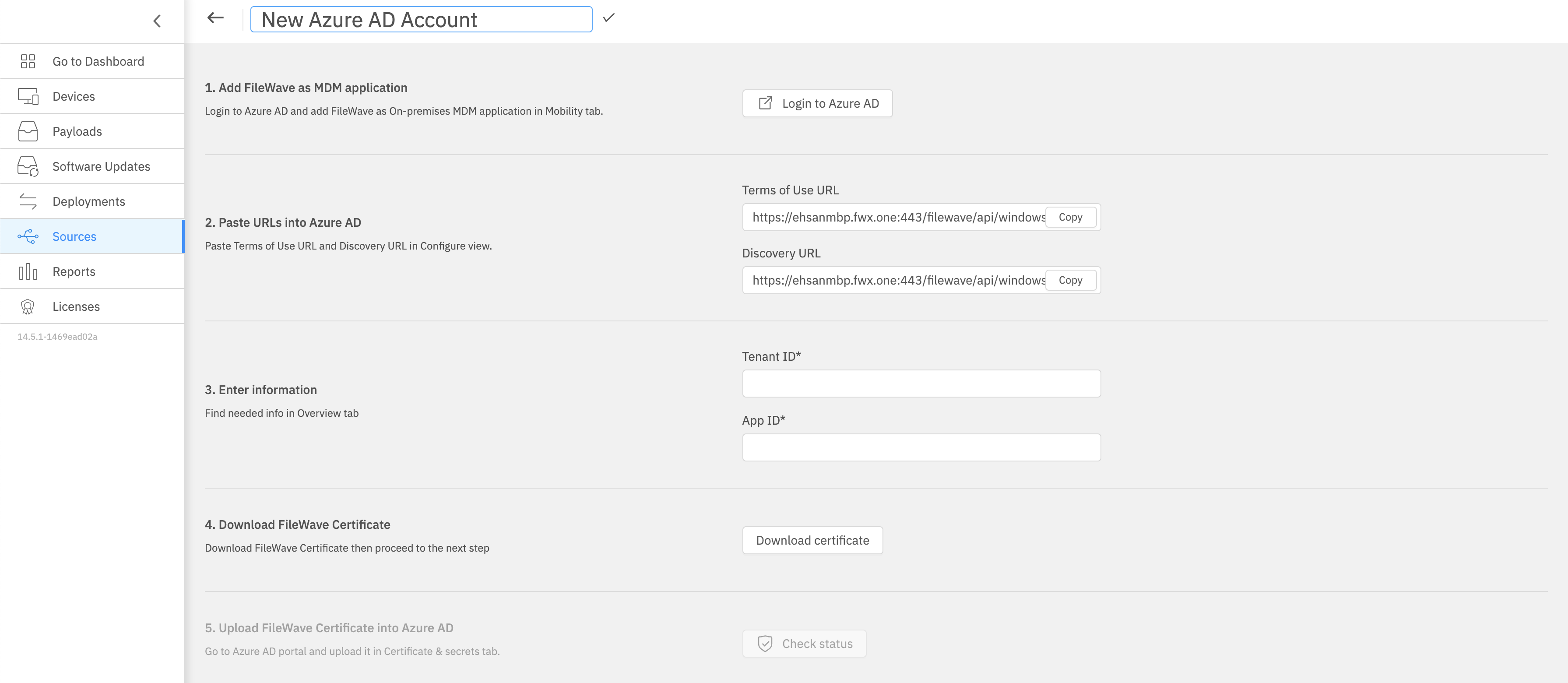
Keep this form open for completion in later steps.
#### Configuring Microsoft Entra ID
##### *Creating an MDM application*
To enable MDM enrollment, first, you need to configure your Microsoft Entra ID to recognize your FileWave server as your MDM.
1. Go to your Microsoft Entra ID portal: [https://entra.microsoft.com](https://entra.microsoft.com)
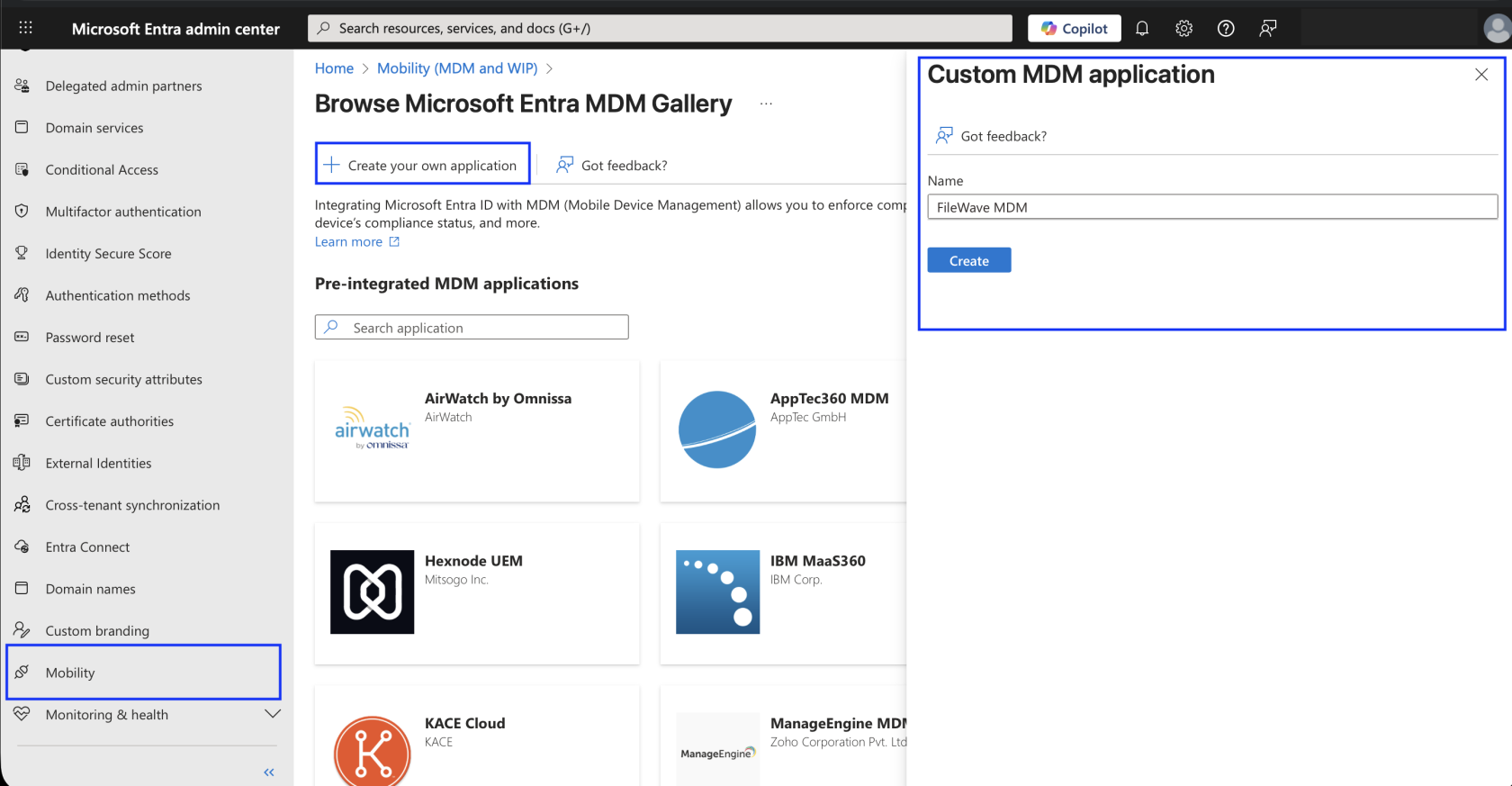
2. From Home, navigate to **Entra ID** → **Mobility** and then click **Add application**.
3. Select **Create your own application**, give it a name and logo if needed, and click **Create**.
[](https://kb.filewave.com/uploads/images/gallery/2025-09/a43YWb4CH6opNcMF-screenshot-2025-09-09-at-9-56-03-am.png)
##### *Configuring your MDM application*
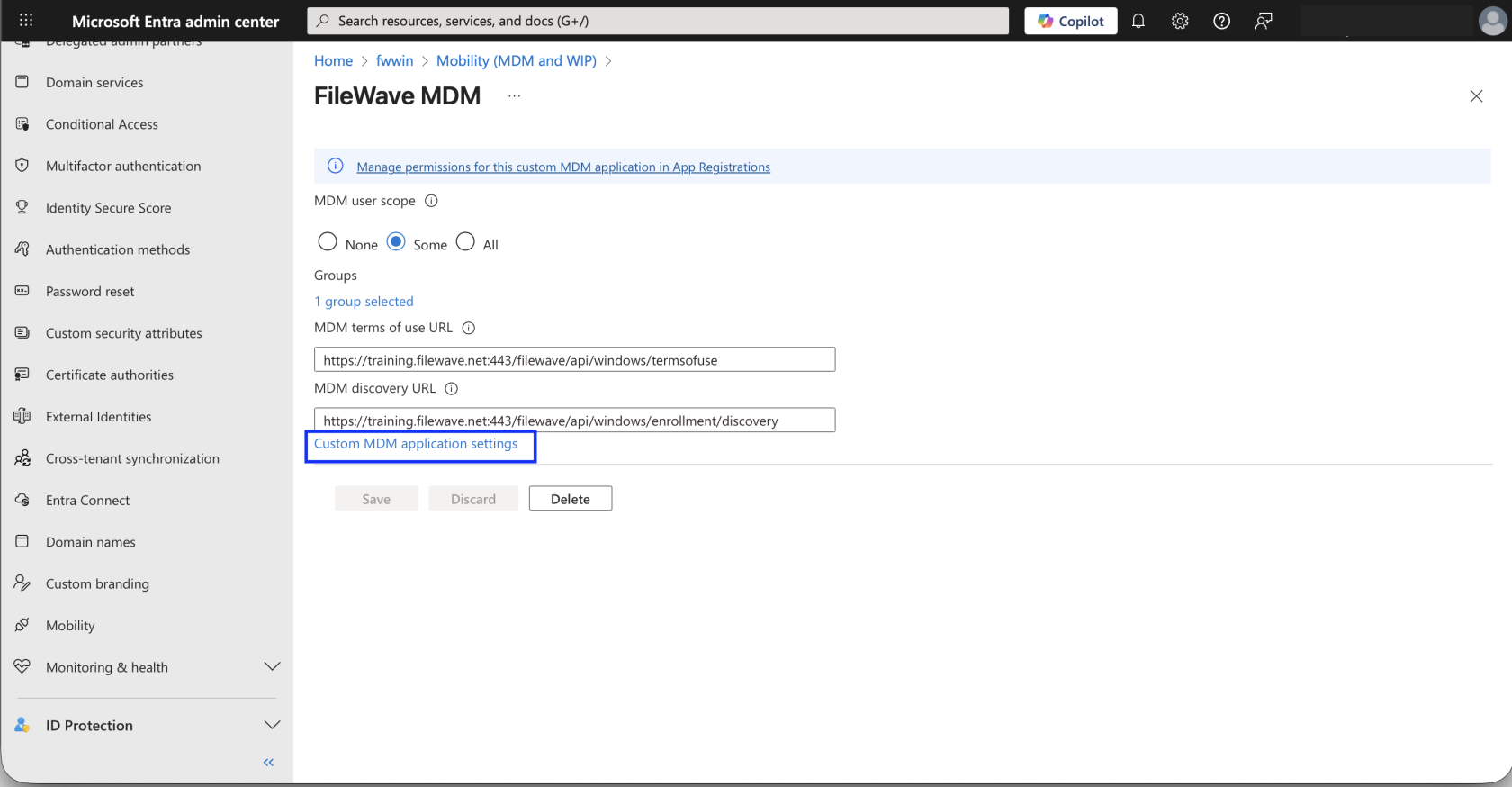
1. You will now be prompted to configure MDM user scope:
1. **MDM user scope**: This is where you indicate which users can enroll their devices using this MDM application. You can either choose:
1. **All***:* Force all users to use this MDM application. (Preferred)
2. **Some*****:*** You can select user groups that are allowed to use this MDM application to enroll their devices. If you do use this, then you will need to make sure that you make a Group to restrict this, and add all of the users who will have their devices managed by MDM in that same group.
2. **MDM terms of use URL:**
Copy the value from the form you opened up in FileWave Anywhere (Web Admin) earlier.
3. **MDM discovery URL:**
Copy the value from the form you opened up in FileWave Anywhere (Web Admin) earlier.
If another MDM service, such as Microsoft Intune, is also configured, do **not** scope the same users to both Intune MDM and FileWave Windows MDM. A device should only enroll into one Windows MDM service. If the same user is scoped to two MDM services, enrollment can fail with a permissions or enrollment error. To test FileWave enrollment, set the competing MDM user scope to **None** for the affected users, wait a few minutes, and retry enrollment.
You can still enroll a Windows device into Intune MDM and install the FileWave Client separately, but Windows MDM profiles would then come from Intune, not FileWave. Decide which MDM service owns Windows MDM enrollment for each user group before rollout.
##### *Integrating FileWave and Microsoft Entra*
After configuring your MDM application, on the same page, click on the small link that reads: **Create MDM application settings.**
[](https://kb.filewave.com/uploads/images/gallery/2025-09/9xyDtFacLKvAJaSw-screenshot-2025-09-09-at-10-12-26-am.png)
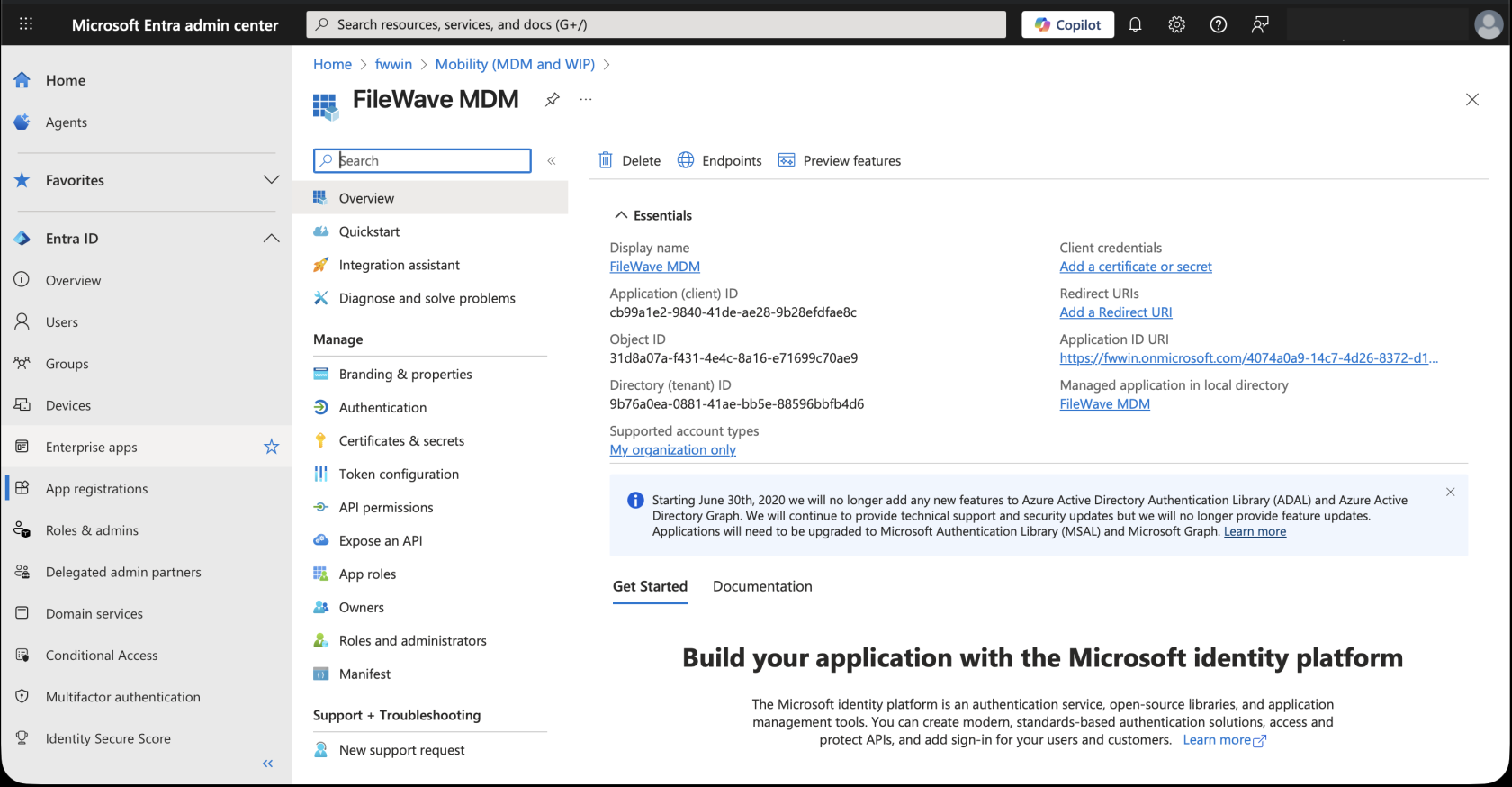
You should see the following page:
[](https://kb.filewave.com/uploads/images/gallery/2025-09/d4LMlMJNzdGuby5u-screenshot-2025-09-09-at-10-15-12-am.png)
From here there are only few steps left!
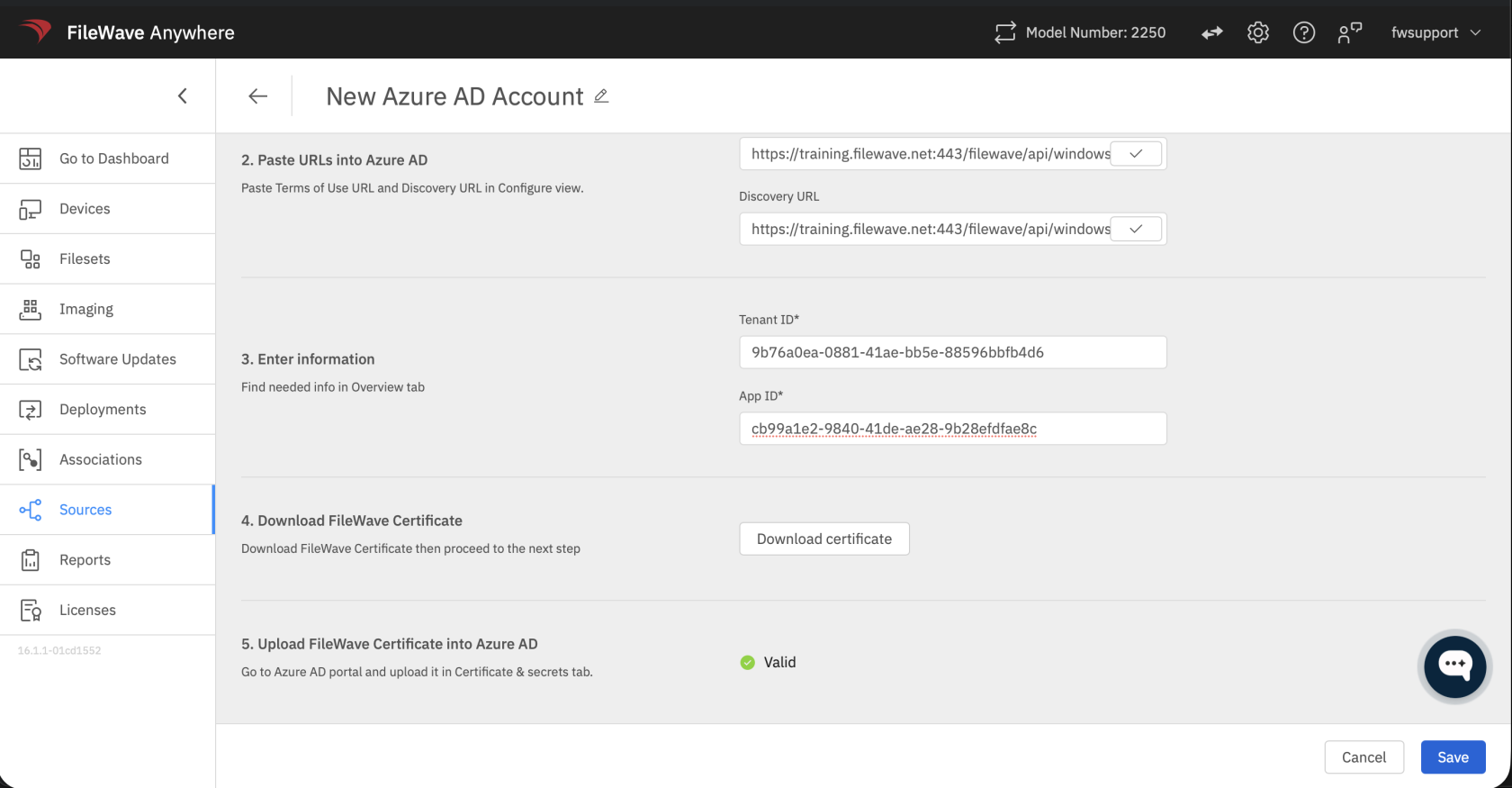
1. Copy the **Application (client) ID** and **Directory (tenant) ID** from this page and paste them into the Microsoft Entra Account form in FileWave Anywhere (Web Admin), which you kept open earlier.
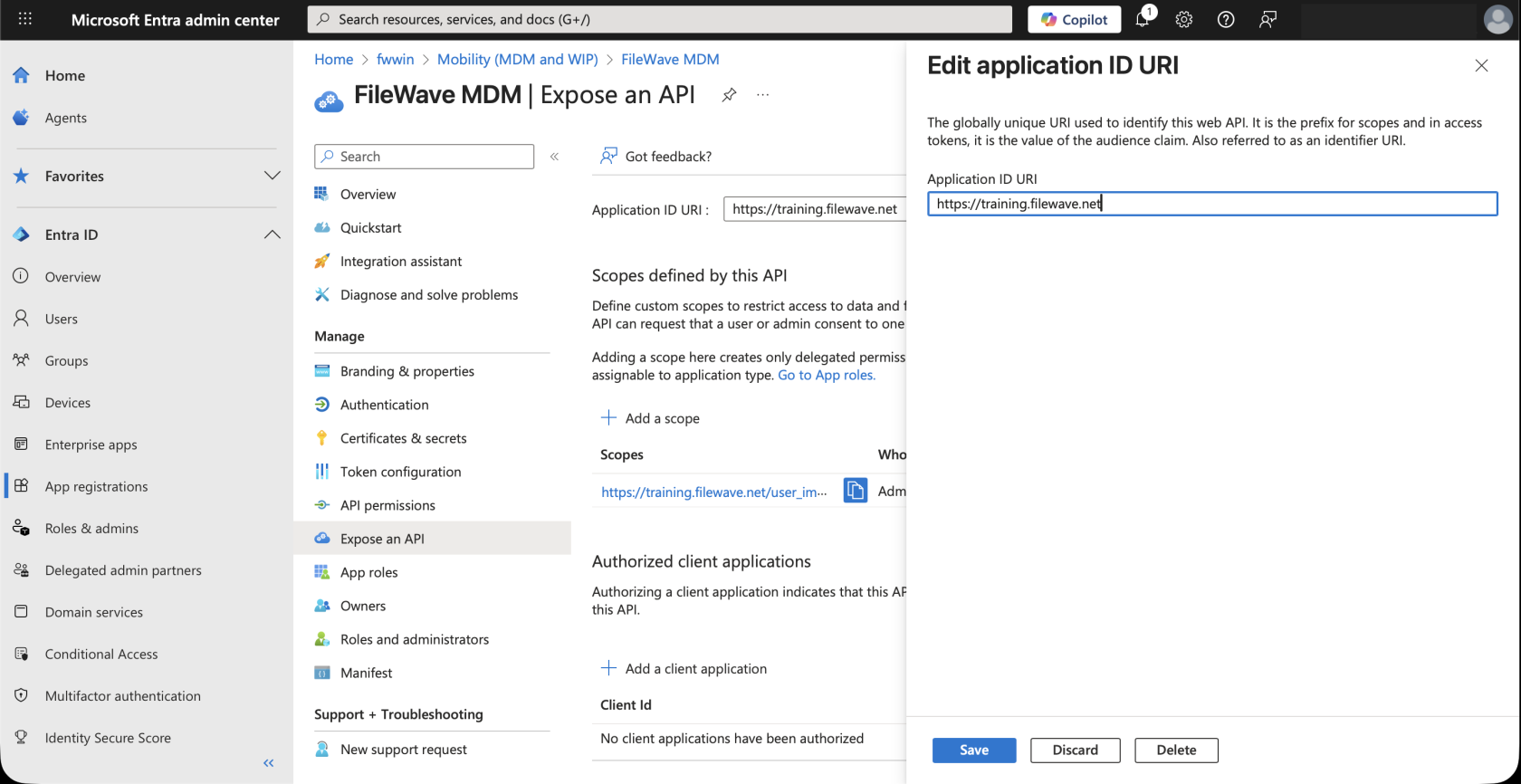
2. The **Application ID URI** value in your MDM app must match the FileWave server URL that Windows devices will use. In Microsoft Entra ID, go to **Expose an API** and edit the URI. Use your customer-owned FileWave server hostname, such as `https://mdm.example.org`, replacing it with your server's DNS name.
Microsoft requires the hostname used in a single-tenant Application ID URI to be in the tenant's initial `onmicrosoft.com` domain or in a verified custom domain. FileWave-hosted `filewave.net` hostnames are owned by FileWave and cannot be verified in the customer's Microsoft Entra tenant. Hosted customers should use a customer-owned custom hostname for Windows MDM and follow [FileWave-hosted custom-domain SSL guidance](https://kb.filewave.com/link/1061) if they need FileWave Support to configure the hosted-server certificate.
[](https://kb.filewave.com/uploads/images/gallery/2025-09/wAR10C2qAB6jTEq7-screenshot-2025-09-09-at-10-20-33-am.png)
3. Go back to the Microsoft Entra account form in FileWave Anywhere (Web Admin), and download the FileWave certificate.
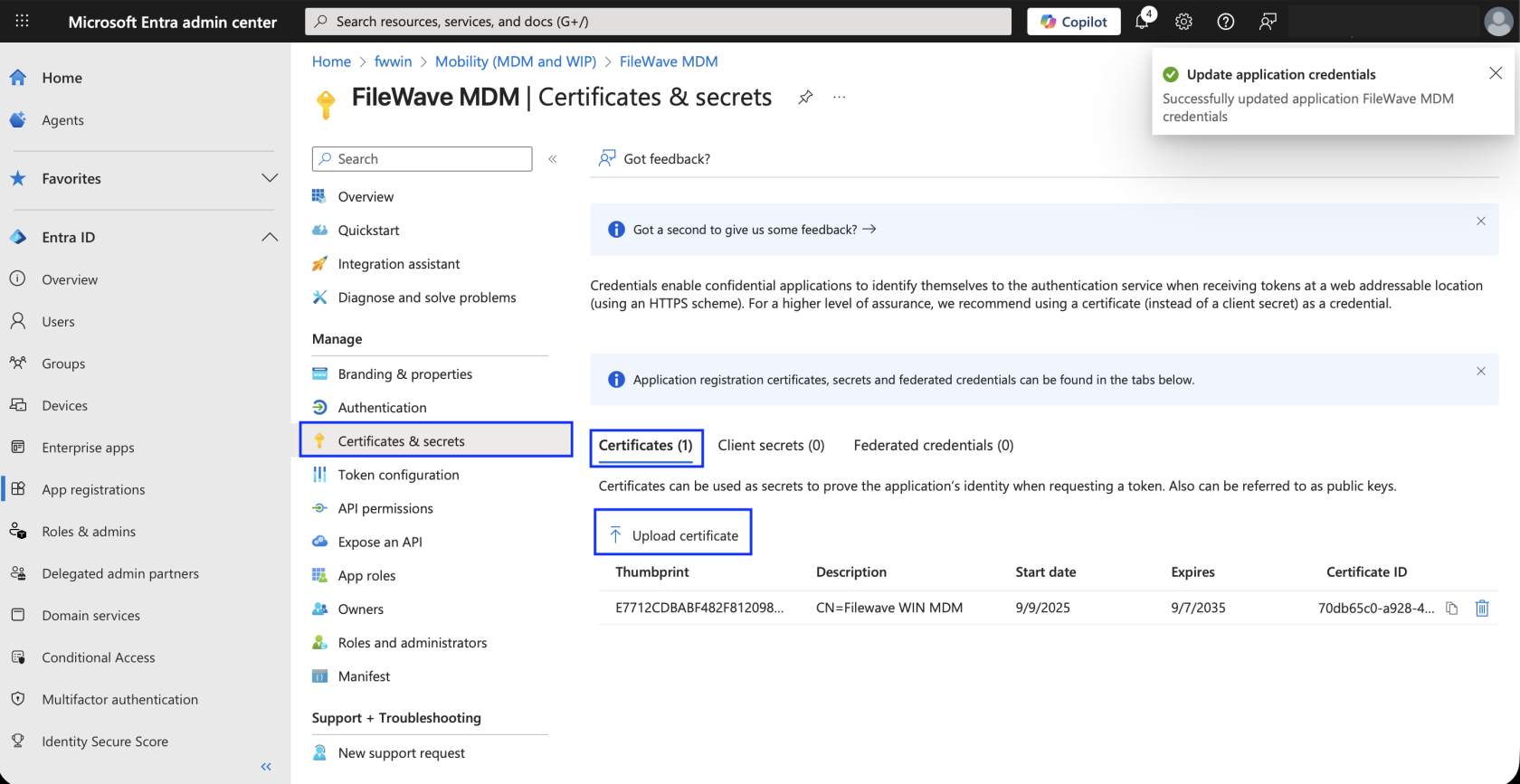
4. Once you have the certificate, go back to the Microsoft Entra ID portal, navigate to **Certificates & secrets** **> Certificates** and upload your certificate to your Microsoft Entra MDM application there.
[](https://kb.filewave.com/uploads/images/gallery/2025-09/3Syfl2SrO3aC103b-screenshot-2025-09-09-at-10-22-41-am.png)
5. After the certificate is uploaded, wait a few seconds, then return to the open Microsoft Entra account form in FileWave Anywhere (Web Admin) and click **Check Status**.
6. As soon as you see the green light, go ahead and save your Microsoft Entra account.
[](https://kb.filewave.com/uploads/images/gallery/2025-09/CII1Au1hxHCQn23i-screenshot-2025-09-09-at-10-24-47-am.png)
You are now ready to enroll a device into FileWave Windows MDM.
##### *Application tenant or consent messages*
You may see a message similar to below:
- *AADSTS500011 – The resource principal named \[URI\] was not found in the tenant named \[guid\]. This can happen if the application has not been installed by the administrator of the tenant or consented to by any user in the tenant. You might have sent your authentication request to the wrong tenant.*
If you’re trying to log in from an application that doesn’t support user consent flow or you’re unable to use it otherwise, you can use the same special login URL crafting trick that I proposed in my article for resolving consent-related issues when getting error AADSTS650001, and create a URL like this:
- [https://login.microsoftonline.com/\[tenant\_name\_in\_onmicrosoft.com-form\]/oauth2/authorize?client\_id=\[appId\]&response\_type=code&redirect\_uri=http://your-uri-here&nonce=1234&resource=https://graph.windows.net&prompt=consent](#bkmrk-if-the-application-r).
If the application requires admin consent, you may replace "consent" with "admin\_consent".