Integrating with Windows Autopilot
What
Windows Autopilot is Microsoft's cloud-based provisioning workflow for Windows devices. It registers a device's hardware identity with a Microsoft Entra tenant, applies a Windows Autopilot deployment profile during the Windows out-of-box experience (OOBE), and helps the device become ready for organizational use without maintaining a custom Windows image.
Autopilot is not the same thing as FileWave Windows MDM, and it is not traditional re-imaging. Autopilot controls the Microsoft provisioning experience. Microsoft Entra ID then determines which mobile device management (MDM) service should receive the enrollment. In a FileWave Windows MDM deployment, the intended flow is:
- The device starts Windows OOBE and contacts the Windows Autopilot service.
- Autopilot applies the assigned deployment profile.
- The user signs in with Microsoft Entra credentials, or the device uses a supported userless deployment flow.
- Windows joins Microsoft Entra ID, or Microsoft Entra hybrid join if that deployment type is intentionally configured.
- Microsoft Entra automatic MDM enrollment sends the device to the scoped MDM service.
- FileWave receives the Windows MDM enrollment and manages the device.
Important: Microsoft often manages Autopilot records and profiles through the Microsoft Intune admin center. That portal name does not automatically mean Intune must be the MDM that manages the device. If FileWave is the intended MDM service, scope the FileWave MDM application for the appropriate users in Microsoft Entra ID and do not scope those same users to Intune or another MDM service for Windows MDM enrollment.
When/Why
Use Windows Autopilot when you want new or reset Windows devices to enter the correct Microsoft Entra tenant and receive a controlled setup experience without building and deploying a custom Windows image. This is similar in goal to Apple Automated Device Enrollment, but the Microsoft pieces are different: device registration, Autopilot deployment profile assignment, Microsoft Entra automatic MDM enrollment, and the final MDM service are separate parts of the workflow.
Before adding Autopilot, first verify that normal FileWave Windows MDM enrollment works. Manual enrollment is still the fastest way to prove that the FileWave server URL, Microsoft Entra MDM application, discovery URL, terms URL, certificate, tenant ID, and user scope are configured correctly.
Before you begin
- Review Pre-Requisites of Windows MDM Setup and Microsoft's Windows Autopilot requirements.
- Complete the FileWave Microsoft Entra configuration in Part 3: Setting up the Portal App.
- Confirm that the FileWave MDM application in Microsoft Entra has the correct MDM user scope. Use All or a targeted user group, but avoid overlapping that same Windows MDM enrollment scope with Intune or another MDM provider.
- Use a supported Windows edition. Windows Home editions do not support the Entra join and MDM enrollment workflow used here.
- Make sure the device has internet access during OOBE so it can reach Microsoft Entra ID, the Windows Autopilot service, Windows activation, and the selected MDM service.
How
1. Register devices with Windows Autopilot
Before a device can use Windows Autopilot, it must be registered with the Windows Autopilot deployment service and associated with the correct Microsoft Entra tenant. Microsoft recommends having the OEM, reseller, distributor, or CSP register new devices when possible. Manual hardware-hash collection is useful for testing, pilots, virtual machines, and existing devices, but it is not the preferred large-scale purchasing workflow.
For an existing Windows device, the hardware hash can be collected from Windows Management Instrumentation (WMI). Microsoft documents the current process here: Manually register devices with Windows Autopilot. The PowerShell script Get-WindowsAutopilotInfo.ps1 can collect the device serial number and hardware hash. Use the current version of the script because Microsoft moved the script workflow to Microsoft Graph PowerShell modules.
To make this easier for existing FileWave-managed Windows devices, FileWave provides a Custom Field that can populate a field named Windows Autopilot Hash. Import the Custom Field in Native Admin from Assistants → Manage Custom Fields, then use the collected inventory value when preparing a CSV for Autopilot registration.
| Windows Autopilot Hash Custom Field |
 |
2. Import device hashes into Windows Autopilot
After you have collected hardware hashes, import the CSV in the Microsoft Intune admin center:
- Open Microsoft Intune admin center.
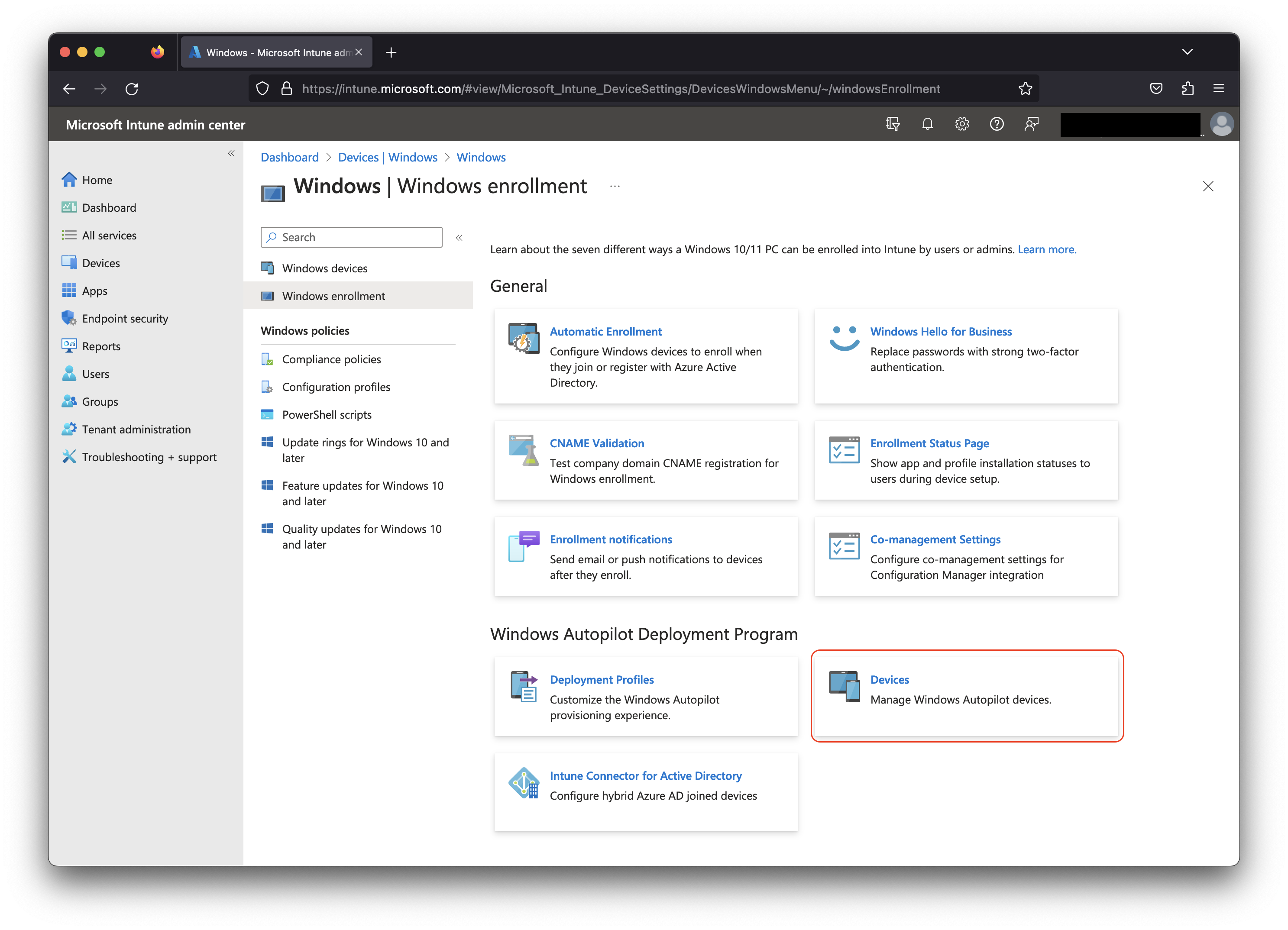
- Go to Devices → Windows → Enrollment.
- Under Windows Autopilot, select Devices.
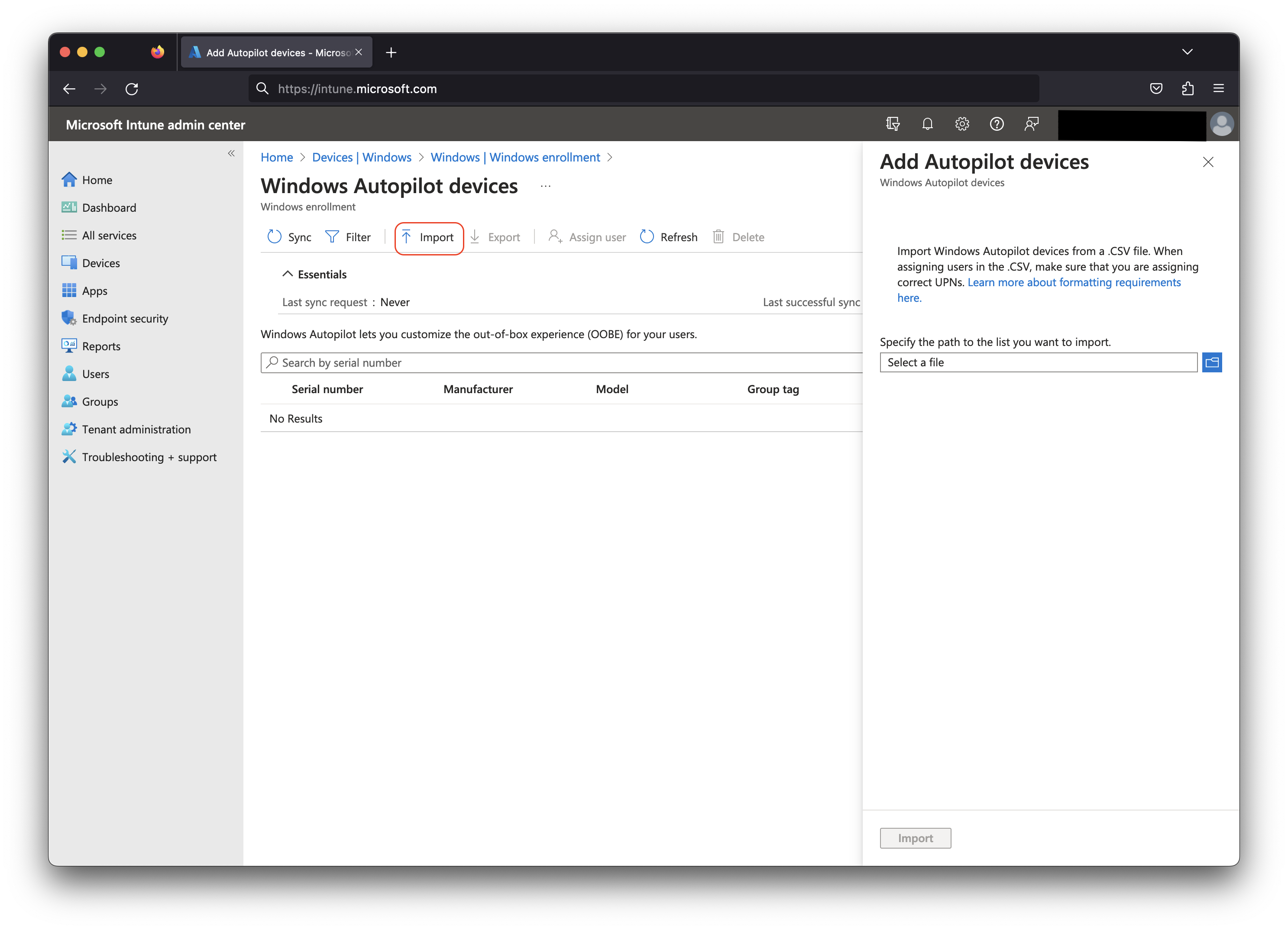
- Select Import and upload the CSV file.
- After import, select Sync and refresh until the device appears.
Microsoft's current CSV header supports required and optional fields:
Device Serial Number,Windows Product ID,Hardware Hash,Group Tag,Assigned User
<serialNumber>,<ProductID>,<hardwareHash>,<optionalGroupTag>,<optionalAssignedUser>- Device Serial Number and Hardware Hash are required.
- Windows Product ID is typically blank for admins uploading directly through Intune, but may be required for partner upload workflows.
- Group Tag and Assigned User are optional and can help with grouping, profile assignment, or pre-populating user information.
- CSV headers are case-sensitive. Extra columns are not allowed.
- Use a plain-text editor. Microsoft specifically warns against editing and saving the import CSV with Excel because it can produce a file that is not usable for Autopilot import.
- A single CSV upload supports up to 500 devices.

3. Create and assign a Windows Autopilot deployment profile
After the device is registered, assign a Windows Autopilot deployment profile. This is not a FileWave profile and should not be described as a generic MDM profile. The Autopilot deployment profile controls the Windows setup experience, including deployment mode, Microsoft Entra join type, privacy/EULA screens, user account type, language options, device name template, and related OOBE behavior.
In the Microsoft Intune admin center, go to Devices → Windows → Enrollment → Windows Autopilot → Deployment profiles. Create the profile, assign it to the appropriate device group, and wait for the device's profile status to show as assigned before shipping or resetting the device.
For most new cloud-native deployments, Microsoft recommends Microsoft Entra joined devices rather than Microsoft Entra hybrid joined devices. Hybrid join can still be used in specific environments, but it adds dependency on on-premises Active Directory and network reachability during provisioning.
4. Enroll the Windows device into FileWave Windows MDM
Autopilot is applied during Windows OOBE. If the device is already sitting at the Windows desktop, simply assigning an Autopilot profile will not replay OOBE. Use the path that matches the device state:
- New device: Register the device, assign the Autopilot deployment profile, then start the device at OOBE with network access.
- Existing device test: Use Manually enrolling a device into FileWave Windows MDM first if you only need to validate the FileWave/Microsoft Entra MDM configuration.
- Existing device Autopilot deployment: Register the device, assign the profile, then reset or reinstall the device so it returns to OOBE. The Reset Windows device through a script (FileWave Recipe) article can help with FileWave-triggered reset workflows.
When the user signs in during OOBE, Microsoft Entra automatic MDM enrollment should route the device to FileWave if the FileWave MDM application is scoped for that user. After enrollment completes, verify the device in FileWave. In Native Admin, the device details should show that the device is Windows MDM enrolled.
Common issues
- The device shows normal consumer Windows setup instead of Autopilot: Confirm the device is registered with Windows Autopilot, has an assigned deployment profile, can reach the internet, and has been reset to OOBE after assignment.
- The device enrolls into Intune or another MDM instead of FileWave: Check Microsoft Entra Mobility (MDM and WIP) user scope. Do not scope the same users to multiple MDM services for Windows automatic MDM enrollment.
- The device is already Microsoft Entra registered or MDM-only enrolled: Those states are usually BYOD/workplace-join style records. Remove the existing Microsoft Entra/MDM record before registering the device as a corporate Windows Autopilot device.
- The import says the device is assigned to another tenant: The device is already registered with another organization's Windows Autopilot service. It must be deregistered from the previous tenant before it can be added here.
- The device appears in Windows Autopilot but does not enroll into FileWave: Confirm FileWave Windows MDM works through manual enrollment, then re-check the Microsoft Entra MDM application, discovery URL, terms URL, certificate, user scope, and user licensing.