# Network Imaging / IVS
FileWave Windows Imaging is a powerful solution to quickly deploy base images over the network. The IVS uses PXE Boot to network boot your Windows machines using either Legacy BIOS or UEFI, captures the entire disk contents, and uploads the image to the FileWave Server for permanent storage.
# FileWave Network Imaging / IVS Overview
## Network Imaging
Network imaging is supported over ethernet using the FileWave **Imaging Virtual Server (IVS).** It uses the **PXEboot** system for Windows computers.
For a complete guide on how to fully set up a FileWave Imaging Virtual Server (IVS):
- [Network Imaging Guide](https://kb.filewave.com/books/network-imaging-ivs "Network Imaging / IVS")
For more information about commands you can run on the IVS check out this article:
- [Imaging Control Commands (IVS)](https://kb.filewave.com/books/network-imaging-ivs/page/ivs-control-commands "IVS Control Commands")
The imaging process has been greatly improved since FileWave 9. A new client process (*imaging-fwcld*) runs on the IVS, reporting back to the FileWave Server and Admin. Images are now Filesets and these Filesets can be delivered to the IVS directly from the Server or through a Booster. The imaging configuration is completely integrated into FileWave Admin.
As FileWave Imaging is unicast you can image on multiple subnets by adding an IVS on any desired subnet you like, at no additional cost. Alternatively, you can also have more centralized imaging servers and just have IPhelpers to help point the traffic across subnets.
The last option is to change options 66 and 67 in DHCP. You will only be allowed to image the boot-mode you select for option 67.
- Option 66 - IP of the IVS
- Option 67 -
- UEFI - grub-custom.efi
- Legacy - pxelinux.0
## *How does it work?*
The process for sending out an image with FileWave follows the same flow as if you would send out any other Fileset in FileWave. Before anything else you need to be sure you have the device(s) you would like to pull an image from or push an image out to in FileWave. So either having the device already enrolled and checking in or as a placeholder in FileWave. Either way, the device has to be in FileWave with a MAC Address for Windows. Then the image Fileset is assigned to a device so that an association is made, you update the model, the IVS checks in to see new updates (just as a client would check in for new files), and then you PXE/Netboot.
When the devices are imaged FileWave names them automatically based on the name provided by the FileWave Client in FileWave. For Windows devices we also support driver injections so that you can have one base image sent out to different models with the drivers pushed out along side.
***\*Important Note***: If there are no associations between a device and an image in FileWave, and propagated to the IVS, then when that device PXE/Netboot's it will see no image assigned to it and then boot straight into the OS.
## Upgrading an IVS
FileWave 16.4.0 introduces Central-managed Imaging Virtual Server upgrades for IVS appliances connected to an on-premises FileWave Server. IVS appliances connected to a FileWave-hosted Server use a different workflow.
### FileWave-hosted Server
**Do not use the IVS Upgrade action in FileWave Central.** For a customer-managed IVS connected to a FileWave-hosted Server, open the Downloads page matching the hosted Server version, expand **Debian Linux Downloads**, and run the published **Upgrading a IVS** one-line command from the IVS console or a stable SSH session.
For FileWave 16.4.0, use [the IVS one-line command on the FileWave 16.4.0 Downloads page](https://kb.filewave.com/books/downloads/page/filewave-version-1640#bkmrk-debian-linux-downloa). Connect as `fwadmin`, run the command with `sudo`, and let its `screen` session finish before rebooting or starting another upgrade.
### On-premises Server: IVS 16.4.0 and later
1. In FileWave Central, open **Preferences > Imaging**.
2. Review the registered Imaging Virtual Servers and identify an available upgrade.
3. Confirm that no image capture or deployment operation is running.
4. Schedule the IVS upgrade using the upgrade action in Imaging preferences.
5. Monitor the status in Central. FileWave downloads and installs the package and performs the required reboot.
6. After the IVS returns, confirm the installed version and that Imaging status is healthy.
FileWave notifications provide visibility into available IVS updates and upgrade outcomes.
**An IVS upgrade cannot start while imaging is active.** Allow capture and deployment operations to finish before beginning maintenance.
### IVS earlier than 16.4.0
An IVS earlier than 16.4.0 requires one final manual upgrade using the version-specific IVS command and instructions on the [FileWave Downloads](https://kb.filewave.com/books/downloads) page. After reaching 16.4.0, an IVS connected to an on-premises Server can use the Central-managed workflow; an IVS connected to a FileWave-hosted Server continues using the published IVS one-line command for subsequent upgrades.
**Platform requirement:** FileWave IVS 16.3.0 and later require Debian 13.
### Post-upgrade checks
- Confirm Central reports the intended IVS version.
- Confirm the IVS is enrolled and its Imaging status indicators are healthy.
- Verify Server-to-IVS connectivity before resuming imaging.
- Run a controlled imaging validation before returning the IVS to normal production use.
## *Process to image a Windows machine*
For a complete walk through on how to create/deploy Windows images with FileWave and how to create/send out drivers please follow these guides:
- [Windows Network Imaging - PXE](https://kb.filewave.com/books/network-imaging-ivs/page/windows-network-imaging-capturing-and-deploying-images "Windows Network Imaging - PXE Booting")
- [Creating Windows Driver Filesets](https://kb.filewave.com/books/network-imaging-ivs/page/creating-windows-driver-filesets "Creating Windows Driver Filesets")
Things to consider when imaging Windows devices with FileWave:
- Know whether your devices are Legacy or UEFI and make separate images accordingly
- At this time we do not support secure boot
- Your image can be smaller than the target drive but not larger
- Make sure the FileWave Custom Client is installed on the machine before the image is captured: [Custom MSI](https://custom.filewave.com)
# FileWave Windows Imaging Requirements
[Windows Imaging](https://kb.filewave.com/books/evaluation-guide/page/windows-imaging-setup "Windows Imaging - Setup") is a powerful solution to quickly deploy base images over the network. Before starting the process of refreshing your device fleet, it is important to understand how Imaging works to understand the requirements and the possible limitations.
### Requirements
The PXE server part of FileWave Imaging is supported by a downloadable [FileWave Imaging Appliance](https://kb.filewave.com/books/downloads "Downloads"). Please check the link for updated details and release notes. Also at this time you can only use Windows Imaging with an On-Premise FileWave server.
This appliance can be run in:
- [vmWare Fusion](http://www.vmware.com/products/fusion/)® for Mac
- [vmWare Player](http://www.vmware.com/products/player/overview.html)® or [Workstation](http://www.vmware.com/products/workstation)® for Windows
- [vmWare ESXi](http://www.vmware.com/products/vsphere-hypervisor/overview.html)®
- [Virtualbox](https://www.virtualbox.org/)®
- Hyper-V®
It needs a minimum of 8 GB RAM and at least 100 GB of disk space, depending on the size of the Images you will be deploying (images are ~20 GB each). CPU requirements are minimal.
### Imaging steps
1. Windows Imaging works for both Hosted as well as On-Premise customters, but for Hosted please read this note: [FileWave Hosted Servers and IVS Setup](https://kb.filewave.com/books/network-imaging-ivs/page/filewave-hosted-servers-and-ivs-setup "FileWave Hosted Servers and IVS Setup").
2. The device to be imaged is configured to boot over the network using NetBoot with PXE and starts
3. The device to be imaged broadcasts requests over the network looking for a NetBoot/PXE server. To make this successful you must consider the [IVS network ports](https://kb.filewave.com/books/filewave-general-info/page/default-tcp-and-udp-port-usage "Default TCP and UDP Port Usage") used and consider that since DHCP, PXE, and BSDP (used by NetBoot) are UDP-based broadcast protocols, they typically do not traverse subnets. These protocols also do not typically work over wireless connections so you need to make sure that IVS and the clients are using wired connections. Most network administrators do not allow broadcast packets across subnets. If your IVS and the client computers to be re-imaged are located on the same subnet then you do not need to make any changes to your network configuration, as the clients will discover the IVS via broadcasts on the local subnet. If the devices to be re-imaged are on a different subnet, however, then you have to take one of the following steps to be able to network boot and re-image them.
1. Put an IVS on every subnet that you may need to re-image devices on.
2. Configure IP helpers on the routers for every subnet that you may need to re-image devices on.
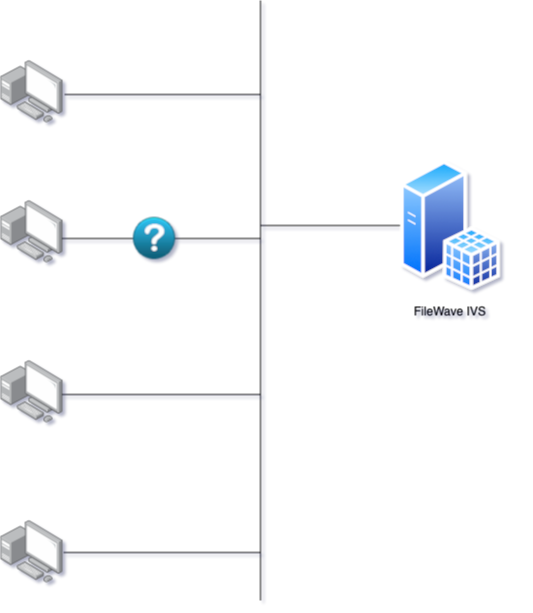
More details about Network Booting can be found [here](https://en.wikipedia.org/wiki/Network_booting).
4. If there is an association in FileWave between the MAC address of the Windows device to be imaged and an Imaging Fileset, the FileWave Imaging Virtual Server (IVS) will respond to the request and initiate the PXE boot process.
5. The IVS will then transfer a customized, very lightweight Linux operating system on which the device will [boot](https://wiki.syslinux.org/wiki/index.php?title=PXELINUX):
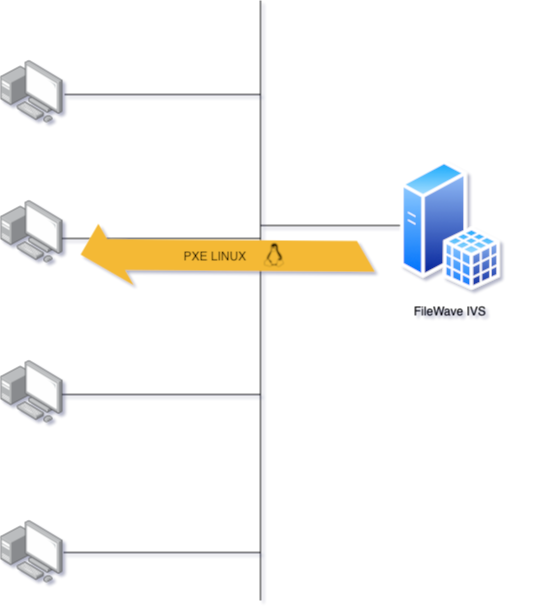
6. Once the device to be imaged is booted on Linux, the imaging process can start:
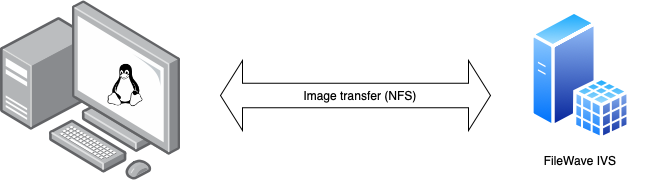
The whole process is managed by a python script responsible for:
1. Creating a VPN tunnel to the IVS server
2. Mounting NFS share to IVS server via the VPN tunnel
3. Communicating with IVS to get and report information
4. Preparing local hard disk (partitions), writing disk image, and preparing Windows environment
### Requirements
Our customized Linux boot image is built to be as lightweight as possible. it contains the minimum components required for the imaging process. Some modules are nevertheless very dependent on the hardware and the hardware vendor: **network adapter drivers** and **disk controller drivers are examples**.
To work, our Linux kernel/image needs to contain the drivers corresponding to the models you are imaging, which means that it is required that the *hardware vendor* has made them available to the Linux Community.
**Without proper drivers, Imaging may not work correctly or even may not work at all.**
Most of the drivers are added to the kernel (See: [https://www.kernel.org](https://www.kernel.org)) or separately, this is why we regularly update our customized Linux. But it may happen that some vendors will not provide Linux drivers, which will prevent the FileWave IVS from working. Using a USB Ethernet dongle may be a work-around for a missing integrated NIC driver (assuming the driver for the dongle is available). Unfortunately, missing drivers for the disk controller can't easily be worked around.
### Recommendations
As FileWave Windows Imaging is dependent on Hardware Vendors, we recommend you test the imaging process on a single device before choosing a hardware model. Updating the kernel or adding additional drivers may be done upon request - assuming the components are available. Please contact our Support or Professional Services for more information.
# Getting started with the Imaging Virtual Server
A guide starting out with FileWave's Imaging Virtual Server (IVS) appliance. Learning to import, expand the hard drive and setting up the IVS. Appliance's default: username: root / password: filewave
# Setting up the IVS (Imaging Virtual Server)
#### Guide for Networking Imaging with FileWave
The following steps will assist you in the setup and implementation of your Imaging Virtual Server (IVS)
If you already have your Imaging sever up and running please look at these guides for how to image [Windows](https://kb.filewave.com/books/network-imaging-ivs/page/windows-network-imaging-pxe-booting "Windows Network Imaging - PXE Booting") devices.
\*Please note: This document assumes you have already set up your FileWave Management Server.
Prepare and download all needed parts
Before starting be sure you have:
- Downloaded the latest **Imaging Virtual Server (IVS)** [linked here](https://kb.filewave.com/books/downloads "Downloads")
- A running FileWave server with clients enrolled (or with placeholders)
- FileWave Admin installed on your workstation
- Valid MAC Address for each Windows machine
- Virtual Environment (e.g. ESXI, Virtualbox, VMware Fusion)
- No Firewall between your VLANS or access to the Inter-VLAN Firewall to open Ports specified below
#### IVS capabilities:
- UEFI compatibility
- Multiple partitions per image
- GBT and MBR disks can be imaged
- Image a blank disk
- Windows 10 and 11 (including non-UEFI, UEFI with CSM and native UEFI machines)
- Check if the Windows partition is in hibernated or fast restart state before creating master image
- Imaging logs are copied to IVS in order to ease imaging issues troubleshooting
Network Considerations
#### Subnets
The FileWave Imaging appliance has to be configured as an “ip-helper” on your switches so it can receive and answer BOOTP requests from your clients.
The FileWave network imaging solution is unicast so there will need to be some preparation on your end if you intend to image across multiple subnets. The two options will be:
A. Install a separate FileWave Imaging Virtual Server (IVS) on each subnet you plan to image from and connect them all to the FileWave server by following the "Connecting IVS to FileWave Server" section in this document.
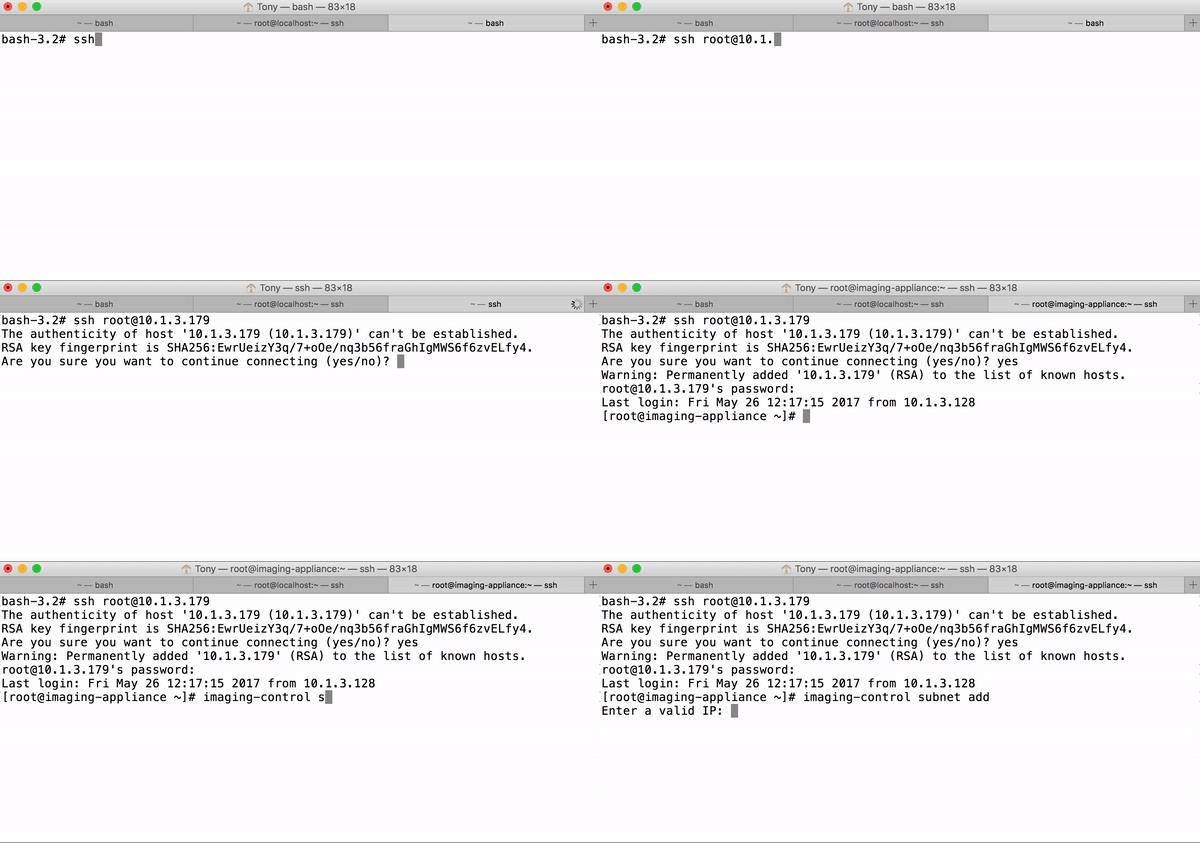
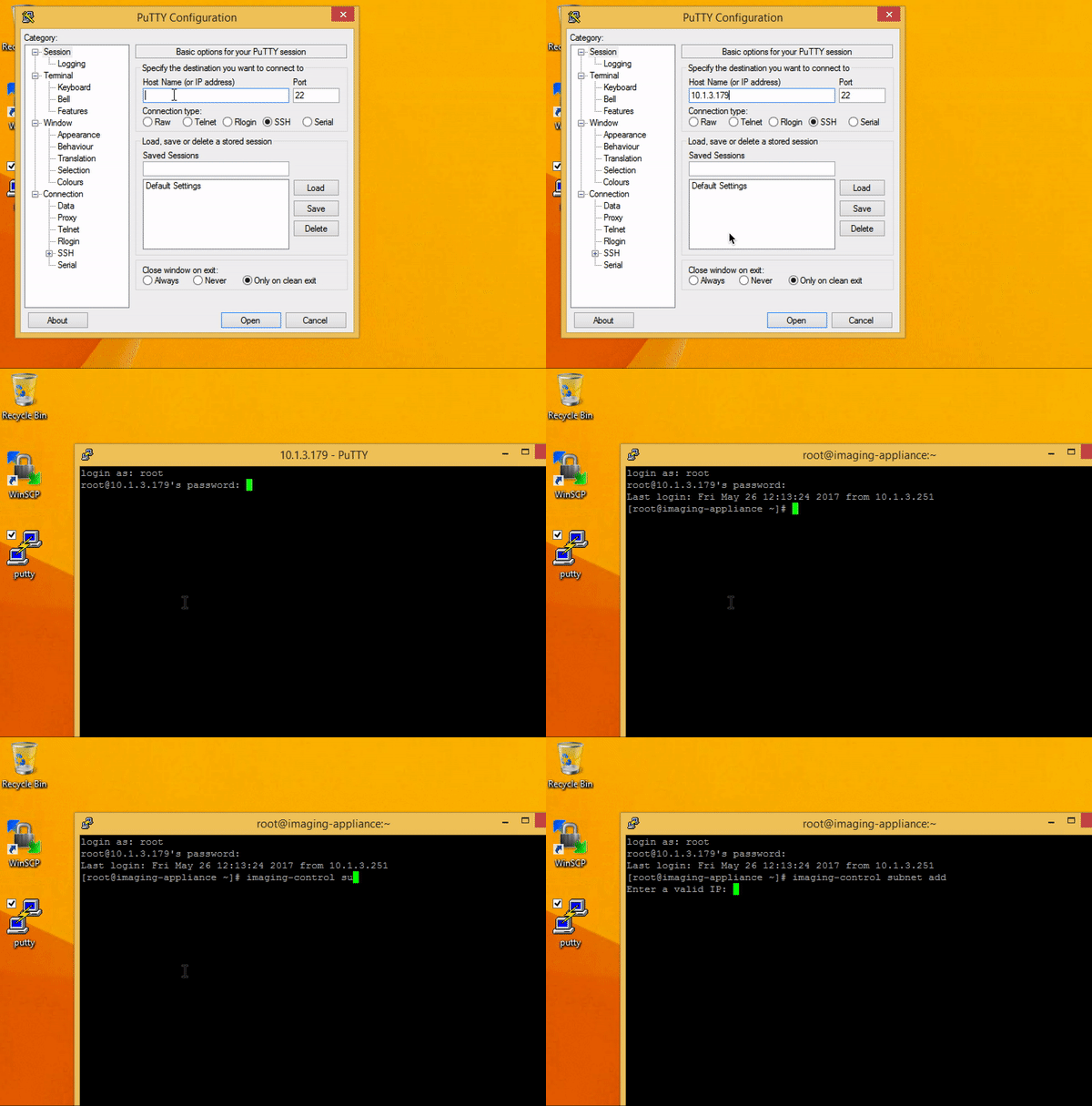
B. Setup "Helper IPs" on your layer 3 devices (e.g. routers, routing switches) that will point the broadcast requests for PXE and Netbooting to your single FileWave IVS. Once this has been completed you will need to make a change on the IVS. To do this either open the console for this server in your virtual environment or ssh into the server with Putty (Windows) or terminal (macOS):
1. 1. Open terminal (If on Windows you can use Putty [linked here](http://www.putty.org/) and use the credentials root/filewave (FileWave 15.4.2 and older) or fwadmin/filewave (FileWave 15.5.0 and beyond) then skip to step 3 below)
```
# replace IVS-IP-Address with your IP address
# replace fwadmin with root if your Appliance is pre-15.5.0
$ ssh fwadmin@IVS-IP-Address
```
2. Type the following command
3. ```
# enter in imaging-control subnet add to add your subnet addresses
$ imaging-control subnet add
```
4. This will prompt for a valid IP address from the subnet and subnet mask
Note: use command imaging-control subnet remove to remove a subnet
#### Firewall
The IVS needs to be able to connect to your FileWave Server on the following Ports
- 20017
- 20443
- 20445
Any client(s) subnets where imaging should work must be able to reach the following Ports on the IVS:
- 67 (DHCP), 69 (TFTP)
- 80 (HTTP)
- 20444 (HTTPS)
- 111 (TCP,UDP)
- 2049 (TCP,UDP) used by default (When VPN is not used for NFS)
- 20490 (TCP,UDP) used for [VPN to NFS access](https://kb.filewave.com/books/network-imaging-ivs/page/windows-imaging-in-filewave-secure-imaging-option-155 "Windows Imaging in FileWave: Secure Imaging Option (15.5+)")
Any machine running FileWave Central needs to be able to connect to your IVS on the following Ports:
- 20010 (Client Monitor), 20444 (Remote Configuration, Shared Keys)
The FileWave Server must be able to reach the IVS on port 20444 for On-Premise customers.
### Starting the Imaging Appliance for the first time:
1. Download the latest Imaging Virtual Server (IVS) [linked here](https://kb.filewave.com/books/downloads "Downloads")
2. Import the Imaging Virtual Appliance (IVS) into your virtual environment or use a player to start up the machine. If you need help with the virtual appliance import, use the [FileWave Virtual Appliances import guides](https://kb.filewave.com/books/filewave-virtual-appliances "FileWave Virtual Appliances").
(If you used one of those import guides to import the IVS, the following steps should already be complete and you can move on to the next section, **Connecting the IVS to the FileWave Server**)
3. When the server starts up it will display the IP address, be sure to make a note of this.
Note: Should the machine get stuck during boot, showing a white bar at the bottom please send a CTRL-ATL-DEL to the machine. The second boot should be much quicker.
4. If importing version 15.5+, you will be prompted at first boot to change the default password. Please see [Setting the Password on First Login to FileWave Appliances (15.5+)](https://kb.filewave.com/books/filewave-general-info/page/setting-the-password-on-first-login-to-filewave-appliances-155) for more details. If you're importing an older appliance, please see the first drop-down below to change the default password to something more secure.
5. Change the IP of the IVS to a static IP address using the second drop-down below.
Changing 'root' Password on Older IVS Versions (pre-15.5)
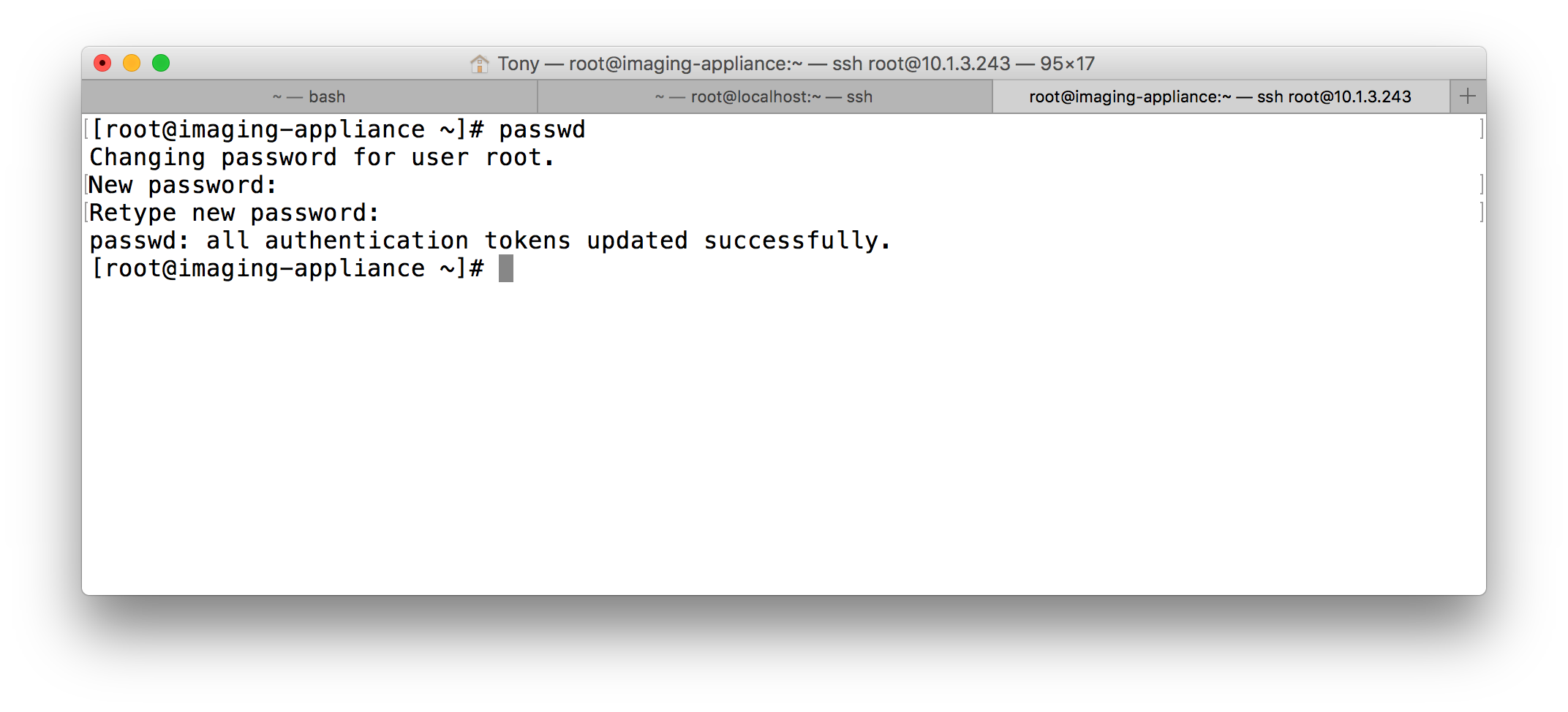
Login to the IVS (either console or SSH) and change the default password from what is currently ***filewave*** to your own.
1. Type in the following command, when prompted for a password use 'filewave':
```
# replace IVS-IP-Address with your IP address
$ ssh root@IVS-IP-Address
```
2. Then type the command below to enter your new password
```
$ passwd
```
3. Enter new password
Changing the IP of the IVS Server to Static
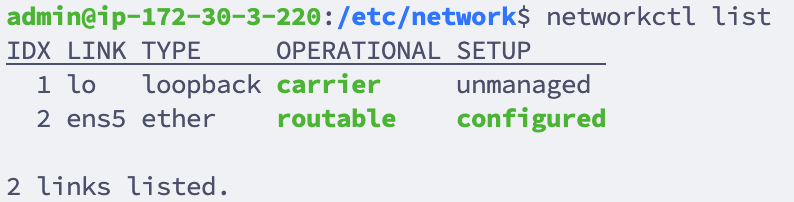
**1. Locate Network Interface**:
First, identify the network interface you wish to configure. You can list all network interfaces using:
```
networkctl list
```
[](https://kb.filewave.com/uploads/images/gallery/2024-01/1mWKjVXFvMUjRTH7-image.png)
**2. Edit the /etc/network/interfaces file:** Using 'nano', edit the interfaces file to set the network configurations.
```
nano /etc/network/interfaces
```
Your default interfaces file should look something like this (your interface name may be different):
```
# The loopback network interface
auto lo eth0
iface lo inet loopback
# The primary network interface
iface eth0 inet dhcp
```
Change the file to look like this, using your network preferences (note 'dhcp' has been changed to 'static' in line 6)
```
# The loopback network interface
auto lo eth0
iface lo inet loopback
# The primary network interface
iface eth0 inet static
address 192.168.10.33
netmask 255.255.255.0
gateway 192.168.10.255
dns-nameservers 192.168.10.254 192.168.10.255
```
**3. Verify Resolv.conf, hosts and hostname files:** Verify that these files in /etc/ are configured correctly for your network and server.
/etc/resolv.conf: This file should list your DNS servers
/etc/hosts: This file should point your FQDN to localhost (127.0.0.1) - Below is an example of what the file looks like on ivs1.filewave.net for example. Notice the 2 entries for loopback. Although IPv6 should be disabled, it is good to include the IPv6 loopback in case it is ever enabled.
```
127.0.0.1 localhost
::1 localhost ip6-localhost ip6-loopback
ff02::1 ip6-allnodes
ff02::2 ip6-allrouters
127.0.0.1 ivs1.filewave.net
::1 ivs1.filewave.net
```
/etc/hostname: Specifies the hostname for your server. This is **filewave** by default.
**4. Disable IPv6:** Edit the sysctl.conf file by adding the following lines to the end of the file:
```
nano /etc/sysctl.conf
```
```
net.ipv6.conf.all.disable_ipv6 = 1
net.ipv6.conf.default.disable_ipv6 = 1
net.ipv6.conf.lo.disable_ipv6 = 1
net.ipv6.conf.tun0.disable_ipv6 = 1
```
**5. Restart/Check Network Status:**
```
systemctl restart networking.service
systemctl status networking.service
```
**6. Verify IP:**
```
ip a
```
Connecting the IVS to the FileWave Server:
If you are a FileWave Hosted Customer, you need to review the following before connecting the IVS to the FileWave Server: [FileWave Hosted Servers and IVS Setup](https://kb.filewave.com/books/network-imaging-ivs/page/filewave-hosted-servers-and-ivs-setup "FileWave Hosted Servers and IVS Setup")
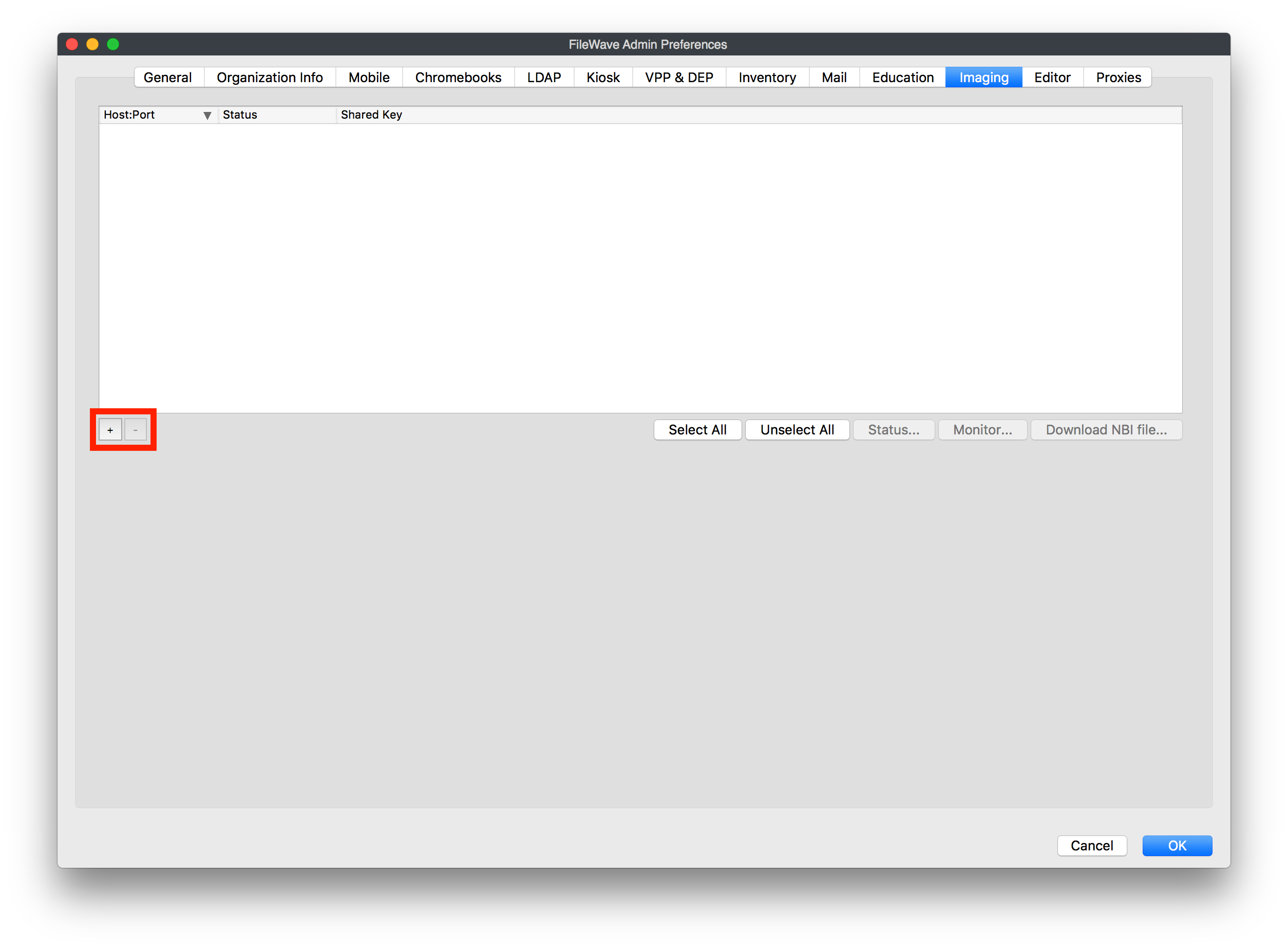
1. Open and connect your FileWave Admin to your FileWave server
2. Open the preferences and go to the "Imaging" tab
3. Hit the "+" at the bottom left of the blank pane
4. Enter the IP address of the IVS into "Preference for Imaging"
5. Make sure the box marked "generate new key" is now checked and click "OK"
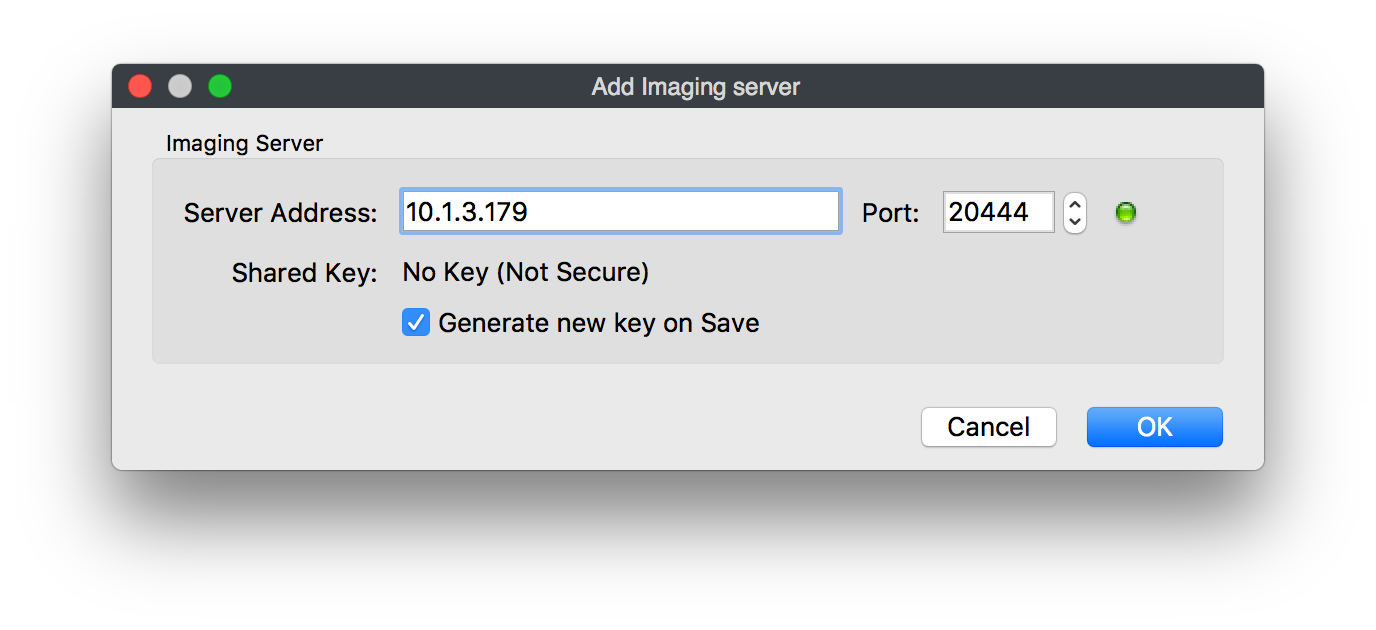
6. When the Imaging Monitor opens specify your FileWave Server Address and Port 20015. Confirm by clicking "Ok" to finish configuration of your IVS.
[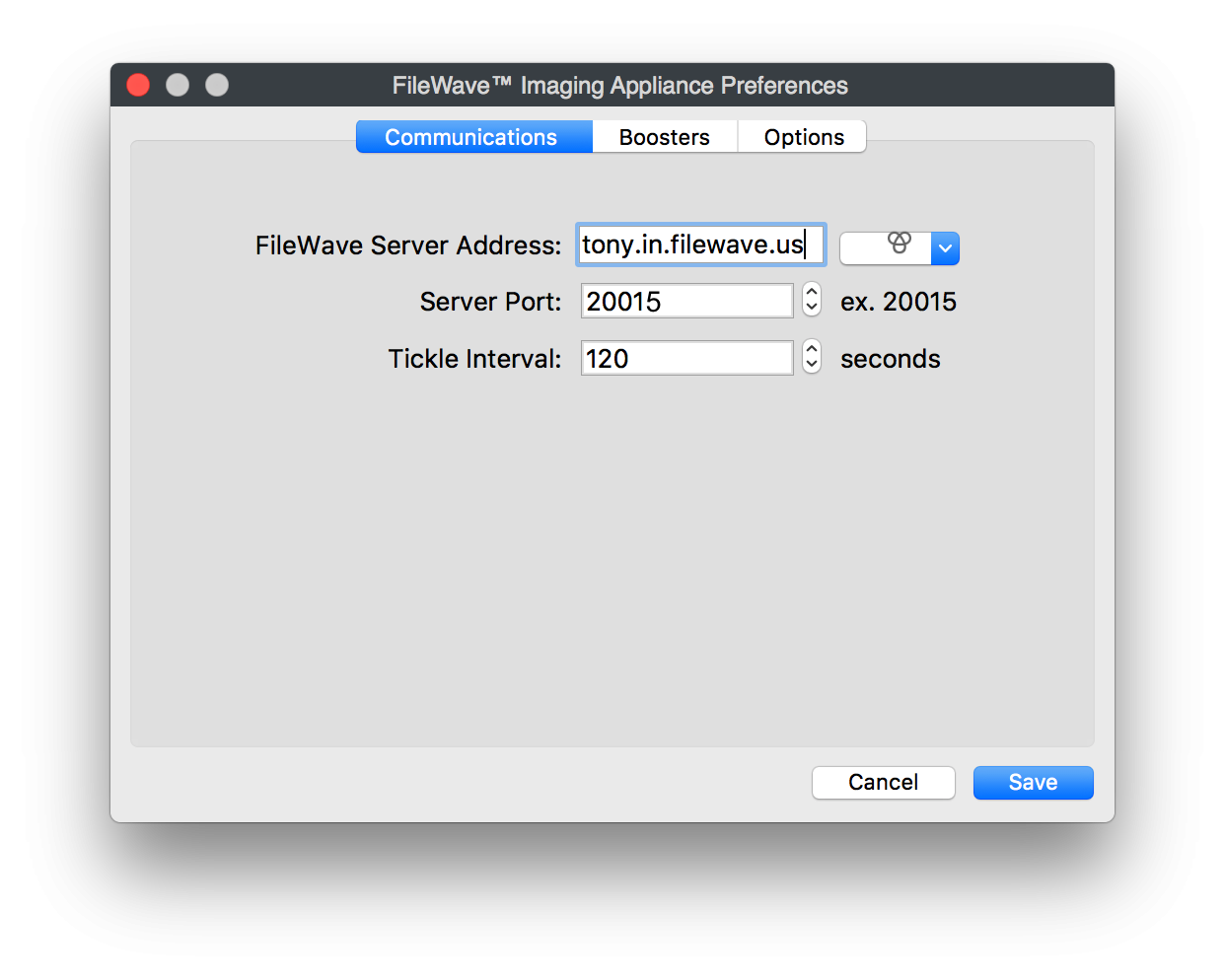](https://kb.filewave.com/uploads/images/gallery/2024-06/BUSHSKZQtrTLKL4M-ohwo7sl02agdbufd-ivssetup-ivsprefs.png)
7. Restart the Imaging Virtual Server (IVS)
8. Open the preferences and go to the "Imaging" tab again
9. Highlight your newly added Imaging server, click Enroll Imaging Server. This directs the FW Server to accept the IVS cerfificate request.
10. Select the server in the pane and click the status button below. Status lights should be all green with the exception of "NBI for macOS Imaging:" (If there are more red lights and clicking the refresh button doesn't help, please contact support)
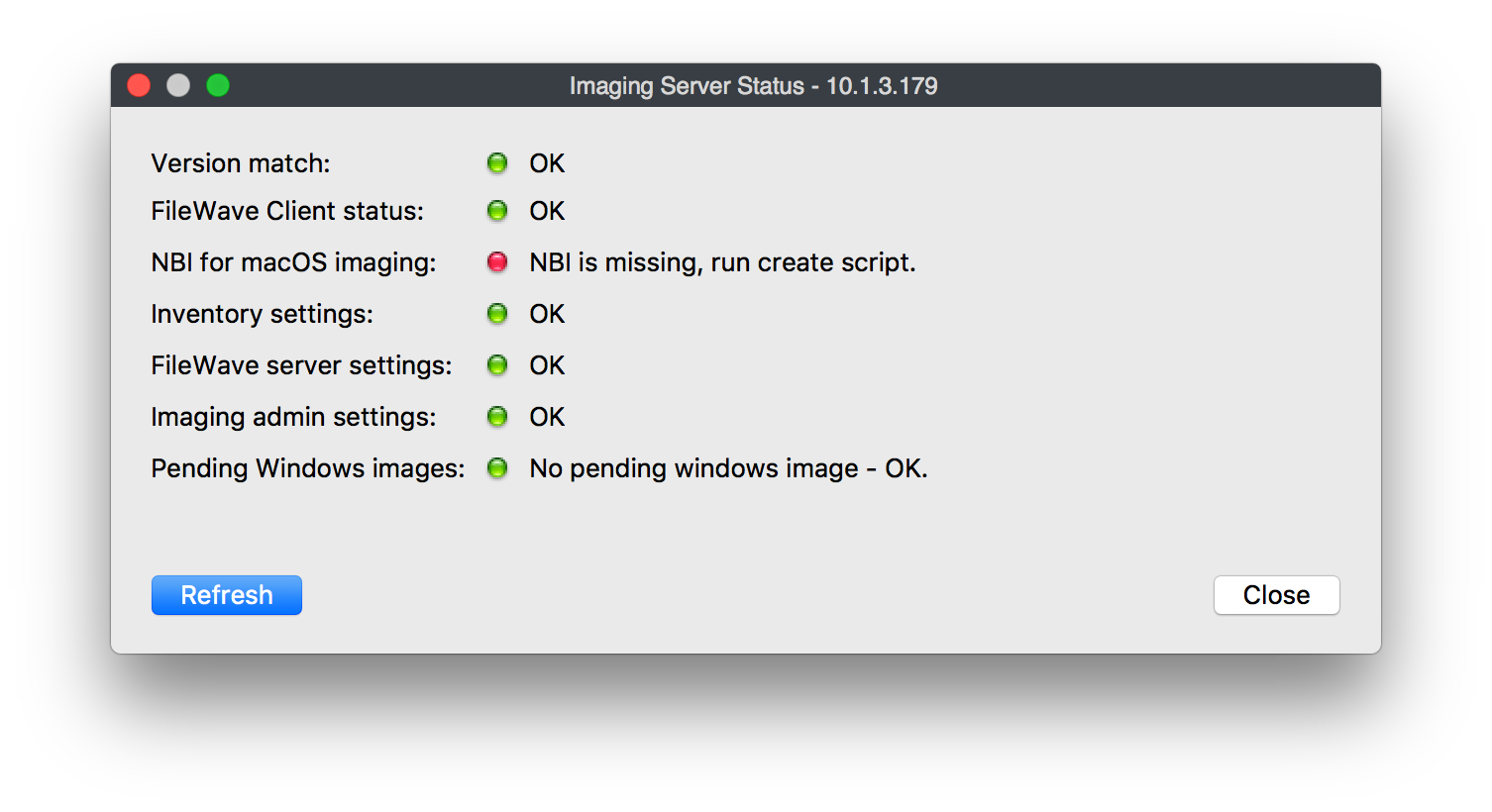
Congratulations, you have successfully set up and configured your FileWave Imaging server! You are now ready to image Windows devices, [Windows Network Imaging - Capturing and Deploying Images](https://kb.filewave.com/books/network-imaging-ivs/page/windows-network-imaging-capturing-and-deploying-images "Windows Network Imaging - Capturing and Deploying Images")
## Related Content
- [FileWave Hosted Servers and IVS Setup](https://kb.filewave.com/books/network-imaging-ivs/page/filewave-hosted-servers-and-ivs-setup "FileWave Hosted Servers and IVS Setup")
# FileWave Hosted Servers and IVS Setup
Using IVS imaging for Windows for Hosted customers is supported but is different than an on-prem implementation. A Hosted customer is one where FileWave runs your FileWave Server in our cloud services. Notes below explain how to use IVS with a Hosted Server, but for you, as a customer, know that all the steps listed in this article that are on the FileWave Server must be completed with the assistance of [Customer Technical Support](https://kb.filewave.com/books/community-engagement/page/customer-technical-support "Customer Technical Support") because you won't have direct access to your FileWave Server. The article is here to explain what is needed and why it is needed.
## Setup Differences
When you set up an IVS, the first part of the configuration will work as [normal](https://kb.filewave.com/books/network-imaging-ivs/page/setting-up-the-ivs-imaging-virtual-server "Setting up the IVS (Imaging Virtual Server)"), because your admin is actually doing the communication to the IVS. You set it up, choose OK to save, relaunch preferences, and then choose the “Enroll Imaging Server” button. After this is done, and you relaunch preferences, you’ll notice that you have an “Admin credentials mismatch error”. This error is NOT meaningful. To check admin credentials, the FW server will attempt to talk to the IVS directly on port 20444, and this will not work ever for a Hosted customer.
However, if you look in the actual django interface on the IVS, you should see it has the proper shared key, etc. Here is an example:
[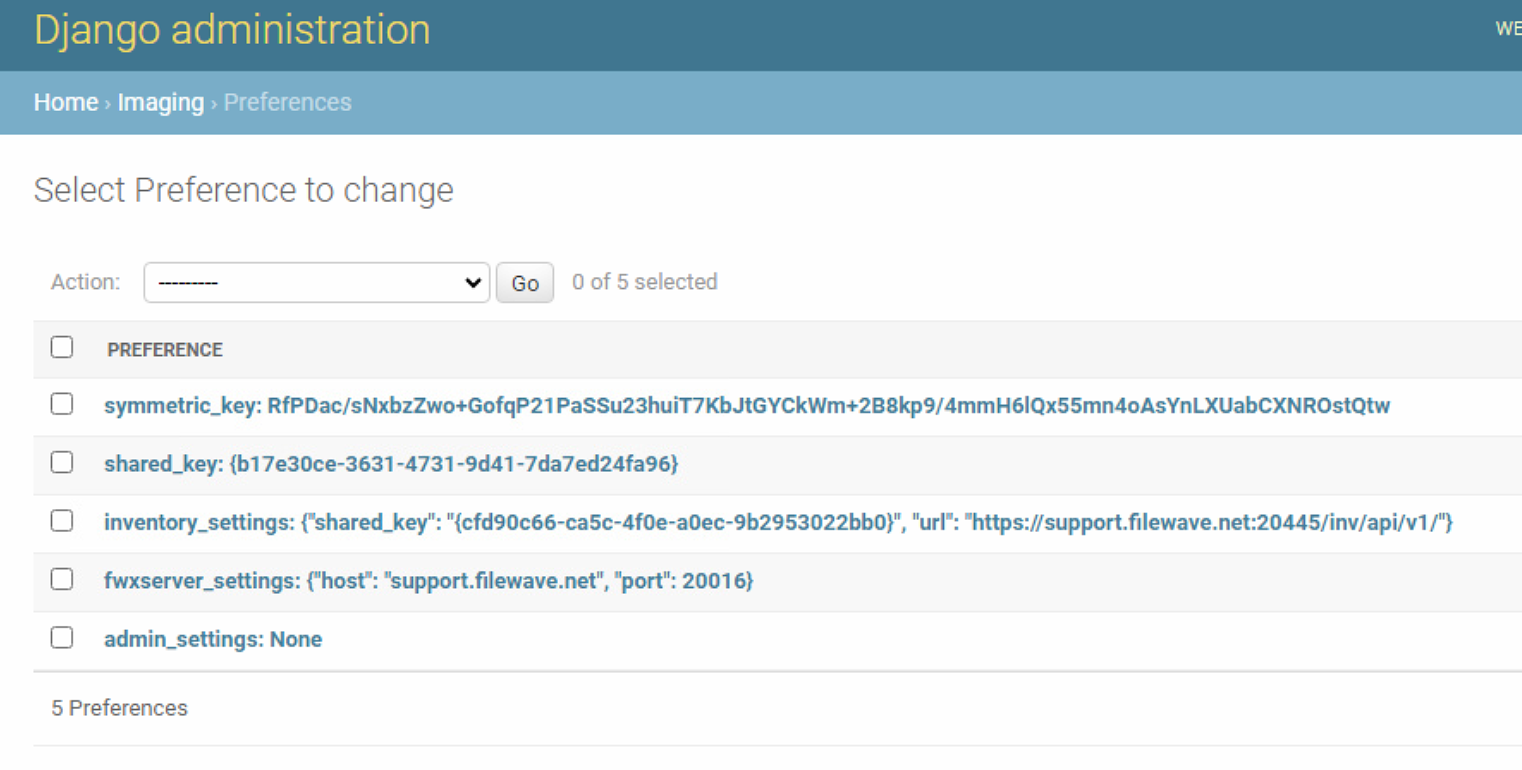](https://kb.filewave.com/uploads/images/gallery/2023-08/00DvAUDIw1bRDgT3-image.png)
## Extra First-Time Setup
We know that image capture will NOT work for a Hosted customer without these additional steps. The IVS simply can’t upload the image that is generated, so you’ll see it go immediately from “capture done” to “upload done” within one second if you don’t fix the admin settings entry you see above.
In the last step of the initial IVS setup, the FW server tells the IVS what credentials it should use for logging in to upload an image. But, in cloudV2, the FW server can NOT talk to the IVS directly, so it can’t do that last bit and the admin settings part in the local DB ends up empty. Never fear though, we can work around this problem.
To do so, we need to:
1. Find out the user that was created for imaging
2. Reset the password for that account to something we know
3. Enter the information from the above in the IVS Django admin
### Step 1, Find out the user (FileWave Support)
For this step, we need access to the server in a shell. FileWave Support will have to do this since a hosted customer can not access the server. Once logged in, we'll start an interactive python shell as:
```
sudo /usr/local/filewave/python/bin/python /usr/local/filewave/django/manage.pyc shell
```
And once we are in the shell, we’ll look up all usernames, but the one we are looking for will start with imagingadmin
```
from fwauth.models import User
User.objects.all().values_list("username")
```
This will give us a result like this:
> Out\[**2**\]: <QuerySet \[('tony.keller',), ('fwadmin',), ('noaccess',), ('filewave\_imaging\_uploader\_admin-3fcb9f455d5e062b',), ('alexdsl',), ('derekd',), ('brian.millbrook',), ('PS',), ('emma.ainsworth',), ('james.carter',), ('nicole.jemison',), ('fw',), ('shana.good',), ('filewave\_imaging\_uploader\_admin-e850f155825fadd5',), ('alexkdsl',), ('robert.daniel',), ('sean.holden',), ('joshua.heinz',), ('andrew.kloosterhuis',), ('andreas.rein',), '...(remaining elements truncated)...'\]>
Once you've received this information from Support, you can continue to the next step on the IVS.
### Step 2, Reset the Password
It is easy to see that filewave\_imaging\_uploader\_admin-e850f155825fadd5 is the user we need. But now, we need to set a password. And we’ll do that like this:
```
u=User.objects.get(username="filewave_imaging_uploader_admin-e850f155825fadd5")
```
That assigns **u** as a variable, and obviously you’ll use the right username from the first step, not the example one. Once we have that, we can set the password, and then save u:
```
u.set_password("let_me_image")
u.save()
```
The new password is now set, but we can confirm we did it right. You’ll see below how we can test a bad password, and a good one:
```
In [6]: u.check_password("dont_let_me_image")
Out[6]: False
In [7]: u.check_password("let_me_image")
Out[7]: True
```
### Step 3, Configure IVS Django Admin
Well, now we know the account and the password, we just need to set it on the IVS. To do so, login to the IVS admin at [https://ivsaddress:20444](https://ivsaddress:20444/ "https://ivsaddress:20444"), then click SIGN IN. Creds are *fwadmin*, *filewave*. Note that it likely won’t be a proper SSL cert on the server, so you’ll have to choose to bypass security in your browser to get to the web interface.
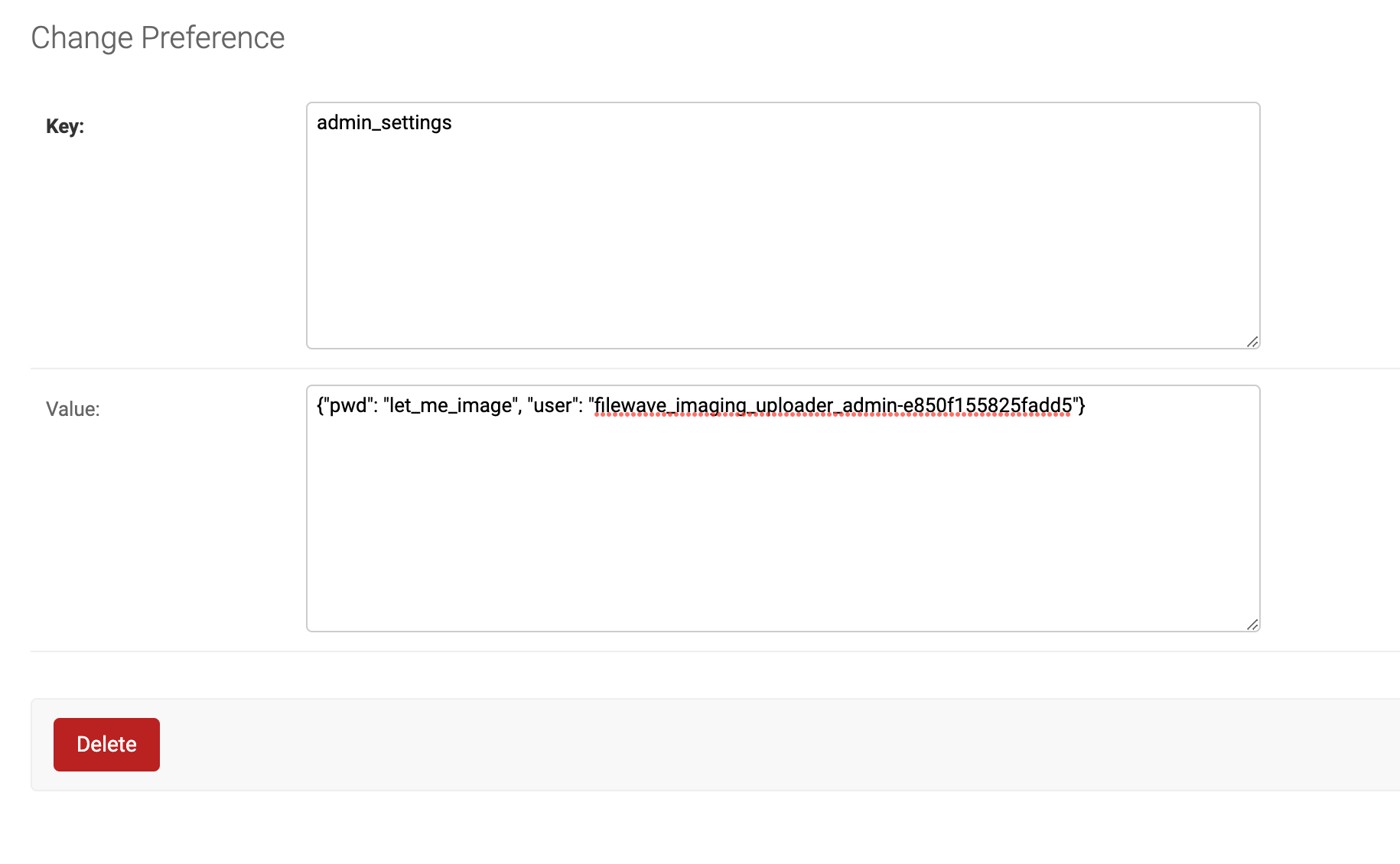
Once logged in, go to Admin, Preferences as shown at the top of the article. Then, click on admin\_settings, and you’ll get a screen like this (except yours won’t have a value in it):
[](https://kb.filewave.com/uploads/images/gallery/2023-08/txAQ1T0q33TIR2Nt-image.png)
All you need to do now is paste in the following text, replacing your specific username and your password:
```
{"pwd": "let_me_image", "user": "filewave_imaging_uploader_admin-e850f155825fadd5"}
```
Once you **SAVE** this field, your IVS is ready for operation.
## Capture
Because IVS upload has no ability to retry the upload of an image built in, and transferring over the WAN is more sensitive than a local transfer, an image upload could get interrupted. Note that the image will have been captured to the IVS, it just had trouble uploading to the FW server. But you can use the FileWave Admin's command line to force the upload replacing the image name, a FileWave Admin username, password, and server address:
```
/usr/local/bin/FileWaveAdmin --importImage /imaging/images/windows/FS_-1 -u myfwusername -p mypassword -H support.filewave.net -P 20016
```
## Restore
Restoring images is fairly normal because once an image is assigned to any device, it is downloaded to the IVS appliance itself. The download does retry on failure because it is like any other Fileset. And, since image application to the actual “to be imaged” device happens locally to the network, the fact that the FileWave Server is Hosted is not in play here.
# Expanding the IVS Disk Drive - VirtualBox
Imaging Appliance - VirtualBox Resize HD
This guide will help you extend the Imaging Virtual Servers (IVS) hard drive space on Imaging for VirtualBox.
### For VirtualBox
The following steps will help you resize the virtual hard drive for the FileWave Imaging Appliance running on Oracle VirtualBox.
1\. Power off the virtual machine.
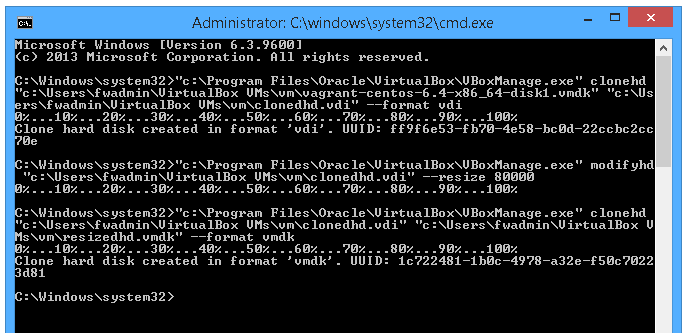
2\. Open a command command prompt or terminal and extend the vmdk using the following commands ( replace source.vmdk with the path to your vbox vmdk, and "NUMBER OF MEGABYTES" according to the FULL size that you want the hard drive to be ) :
```
"C:\Program Files\Oracle\VirtualBox\VBoxManage.exe" clonehd "source.vmdk" "cloned.vdi" --format vdi
"C:\Program Files\Oracle\VirtualBox\VBoxManage.exe" modifyhd "cloned.vdi" --resize (NUMBER OF MEGABYTES)
"C:\Program Files\Oracle\VirtualBox\VBoxManage.exe" clonehd "cloned.vdi" "resized.vmdk" --format vmdk
```
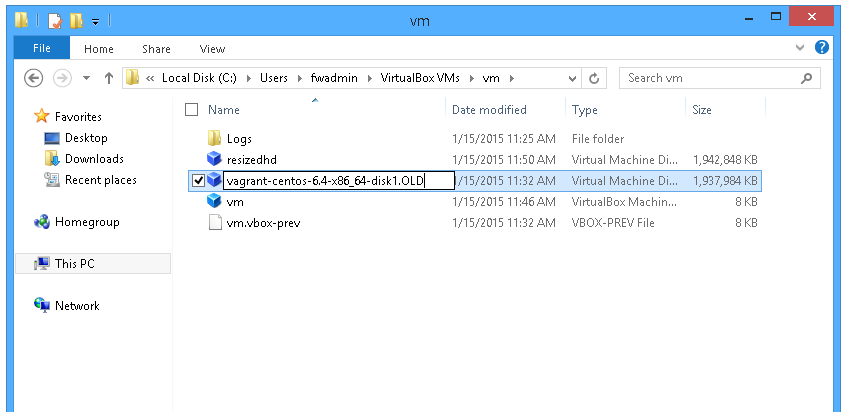
3\. Rename the original vmdk file to "vagrant-centos-6.4-x86\_64-disk1.OLD" and rename resized.vmdk to the original "vagrant-centos-6.4-x86\_64-disk1"
4\. In FileWave Imaging we created a imaging-control command for extending the virtual hard drive size. Power on the IVS and login.
5\. Run the below imaging-control command to increase the hard drive.
```
imaging-control increase harddrive
```
6\. You will be asked "Have you extended the hard drive in the VM settings?". Answer "y".
7\. You will then select "ENTER", and it will restart your IVS with the increased Hard Drive.
8\. After this you are done.
# Expanding the IVS Disk Drive - VMware

Imaging Appliance - VMware Resize HD
Use this workflow when a VMware-hosted FileWave Imaging Virtual Server (IVS) needs more disk space. First expand the virtual disk in VMware, then run `imaging-control increase harddrive` on the IVS so the appliance grows the filesystem.
### For VMware
The following steps will help you resize the virtual hard drive for the FileWave Imaging Appliance running on VMware.
1\. Power off the virtual machine.
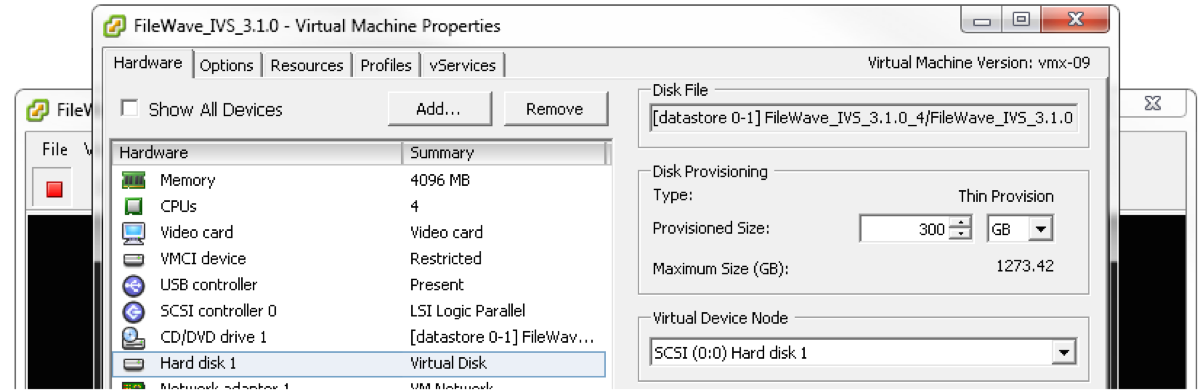
2\. Edit the virtual machine settings and extend the virtual disk size. The screenshots below show where to increase the available disk size in VMware.
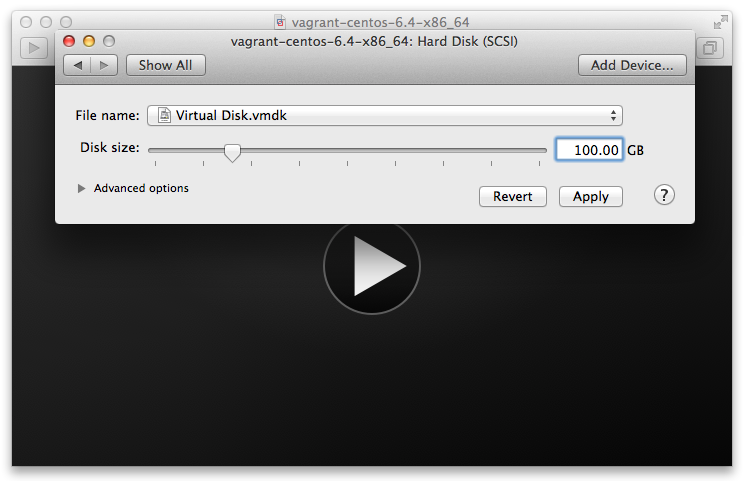 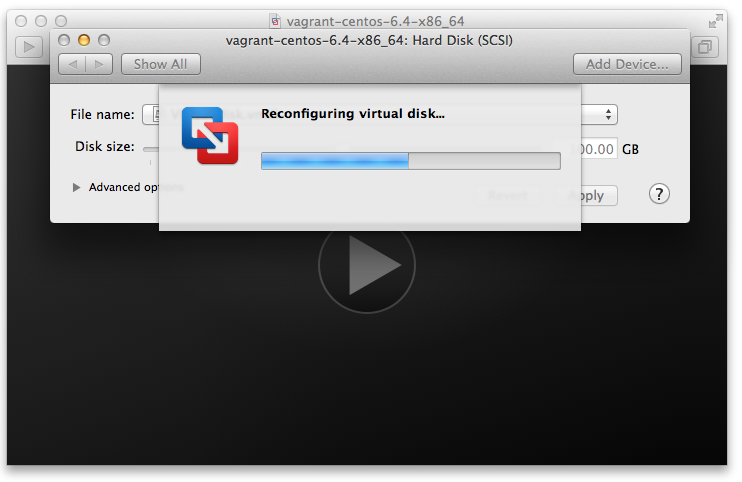 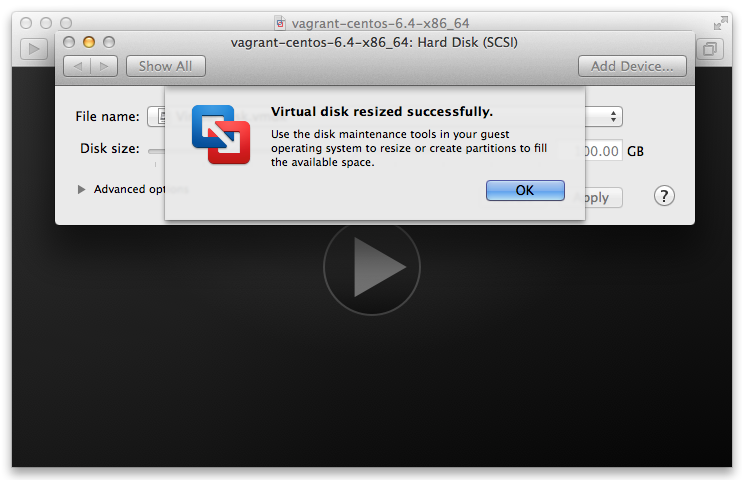
3\. Power on the IVS and log in. FileWave Imaging includes an `imaging-control` command to expand the appliance filesystem after the VMware disk is larger.
4\. Run the command below to increase the hard drive.
```
imaging-control increase harddrive
```
5\. When prompted with "Have you extended the hard drive in the VM settings?", answer "y".
6\. Press Enter when prompted. The IVS restarts with the larger hard drive available.
7\. After the IVS restarts, confirm the extra space is available before resuming imaging work.
# Changing the IP Address of your IVS (Static)
The following guide is tailored for Debian servers using the interfaces file, but you could also use [Webmin](https://kb.filewave.com/books/filewave-server/page/webmin-gui-on-premise "Webmin GUI (On-Premise)"), assuming the IVS comes online initially with DHCP.
For Webmin, know that you will need to go to Webmin -> Webmin Configuration -> Operating System and Environment and make sure it's set to Debian 12.4 (At the time of this KB's publishing, you can verify the version with `cat /etc/debian_version` on the server).
1. **Locate Network Interface**:
First, identify the network interface you wish to configure. You can list all network interfaces using:
```
networkctl list
```
[](https://kb.filewave.com/uploads/images/gallery/2024-01/1mWKjVXFvMUjRTH7-image.png)
2. **Edit the /etc/network/interfaces file:** Using 'nano', edit the interfaces file to set the network configurations.
```
nano /etc/network/interfaces
```
Your default interfaces file should look something like this (your interface name may be different):
```
# The loopback network interface
auto lo eth0
iface lo inet loopback
# The primary network interface
iface eth0 inet dhcp
```
3. Change the file to look like this, using your network preferences (note 'dhcp' has been changed to 'static' in line 6)
```
# The loopback network interface
auto lo eth0
iface lo inet loopback
# The primary network interface
iface eth0 inet static
address 192.168.10.33
netmask 255.255.255.0
broadcast 192.168.10.255
dns-nameservers 192.168.10.254 192.168.10.255
```
4. **Verify Resolv.conf and hostname files:** Verify that these files in /etc/ are configured correctly for your network and server.
**/etc/resolv.conf**: This file should list your DNS servers
**/etc/hostname**: Specifies the hostname for your IVS. This is **filewave-ivs** by default.
5. **Reboot & Verify Changes**
# IVS Control Commands
These commands allow modification of the settings on the FileWave IVS (Imaging Virtual Server). These **imaging-control** commands require root authorization.
#### **List of Imaging-Control *commands***
```
imaging-control networksetup static
imaging-control networksetup dhcp
imaging-control subnet add
imaging-control subnet remove
imaging-control increase harddrive
imaging-control list macimages
imaging-control list windowsimages
imaging-control disable macimaging
imaging-control disable windowsimaging
imaging-control enable macimaging
imaging-control enable windowsimaging
```
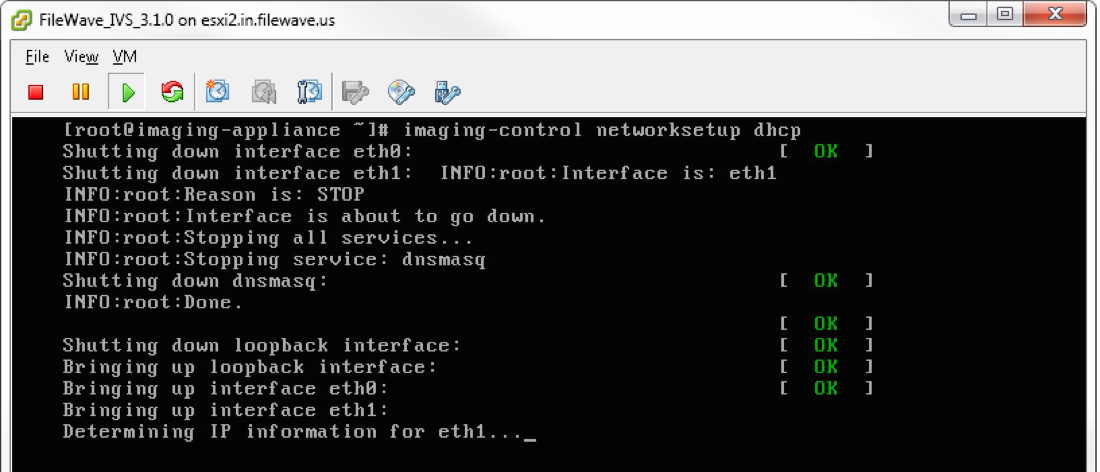
#### ***Configuring the IVS network interface***
The FileWave IVS network is configured to use dhcp by default. This command has 2 options:
```
imaging-control networksetup static
```
This command will prompt for static ip information and configure the network interface to it
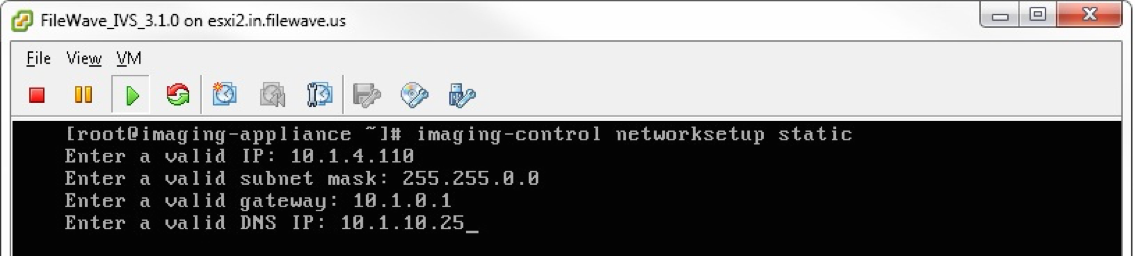
```
imaging-control networksetup dhcp
```
This command will switch the IVS networking interface back to dhcp
#### ***Configuring subnets on the IVS***
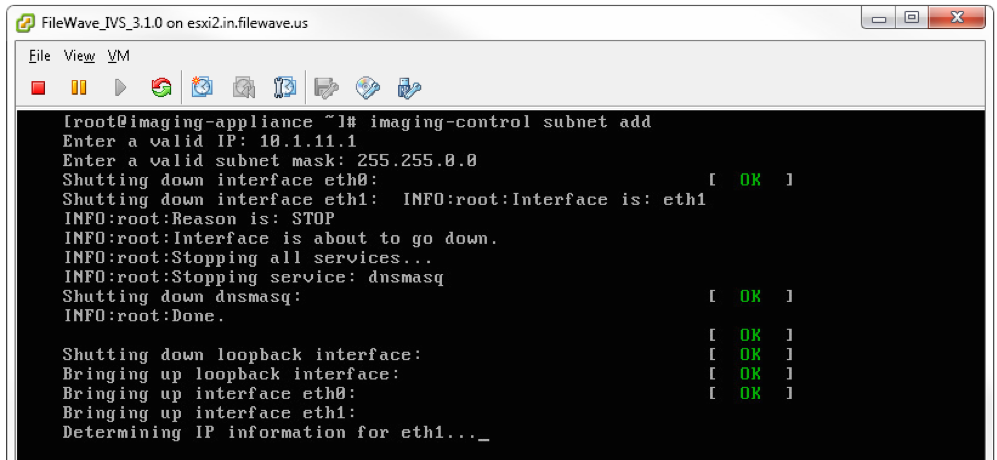
The FileWave IVS will default to listening only on the subnet that it’s ip address is from. This command can be used to add subnets for the IVS to listen to or remove subnets:
```
imaging-control subnet add
```
This command will prompt for a valid ip address from the subnet and the subnet mask
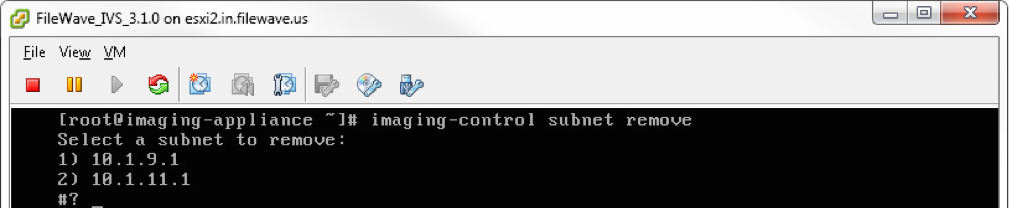
```
imaging-control subnet remove
```
This command will display the subnets that the IVS is currently listening to and allow removal
#### ***Increasing the IVS hard drive***
```
imaging-control increase harddrive
```
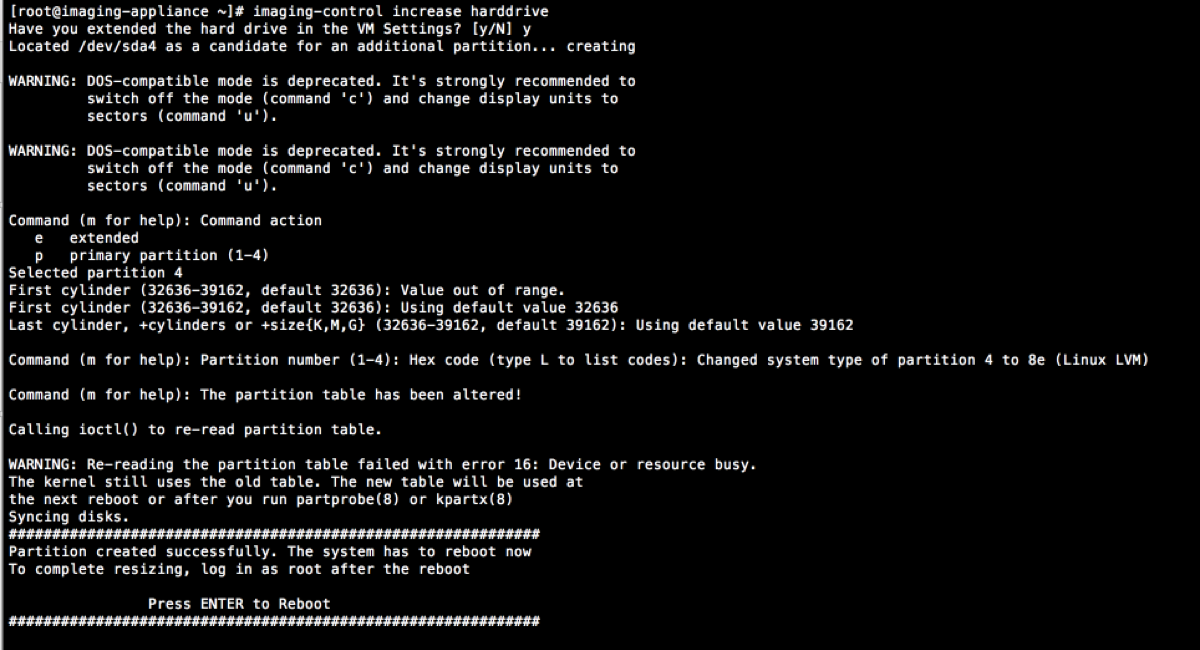
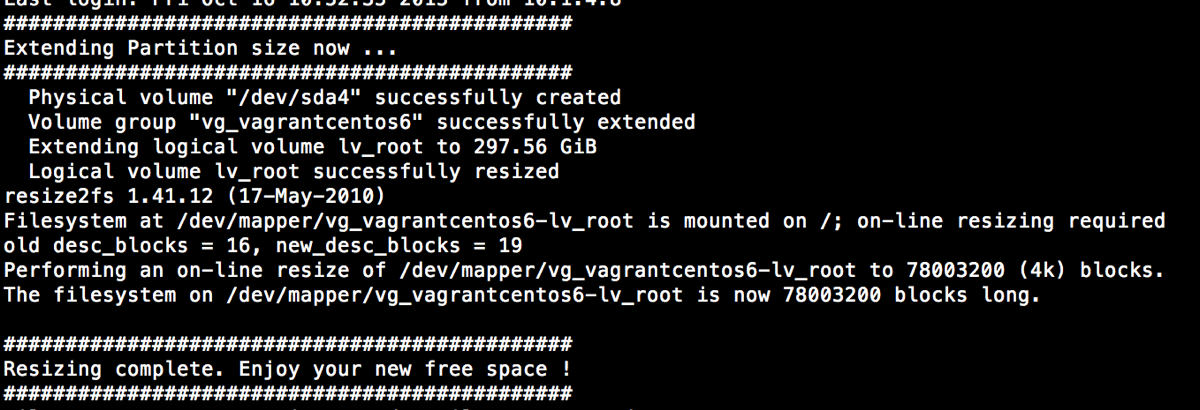
This command will allow the virtual disk on the IVS to be increased. The default size is 250gb. This command will require that the IVS is first shutdown and the hard drive is expanded in the vm settings.
#### ***Viewing list of images on IVS***
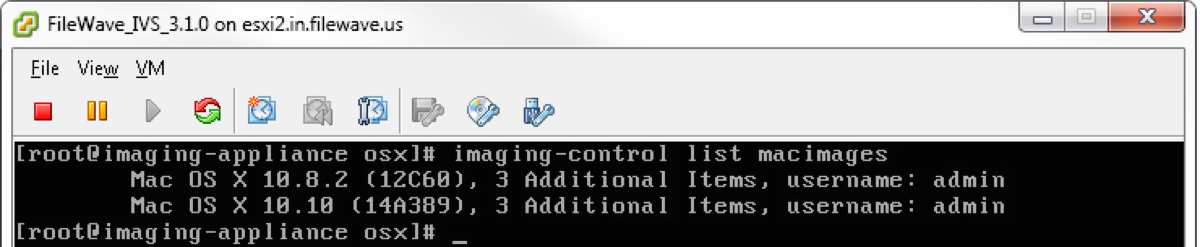
These commands will list Mac and Windows images being hosted on the IVS currently
```
imaging-control list macimages
```
```
imaging-control list windowsimages
```

#### ***Configuring the IVS for Mac or Windows***
The default settings on the IVS allow for Mac and Windows imaging. These commands will allow you to disable/enable Mac or Windows imaging on the IVS.
```
imaging-control disable macimaging
```
This command disables Mac imaging on the IVS.
```
imaging-control disable windowsimaging
```
This command disables Windows imaging on the IVS.
```
imaging-control enable macimaging
```
This command enables Mac imaging on the IVS. (default setting)
```
imaging-control enable windowsimaging
```
This command enables Windows imaging on the IVS. (default setting)
# Creating and Deploying Images
The following articles will walk you through both capturing and deploying images to Windows computers.
# Windows Network Imaging - Capturing and Deploying Images
### Windows Imaging (PXE):
The following are the steps you will need, from start to finish, to create a Windows image from FileWave and send it out to your devices.
This guide assumes the following:
- FileWave Imaging Server is set up
- Devices are on the same subnet (unless the proper steps were taken to image across subnets)
- Windows devices are in the FileWave Admin with valid Mac addresses, either as an active client or a placeholder where the name isn't longer than 15 characters
**IMPORTANT**:
Windows does not permit computer names that exceed 15 characters ([Naming conventions in Active Directory for computers, domains, sites, and OUs](https://docs.microsoft.com/en-us/troubleshoot/windows-server/identity/naming-conventions-for-computer-domain-site-ou))
PLEASE NOTE for **UEFI** imaging:
If you want to create/deploy an image from/to a native UEFI machine, you will need to create a new master from a native UEFI machine using the latest IVS.
The DHCP server has to be the same as the THTP server. If not, the following error message will be thrown in the boot sequence: PXE-E99: Unexpected network error. This is caused by the PXE UEFI firmware, so PXE legacy mode should still work normally.
### Prepare and download all needed parts
#### Before starting, be sure you have:
1. FileWave Management Server and Admin
2. FileWave Imaging server setup: [Network Imaging Guide](https://kb.filewave.com/books/network-imaging-ivs/page/windows-network-imaging-pxe-booting "Windows Network Imaging - PXE Booting")
3. FileWave Custom Client MSI [download from here](https://custom.filewave.com/py/custom_client_win.py)
4. Supported Windows devices
### Procedures
#### Creation and Importation of an Image:
To create an image, we will need to capture it from a pre-configured device.
NOTE:
If you intend for the master image to include the FileWave Client pre-installed, please pay careful attention to the steps included in this article: [Including the FileWave Client on an image.](https://kb.filewave.com/books/network-imaging-ivs/page/including-the-filewave-client-on-an-image)
Otherwise, you could create multiple enrollment conflicts with each freshly imaged Windows device.
Note: You will need to have the Windows device you are capturing the image from in FileWave before the capture. This can be done with either enrolling the Windows device in FileWave with the Client or using a Placeholder.
NOTE: You will only be able to deploy your image to devices with a hard drive that is larger than or equal to the captured drive. So best practice would be to capture your image on the smallest hard drive possible so that you may deploy the image to any larger drive. A VM would be perfect for this task.
1. Install a clean version of Windows
2. Make any desired changes you want to the OS, including installing the FileWave Custom Client MSI
3. Follow the guide below to create an answer file, run chkdsk, and sysprep.
[Windows Sysprep - Automated Install Settings](https://kb.filewave.com/books/network-imaging-ivs/page/windows-sysprep-guide "Windows Sysprep Guide")
If you have an existing answer file, then skip to the chkdsk and sysprep steps in the article
Sysprep is REQUIRED
4. Once the computer has shutdown after Sysprep, you will need to make an association in FileWave
1. 1. It's recommended that you take a snapshot (if using a VM) here. This way, if the computer accidentally gets rebooted, you won't need to run Sysprep again.
5. Launch the FileWave Admin and navigate to the the Imaging section
6. Once there use the drop down menu to select Windows
This then filters the devices and images seen below for Windows
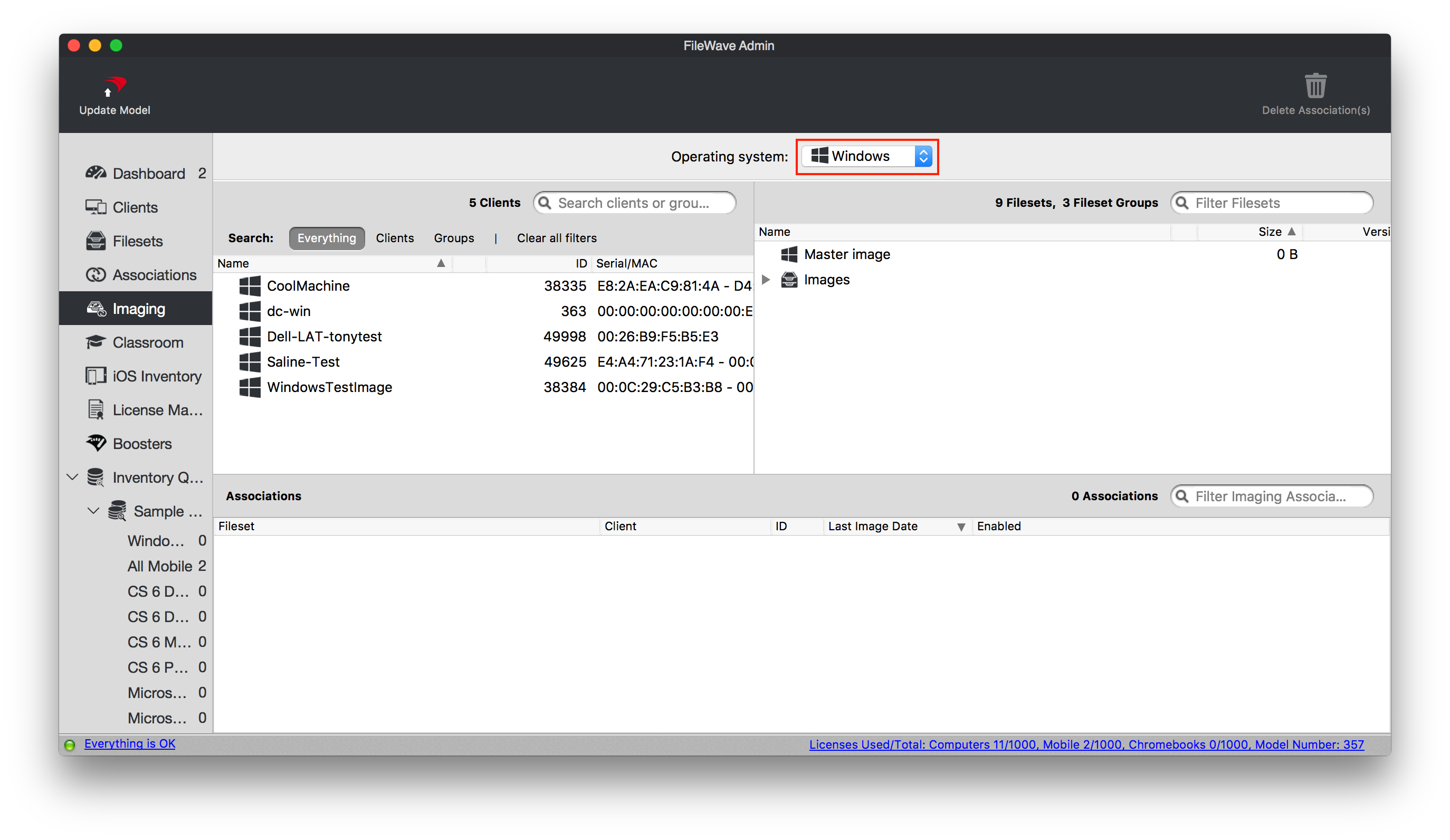
7. Now find your device on the left pane and the object called Master Image on the right pane. Click, drag, and drop Master Image to your device on the left.
This will then launch a dialog box stating that the association has been made.
8. Make sure the association shows "True" under the Enabled column. If not, right-click the association and select "Enable Associations"
9. Update the Model
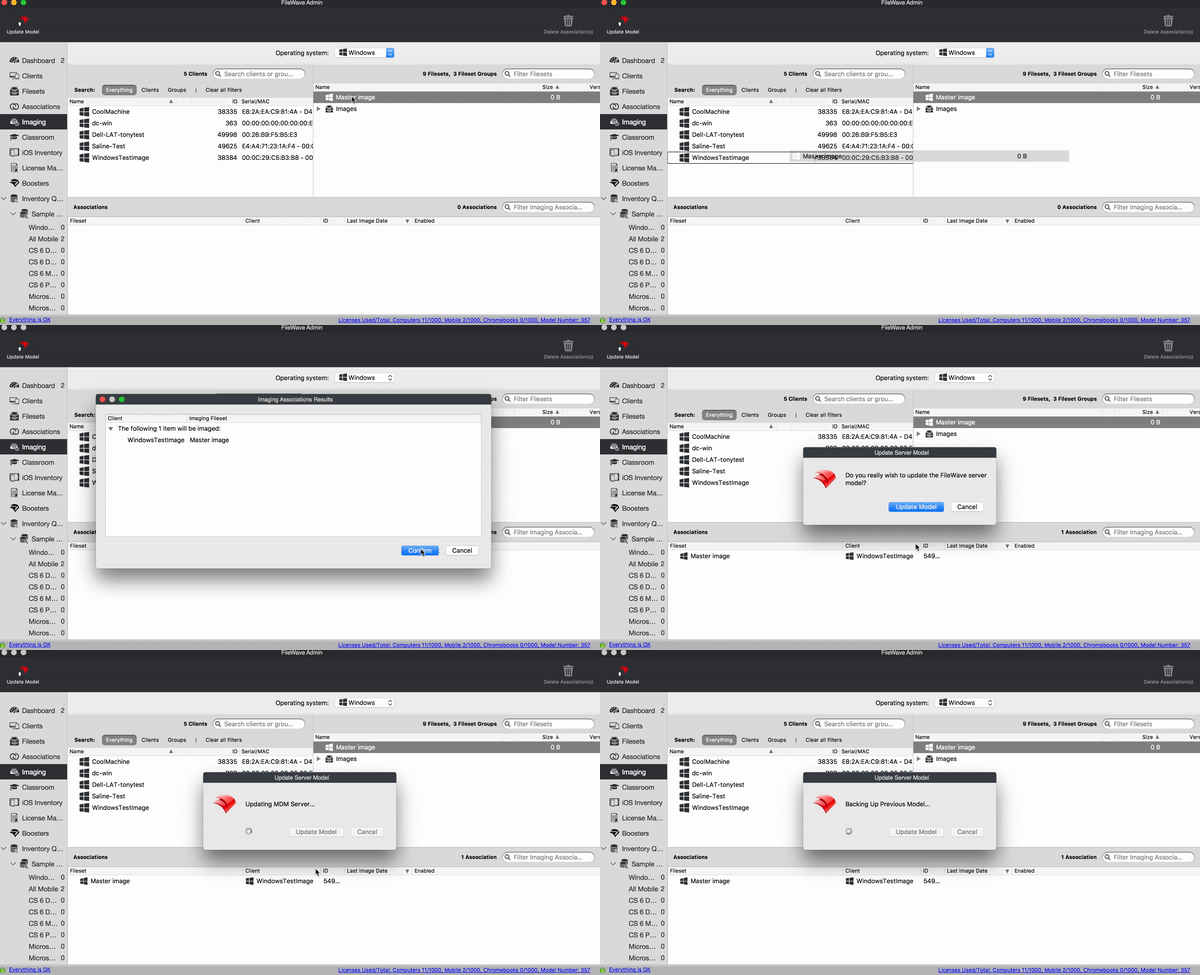
10. Open the FileWave Preferences, go to the Imaging tab, select your imaging server, and then click Monitor
You will need to make sure it is on the same model number as your FileWave server by waiting 2 mins or clicking the verify button[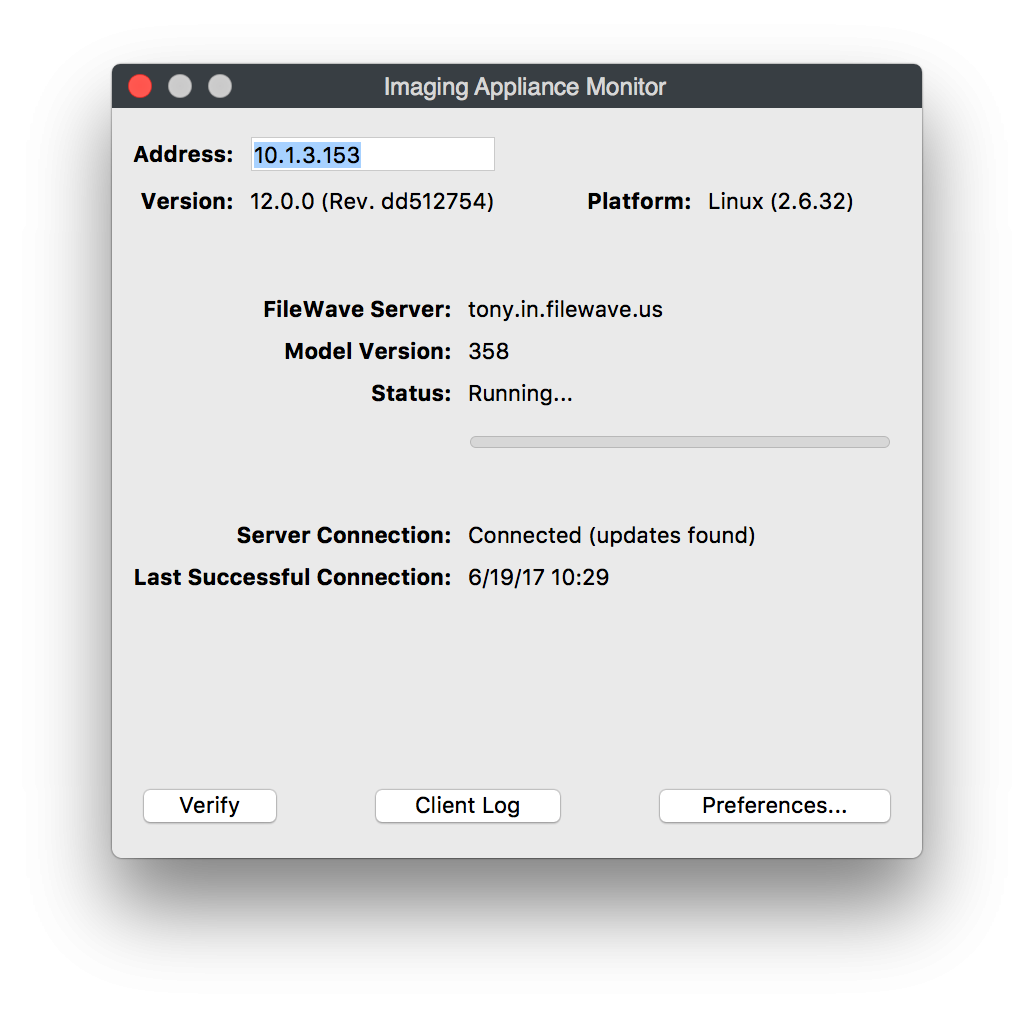](https://kb.filewave.com/uploads/images/gallery/2023-06/D4FlXsGk2ldg6ZVA-ivswin-ivsmonitor358.png)
11. Once the IVS is on the same model as your FileWave server you can now PXE boot your target machine for image capture.
The device will then find an IP address from DHCP, see the FileWave server, and go through the booting process.
[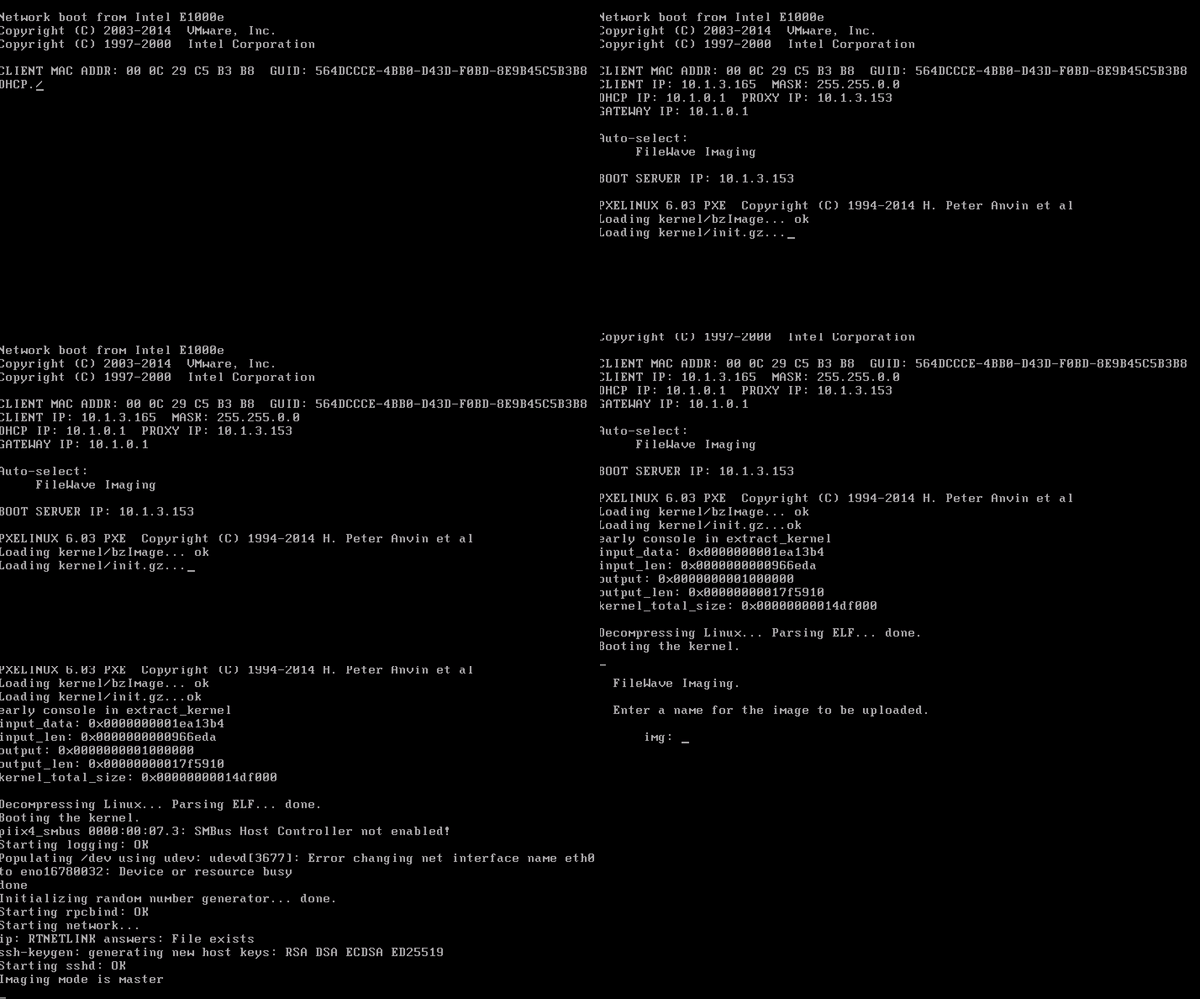](https://kb.filewave.com/uploads/images/gallery/2023-06/dBg4LUep58RttYgn-ivswin-pxemasterimage.gif)
12. You will then be prompted Enter a name for the image to be uploaded.
[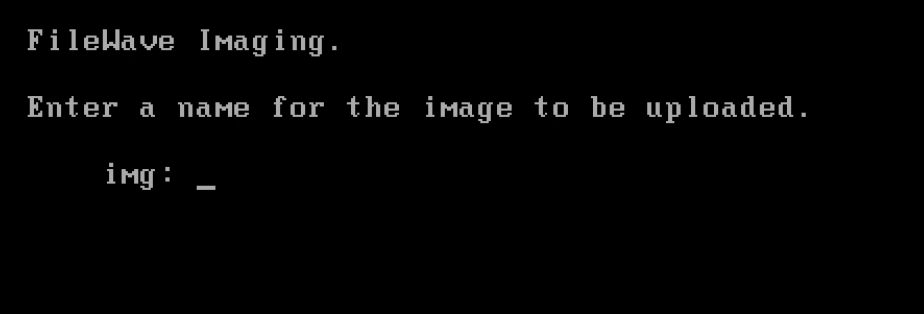](https://kb.filewave.com/uploads/images/gallery/2023-06/Om2iByBNRRVW95UL-ivswin-namemasterimage.png)
13. Once you have named the image it will go through the capture process for all of the partitions.
After the IVS has captured the image it will automatically upload to your FileWave server. The image will appear in the Filesets and the Imaging section.
[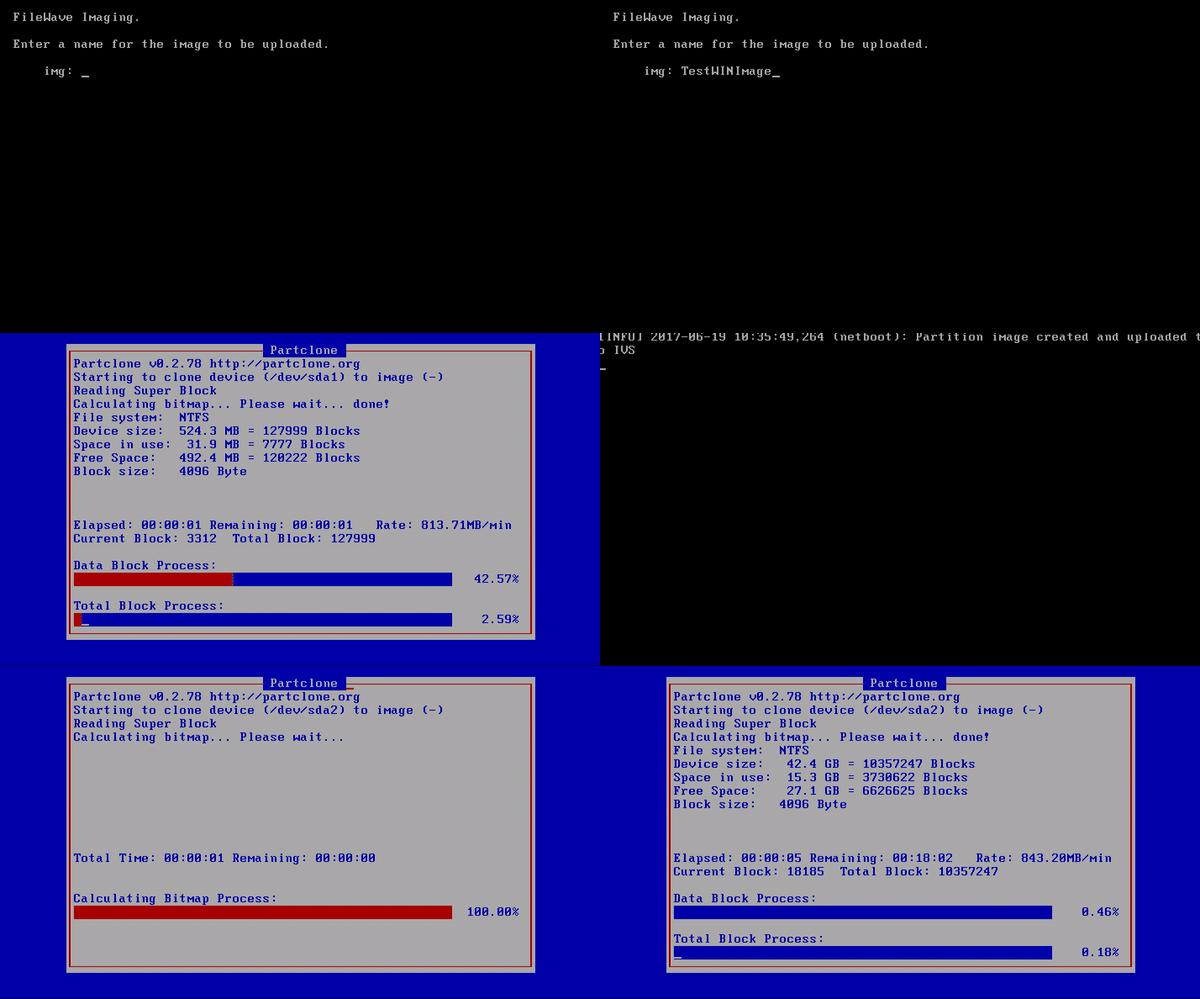](https://kb.filewave.com/uploads/images/gallery/2023-06/8ke70QF6MP2NDPMh-ivswin-masterimagecapture.gif)
You have now successfully created an image to be deployed to your Windows machines.
#### Associating and deploying the Image:
To deploy an image you already have in FileWave is a very easy process and is similar to the steps above for creating an image.
1. Launch the FileWave Admin and navigate to the Imaging section
2. Once there use the drop down menu to select Windows
This then filters the devices and images for Windows
3. Now find your device, or group of devices, on the left pane and your image on the right pane. Click, drag, and drop your image to the device, or group of devices, on the left.
This will then launch a dialog box stating that the association has been made.
NOTE: If you have a Driver fileset in FileWave you will follow the same steps in step 3 above to assign those drivers after you assign the image. [Creating Windows Driver Filesets](https://kb.filewave.com/books/network-imaging-ivs/page/creating-windows-driver-filesets "Creating Windows Driver Filesets")
NOTE: If you have association to another image (including the master image) you will need to delete that first prior to making a new image association.
4. Make sure the association shows "True" under the Enabled column. If not, right-click the association and select "Enable Associations"
5. Update the Model
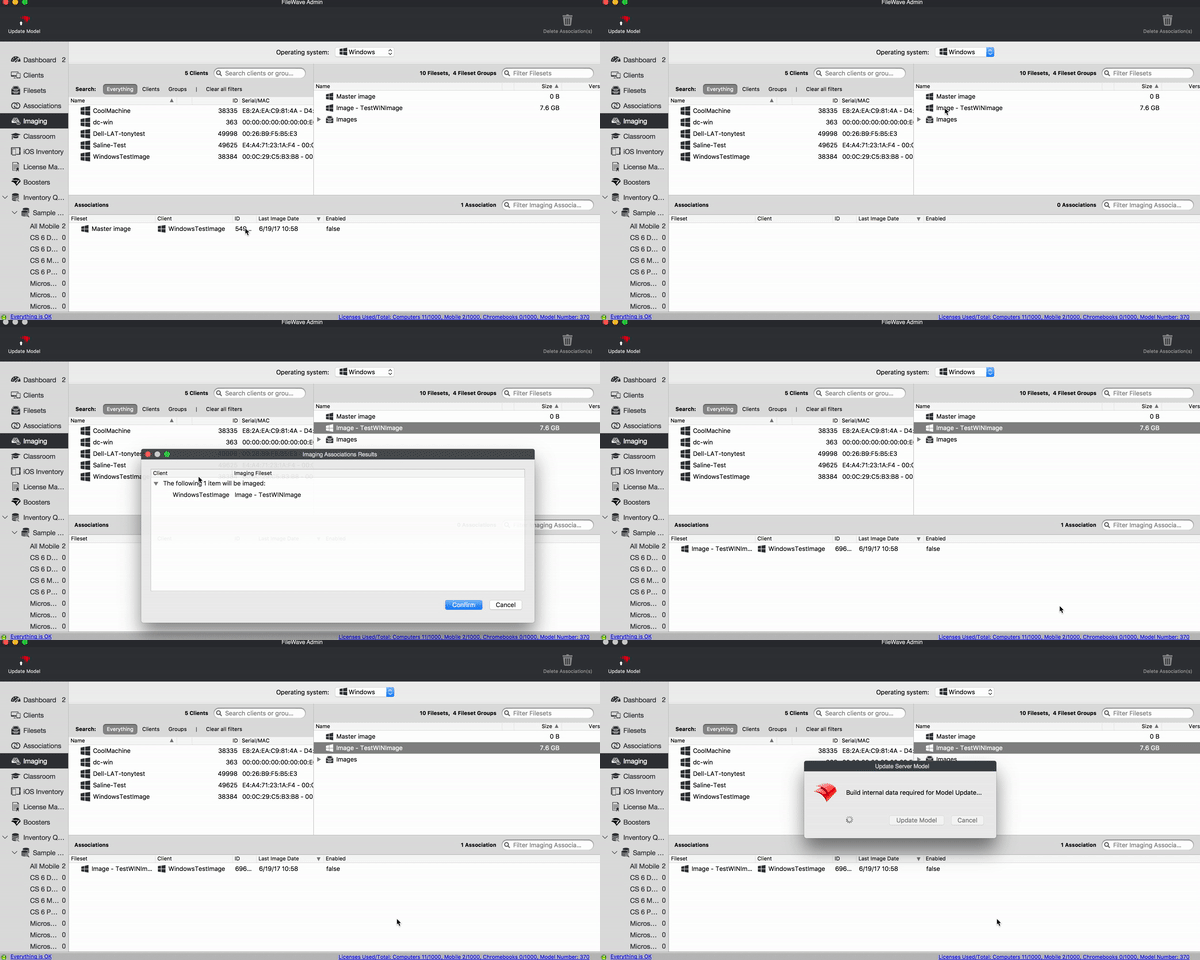
6. Open the FileWave Preferences, go to the Imaging tab, select your Imaging server, and then click Monitor
You will need to make sure it is on the same model number as your FileWave server by waiting 2 mins or click the verify button.
Note: If there are no other associations to this image then the image has to be transferred to your IVS before you PXE boot your devices.
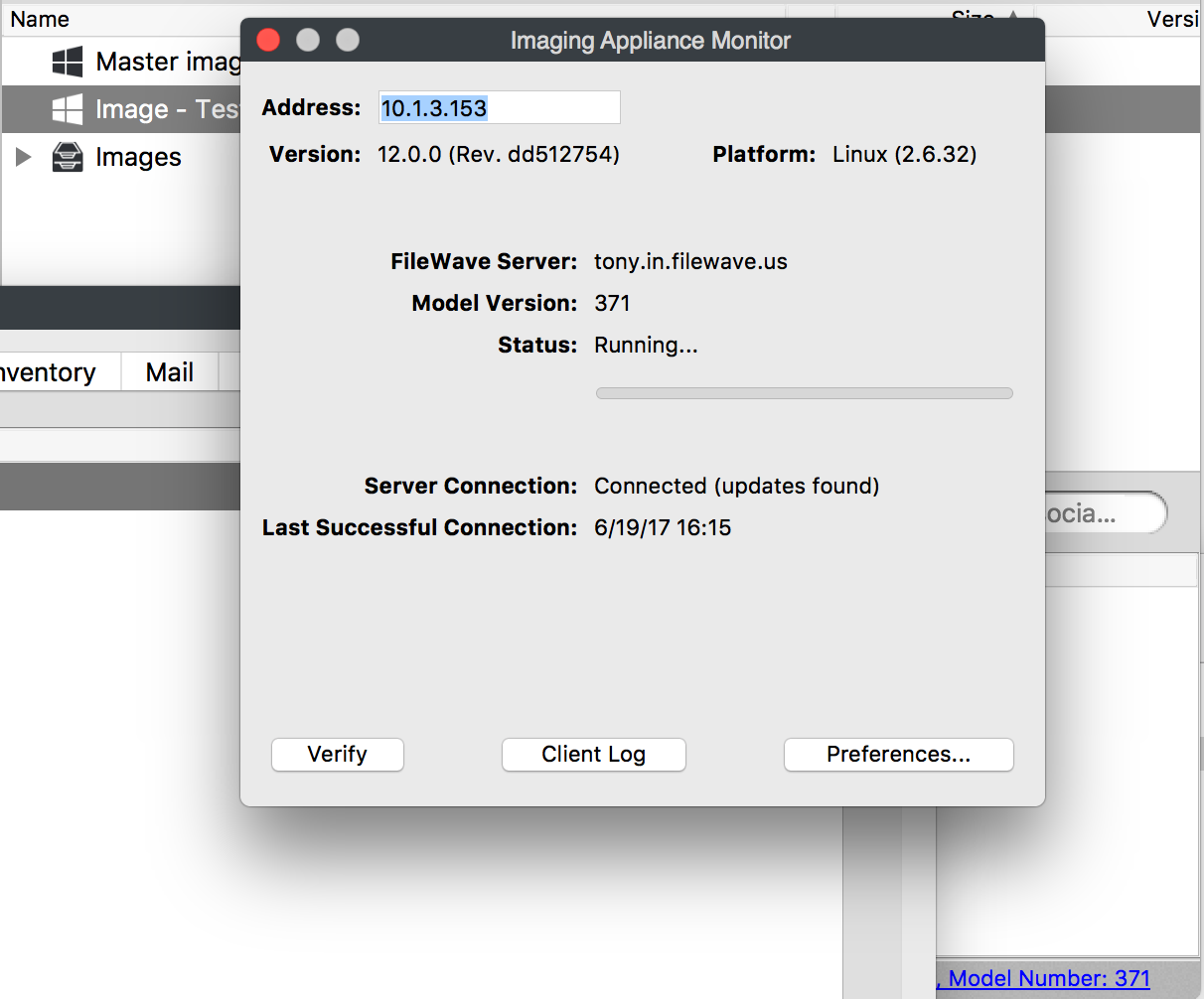
7. When the imaging server is on the same model as your FileWave server (and the image has been copied over) you are now ready to PXE boot your devices.
8. Connect your Windows device to ethernet, power on the device, and hold down the F12 key. Or go into the boot menu and select to boot from the NIC
Note: Boot keys can change between hardware, you may need to check the devices manual for the correct key to push.
9. Your device(s) will then find an IP address from DHCP, see the FileWave Imaging server, and go through the booting process
10. From here the image will be deployed to the machine, named accordingly to the FileWave client object, driver files will be copied over in preparation for first boot, and the machine will restart to launch into the OS.
Note: After the image process has completed the imaging association in FileWave will be disabled. You can see this by looking at the association's column Enabled is set to false.
[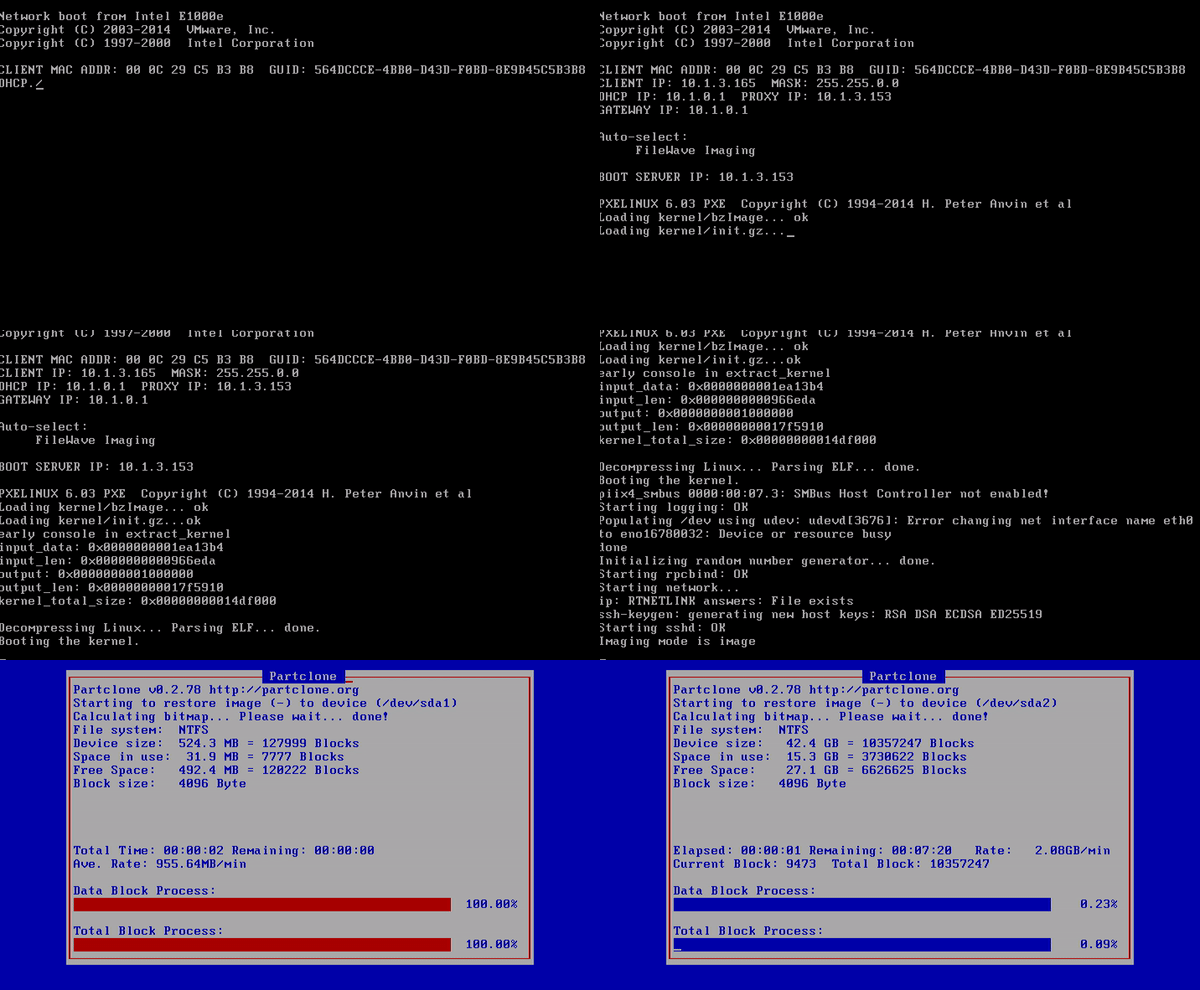](https://kb.filewave.com/uploads/images/gallery/2023-06/M1SkY1oN2rFZ1V8c-ivswin-deployingimage.gif)
Congratulations, you have successfully associated and deployed a Windows image through the network!
### Related Links:
[https://kb.filewave.com/books/network-imaging-ivs/page/including-the-filewave-client-on-an-image](https://kb.filewave.com/books/network-imaging-ivs/page/including-the-filewave-client-on-an-image)
# Including the FileWave client on an image
### **What**
The generated Windows base image should be left as clean as possible, with any chosen installations handled afterwards to prevent having to recreate the image more often than absolutely required. However, the base image should include the FileWave Client, to ensure imaged devices check-in immediately after the imaging process. The purpose of this guide is to avoid creating duplicate enrollments (namely, the Device ID can easily be cloned if not careful) for Windows devices when imaged.
Installing the FileWave Client should take place just before Sysprep is commenced.
### **When/Why**
The FileWave Client should be installed, prior to generating the image, using the personalized Custom MSI. The Custom MSI installer can be found here: [Custom FileWave Client for Windows](https://custom.filewave.com/py/custom_client_win.py).
However, this source device should not be allowed to check into the FileWave Server, to ensure that the client does not have any unique configuration passed onto each imaged device or that any database entries are created for this device.
Consider using a VM and taking a snapshot before making any prior configuration changes to the base image. If a mistake is made, it will then be easy to rollback and redo that stage.
If after the FileWave Client is installed the source device is allowed to check-in, then the client service will still need to be stopped. Afterwards, the generated client record should be removed (run a Model Update after removal) and either the FileWave client should be uninstalled and re-installed, generated FileWave Client files should be removed/edited or roll the VM back, if created, to redo this step.
Files required for removal/edited may be found on the following KB: [FileWave File Locations](https://kb.filewave.com/books/filewave-general-info/page/filewave-log-file-locations "FileWave Log File Locations")
### **How**
- Prepare the device as per the prior instructions
- Disable the network for this device
- Open the Windows Services (in preparation to stop the FileWave Client)
- Instal the Custom MSI
- Stop the FileWave Client service
- Re-enable the network
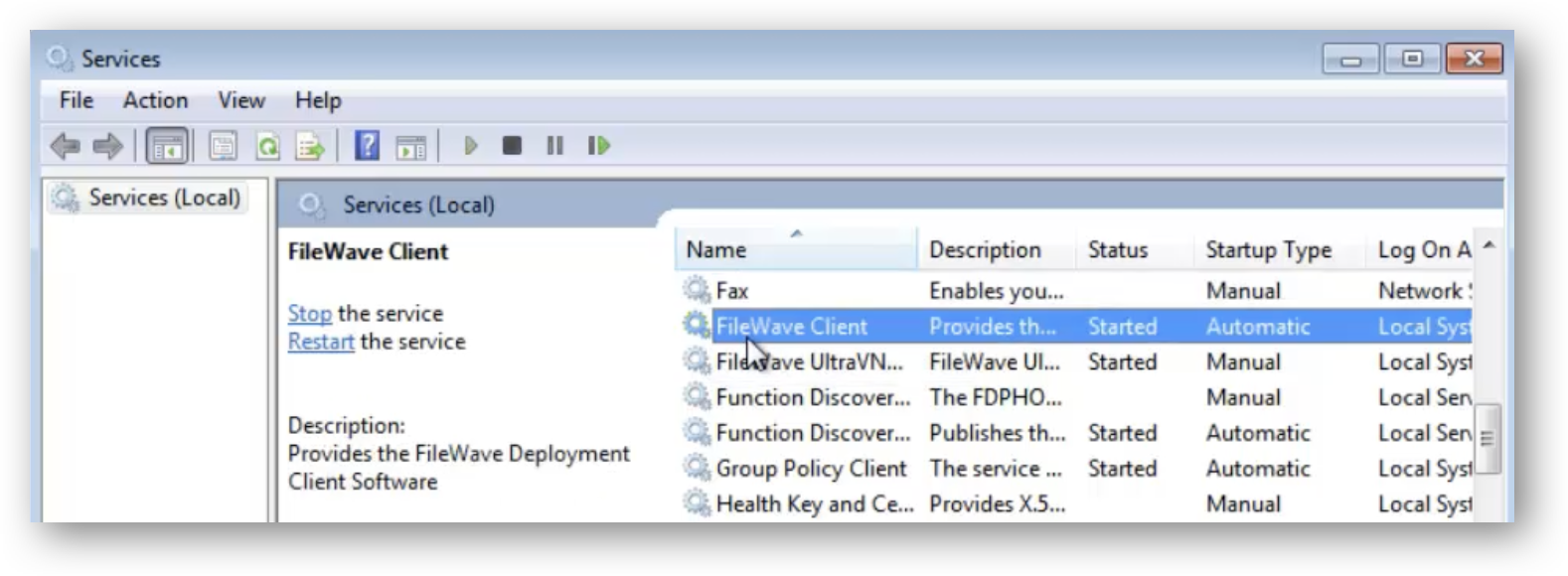
The device is now ready to generate the base image with ‘Sysprep’. Next is to capture the image, be sure follow the [Windows Network Imaging](https://kb.filewave.com/books/network-imaging-ivs/page/windows-network-imaging-capturing-and-deploying-images "Windows Network Imaging - PXE Booting").
# Windows Sysprep Guide


Use this guide when preparing a Windows reference device for capture and deployment with FileWave Network IVS.
Before capturing the image, run Microsoft Sysprep. Sysprep removes system-specific data from Windows and prepares the image to complete setup the next time it starts.
## Basic workflow
1. Build the Windows reference device the way you want deployed devices to start.
2. If you need to automate setup or OOBE choices, create an answer file and save it on the reference device.
3. Run Check Disk and restart.
4. Run Sysprep with `/generalize /oobe /shutdown`.
5. When the device shuts down, leave it off and capture it with FileWave IVS. If Windows starts again before capture, run Sysprep again before capturing.
## Create or validate an answer file
An answer file is only needed if you want to automate Windows setup or OOBE choices after the image is deployed. If you do use one, create or validate it before running Sysprep.
For the examples below, save the file on the reference device as `C:\Sysprep\unattend.xml`.
If you are new to this process, start with the smallest answer file that handles the setup choices you actually need. Add disk or Windows PE settings only when you know the workflow requires them.
The Microsoft-supported method is [Windows System Image Manager](https://learn.microsoft.com/en-us/windows-hardware/customize/desktop/wsim/windows-system-image-manager-technical-reference), which is included with the [Windows Assessment and Deployment Kit (ADK)](https://learn.microsoft.com/en-us/windows-hardware/get-started/adk-install). Use ADK/Windows SIM that matches the Windows version you are preparing as closely as possible.
Third-party generators can be helpful for building a starting point, but FileWave does not own or validate their output. If you use one, review the XML and test it in a lab before using it for a master image.
- [Aeternum Windows Unattended File Generator](https://windowsunattendedfilegenerator.aeternumtechnology.com/)
- [Schneegans Windows Unattend Generator](https://schneegans.de/windows/unattend-generator/)
If a generator includes Windows PE, disk partitioning, or UEFI/GPT settings, check those settings carefully. For a normal FileWave reference-image capture, you usually only need the Sysprep answer file; Windows PE partitioning scripts are a separate clean-install workflow.
For UEFI/GPT systems, Microsoft documents the EFI System Partition as FAT32 with a minimum size of 200 MB.
## Check the reference device
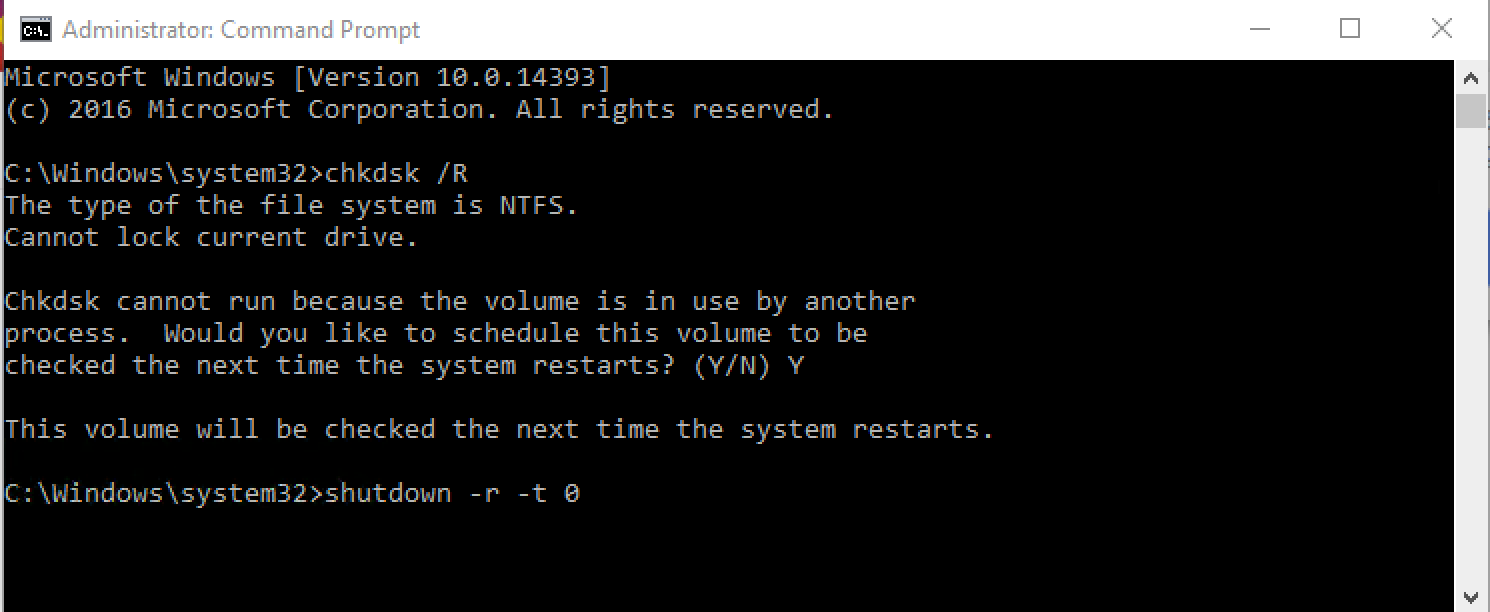
Run Check Disk before Sysprep. Open Command Prompt as administrator and run:
```
chkdsk /R
shutdown /r /t 0
```
If Windows says the disk is in use, choose to schedule the check for the next restart, then restart with the second command.
## Run Sysprep
After Check Disk completes and Windows starts again, run Sysprep from an administrator Command Prompt.
With an answer file:
```
C:\Windows\System32\Sysprep\sysprep.exe /generalize /oobe /shutdown /unattend:C:\Sysprep\unattend.xml
```
If the answer file path contains spaces, quote the path:
```
C:\Windows\System32\Sysprep\sysprep.exe /generalize /oobe /shutdown /unattend:"C:\Path With Spaces\unattend.xml"
```
Without an answer file:
```
C:\Windows\System32\Sysprep\sysprep.exe /generalize /oobe /shutdown
```
When Sysprep finishes, the device shuts down. Do not boot it back into Windows before capture. At that point, upload the master image to the FileWave Imaging Appliance.
## If Sysprep or deployment fails
- Confirm the `/unattend:` path points to the actual XML file on the reference device.
- Avoid spaces in the answer file path, or quote the path as shown above.
- Review `C:\Windows\System32\Sysprep\Panther\setupact.log` and `C:\Windows\System32\Sysprep\Panther\setuperr.log`.
- Run Sysprep again without an answer file. If that works, focus on the answer file, generator choices, or partitioning settings.
- If UEFI/GPT or EFI partition behavior is involved, compare the answer file or generated Windows PE script with Microsoft guidance for UEFI/GPT partitions.
- If Sysprep succeeds but capture or deployment fails, troubleshoot FileWave Network IVS separately.
## Related articles
- [Windows Network Imaging - PXE Booting](https://kb.filewave.com/books/network-imaging-ivs/page/windows-network-imaging-capturing-and-deploying-images)
- [Microsoft: Sysprep overview](https://learn.microsoft.com/en-us/windows-hardware/manufacture/desktop/sysprep--system-preparation--overview)
- [Microsoft: Sysprep command-line options](https://learn.microsoft.com/en-us/windows-hardware/manufacture/desktop/sysprep-command-line-options)
- [Microsoft: Configure UEFI/GPT-based hard drive partitions](https://learn.microsoft.com/en-us/windows-hardware/manufacture/desktop/configure-uefigpt-based-hard-drive-partitions)
# Imaging Windows from a USB Drive
## What
Occasionally you might run into an issue with PXE boot for imaging, or just generally need to test the imaging process. The USB bootable image provided here is meant to be a workaround, or a tool of convenience, for imaging devices using the FileWave IVS.
Please note that FileWave 15.5.0 changed the process to mount a share and this article will need to be adjusted. If you depend on this process of imaging from USB please know that some updates are needed to how the USB config will need to be due to a VPN connection being used to secure the NFS mounts as of 15.5.0.
## When/Why
There are several situations where this utility may be useful. A few examples follow:
- You are not sure broadcast forwarding is setup correctly (network troubleshooting)
- Your need to image a device at a location which does not have an IVS locally
- For deeper access to debugging imaging problems
- You can't PXE boot on a physical connection (i.e. a non-PXE supporting dongle)
- You need to image over a w-fi connection
## How
Using this utility is in two parts:
1. **Building the USB drive**
1. We recommend using [Rufus](https://kb.filewave.com/books/filewave-general-info/page/rufus-creating-bootable-usb-drives "Rufus - Creating bootable USB drives") to write [this image file ](https://kb.filewave.com/attachments/375)to your USB drive. (*Note that this is a destructive process for your USB drive*)
2. **Imaging the device.** Once you have the drive built, you will attach it to the device to be imaged, and:
1. Boot up to BIOS as you would for PXE based imaging
2. Choose to boot off of the ***bootable USB drive*** you attached (each BIOS will be different regarding how to do this)
3. Once booted, the Linux kernel will ask you for the address of your IVS...you can enter the IP or the FQDN if you have one set.
4. All things being equal, the device will now read all settings dynamically from the IVS and begin imaging your device
1. Note that there is minimal error trapping with this particular setup
2. All other requirements like an image being assigned to the mac address, the association being enabled, etc. still hold
## Related Content
- [FileWave Network Imaging / IVS Overview](https://kb.filewave.com/books/network-imaging-ivs/page/filewave-network-imaging-ivs-overview "FileWave Network Imaging / IVS Overview")
# Creating Windows Driver Filesets
#### Description
This recipe walks through finding Windows driver packs and uploading them into FileWave for Network Imaging.
You can assign a driver Fileset only after an image association has been made.
To learn more about FileWave network imaging with Windows, including creating, assigning, and deploying an image, see the [Network Imaging Guide](https://kb.filewave.com/books/network-imaging-ivs/page/windows-network-imaging-capturing-and-deploying-images "Getting Started with the IVS (Imaging Virtual Server)").
#### Ingredients
- FileWave Central
- Internet connection
- An unarchiving tool, such as 7-Zip
#### Directions
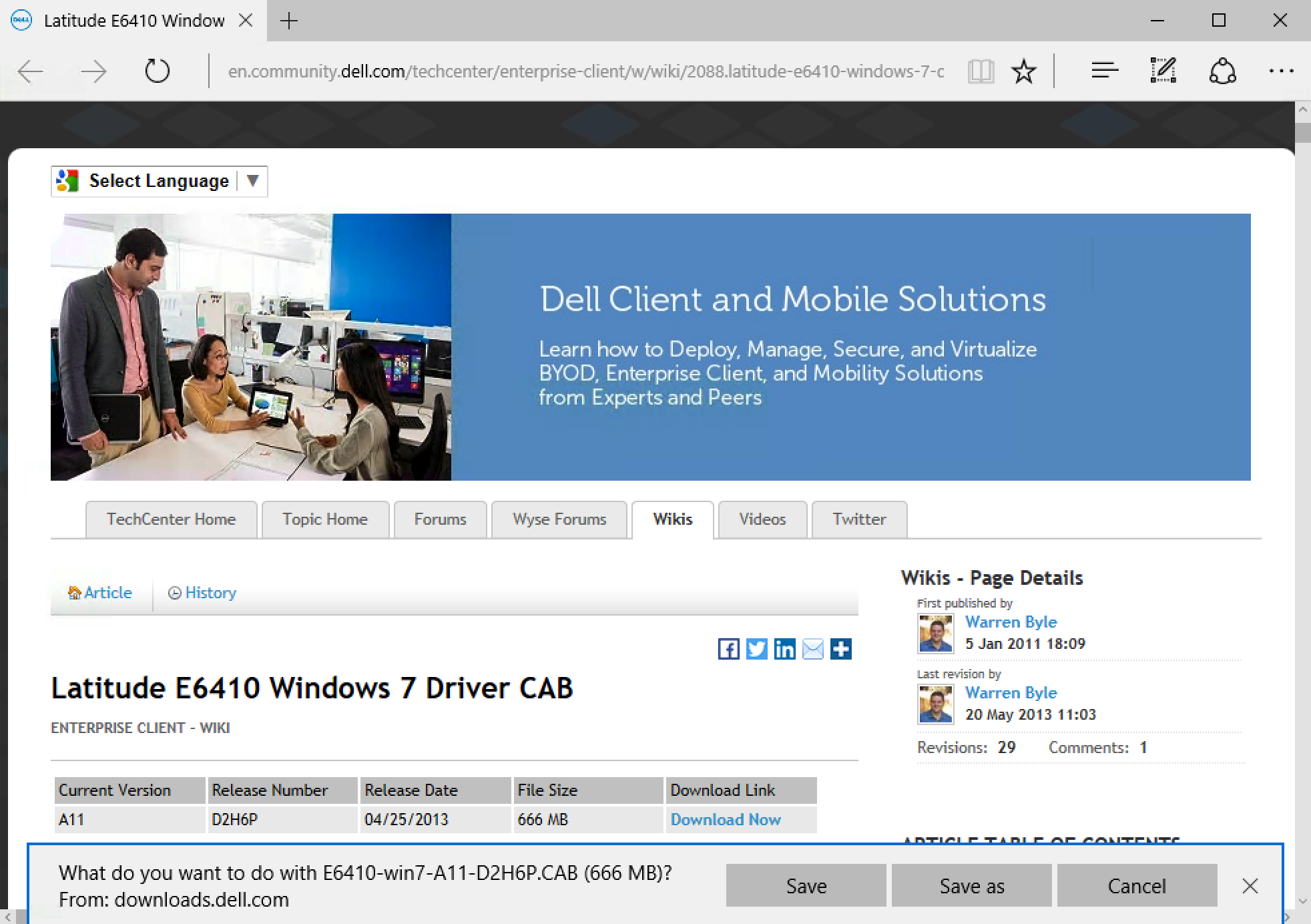
1. Find the driver pack from the manufacturer. You usually need the driver package that contains the `.CAB` or `.INF` files. In the screenshot below, a Google search for "Dell Latitude E6410 driver pack" leads to a Dell driver pack download where the `.CAB` file can be downloaded.
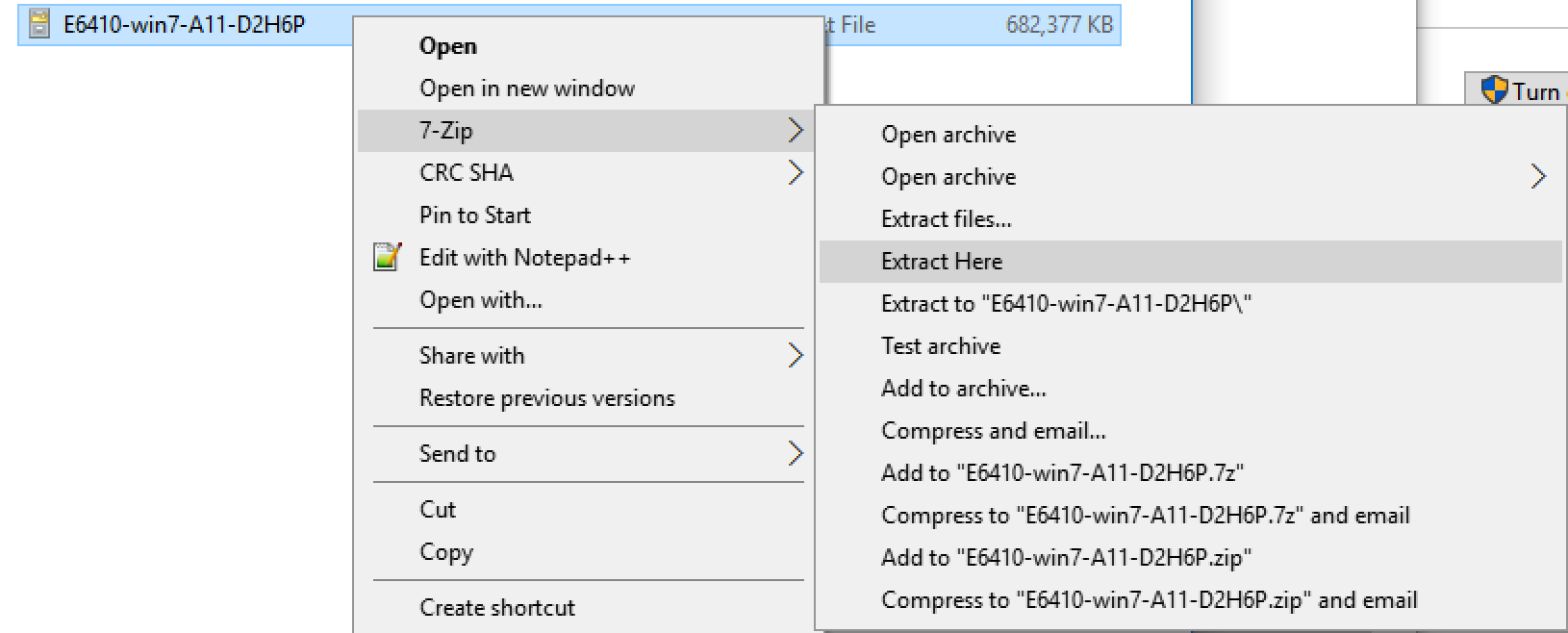
2. After you download the driver pack, extract it. Right-click the `.CAB` file and use 7-Zip to extract the files.
3. After the drivers are extracted, upload the whole driver folder into FileWave.
4. Log in to **FileWave Central**, go to **Filesets**, and select **New Image Fileset**. In the **Create New Fileset** window, choose **Windows Drivers**.
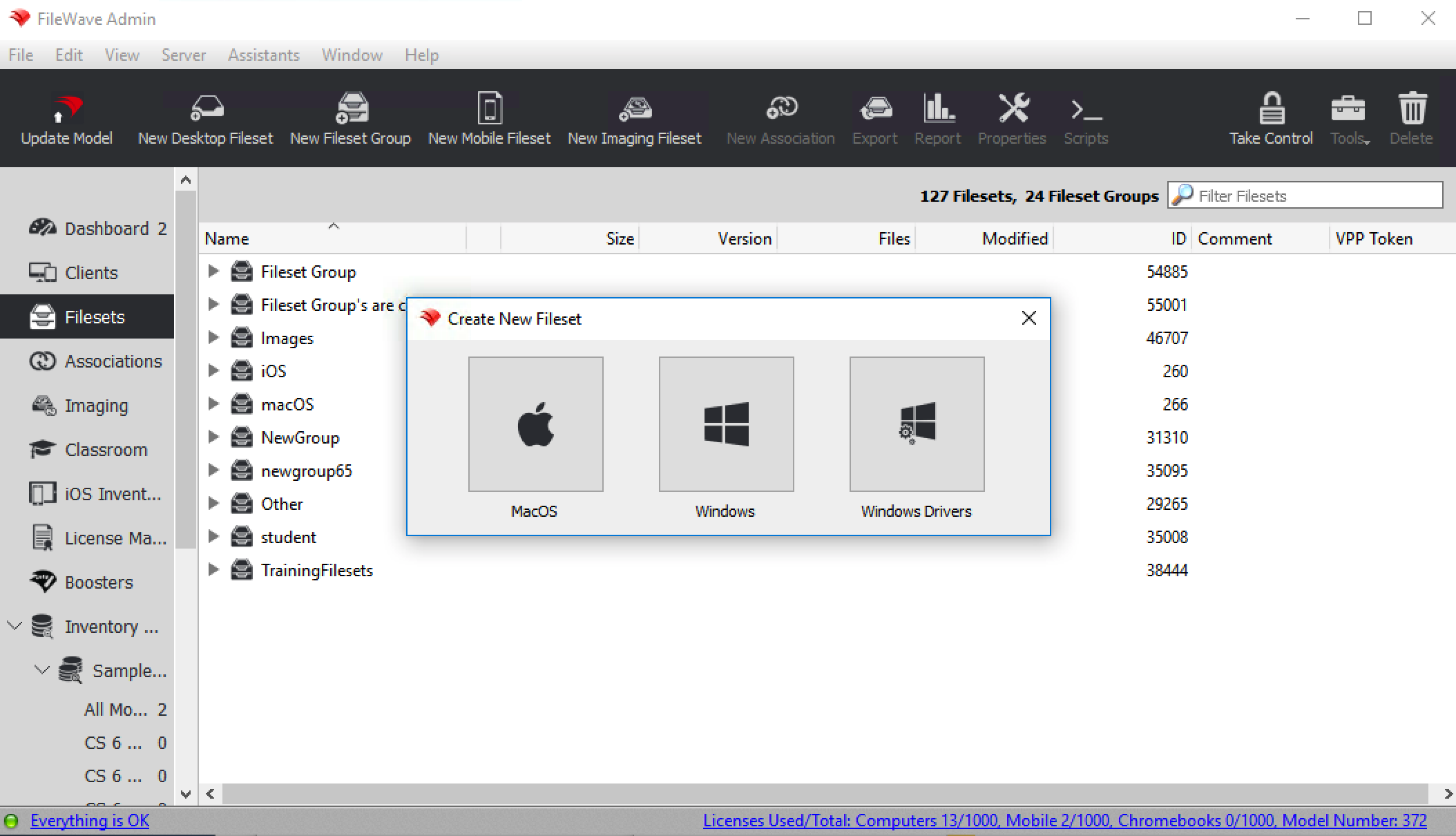
5. Select the extracted folder from the `.CAB` file and import it into FileWave. The Windows driver Fileset appears in both the **Fileset** and **Imaging** sections. It remains red until the import finishes.
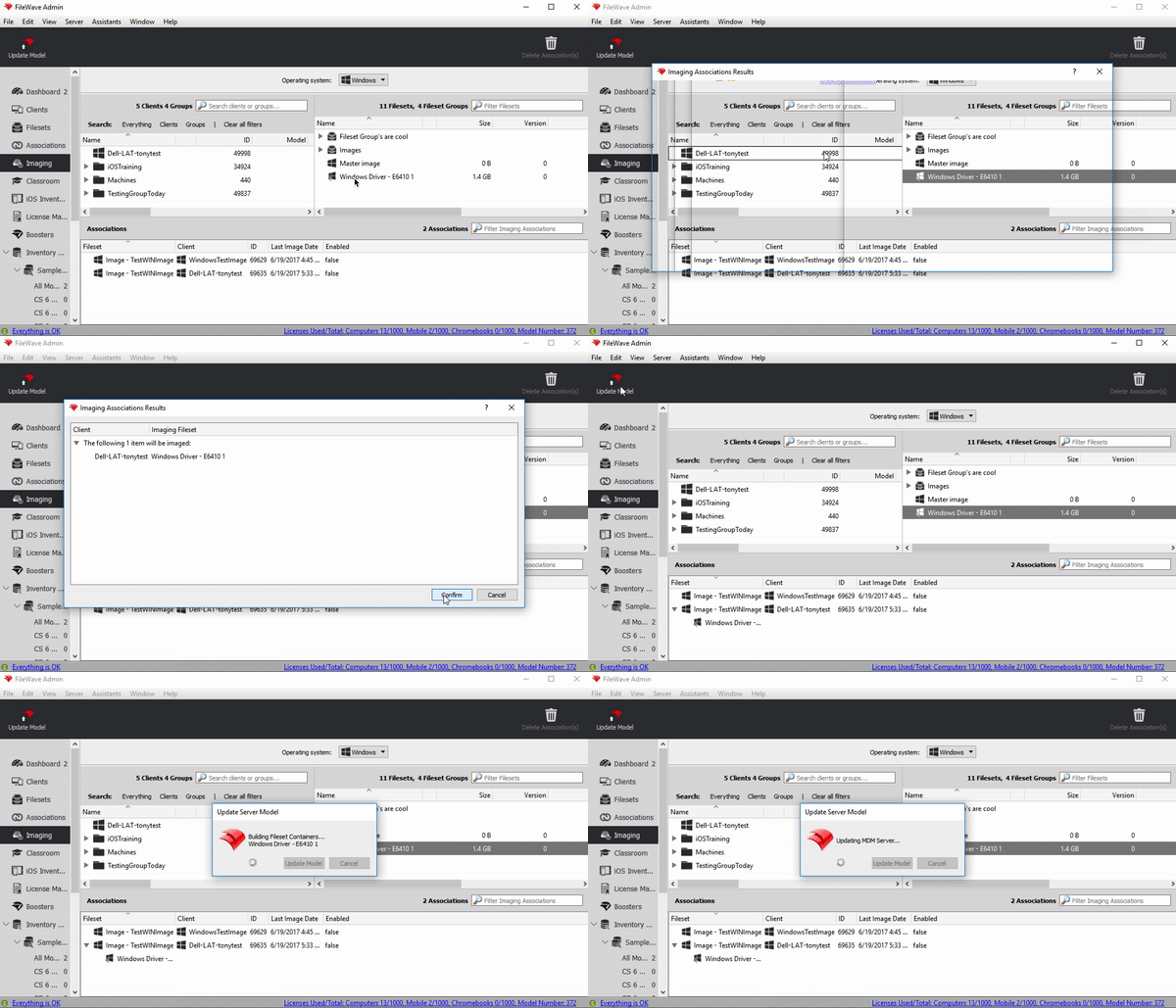
6. When the Fileset turns black, associate the drivers in the **Imaging** section. FileWave sends these drivers to the device during the network imaging process.
7. In the **Imaging** section, find the device or device group in the left pane and find the driver Fileset in the right pane. Click, drag, and drop the driver Fileset onto the device or group.
The drivers deploy with the image that is already assigned to the device.
# Imaging MAC Addresses (Pass-Through MAC Addresses)
#### **What**
For Windows imaging, FileWave can store a manually entered Imaging MAC Address separately from the MAC addresses the client reports through inventory. This matters when the imaging address belongs to a USB Ethernet adapter, or is a pass-through MAC address, and is not always active on the device. Keeping the imaging value separate prevents inventory updates from overwriting the address IVS should use.
#### **When/Why**
Some Windows devices expose a pass-through MAC address for USB Ethernet adapters. Instead of using the adapter's own MAC address, the adapter presents a device-specific address. This avoids many devices sharing the same adapter MAC address, but the pass-through address may not appear in FileWave inventory unless it is active during inventory reporting.
#### **How**
Use the editable "Imaging MAC Address" column in views that show clients, such as Clients, Imaging, and Associations. When you enter an Imaging MAC Address for a Windows client, FileWave stores it separately from "Serial/MAC". The value can be set in these cases:
1. When a placeholder is created
2. When a placeholder is imported from a text file
When "Imaging MAC Address" is set for an added client, the "Serial/MAC" column is unchanged. Because this field is used for Windows imaging, it does not create enrollment conflicts; serial/MAC enrollment conflicts apply to macOS.
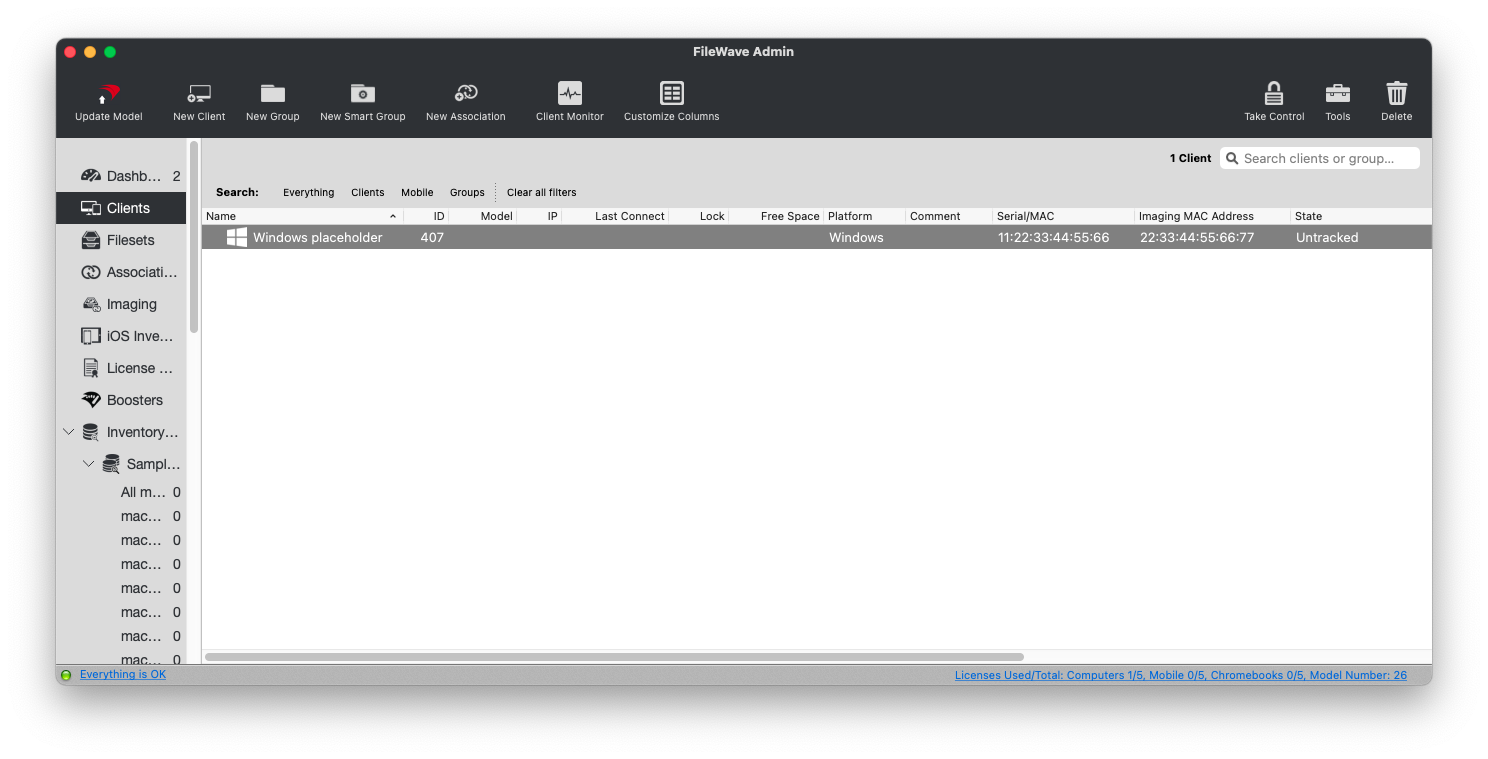
IVS recognizes Windows client MAC addresses reported to inventory and the manually specified Imaging MAC Address, if one exists.
You can also mass-import Imaging MAC Addresses with the import tool in the web admin console.
# Using Smart Groups with Windows Imaging
## What
With versions of FileWave earlier than 14, smart groups would not show in the imaging view of the FileWave admin. With v14(+), smart groups are now available for image association.
## When/Why
Why do smart groups improve the ability to image? Before the advent of custom fields, the lack of smart groups in imaging didn't matter too much, but with custom fields FileWave can quite easily determine the make and model of a particular device or if the device is UEFI or MBR. And this matters for smart groups, because then that allows us too much more easily assign the proper image and driver packs.
Consider the following simple (imaginary) environment:
- 1000 Windows devices, all needing re-imaged this summer
- 3 Make/model combinations (Lenovo P50, Dell 5550, HP 1210)
- The Lenovo is UEFI, the others are all MBR
- Two base Windows images: one for UEFI, one MBR
If we had to mass image the above, we only had two options previously: create image associations one by one, or associate to a group. But, to associate easily to groups, the logical thing would be to create smart groups by device type rather than having to organize the devices manually. Thus, the inability to use smart groups for imaging began to be a severe restriction for easy imaging association. This restriction is no more.
## How
Associating images & driver packs to a smart group is the same as any other imaging association, as shown below:
Smart groups will only show in the Imaging view if there are Windows devices in them. Also note that the association is not really to the group, but rather just to the devices in that group at that exact moment. (This is the same way assigning images to a manual group has always worked.)
# Windows Imaging - Import Image
## What
The **Import Image** option in **Filesets > New Fileset > Microsoft** imports an existing **FileWave Windows imaging folder** into the current FileWave environment as a Windows imaging fileset.
Use it when you already have a FileWave-formatted Windows image folder and want to bring it into FileWave without capturing the image again.
After the import, the image becomes a normal Windows imaging fileset that can be assigned in the **Imaging** area just like an image created through the standard capture workflow.
Important: This is not for a raw WIM, ISO, VHD/VMDK, or an exported .fileset package. If you have a .fileset or .fwtemplate package, use the regular Import Fileset workflow instead.
## When/Why
Use **Import Image** when:
- you already have a FileWave image folder from an earlier capture
- you want to reuse an existing FileWave image instead of building and capturing it again
- PXE capture is inconvenient in the current environment, but the FileWave image folder already exists
- you need to bring an existing FileWave image folder into another FileWave server or admin workflow
This option is helpful when the image already exists in FileWave's imaging format and the real goal is simply to ingest it into the current environment.
If what you have is a FileWave export package, use **Import Fileset**.
If what you have is a generic Windows imaging artifact like a WIM or ISO, this menu option is not the right workflow.
## How
### 1) Confirm you have the right source folder
A valid **Import Image** source is a folder that contains the FileWave imaging metadata file and the image parts that belong to it.
At minimum, the folder needs:
- `image.json`
- the image files referenced inside `image.json`
If those required files are missing, FileWave will reject the import.
### 2) Open the Import Image workflow
1. Open **FileWave Admin**.
2. Go to **Filesets**.
3. Click **New Fileset**.
4. Select **Microsoft**.
5. Under **Imaging**, click **Import Image**.
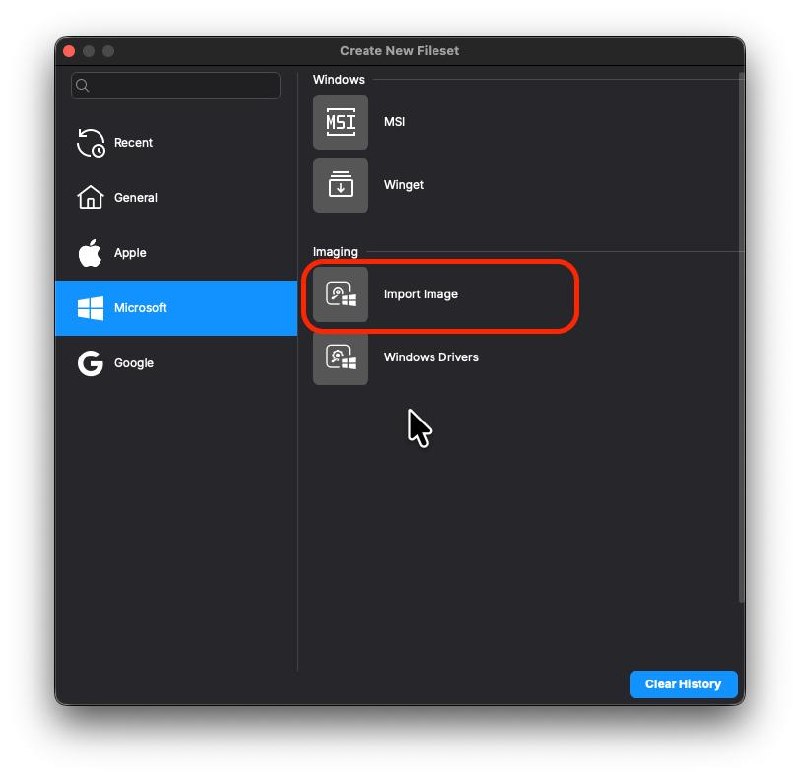
### 3) Select the image folder
1. Browse to the existing FileWave image folder.
2. Select the folder itself.
3. Confirm the import.
Do not select an individual `.img` file.
Do not use this workflow for a `.fileset` package.
### 4) Let FileWave create the imaging fileset
When the folder is valid, FileWave creates a Windows imaging fileset and uploads the referenced image data into the current FileWave environment.
The imported item will appear as an image fileset in **Filesets**, and it can then be used in **Imaging**.
### 5) Assign the imported image
After the import finishes:
1. Open the **Imaging** area.
2. Drag the imported image onto the target device, placeholder, or group.
3. Optionally add a **Windows Drivers** fileset.
4. Run **Update Model**.
5. Allow the IVS to download the image before attempting deployment.
From that point forward, deployment works the same way as any other FileWave Windows image.
### 6) Troubleshoot common import failures
If FileWave shows an error that the folder does not contain the required files, verify that:
- `image.json` is present
- every image file referenced by `image.json` is present in the same folder
- you selected the folder, not a single file inside it
If the image was exported as a `.fileset`, use **Import Fileset** instead.
If you only have a WIM, ISO, or virtual disk file, you do not yet have a FileWave image folder for this workflow.
## Related Content
- [Windows Network Imaging - Capturing and Deploying Images](https://kb.filewave.com/books/network-imaging-ivs/page/windows-network-imaging-capturing-and-deploying-images)
- [Creating Windows Driver Filesets](https://kb.filewave.com/books/network-imaging-ivs/page/creating-windows-driver-filesets)
- [Including the FileWave client on an image](https://kb.filewave.com/books/network-imaging-ivs/page/including-the-filewave-client-on-an-image)
- [FileWave Fileset Types](https://kb.filewave.com/books/filesets-payloads/page/filewave-fileset-types)
## Digging Deeper
The confusing part is that FileWave has two different import ideas that sound similar but are not the same thing.
- **Import Fileset** is for FileWave package exports such as `.fileset` and `.fwtemplate`
- **Import Image** is for a Windows imaging folder that is already in FileWave's imaging format
That distinction is easy to miss in the UI, so it is worth calling out directly in support responses and in related KB content.
# Troubleshooting Imaging
These pages provide various troubleshooting guides for FileWave IVS
# Authentication Credentials Error
#### **What**
Use this article when a Windows imaging deployment fails on the IVS with this message:
```
“IVS request for URL: https:The `sgdisk --zap` command clears partition data on the selected disk. Verify the drive name before running it; the screenshot shows `/dev/sda`, but your device may use a different disk name.
1. Make a note of the partition that appears stuck. In the screenshot it is "/dev/sda". Your drive may have a different name.
2. After you know the drive name, turn off the machine that is stuck capturing or deploying the image.
3. Connect to your IVS and run the below command.
```
touch /etc/fw_master_debug
```
4. PXE boot the machine giving the error again.
5. The machine will go to a prompt where you are able to type the below command. For the example, "/dev/sda", but yours may be different.
```
sgdisk --zap /dev/sda
```
6. Shut down the machine you are capturing the image from or deploying the image to.
7. Run the below command on your IVS to delete the file you created.
```
rm -rf /etc/fw_master_debug
```
8. PXE boot the machine again. The image capture or deployment should continue past the previous hang point.
# Imaging Issue After Upgrading FileWave and Using Self-Signed SSL Certificate
## What
After upgrading FileWave Server, IVS, and clients, imaging may fail when the environment uses a [self-signed SSL certificate](https://kb.filewave.com/books/certificates/chapter/self-signed-ssl-certificates "Self-signed SSL Certificates").
## When/Why
Use this workaround when IVS imaging fails after an upgrade and the environment does not use a root-trusted SSL certificate. Add the check to your IVS upgrade process for self-signed certificate deployments.
## How
1. **Access the IVS via SSH or locally:**
- Connect to the IVS by SSH or local console. Use `sudo -s` so the following file edit runs as root.
2. **Edit the dnsmasq.lua file:**
- Use your preferred command-line editor, such as vi or nano, to edit `/imaging/scripts/bin/dnsmasq.lua`:
- `vi /imaging/scripts/bin/dnsmasq.lua`
- `nano /imaging/scripts/bin/dnsmasq.lua`
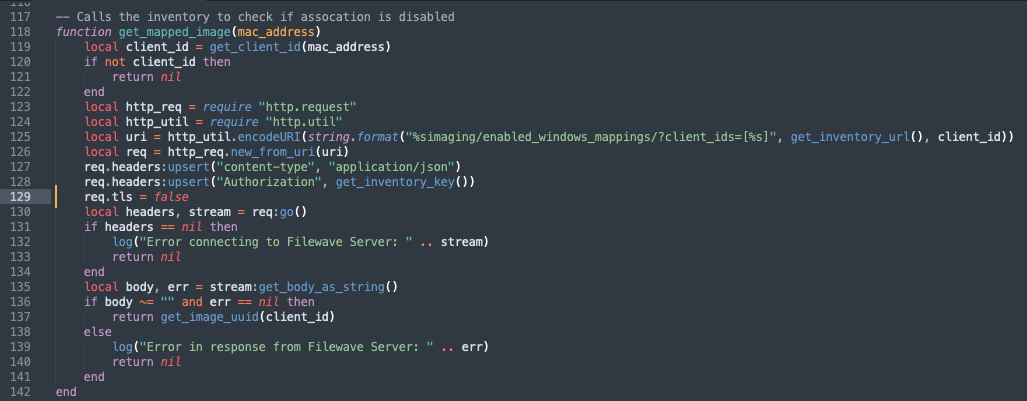
1. **Navigate to line 128:**
- Navigate to line 128.
[](https://kb.filewave.com/uploads/images/gallery/2024-04/YqIEQ7k1ULx1nUH0-screenshot-2024-04-19-at-5-21-03-pm.png)
2. **Switch to insert mode:**
- In vi, press `i` to switch to insert mode. In nano, move the cursor to the line and edit directly.
3. **Add the following line:**
- `req.tls = false`
4. **Save and exit vi or nano:**
- Press the Esc key to exit insert mode.
- In vi, type `:wq` and press Enter to save and exit. In nano, press Ctrl+X and save the file when prompted.
5. **Verify functionality:**
- Test imaging again after saving the file.
## Related Content
- [Self-signed SSL Certificates](https://kb.filewave.com/books/certificates/chapter/self-signed-ssl-certificates "Self-signed SSL Certificates")
- [Network Imaging / IVS](https://kb.filewave.com/books/network-imaging-ivs "Network Imaging / IVS")
# RAM listing 0-15 Error
#### **What**
Machines using the latest M.2 drives may run into an error listing RAM failures when deploying an image.
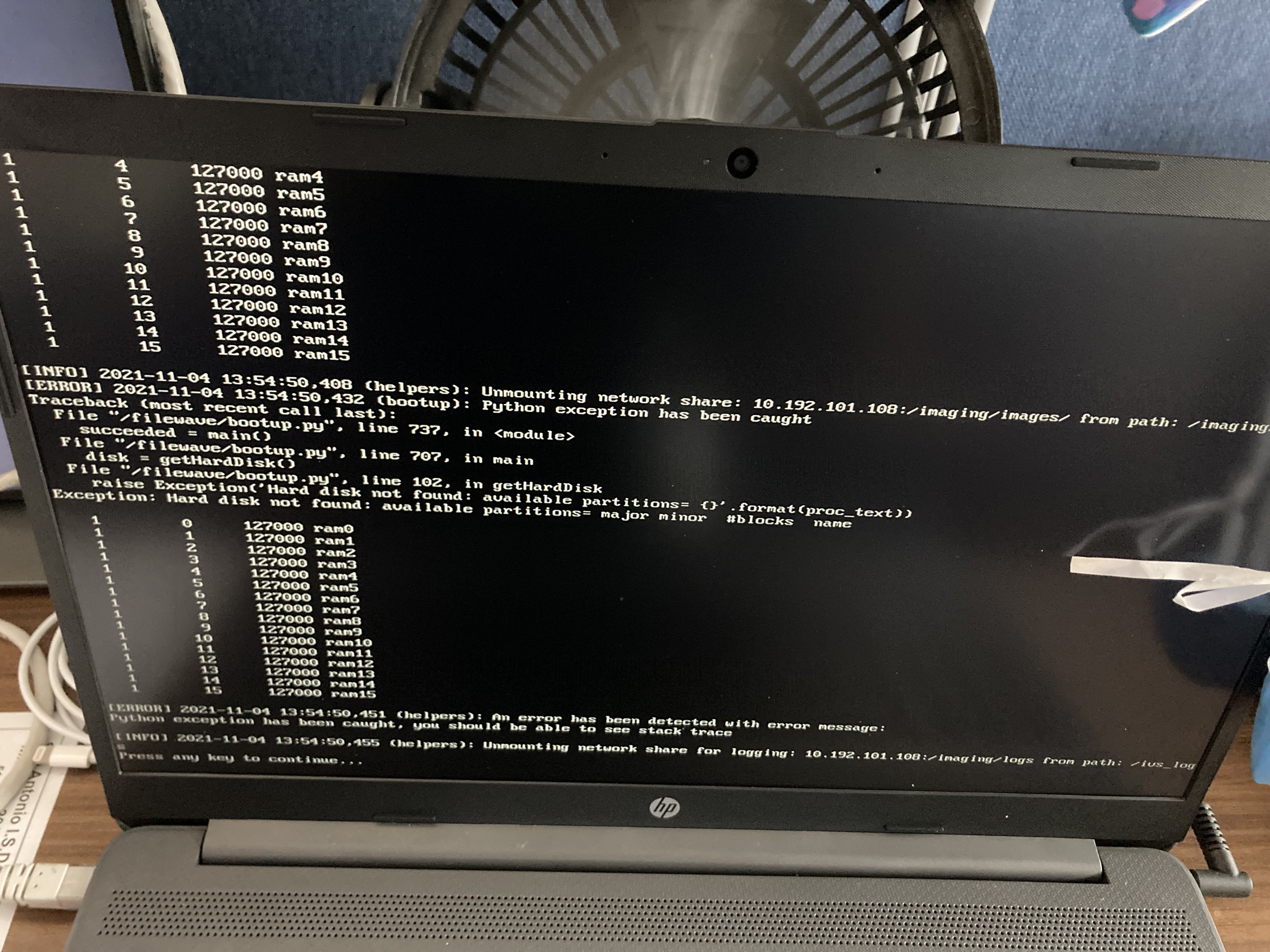
#### **When/Why**
New machines with M.2 drives may have been set up with a pre-configuration of RAID within the machine’s BIOS. You will want to log into your machine’s BIOS and change the storage controller or SATA configuration from RAID to AHCI.
#### **How**
Depending on the manufacturer/brand of BIOS, be sure to review the options and verify the method of logging into the BIOS. Once logged in, perform the following steps:
1. Search the BIOS for storage, controller, or SATA settings
2. Change the storage/SATA mode from RAID to AHCI
3. Confirm the changes and save
4. Exit BIOS and restart the machine
5. Prepare PXE boot to image deployment
After the storage/SATA setting has been changed and saved, please try again to deploy your image. Be sure the image association is set to True before PXE booting the machine.
#### **Third Party Vendors**
Each Brand/Manufacturer has their own options to enter BIOS. Below are a few examples to search for:
- [HP BIOS](https://support.hp.com/us-en/document/ish_3912651-2318005-16#:~:text=wait%20five%20seconds.-,Turn%20on%20the%20computer%2C%20and%20then%20immediately%20press%20the%20esc,revision%20(version)%20and%20date.)
- [Dell BIOS](https://www.dell.com/support/contents/en-us/article/product-support/self-support-knowledgebase/fix-common-issues/bios-uefi)
- [ASUS BIOS](https://www.asus.com/us/support/FAQ/1008829/#:~:text=While%20the%20computer%20isn't,the%20BIOS%20configuration%20display.)
- [Lenovo BIOS](https://support.lenovo.com/us/en/solutions/ht500222-recommended-ways-to-enter-bios-boot-menu-thinkpad-thinkcentre-thinkstation)
# Sysprep not able to validate Windows installation
If Sysprep fails with an Appx validation error, check `%WINDIR%\System32\Sysprep\Panther\setuperr.log`, identify the package named in the error, remove that app for each affected user, and then run Sysprep again. Sysprep remains mandatory for FileWave Windows disk imaging; Microsoft explains the disk-duplication policy [here](https://support.microsoft.com/en-us/help/314828/the-microsoft-policy-for-disk-duplication-of-windows-installations).
1. Removes computer-specific information from a Windows installation. Duplicated computer-specific information can cause Windows functionality to behave incorrectly across multiple PCs.
- Generates a new computer SID
- Sets a new computer name
- Clears out event logs
- Runs mini setup to deal with hardware differences
2. Performs a full Windows shutdown when the "/shutdown" switch is specified, which is required on Windows 8 and 10 - Starting with Windows 8, Microsoft added a fast startup feature that helps your PC start up faster after shutdown, even faster than hibernate. Windows does this by saving an image of the Windows kernel and loaded drivers to C:\\hiberfil.sys upon shutdown so when you start your PC again, Windows simply loads the C:\\hiberfil.sys file into memory to load Windows instead of starting from scratch. When it does this, Windows leaves the main partition hosting Windows in a state that prevents FileWave from properly capturing it. When you sysprep with the "/shutdown" parameter, it performs a full shutdown without generating a hiberfil.sys file and leaves the partition hosting Windows in a state that allows FileWave to capture it.
Sysprep can occasionally fail with a validation error when a provisioned Microsoft Store Appx app has been updated for one user but not for all users on the reference system.
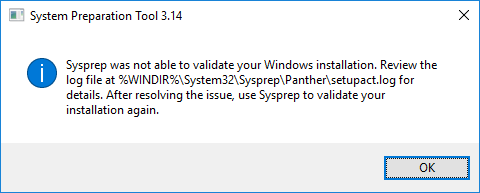
Sysprep has an additional provider in Windows 8 and 10 to clean Microsoft Store Appx packages and generalize the image. This provider will fail if an all-user package is updated for one of the users on this reference computer, which Windows will do automatically if it is connected to the internet long enough. To minimize the chance of this happening on the reference system, keep it disconnected from the internet as much as possible until the image is ready.
The error message you'll see in %WINDIR%\\System32\\Sysprep\\Panther\\setupact.log, and more importantly in setuperr.log, when sysprep fails under these circumstances is that "an app was installed for a user, but not provisioned for all users".
```