Installing the FileWave Client should take place just before Sysprep is commenced.
### **When/Why** The FileWave Client should be installed, prior to generating the image, using the personalized Custom MSI. The Custom MSI installer can be found here: [Custom FileWave Client for Windows](https://custom.filewave.com/py/custom_client_win.py). However, this source device should not be allowed to check into the FileWave Server, to ensure that the client does not have any unique configuration passed onto each imaged device or that any database entries are created for this device.Consider using a VM and taking a snapshot before making any prior configuration changes to the base image. If a mistake is made, it will then be easy to rollback and redo that stage.
If after the FileWave Client is installed the source device is allowed to check-in, then the client service will still need to be stopped. Afterwards, the generated client record should be removed (run a Model Update after removal) and either the FileWave client should be uninstalled and re-installed, generated FileWave Client files should be removed/edited or roll the VM back, if created, to redo this step. Files required for removal/edited may be found on the following KB: [FileWave File Locations](https://kb.filewave.com/books/filewave-general-info/page/filewave-log-file-locations "FileWave Log File Locations") ### **How** - Prepare the device as per the prior instructions - Disable the network for this device - Open the Windows Services (in preparation to stop the FileWave Client) - Instal the Custom MSI - Stop the FileWave Client service - Re-enable the network 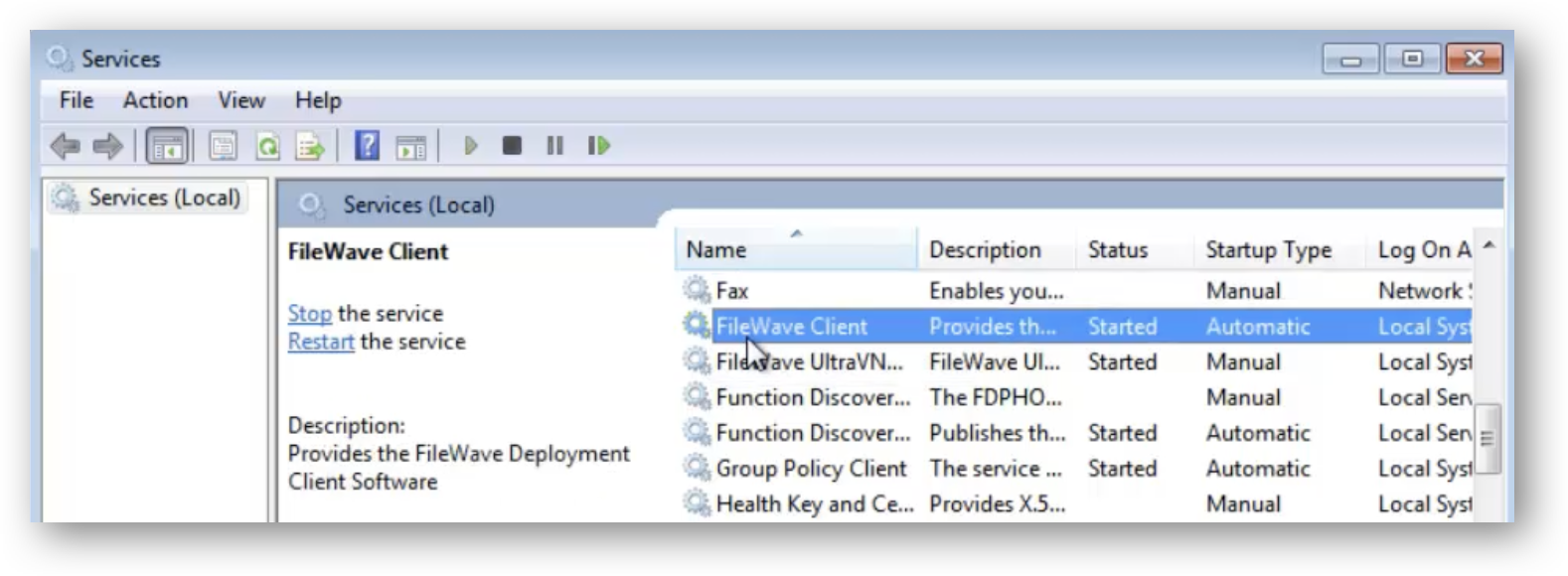 The device is now ready to generate the base image with ‘Sysprep’. Next is to capture the image, be sure follow the [Windows Network Imaging](https://kb.filewave.com/books/network-imaging-ivs/page/windows-network-imaging-capturing-and-deploying-images "Windows Network Imaging - PXE Booting").