Playbook: Device Refresh / Back to School
Step into the 'Device Refresh' Playbook, your go-to resource for handling large-scale device re-enrollments. Suitable for any organization, this playbook simplifies the process from device auditing to post-enrollment support. Discover how to utilize FileWave's powerful features for automation, security, and effective communication. With this playbook, achieving efficient device management has never been easier.
- Back to School / Device Refresh Introduction
- Preparing for (re)Enrollment
- During (re)Enrollment
- Manufacturer Specific Considerations
- Post (re)Enrollment
- Communication
- Security
- Device Refresh and Re-enrollment Checklist
Back to School / Device Refresh Introduction
Introduction
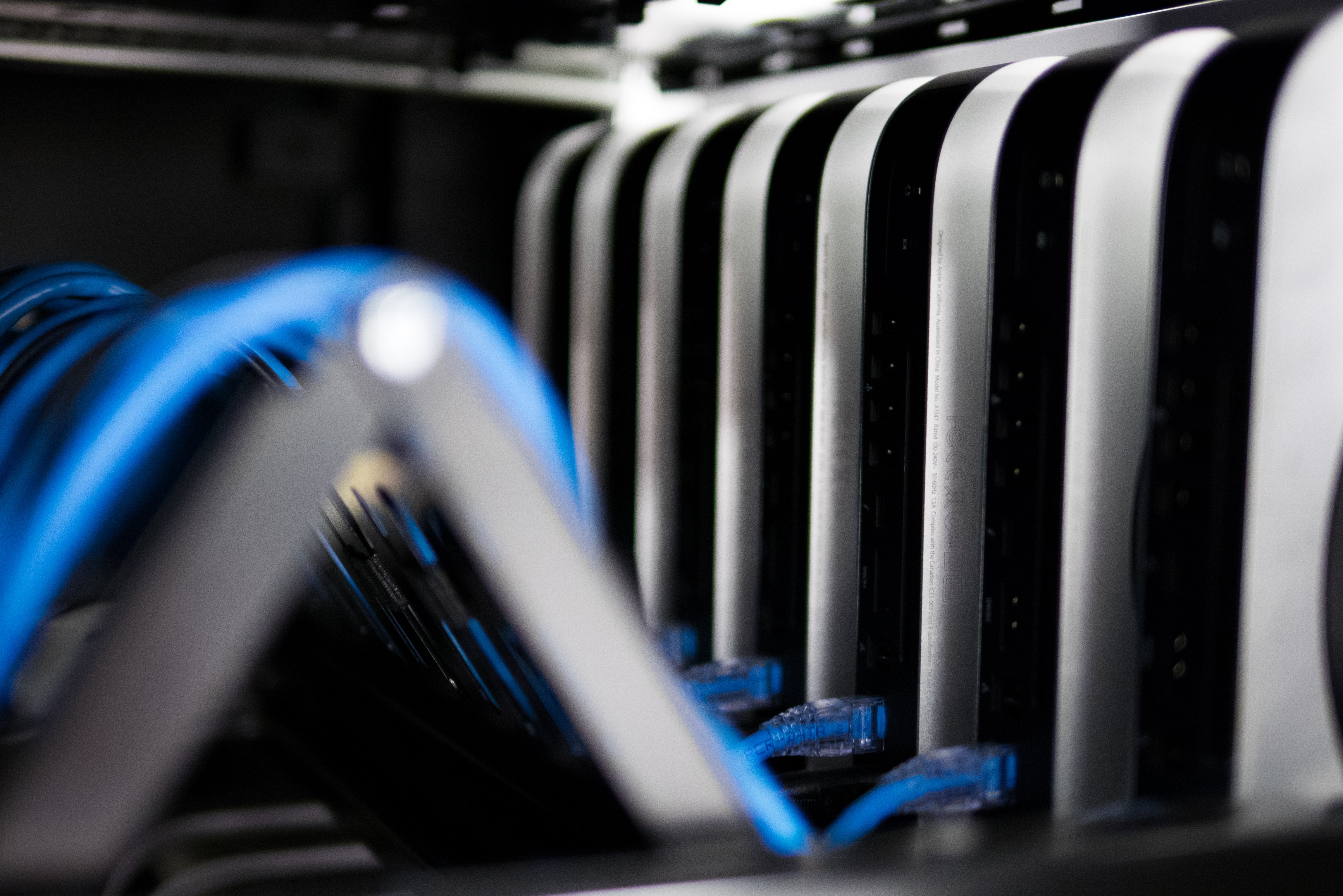 As we head into the fall, many organizations find it's a prime time to refresh, replace, and (re)Enroll devices. Whether you're an academic institution preparing for a new school year or a business updating your technology for the next fiscal year, the task of managing, replacing, and (re)Enrolling devices is a significant one.
With FileWave, our comprehensive toolsets allow you to streamline these projects and ensure a smooth transition. Our system is designed to be efficient, effective, and user-friendly, regardless of your organization's industry. Here are some best practices we recommend for device (re)Enrollment/replacement that will help make your project a success:
- Preparing for (re)Enrollment
- During (re)Enrollment
- Post (re)Enrollment
- Communication
- Security
- Conclusions
Considering the above practices and how they can/should apply to your organization will ensure a smooth and efficient device refresh and (re)Enrollment process for your organization. And FileWave's features will help you here as well, but keep in mind...you don't have to go it alone! Our Professional Services team has years and years of experience, and we'd be happy to help you with your project at quite reasonable rates. You can reach our team at professional.services@filewave.com.
Preparing for (re)Enrollment

Preparation is the difference between a smooth device refresh and a long week of avoidable surprises. Before the project starts, confirm what needs to be collected, what needs to be deployed, and how each device should be assigned when it comes back online.
Use the questions below as a planning checklist, and look for places where FileWave can remove manual work from the process.
Device reclamation
Step one of a refresh is often retrieving devices that are already in the field. If that applies to your project, decide whether you need to know who returned each device, where it came from, or which devices must be handled differently.
Example: Brian is retrieving and reassigning all iPads in his district. Two-thirds of the devices will be wiped, updated, and re-enrolled for new users. The remaining third are at the end of a two-year lease and must be returned to the leasing company.
Brian plans an on-site student return at three locations, with a technician receiving devices at each site. His team could record each serial number or asset tag and compare it against the lease spreadsheet, but that would be slow and easy to get wrong.
Because the return serial numbers are known, Brian can create a FileWave custom field called Return? before collection starts and populate it from the spreadsheet. He can then assign custom wallpapers ahead of return, such as a yellow lock screen background, so technicians can see immediately which pile each device belongs in.
Another example: Emily is replacing all Windows devices in the Finance department. Because Department is already tracked as a custom field in FileWave, she uses that list as her starting point and adds a true/false custom field to track device return. As each device is returned, technicians can look it up quickly in FileWave Anywhere by asset tag and update the field from False to True.
Every retrieval project is different, but the same principle applies: use the data FileWave already has, or add a simple custom field before the project starts, so the collection process is faster and easier to report on.
Content
If devices are entering or re-entering the environment, they will need software, configurations, restrictions, and utilities. In FileWave terms, that means filesets and assignments. Before enrollment day, confirm the content is ready.
- Do you have the content built that you need to deploy?
- For Apple Apps and Books/VPP apps, are the licenses already available? Waiting until enrollment day to procure licenses is asking for pain.
 For more complex filesets, are they built and tested?
- For software, build filesets ahead of time and test that installation, activation, and any post-install steps work as expected.
- For restrictions or profiles, confirm how they behave in production before they are assigned broadly.
- Do you have the right structure for assigning that content?
- If you are assigning a restriction profile to student devices, can you reliably distinguish student devices from staff devices?
- Groups, smart groups, and LDAP groups are all good options when the data supports them.
- If content is tied to a physical location, such as a school or office, decide how that location will be represented in FileWave. Custom fields can work well when you do not have a reliable directory source.

Pre-assigning content
You can pre-assign content for FileWave managed devices before those devices are enrolled. Devices can match on identifiers such as serial number, MAC address, or device name. That means you can prepare groups, custom fields, and assignments with a CSV import before the first device is unpacked.
Practically, this can remove a lot of hands-on staging. If the data is ready and the assignments are in place, users can unbox devices and FileWave can apply the planned content as the devices enroll.
Documentation and process
Write down the plan and share it with the people helping you. Anything that is not documented becomes a question during the rollout.
- How will devices physically get to users?
- Individual drop shipment?
- Pickup or handoff by classroom, department, or site?
- Large groups, such as 200 students in a gym at one time?
- Can the local infrastructure support the plan? For example, can Wi-Fi handle 100 devices enrolling in the same room?
- How will you record which user received which asset?
- Does the Acceptable Use Policy need to be acknowledged, signed, or recorded?
This is not complicated work, but it punishes vague planning. The more you can decide before the refresh starts, the less you will have to improvise when the room is full of devices.
During (re)Enrollment
During enrollment or re-enrollment, teams reset, configure, unbox, assign, and redistribute devices. Run the process in controlled batches so you can correct a physical, network, or enrollment problem before it affects the full fleet.
FileWave groups, placeholders, custom fields, Deployments, and inventory help organize the work and show which devices have completed each stage. The practices below apply whether you are preparing a new fleet or refreshing devices for another user.
Start Small
Your process was written as 1) Unbox, 2) Assign Asset Tag, 3) Affix Tag, 4) Put device in case. But you find out with your first batch of devices that the user needs to read the asset tag in a later step, but they can't see it because of the case being in the way. Finding that problem with five devices is easier than finding it with 500 students waiting. Start with a small batch, correct the sequence, and scale up after the process is proven.
Employ Efficient (re)Enrollment
Once the sequence is proven, organize devices into batches based on your operational needs, such as department, device type, destination, or user role. FileWave groups let staff apply and monitor the same enrollment actions across each controlled batch. For example, a school can process one grade, classroom, or device cart at a time and hold completed devices separately from units that need another pass.
Set a Safe Batch Size
Do not assume that 5,000 devices should enroll at once. Account for the number of devices staff can physically prepare, the requests sent to Apple or another enrollment service, FileWave Server capacity, internet bandwidth, Wi-Fi capacity, and the traffic generated by app and profile downloads. Measure physical throughput too: how many boxes can staff open, tag, charge, and hand off in a fixed interval?
 Every environment has a practical enrollment-concurrency limit. Start with a small representative batch, increase the batch size while monitoring each dependency, and stop below the point where errors or delays begin.
Device Preparation
Taking a cue from our previous section on 'Preparing for Enrollment', remember to reset devices to factory settings before initiating (re)Enrollment. This will ensure that any residual data or settings from previous users do not interfere with the new user experience. For new devices, make sure to consider the physical steps of unboxing, dealing with recycling, affixing asset tags, and even the ability to plug the device in. (And of course, you can use FileWave to send "wipe" commands to devices in preparation)
Automate Where Possible
FileWave's automation capabilities can significantly reduce the time and effort spent on (re)Enrollment tasks. Here are some areas where automation can be beneficial:
-
Device Naming: Use FileWave's custom fields and scripts to automatically generate and assign device names based on your organization's naming convention.
- Placeholders: Mentioned in the last article, placeholders are a great way to pre-assign content based on smart groups and custom fields.
-
App Installations: Leverage FileWave's app deployment features to automatically install necessary apps and updates during the (re)Enrollment process. This ensures all devices are equipped with the necessary tools right from the start.
-
User Preferences: Set user preferences and settings in advance using FileWave. These can be applied automatically during (re)Enrollment, reducing the need for manual configuration and ensuring a consistent user experience across all devices.
Monitor Progress
FileWave's device monitoring features allow you to keep track of the (re)Enrollment progress. Use custom fields to mark devices as "(re)Enrolled" or use FileWave's dashboard to monitor device status in real time. This can help identify any issues early on and allow for quick resolution.
Record the completed batch, any failed step, and the corrective action before the next group begins. This creates a repeatable handoff for IT staff and keeps users from receiving partially configured devices.
Manufacturer Specific Considerations
Apple Specific Considerations
FileWave loves Apple, and so do our customers. If you happen to be one of the organizations that have chosen to incorporate Apple devices into their infrastructure, from iPads to MacBooks, here are some crucial considerations for a successful refresh and (re)Enrollment:
The Apple Program Considerations
You no doubt already know about the various Apple Programs, such as ABM/ASM/VPP/DEP/MDM and even APN. Each of these programs, explained below, provide critical roles during device enrollment. As with everything else (re)enrollment, pre-work is good work, and each program has it's own pre-requisites (and sometimes lead-time). You'll want to review the specifics of each below:
Apple Push Notification (APN)
Apple Push Notifications are the method by which FileWave initiates communication with your devices through the Apple MDM framework. Every FileWave server must have a valid APN token assigned, and it must be refreshed annually. Before any major project, you should make sure your APN has plenty of life left (and you can renew early).
Apple School Manager/Apple Business Manager Integration (ASM/ABM)
Apple School Manager (for educational institutions) and Apple Business Manager (for businesses) are central to the administration of Apple devices. When integrated with FileWave, these platforms provide granular control and enhanced capabilities. They allow you to:
- Purchase and distribute apps and books in volume: Ensuring the right apps are available for the right users at the right time.
- Create Managed Apple IDs for students and staff: Managed Apple IDs provide a suite of services, including iCloud, collaboration with iWork, and Classroom for student-teacher interaction.
- Configure and update device settings: You can set up device configurations, restrictions, and more, ensuring the devices align with the organization's security policies and operational needs.
But, you can't use these programs if they aren't established and integrated with FileWave. So, in particular if you are setting up a new environment, you'll want to give yourself plenty of time before your project to enroll.
Volume Purchase Program (VPP) and Device Enrollment Program (DEP)
The VPP ( Volume Purchase Program ) and DEP ( Working with Apple’s Device Enrollment Program ) play a critical role in managing applications and automating device enrollments. Their integration with FileWave allows for:
- Pre-assignment of essential apps/licenses: Save time by pre-assigning devices with required software before they land in the user's hands.
- Automatic device enrollment: With DEP, devices are automatically enrolled into your management system when activated, ensuring they are immediately ready for use, and remain under management
VPP and DEP also require initial setup, and shouldn't be left to the last minute. DEP profiles control device configuration at setup time, and you'll want to make sure you procure all licenses through VPP well ahead of time to avoid last-minute congestion on Apple systems. (Remember you aren't the only organization enrolling 5,000 devices today).
Using FileWave's DEP profile assignment wizard is a great way to pre-configure your devices automatically, even before they leave the box.
Apple MDM Framework (and known issues)
Apple were very innovative with the creation of the MDM framework, and it allows for controlled management of endpoints through known, controlled mechanisms. It is very structured, and means that MDM vendors provide support in very common and defined manners. Knowing for instance that an MDM command to InstallApplication X won't be able to run until the push notification is able to be sent to the device plays into your capacity planning for (re)enrollment. So, it is structured, but it (like any other system) isn't perfect and there are some additional recommendations we'd make to ensure success:
- Work ahead as much as possible, especially with application licenses...during times of very larger enrollments (particularly in schools in the early fall) there can be tremendous load on Apple services, slowing down throughput...but if you licensed 3 days before you need them, you have no worries
- Only purchase what you actually need
- Many customers say "the license is free, so I'll buy 10,000 even though I need 100". Don't do that. Every license you purchase does create system load, even if you don't end up using it. It can massively impact VPP sync time, so less is more here.
- Eliminate Antiquated applications
- There have been reports of iPads, in particular, having an issue when applications are assigned to them that are no longer available in the App store. In certain circumstances, attempted installation of these apps can make the mdm client stop responding on the device, and a reboot required.
- For best results, try to keep your list of applications in the environment as lean as you can...organization standards and approval processes here can be quite useful
- Identify and remove "no longer available" applications from your device assignments
- Keep a mindful eye
- There have been reports (and we have witnessed it internally as well) of macOS mdm clients dying over time. We believe Apple are working on addressing this issue, but in the meantime, please see the below articles on working around this particular issue
- Work around some known OS Update issues: Reported Issues with macOS Software Updates
- We know that Apple MDM can get stalled: Address Stalled MDM Commands which can cause a slowdown for you and make it harder to patch systems. Review that article for a workaround, but ideally open a ticket with Customer Technical Support and with Apple so that we can all push harder for a fix from Apple.
- Nudge for macOS Software Updates (macOS Script) is one workaround that many people like for macOS patching.
- S.U.P.E.R.M.A.N. for macOS Software Updates (macOS Script) is another workaround that is also really great.
Non-VPP Apps
Everyone has some apps that aren't in VPP that they need to push out. If filesets, fileset magic, .APP installs and custom filesets aren't quite enough options for you :), take a look at Installomator - The one installer script to rule them all (macOS Script) to easily push out over 450 different applications. Completely opensource, and completely super!
Use the Kiosk
With all platforms, but particularly iOS/iPadOS, using the Kiosk ( Kiosk ) to allow your customers to easily and effectively install pre-approved applications and profiles will help you both:
- Maintain your sanity
- Mean that your customers can install any needed app, whenever they need it
Microsoft Specific Considerations
FileWave may love Apple, but we also love Microsoft Windows. (In the same way that you don't have a favorite child)
Microsoft's Windows platform is widely used in various organizations due to its versatility and familiarity. For a successful device refresh or (re)Enrollment of Microsoft devices, these factors should be considered:
Windows Autopilot and MDM
Windows MDM ( Microsoft Windows MDM ) offers an advanced set of capabilities that allow IT teams to pre-configure Windows devices for immediate deployment. With FileWave and Autopilot working in unison, you can:
- Preassign necessary apps and software, saving users from manually installing crucial business applications.
- Configure user-specific settings, offering a personalized experience from the first use.
- Enforce security protocols and settings to maintain a secure environment across all devices.
Imaging Systems when you can't get to MDM-only
Depending on your situation you may not be able to simply enroll devices in Windows MDM and let Filesets install and configure everything. If that's where you are at then take a look at:
- Network Imaging / IVS - Filewave's official supported solution to put images on bare metal.
- PSImage - Alternative Windows Imaging - If you want to learn how to use Microsoft standard tools and build out an alternative workflow then take a look at this. It ties in to FileWave, but was built as an alternative by Professional Services and is more of a DIY solution for those who like to customize everything in their workflow.
Client Deployment
If dealing with enrollment of an existing fleet of devices, but one not yet under FileWave's care, remember that you can create a custom FileWave Client installer at custom.filewave.com. This client installer is a standard MSI installer and can be distributed manually, through a GPO, or even through a legacy management system. It is very flexible, and when combined with the use of placeholders and custom fields, you can pre-assign all device content to deploy automatically on enrollment.
Active Directory Integration
It isn't isolated to only MSFT of course, but Active Directory (AD) or AzureAD are usually an integral part of user management in the Microsoft ecosystem. By integrating AD with FileWave, you can enhance user and device management, including:
- Synchronization of user accounts and groups between AD and FileWave.
- Automation of device assignments based on AD group membership.
- Implementation of access control and device policies based on AD user roles.
- Integration of AD based data into FileWave for super-granular device and user-control
Updates and Patch Management
Microsoft consistently releases updates for Windows OS and their suite of office applications. An effective patch management strategy is crucial to maintain security and productivity. FileWave can:
- Schedule and manage updates at convenient times, reducing disruption to productivity.
- Automate the installation of critical security patches, keeping your device fleet secure.
- Provide alerts about outdated software, allowing for quick remediation.
By considering these manufacturer-specific aspects and leveraging FileWave's integrations and capabilities, you can ensure a smooth and efficient device refresh or (re)Enrollment process.
Utilize solutions like Microsoft winget to patch 3rd party applications.
Google Specific Considerations
FileWave supports two distinct Google device platforms, Chromebooks and Android devices. Each platform has its own setup and management considerations.
Chromebook Integration
FileWave support for Chromebooks is primarily focused on device visibility and organizational unit (OU) management. That makes it useful for finding devices quickly, checking where they belong, and moving them between OUs so the correct settings and extensions are applied.
Chromebooks still need to be enrolled before FileWave can manage them. The Google integration is configured once at the organization level, so after that setup is complete, FileWave can work with the Chromebooks in your environment without touching each device individually.
Chrome Education Upgrade / Chrome Enterprise Upgrade and Android Enterprise
These services extend device management for education and enterprise environments. When they are integrated with FileWave, they can provide:
- Access to device and user policies, which helps keep settings consistent across devices.
- Theft prevention with lost mode, so a misplaced device can be locked remotely.
- Advanced device reporting and health checks for ongoing visibility and troubleshooting.
Android and Google Play management
Google Play's large app catalog can be difficult to manage manually. FileWave can help you:
- Manage app distribution and monitor compliance, including unauthorized installations.
- Customize app settings and access for individual users or user groups.
Google as an identity provider
FileWave admins can also authenticate through Google's identity provider services.
Keeping these Google-specific considerations in mind can make device refresh and re-enrollment projects go more smoothly.
Post (re)Enrollment
After the (re)enrollment process is complete, the work doesn't stop. The post (re)enrollment phase (also known as the day-to-day phase) is equally critical to ensure a smooth transition for end users and to maintain the security and performance of your organization's devices. Here's what this phase might look like with FileWave:
Ensure Software Updates
The first step after (re)Enrollment is ensuring that all devices are running the latest software versions and security patches. Regular updates are crucial for the performance and security of your devices, and can also introduce new features or improvements. FileWave's device management tools can schedule and automate these updates, ensuring all devices stay up-to-date without requiring individual attention. Additionally, you can report on status as well to identify any outliers.
Proactive Maintenance
A good IT is an invisible IT, and there is no better way to be invisible than to predict and correct problems BEFORE they occur. How is this possible? Make sure everything is updated, as listed above, but also use FileWave's amazing inventory and custom fields to report on issues before the customer even notices. You don't need to wait for Jen to call the support desk reporting that she can't install her needed application, when we were already aware that she was running dangerously low on free disk space.
Empower Your Customers
One of the things FileWave excels at is the ability to allow your customers to install content without being admins on their machines. This means secure workstations and empowered customers. Pavel doesn't need to call the service desk to install Photoshop if it is sitting in his Kiosk App just waiting for him to click "install".
Provide User Training
While FileWave helps streamline device management, the end users – your staff or students – also play a vital role in the effective use of their devices. Utilize FileWave's resources to conduct training sessions that cover important topics such as device usage, application features, security protocols, and best practices. Training can be tailored based on the user's role and the device they are using, ensuring that everyone gets the most out of their technology.
Set Up a Support System
Despite the best preparation and training, it's inevitable that users will encounter technical issues or have questions after the (re)enrollment process. To address these issues, implement a support system that utilizes FileWave's reporting, remote control and help desk features. This system can provide real-time device status reports, integrate with support ticket systems, and enable IT staff to quickly troubleshoot and resolve technical issues. It also provides users with an easy and efficient way to get help when they need it.
- Incident IQ FileWave Asset Integration - Incident IQ, often styled as iiQ and sometimes written as IIQ, is one example of a ticketing and asset-management platform that integrates with FileWave. Use the linked FileWave KB article for the FileWave-side setup values.
Feedback and Review
Finally, post (re)enrollment is a great time to gather feedback and review the process. Engage with your customers to learn about their experiences, and use FileWave's reporting capabilities to analyze device status, success rate, and common support issues. This information can be invaluable for refining your future device refresh and (re)enrollment strategies.
Remember, the goal of the post (re)Enrollment phase is not just to ensure everything is running smoothly, but to set the stage for continued success. By keeping software updated, providing comprehensive user training, setting up a robust support system, and learning from the process, you'll be well-positioned for future device management tasks.
Communication
What
 Communication is one of the controls that keeps a device refresh from turning into a ticket storm. Users need to know what is happening, when it is happening, what they need to do, and where to go when something does not work. That communication should start before (re)Enrollment and continue after devices are back in service.
Before (re)Enrollment
Set expectations early. Share the refresh schedule, the device return or distribution process, backup expectations, training requirements, and any user actions that must happen before the appointment or cutover window.
Good refresh communication should answer these questions plainly:
- Which users or groups are affected?
- When will devices be collected, replaced, erased, or re-enrolled?
- What data is backed up, what is not backed up, and what users are responsible for saving?
- How long should the user expect to be without the device?
- Which apps, settings, or access methods may look different afterward?
- Where should users report problems or ask questions?
During (re)Enrollment
Keep updates short, consistent, and easy to find. Email, team chat, a help desk portal, classroom notices, or a status page can all work; the important part is that users know which channel is authoritative.
Use this phase to confirm what is complete, what is still in progress, and what users should avoid doing until IT gives the all-clear. If users need to sign in, reconnect to Wi-Fi, wait for FileWave Kiosk content, or report a missing app, say that directly instead of assuming they will know.
Two-way communication
Leave room for feedback. Users will surface edge cases that the project plan missed: missing apps, local data questions, shared-device confusion, training gaps, or timing conflicts. A clear support path lets the IT team fix those issues quickly instead of discovering them after frustration has already spread.
After (re)Enrollment
Communication should not stop when the device is handed back. Follow up with practical tips, known-issue notes, app or security changes, and reminders about maintenance windows or update behavior. The goal is to help users understand the new managed state, not just survive the refresh event.
FileWave can manage the device workflow, but communication manages the user experience. Treat it as part of the refresh plan, not a final announcement after the technical work is already done.
Security
During a device refresh or back-to-school rollout, security work should happen before devices return to users. Use FileWave to check patch status, enforce required settings, deploy notifications, and report on devices that still need attention.
Protect devices before they return to users
 Before handing devices back, verify OS and application patch status and apply the security settings your organization requires. FileWave can deploy updates, profiles, scripts, and Filesets so each device starts from a known baseline.
- Patch all managed systems on a regular schedule so device-refresh work does not return outdated devices to users.
- If local admin accounts exist, consider a password-rotation workflow such as Integrating EasyLAPS with FileWave for macOS. A shared local admin password can become a problem after staff changes or device handoff.
Prepare users for the security workflow
User behavior still affects device security. Tell users what to expect during refresh, which updates or prompts they may see, and how to report suspicious activity or failed installs. FileWave can deploy scripted notifications with PowerShell on Windows or tools such as swiftDialog Deployment (macOS PKG) on macOS.
- Use a short annual security-training program if your organization does not already have one. Even a basic refresher is better than assuming users remember every policy.
Monitor device status
Use FileWave reporting and inventory data to spot devices that missed patches, failed a security Fileset, or drifted from the expected configuration. Catching those devices early is easier than troubleshooting a larger issue after the rollout.
- Custom Fields can help surface security state, remediation status, or other values that admins need to report on.
Plan the response before an incident
Have a response plan before you need it. FileWave can help identify affected devices, target remediation, and return devices to the expected state, but the team still needs a clear process for who acts, what gets isolated, and how communication happens.
- Document the first steps for common incidents so the team does not have to invent the process during the event.
Review security measures after the rollout
After refresh or re-enrollment work, review patch coverage, failed deployments, user-impact notes, and any incidents found during the process. Use that data to tune the next rollout instead of treating security checks as a one-time task.
Device Refresh and Re-enrollment Checklist
Before a device refresh starts, confirm the project owner, schedule, pilot group, rollback path, and support plan. The work is complete when devices are re-enrolled, current, assigned to the right users or groups, and reporting inventory in FileWave.
Use the linked sections as a final project checklist:
- Prepare for re-enrollment: confirm inventory, backups, device reclamation, and preparation tasks.
- Run re-enrollment: pilot the process, automate repeatable steps, and track exceptions.
- Review platform-specific steps: account for the Apple, Microsoft, and Google enrollment and reset workflows in scope.
- Validate after re-enrollment: check updates, required apps and profiles, inventory, user readiness, and support coverage.
- Communicate the schedule: tell users and support staff what will happen, when it will happen, and what they need to do.
- Reapply and verify security controls: confirm the expected policies and protections on representative devices.
Record the expected result and owner for each check. Keep failed or deferred devices in an exception list until they meet the same completion criteria as the pilot group.
FileWave Professional Services can help plan or run a large refresh. Contact professional.services@filewave.com when you need project assistance.
After the rollout, save the final checklist, exception list, and lessons learned so the next refresh starts with a tested plan.