Apple Profile: ACME Certificate
What
The ACME Certificate payload lets FileWave configure Apple devices to request and renew device identity certificates from an ACME (Automatic Certificate Management Environment) server. This can reduce manual certificate handling for services that rely on device certificates, such as Wi-Fi or Ethernet 802.1X, VPN, and other certificate-based authentication workflows. This payload is for certificates installed on managed Apple devices; it does not manage the public HTTPS certificate for the FileWave Server itself.
When/Why
Use the ACME Certificate payload when your Apple devices need certificates from an ACME server and you want that certificate request managed through an Apple configuration profile. The payload is especially useful when another payload, such as Network, needs to reference the ACME-issued identity certificate for authentication. Common examples include a Wi-Fi or Ethernet configuration that uses certificate-based authentication, or a VPN configuration that requires a client identity certificate.
How
To configure an ACME Certificate payload:
- Open the Profile Editor
- Open or create an Apple profile in FileWave Central or FileWave Anywhere.
- Add the payload
- Add the ACME Certificate payload from the Apple profile payload list.
- Configure ACME settings
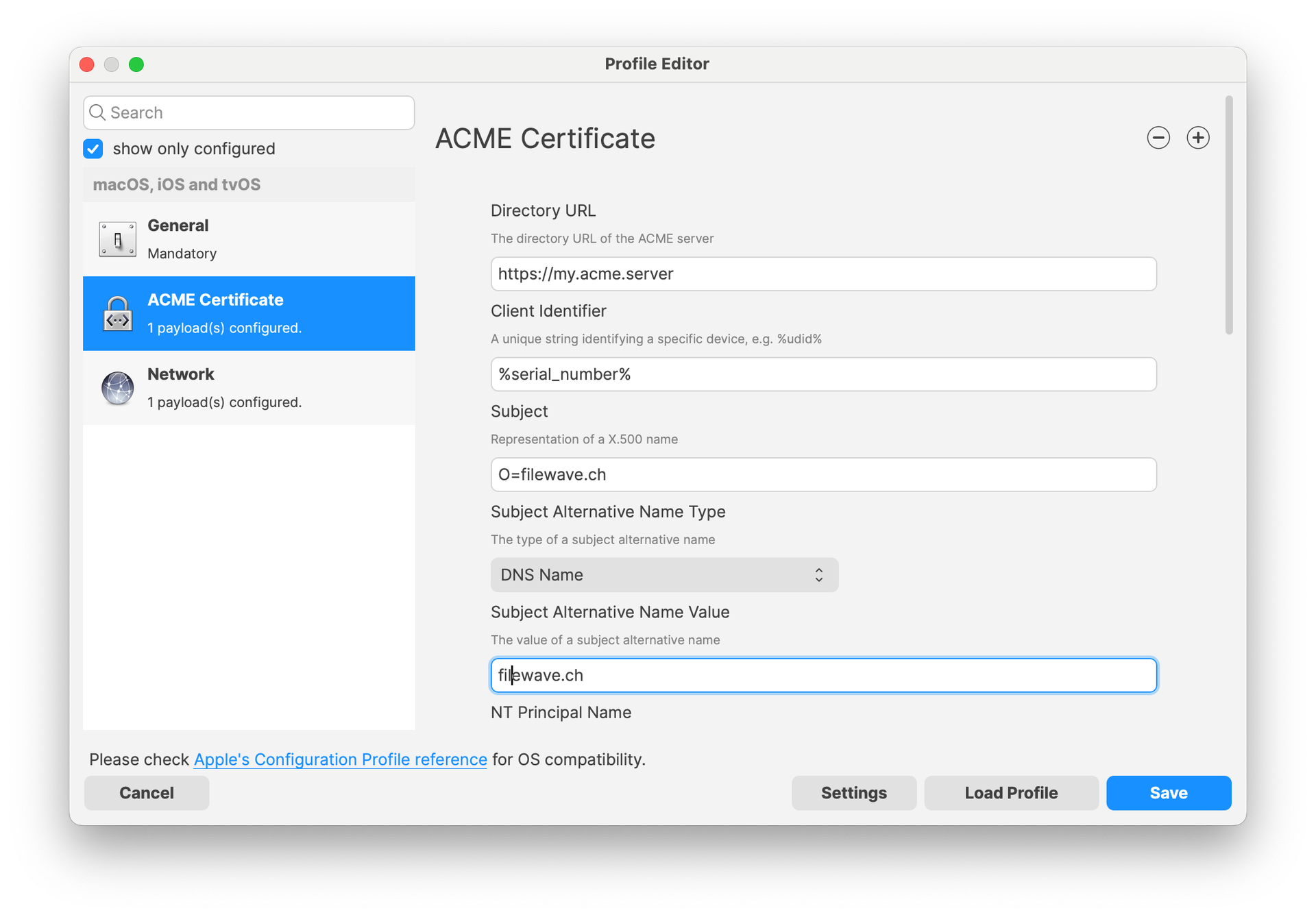
- Directory URL: Enter the URL for your ACME server.
- Client Identifier: Enter the identifier the ACME server should use for the device, such as
%udid%or another supported FileWave placeholder. - Subject: Enter the certificate subject, such as
O=Company Name/CN=Device Name. - Additional options: Configure key usage, extended key usage, subject alternative names, and other values required by your certificate authority and authentication workflow.

- Reference the ACME certificate where needed
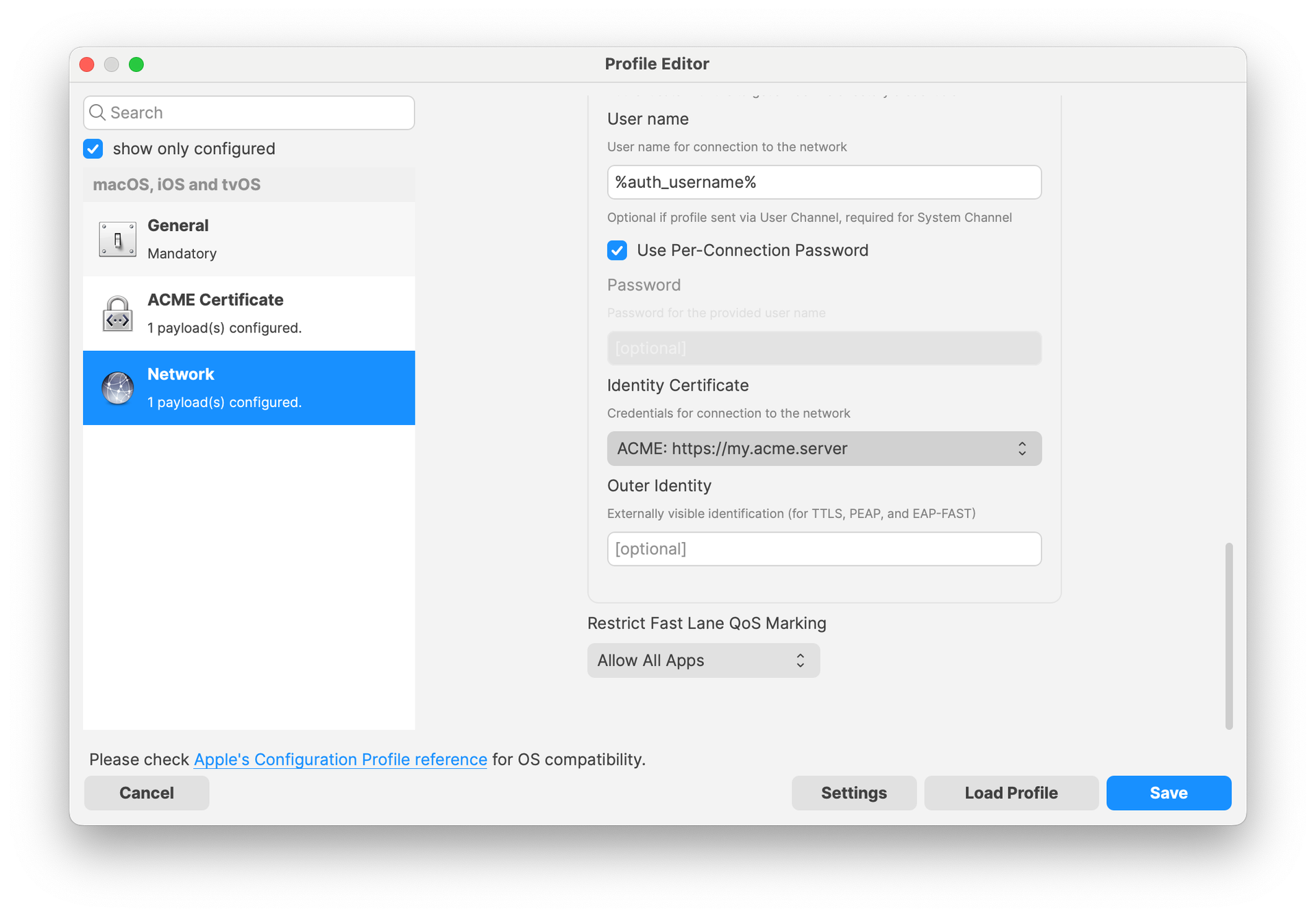
- Other payloads, such as Network, can reference the ACME Certificate payload in a similar way to SCEP payloads.
- For example, a Wi-Fi configuration can use the ACME-issued identity certificate for authentication.

- Save and deploy
- Confirm that the required fields match your ACME server's expectations.
- Save the profile and deploy it to the target Apple devices.
Note: Apple's ACME Certificate payload is supported on macOS 10.15 and later, iOS 14 and later, and iPadOS 14 and later. Profiles deployed through FileWave are signed to help preserve profile integrity.
Related Content
Digging Deeper
ACME automates certificate requests and renewals between a device and a certificate authority. In FileWave, the ACME Certificate payload gives administrators a profile-based way to deliver those settings to managed Apple devices.
The main value is consistency: the certificate request settings live in the same Apple profile workflow as the payloads that use the certificate. When a Network payload references the ACME certificate, devices can request the identity certificate they need for secure network access without a separate manual certificate-distribution step.
For newer admins, it may help to think of the ACME payload as the certificate source. A different payload or service still has to use that certificate. For example, the ACME payload can provide the identity certificate, and a Network payload can use that identity for Wi-Fi authentication.
Before deploying broadly, confirm that your ACME server, identifiers, subject values, key-usage settings, and renewal behavior match your organization's certificate policy. Test with a limited group first, especially when the certificate is used for network access.