FileWave no longer deploys a Web Clip version of the FileWave App Portal. The new version 2 Kiosk App's Bundle ID is: com.filewave.ios.app.kiosk3
[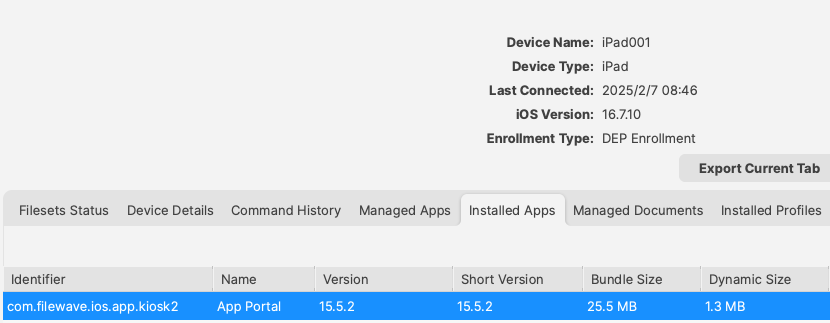](https://kb.filewave.com/uploads/images/gallery/2025-02/NmhtJGOVN2fg8eFe-image.png) For the new App, it may be referenced in a Home Screen Layout Payload by this Bundle ID: [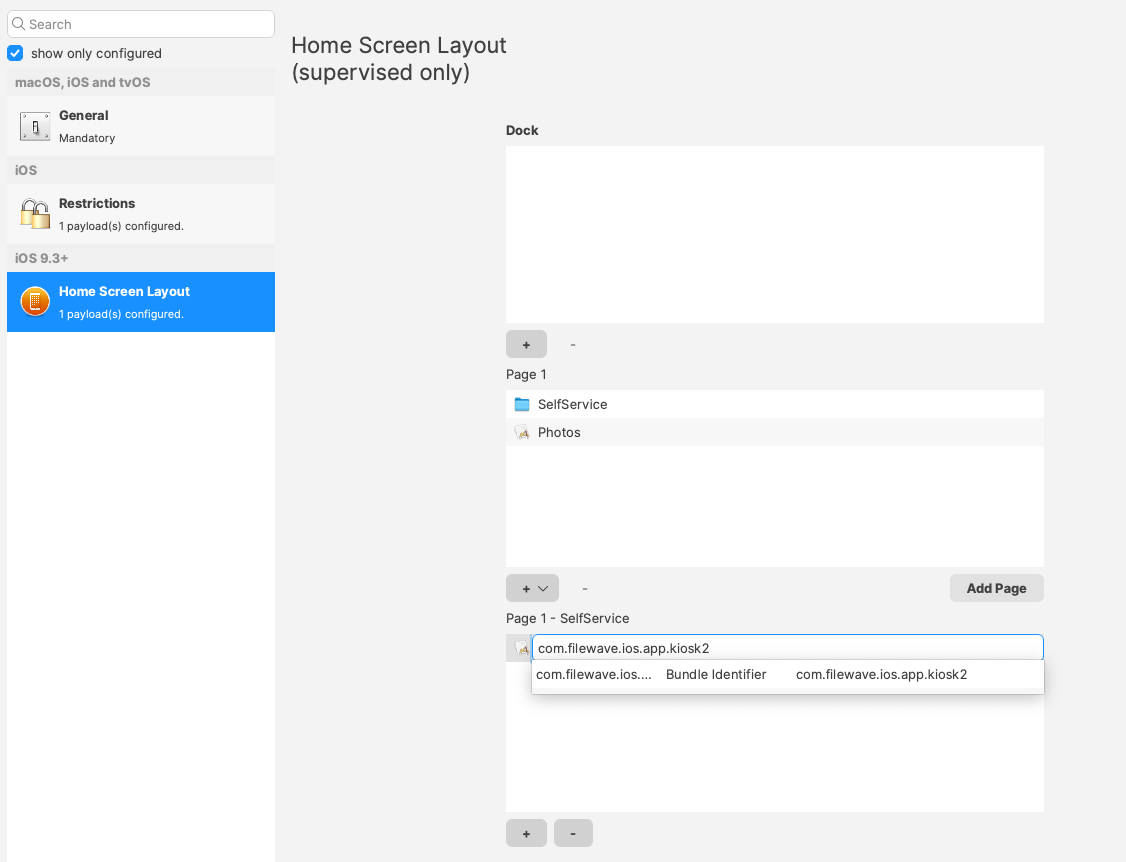](https://kb.filewave.com/uploads/images/gallery/2025-02/Oe9eYTAl96mzGc80-image.png)The below method for the Web Clip App Portal is legacy and will be removed from our KB at a later date.
To move the App Portal Web Clip using the Home Screen Layout Payload, locate the URL of the web clip from any iOS device settings: - Settings App > General > Device Management > FileWave MDM > More Details "Web Clip" as seen below: [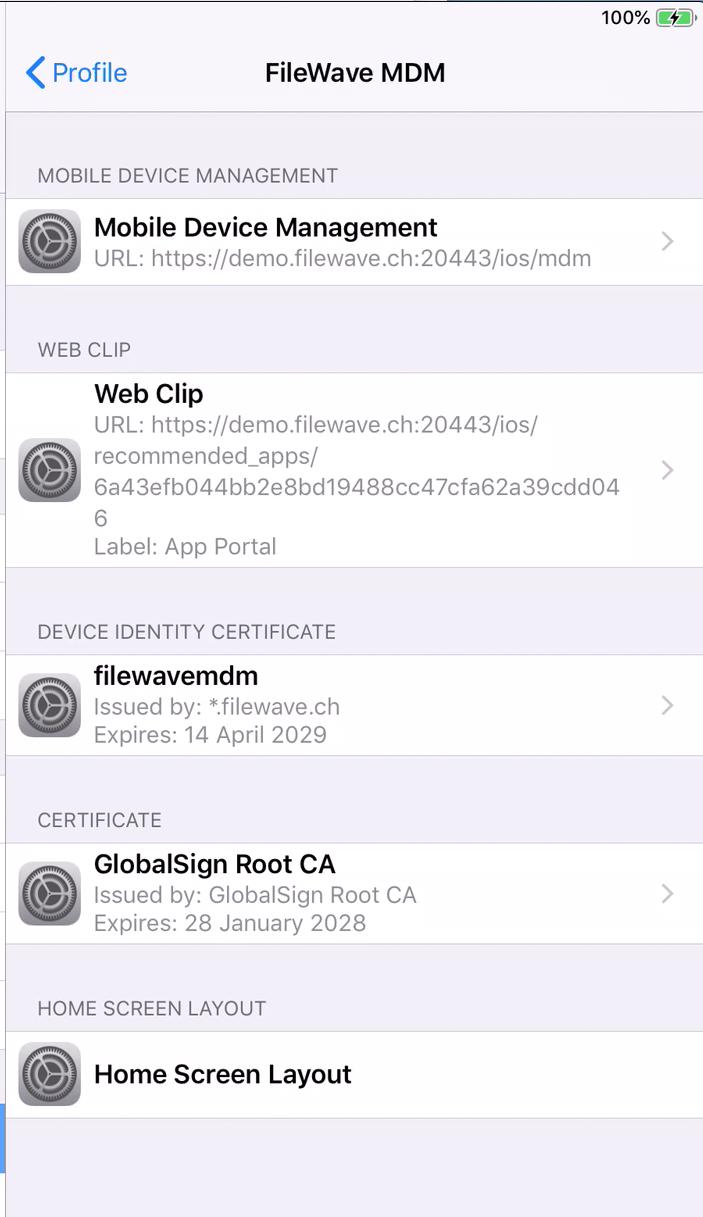](https://kb.filewave.com/uploads/images/gallery/2023-07/MaC6Lwm07yy15nJM-image.png) The Web Clip address shown should be injected into the Home Screen Layout Payload, replacing the long string of characters and numbers at the end with %device\_id% . In this example: ```bash https://demo.filewave.ch:20445/ios/recommended_apps/6a43efb044bb2e8bd19488cc47cfa62a39cdd04 ``` becomes: ```bash https://demo.filewave.ch:20445/ios/recommended_apps/%device_id% ``` Inject this into the home screen layout payload you are deploying, instead of an app name, and the App portal will be moved into that folder. [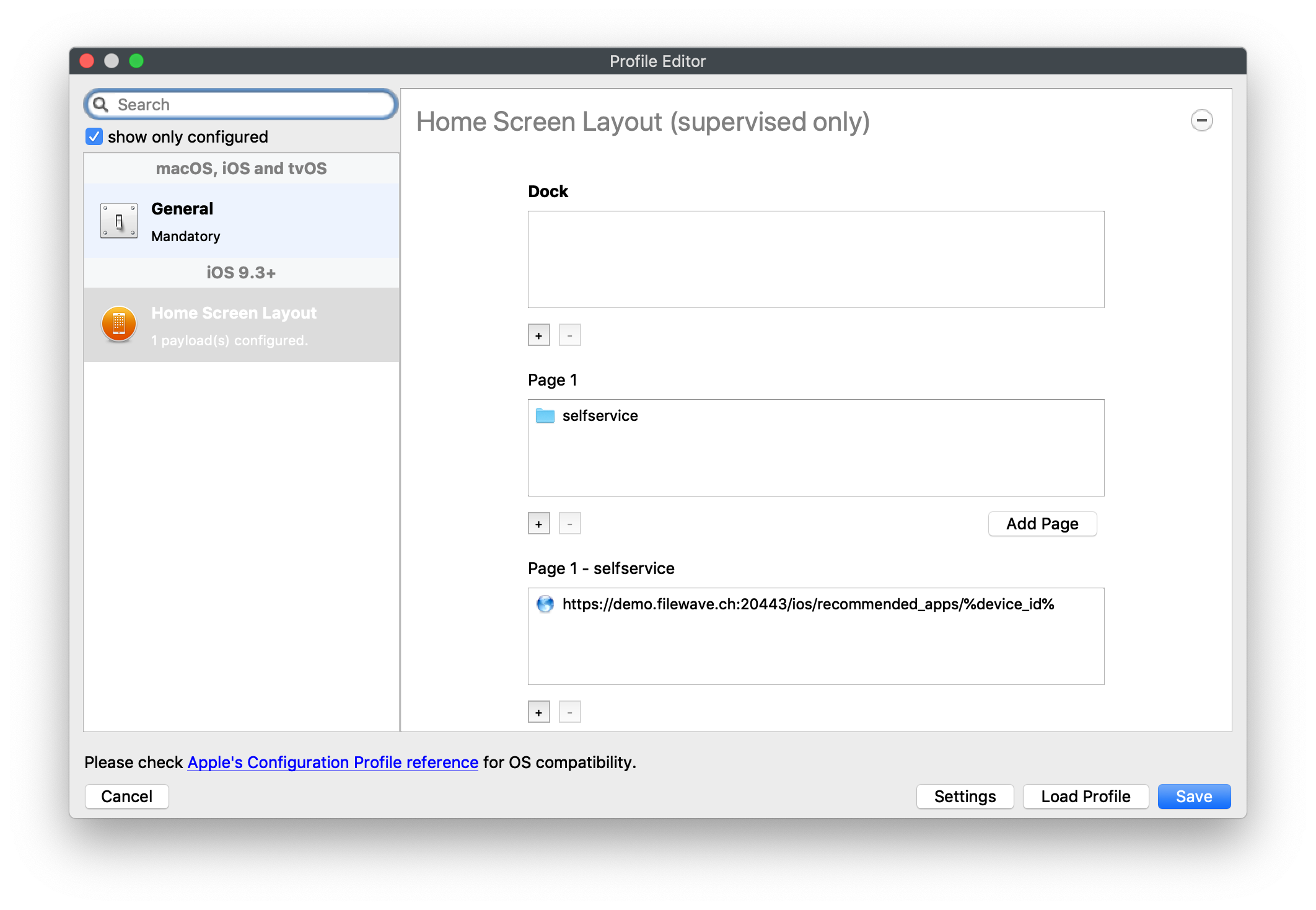](https://kb.filewave.com/uploads/images/gallery/2023-07/FLuMssbcS2BLJg9i-image.png)