Use the screenshot below to confirm the **Wallpaper** option and target screen before saving.
FileWave reapplies the wallpaper command once a day, restoring the selected image if the wallpaper changes.
## Step-by-step guide 1. In FileWave Central, create a new Mobile Fileset and choose **Profile**. 2. Configure the **General** payload and give the profile a clear name. 3. Configure the **Command Policy** payload. Under **Wallpaper**, choose Lock Screen, Home Screen, or both, then select the image. 4. Select **Save**. [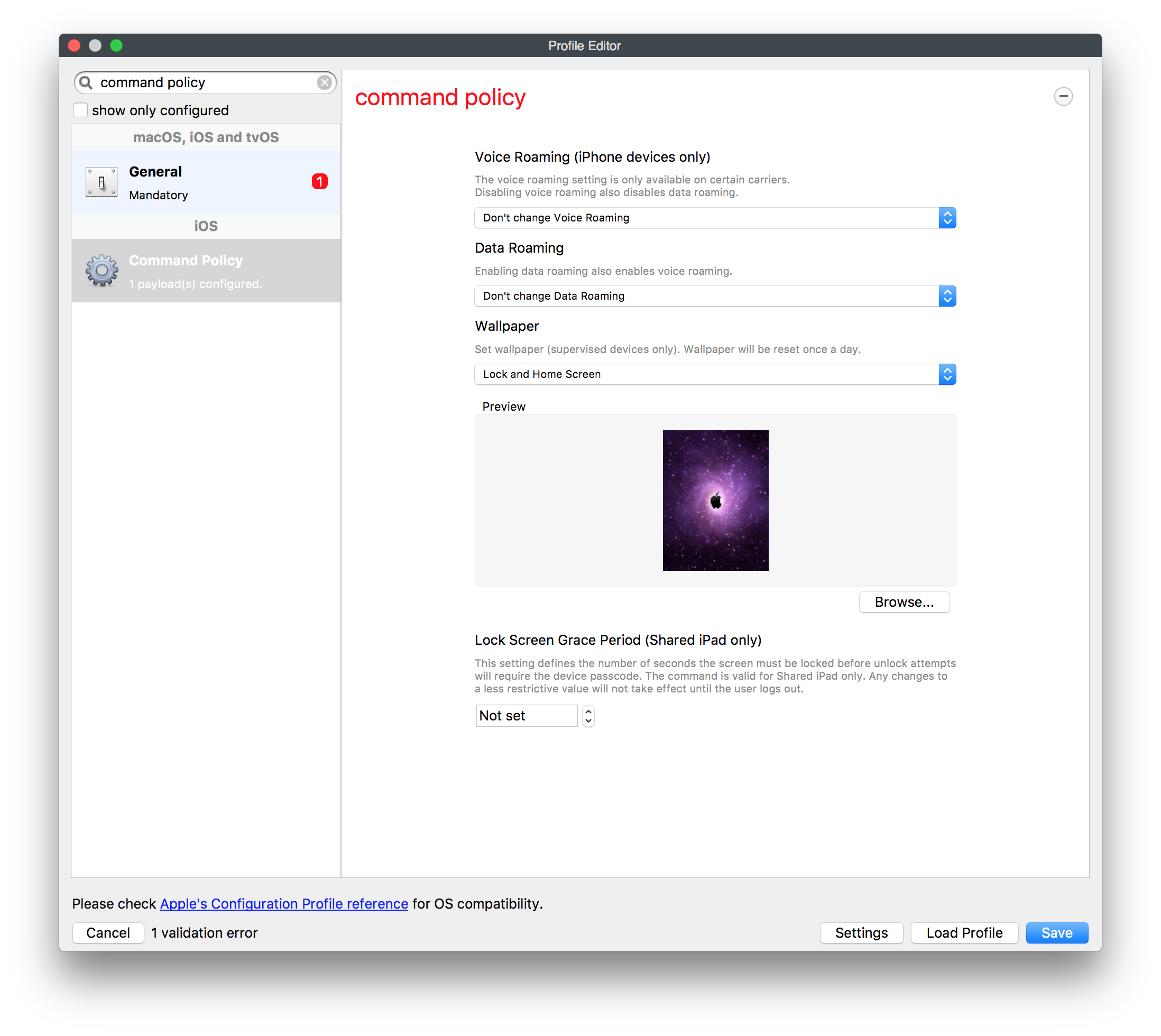](https://kb.filewave.com/uploads/images/gallery/2023-07/by3HkM8MzXdM5iP6-image.png) Deploy the profile to a small test group first. Confirm the image appears on the intended screen before expanding the deployment. **Image size:** Keep the file as small as practical so devices can download it quickly. FileWave runs this command daily and reapplies the selected wallpaper. ## Related articles - [Customizing iOS Device Wallpaper with Dynamic Text](https://kb.filewave.com/books/ios-ipados/page/customizing-ios-device-wallpaper-with-dynamic-text "Customizing iOS Device Wallpaper with Dynamic Text")