Google Chrome Managed (macOS)
Description
Chrome browser user experience may be managed on multiple device types by way of a Google Management Token available through the Google Admin Console.
Details on obtaining a token and Chrome management can be found in the following KB:
The directions below describe applying the token to macOS devices.
If Google Admin Console is not available, consider viewing the FileWave KB: Google Chrome Configuration Recipe (mac0S)
Ingredients
- Chrome installer Fileset
- Chrome Browser Enrolment Token (only available via Google Admin Console)
- Profile to push out the token
The below Fileset is a template with two suggested keys, one of which is the required Google Token
macOS

Directions
- Download the above provided Fileset zip file, expand and drag into FileWave > Filesets
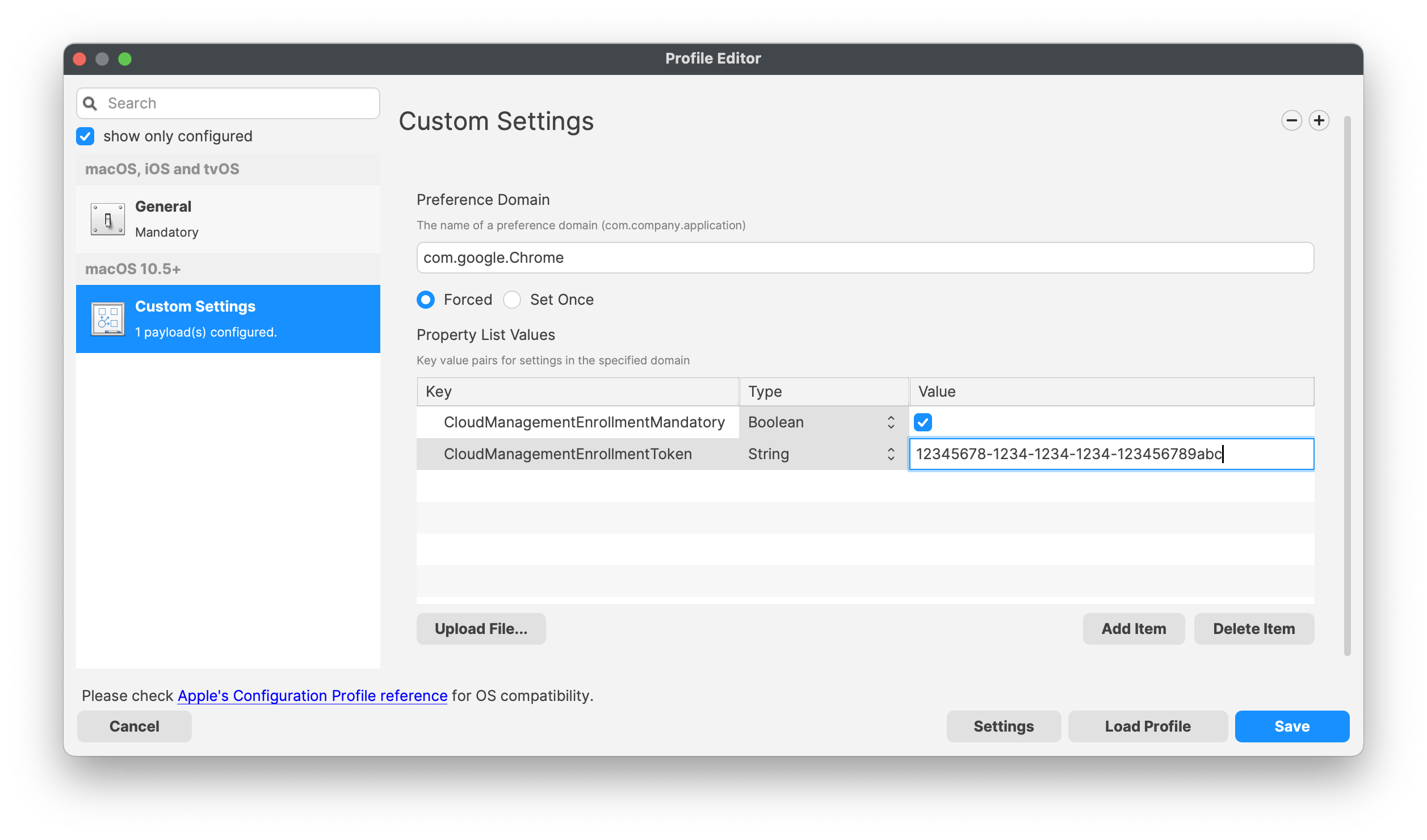
- Open the Profile for editing and access the Custom Settings Payload
- Edit the CloudManagementEnrollmentToken String, entering the copied token from the Google Admin console
Association/Deployment
When assigning with devices, to ensure the configuration is installed with the Application, consider creating a Fileset Group:
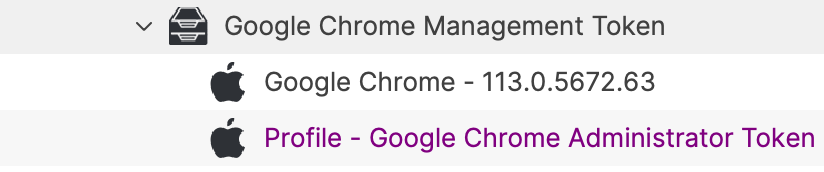
Assigning the 'Google Chrome Management Token' Fileset Group will ensure Application and Configuration are associated to devices. Below is an example Deployment:
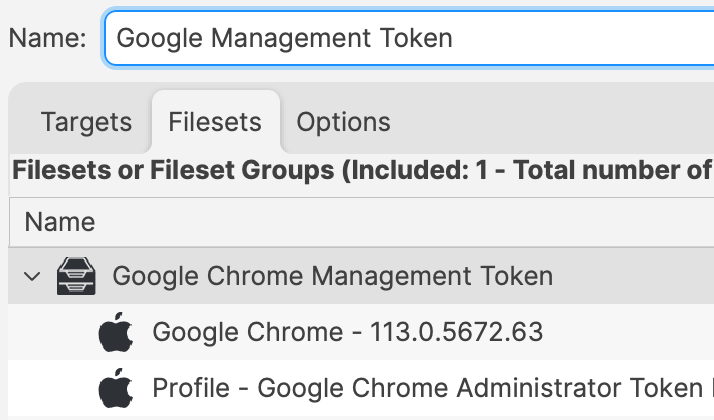
When there is an update to Google Chrome, replace the version in the Fileset Group with the latest version (after testing) or switch to a new Fileset Revision if desired.