# PaperCut recipe (macOS)
## Description
Needing to deploy the PaperCut Print Deploy client to a macOS client managed by FileWave? FileWave has you covered!
## Ingredients
- FW Central
- PaperCut PKG installer
- .plist configuration file
- MDM managed macOS clients
## Directions
### Converting the DMG to a PKG installer
You will need access to your PaperCut NG/MG server configurations.
1. Log in to your PaperCut NG/MF server, for example, `https://print-server.example.net:9192/admin`.
2. Click **Enable Printing > Print Deploy**. The Print Deploy page is displayed.
3. Next to Download clients, click the macOS button at the bottom of the page.
4. Save the .dmg file to your Documents folder.
5. Look at the filename and check that the hostname between the square brackets is correct, for example, `pc-print-deploy-client[print-server.company.lan].dmg`.
6. Double-click the .dmg file and copy **PaperCut Print Deploy Client.pkg** to the Desktop.
### Creating .plist file to configure your MDM macOS clients
The PaperCut Print Deploy Client can use a .plist file to set its server address. You can share and deploy these files in many different ways, such as with a .mobileconfig file, a file-copy command, or a scripted file creation on the client. For our recipe, we are just going to deploy the .plist to the proper directory along with our .pkg.
Note: The .plist file needs to be in proper format. The PaperCut client will not function with your desired configurations if this is not saved in the correct format.
To create the .plist file:
1. Open a terminal and issue the following command:
`defaults write ~/Documents/com.papercut.printdeploy.client server_host hostname`
2. Replace the word ‘hostname’ with the FQDN or IP address from the ‘.dmg’, for example, `print-server.company.lan`
3. Convert the .plist file with the following command:
`/usr/bin/plutil -convert xml1 ~/Documents/com.papercut.printdeploy.client.plist`
This will ensure that the file can be read correctly.
4. Verify the contents of the new `.plist` with the following command:
`defaults read ~/Documents/com.papercut.printdeploy.client.plist`
The output should be:
```
macOS:Documents localadmin$ defaults read ~/Documents/com.papercut.printdeploy.client.plist
{
"server_host" = "print-server.company.lan";
}
macOS:Documents localadmin$
```
### Example .plist file
```
server_host
YOUR_PRINT_SERVER_ADDRESS
```
Download here: [com.papercut.printdeploy.client.plist.zip](https://kb.filewave.com/attachments/464)
Replace the YOUR\_PRINT\_SERVER\_ADDRESS, with your print server address if you use the example .plist file.
### Creating the Fileset
1. Open FileWave Central
2. Select the PKG installer Fileset
3. Upload the PKG installer
4. Open Fileset Contents and uncheck 'Hide unused folders'
5. Navigate to Library > Preferences
6. Upload the .plist file to Library/Managed Preferences/
7. Close to save the Fileset
[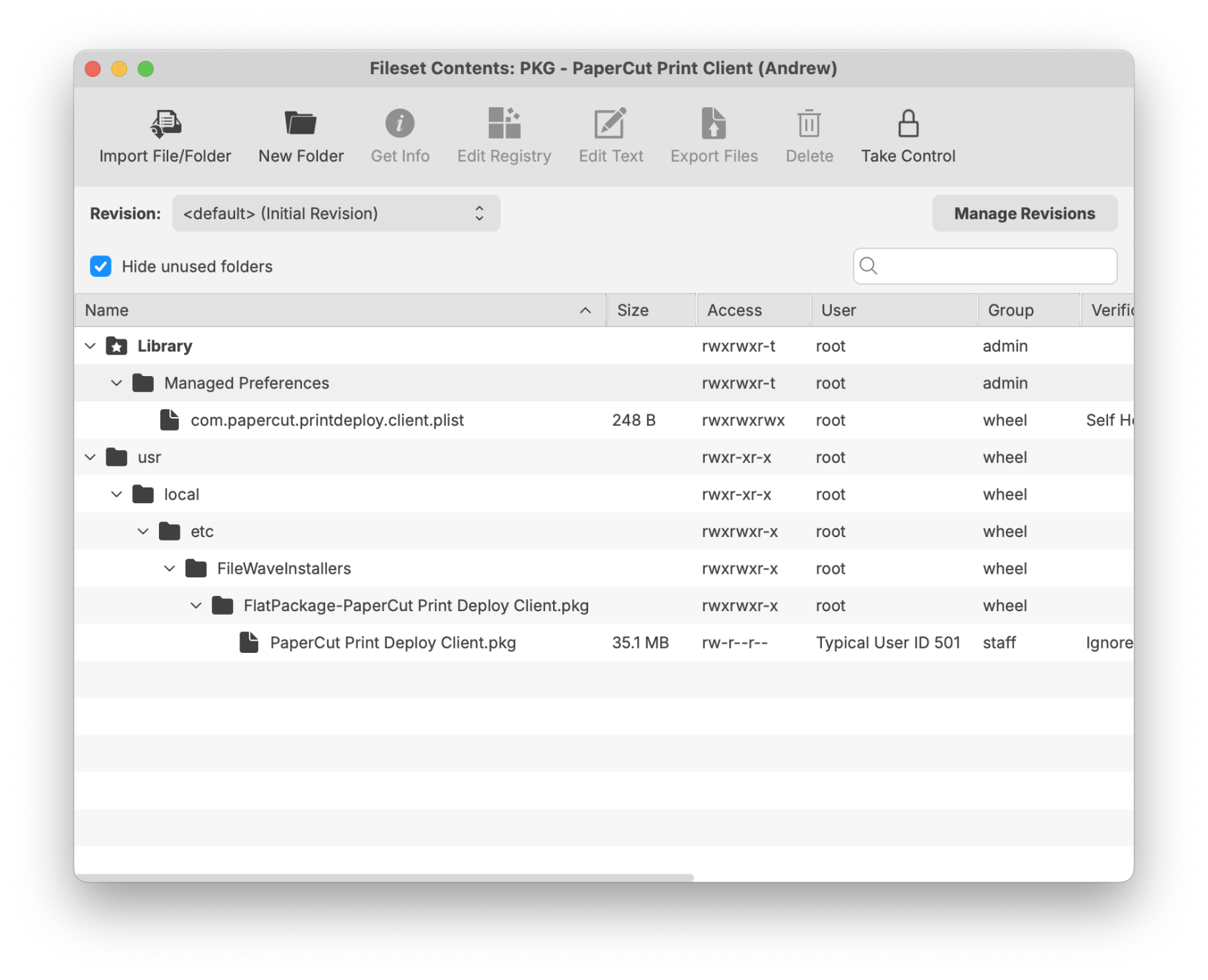](https://kb.filewave.com/uploads/images/gallery/2025-08/YFHvTUv7qDic1yJi-papercutprintdeployfileset.png)
Note: if no directory for /Library/Preferences/ is found, you may create the directory and upload the .plist file as shown above.
Be sure the .plist file has the proper formatting and that the .plist file is in the correct directory. If the .plist file is found, the PaperCut Print Deploy client should honor the file's settings.
Always, test deployment to a few test machines. This ensures your configurations for PaperCut are correct and ready for your macOS production fleet.
## Related Content
- [Generic steps for how to deploy PaperCut](https://www.papercut.com/help/manuals/print-deploy/roll-out-the-client/with-mdm/deploy-queues-using-another-apple-mdm/#configure-the-client-to-connect-to-the-print-deploy-server)