# SentinelOne Deployment (macOS)

## Description

SentinelOne is a cybersecurity company that specializes in endpoint security and threat intelligence. They provide a platform for autonomous endpoint protection that uses AI and machine learning to prevent, detect, and respond to a wide range of security threats, including malware, ransomware, and other cyberattacks.

This recipe will guide on how to setup and deploy to your macOS devices.

<p class="callout warning">Upgrading SentinelOne on macOS Clients is not done the same way as it's initial deployment. We have edited the Installation script to identify if the client already has SentinelOne installed and run the following command to upgrade instead of going the normal install route: *sentinelctl upgrade-pkg<span class="apple-converted-space"> </span>PKG\_pathname* To deploy the upgraded SentinelOne Client to devices, simply create a new revision, upload the new PKG to the Fileset, and change the file name references in the install script.</p>

## Ingredients

- FileWave Central
- [SentinelOne\_Fileset&amp;Profiles.zip](https://kb.filewave.com/attachments/514)
- SentinelOne PKG installer
- SentinelOne Group/Site Token

## Directions

#### Editing the Fileset:

```
sentinelctl upgrade-pkg PKG_pathname
```

1. Download and import the SentinelOne Fileset into FileWave Central (we'll handle the Profiles later)
2. In a text editor, create a plain text file named com.sentinelone.registration-token that contains only your Site/Group Token  
    [![Screenshot 2025-01-15 at 11.22.14 AM.png](https://kb.filewave.com/uploads/images/gallery/2025-01/scaled-1680-/zO0RfwdcsB8oM0mh-screenshot-2025-01-15-at-11-22-14-am.png)](https://kb.filewave.com/uploads/images/gallery/2025-01/zO0RfwdcsB8oM0mh-screenshot-2025-01-15-at-11-22-14-am.png)
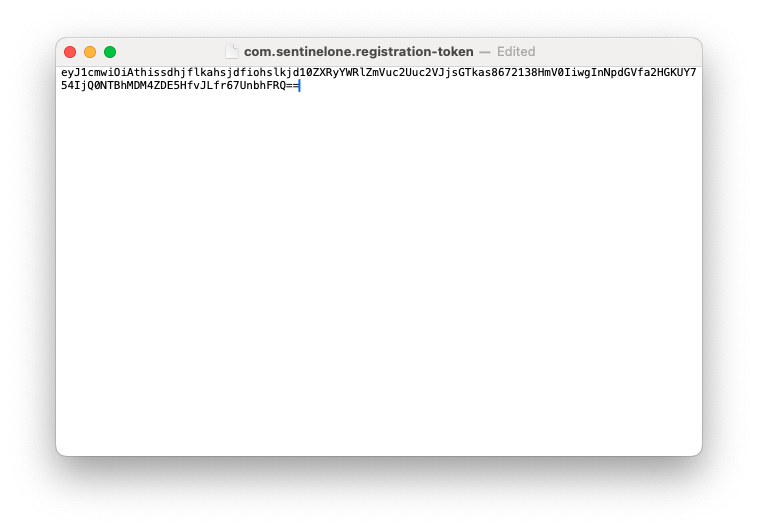
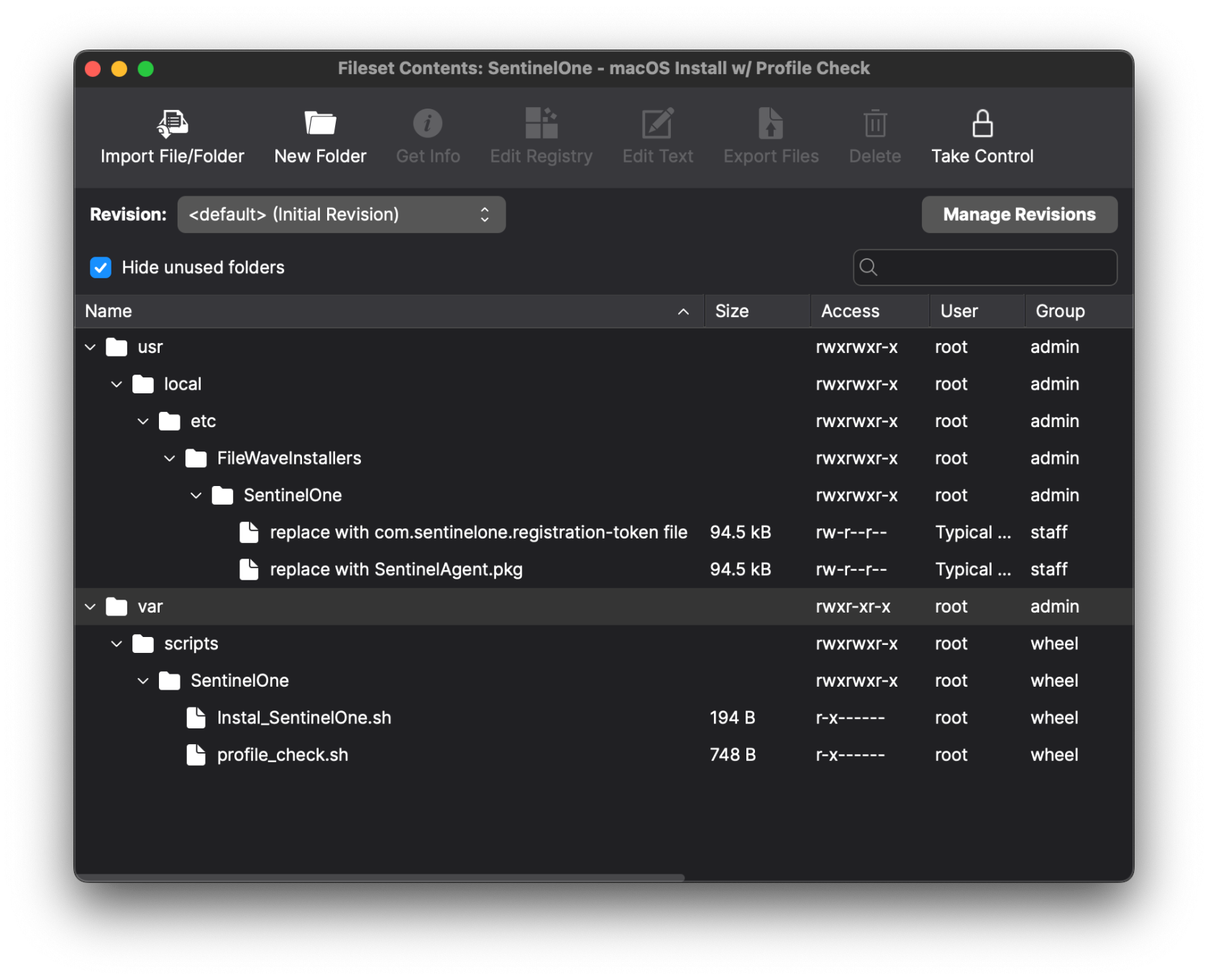
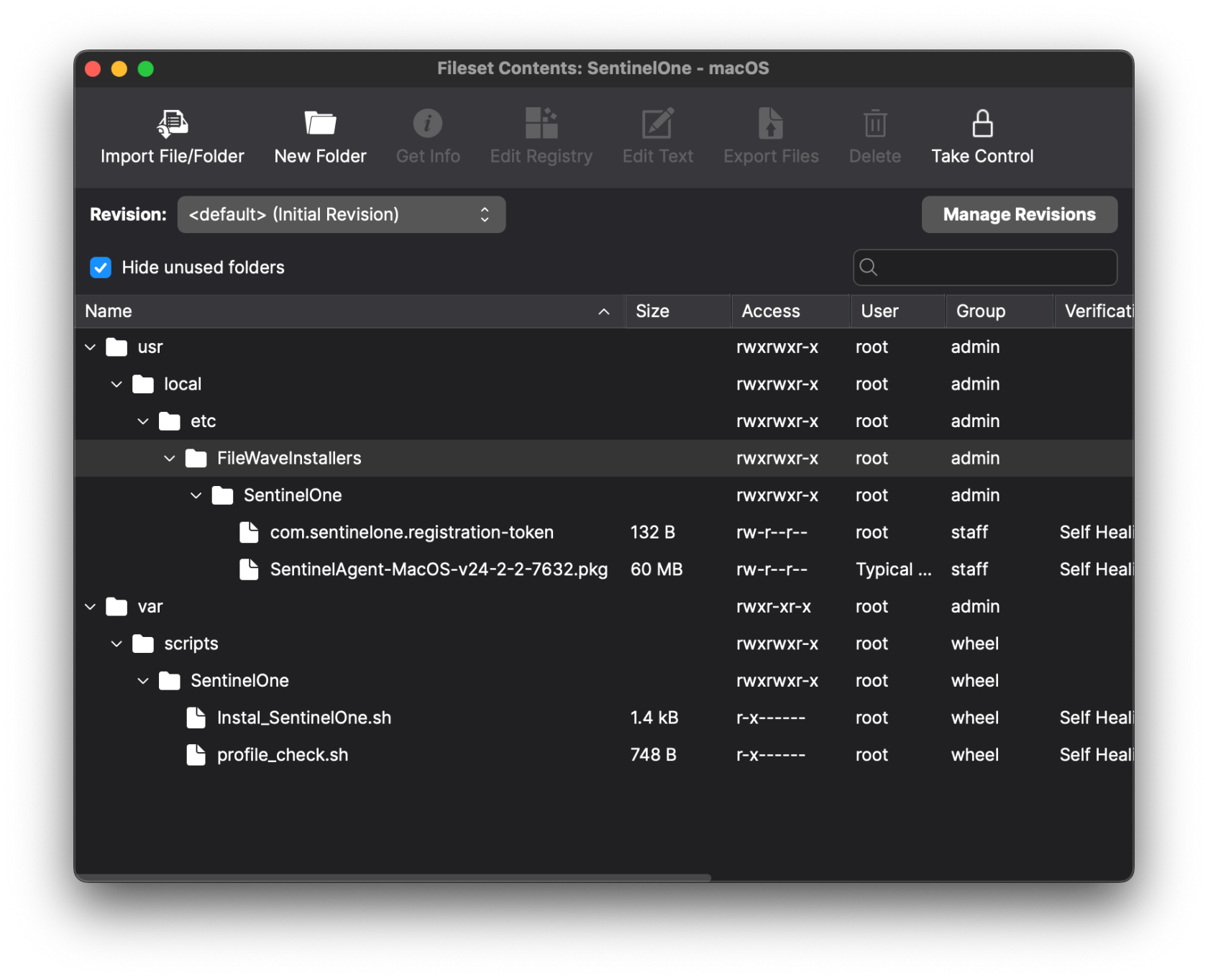
3. Open the imported Fileset and replace the files under /usr/local/etc/FileWaveInstallers/SentinelOne with your registration token file and SentinelOne PKG.  
      
    <p class="callout info">Make sure the token file ownership is set to root:staff. You can change the ownership by selecting the file &gt; Get Info &gt; Ownership</p>
    
    <p class="callout info">The "com.sentinelone.registration-token" plaintext file must also be extension-less in the fileset and will not work if the file has a .txt extension at the end of the file name. If your filename ends in a ".txt" this can be removed/edited by right-clicking on the file in the fileset &gt; "Rename".</p>
    
      
    <table style="border-collapse: collapse; width: 100%;"><colgroup><col style="width: 50%;"></col><col style="width: 50%;"></col></colgroup><tbody><tr><td>Before:</td><td>After:</td></tr><tr><td>[![Screenshot 2025-04-09 at 3.15.42 PM.png](https://kb.filewave.com/uploads/images/gallery/2025-04/scaled-1680-/VCKEbybJ5HCdfPhw-screenshot-2025-04-09-at-3-15-42-pm.png)](https://kb.filewave.com/uploads/images/gallery/2025-04/VCKEbybJ5HCdfPhw-screenshot-2025-04-09-at-3-15-42-pm.png)
    
    </td><td>[![Screenshot 2025-04-09 at 3.19.27 PM.png](https://kb.filewave.com/uploads/images/gallery/2025-04/scaled-1680-/UGAxPK1sBhSGnPz3-screenshot-2025-04-09-at-3-19-27-pm.png)](https://kb.filewave.com/uploads/images/gallery/2025-04/UGAxPK1sBhSGnPz3-screenshot-2025-04-09-at-3-19-27-pm.png)
    
    </td></tr></tbody></table>
    
      
    Now we need to edit the install script so it points to the uploaded installer.
4. In Admin, select the SentinelOne Fileset and then select 'Scripts' in the toolbar.
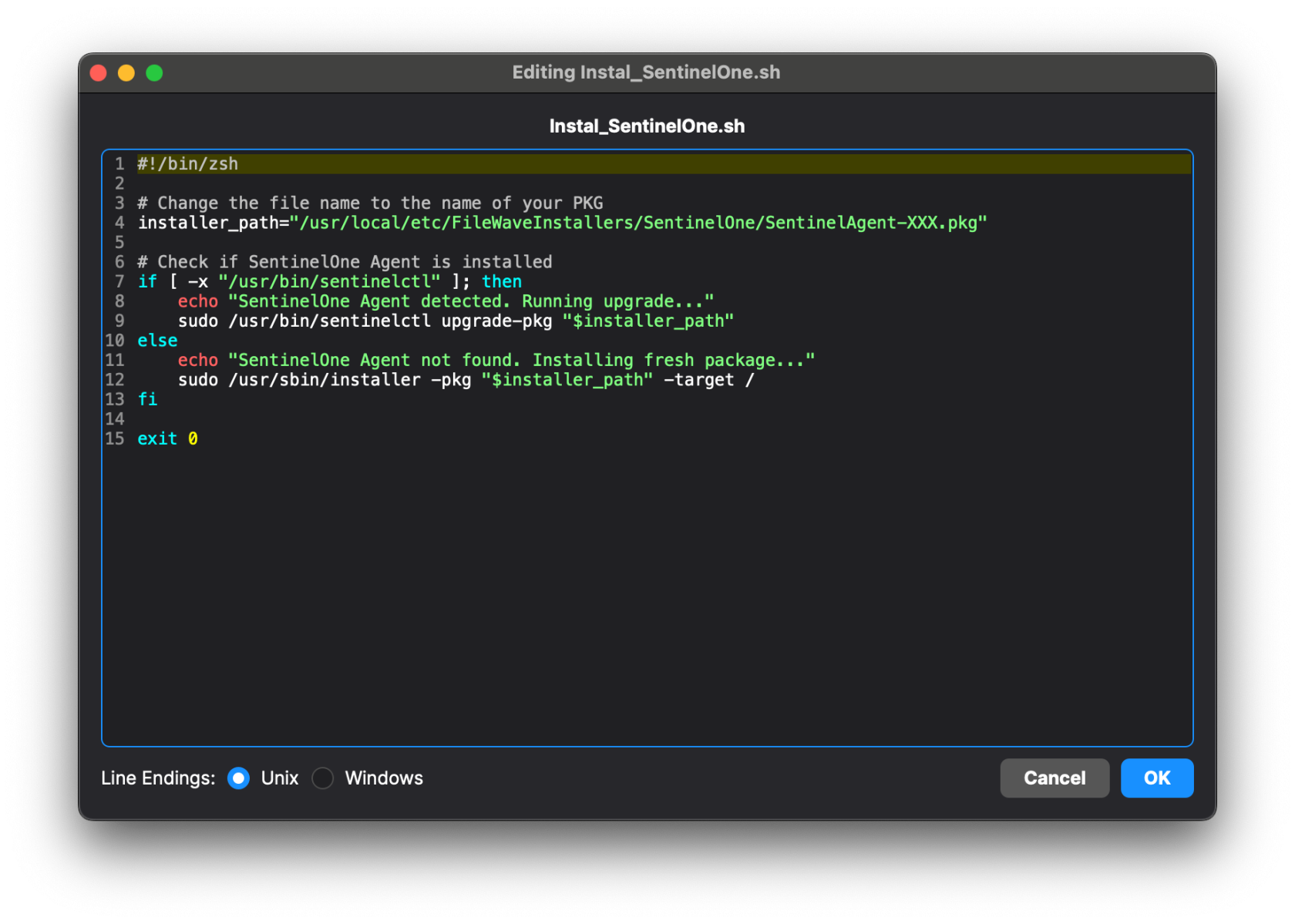
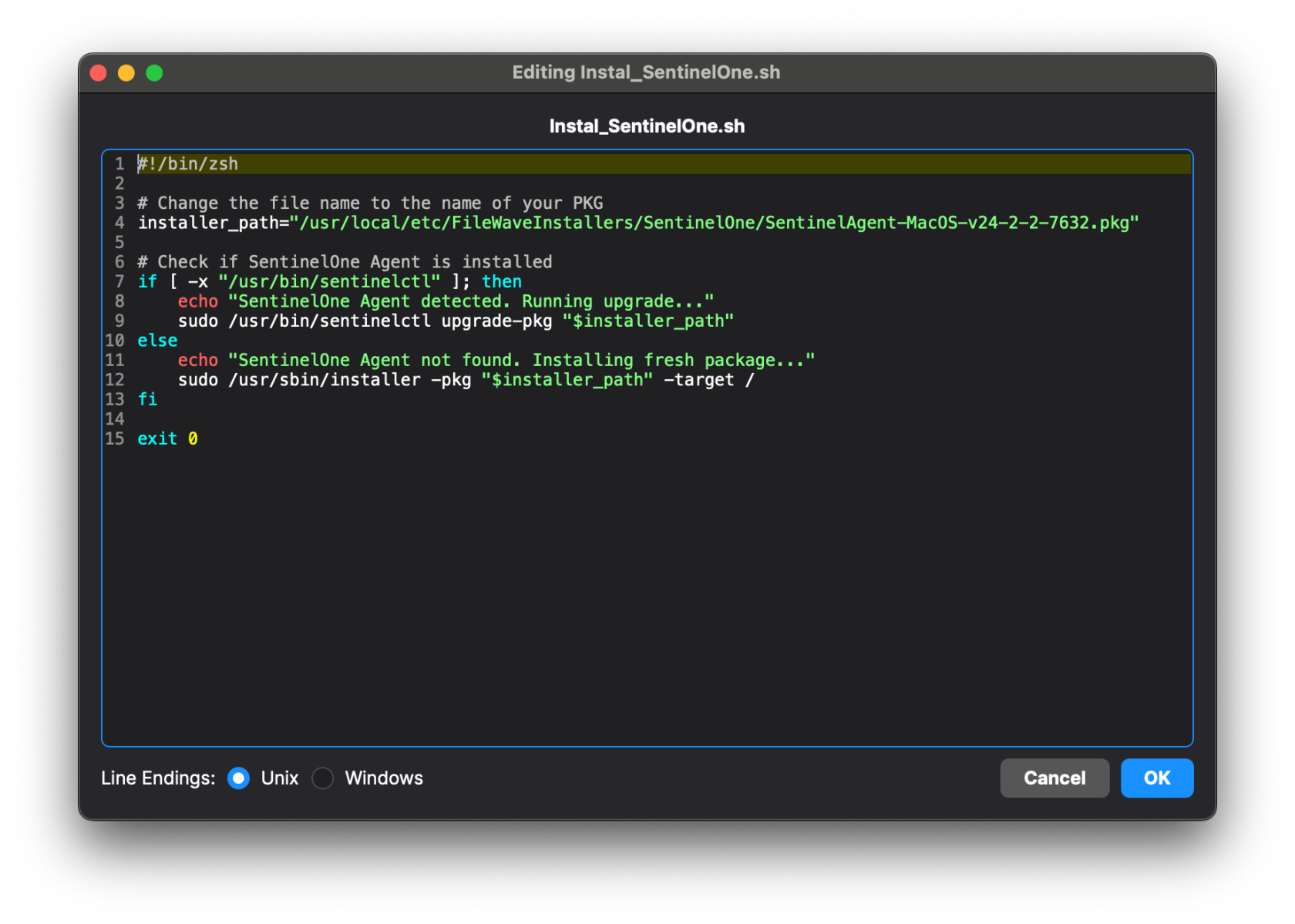
5. Edit the Activation Script 'Instal\_SentinelOne.sh'. You will need to change the name of the PKG to what you have uploaded. Click OK to save.   
    <table style="border-collapse: collapse; width: 100%;"><colgroup><col style="width: 50%;"></col><col style="width: 50%;"></col></colgroup><tbody><tr><td>Before:</td><td>After: <span style="background-color: rgb(241,196,15);">***Your installer's name will be different***</span></td></tr><tr><td>[![Screenshot 2025-04-09 at 4.27.11 PM.png](https://kb.filewave.com/uploads/images/gallery/2025-04/scaled-1680-/WnwvrDlfSnw2Yv3S-screenshot-2025-04-09-at-4-27-11-pm.png)](https://kb.filewave.com/uploads/images/gallery/2025-04/WnwvrDlfSnw2Yv3S-screenshot-2025-04-09-at-4-27-11-pm.png)</td><td>[![Screenshot 2025-04-09 at 4.19.44 PM.png](https://kb.filewave.com/uploads/images/gallery/2025-04/scaled-1680-/FsMGMPmftV7xTvJB-screenshot-2025-04-09-at-4-19-44-pm.png)](https://kb.filewave.com/uploads/images/gallery/2025-04/FsMGMPmftV7xTvJB-screenshot-2025-04-09-at-4-19-44-pm.png)</td></tr></tbody></table>
    
    Now we need to import the four Profiles to allow the installer the access and permissions it needs
6. <span class="s1">Import the Profiles that were downloaded with the Fileset. To do so, just drag and drop the Profiles into FileWave Central. </span>
    
    Video: [Importing Profiles](https://kb.filewave.com/attachments/424)<p class="callout info">Profile Metadata shown below</p>


##### We're all set! Now create a Deployment with the Fileset and four Profiles.

##### The Fileset contains a script that will only allow the Installation once all four Profiles have been installed. It is normal to see a Fileset failure the first try. It will keep trying until profiles have installed.   


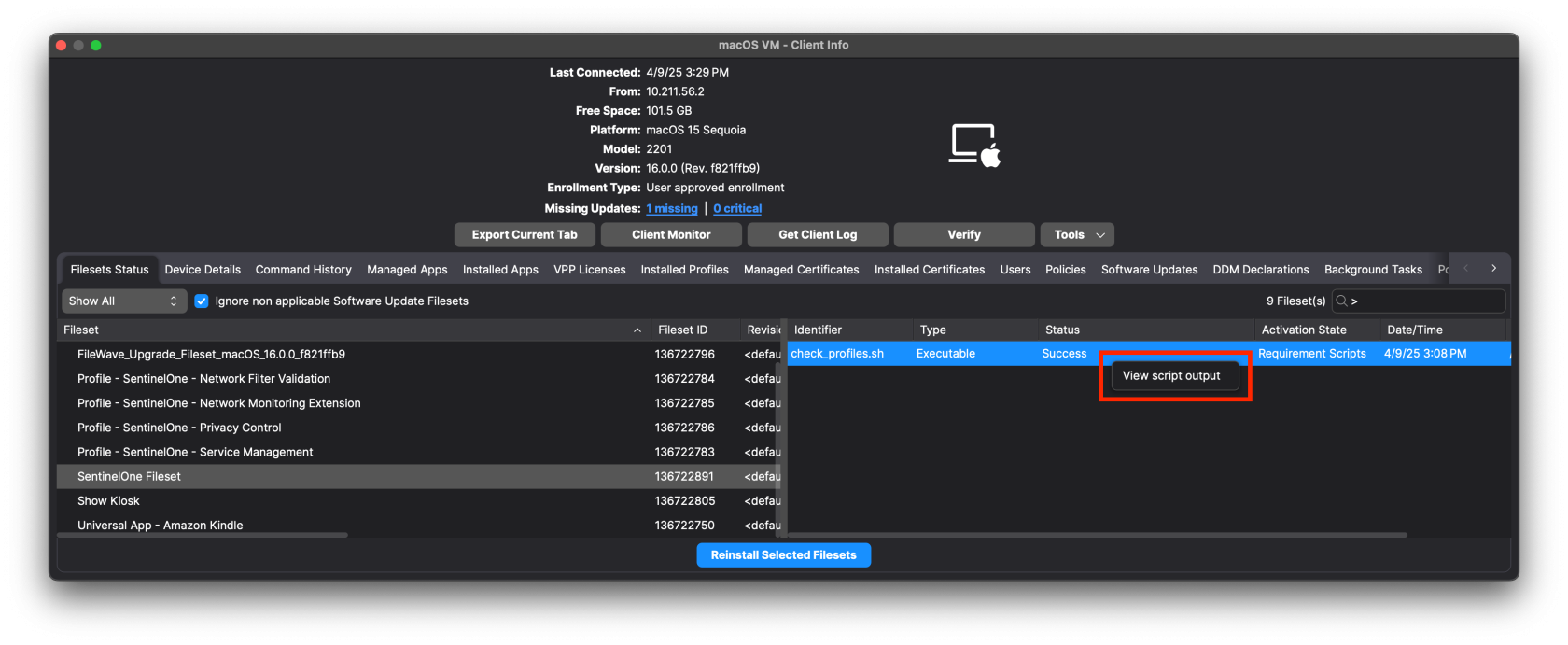
<p class="callout info">The check\_profile script logs each attempt and why it either failed or succeeded. You can see this log by right-clicking on the script in Client Info&gt;Fileset Status. Select the Fileset in the list and the script status will show on the right. Right-click to see script output.[![Screenshot 2025-04-09 at 3.30.03 PM.png](https://kb.filewave.com/uploads/images/gallery/2025-04/scaled-1680-/6ASwNv6RQjlHOx3g-screenshot-2025-04-09-at-3-30-03-pm.png)](https://kb.filewave.com/uploads/images/gallery/2025-04/6ASwNv6RQjlHOx3g-screenshot-2025-04-09-at-3-30-03-pm.png)  
[![Screenshot 2025-04-09 at 3.34.09 PM.png](https://kb.filewave.com/uploads/images/gallery/2025-04/scaled-1680-/4IH618E3VdFuH2fs-screenshot-2025-04-09-at-3-34-09-pm.png)](https://kb.filewave.com/uploads/images/gallery/2025-04/4IH618E3VdFuH2fs-screenshot-2025-04-09-at-3-34-09-pm.png)  
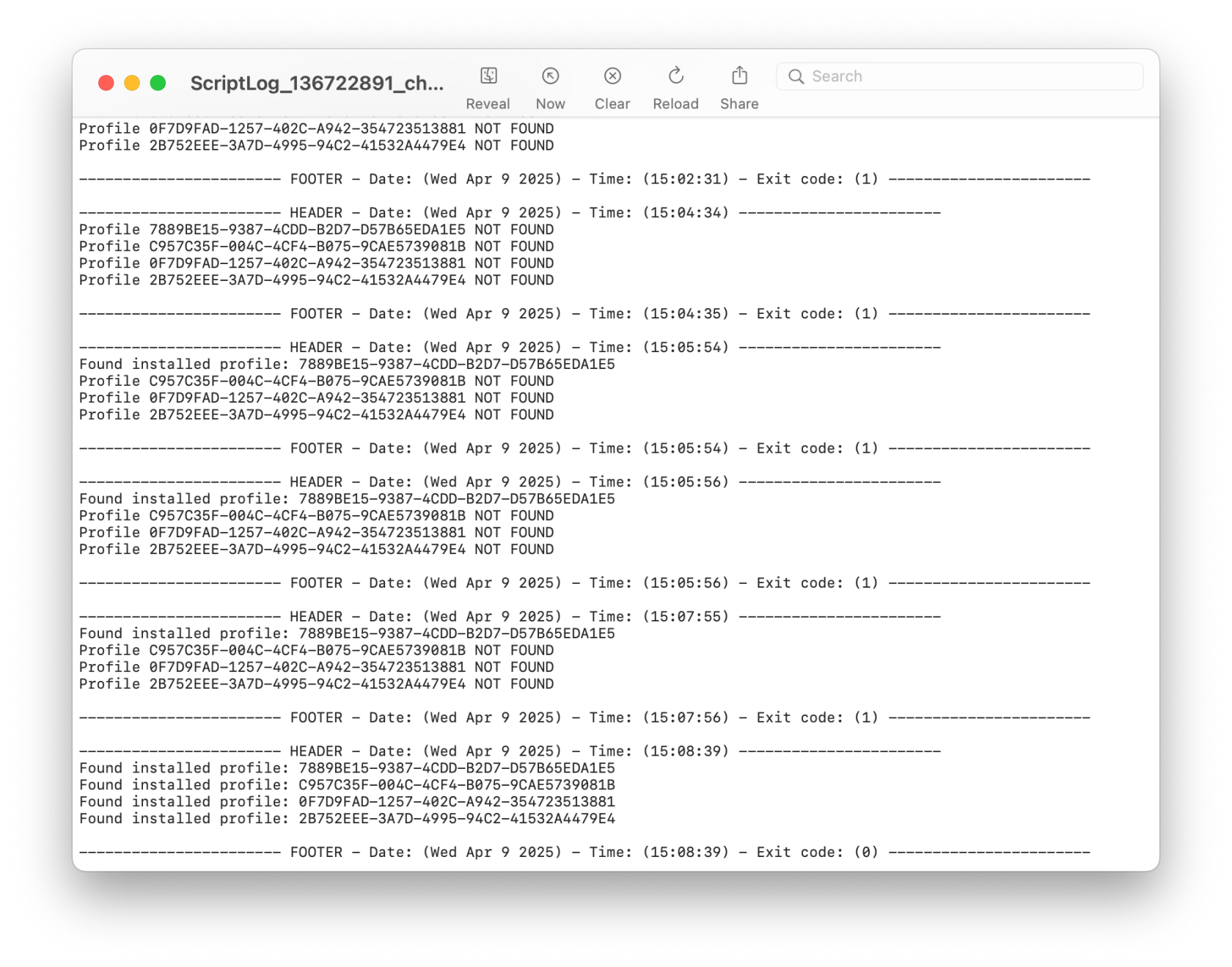
You'll notice that the script exited successfully (exit 0) once all the Profiles were found. The profiles are identified by their Profile ID. You can find this by double-clicking on the Profile in the Filesets view.</p>

## Profile Metadata

#### Service Management Profile

<details id="bkmrk-service-management-p"><summary>Service Management Profile</summary>

[![SentinelOne_ServiceManagementProfile.png](https://kb.filewave.com/uploads/images/gallery/2023-11/scaled-1680-/7GVv7yAfsRLhDESf-sentinelone-servicemanagementprofile.png)](https://kb.filewave.com/uploads/images/gallery/2023-11/7GVv7yAfsRLhDESf-sentinelone-servicemanagementprofile.png)

</details>#### Privacy Control Configuration Profile

<details id="bkmrk-tcc-profile"><summary>TCC Profile</summary>

[![SentinelOne_TCCProfile01.png](https://kb.filewave.com/uploads/images/gallery/2023-11/scaled-1680-/i2uTSpnL1eQgtjIe-sentinelone-tccprofile01.png)](https://kb.filewave.com/uploads/images/gallery/2023-11/i2uTSpnL1eQgtjIe-sentinelone-tccprofile01.png)[![SentinelOne_TCCProfile02.png](https://kb.filewave.com/uploads/images/gallery/2023-11/scaled-1680-/4aKFodVFdekHVzpH-sentinelone-tccprofile02.png)](https://kb.filewave.com/uploads/images/gallery/2023-11/4aKFodVFdekHVzpH-sentinelone-tccprofile02.png)

</details>#### Notifications

Bundle Identifier: com.sentinelone.SentinelAgent

<details id="bkmrk-notifications-settin"><summary>Notifications Settings</summary>

[![SentinelOneNotifications.png](https://kb.filewave.com/uploads/images/gallery/2026-05/scaled-1680-/x9kuvrFICKoVwTKk-sentinelonenotifications.png)](https://kb.filewave.com/uploads/images/gallery/2026-05/x9kuvrFICKoVwTKk-sentinelonenotifications.png)

</details>#### Network System Extension Profile

Team Identifier: 4AYE5J54KN

Allowed System Extensions: com.sentinelone.network-monitoring

<details id="bkmrk-system-extension-pro"><summary>System Extension Profile</summary>

[![SentinelOne_SystemExtensionProfile.png](https://kb.filewave.com/uploads/images/gallery/2023-11/scaled-1680-/zg5n9qECenBUDeU5-sentinelone-systemextensionprofile.png)](https://kb.filewave.com/uploads/images/gallery/2023-11/zg5n9qECenBUDeU5-sentinelone-systemextensionprofile.png)

</details>#### Web Content Filter Profile

<details id="bkmrk-network-filter-profi"><summary>Network Filter Profile</summary>

[![SentinelOne_WebContentFilterProfile.png](https://kb.filewave.com/uploads/images/gallery/2023-11/scaled-1680-/Sb99PXjS1p8aCz0Q-sentinelone-webcontentfilterprofile.png)](https://kb.filewave.com/uploads/images/gallery/2023-11/Sb99PXjS1p8aCz0Q-sentinelone-webcontentfilterprofile.png)

</details>## Related Content

- [SentinelOne Support](https://www.sentinelone.com/global-services/get-support-now/)