Google Chrome Managed (Windows)
Description
Chrome browser user experience may be managed on multiple device types by way of a Google Management Token available through the Google Admin Console.
Details on obtaining a token and Chrome management can be found in the following KB:
The directions below describe applying the token to Windows devices.
Ingredients
- Chrome App Fileset
- Chrome Browser Enrolment Token (only available via Google Admin Console)
Directions
A Chrome Application Fileset will be required to instal Chrome onto devices. There are multiple ways to achieve this.
Winget is built into FileWave and Google Chrome is available via Winget:
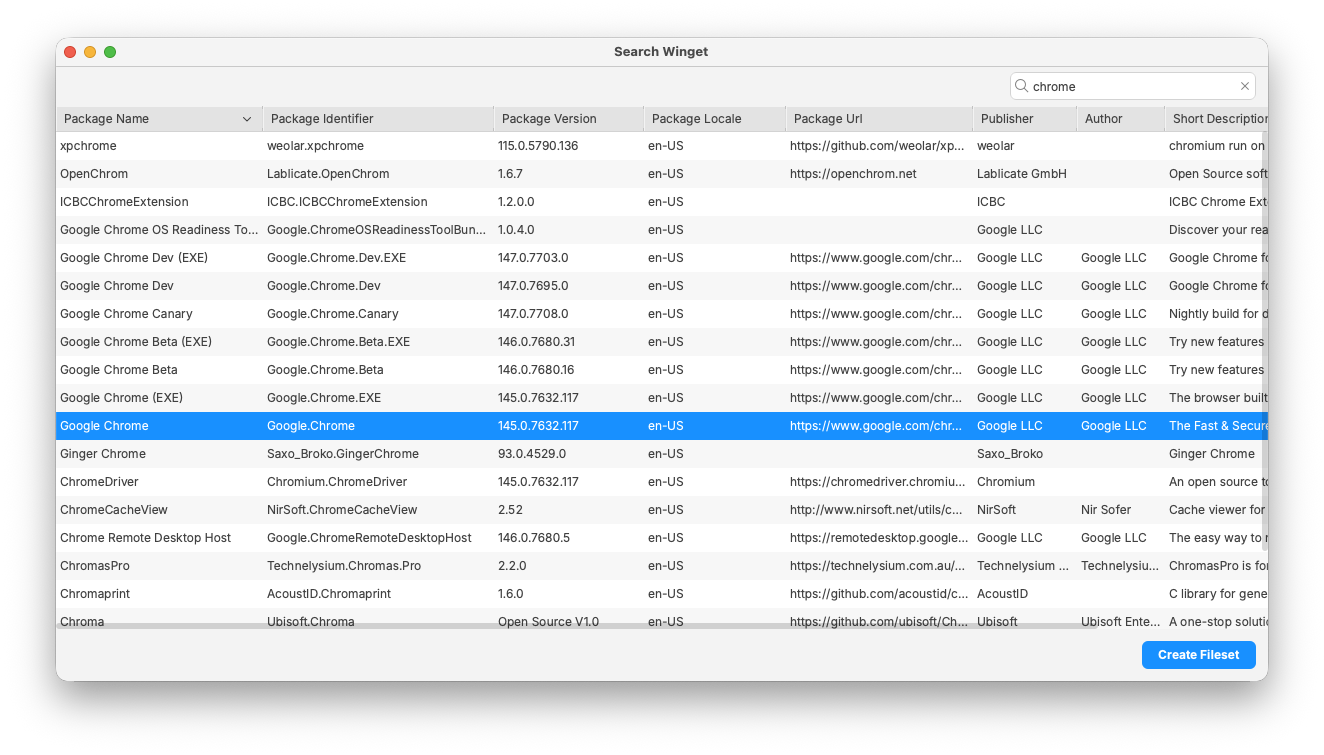
If preferred, a standalone installer could be downloaded and delivered as an installer or converted to a file level installation by way of Fileset Magic.
Likewise, there is more than one way to apply the token to manage the Chrome browser. Registry diff files can be used, but this example offers a scripted method.
KB Windows Google Chrome Administrator Token.fileset.zip
- Create a Fileset Group for Windows Chrome
- Add the created Google Chrome Installer Fileset into this group
- Download the above Fileset
- Unzip and drag the Fileset into this same Fileset Group

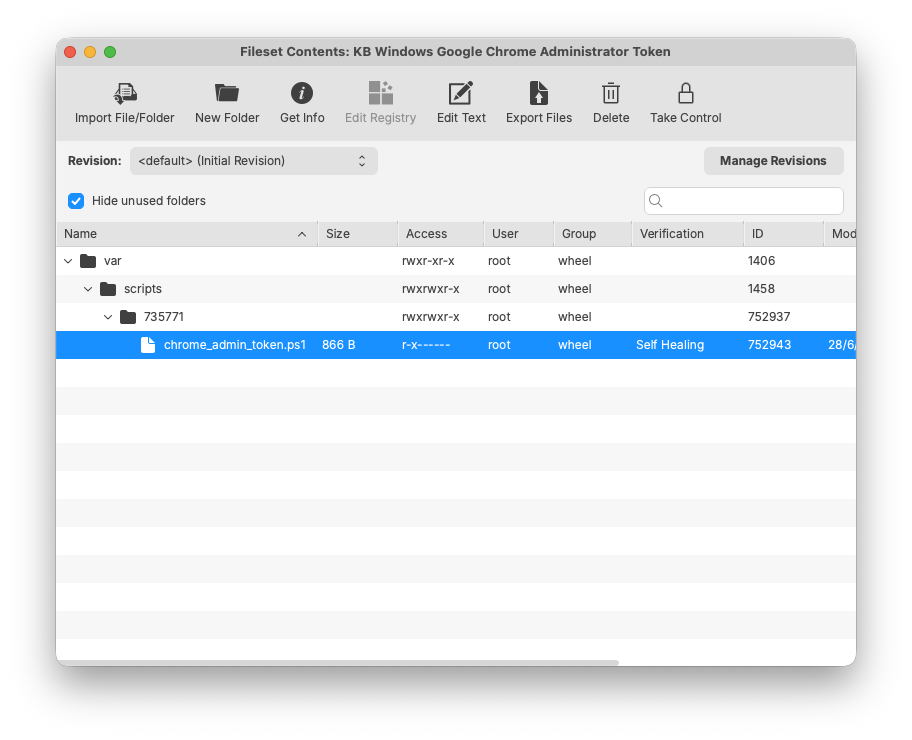
- Open the scripted Fileset for the Administrator token and select the containing PowerShell script:

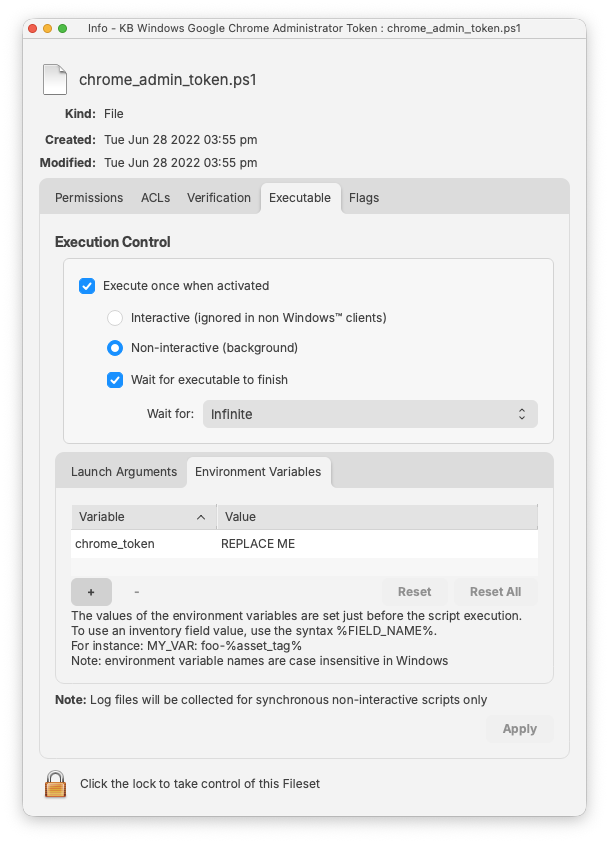
- Choose Get Info > Executable > Environment Variable

- Edit the value of the chrome_token variable with the copied Google Management Token from the Google Admin Console

With the Fileset created, assign the 'Windows - Google Chrome' group with devices. On activation, Chrome browser should be installed and manageable via the Google Admin Console.
Assigning the 'Windows - Google Chrome' Fileset Group will ensure Application and Configuration are associated to devices. When there is an update to Google Chrome, replace the version in the Fileset Group with the latest version (after testing) or switch to a new Fileset Revision if desired.