# Java (Windows EXE)
#### Description
This recipe shows you the steps you need to follow to make a Java Fileset for Windows.
#### Ingredients
- FileWave Central
- Java Installer (EXE)
#### Directions
1. Download the offline EXE update from: [Oracle Download Page](https://www.java.com/en/download/manual.jsp)
2. Create an empty Fileset and drag the Java install EXE to an appropriate location, e.g. ProgramData > fwEXE
3. Select the EXE and choose Get Info > Executable
4. Set to 'Execute once when activated'
5. Add the below Launch Argument to silently instal and remove older installed versions
```
"/s REMOVEOUTOFDATEJRES=1"
```
6. Test[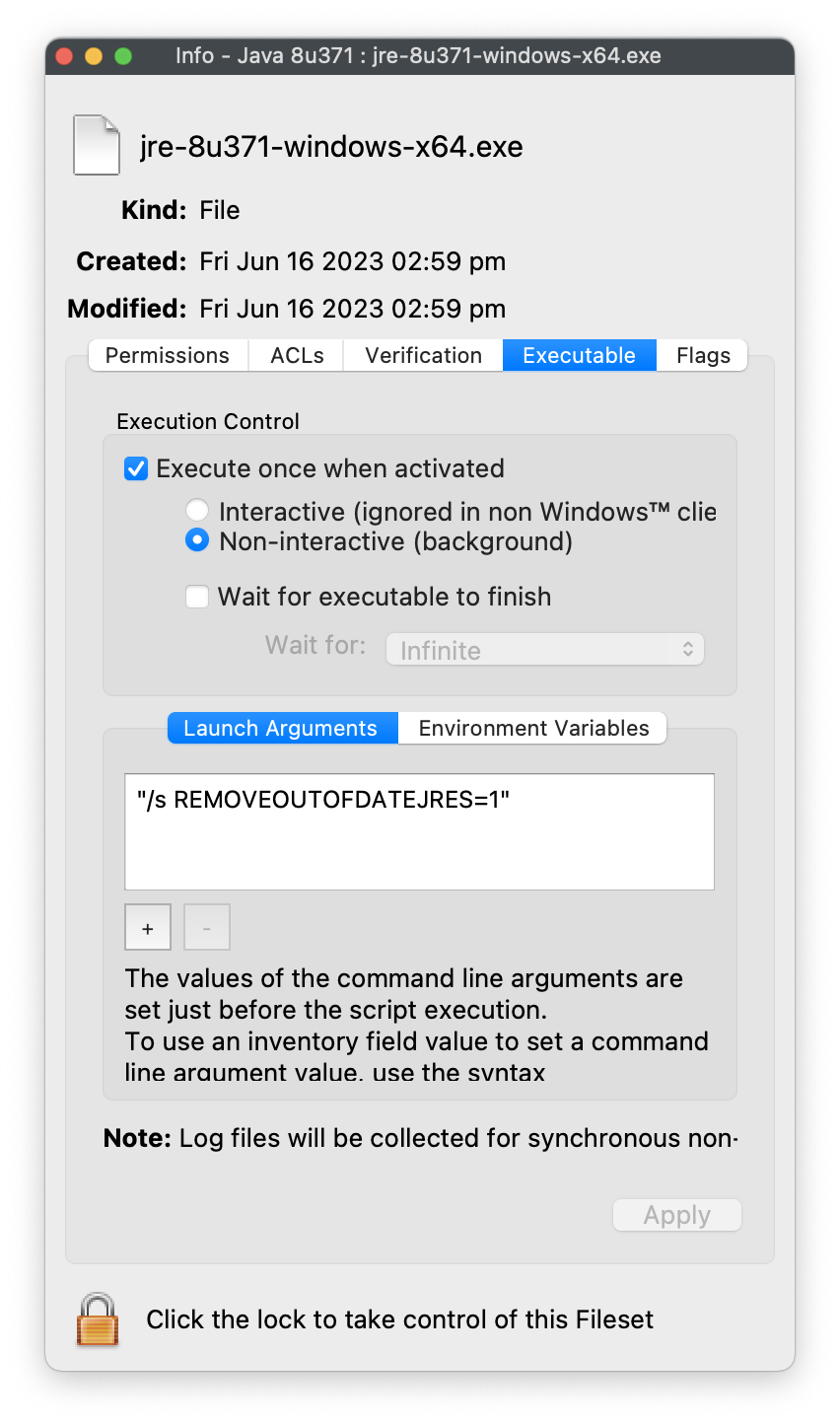](https://kb.filewave.com/uploads/images/gallery/2023-06/p2bwRk03monpN6Qs-javagetinfo.png)
#### Digging Deeper
[Oracle's Configuration Documentation](https://docs.oracle.com/javase/8/docs/technotes/guides/install/config.html)
Applicable to online and offline installers only (.exe files and wrappers). Enables uninstallation of existing out-of-date JREs during JRE install.
**REMOVEOUTOFDATEJRES**
- REMOVEOUTOFDATEJRES=0 leaves all out-of-date Java versions on the system.
- REMOVEOUTOFDATEJRES=1 removes all out-of-date Java versions from the system.
For example, running jre1.8.0\_60.exe /s REMOVEOUTOFDATEJRES=1 will remove all JREs below the security baseline.
**JREs above the security baseline will not be uninstalled.** Details of baseline may be observed from Oracle's release notes:
[https://www.oracle.com/technetwork/java/javase/8all-relnotes-2226344.html](https://www.oracle.com/technetwork/java/javase/8all-relnotes-2226344.html)
Legacy Installers
Although recommendation is to always use the latest version, legacy versions are available from [Oracle's archive](http://www.oracle.com/technetwork/java/archive-139210.html)