# Software Updates (Apple)

The Software Updates section provides essential information and guidance on keeping your Apple products up to date with the latest operating system (OS) and third-party software updates. It covers both OS updates, including iOS, iPadOS, macOS, and tvOS, as well as updates for popular third-party applications. Stay ahead of the curve by learning how to check for and install the latest OS updates, ensuring your devices benefit from enhanced features, performance improvements, and crucial security patches. Discover tips and best practices for managing updates for third-party software, optimizing compatibility, and maximizing the stability and security of your Apple products. By regularly updating your OS and third-party software, you'll enjoy an optimized and secure experience on your Apple devices.

# Evolution of OS Updates on Apple devices (15.3+)

Despite being a critical task in Endpoint Management, OS Update management is unfortunately quite a chaotic journey.

*The days of merged-1.sucatalog.gz and /usr/sbin/softwareupdate.*

Initially, macOS *softwareupdate* command could be used to manually control Software Updates. Update metadata would be made available as “sucatalog” file, one for each macOS version. This mechanism gave FileWave the ability craft our own sucatalog, allowing updates to be entirely hosted and controlled by your FileWave system.

## *MDM OS Update*

On the mobile side, Apple introduced OS update via the MDM protocol. A couple of commands have been added to the protocol : AvailableOSUpdate command would query the device about the updates *currently* requested by a device, and *ScheduleOSUpdate* can be used to trigger the update process ; eventually, *OSUpdateStatus* can report information about the current upgrade progress. This mechanism has been made available on macOS as well, and made mandatory with macOS Big Sur.

The MDM version of OS Update management was supposed to simplify greatly the process, but has some downsides:

- all the control is on the device side. Sending “ScheduleOSUpdate” command is the only thing that could be done, and it has only a few options. MDM does not control when update happens, only when it can gently ask the device to update. And information why something went wrong and what to do to remediate the issue is very sparse. And many things could go wrong (network issue, low battery…)
- update information comes directly from devices ; this could be more reliable, but it also leads to confusion as Apple provides different updates for different devices (iPadOS on iPad Pro is not the same as on iPad 9) ; this confusion shows in FileWave where you can see all flavors of iPadOS 17.3.1 without knowing easily which version can be installed on which device. In addition, some updates could be installed while the device is not telling it requires them (see <span><span class="loader-wrapper"><span>[<span class="css-1cwva94 e1a3lu072"><span class="css-1lcr4h8 e1a3lu075">![favicon.ico](https://support.apple.com/favicon.ico)</span><span class="smart-link-title-wrapper css-0 e1a3lu077">Test and defer software updates for Apple devices</span></span>](https://support.apple.com/guide/deployment/test-and-defer-software-updates-depd30715cbb/1/web/1.0)</span></span></span> ).

## *GDMF to the rescue*

Apple introduced a new Software Update catalog, named GDMF (Global Device Management Framework); it exposes the list of currently available updates and the devices supporting them, which simplifies the process and provides FileWave all required information. Unfortunately, using GDMF update identifier is reported to be very unreliable when used with MDM ScheduleOSUpdate ommands.

## *And now, Declarative Device Management **(**DDM)*

The new device management protocol, DDM, has now been extended to manage OS updates. It simplifies the process (there is no product identifier, just the version), and Apple assures it’s much more reliable than MDM (from our testing, it is). The only drawback of DDM OS update mechanism is that it requires iOS 17 and macOS 14. For devices not yet on macOS 14, you may refer to using [Nudge](https://kb.filewave.com/books/software-updates-apple/page/nudge-for-macos-software-updates "Nudge for macOS Software Updates") or [Superman](https://kb.filewave.com/books/software-updates-apple/page/superman-for-macos-software-updates-macos-script "S.U.P.E.R.M.A.N. for macOS Software Updates (macOS Script)").

## To summarize

- *legacy* softwareupdate mechanism is unsupported and Apple strongly advises not using it since Catalina
- MDM ScheduleOSUpdate mechanism works quite reliably on iOS, but never worked reliably enough for macOS
- AvailableOSUpdate mechanism to report requested updates can lead to confusion compared to GDMF

## In FileWave 15.3.0 we have;

FileWave 15.3.0 brings the first implementation of Apple’s new device management mechanism, Declarative Device Management (DDM). FileWave 15.3.0 will make use of the new Status Report for applications, providing quick and accurate Fileset Status updates for apps installed via MDM (App Store apps) on compatible iOS, iPadOS, and tvOS devices.

FileWave 15.3.0 therefore contains the foundations on top of which support for more DDM features are being built and will be provided in coming releases, such as Software Update management or Application installation via DDM.

## As a conclusion, in FileWave 15.4.0 and beyond, we have;

- Switch to GDMF as the only mechanism to report updates. *Legacy* sucatalog and *AvailableOSUpdate* mechanism will be removed. This will simplify tremendously the Software Update Assistant by removing all duplicated versions.
- Switch to DDM as the only mechanism to manage updates on macOS. Managing updates with *legacy* softwareupdate did not work starting with Catalina and MDM mechanism is way too unreliable. This means that OS update management will be macOS Sonoma (and later) only.
- Switch to DDM for iOS 17 and later, and keep MDM for more ancient versions of iOS / iPadOS.

We strongly believe that controlling OS updates is a critical task and we are excited to see how Apple DDM support can solve many of the issues which have been reported over the years.

# Block OS Updates and Installers

Whist iOS/iPadOS may only be updated using Settings, macOS can alternatively be updated using the macOS Installer. The following articles demonstrate blocking both methods.

# Fileset to block Apple Install macOS applications

## Description

<p class="callout danger">As described, this only blocks macOS Installer Applications. Preventing users from using Software Updates can only be achieved with [Defer Apple OS Updates](https://kb.filewave.com/books/software-updates-apple/page/defer-apple-os-updates) and you should consider this because Software Update is capable or running the upgrade even with this solution in place.</p>

Apple automatically instals the latest installer application on devices, allowing users to upgrade to the next major release of macOS. The following provides a method to prevent users from running the application, ensuring administrators have the required time to prepare the business.

<p class="callout info">The provided Fileset includes an unaltered version of the Open Source Software [Pashua](https://www.bluem.net/en/projects/pashua/), which is licensed under the [3-Clause BSD License.](https://opensource.org/licenses/BSD-3-Clause)</p>

## Information

The attached Fileset prompts users with a message, including alternate languages. There is also allowance for control over which versions of macOS Installers are blocked. The only requirements are the following Filesets:

- [mac0S - Block macOS Installer Pashua Daemon.fileset.zip](https://kb.filewave.com/attachments/252)

If running macOS 13 or higher, this profile is also required.

- [Profile - Block Notifications](https://kb.filewave.com/attachments/247)

<p class="callout info">A requirement script is included to ensure the profile is installed first, before downloading and installing the blocker.</p>

Optionally the following Custom Field may be used to monitor the quantity of times users attempt to upgrade devices:

[macOSAppInstallerBlockAttempts.customfields.zip](https://kb.filewave.com/attachments/129)

<p class="callout warning">The above instals launchd services. Disassociation of the Fileset will unload these services as well as remove all files.</p>

## Directions

The Fileset is currently configured to block the 'Install macOS Ventrua.app' and future versions of macOS Installer App; it would actually also stop the Beta. Version control is managed by the plist file in usr &gt; local &gt; etc &gt; block\_macos\_updates:

```
com.filewave.blockmacosinstaller_user.plist
```

Contents of the file:

```
<?xml version="1.0" encoding="UTF-8"?>

<plist version="1.0">
<dict>
<key>MinimumBlockedVersion</key>
<integer>18</integer>
</dict>
</plist>
```

## Version of App to Block

Edit the file as required for the following:

- Key - MinimumBlockedVersion
- Value - Integer

Set to 19, which will block macOS Sonoma. This could be lowered to block earlier (or later versions when Apple release their next major release)

Example alternatives:

- 19 - Block Sonoma and above
- 18 - Block Ventura and above
- 17 - Block Monterrey and above
- 15 - Block Catalina and above
- 14 - Block Mojave and above

<p class="callout warning">The script defines a version to block (and versions above) in the case that no plist file is found. This is set to 15, since this should never be the case and is a capture to prevent unwanted updates in this unexpected instance.</p>

## Message Localisation

When the installed service blocks the App, a message is reported to the user. Examples have been provided for English and German.
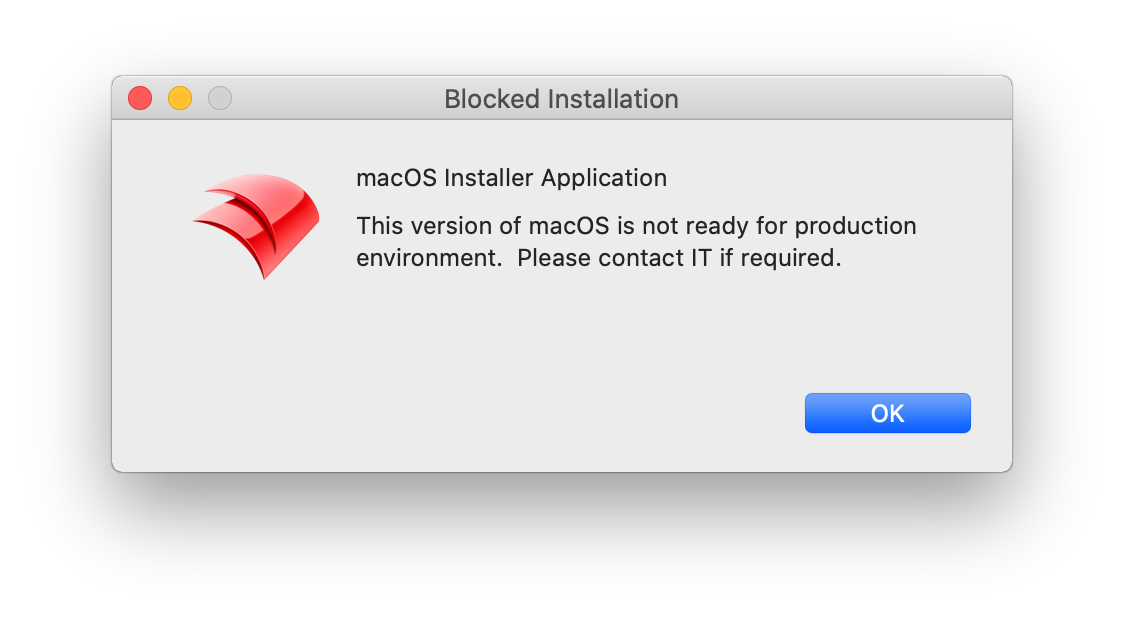
![](https://kb.filewave.com/uploads/images/gallery/2023-07/5jrCUeizsUJgrm6j-embedded-image-vt3lundi.png)![](https://kb.filewave.com/uploads/images/gallery/2023-07/qJO5vXxkNDZZ7pm5-embedded-image-eednigg5.png)

The language is determined by the first two characters from the following command:

```
$ defaults read -g AppleLanguages | awk -F "\"" '/\"/ {print $2; exit}'
en-GB
```

As such en-GB, en-US, en-AU, etc will all result in an English version.

Language template files are stored in the path:

```
/usr/local/etc/block_macos_updates/
```

English and German respectively:

- warning\_en.txt
- warning\_de.txt

Copy and edit the files appropriately for additional languages.

## Example to add French

User has French language set:

```
$ defaults read -g AppleLanguages | awk -F "\"" '/\"/ {print $2; exit}'
fr-FR
```

Based upon this, create a copy warning file (note the suffix '\_fr'):

- warning\_fr.txt

Edit '\*.title' and default message 'txt1.default' appropriately:

```
# Set window title
*.title = Installation bloquée
 
# Introductory text
txt.type = text
txt.default = macOS Installer Application
txt.height = 100
txt.width = 310
txt.x = 100
txt.y = 120
 
txt1.type = text
txt1.default = Cette version de macOS n'est pas prête pour l'environnement de production. Veuillez contacter le service informatique si nécessaire.
txt1.height = 100
txt1.width = 310
txt1.x = 100
txt1.y = 50
 
img.type = image
img.x = 20
img.y = 70
img.maxwidth = 64
img.path = /usr/local/etc/FileWave_Icon.png
```

<p class="callout warning">Text content will impact the view. Consider changing height, x and y values if the view does not appear as intended.</p>

<p class="callout success">Upload and replace the 'img.path' as your own company logo for customisation.</p>

## Logging

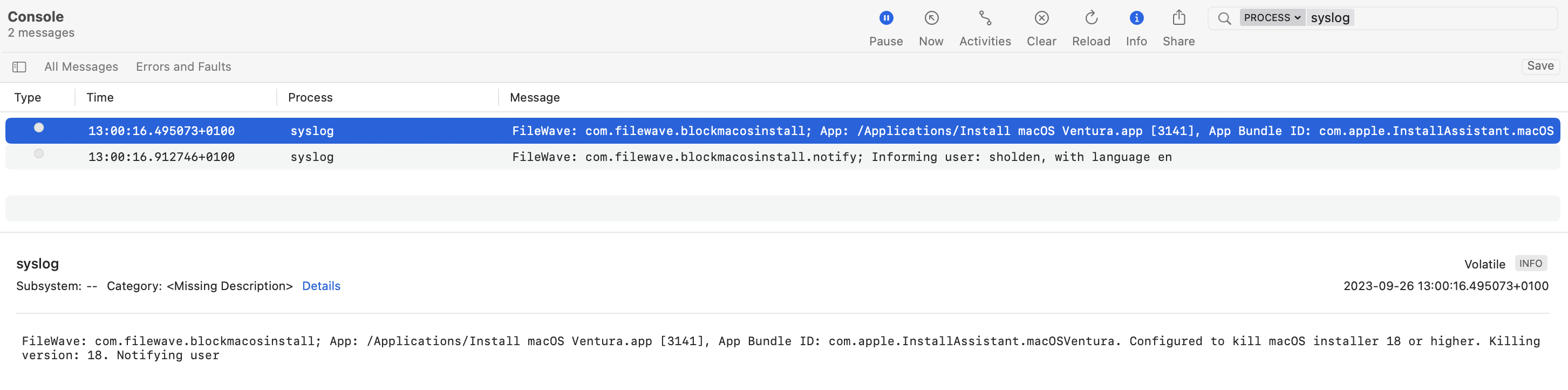
The launchd scripts have additional logging which will be available in Apple's Console (Debug level Info). For example:

[![image.png](https://kb.filewave.com/uploads/images/gallery/2023-09/scaled-1680-/1BoIBOfhvUMIjmwi-image.png)](https://kb.filewave.com/uploads/images/gallery/2023-09/1BoIBOfhvUMIjmwi-image.png)
# Defer Apple OS Updates

## What

Use Apple software update deferrals when you want a testing window before users can install new Apple updates themselves. The setting hides matching updates from the device's Software Update pane for the number of days you choose.

## When/Why

This is useful when you want to validate a new Apple release before it reaches production devices. Apple allows up to 90 days of deferral. During that window the update is hidden from the user, but FileWave can still install it with MDM if you decide to move ahead.

<p class="callout warning">Deferral only affects what the user sees in Software Update. If you also need to stop users from launching full macOS installer apps, use [Fileset to block Apple Install macOS applications](https://kb.filewave.com/books/software-updates-apple/page/fileset-to-block-apple-install-macos-applications).</p>

## How

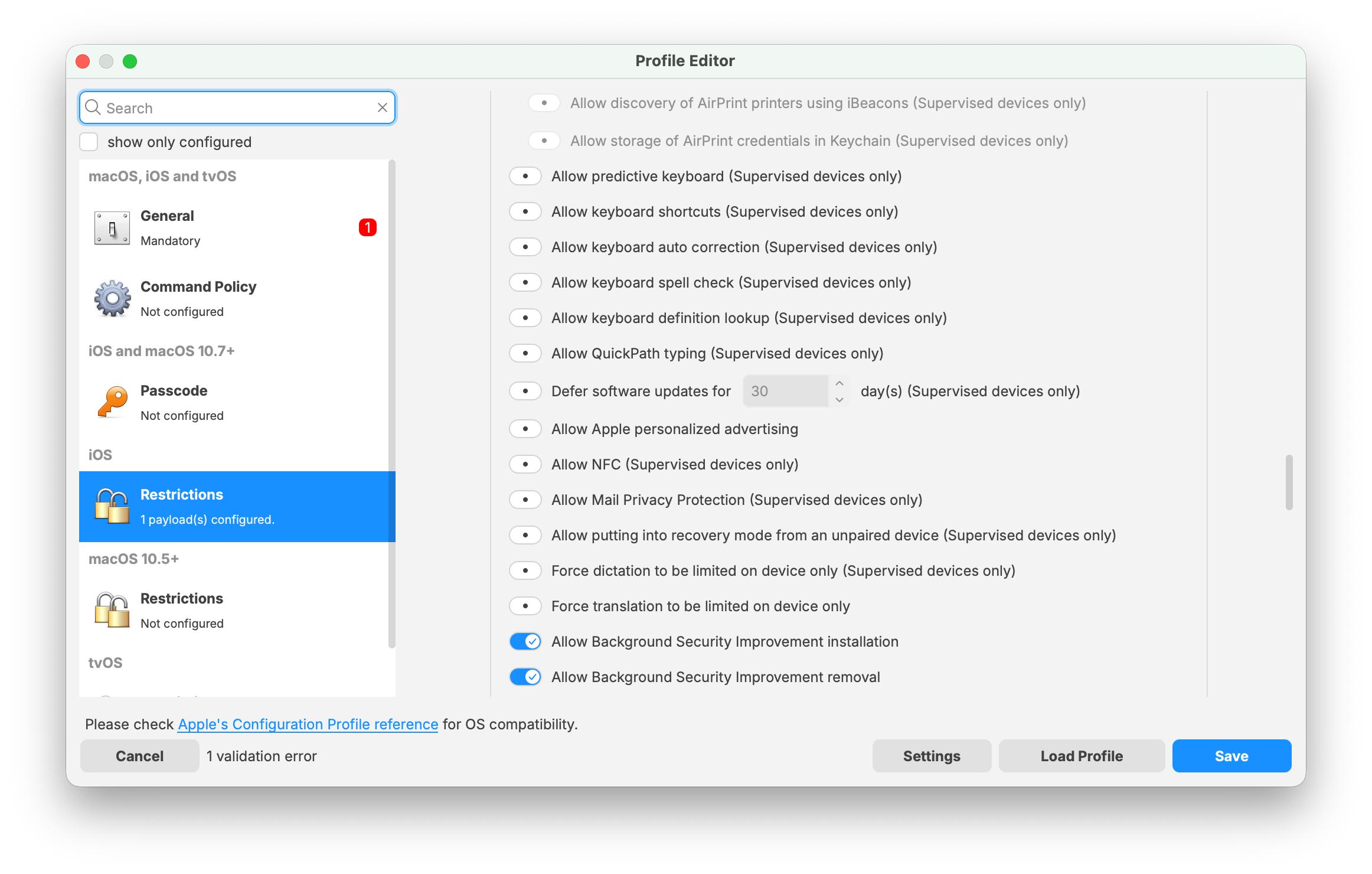
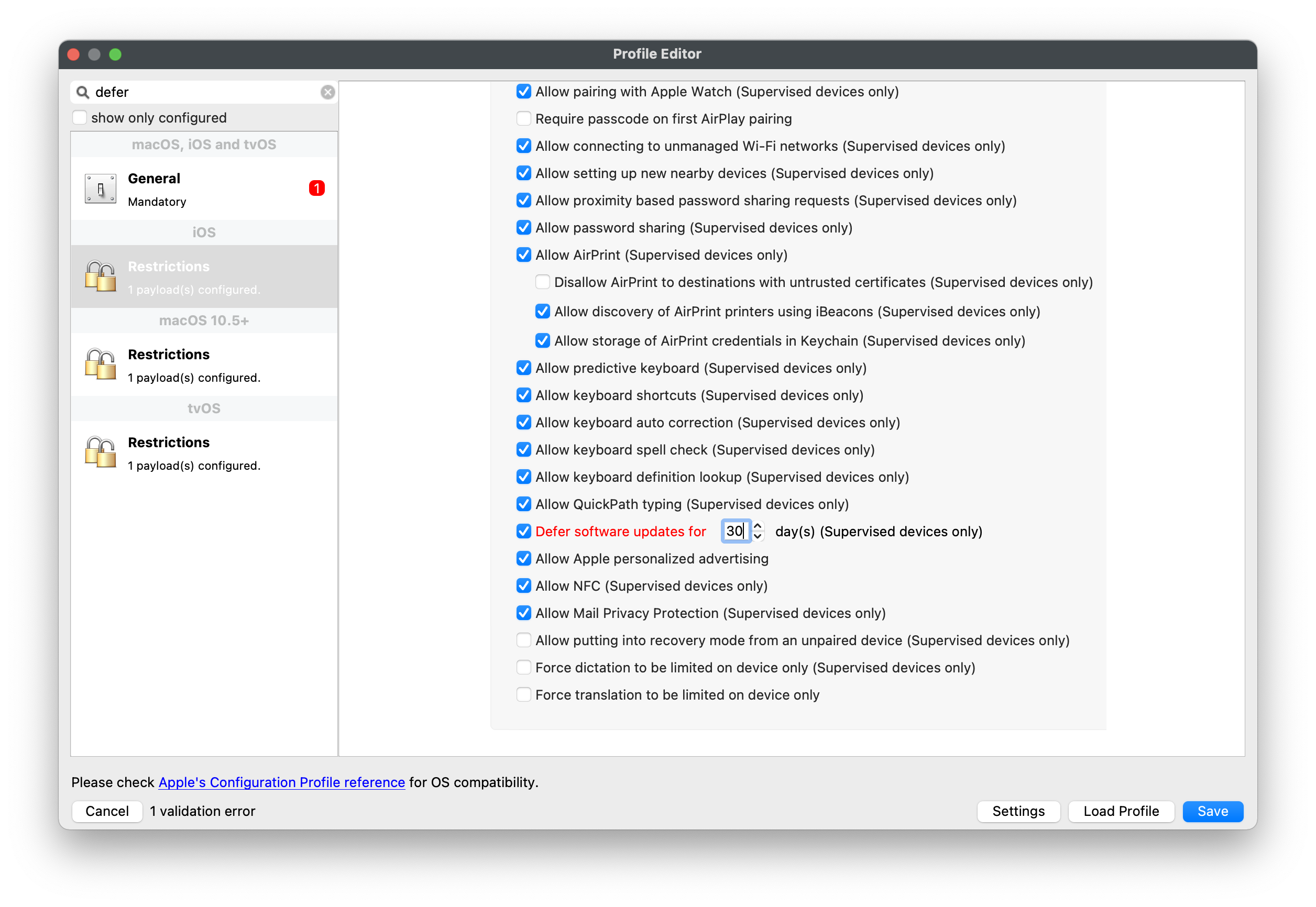
Create or edit an Apple configuration profile and add the **Restrictions** payload for the platform you manage. Searching for **defer** in the Profile Editor is the quickest way to jump to the relevant settings.

### iOS/iPadOS

Enable **Defer software updates for** and choose a value from 1 to 90 days.

[![iOS and iPadOS defer software updates setting](https://kb.filewave.com/uploads/images/gallery/2023-07/scaled-1680-/It3olJSi91lsdzdL-image.png)](https://kb.filewave.com/uploads/images/gallery/2023-07/It3olJSi91lsdzdL-image.png)
### macOS

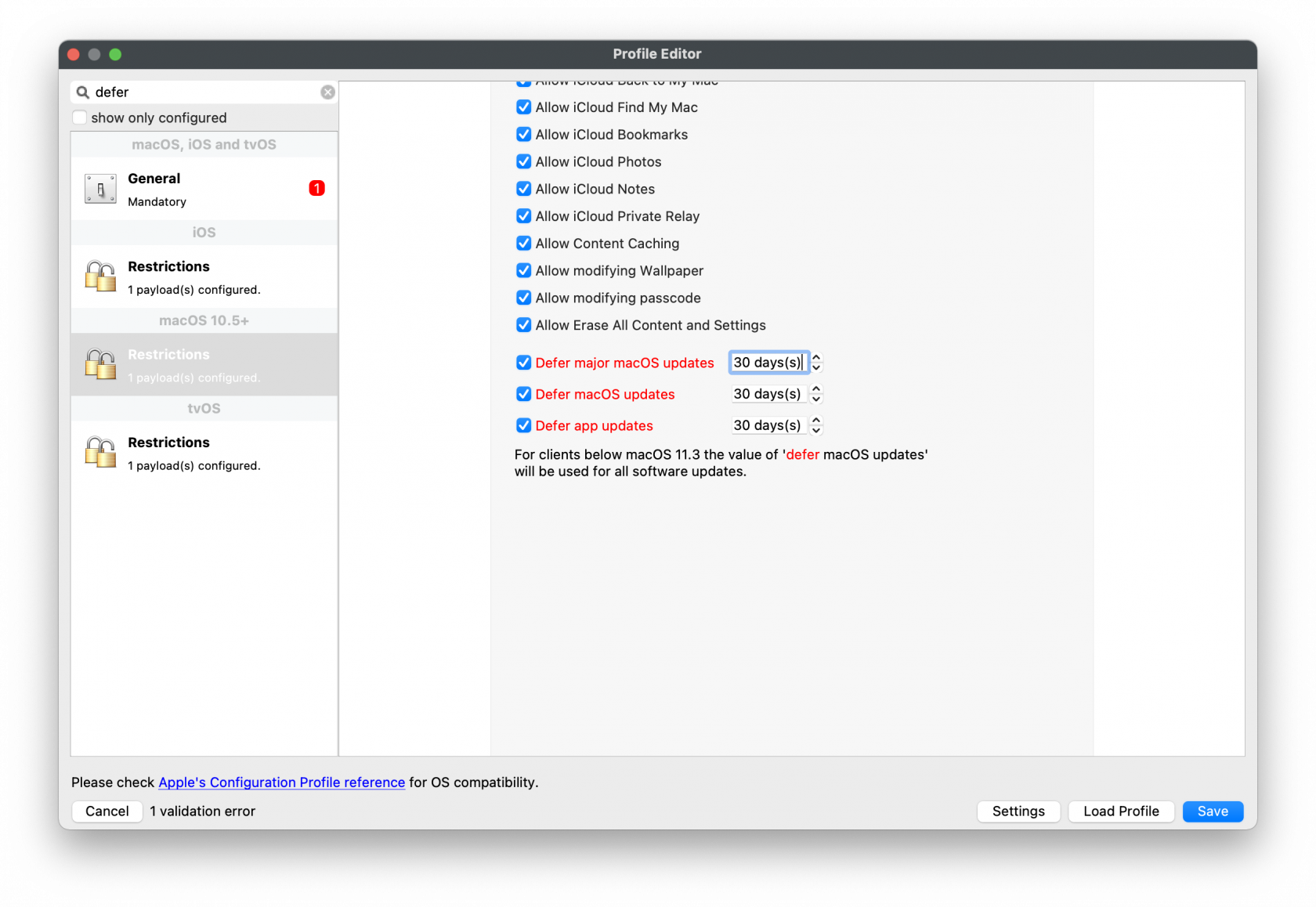
Current macOS payloads let you defer different update types separately:

- **Defer major macOS updates for** to delay major upgrades.
- **Defer macOS updates for** to delay minor OS updates.
- **Defer app updates for** to delay non-OS software updates.

For macOS versions earlier than 11.3, the **Defer macOS updates** value is used for all software updates.

[![macOS defer major, minor, and app updates settings](https://kb.filewave.com/uploads/images/gallery/2023-07/scaled-1680-/s2wv0qVv1Qo4aQlR-image.png)](https://kb.filewave.com/uploads/images/gallery/2023-07/s2wv0qVv1Qo4aQlR-image.png)
### tvOS

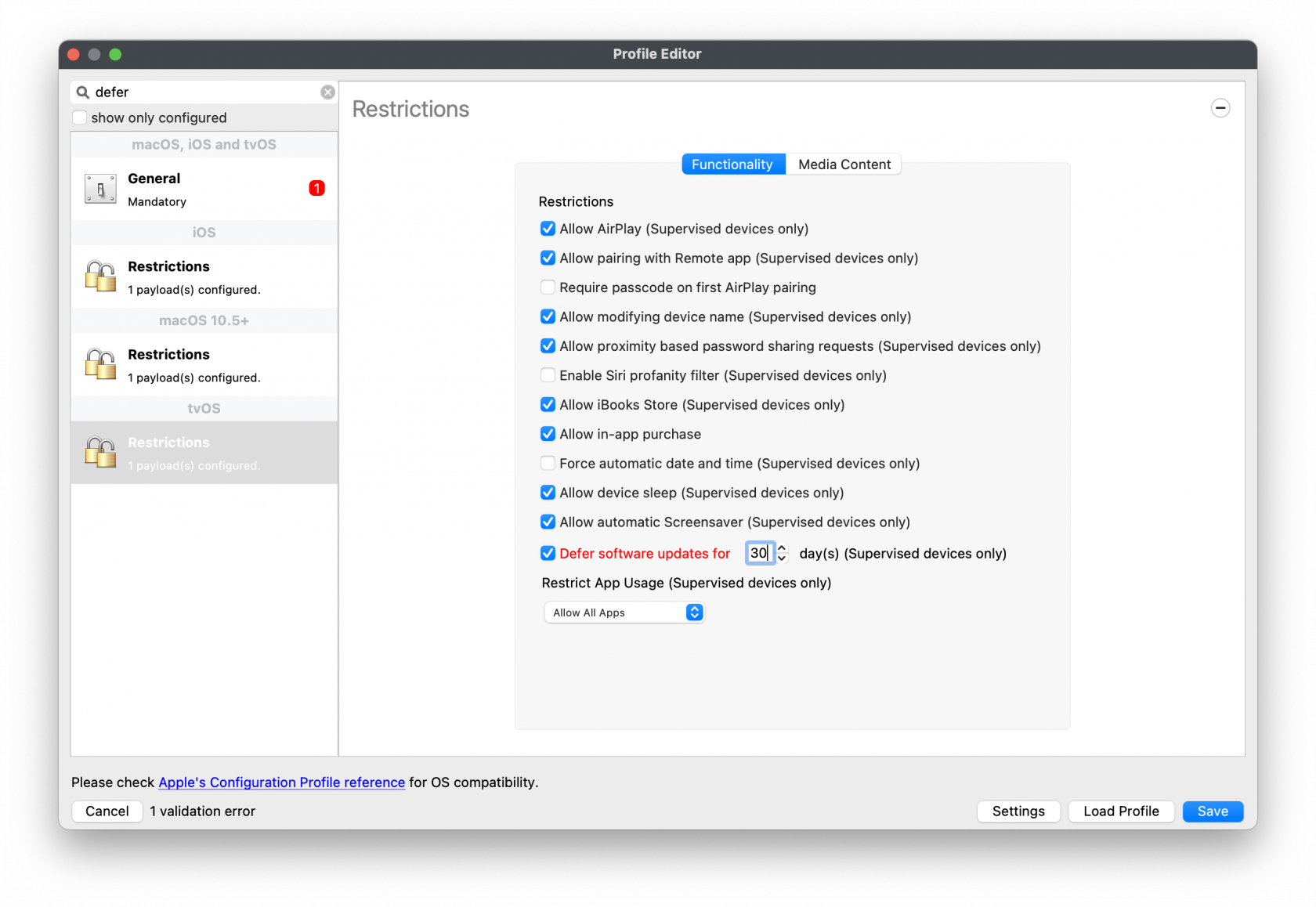
Enable **Defer software updates for** and choose the delay in days.

[![tvOS defer software updates setting](https://kb.filewave.com/uploads/images/gallery/2023-07/scaled-1680-/SK55rHPQar5olDK6-image.png)](https://kb.filewave.com/uploads/images/gallery/2023-07/SK55rHPQar5olDK6-image.png)
<p class="callout info">A shorter initial defer period is usually easier to manage than jumping straight to 90 days. If testing slips, you can extend the delay without starting every profile at the maximum.</p>

<p class="callout warning">While an update is still inside its defer window, local tools such as System Settings / System Preferences and the `softwareupdate` command will not offer that update. MDM remains the supported way to install it during the deferral period.</p>

## Digging Deeper

The defer timer starts on Apple's release date for each individual update, not on the day you assign the profile.

- **Update 1** is released on June 5.
- With a 10-day defer window, users will not see **Update 1** until June 15.
- **Update 2** is released on June 12.
- With the same defer window, users will not see **Update 2** until June 22.
- MDM can still push **Update 1** from June 5 onward, regardless of the defer period.
- MDM can still push **Update 2** from June 12 onward, regardless of the defer period.

### Example Process

With a 60-day defer policy, users will not see an update until day 60 after Apple publishes it. If Apple releases newer updates before that date, users may still see none of them until each one ages past its own defer window.

FileWave can still send an MDM install command during the deferral period. That lets IT test and roll out a specific release before it becomes user-visible.

Once the defer window expires, the update becomes visible to the user again. Deferral buys time for testing; it does not permanently hide updates.

# Alternate macOS Software Update Method (Legacy)

### Description

FileWave server automatically pulls OS Update Catalogs for computers and these are made available through the ‘[New Desktop Fileset](https://kb.filewave.com/books/filesets-payloads/page/filewave-fileset-types "Desktop Filesets")’. To prevent unwanted updates being installed on incorrect machines, we would recommend using the Software Update Desktop Filesets.

As of December 13, 2017, we are aware of one particular issue (logged as engineering ticket FW-19993) that will prevent successful installation of certain macOS patch packages ("macOS 10.13.2 Update" and "iTunes" have been confirmed to be affected) using the recommended Software Update Assistant. As such, it may be necessary to create a manual fileset to deploy these updates.

Directions

The steps to follow are:

- Pull the relevant installer down from Apple’s support site: [https://support.apple.com](https://support.apple.com)
- Create an empty file set
- Place the pkg within the fileset
- Create an Activation Script to trigger the installation of the pkg
- Create a test association
- Once happy associate to only the clients that require the specific patch

### Example: Upgrading a 10.13.1 computer to 10.13.2

Download the delta ‘macOSUpd10.13.2.pkg’ from: [https://support.apple.com/kb/DL1946](https://support.apple.com/kb/DL1946)

(Alternatively, download the combo updater from: [https://support.apple.com/kb/DL1944](https://support.apple.com/kb/DL1944))

Drop the pkg into an Empty Fileset. In this example we are going to use /private/var/tmp, as this directory is naturally cleaned out on a reboot. Change the verification to ‘Ignore at Verify’

Create the following script and add it as an [Activation Script](https://kb.filewave.com/books/filesets-payloads/page/fileset-scripts-overview "Fileset Scripts Overview"):

```bash
#!/bin/bash

# Edit the path/file to match the installer that you have downloaded
installer -pkg /private/var/tmp/macOSUpd10.13.2.pkg -target /

```

Script should be set as:

- Execute once when activated
- Wait for execution &gt; Infinite

The fileset can now be associated to test machines. We would recommend testing on virtual machines, since once successfully updated you will no longer be able to test on that device if you wish to re-run the test.

Once satisfied it is working as expected, you may now associate to a broader range of machines.

# Apple MDM OS Software Updates

## What

All MDM configured devices will report and receive Software Updates via MDM. This is the same for:

- iOS
- iPadOS
- tvOS
- macOS (Either Big Sur and above or earlier versions if the client is configured for MDM Software Updates)

## When/Why

#### Before MDM

The FileWave Server would pull the catalogue of all possible updates from Apple. This same catalogue would be delivered from the FileWave Server to each macOS client. After a Fileset containing the update was created and associated, the FileWave Client would use the Software Update process to install associated updates, which would be sent from the Server to the device.

#### MDM

MDM Software Updates work mostly like Apple VPP Filesets, in as much as FileWave does not store the update. Instead, the Fileset is a reference to the update on the App Store. Only updates reported as required from devices through MDM will show in the Software Update view.

<p class="callout info">The 'Requested Only' tick box will only show those updates that are believed to be currently requested by devices. Each check-in from a device should update the list of appropriate updates for that device.</p>

<p class="callout success"> Apple catalogue updates take up storage on the server once the Fileset is created. MDM Filesets do not store the updates.</p>

## How

#### MDM Reporting

When necessary, FileWave server will send an APNs to Apple requesting devices check-in. On doing so, the FileWave Server will respond with MDM commands, one of which being a request for ‘AvailableOSUpdate’. The device should reply with all possible appropriate updates. For example:

If macOS 14.5 were the latest version, a device running 14.3.1 may request all of those between:

- 14.4
- 14.4.1
- 14.5

Apple decide which prior updates will still be available. A device may be updated to any version requested, not just latest.


#### Software Update View

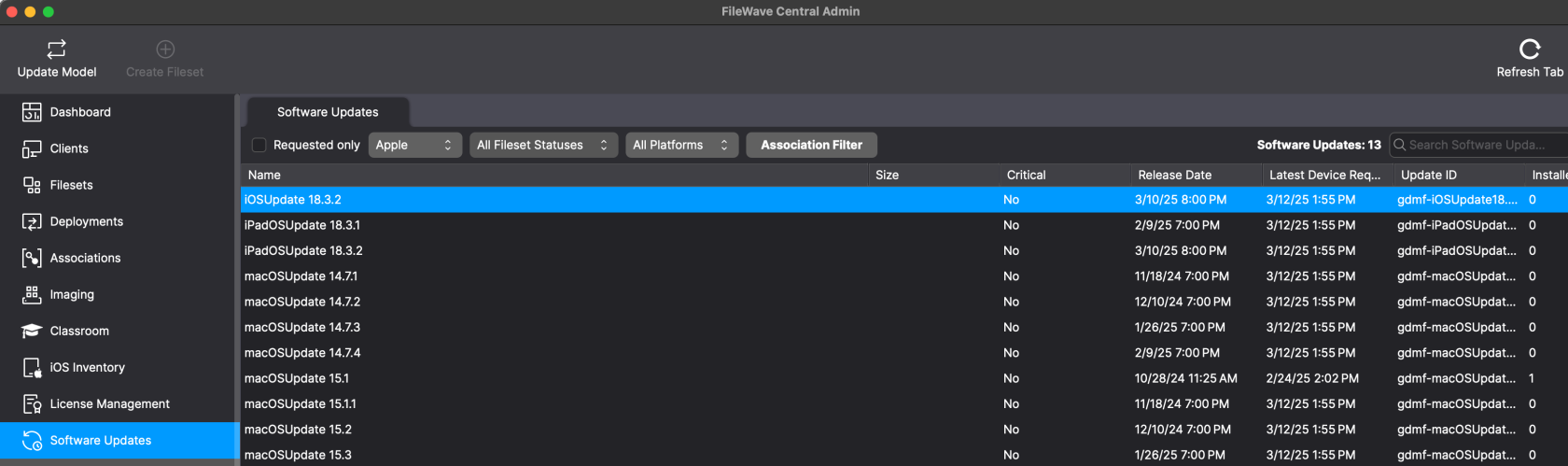
If not already visible in the Software Updates view, each reported update will be added. When an update is selected, the list of devices reporting the update as required will be displayed. From this same view, the desired update may be used to ‘Create Fileset’ by right clicking and picking to **Create Fileset...** and then associated. These Filesets will work in FileWave just like any other Fileset as far as assigning them but they will be deployed via the MDM framework.

[![image.png](https://kb.filewave.com/uploads/images/gallery/2025-03/scaled-1680-/5IDZ7XvWshoA9Brz-image.png)](https://kb.filewave.com/uploads/images/gallery/2025-03/5IDZ7XvWshoA9Brz-image.png)
During the transition between MDM and Catalogue Software Updates, two macOS options will be present:

- macOS - Apple Catalogue updates
- macOS MDM - Apple MDM updates

<p class="callout success">As of FileWave 15.4, only one macOS option will be present in the drop-down box. Apple Catalogues will no longer be available as standard.</p>


#### Fileset Association

Within the created Association is an 'Instal at' date/time. For MDM Software Updates, the command to trigger the request to install the update will only be added to the MDM Command Queue once this date/time has been reached. This is not an exact defined time, since APNs check-in request and device response may not be until a day/time after this. Additionally, other factors can impact the device's reaction to any such request, e.g. battery power.

<p class="callout info">MDM Software Updates and **Background Security Improvements** are impacted by battery percentage of the device. Older Apple and FileWave material may still call these **Rapid Security Responses (RSR)**. If the device is not on charge, there is a minimum percentage required for the update to commence. Please see the chart below.</p>

<table id="bkmrk-mac-notebook-type-as" style="border-collapse:collapse;width:100%;height:160px;"><colgroup><col style="width:33.333333%;"></col><col style="width:33.333333%;"></col><col style="width:33.333333%;"></col></colgroup><tbody><tr style="height:45px;"><td style="height:45px;">Mac Notebook Type</td><td style="height:45px;">ASU Battery Requirement</td><td style="height:45px;">Background Security Improvements Battery Requirement</td></tr><tr style="height:57px;"><td style="height:57px;">Mac with Apple silicon

</td><td style="height:57px;">20%

- Priority key set as High

</td><td rowspan="2" style="height:57px;">10%</td></tr><tr style="height:29px;"><td style="height:29px;">Mac with Apple silicon

</td><td style="height:29px;">50%

- Priority key not set

</td></tr><tr style="height:29px;"><td style="height:29px;">Intel Based Mac</td><td style="height:29px;">50%</td><td style="height:29px;">20%</td></tr></tbody></table>

<p class="callout info">Apple's 2026 operating systems replaced Rapid Security Response with **Background Security Improvements**. FileWave 16.3.x supports this newer behavior. For older OS versions and older documentation, you may still see the RSR term.</p>


#### DDM

FileWave introduced additional software update features with version 15.4, in particular, Force Reboot through Apple's new DDM protocol. If the user has not actioned the update prior to this time, the device should then force this installation.

<p class="callout warning">'Activate files at' date/time, if not set, defaults to the time the association is created. The 'Activate files at' date/time in FileWave 15.4 is now a Force Reboot time. Alter this time if this is undesirable.</p>


#### MDM Process

Since FileWave does not deliver the update to devices, but a reference to the update on the App Store, devices must first fetch the update. Therefore, the installation process of an update is twofold, one to download the update and another to install the update.

**Pending OS Version** is the OS version currently being installed for Apple devices using a DDM Software Update fileset. It is not simply the latest version being requested by the client.

Once the scheduled installation time is reached, the device begins downloading and preparing the update, then sends the `softwareupdate.pending-version` status report. FileWave stores that reported value in the **Pending OS Version** inventory field.

Since updates can be very large, there can naturally be some delay between the initial association and the actual installation.

<p class="callout info">If the device were upgraded between the association being created and the device receiving the command to update, if the update is no longer appropriate, the device will silently ignore it.</p>

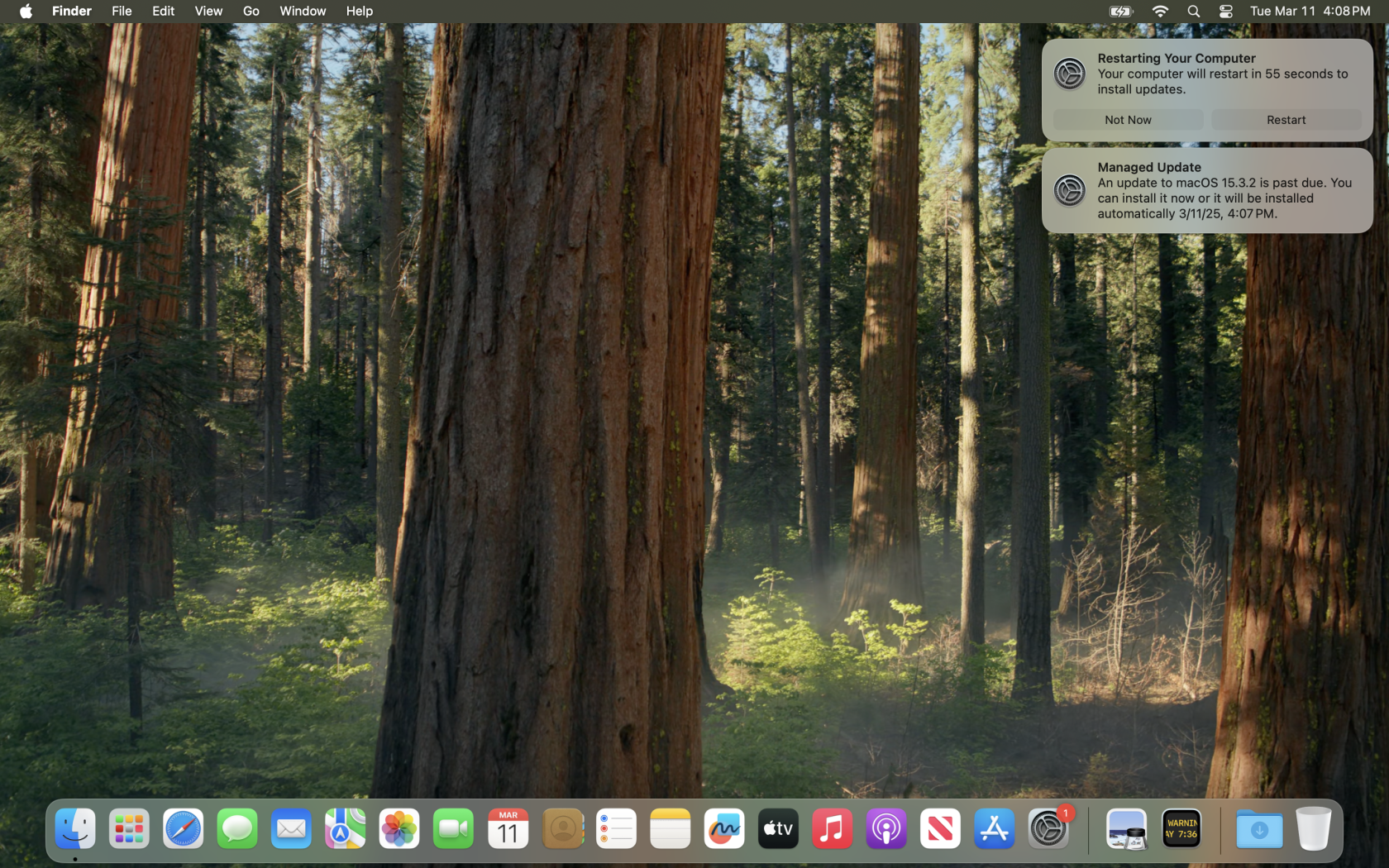
macOS end user prompts

[![ApplemacOS_SoftwareUpdateNotification.png](https://kb.filewave.com/uploads/images/gallery/2025-03/scaled-1680-/dSotxd8WRWJuXTee-applemacos-softwareupdatenotification.png)](https://kb.filewave.com/uploads/images/gallery/2025-03/dSotxd8WRWJuXTee-applemacos-softwareupdatenotification.png)

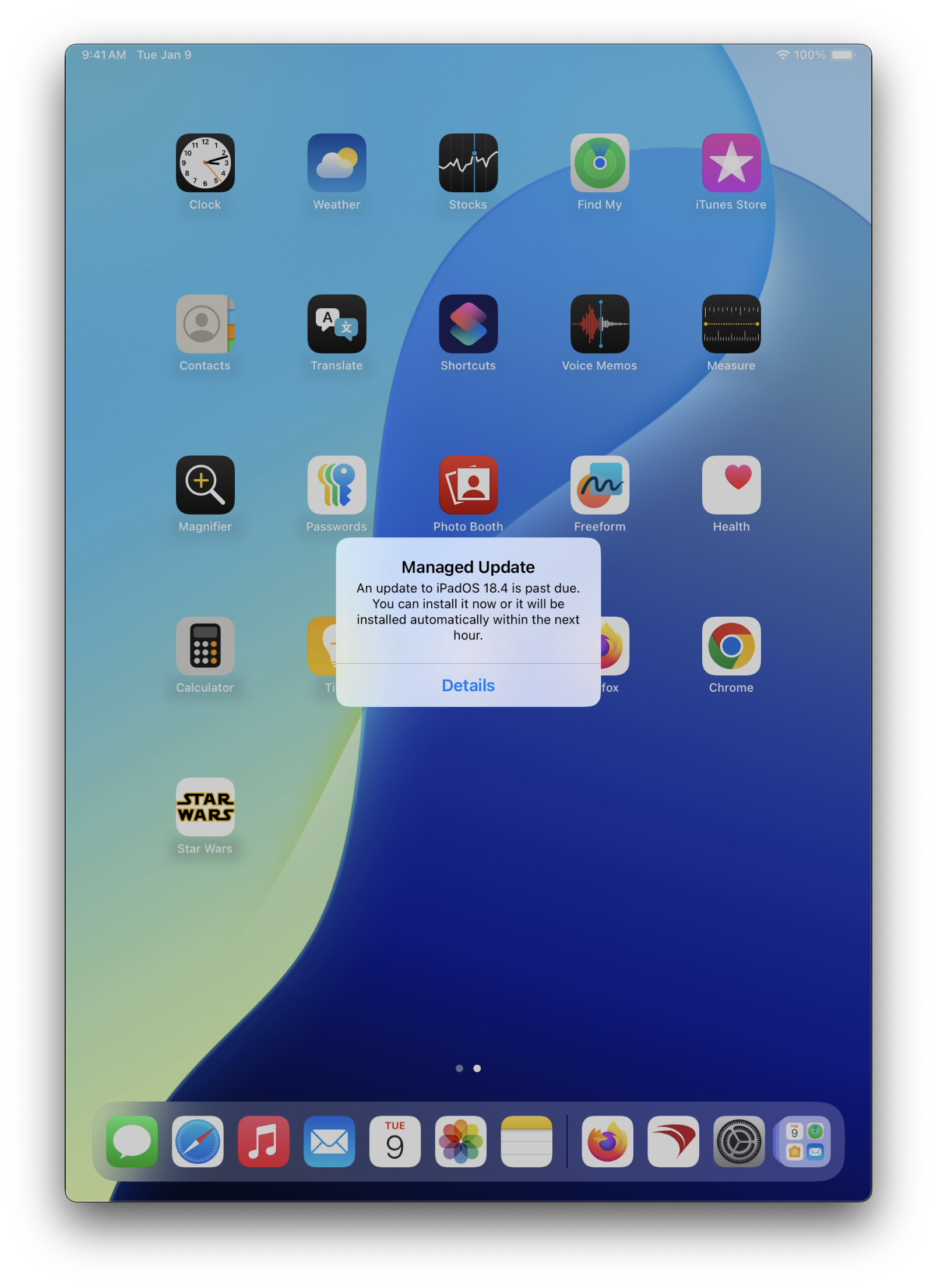
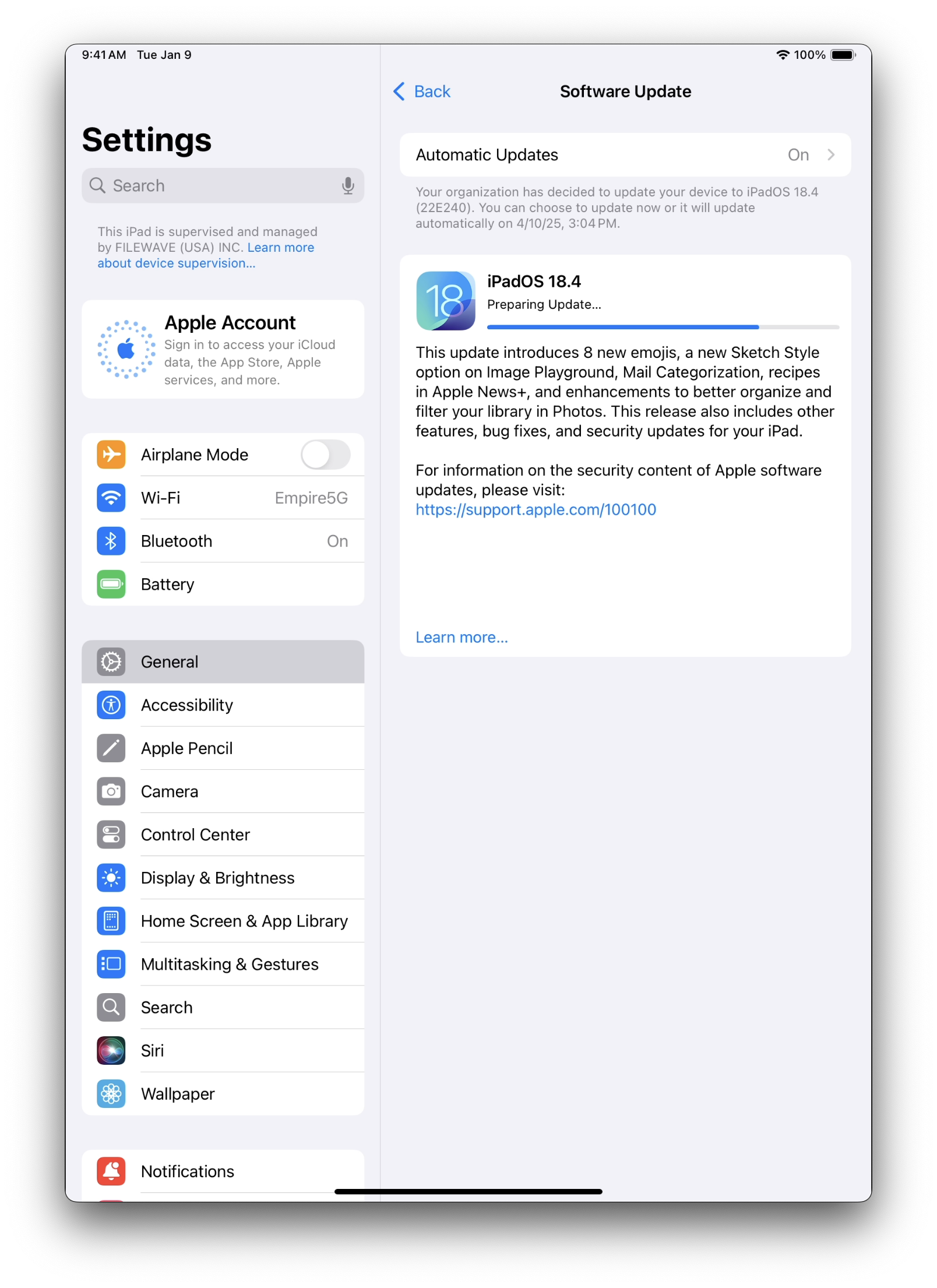
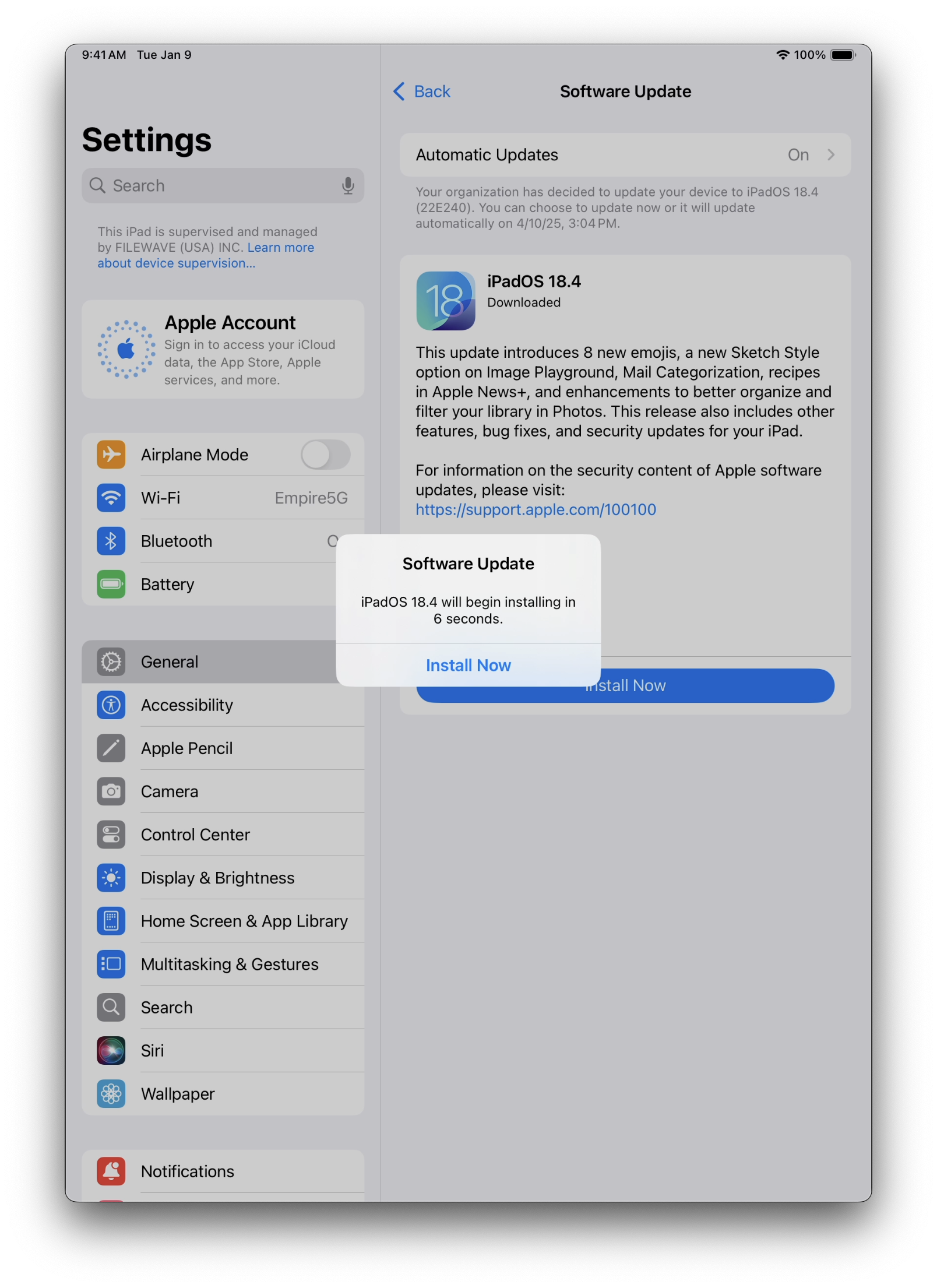
iPadOS end user prompts

<table id="bkmrk--1" style="border-collapse:collapse;width:100%;"><colgroup><col style="width:33.3333%;"></col><col style="width:33.3333%;"></col><col style="width:33.3333%;"></col></colgroup><tbody><tr><td>[![ManagedSoftwareUpdateiPadOS.png](https://kb.filewave.com/uploads/images/gallery/2025-04/scaled-1680-/pAsxOhYC3QqQpHdG-managedsoftwareupdateipados.png)](https://kb.filewave.com/uploads/images/gallery/2025-04/pAsxOhYC3QqQpHdG-managedsoftwareupdateipados.png)</td><td>[![ManagedSoftwareUpdateiPadOS2.png](https://kb.filewave.com/uploads/images/gallery/2025-04/scaled-1680-/U8YBQgV3hM2WVhVb-managedsoftwareupdateipados2.png)](https://kb.filewave.com/uploads/images/gallery/2025-04/U8YBQgV3hM2WVhVb-managedsoftwareupdateipados2.png)</td><td>[![ManagedSoftwareUpdateiPadOS3.png](https://kb.filewave.com/uploads/images/gallery/2025-04/scaled-1680-/0Q3Nnv4d2Rh5wnLC-managedsoftwareupdateipados3.png)](https://kb.filewave.com/uploads/images/gallery/2025-04/0Q3Nnv4d2Rh5wnLC-managedsoftwareupdateipados3.png)</td></tr></tbody></table>

# Apple Software Lookup Service (GDMF) option for OS updates

## What

Before FileWave 14.7+ the MDM protocol only displayed updates reported by devices. Apple's GDMF allows FileWave to display all currently available updates. The former only allowed for installing the latest version reported by the device, while GDMF provides provision for intermediate updates that are still available from Apple.

<p class="callout info">FileWave now reports multiple updates for devices and all device types will also report iOSUpdate as a named update, where previously they would only report a dedicated updated, for example: iPadOSUpdate</p>

## When/Why

This feature allows upgrading an iPad running iPadOS 15.0.2 to iPadOS 15.1 while the most recent update might be 15.3, for example. This functionality is supported on iOS, tvOS, and iPadOS.

#### Device Reports

Historically, FileWave would receive the latest reported update from a device. For example, any compatible iPads running an iPadOS version of 15.0.2 or below would report the following where 15.3.1 is the latest available version:

```
	<key>AvailableOSUpdates</key>
	<array>
		<dict>
			<key>AllowsInstallLater</key>
			<false/>
			<key>Build</key>
			<string>19D52</string>
			<key>DownloadSize</key>
			<integer>667505362</integer>
			<key>HumanReadableName</key>
			<string>iPadOS 15.3.1</string>
			<key>InstallSize</key>
			<integer>673185792</integer>
			<key>IsCritical</key>
			<false/>
			<key>ProductKey</key>
			<string>iOSUpdate19D52</string>
			<key>ProductName</key>
			<string>iOS</string>
			<key>RestartRequired</key>
			<true/>
			<key>Version</key>
			<string>15.3.1</string>
		</dict>


```

Note the device reports not just the update version, but the update size also. FileWave shows the Human Readable Name reported for this update and the installer's size. The Product Key is shown in the footer of the window where an update is selected.

![old_update_view.png](https://kb.filewave.com/uploads/images/gallery/2023-06/JLTN7em7STnMuQta-old-update-view.png)

As such, only updates reported by devices were visible and only subsequently could the Fileset association be created and associated.

#### GDMF

GDMF updates are pulled from a URL (akin to the mechanism macOS used prior to MDM updates). All mobile updates currently available from Apple are listed under one generic name: 'iOSUpdate', followed by the version number. Devices need not report required updates in advance and associations can be made prior to the device's next check-in, benefitting from the update being already available and associated.

The catalogue of data provided by Apple does not include the file size of the update, but FileWave populates the footer of the update window to indicate the update is a GDMF update when selected.

 ![new_update_view.png](https://kb.filewave.com/uploads/images/gallery/2023-06/hHfeNPOPqbBRVwdo-new-update-view.png)

## How

FileWave server will regularly check Apple GDMF service to pull the list of available updates for each device. Make sure to read and follow [Apple documentation](https://support.apple.com/en-us/HT210060) related to network requirements. GDMF service provides the following information:

- Product version
- Posting date
- Expiration date
- List of supported devices

For instance, the following shows extract for iOSUpdate 15.3:

```
   {
        "ProductVersion": "15.3",
        "PostingDate": "2022-01-26",
        "ExpirationDate": "2022-05-11",
        "SupportedDevices": [
          "iPad11,1",
          "iPad11,2",
          "iPad11,3",
          "iPad11,4",
          "iPad11,6",
          "iPad11,7",
          "iPad12,1",
          "iPad12,2",
          "iPad13,1",
          "iPad13,10",
          "iPad13,11",
          "iPad13,2",
          "iPad13,4",
          "iPad13,5",


```

FileWave will cross reference all supported device types for each Product Version and show these as requested by the device, even though the device may not actually have personally requested them. This allows pre-association.

<p class="callout success">FileWave will update the Software Update view on every synchronisation with Apple. Only updates currently available should be reported. If Apple deprecate an update, this update should no longer show in the Software Update view. Cross reference this view with currently Created/Associated Filesets to ensure the updates are still current.</p>

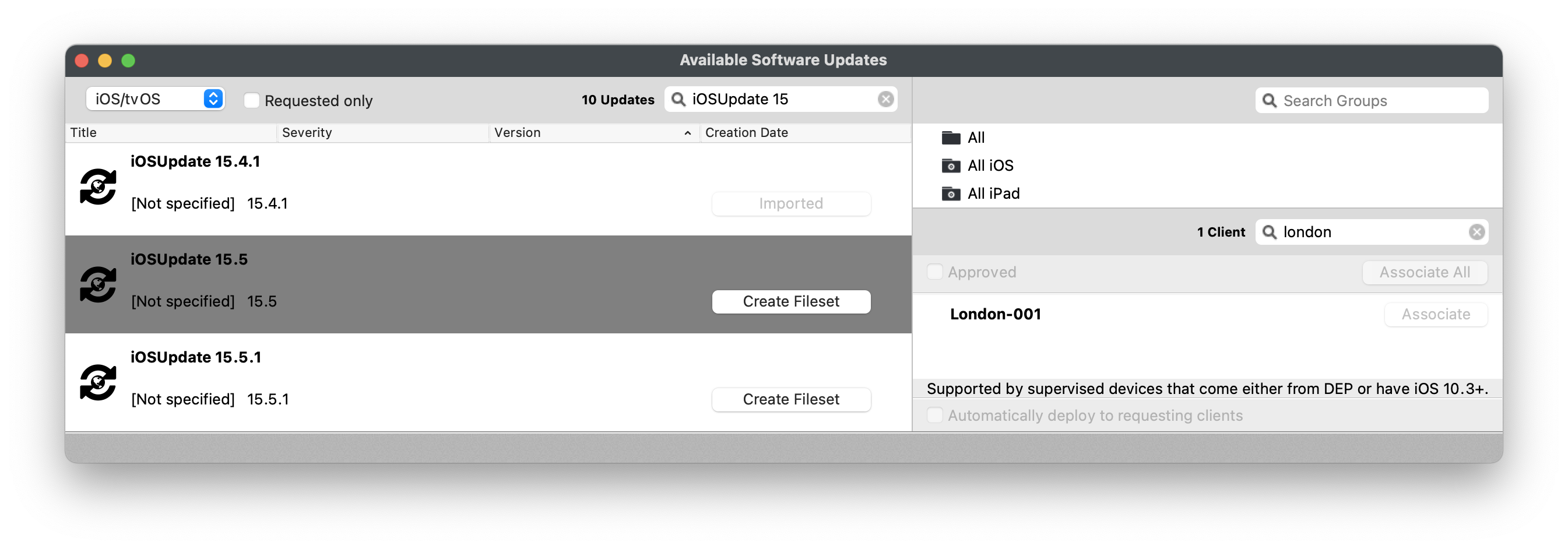
GDMF advantageously proposes all possible updates for each device, not just the last one, as can be seen in the below images. Device 'London-001' shows both iOSUpdate 15.5 and 15.4.1 as appropriate:
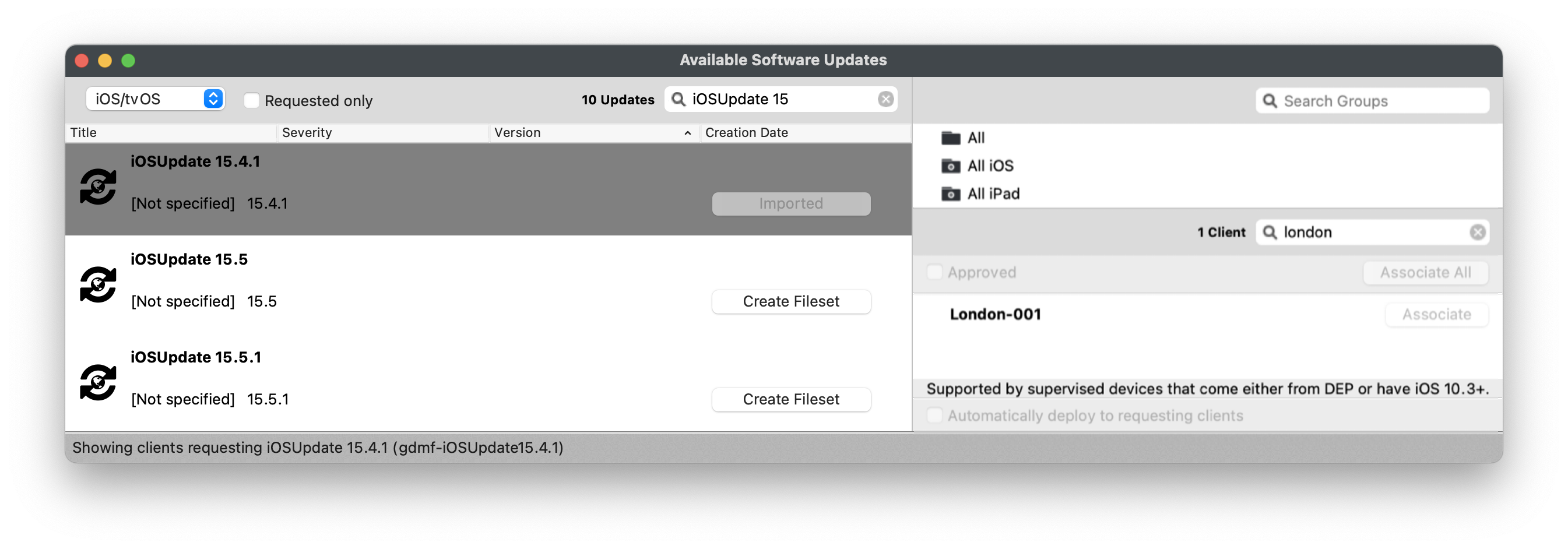
![iOSUpdate15.4.1.png](https://kb.filewave.com/uploads/images/gallery/2023-06/2T48yjqIrXi0tT6h-iosupdate15-4-1.png)![iOSUpdate15.5.png](https://kb.filewave.com/uploads/images/gallery/2023-06/jZVeOW8Bw4qhldwK-iosupdate15-5.png)

You can now follow the usual process : create Fileset, approve the update, associate the update for any currently available intermediate version.

### Considerations

#### Reported Updates

Note, not all updates are necessarily appropriate for all device types. For example, the current version of 15.5.1 at the time of writing was only appropriate for these device types. Of course, Apple may change this over time, but FileWave should list appropriate devices (as listed by Apple) for any given update.

```
           {
                "ExpirationDate": "2022-08-23",
                "PostingDate": "2022-05-25",
                "ProductVersion": "15.5.1",
                "SupportedDevices": [
                    "AppleTV11,1",
                    "AppleTV5,3",
                    "AppleTV6,2",
                    "AudioAccessory1,1",
                    "AudioAccessory1,2",
                    "AudioAccessory5,1"
                ]
            },

```

#### Create Fileset

FileWave now reports both GDMF and Client Reported updates. Consequence of creation:

##### Device Reported Updates

Creating a Fileset, based upon those the devices report as requested, will only attempt to push this update whilst the device still requests this update. The consequence for any device not yet updated, when the next version is released, is this update Fileset will no longer be successful, since the device will no longer request this version.

##### GDMF Updates

Creating a Fileset based upon a GDMF reported Fileset allows any displayed version to be pushed, regardless of the latest available version. This will only be true whilst Apple maintain this update online. Once Apple deprecate this update the matching Fileset will no longer be able to update any devices not yet upgraded. Below is the list of possible iOS 15 updates available at the time of writing. Notice that version 15 updates below 15.3 are no longer available, whilst a version of 14 is still available.

**Example of Currently Available Updates**

```
                "ProductVersion": "15.5.1",
                "ProductVersion": "15.5",
                "ProductVersion": "15.4.1",
                "ProductVersion": "15.4",
                "ProductVersion": "15.3.1",
                "ProductVersion": "15.3",
                "ProductVersion": "14.8.1"

```

<p class="callout danger">Avoid associating multiple appropriate updates. It is unclear in this instance what may occur and is possible one update will cancel the first ending in a situation where no update is actioned. If automatically deploying to devices is chosen, disable this before assigning a new association.</p>

<p class="callout success">Consider using one method only, either the original reported version by device or GDMF. GDMF provides the greatest scope of control though and would probably be the better choice going forward in most environments.</p>

## Related Content

- [MDM Software Update Changes](https://kb.filewave.com/books/software-updates-apple/page/software-updates-in-the-age-of-macos-mdm-big-sur-v110-ios-15 "Software Updates in the age of macOS MDM (Big Sur v11.0+ / iOS 15+)")

# Apple Background Security Improvements (formerly Rapid Security Response)

<p class="callout info">Starting with FileWave 16.3.x, FileWave supports Apple's newer **Background Security Improvements** behavior. Older Apple documentation, older OS families, and older FileWave screenshots may still use the earlier **Rapid Security Response (RSR)** wording.</p>

## What changed

Rapid Security Response (RSR) was introduced by Apple in iOS 16, iPadOS 16, and macOS 13 as a way to deliver urgent security fixes between standard software updates. Starting with Apple's 2026 operating systems, Apple replaced that model with **Background Security Improvements**. This is not just a label change. Apple now documents Background Security Improvements as their own release type for lightweight security fixes that can be delivered without a full operating system update.

In practice, that means you may still see the older RSR term in historical Apple material, older operating systems, older FileWave screenshots, and some low-level Apple management keys, while current Apple deployment guidance for newer OS versions uses Background Security Improvements.

## How they behave

- They apply only to the latest supported minor operating system version, so delaying the base minor update also effectively delays the security improvement.
- They don't follow the normal managed software update delay.
- Some improvements require a device restart. On Mac, Safari-related content may become available to Safari sooner, but a restart is still required to make the content broadly available to the rest of the operating system.
- Users can remove installed improvements unless management prevents removal.

## What device management can do

Apple's software update framework still exposes controls for these releases. On supervised devices, MDM can control automatic installation behavior, block manual installation, block removal, and enforce a specific response using target OS and build values when Apple publishes one.

FileWave inventory continues to use Apple's supplemental software update reporting for this family of releases. The relevant inventory fields are the supplemental version and supplemental build values reported by the device.

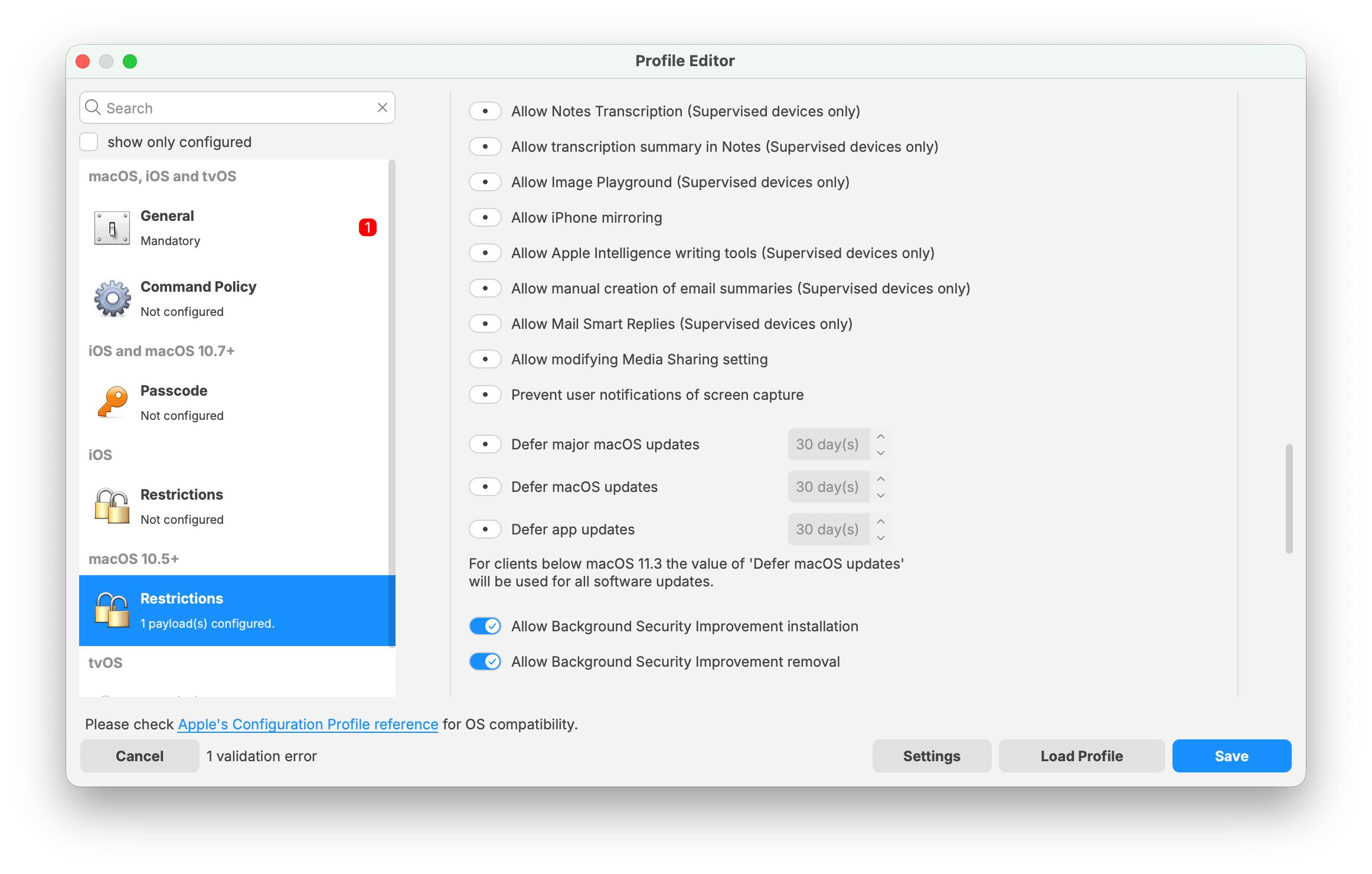
<p class="callout info">These screenshots reflect the current FileWave 16.3.0 Profile Editor wording for both the iOS and macOS restrictions payloads. In each payload, the options now appear as **Allow Background Security Improvement installation** and **Allow Background Security Improvement removal**.</p>

[![FileWave 16.3.0 iOS Restrictions payload showing Background Security Improvement installation and removal options](https://kb.filewave.com/uploads/images/gallery/2026-04/cIhMNYQnZ9xbT4T8-filewave-16-3-0-background-security-improvements-profile-editor.jpg)](https://kb.filewave.com/uploads/images/gallery/2026-04/cIhMNYQnZ9xbT4T8-filewave-16-3-0-background-security-improvements-profile-editor.jpg)

[![FileWave 16.3.0 macOS Restrictions payload showing Background Security Improvement installation and removal options](https://kb.filewave.com/uploads/images/gallery/2026-04/babv1vZrfj5u3OZc-filewave-16-3-0-background-security-improvements-profile-editor-macos.jpg)](https://kb.filewave.com/uploads/images/gallery/2026-04/babv1vZrfj5u3OZc-filewave-16-3-0-background-security-improvements-profile-editor-macos.jpg)
As of FileWave 15, there are two additional inventory items for Apple's supplemental security releases, both labeled as **Supplemental**:

[![image.png](https://kb.filewave.com/uploads/images/gallery/2023-07/scaled-1680-/GwqLMFiStU4C4ivn-image.png)](https://kb.filewave.com/uploads/images/gallery/2023-07/GwqLMFiStU4C4ivn-image.png)
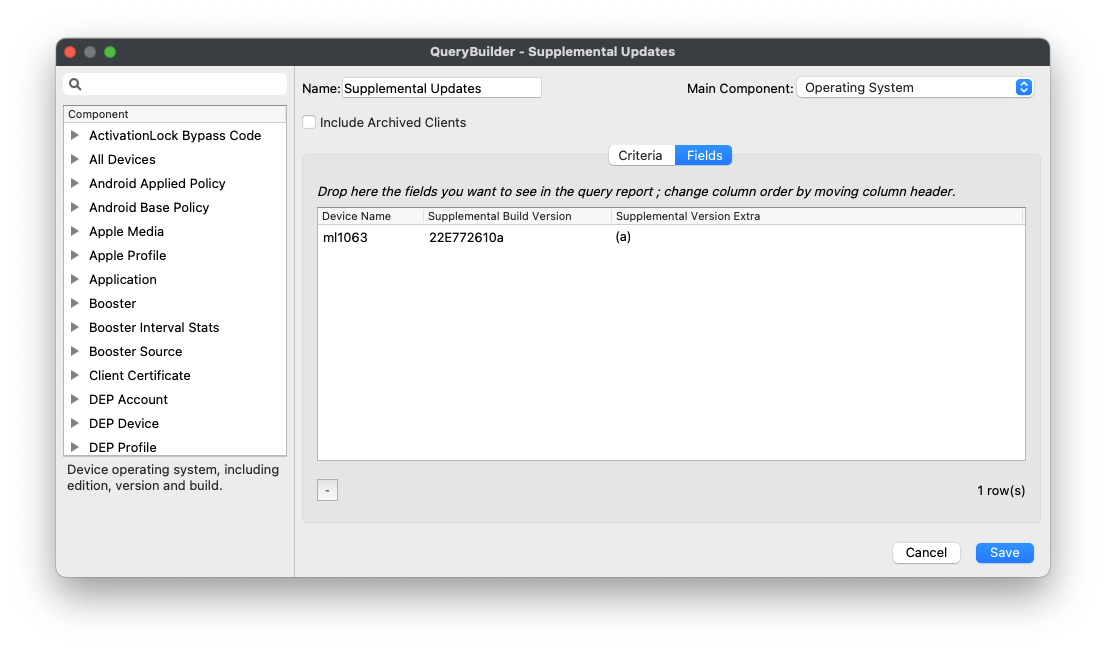
Supplemental Build Version typically shows a value only when a current supplemental security release is installed. After the device moves to a newer base OS version, or when there is no active supplemental security release for that version, these fields may be blank again.

## Related Content

- [Background Security Improvements on Apple devices](https://support.apple.com/guide/deployment/background-security-improvements-dep93ff7ea78/web)
- [About software updates for Apple devices](https://support.apple.com/guide/deployment/about-software-updates-depc4c80847a/web)
- [Use device management to deploy software updates to Apple devices](https://support.apple.com/guide/deployment/device-management-deploy-software-updates-depafd2fad80/1/web/1.0)

# macOS Erase and Install Fileset (Erase Optional)

## Description

Upgrading macOS or performing an erase-and-install workflow both require a full macOS installer app. This Fileset is designed to support either case.

<p class="callout warning">Historically, these workflows were split across two KB articles. This newer Fileset can handle either option from one Fileset, and it also removes some older requirements, such as the hidden upgrade file in /var/db.</p>

## Ingredients

- Custom Field – "macos\_instal\_flag"
- Full Apple macOS Installer App
- Provided Recipe
- Provided Custom Field

### Fileset:

<table id="bkmrk-%E2%86%93-macos"><tbody><tr><td>↓ macOS

</td></tr><tr><td>[![d5BvNjRfBpeKzXSy-embedded-image-z9drnx1d.png](https://kb.filewave.com/uploads/images/gallery/2023-07/d5BvNjRfBpeKzXSy-embedded-image-z9drnx1d.png)](https://kb.filewave.com/attachments/288)

</td></tr></tbody></table>

### Custom Field:

<table id="bkmrk-%E2%86%93-macos-1"><tbody><tr><td>↓ macOS

</td></tr><tr><td>[![ZQHc7cGt3vlEdRDF-embedded-image-eyt60umt.png](https://kb.filewave.com/uploads/images/gallery/2023-07/ZQHc7cGt3vlEdRDF-embedded-image-eyt60umt.png)](https://kb.filewave.com/attachments/165)

</td></tr></tbody></table>

<table id="bkmrk-full-installer-confi"><tbody><tr><td style="background-color:rgb(248,202,198);">**Full installer**

Confirm the installer app is the 'Full' installer before continuing. If the app is relatively small e.g. 50MB, re-download the Install macOS Monterey.app. A full installer may be downloaded through Terminal on macOS 10.15+ devices. Example to download the 12.0 full installer to the Applications directory:

```
softwareupdate --fetch-full-installer --full-installer-version 12.0
```

Typically Apple only provides the latest point release of each Major OS version: 10.13.6, 10.14.6, etc. For a full list of available updates, use the following command:

```
softwareupdate --list-full-installers
```

</td></tr></tbody></table>

## Directions

### Fileset

1. Download and import the provided Fileset
2. Download the desired version of the macOS Installer App
3. Add the macOS installer app to the same folder as the .placeholder file. You can remove the .placeholder file afterward if desired
4. Select the Install macOS app &gt; Get Info &gt; Verification, choose Ignore At Verify, and then Apply to Enclosed
5. Edit the Environment Variables for both the Activation Script and the Requirements Script

### Fileset Contents

![IeS4YgWo19ww7Pgn-embedded-image-cxwdcnck.png](https://kb.filewave.com/uploads/images/gallery/2023-07/IeS4YgWo19ww7Pgn-embedded-image-cxwdcnck.png)

### Environment Variables

The Environment Variables **must** be edited, providing appropriate values

- M1 devices add an extra requirement when scripting the installation of macOS installer apps. In that case, a local macOS administrator username and password must be passed to the script. Update the local\_admin and admin\_pass variables accordingly. Intel devices ignore these values if they are set.

<table id="bkmrk-requirement-script-%E2%80%93" style="border-collapse:collapse;width:100%;"><colgroup><col style="width:50%;"></col><col style="width:50%;"></col></colgroup><tbody><tr><td>**Requirement Script – statosinstall\_requirements.sh**

Key values that require editing (in bold):
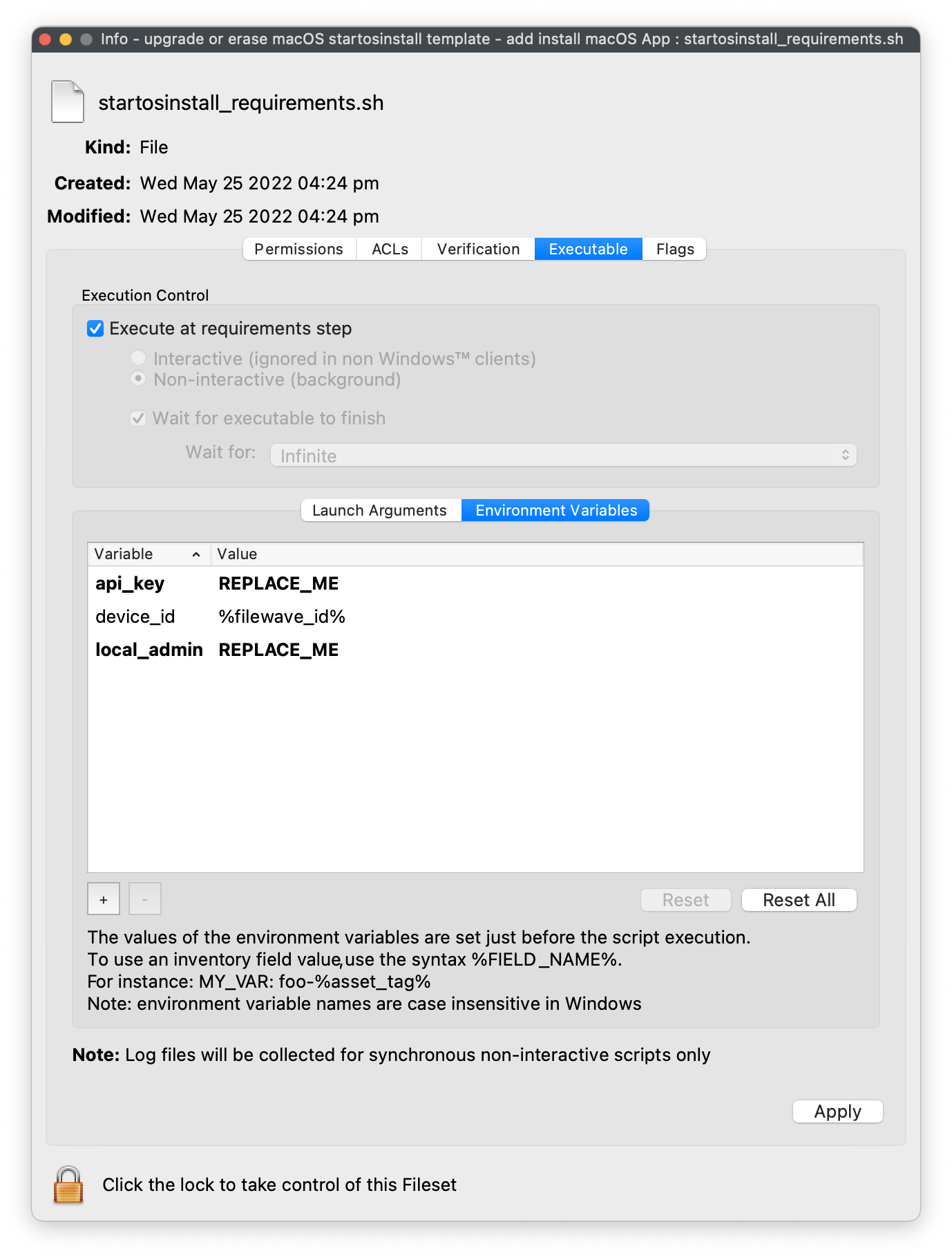
 ![XhndMmeBKDG5vYC2-embedded-image-kbgimvzl.png](https://kb.filewave.com/uploads/images/gallery/2023-07/XhndMmeBKDG5vYC2-embedded-image-kbgimvzl.png)

- api\_key – Copy a Token (base64) from a chosen FileWave Administrator's 'Application tokens'
- local\_admin – username for a local admin on the target macOS device (Apple M1 only)

</td><td> **Activation Script – startosinstal\_m1&amp;intel.sh**Key values that require editing (in bold):

![2KkVs4gp8t3Xs0fN-embedded-image-godt9mle.png](https://kb.filewave.com/uploads/images/gallery/2023-07/2KkVs4gp8t3Xs0fN-embedded-image-godt9mle.png)

- admin\_pass – password for a local admin on the target macOS device (Apple M1 only)
- local\_admin – username for the matching local admin as password on the target macOS device (Apple M1 only)
- installer\_name – the name of the App added, e.g. 'Install macOS Big Sur', 'Install macOS Monterey'
- api\_key – Copy a Token (base64) from a chosen FileWave Administrator's 'Application tokens'

'installer\_name' in Fileset is also set as REPLACE\_ME, but the value is left as 'Install macOS Monterey' as an example in the Fileset image.

</td></tr></tbody></table>

### Application Token Location

The FileWave Administrator's Application Token (base64) can be found under FileWave Central -&gt; Assistants -&gt; Manage Administrators.

[![S3dLz35nnbPZsgfF-embedded-image-omario26.png](https://kb.filewave.com/uploads/images/gallery/2024-10/scaled-1680-/wvD0tt7rclg0xWYw-s3dlz35nnbpzsgff-embedded-image-omario26.png)](https://kb.filewave.com/uploads/images/gallery/2024-10/wvD0tt7rclg0xWYw-s3dlz35nnbpzsgff-embedded-image-omario26.png)

### Custom Field

Custom Field has 4 options:

![0FcR5ZJIELHB1A5d-embedded-image-vnnqsrlq.png](https://kb.filewave.com/uploads/images/gallery/2023-07/0FcR5ZJIELHB1A5d-embedded-image-vnnqsrlq.png)

- NA – default value, the Fileset will not do anything with this setting
- ERASE – the device will have the OS erased and install the provided version of macOS
- INSTAL – the device will upgrade to the provided version of macOS
- FAILED – the device will update the Custom Field flag to FAILED if something unexpected occurs. No further attempts to run the Fileset will action anything whilst this is still the case

Either 'Assign to all devices' or select appropriate devices to associate the Custom Field.

<p class="callout success">Consider making Smart Group associations based upon the Custom Field value</p>

### Activation

Create a Smart Group based upon macos\_instal\_flag value being either ERASE or INSTAL

<video controls="" height="300" width="600"><source src="https://kb.filewave.com/attachments/167"></source></video>

Set the associated Custom Field for a device to one of these two values depending upon the experience you would desire.

<video controls="" height="300" width="600"><source src="https://kb.filewave.com/attachments/168"></source></video>

<p class="callout success">Selecting a group of devices to associate and/or alter the Custom Field value, will action that new value for all devices currently within that group. The video shows an example of setting the Custom Field value as INSTAL, with the 2 devices within the macOS 10.13 group.   
  
Using a group in this way will have no impact on the Custom Field values for devices leaving or joining the group afterward.</p>

Since it is likely a subsequent installation attempt will be desired upon failure (once the reason for failure has been addressed, e.g. not enough disk space), a Smart Group could be set with the Custom Field value of FAILED if desired.

To re-run a failed attempt, after addressing the reason for the failure (e.g. freeing up disk space), reset the Custom Field value to the appropriate ERASE or INSTAL value and choose to 'Reinstall Fileset'

## Notes

**Why does this Fileset use a Custom Field?**  
  
While the Fileset is associated, it may trigger the workflow again. After an erase, for example, the device no longer retains local state about the original installation attempt. Without another control, the device could try to repeat the workflow after it comes back. The Custom Field prevents repeat erase or upgrade attempts once the process is complete, and it also provides a simple way to track failures.  
  
By creating a FAILED value, devices can also report unsuccessful attempts automatically, which makes it easier to build queries or Smart Groups for follow-up.

By setting the macOS Installer App as leave behind, if the installation has not been completed, but is no longer associated, this will ensure the installer remains on the device for subsequent attempts. Additionally, since Apple automatically removes the macOS Installer App after an upgrade, if the Fileset were still associated there would be no re-attempt to download the installer.

<p class="callout info">Filesets that error will automatically re-attempt installation as standard. The requirement script is designed to report an exit code of 210 to overrule this. Even if the Requirement Script fails, it will report success and will neither continue download/activation nor will it re-attempt without intervention. In this case, the client will update the Custom Field instead to report the failure. The script log should show the output of the command.  
  
Example log message:  
**/usr/local/etc/macos\_instal.log**   
|main|CUSTOM|CLIENT|startosinstall\_requirements Exiting. Flag set as:  
  
In this example, the Custom Field Flag reported has no value. This should either mean the Custom Field is not associated with the device or the script has failed to read the value. If the latter, check the Environment Variables to ensure they are correct.  
</p>

# Nudge for macOS Software Updates

## What

Nudge is a tool designed for macOS Big Sur 11 and later. It is a multi-linguistic application offering custom user deferrals, strongly encouraging users to self update macOS.

This macOS application helps users stay up-to-date with software updates and security patches. It is a lightweight and simple background task which periodically checks for updates. Based upon a pre-defined, minimum update configuration, on detection, the user is notified, requesting they update.

Nudge can be downloaded from the following link, however this KB includes a Fileset to handle the installation of Nudge:

[GitHub - macadmins/nudge: A tool for encouraging the installation of macOS security updates.](https://github.com/macadmins/nudge)

## When/Why

Keeping software up-to-date is essential for any system's security and smooth functioning. However, it can be a daunting task to manually track software updates, especially when multiple software packages are installed on the device. That's where Nudge comes into the picture. It combines the automation of software update checking with manual user intervention to ensure devices remain up-to-date.

With OS versions being kept current, Nudge helps avoid security vulnerabilities and malicious, unauthorised activity all whilst improving the system's overall performance, with OS features and bug fixes. All of which should maintain a better user experience with greater productivity.

<p class="callout info">Note, for major software updates, an Administrator password may be required. In this case, an alternate approach to upgrade devices could be considered, as highlighted in the KB: [macOS Upgrades or Erasing](https://kb.filewave.com/books/software-updates-apple/page/macos-erase-and-install-fileset-erase-optional)</p>

<p class="callout warning">Prior to macOS 11, Software Updates could be installed either through Apple's legacy Software Update catalogues or using MDM. Consider using the legacy updates for these devices; Nudge should not be required in this instance.</p>

## How

Nudge has two main components for installation;

- Installation PKG
- Configuration file

In this example, configuration will be defined using a JSON file.

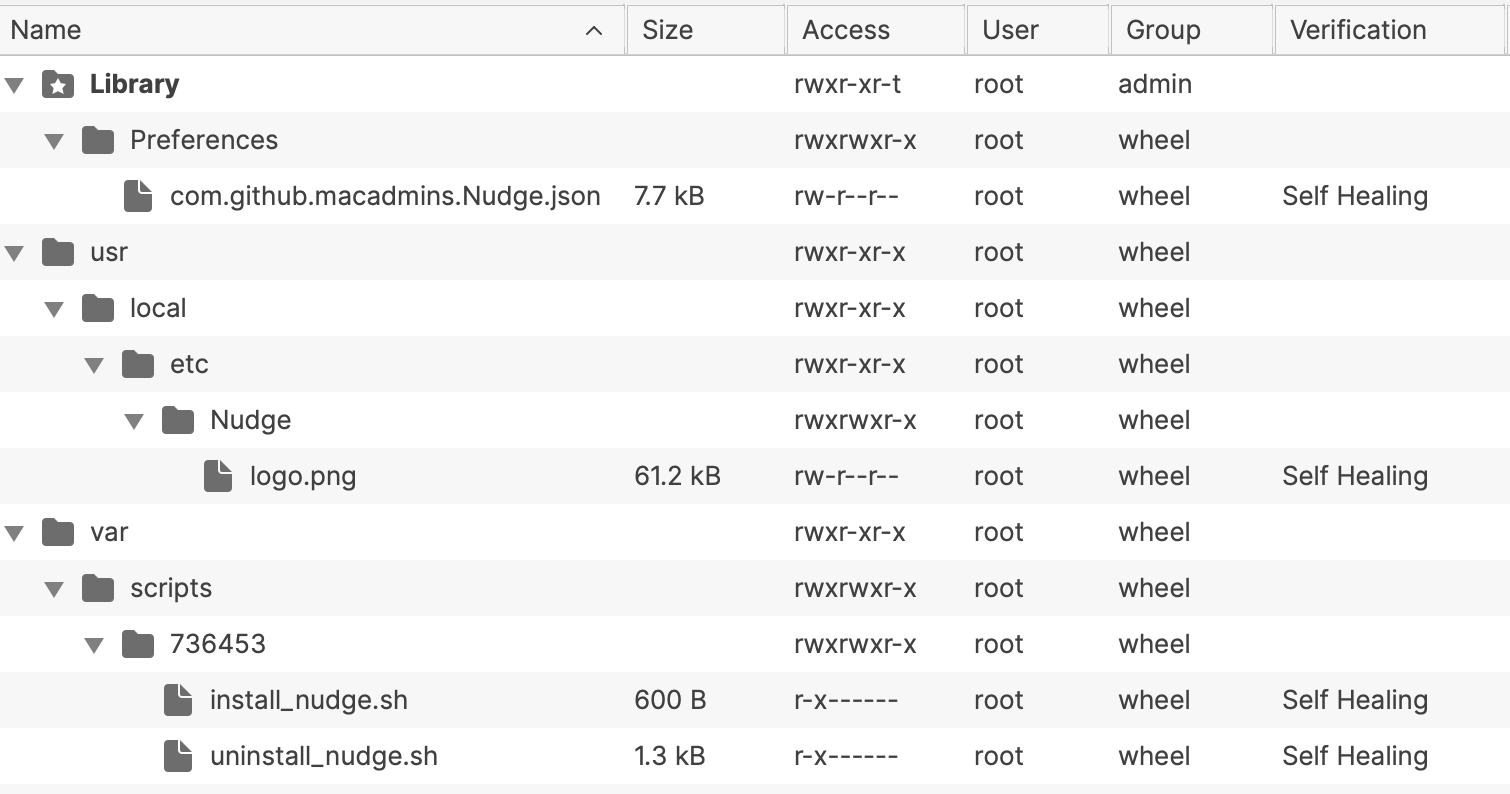
The provided Fileset includes:

- Example Configuration
- Scripted method of installation
- Scripted removal when disassociated

[Nudge Notifications.fileset.zip](https://kb.filewave.com/attachments/278)

[![image.png](https://kb.filewave.com/uploads/images/gallery/2023-11/scaled-1680-/VlFbjYFvBjvjXYVZ-image.png)](https://kb.filewave.com/uploads/images/gallery/2023-11/VlFbjYFvBjvjXYVZ-image.png)
### Scripts

This example Fileset does not contain the installer. Instead, a script pulls the latest version from GitHub and instals that version. If a new version exists, the Fileset could be re-triggered with a reinstall Fileset, causing the software to update.

The uninstaller contains the necessary lines of code to remove each item installed when disassociated

### Configuration

As suggested above, in this example Fileset is a JSON for Nudge configuration. There are two lines to immediately consider:

```
            "requiredInstallationDate": "2023-12-28T00:00:00Z",
            "requiredMinimumOSVersion": "12.7.1",
```

<table id="bkmrk-requiredinstallation" style="border-collapse:collapse;width:100%;"><colgroup><col style="width:50%;"></col><col style="width:50%;"></col></colgroup><tbody><tr><td>requiredInstallationDate</td><td>When reached the conditions of user notification are altered </td></tr><tr><td>requiredMinimumOSversion</td><td>If OS version is below this set value, the user will begin to receive notifications</td></tr></tbody></table>

<p class="callout info">The frequency and handling of notifications both before and after the requiredInstallationDate are handled elsewhere within the JSON file. Unless otherwise noted, all other values are set as default.</p>

Below is the contents of the included example JSON file:

<details id="bkmrk-json-file-metadata-%7B"><summary>JSON File metadata</summary>

```
{
    "optionalFeatures": {
        "acceptableApplicationBundleIDs": [],
        "acceptableAssertionUsage": false,
        "acceptableCameraUsage": false,
        "acceptableScreenSharingUsage": false,
        "aggressiveUserExperience": true,
        "aggressiveUserFullScreenExperience": true,
        "asynchronousSoftwareUpdate": true,
        "attemptToBlockApplicationLaunches": false,
        "attemptToFetchMajorUpgrade": true,
        "blockedApplicationBundleIDs": [],
        "enforceMinorUpdates": true,
        "terminateApplicationsOnLaunch": false
    },
    "osVersionRequirements": [
        {
            "aboutUpdateURL_disabled": "https://support.apple.com/en-us/HT211896#macos1121",
            "aboutUpdateURLs": [
                {
                    "_language": "en",
                    "aboutUpdateURL": "https://support.apple.com/en-us/HT211896#macos1121"
                },
                {
                    "_language": "es",
                    "aboutUpdateURL": "https://support.apple.com/es-es/HT211896"
                },
                {
                    "_language": "fr",
                    "aboutUpdateURL": "https://support.apple.com/fr-fr/HT211896"
                },
                {
                    "_language": "de",
                    "aboutUpdateURL": "https://support.apple.com/de-de/HT211896"
                }
            ],
            "actionButtonPath": "/System/Library/CoreServices/Software Update.app",
            "majorUpgradeAppPath": "/Applications/Install macOS Big Sur.app",
            "requiredInstallationDate": "2023-12-28T00:00:00Z",
            "requiredMinimumOSVersion": "12.7.1",
            "targetedOSVersionsRule": "default"
        }
    ],
    "userExperience": {
        "allowGracePeriods": false,
        "allowLaterDeferralButton": true,
        "allowUserQuitDeferrals": true,
        "allowedDeferrals": 1000000,
        "allowedDeferralsUntilForcedSecondaryQuitButton": 14,
        "approachingRefreshCycle": 6000,
        "approachingWindowTime": 72,
        "calendarDeferralUnit": "imminentWindowTime",
        "elapsedRefreshCycle": 300,
        "gracePeriodInstallDelay": 23,
        "gracePeriodLaunchDelay": 1,
        "gracePeriodPath": "/private/var/db/.AppleSetupDone",
        "imminentRefreshCycle": 600,
        "imminentWindowTime": 24,
        "initialRefreshCycle": 18000,
        "launchAgentIdentifier": "com.github.macadmins.Nudge",
        "loadLaunchAgent": false,
        "maxRandomDelayInSeconds": 1200,
        "noTimers": false,
        "nudgeRefreshCycle": 60,
        "randomDelay": false
    },
    "userInterface": {
        "actionButtonPath": "/System/Library/CoreServices/Software Update.app",
        "fallbackLanguage": "en",
        "forceFallbackLanguage": false,
        "forceScreenShotIcon": false,
        "iconDarkPath": "/usr/local/etc/Nudge.logo.png",
        "iconLightPath": "/usr/local/etc/Nudge.logo.png",
        "screenShotDarkPath": "/somewhere/screenShotDark.png",
        "screenShotLightPath": "/somewhere/screenShotLight.png",
        "showDeferralCount": true,
        "simpleMode": false,
        "singleQuitButton": false,
        "updateElements": [
            {
                "_language": "en",
                "actionButtonText": "Update Device",
                "customDeferralButtonText": "Custom",
                "customDeferralDropdownText": "Defer",
                "informationButtonText": "More Info",
                "mainContentHeader": "Your device will restart during this update",
                "mainContentNote": "Important Notes",
                "mainContentSubHeader": "Updates can take around 30 minutes to complete",
                "mainContentText": "A fully up-to-date device is required to ensure that IT can accurately protect your device.\n\nIf you do not update your device, you may lose access to some items necessary for your day-to-day tasks.\n\nTo begin the update, simply click on the Update Device button and follow the provided steps.",
                "mainHeader": "Your device requires a security update",
                "oneDayDeferralButtonText": "One Day",
                "oneHourDeferralButtonText": "One Hour",
                "primaryQuitButtonText": "Later",
                "secondaryQuitButtonText": "I understand",
                "subHeader": "A friendly reminder from your local IT team"
            },
            {
                "_language": "es",
                "actionButtonText": "Actualizar dispositivo",
                "informationButtonText": "Más información",
                "mainContentHeader": "Su dispositivo se reiniciará durante esta actualización",
                "mainContentNote": "Notas importantes",
                "mainContentSubHeader": "Las actualizaciones pueden tardar unos 30 minutos en completarse",
                "mainContentText": "Se requiere un dispositivo completamente actualizado para garantizar que IT pueda proteger su dispositivo con precisión.\n\nSi no actualiza su dispositivo, es posible que pierda el acceso a algunos elementos necesarios para sus tareas diarias.\n\nPara comenzar la actualización, simplemente haga clic en el botón Actualizar dispositivo y siga los pasos proporcionados.",
                "mainHeader": "Tu dispositivo requiere una actualización de seguridad",
                "primaryQuitButtonText": "Más tarde",
                "secondaryQuitButtonText": "Entiendo",
                "subHeader": "Un recordatorio amistoso de su equipo de IT local"
            },
            {
                "_language": "fr",
                "actionButtonText": "Mettre à jour l'appareil",
                "informationButtonText": "Plus d'informations",
                "mainContentHeader": "Votre appareil redémarrera pendant cette mise à jour",
                "mainContentNote": "Notes Importantes",
                "mainContentSubHeader": "Les mises à jour peuvent prendre environ 30 minutes.",
                "mainContentText": "Un appareil entièrement à jour est nécessaire pour garantir que le service informatique puisse protéger votre appareil efficacement.\n\n Si vous ne mettez pas à jour votre appareil, vous risquez de perdre l'accès à certains outils nécessaires à vos tâches quotidiennes.\n\nPour commencer la mise à jour, cliquez simplement sur le bouton Mettre à jour le périphérique et suivez les étapes fournies.",
                "mainHeader": "Votre appareil nécessite une mise à jour de sécurité.",
                "primaryQuitButtonText": "Plus tard",
                "secondaryQuitButtonText": "Je comprends",
                "subHeader": "Un rappel amical de votre équipe informatique locale"
            },
            {
                "_language": "de",
                "actionButtonText": "Gerät aktualisieren",
                "informationButtonText": "Mehr Informationen",
                "mainContentHeader": "Ihr Gerät wird während dieses Updates neu gestartet",
                "mainContentNote": "Wichtige Hinweise",
                "mainContentSubHeader": "Aktualisierungen können ca. 30 Minuten dauern.",
                "mainContentText": "Ein vollständig aktualisiertes Gerät ist erforderlich, um sicherzustellen, dass die IT-Abteilung Ihr Gerät effektiv schützen kann.\n\nWenn Sie Ihr Gerät nicht aktualisieren, verlieren Sie möglicherweise den Zugriff auf einige Werkzeuge, die Sie für Ihre täglichen Aufgaben benötigen.\n\nUm das Update zu starten, klicken Sie auf die Schaltfläche Gerät aktualisieren und befolgen Sie die angegebenen Schritte.",
                "mainHeader": "Ihr Gerät benötigt ein Sicherheitsupdate",
                "primaryQuitButtonText": "Später",
                "secondaryQuitButtonText": "Ich verstehe",
                "subHeader": "Eine freundliche Erinnerung von Ihrem IT-Team"
            }
        ]
    }
}
```

</details>### Logo

Additionally with the Fileset is a logo file: logo.png. This file is also being referenced by the above JSON and will be seen by the user when prompted. The logo included in the example Fileset is the FileWave Logo (updated screenshot of Nudge v2.0):

[![Nudgev2.0screenshot.png](https://kb.filewave.com/uploads/images/gallery/2024-11/scaled-1680-/HCbTj762WqCquliY-nudgev2-0screenshot.png)](https://kb.filewave.com/uploads/images/gallery/2024-11/HCbTj762WqCquliY-nudgev2-0screenshot.png)

The lines defining the sourced logo are:

```
        "iconDarkPath": "/usr/local/etc/Nudge/logo.png",
        "iconLightPath": "/usr/local/etc/Nudge/logo.png",
```

For a great understanding of the user experience and configuration, consider viewing the following:

[MacAdmins Nudge by Neil Martin](https://www.youtube.com/watch?v=jyrtBXYxY7c)

There are more resources shown below in the Related Content and Digger Deeper section.

### Deployment

After importing the above Fileset, associate with a test device. If the device is running a lower version than that defined within the JSON, a logged in user should be prompted immediately with the option to update or defer.

Once happy, consider expanding deployment until all necessary devices are included.

### Reconfiguring

Over time it will become necessary to alter the configuration file, such that new macOS versions are set as the minimum level, with new required installation dates. Due to self-healing, this is easily handled within FileWave. Simply change those lines inside the JSON file as desired and Update Model.

### Removal

If Nudge is no longer considered a requirement, disassociation of the Fileset will action the uninstaller script, which should remove all elements of Nudge from the device.

### Nudge Version

As will all Applications, the version installed on devices is reported back as standard inventory. Inventory Queries could be built to observe the current version:

[![image.png](https://kb.filewave.com/uploads/images/gallery/2023-11/scaled-1680-/aQDDdlpIZN5h0QVC-image.png)](https://kb.filewave.com/uploads/images/gallery/2023-11/aQDDdlpIZN5h0QVC-image.png)

## Related Content

- [Home · macadmins/nudge Wiki · GitHub](https://github.com/macadmins/nudge/wiki)
- [Getting Started · macadmins/nudge Wiki · GitHub](https://github.com/macadmins/nudge/wiki/Getting-Started)
- [Nudge version 2.0 features](https://github.com/macadmins/nudge/wiki/v2.0-features)

## Digging Deeper

**Customizing Nudge to meet your needs:**

With Nudge, there are many more optional features and configurations that may be applied to meet your production environment. You may review these features here: [optionalFeatures · macadmins/nudge Wiki · GitHub](https://github.com/macadmins/nudge/wiki/optionalFeatures).

**Apple’s Rapid Security Responses:**

Nudge has placed a feature-request to be added. For more information regarding, you may review the progress here: [Add support for Rapid Security Response updates](https://github.com/macadmins/nudge/issues/389).

# S.U.P.E.R.M.A.N. for macOS Software Updates (macOS Script)

## What is S.U.P.E.R.M.A.N.?

S.U.P.E.R.M.A.N. (Software Update Policy Enforcement with Recursive Messaging and Notification) can be an innovative feature within FileWave's Unified Endpoint Management (UEM) tool. Designed to optimize the macOS software updates and upgrades experience, S.U.P.E.R.M.A.N. empowers education organizations, corporations, and state and local government entities to enforce software update policies seamlessly across their diverse endpoint environments.

<p class="callout info">Note: Sometimes this tool is referred to as **super** or **superman**.</p>

## When/Why Use S.U.P.E.R.M.A.N.?

Keeping macOS devices up-to-date with the latest software updates and upgrades is crucial to ensure optimal performance, security, and compatibility. However, managing software updates across a large number of devices can be challenging, especially in organizations with diverse endpoint environments. Here's why you should consider using S.U.P.E.R.M.A.N.:

- Streamlined Software Updates: S.U.P.E.R.M.A.N. simplifies the process of managing macOS software updates and upgrades. It ensures that all devices in the organization have the latest software versions, reducing the risk of security vulnerabilities and compatibility issues.
- Automated Policy Enforcement: With S.U.P.E.R.M.A.N., administrators can define software update policies once and enforce them across all macOS devices automatically. This automation saves time and effort while ensuring consistency in software version deployment.
- Recursive Messaging and Notification: S.U.P.E.R.M.A.N. leverages recursive messaging and notification capabilities to actively prompt users to initiate the update process. This feature encourages end-user participation in keeping their devices up-to-date, reducing potential delays in updates.
- Optimal End-User Experience: By allowing users to initiate the update process, S.U.P.E.R.M.A.N. ensures that updates don't disrupt critical tasks. End-users can conveniently schedule updates during non-productive hours, minimizing interruptions to their workflow.
- Enhanced Security and Compliance: Outdated software can expose endpoints to security risks. S.U.P.E.R.M.A.N. helps organizations maintain a secure environment by enforcing timely software updates, ensuring compliance with data protection regulations.

##### Mac Computers With Intel

- macOS update and upgrade workflows validated on macOS 10.14 and later. Earlier versions of macOS may work, but have not been validated.
- The `super` script must run with system (root) privileges, but otherwise no additional credentials or MDM service is required.

##### Mac Computers With Apple Silicon  


- The `super` script must run with system (root) privileges.
- To enforce automatic macOS updates or upgrades without using an MDM requires providing `super` with the local credentials of an existing account.
- If no credentials are provided to`super` then macOS updates and upgrades can not be enforced on Mac computers with Apple silicon. In this case `super` prompts the user to provide their local account password; [Apple Silicon Local Credentials · Macjutsu/super Wiki · GitHub](https://github.com/Macjutsu/super/wiki/Apple-Silicon-Local-Credentials)

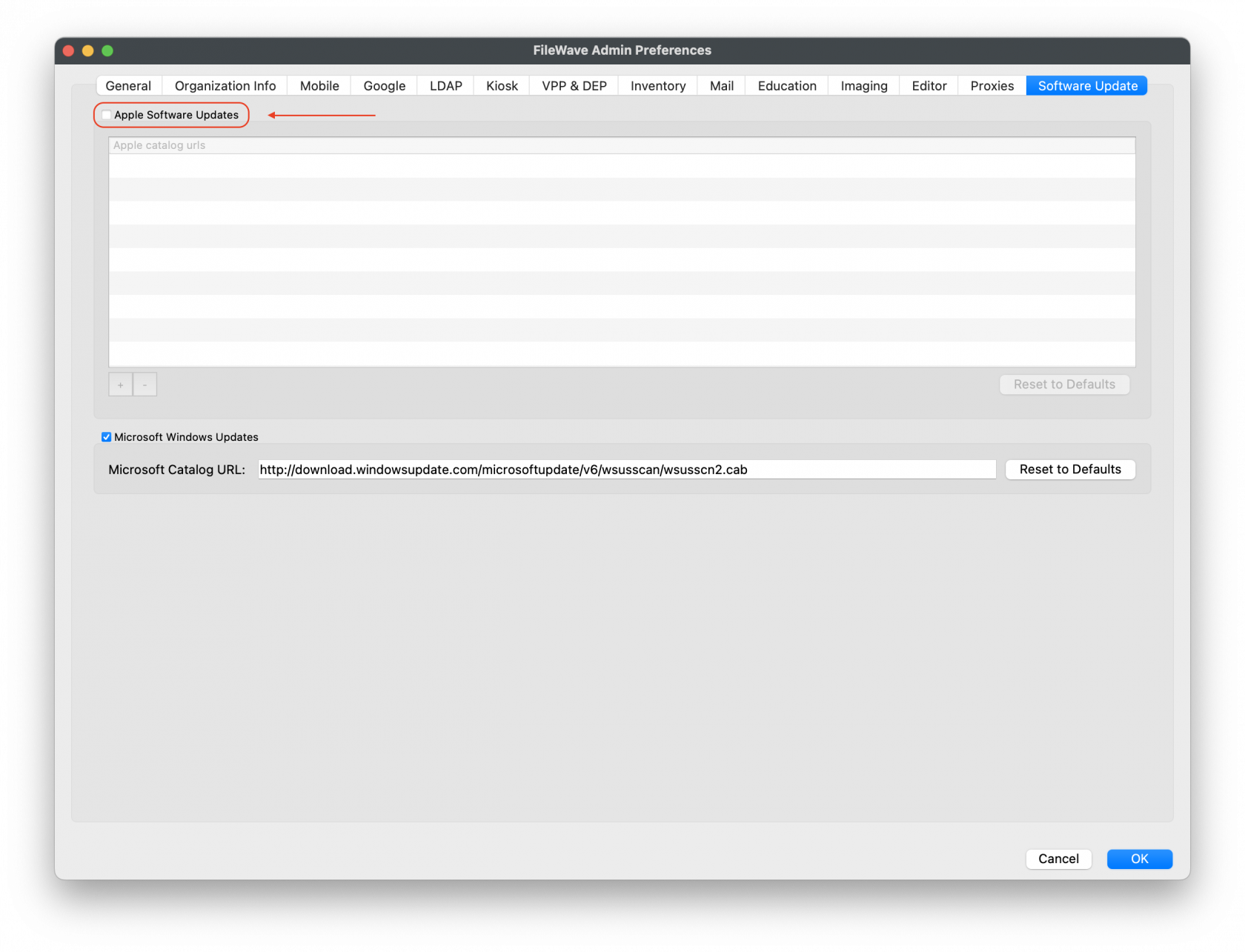
<p class="callout warning">Prior to macOS 11, Software Updates were pulled from Apple's catalogue (not MDM App Store) through FileWave. To achieve this, the client will overwrite the current Software Update plist whilst running and then revert the file once done. This will likely conflict with any Super process, causing Super to fail if the two occur at the same time. You can however get around this.</p>

There is a client setting that could be pushed with Superpref to disable non MDM updates, but easier still, if you disable Legacy Apple Software Updates entirely from the FileWave Central &gt; Preferences &gt; Software Updates tab. This will allow clients not request to attempt non-MDM checks anymore.[![SoftwareUpdatePreferences.png](https://kb.filewave.com/uploads/images/gallery/2023-07/scaled-1680-/ukGciRopzT2skFUh-softwareupdatepreferences.png)](https://kb.filewave.com/uploads/images/gallery/2023-07/ukGciRopzT2skFUh-softwareupdatepreferences.png)Worth noting, that every Model Update, Inventory, Verify, the fwcld client process overwrites this file, since it needs to report which updates are appropriate, so this isn't a case of they might only conflict if you have associated updates, this happens always if not disabled.

## How to Use S.U.P.E.R.M.A.N.?

The script must run with system (root) privileges, if you create the Fileset and add the `super` script, it will be run at system (root) privileges just as any other script created in FileWave Filesets.

[![Superman1](https://kb.filewave.com/uploads/images/gallery/2023-07/EIVvdPtnmxZBR3cf-screenshot-2023-07-19-at-16-25-05.png)](https://kb.filewave.com/uploads/images/gallery/2023-07/Uky5HyLzCidsQd5J-screenshot-2023-07-19-at-14-56-48.png)
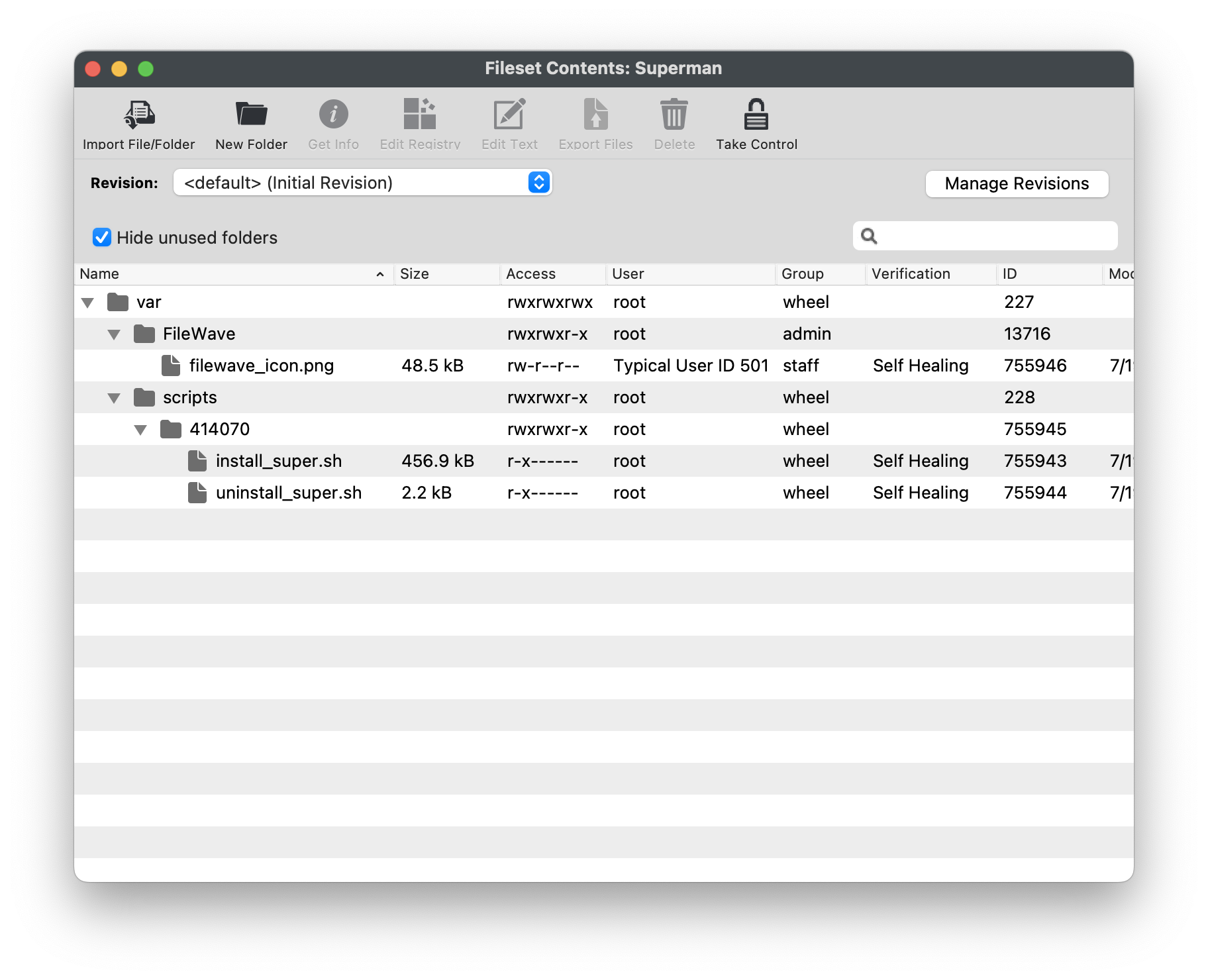
Above is the completed Fileset ready for deployment. You may also download and review the Fileset here:

[Superman.fileset.zip](https://kb.filewave.com/attachments/509)

<p class="callout success">For macOS 10.13 (Ventura) and above you should also deploy: [Profile - Superman Managed Login Item.fileset.zip](https://kb.filewave.com/attachments/217)</p>

The Fileset includes both an installation and uninstallation script. If you remove the Fileset from your devices, the uninstallation script will run, removing all content.

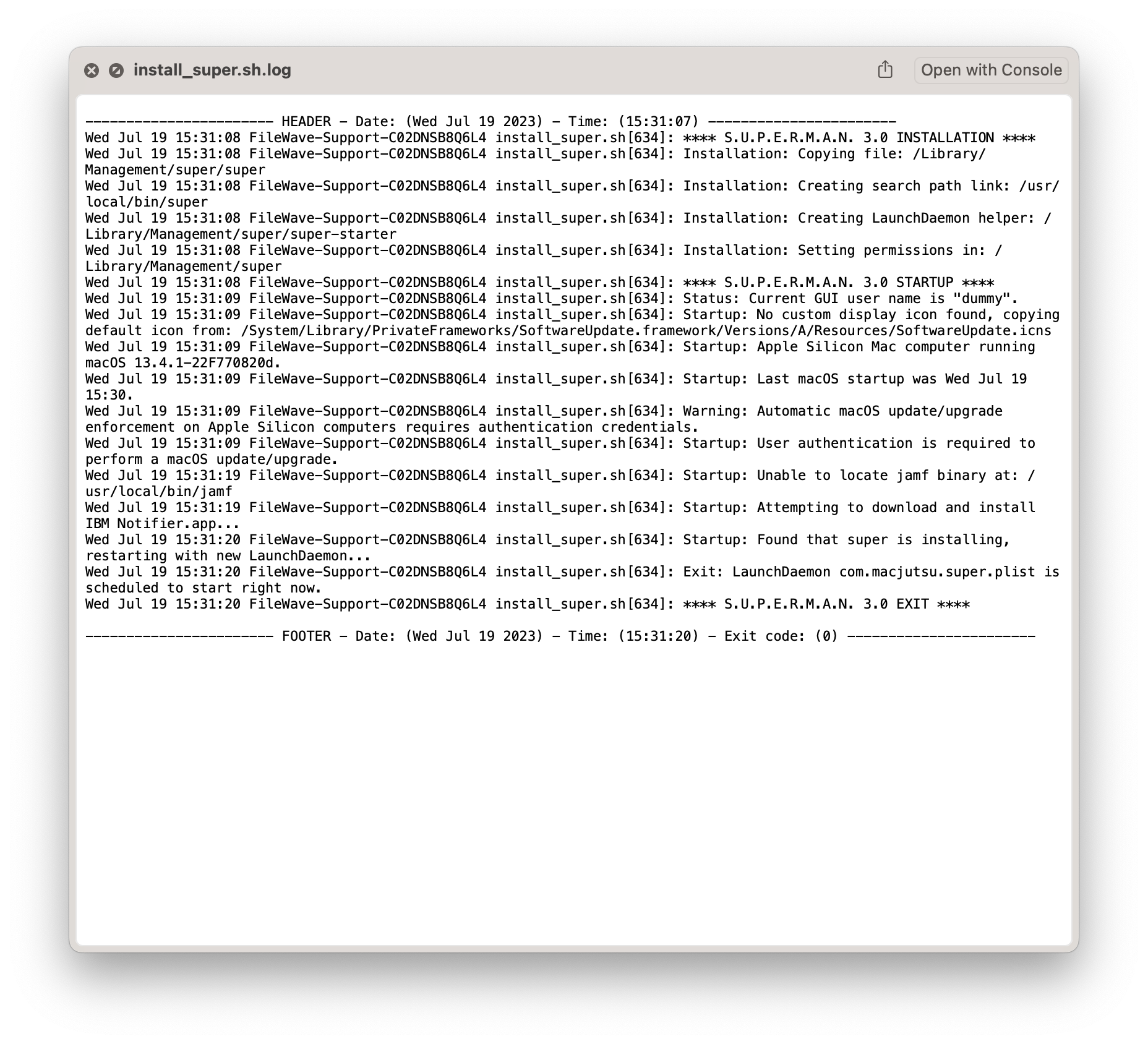
Deployment and installation will be run silently. You may review the log file to troubleshoot or confirm that the installation has been completed. The main `super` workflow log is the super.log. This log is located at /Library/Management/super/logs/super.log as set by the `$superLOG` script parameter. When run from the command line, `super` also outputs the content of the super.log in real time. Example log below:[![Superman2](https://kb.filewave.com/uploads/images/gallery/2023-07/scaled-1680-/Tg5ln333Ri3ar4Dc-screenshot-2023-07-19-at-3-45-27-pm.png)](https://kb.filewave.com/uploads/images/gallery/2023-07/Tg5ln333Ri3ar4Dc-screenshot-2023-07-19-at-3-45-27-pm.png)
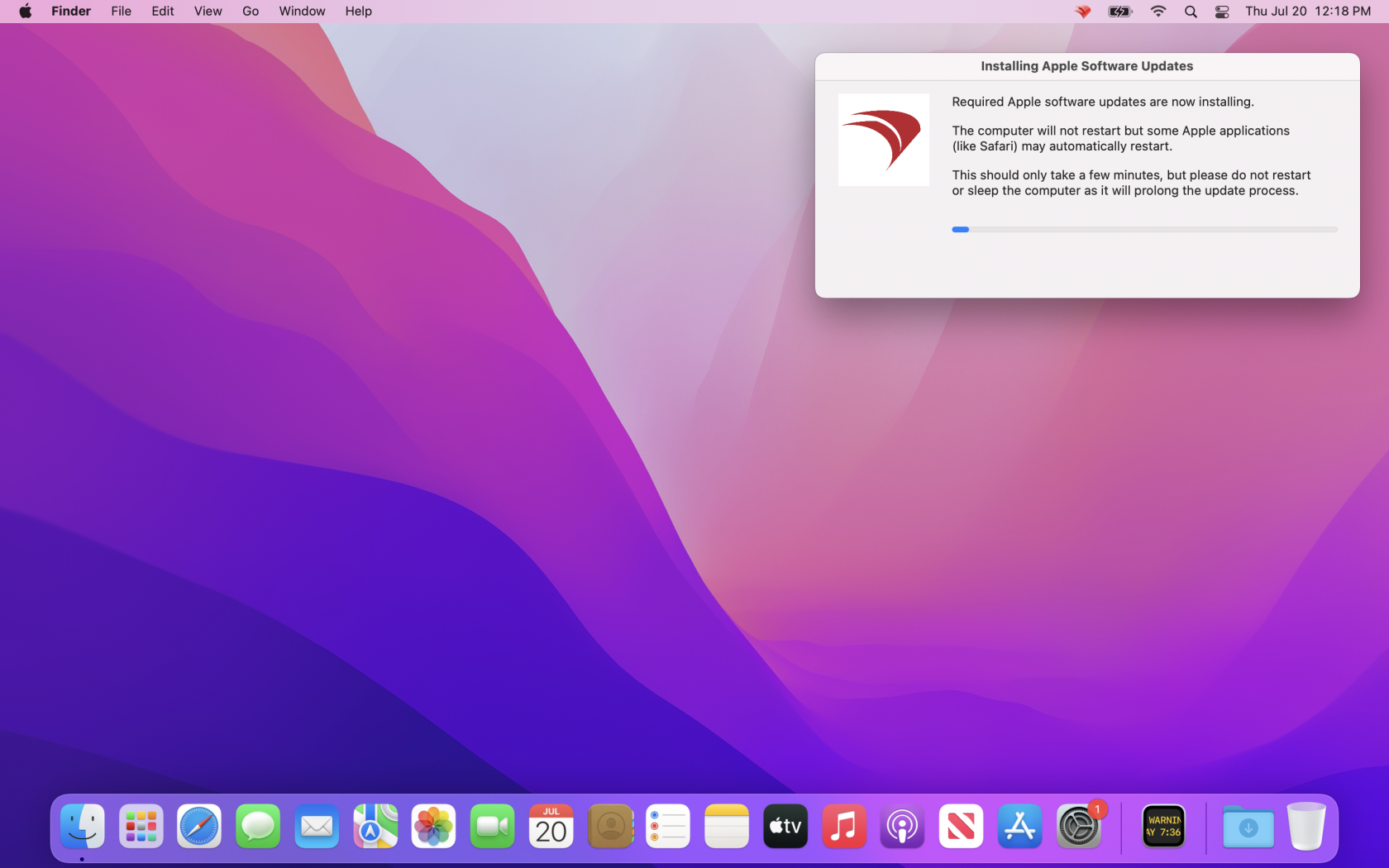
Once installed the end user will be prompted with your configured settings. Here is an example prompt with customized icon, and enforcing the non-system updates on a macOS Monterey device:  
  
[![Superman3](https://kb.filewave.com/uploads/images/gallery/2023-07/scaled-1680-/3GXMI6gy35k3jYX7-screen-shot-2023-07-20-at-12-18-00-pm.png)](https://kb.filewave.com/uploads/images/gallery/2023-07/3GXMI6gy35k3jYX7-screen-shot-2023-07-20-at-12-18-00-pm.png)
## New release of S.U.P.E.R.M.A.N.

With `super` version 3.0, the default dialogs and notifications are handled by [IBM Notifier.app version 2.9.1](https://github.com/IBM/mac-ibm-notifications/releases/tag/v-2.9.1-b-96) and macOS upgrade workflows leverage [`erase-install.sh` version 27.3](https://github.com/grahampugh/erase-install/releases/tag/v27.3). If either of these items are not found on the local system they are automatically installed by `super` via direct download from GitHub.

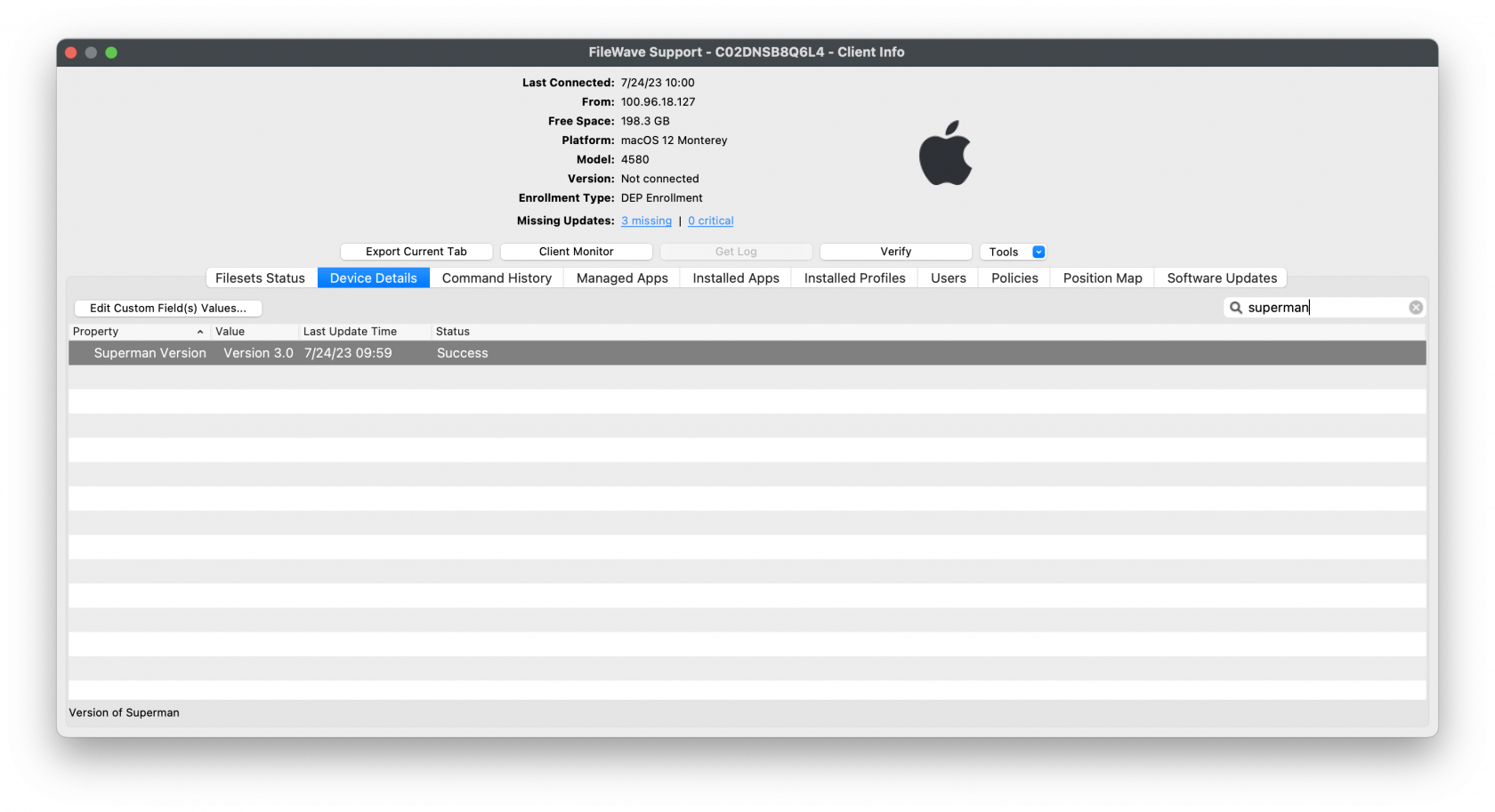
Staying up-to-date with the latest version of `super` can be managed with FileWave. Checking the version of `super`, use [Custom Fields](https://kb.filewave.com/books/custom-fields/page/custom-fields "Custom Fields") to check which version of `super` you have installed on your macOS devices. Below may you download, unzip and import the Custom Field for checking which version is installed:

[Superman customfield.zip](https://kb.filewave.com/attachments/209 "Superman customfield.zip")

[![Screenshot 2023-07-24 at 10.01.06.png](https://kb.filewave.com/uploads/images/gallery/2023-07/scaled-1680-/pCWkCAQg0NWRG0s8-screenshot-2023-07-24-at-10-01-06.png)](https://kb.filewave.com/uploads/images/gallery/2023-07/pCWkCAQg0NWRG0s8-screenshot-2023-07-24-at-10-01-06.png)
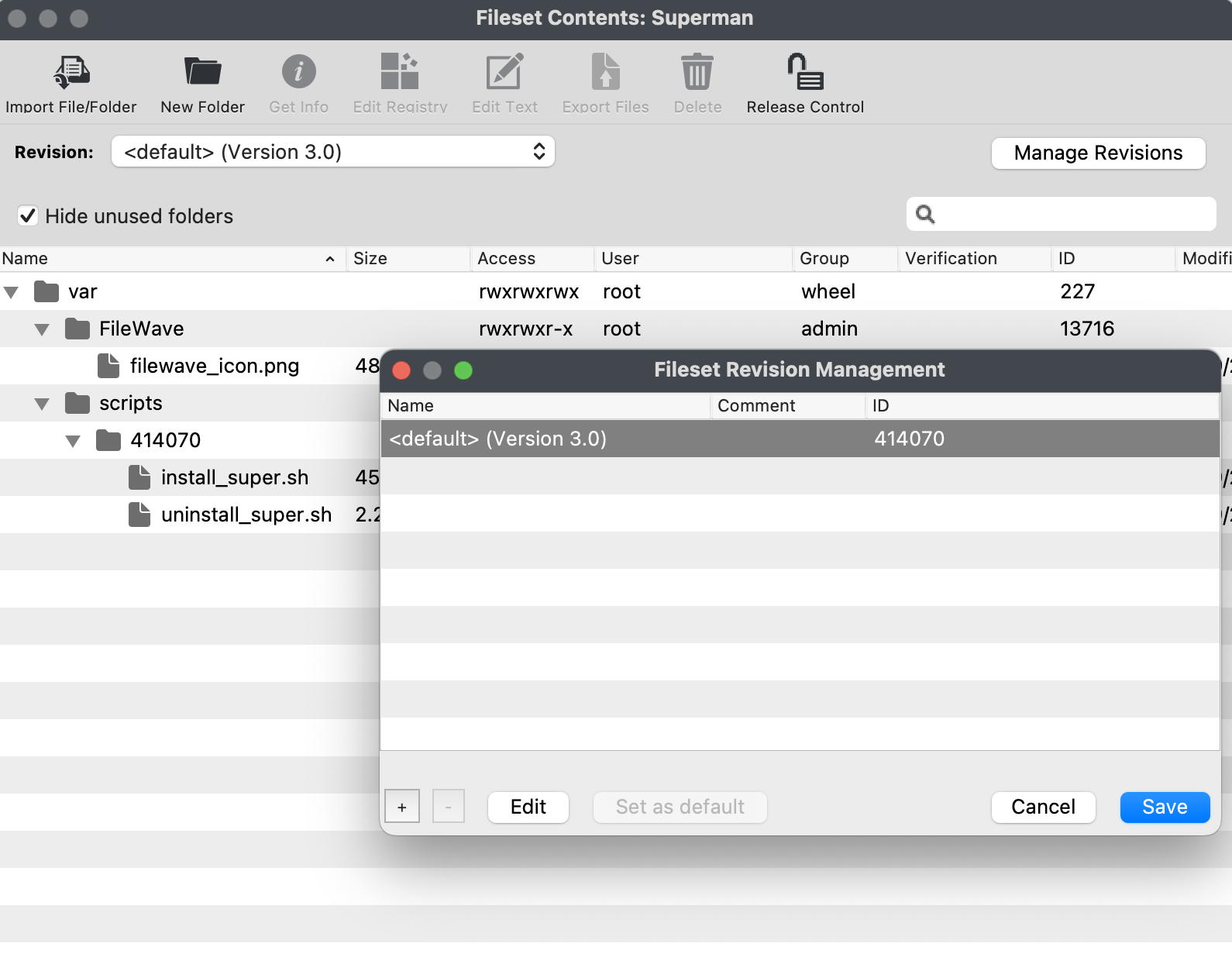
To update the Fileset and deploy the latest release of `super`, the use of [Fileset Revisions](https://kb.filewave.com/books/filesets-payloads/chapter/fileset-revisions "Fileset Revisions") works great for this Fileset.

- Highlight your `super` Fileset, then double-click to open its contents. Select Manage Revisions and create a new Fileset Revision and choose to duplicate everything.
- Replace the install\_super.sh with the newest version available from the web page: [Getting Started · Macjutsu/super Wiki · GitHub](https://github.com/Macjutsu/super/wiki/Getting-Started). Save and test deployment to a macOS device and use the custom field to verify latest version installed.

[![Screenshot 2023-07-24 at 10.15.24.png](https://kb.filewave.com/uploads/images/gallery/2023-07/scaled-1680-/AuOgBTSSrtCU9vpb-screenshot-2023-07-24-at-10-15-24.png)](https://kb.filewave.com/uploads/images/gallery/2023-07/AuOgBTSSrtCU9vpb-screenshot-2023-07-24-at-10-15-24.png)
## Customizing S.U.P.E.R.M.A.N.

There are many options to customize your deployment. Displaying your customized icon for your organization, or setting up deferral dates or the amount of deferrals before software update requirement.

<p class="callout success">When customizing the icon, be sure to copy your icon into a folder within the Fileset and specific the correct location path   
</p>

<details id="bkmrk-option-parameters-op"><summary>Option Parameters</summary>

<table id="bkmrk-option-parameter-des" style="border-collapse:collapse;width:111.975%;height:2106.73px;"><colgroup><col style="width:26.2044%;"></col><col style="width:35.4767%;"></col><col style="width:38.3189%;"></col></colgroup><tbody><tr style="background-color:rgb(251,238,184);height:29.7969px;"><td style="height:29.7969px;">  
</td><td class="align-center" style="height:29.7969px;">**Option parameter**</td><td class="align-center" style="height:29.7969px;">**Description**</td></tr><tr style="height:29.7969px;"><td style="height:29.7969px;">Allow macOS Upgrades</td><td style="height:29.7969px;">  
</td><td style="height:29.7969px;">  
</td></tr><tr style="height:113.781px;"><td style="height:113.781px;">  
</td><td style="height:113.781px;">--allow-upgrade or -M</td><td style="height:113.781px;">With this option enabled `super` leverages `erase-install.sh` to find compatible macOS upgrade versions. If a newer macOS upgrade is available then the `super` workflow attempts to download and install the upgrade.</td></tr><tr style="height:29.7969px;"><td style="height:29.7969px;">Target macOS Version</td><td style="height:29.7969px;">  
</td><td style="height:29.7969px;">  
</td></tr><tr style="height:113.781px;"><td style="height:113.781px;"></td><td style="height:113.781px;">--target-upgrade=12</td><td style="height:113.781px;">With this option enabled `super` does not select any major macOS upgrades newer than the targeted version. For example, if you specified `--target-upgrade=12` then the `super` workflow never attempts to install upgrades to macOS 13 or newer.</td></tr><tr style="height:35.3984px;"><td style="height:35.3984px;">Allow macOS RSR

</td><td style="height:35.3984px;">  
</td></tr><tr style="height:80.1953px;"><td style="height:80.1953px;">  
</td><td style="height:80.1953px;">--allow-rsr-updates or -R</td><td style="height:80.1953px;">If this option is enable then the `super` workflow appears to the user as a normal macOS update.

</td></tr><tr style="height:46.5938px;"><td style="height:46.5938px;">Enforce non-System Updates</td><td style="height:46.5938px;">  
</td><td style="height:46.5938px;"></td></tr><tr style="height:80.1953px;"><td style="height:80.1953px;">  
</td><td style="height:80.1953px;">--enforce-non-system-updates or -N</td><td style="height:80.1953px;">With this option enabled, if non-system Apple software updates are found, they are immediately downloaded and installed.

</td></tr><tr style="height:35.3984px;"><td style="height:35.3984px;">Skip All Updates</td><td style="height:35.3984px;">  
</td><td style="height:35.3984px;"></td></tr><tr style="height:80.1953px;"><td style="height:80.1953px;">  
</td><td style="height:80.1953px;">--skip-updates or -S</td><td style="height:80.1953px;">Skip checking for, downloading, or installing any Apple software updates or upgrades, even if they are available.

</td></tr><tr style="height:29.7969px;"><td style="height:29.7969px;">Display Customization</td><td style="height:29.7969px;">  
</td><td style="height:29.7969px;">  
</td></tr><tr style="height:80.1875px;"><td style="height:80.1875px;">  
</td><td style="height:80.1875px;">--display-icon=/path/icon.png</td><td style="height:80.1875px;">Location of the icon image, if the local path contains any special characters or spaces then you should surround the text with single `'` quotes.</td></tr><tr style="height:29.7969px;"><td style="height:29.7969px;">Deferral Behavior</td><td style="height:29.7969px;">  
</td><td class="align-left" style="height:29.7969px;">  
</td></tr><tr style="height:80.1875px;"><td style="height:80.1875px;">  
</td><td style="height:80.1875px;">--focus-defer=7200</td><td style="height:80.1875px;">The number of seconds to defer automatically if the system is in user-enabled Focus/Do Not Disturb or when a process has requested that the display not go to sleep </td></tr><tr style="height:63.3906px;"><td style="height:63.3906px;">  
</td><td style="height:63.3906px;">--menu-defer=300,1800,3600,7200</td><td style="height:63.3906px;">Display a deferral time pop-up menu in the non-deadline update restart dialog that allows the user to override the default</td></tr><tr style="height:46.5938px;"><td style="height:46.5938px;">  
</td><td style="height:46.5938px;">--Error-defer=7200</td><td style="height:46.5938px;">The number of seconds to defer if `super` detects an error in the workflow </td></tr><tr style="height:96.9844px;"><td style="height:96.9844px;">  
</td><td style="height:96.9844px;">--recheck-defer=86400</td><td style="height:96.9844px;">The number of seconds to defer if no software updates are available or allowed. Enabling this option results in `super` acting as a permanent agent that checks for software updates on a regular basis.</td></tr><tr style="height:29.7969px;"><td style="height:29.7969px;">  
</td><td style="height:29.7969px;">--delete-deferrals</td><td style="height:29.7969px;">This option can not be set via a MDM configuration profile. However, any other deferral options that are specified via a `super` MDM configuration profile remain in effect.</td></tr><tr style="height:29.7969px;"><td style="height:29.7969px;">Deferral Count Deadlines</td><td style="height:29.7969px;">  
</td><td style="height:29.7969px;">  
</td></tr><tr style="height:80.1875px;"><td style="height:80.1875px;">  
</td><td style="height:80.1875px;">--focus-count=5</td><td style="height:80.1875px;">The maximum number of automatic deferrals allowed if the system is in user-enabled Focus/Do Not Disturb or when a process has requested that the display not go to sleep</td></tr><tr style="height:63.3906px;"><td style="height:63.3906px;">  
</td><td style="height:63.3906px;">--soft-count=5</td><td style="height:63.3906px;">The maximum number of user selected deferrals allowed before showing a soft deadline dialog</td></tr><tr style="height:80.1875px;"><td style="height:80.1875px;">  
</td><td style="height:80.1875px;">--hard-count=5</td><td style="height:80.1875px;">The maximum number of user selected deferrals allowed before the computer automatically restarts for updates without asking the user for approval</td></tr><tr style="height:29.7969px;"><td style="height:29.7969px;">Deferral Days Deadlines</td><td style="height:29.7969px;">  
</td><td style="height:29.7969px;">  
</td></tr><tr style="height:96.9844px;"><td style="height:96.9844px;">  
</td><td style="height:96.9844px;">--focus-days=3</td><td style="height:96.9844px;">The maximum number of days that automatic deferrals are allowed if the system is in user-enabled Focus/Do Not Disturb or when a process has requested that the display not go to sleep</td></tr><tr style="height:46.5938px;"><td style="height:46.5938px;">  
</td><td style="height:46.5938px;">--soft-days=5</td><td style="height:46.5938px;">The maximum number of deferral days allowed before showing a soft deadline dialog.</td></tr><tr style="height:63.3906px;"><td style="height:63.3906px;">  
</td><td style="height:63.3906px;">--hard-days=7</td><td style="height:63.3906px;">The maximum number of days allowed before before the computer automatically restarts for updates without asking the user for approval.</td></tr><tr style="height:80.1875px;"><td style="height:80.1875px;">  
</td><td style="height:80.1875px;">--zero-day=2022-09-01:12:00</td><td style="height:80.1875px;">Instead of having the days deadline counter automatically select the day zero date, this option sets a specific date and time as day zero.</td></tr><tr style="height:29.7969px;"><td style="height:29.7969px;">Deferral Date Deadlines</td><td style="height:29.7969px;">  
</td><td style="height:29.7969px;">  
</td></tr><tr style="height:96.9844px;"><td style="height:96.9844px;">  
</td><td style="height:96.9844px;">--focus-date=2022-09-03:12:00</td><td style="height:96.9844px;">The last date and time when automatic deferrals are allowed if the system is in user-enabled Focus/Do Not Disturb or when a process has requested that the display not go to sleep</td></tr><tr style="height:46.5938px;"><td style="height:46.5938px;">  
</td><td style="height:46.5938px;">--soft-date=2022-09-05:12:00</td><td style="height:46.5938px;">The last date and time before showing a soft deadline dialog.</td></tr><tr style="height:63.3906px;"><td style="height:63.3906px;">  
</td><td style="height:63.3906px;">--hard-date=2022-09-07:12:00</td><td style="height:63.3906px;">If this date and time have passed the computer automatically restarts for updates without asking the user for approval.</td></tr><tr style="height:29.7969px;"><td style="height:29.7969px;">Apple Silicon Local Credentials</td><td style="height:29.7969px;">  
</td><td style="height:29.7969px;">  
</td></tr><tr style="height:108.188px;"><td style="height:108.188px;">  
</td><td style="height:108.188px;">\--local-account='labadmin' --local-password='ThisIs@Test'

</td><td style="height:108.188px;">An existing local (standard or admin) user account name and password with [volume ownership privileges](https://support.apple.com/guide/deployment/use-secure-and-bootstrap-tokens-dep24dbdcf9e) that can be used to authenticate the local `softwareupdate` command.</td></tr></tbody></table>

</details>##### MDM Configuration Profile

If there are specific `super` options you plan to set "permanently" then you should consider deploying these settings via a MDM configuration profile. In addition to over-the-air deployment, using a MDM configuration profile also allows you to enforce your options. In other words, if a specific `super` option is deployed via a MDM configuration profile then it cannot be ignored or changed via local command options.

The MDM configuration profile specification allows for custom settings deployed via application specific preference domains. In the case of `super`, the preference domain is `com.macjutsu.super`.

[![ExampleMobileConfigProfile.png](https://kb.filewave.com/uploads/images/gallery/2026-05/scaled-1680-/JnXvtwQnyMaXGj69-examplemobileconfigprofile.png)](https://kb.filewave.com/uploads/images/gallery/2026-05/JnXvtwQnyMaXGj69-examplemobileconfigprofile.png)

<p class="callout warning">Please note: Do not deploy the example .mobileconfig file, as this is an example for all options and contains conflicts with other settings that can cause errors if deployed as is.</p>

Example options for the .mobileconfig listed below.

<details id="bkmrk-example-.mobileconfi"><summary>Example .mobileconfig</summary>

```
<?xml version="1.0" encoding="UTF-8"?>

<plist version="1">
  <dict>
    <key>PayloadUUID</key>
    <string>D819E6B3-72BA-4202-874D-FE7C6783C984</string>
    <key>PayloadType</key>
    <string>Configuration</string>
    <key>PayloadOrganization</key>
    <string>Macjutsu</string>
    <key>PayloadIdentifier</key>
    <string>D819E6B3-72BA-4202-874D-FE7C6783C984</string>
    <key>PayloadDisplayName</key>
    <string>S.U.P.E.R.M.A.N. All Settings Example</string>
    <key>PayloadDescription</key>
    <string>This is an example of all possible super managed preferences. DO NOT DEPLOY. THIS EXAMPLE CONTAINS CONFLICTING SETTINGS THAT WILL CAUSE ERRORS IF DEPLOYED.</string>
    <key>PayloadVersion</key>
    <integer>1</integer>
    <key>PayloadEnabled</key>
    <true/>
    <key>PayloadRemovalDisallowed</key>
    <true/>
    <key>PayloadScope</key>
    <string>System</string>
    <key>PayloadContent</key>
    <array>
      <dict>
        <key>PayloadDisplayName</key>
        <string>Custom Settings</string>
        <key>PayloadIdentifier</key>
        <string>22539B64-64B4-4973-AA52-B6B105B4C014</string>
        <key>PayloadOrganization</key>
        <string>Software</string>
        <key>PayloadType</key>
        <string>com.apple.ManagedClient.preferences</string>
        <key>PayloadUUID</key>
        <string>22539B64-64B4-4973-AA52-B6B105B4C014</string>
        <key>PayloadVersion</key>
        <integer>1</integer>
        <key>PayloadContent</key>
        <dict>
          <key>com.macjutsu.super</key>
          <dict>
            <key>Forced</key>
            <array>
              <dict>
                <key>mcx_preference_settings</key>
                <dict>
                  <key>AllowRSRUpdates</key>
                  <true/>
                  <key>AllowUpgrade</key>
                  <true/>
                  <key>BatteryLevel</key>
                  <string>50</string>
                  <key>BatteryTimeout</key>
                  <string>3600</string>
                  <key>DefaultDefer</key>
                  <string>120</string>
                  <key>DeferDialogTimeout</key>
                  <string>60</string>
                  <key>DisplayAccessoryDefault</key>
                  <string>https://raw.githubusercontent.com/Macjutsu/super/main/Super-Friends/Display-Accessory-Example.html</string>
                  <key>DisplayAccessoryType</key>
                  <string>HTML</string>
                  <key>DisplayAccessoryUpdate</key>
                  <string>https://raw.githubusercontent.com/Macjutsu/super/main/Super-Friends/Display-Accessory-Example.html</string>
                  <key>DisplayAccessoryUpgrade</key>
                  <string>https://raw.githubusercontent.com/Macjutsu/super/main/Super-Friends/Display-Accessory-Example.html</string>
                  <key>DisplayAccessoryUserAuth</key>
                  <string>https://raw.githubusercontent.com/Macjutsu/super/main/Super-Friends/Display-Accessory-Example.html</string>
                  <key>DisplayIcon</key>
                  <string>/System/Library/CoreServices/CoreTypes.bundle/Contents/Resources/BurningIcon.icns</string>
                  <key>DisplayRedraw</key>
                  <string>20</string>
                  <key>DisplaySilently</key>
                  <false/>
                  <key>EnforceNonSystemUpdates</key>
                  <true/>
                  <key>ErrorDefer</key>
                  <string>120</string>
                  <key>FocusCount</key>
                  <string>5</string>
                  <key>FocusDate</key>
                  <string>2022-07-01</string>
                  <key>FocusDays</key>
                  <string>2</string>
                  <key>FocusDefer</key>
                  <string>120</string>
                  <key>FreeSpaceTimeout</key>
                  <string>3600</string>
                  <key>FreeSpaceUpdate</key>
                  <string>15</string>
                  <key>FreeSpaceUpgrade</key>
                  <string>35</string>
                  <key>HardCount</key>
                  <string>5</string>
                  <key>HardDate</key>
                  <string>2022-07-03:03:03</string>
                  <key>HardDays</key>
                  <string>6</string>
                  <key>HelpButton</key>
                  <string>https://support.apple.com/en-us/HT201541</string>
                  <key>IconSizeIbm</key>
                  <string>128</string>
                  <key>IconSizeJamf</key>
                  <string>128</string>
                  <key>InstallNow</key>
                  <true/>
                  <key>JamfProID</key>
                  <string>$JSSID</string>
                  <key>MenuDefer</key>
                  <string>120,200,300</string>
                  <key>OnlyDownload</key>
                  <true/>
                  <key>PolicyTriggers</key>
                  <string>trigger1,trigger2</string>
                  <key>PreferJamfHelper</key>
                  <false/>
                  <key>RecheckDefer</key>
                  <string>120</string>
                  <key>RestartWithoutUpdates</key>
                  <true/>
                  <key>SkipUpdates</key>
                  <true/>
                  <key>SoftCount</key>
                  <string>5</string>
                  <key>SoftDate</key>
                  <string>2022-07-02:02</string>
                  <key>SoftDays</key>
                  <string>4</string>
                  <key>SoftDialogTimeout</key>
                  <string>60</string>
                  <key>TargetUpgrade</key>
                  <string>12</string>
                  <key>TestMode</key>
                  <true/>
                  <key>TestModeTimeout</key>
                  <string>60</string>
                  <key>UserAuthMDMFailover</key>
                  <string>HARD,INSTALLNOW,BOOTSTRAP</string>
                  <key>UserAuthTimeout</key>
                  <string>600</string>
                  <key>VerboseMode</key>
                  <true/>
                  <key>WarningButton</key>
                  <string>https://support.apple.com/en-us/HT201222</string>
                  <key>ZeroDay</key>
                  <string>2022-07-01</string>
                </dict>
              </dict>
            </array>
          </dict>
        </dict>
      </dict>
    </array>
  </dict>
</plist>
```

</details>## Uninstalling S.U.P.E.R.M.A.N.

The [Super-Friends folder contains a `Remove-Super.sh` script](https://github.com/Macjutsu/super/blob/main/Super-Friends/Remove-super.sh) that deletes all `super` related items except for the `erase-install.sh` items used to facilitate macOS upgrade workflows.

However, if `erase-isntall.sh` was used as part of a macOS upgrade workflow it too can be easily removed by deleting the contents of the /Library/Management/erase-install/ folder.

The script has been included in the Fileset on this KB article as well so you can have it executed simply by removing the Association of the Fileset to your devices. If you don't want that behavior then simply remove the script from the Fileset.

## Related Content

- [Home · Macjutsu/super Wiki (github.com)](https://github.com/Macjutsu/super/wiki)
- [Getting Started · Macjutsu/super Wiki · GitHub](https://github.com/Macjutsu/super/wiki/Getting-Started)
- [MDM profile example - Macjutsu/super Wiki](https://github.com/Macjutsu/super/blob/main/Example-MDM/All-Options-Example-DO-NOT-DEPLOY-com.macjutsu.super.mobileconfig)

# Software Updates in the age of macOS MDM (Big Sur v11.0+ / iOS 15+)

## What

For many years now, FileWave has leveraged the Software Update tool on macOS devices to evaluate and to deploy software updates. With the release of macOS 11 (Big Sur) this behavior has changed somewhat.

## When/Why

We'll still want to deploy software updates, and from a FileWave admin perspective, the process for assigning the updates has not changed, but the mechanism that delivers those updates behind the scenes has changed. From Big Sur onwards, all Software Updates will be delivered through MDM commands only. So, the "How" of assigning updates has not changed, but the method of deployment has.

Here are some important items to note regarding this change:

<div id="bkmrk-this-requires-all-bi"><div class="highlighter-context page view" id="bkmrk-this-requires-all-bi-1"><div class="_1bsb1osq _19pkidpf _2hwx1wug _otyridpf _18u01wug"><div><div class="wiki-content css-q12xh8 e5xcnr80" id="bkmrk-this-requires-all-bi-2"><div class="renderer-overrides"><div class="ak-renderer-wrapper css-2c6ch1"><div class="css-hf2qag"><div class="ak-renderer-document">- This requires all Big Sur+ devices to be MDM enrolled to enable delivery of Software Updates
- The updates are handled more like iOS updates were already handled...i.e. the device is notified to update, and the device itself gathers the update from Apple
    
    
    - The result of the above is that Apple caching servers become even more important to have in your environment
    - The delivery method being changed to MDM eliminates FileWave boosters from caching these updates
- This change also means that restriction profiles that defer Software Updates for up to 90 days are also pertinent now for macOS

</div></div></div></div></div><div class="css-xhsrai e3p9ckn0" id="bkmrk-"></div></div></div></div></div><div class="_19pkys9h _2hwx1wug _otyr1ylp _18u01wug _1bsb1osq _p12fn7od" id="bkmrk--1"></div>## How

We'll still want to deploy software updates, and from a FileWave admin perspective, the process for assigning the updates has not changed, but the mechanism that delivers those updates behind the scenes has changed. From Big Sur onwards, all Software Updates will be delivered through MDM commands only. So, the "How" of assigning updates has not changed, but the method of deployment has.

Here are some important items to note regarding this change:

- This requires all Big Sur+ devices to be MDM enrolled to enable delivery of Software Updates
- The updates are handled more like iOS updates were already handled...i.e. the device is notified to update, and the device itself gathers the update from Apple
    
    
    - The result of the above is that Apple caching servers become even more important to have in your environment
    - The delivery method being changed to MDM eliminates FileWave boosters from caching these updates
- This change also means that restriction profiles that defer Software Updates for up to 90 days are also pertinent now for macOS

macOS 12 devices now report the right information to properly use the Apple Software Update Lookup Service. Specifically, the ProductVersion key is now supported for macOS (allows definition of update version to install) and FileWave will be sending 2 InstallSoftware commands as per Apple's direction in order to make software updates happen in a more timely fashion.

Starting with iOS 15, it will be possible to stay on the previous version (today, iOS 14) and still get minor updates. A new Settings command allows to define if the end-user will be presented the most recent update (iOS 15), the oldest (iOS 14.x), or both options as seen below in the updated Command Policy profile.

![software-update-settings.png](https://kb.filewave.com/uploads/images/gallery/2023-06/aSWKsYt9XWNmillN-software-update-settings.png)

## Related Content

- [Apple Software Updates - macOS](https://kb.filewave.com/books/software-updates-apple "Software Updates (Apple)")
- [Software Updates: Deploying to Groups](https://kb.filewave.com/books/filewave-anywhere-help-menus/page/software-updates-deploying-to-groups)