Deferral only affects what the user sees in Software Update. If you also need to stop users from launching full macOS installer apps, use [Fileset to block Apple Install macOS applications](https://kb.filewave.com/books/software-updates-apple/page/fileset-to-block-apple-install-macos-applications).
## How Create or edit an Apple configuration profile and add the **Restrictions** payload for the platform you manage. Searching for **defer** in the Profile Editor is the quickest way to jump to the relevant settings. ### iOS/iPadOS Enable **Defer software updates for** and choose a value from 1 to 90 days. [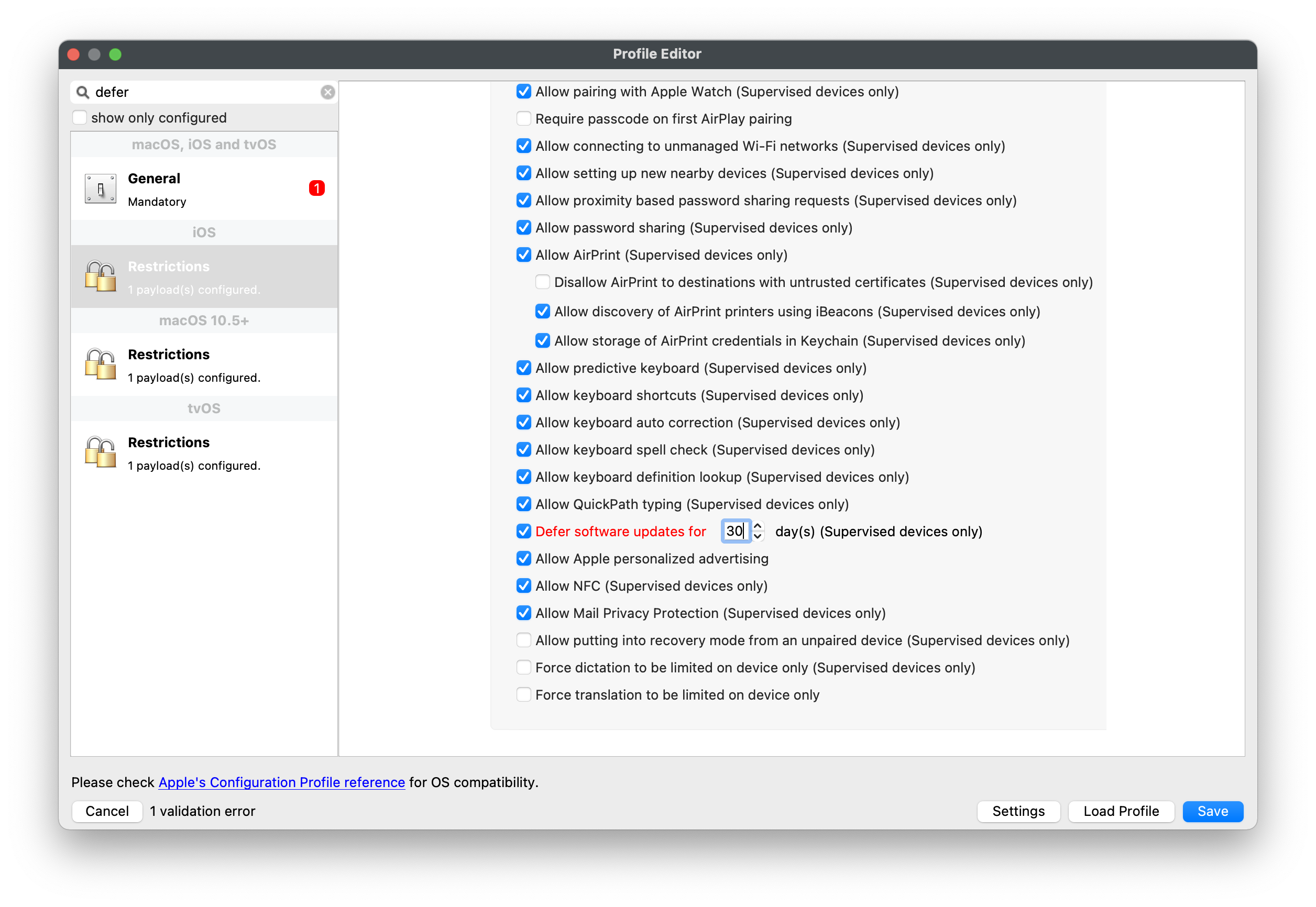](https://kb.filewave.com/uploads/images/gallery/2023-07/It3olJSi91lsdzdL-image.png) ### macOS Current macOS payloads let you defer different update types separately: - **Defer major macOS updates for** to delay major upgrades. - **Defer macOS updates for** to delay minor OS updates. - **Defer app updates for** to delay non-OS software updates. For macOS versions earlier than 11.3, the **Defer macOS updates** value is used for all software updates. [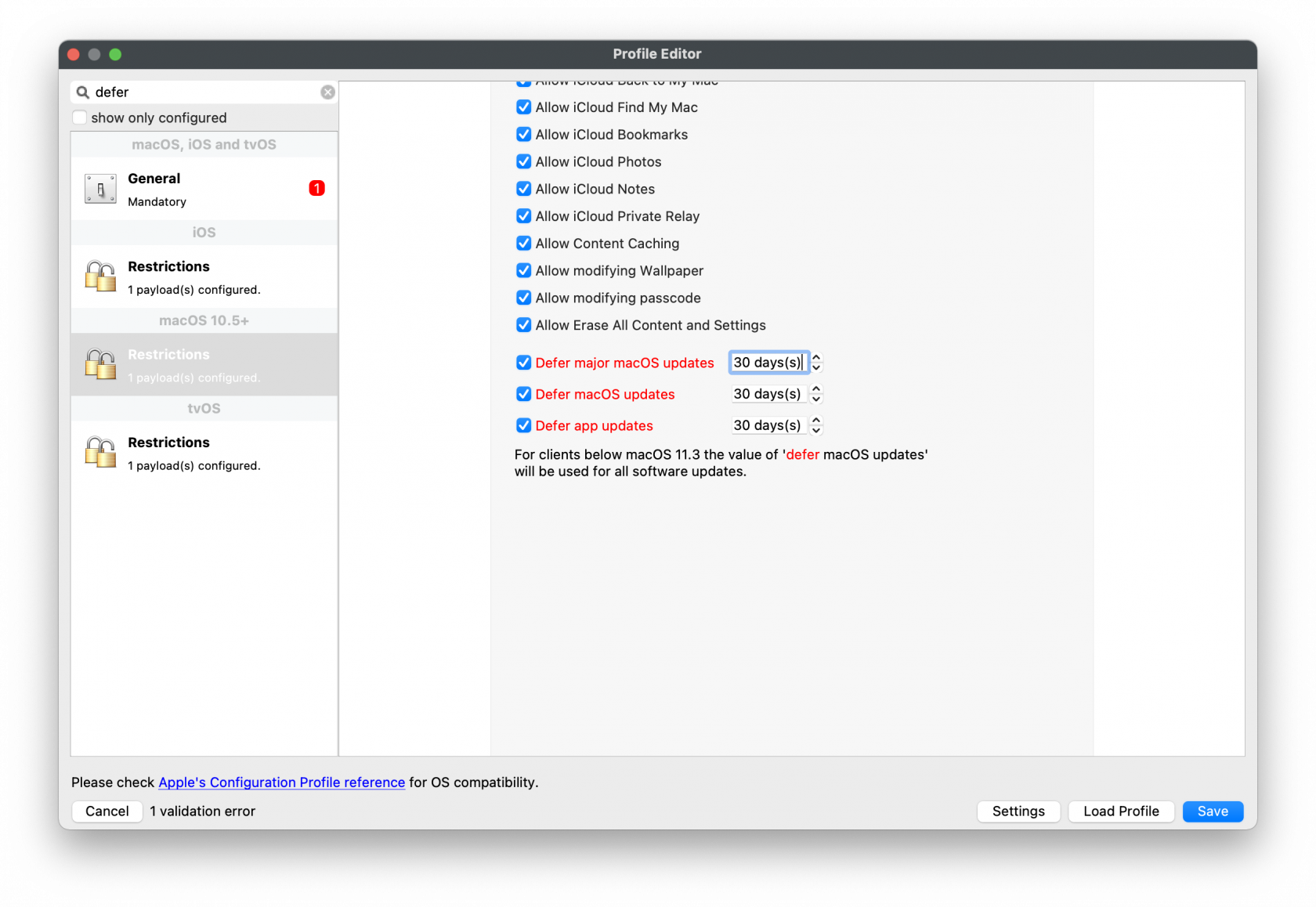](https://kb.filewave.com/uploads/images/gallery/2023-07/s2wv0qVv1Qo4aQlR-image.png) ### tvOS Enable **Defer software updates for** and choose the delay in days. [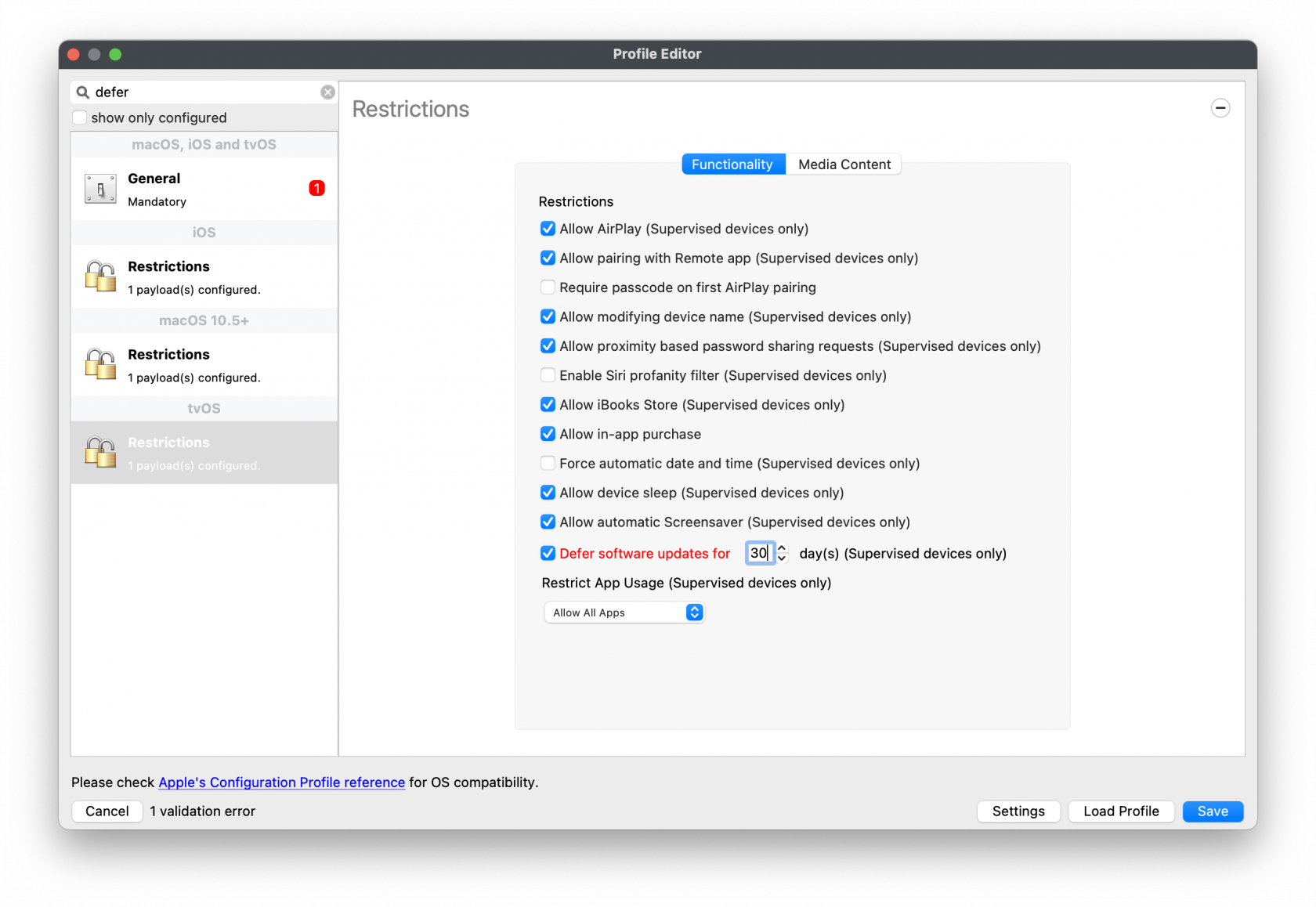](https://kb.filewave.com/uploads/images/gallery/2023-07/SK55rHPQar5olDK6-image.png)A shorter initial defer period is usually easier to manage than jumping straight to 90 days. If testing slips, you can extend the delay without starting every profile at the maximum.
While an update is still inside its defer window, local tools such as System Settings / System Preferences and the `softwareupdate` command will not offer that update. MDM remains the supported way to install it during the deferral period.
## Digging Deeper The defer timer starts on Apple's release date for each individual update, not on the day you assign the profile. - **Update 1** is released on June 5. - With a 10-day defer window, users will not see **Update 1** until June 15. - **Update 2** is released on June 12. - With the same defer window, users will not see **Update 2** until June 22. - MDM can still push **Update 1** from June 5 onward, regardless of the defer period. - MDM can still push **Update 2** from June 12 onward, regardless of the defer period. ### Example Process With a 60-day defer policy, users will not see an update until day 60 after Apple publishes it. If Apple releases newer updates before that date, users may still see none of them until each one ages past its own defer window. FileWave can still send an MDM install command during the deferral period. That lets IT test and roll out a specific release before it becomes user-visible. Once the defer window expires, the update becomes visible to the user again. Deferral buys time for testing; it does not permanently hide updates.