Automated Windows OS Updates Policy
What
There may be Windows OS updates that you want to simply apply without needing to create a Fileset or manage in FileWave. This new option will allow you to set it and forget it. FileWave 16.2.0 introduces a new concept to simplify Windows OS patching.
When/Why
If you have a very lightly managed environment or have certain updates that you always want to have applied then this option may be for you.
How
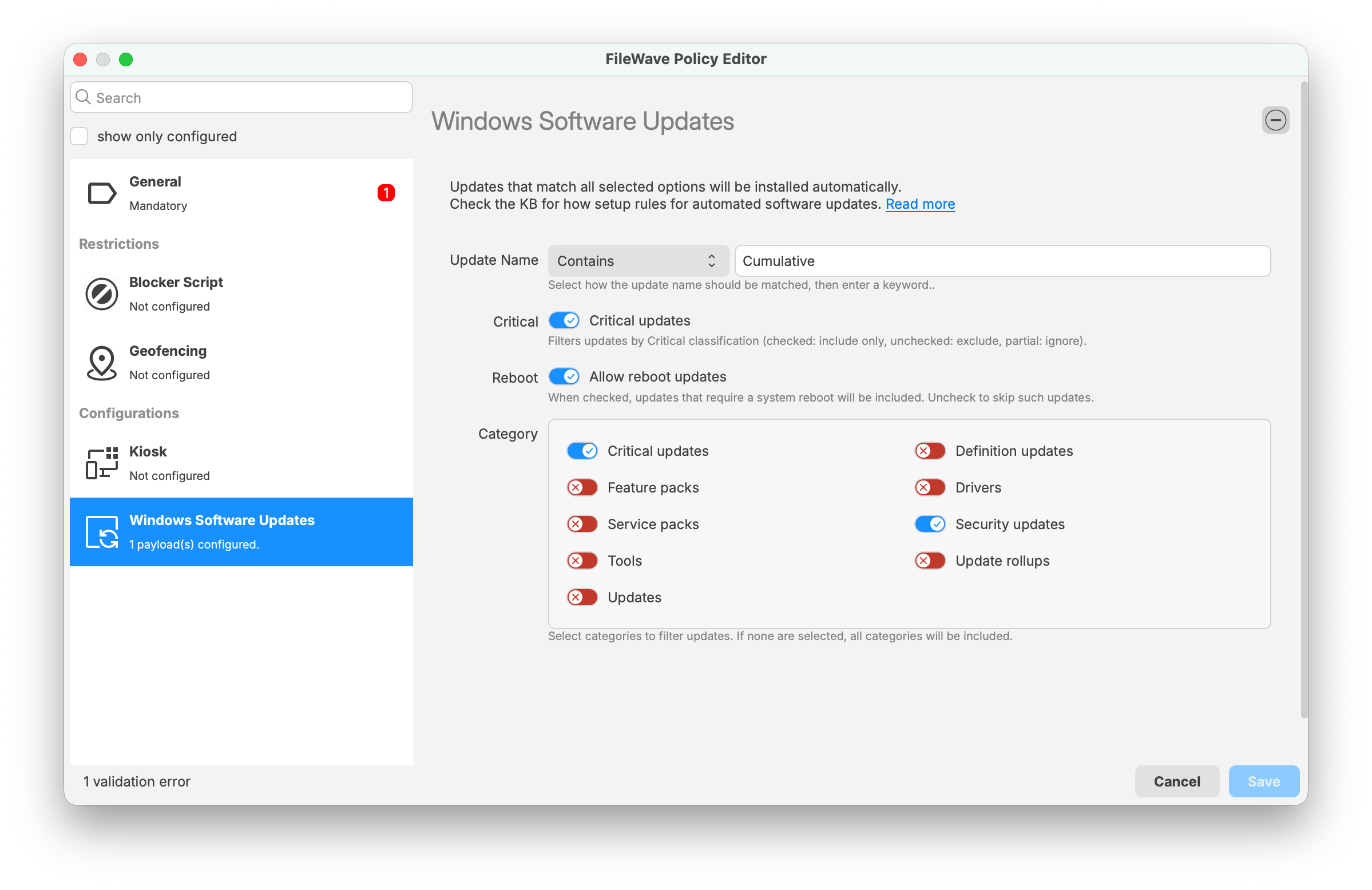
When you create a new Fileset in FileWave 16.2.0 or higher you can pick General -> Policy to create a FileWave Policy. In the below image you can see the options for the Windows Software Updates component of FileWave Policy. This type of Fileset can also be used for customizing the Kiosk appearance, Geofencing for Android, and Blocker Scripts.
You will give the Policy a name on the General section and then go to the Windows Software Updates section and set the rules. Anything that matches will apply.
- Update Name - Here you may want to use "Contains" as the rule if you are looking for a certain name but you can leave this blank if you are just setting the type of update with the switches. Note that the text is localized so if in your language it would be a different word then use what you usually see in Windows Updates.
- Critical - Any update marked by Microsoft as Critical. If enabled then they will be considered.
- Reboot - Any update marked as requiring a reboot. If you do not want reboot updates to be pushed automatically then do not enable this, but know that many Microsoft updates require a reboot.
- Category - Enabled Categories will be considered.
When setting this up consider the example below. For any update where "Cumulative" is in the name, the update MUST be Critical, the update may or may not reboot, and the update is ONLY an update of the two categories; Critical updates OR Security updates.
Starting in FileWave 16.3, updates deployed through this Windows Software Update Policy are labeled Triggered by Policy in the Software Update status view in FileWave Central and FileWave Anywhere, and that status is also recorded in inventory.
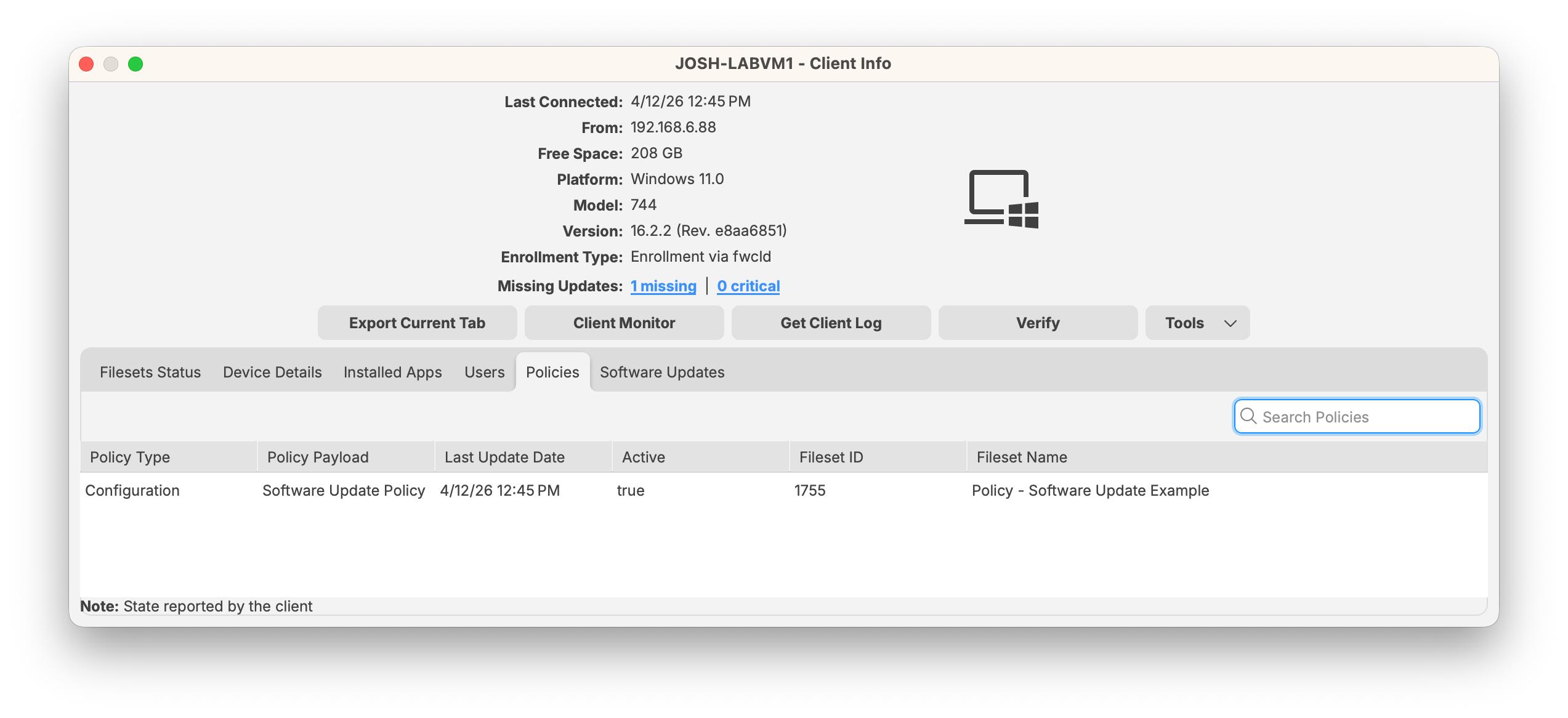
You can also confirm that the policy itself is active on the device in Client Info > Policies, as shown below.
You can also deploy updates with finer control by following the guidance in Best Practice Guide: Software Update Deployment (16.0+)