Prepare Android EMM Devices for TeamViewer Remote Support
What to deploy
TeamViewer remote support for an Android EMM device requires the current FileWave Companion app, TeamViewer QuickSupport, and the TeamViewer add-on that matches the device model.
Technician and device requirements
Install TeamViewer on each licensed support technician's workstation using the current Windows download or macOS download. TeamViewer licensing is assigned to support technicians, not to every managed device or end user.
On each Android device, verify that the FileWave Companion app can report to the server, then deploy QuickSupport and the correct add-on. For the attended user prompts after setup, see TeamViewer Android EMM Remote Session Behavior.
| Component | Install? | Notes |
| Android EMM Companion App (FW Client App) | * Yes | Auto-deployed |
| TeamViewer QuickSupport App (Google Play Store) | * Yes | Details, which can be deployed as a FileWave Fileset: Play Store App - TeamViewer QuickSupport.fileset.zip |
| TeamViewer Add-On (Google Play Store) | * Yes | The add-on is required for device control (typing, screen clicks, etc)...and is specific to each type of Android device, reference the article linked to from the How section below for specifics about best practices for deployment |
The FileWave Companion app must resolve the FileWave Server's DNS name and connect directly to the server. If it cannot report, FileWave cannot confirm the Companion version and Open Remote Session remains unavailable.
Build the Android deployment
Deploy these TeamViewer components after the FileWave Companion app is healthy:
- TeamViewer QuickSupport for the remote-support session
- TeamViewer QuickSupport add-on for device-model-specific keyboard and pointer control
A practical group and Fileset structure looks like this:
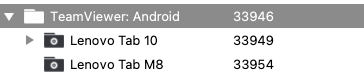
You can publish the required apps in the Play Store Kiosk, but direct deployment avoids asking device users to choose among model-specific add-ons.
In our structure, the top-level group is just a manual group, and we will assign the Fileset (Payload) for the TeamViewer QuickSupport app here. Below that top-level group we'll create groups for each type of Android device we have. The add-on is device-specific, therefore we will create a smart group for each device type based on the Device Product Name field.
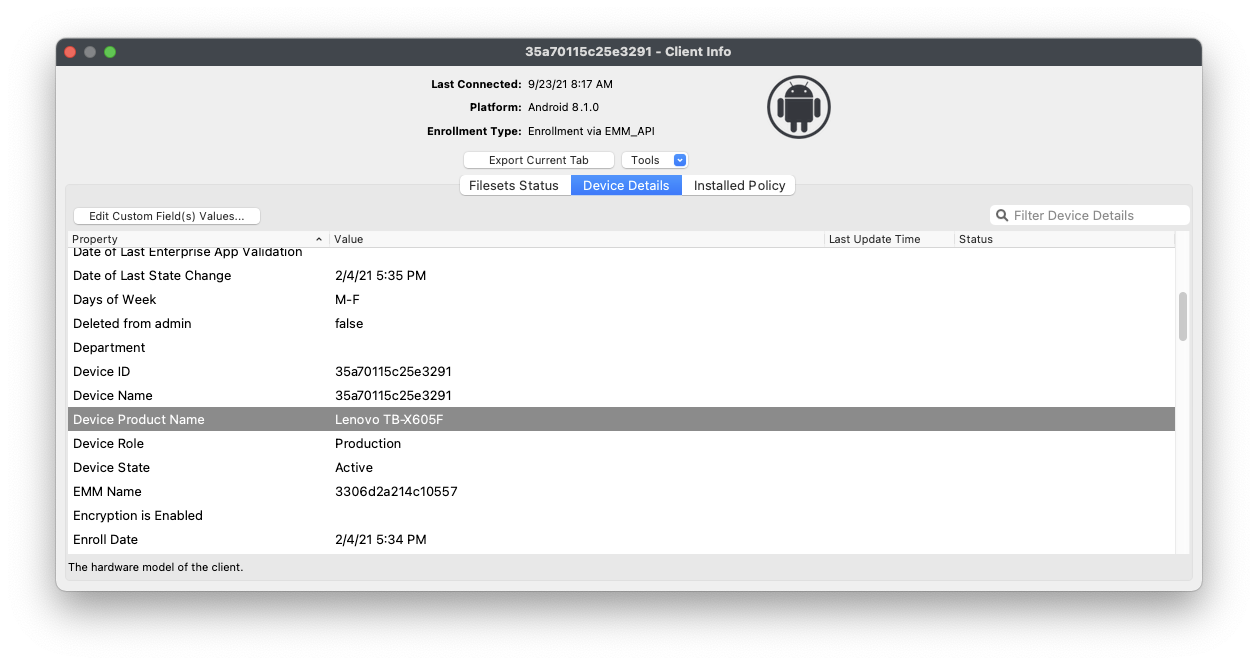
In the case of the Lenovo M10 tablet, the product name is "Lenovo TB-X605F", so we created a Smart Group based on Device Product Name matching that exact name. Because this group is a smart group all M10 tablets will automatically be included and, therefore will have the QuickSupport app assigned from the group above, which addresses our first pre-requisite.
Remember, you can duplicate a smart group by right-clicking and choosing "Duplicate"...this makes it much simpler to add multiple similar smart groups.
Use TeamViewer QuickSupport on a sample device to identify the add-on recommended for that model. In this example, the Lenovo tablet uses the x705F add-on: TeamViewer QuickSupport Add-On for Lenovo TB-X705F.
Create a Fileset for the recommended add-on, deploy it to the matching Smart Group, and repeat the model check for each distinct device type.
There is also a Universal Add-On available, but at least in our testing, the device-specific add-ons worked best.
Initial remote-session availability can be delayed while FileWave and Managed Google Play synchronize. Confirm the Companion app, QuickSupport, and model-specific add-on have all reported before troubleshooting the remote-session button.