Desktop Fileset Timed Events
Description
Filesets can activate at a specific date and time. For daily maintenance windows, such as installing software only after hours, use a Policy Blocker Script with Custom Fields to decide when the Fileset may continue.

Policy Blocker Scripts normally pause client management until the script returns exit status 0. Because this script type runs every 5 minutes on clients, it can also be used as a time-window gate for a Fileset.
Custom Fields make the active and inactive times adjustable per device or group without editing the script each time.
Ingredients
- One (or more) Custom Fields; 3 provided - Active Time Custom Fields.customfields
- Policy Blocker Scripts
| macOS | Windows |
| Policy - Timed Event macOS.fileset.zip | Policy - Timed Event Windows.fileset.zip |
Directions
- Download and import the provided Custom Fields
- Download and import the appropriate Fileset(s) (macOS and/or Windows)
Set the Custom Field values for the inactive and active times you need. Time values use hours, minutes, and seconds without leading zeros. Examples:
| Desired Time (HH:MM) | Custom Field Value (HHMMSS not including leading zeros) |
| 09:30 | 93000 |
| 12:55 | 125500 |
| 18:00 | 180000 |
If you change a Custom Field value for a device that is already running the policy, the client may need two later Model Updates for an immediate-looking result. The blocker script runs before the device reads the new Custom Field value during the first update. The next Model Update, or a later inventory update, lets the blocker script evaluate the new value.
Time Order
Times can be either way around.
Examples:
Consider working hours to begin at 08:30 and end at 18:00
Example 1
An item should only be considered outside of standard working hours.
- Disable Active Time: 83000
- Enable Active Time: 180000

Example 2
Alternatively, an item should be considered during working hours:
- Enable Active Time: 83000
- Disable Active Time: 180000

Imported Custom Fields are disabled for all devices by default. Once tested, consider using the option to assign to all devices for each Custom Field imported. The file provided contains all 3 Custom Fields.
Smart Groups
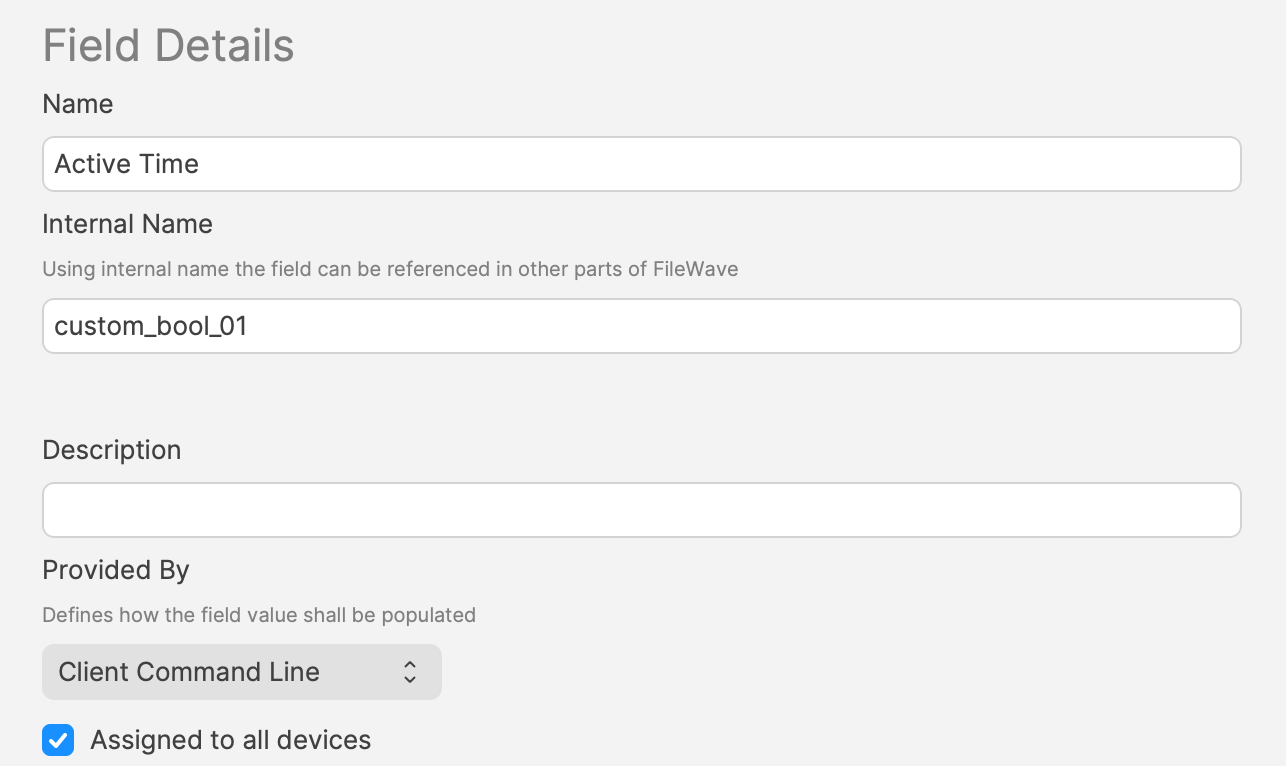
A third Custom Field stores a true/false value. A Smart Group can use that value to decide whether a Fileset should be associated at the current time.
This Custom Field uses custom_bool_01. If that value is already in use, choose another Custom Bool number in the script environment variables.
The script uses the following method to set these values.
Example
An update to Firefox needs to occur after 17:00 or before 09:30
- Disable Active Time = 93000
- Enable Active Time = 170000
Between these times, the 3rd Custom Field ‘Active Time’ should be False/0. Outside of these times, the ‘Active Time’ Custom Field should be True/1.
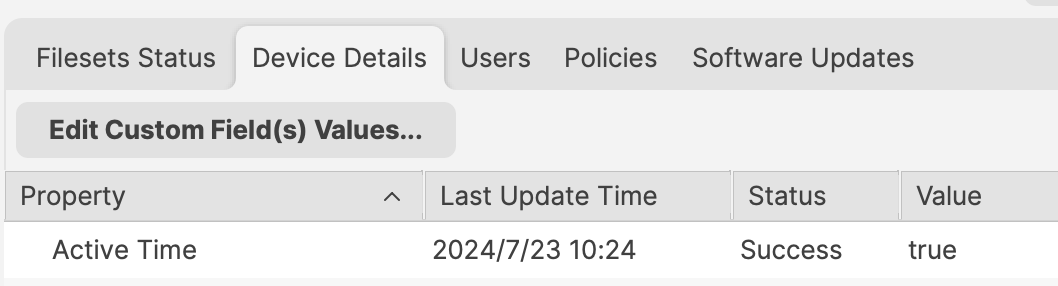
Smart Group can be based upon the following:
- Is Active Time True/1
- Is the version of Firefox matching that within the Fileset
Do not base the Smart Group only on the active time unless that is intentional. Devices will enter and leave that Smart Group every day, and associated Filesets can trigger each time the device enters the group.
Deeper Dive
The Policy Blocker script has 2 considerations initially:
- The hours between which the timed event should occur
- The current time
This means there is a time beyond which the desired action may occur and a time beyond which the action should not occur and this needs to be compared with the current time.
The enable/disable active times are provided by way of Executable Environments. Taking this a step further, these times are defined using Administrator Custom Fields. This way the times can more easily be altered if required.
A third Custom Field is being used to indicate if the current time is one of activity allowance or not, but this time a Client Command Line Custom Field.
Client Command Line Custom Fields are stored locally on the device and then this value is available to the server, both for visibility, but can also be used in queries, for Smart Groups.
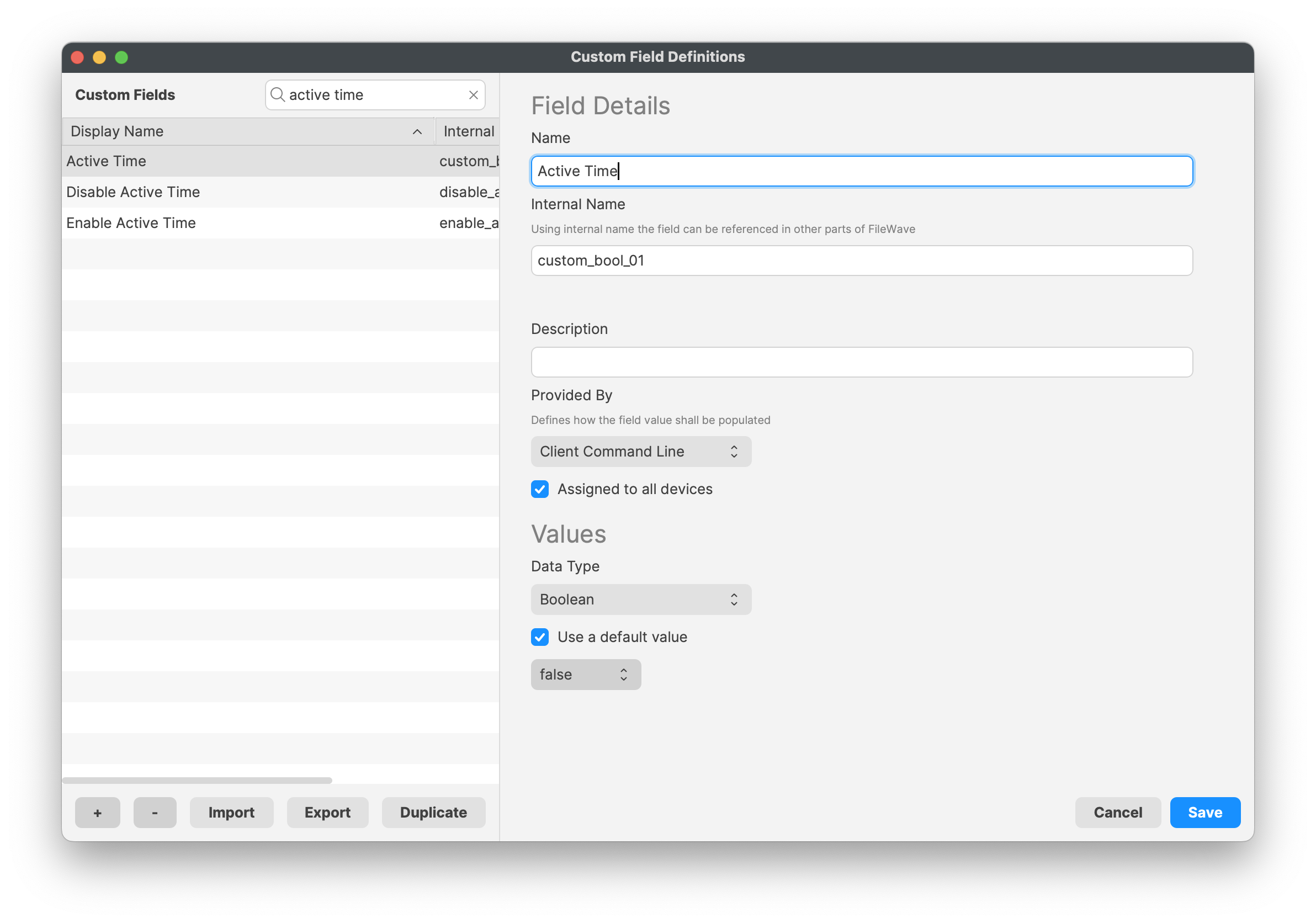
Client Command Line Custom Fields can be changed in FileWave Central, but the client value is pushed back to the server the next time the device reports inventory.