# Desktop Fileset Timed Events

## Description

Filesets have the option to set an activation time, but what about items based upon timing of day, for example, rather than a dedicated date.

[![image.png](https://kb.filewave.com/uploads/images/gallery/2024-07/scaled-1680-/bUD8dOsEWuj4trrN-image.png)](https://kb.filewave.com/uploads/images/gallery/2024-07/bUD8dOsEWuj4trrN-image.png)

[Policy Blocker Scripts](https://kb.filewave.com/books/filesets-payloads/page/filewave-fileset-types#bkmrk-policy) are really designed to pause management of clients.<span class="Apple-converted-space"> </span>However, with some clever use, a Policy Blocker Script can provide us with some assistance.<span class="Apple-converted-space"> </span>This script type runs every 5 minutes on clients.<span class="Apple-converted-space"> </span>Although the intention is to pause management until the script reports an exit status of 0, the 5 minute continual trigger can be leveraged.

Extending this with Custom Fields, it is possible to build out a desired outcome.

## Ingredients

- One (or more) Custom Fields; 3 provided - [Active Time Custom Fields.customfields](https://kb.filewave.com/attachments/376)
- Policy Blocker Scripts

<table border="1" id="bkmrk-macos-windows-policy" style="border-collapse: collapse; width: 100%;"><colgroup><col style="width: 50%;"></col><col style="width: 50%;"></col></colgroup><tbody><tr><td>macOS</td><td>Windows</td></tr><tr><td>[Policy - Timed Event macOS.fileset.zip](https://kb.filewave.com/attachments/377)</td><td>[Policy - Timed Event Windows.fileset.zip](https://kb.filewave.com/attachments/378)</td></tr></tbody></table>

## Directions

- Download and import the provided Custom Fields
- Download and import the appropriate Fileset(s) (macOS and/or Windows)

Alter the Custom Fields values for Inactive and Active times to suit.<span class="Apple-converted-space"> </span>Time is set using hours, minutes and seconds.<span class="Apple-converted-space"> </span>E.g.

<table border="1" id="bkmrk-desired-time-%28hh%3Amm%29" style="border-collapse: collapse; width: 100%; height: 116px;"><colgroup><col style="width: 50%;"></col><col style="width: 50%;"></col></colgroup><tbody><tr style="height: 29px;"><td style="height: 29px;">Desired Time (HH:MM)</td><td style="height: 29px;">Custom Field Value (HHMMSS not including leading zeros)</td></tr><tr style="height: 29px;"><td style="height: 29px;">09:30</td><td style="height: 29px;">93000</td></tr><tr style="height: 29px;"><td style="height: 29px;">12:55</td><td style="height: 29px;">125500</td></tr><tr style="height: 29px;"><td style="height: 29px;">18:00</td><td style="height: 29px;">180000</td></tr></tbody></table>

<p class="callout warning">If changing the Custom Field value for a device which is already running the policy, 2 subsequent Model Updates will need to be received by the client, if looking for a more ‘immediate’ result.<span class="Apple-converted-space"> </span>The blocker script holds the client until success.<span class="Apple-converted-space"> </span>This means, during a Model Update, the blocker will run before the new Custom Field Value will be read by the device.<span class="Apple-converted-space"> </span>As such, only after a subsequent update (or inventory) will the blocker script be aware of the new Custom Field value.<span class="Apple-converted-space"> </span>Custom Fields will naturally update on devices with inventory, but this is less frequent.</p>

### Time Order

Times can be either way around.<span class="Apple-converted-space"> </span>

#### Examples:

Consider working hours to begin at 08:30 and end at 18:00

##### Example 1

An item should only be considered outside of standard working hours.

- Disable Active Time: 83000
- Enable Active Time: 180000

[![image.png](https://kb.filewave.com/uploads/images/gallery/2024-07/scaled-1680-/VDw6zf9ZY5N8bkR3-image.png)](https://kb.filewave.com/uploads/images/gallery/2024-07/VDw6zf9ZY5N8bkR3-image.png)

##### Example 2

Alternatively, an item should be considered during working hours:

- Enable Active Time: 83000
- Disable Active Time: 180000

[![image.png](https://kb.filewave.com/uploads/images/gallery/2024-07/scaled-1680-/BAhhZ995ZBuff2UY-image.png)](https://kb.filewave.com/uploads/images/gallery/2024-07/BAhhZ995ZBuff2UY-image.png)

Imported Custom Fields are disabled for all devices by default. Once tested, consider using the option to assign to all devices for each Custom Field imported. The file provided contains all 3 Custom Fields.

[![image.png](https://kb.filewave.com/uploads/images/gallery/2024-07/scaled-1680-/hJEjRvmBZiHr7czo-image.png)](https://kb.filewave.com/uploads/images/gallery/2024-07/hJEjRvmBZiHr7czo-image.png)
### Smart Groups

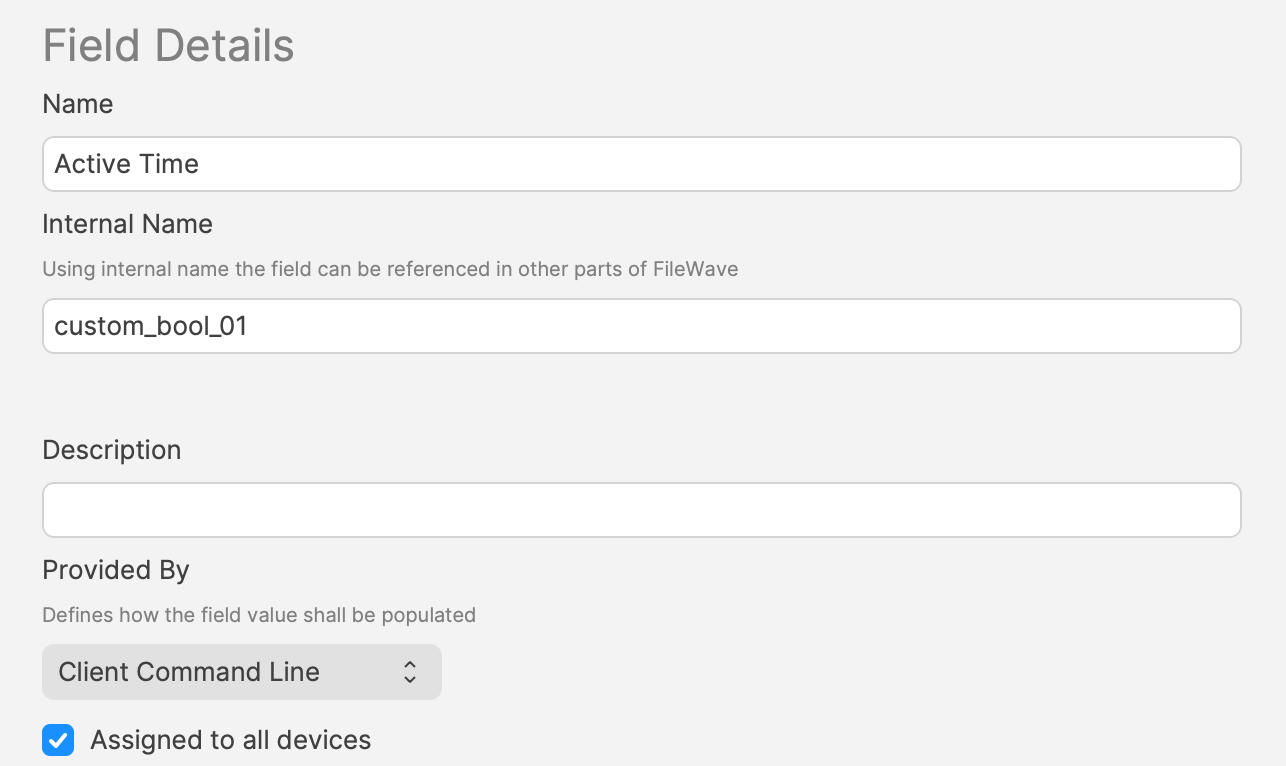
A third Custom Field holds a true/false value.<span class="Apple-converted-space"> </span>This value may be used with a Smart Group query, to determine if an item should be associated at this time or not.

<p class="callout info">This Custom Field is set to use custom\_bool\_01.<span class="Apple-converted-space"> </span>If this is already in use, an alternate Custom Bool number should be utilised instead.<span class="Apple-converted-space"> </span>This is editable through the Scripts Environment Variables.<span class="Apple-converted-space"> </span></p>

The script uses the following method to set these values.

[https://kb.filewave.com/books/custom-fields/page/add-filewave-custom-inventory-fields-remotely-using-a-fileset](https://kb.filewave.com/books/custom-fields/page/add-filewave-custom-inventory-fields-remotely-using-a-fileset)

#### Example

An update to Firefox needs to occur after 17:00 or before 09:30

- Disable Active Time = 93000
- Enable Active Time = 170000

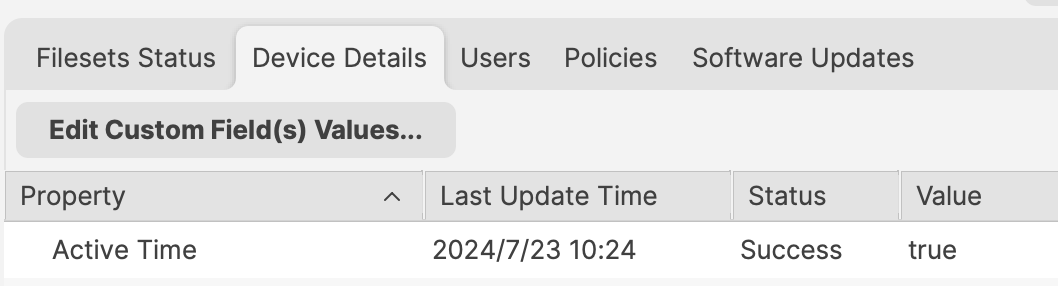
Between these times, the 3rd Custom Field ‘Active Time’ should be False/0.<span class="Apple-converted-space"> </span>Outside of these times, the ‘Active Time’ Custom Field should be True/1. <span class="Apple-converted-space"> </span>

[![image.png](https://kb.filewave.com/uploads/images/gallery/2024-07/scaled-1680-/RSitf8u0jR2Hx88v-image.png)](https://kb.filewave.com/uploads/images/gallery/2024-07/RSitf8u0jR2Hx88v-image.png)

Smart Group can be based upon the following:

- Is Active Time True/1
- Is the version of Firefox matching that within the Fileset

<p class="callout success">Do not just use the active time, unless intentional.<span class="Apple-converted-space"> </span>Devices will continually enter and leave the Smart Group if this is set to only use the Active Time, each day.<span class="Apple-converted-space"> </span>If an item is associated in this way, associated Filesets will trigger every time the device enters the group.</p>

## Deeper Dive

The Policy Blocker script has 2 considerations initially:

- The hours between which the timed event should occur
- The current time

This means there is a time beyond which the desired action may occur and a time beyond which the action should not occur and this needs to be compared with the current time.

The enable/disable active times are provided by way of Executable Environments.<span class="Apple-converted-space"> </span>Taking this a step further, these times are defined using Administrator Custom Fields.<span class="Apple-converted-space"> </span>This way the times can more easily be altered if required.

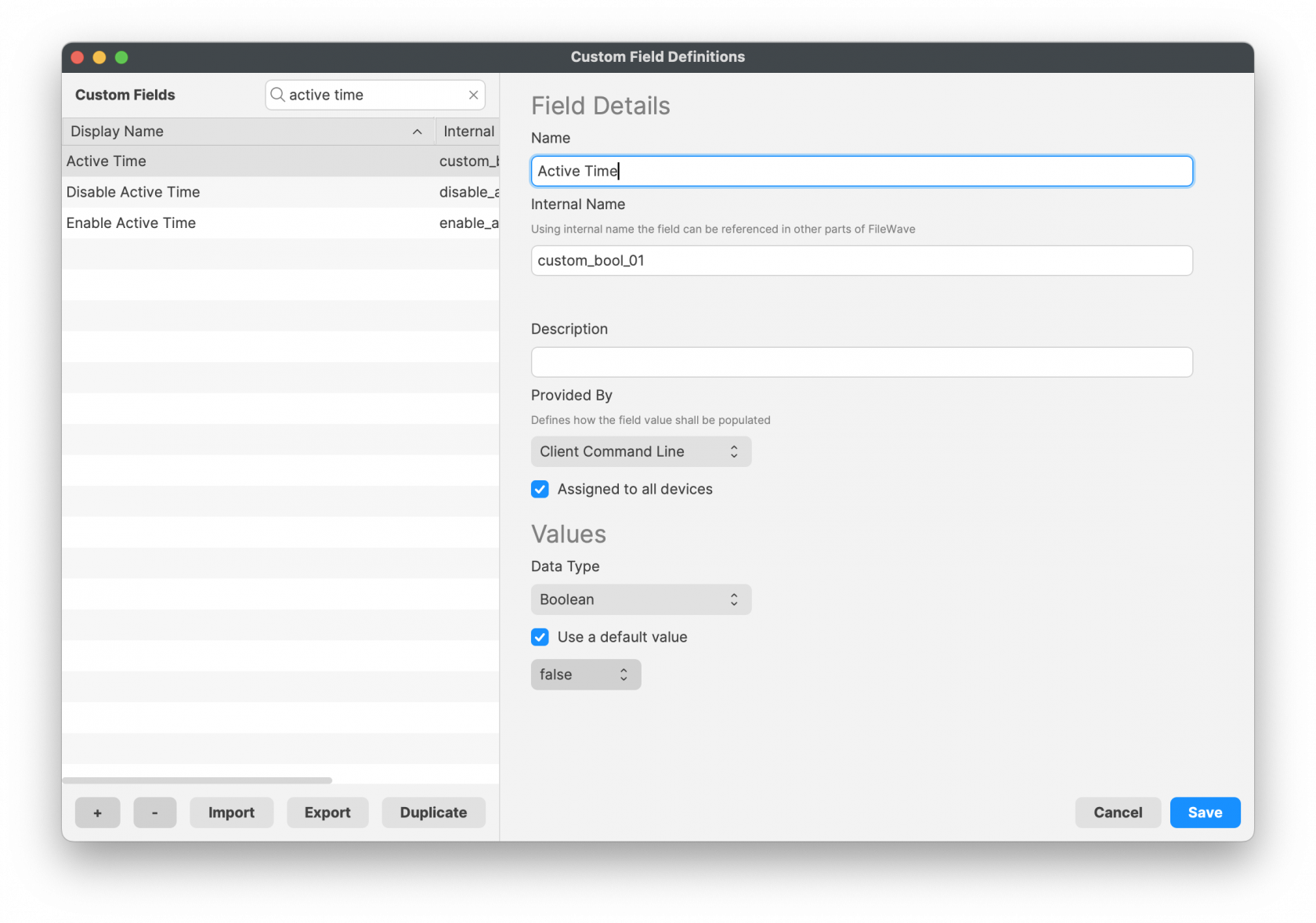
A third Custom Field is being used to indicate if the current time is one of activity allowance or not, but this time a Client Command Line Custom Field.

Client Command Line Custom Fields are stored locally on the device and then this value is available to the server, both for visibility, but can also be used in queries, for Smart Groups.

[![image.png](https://kb.filewave.com/uploads/images/gallery/2024-07/scaled-1680-/PRPwF3Lg4yYn7kOY-image.png)](https://kb.filewave.com/uploads/images/gallery/2024-07/PRPwF3Lg4yYn7kOY-image.png)
<p class="callout warning">Client Command Liine Custom Fields may be altered in FileWave Central Admin App, however, as soon as the device checks back inventory, the value from the client will be pushed back to the server.</p>