# Updating 3rd Party Software
## What
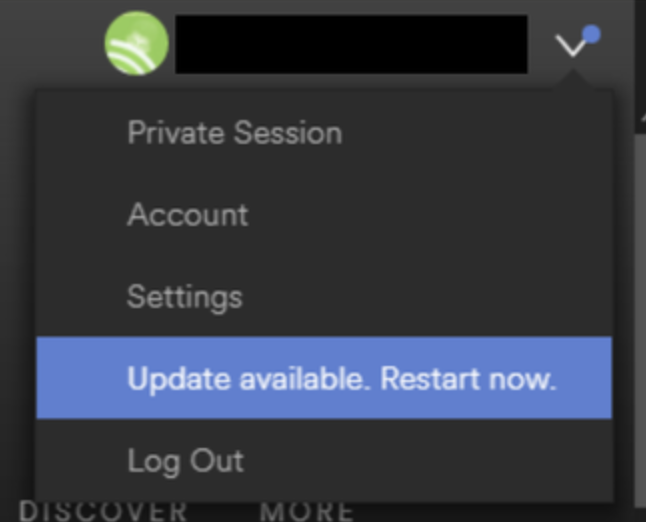
Third-party software needs a clear update plan. Decide which apps FileWave should update directly, which apps may use their own updater, and how you will roll back if an update causes trouble.
Managed store apps, such as Apple VPP apps, can update through the platform. Software deployed with PKG, MSI, EXE, or file-level Filesets needs a separate decision. Either let the vendor updater run, or build and deploy updated Filesets yourself.
Some vendor updaters work without local admin rights. Others fail silently, require user prompts, or need FileWave to push the update. Test the updater behavior before you rely on it.
[](https://kb.filewave.com/uploads/images/gallery/2024-07/mjs8gDNgjs0F58d3-image.png)
## Why
The main choice is per application. Allow the software to update itself, or block the updater and deploy a new Fileset for each approved version. Base that choice on the factors below.
For example:
- Is the software being deployed critical to business
- Are there company restrictions that prevent software being updated before approval
- Does the software even have an auto updater
- How easy is it to prevent the software from updating, where an auto update does exist
- Do you trust the software supplier enough to allow updates to occur without prior testing
- What impact could occur if an update went wrong and what is the rollback option
- Is a reboot required after the update
## How
The details below help you choose the right Fileset behavior for each update model.
### Denying AutoUpdates
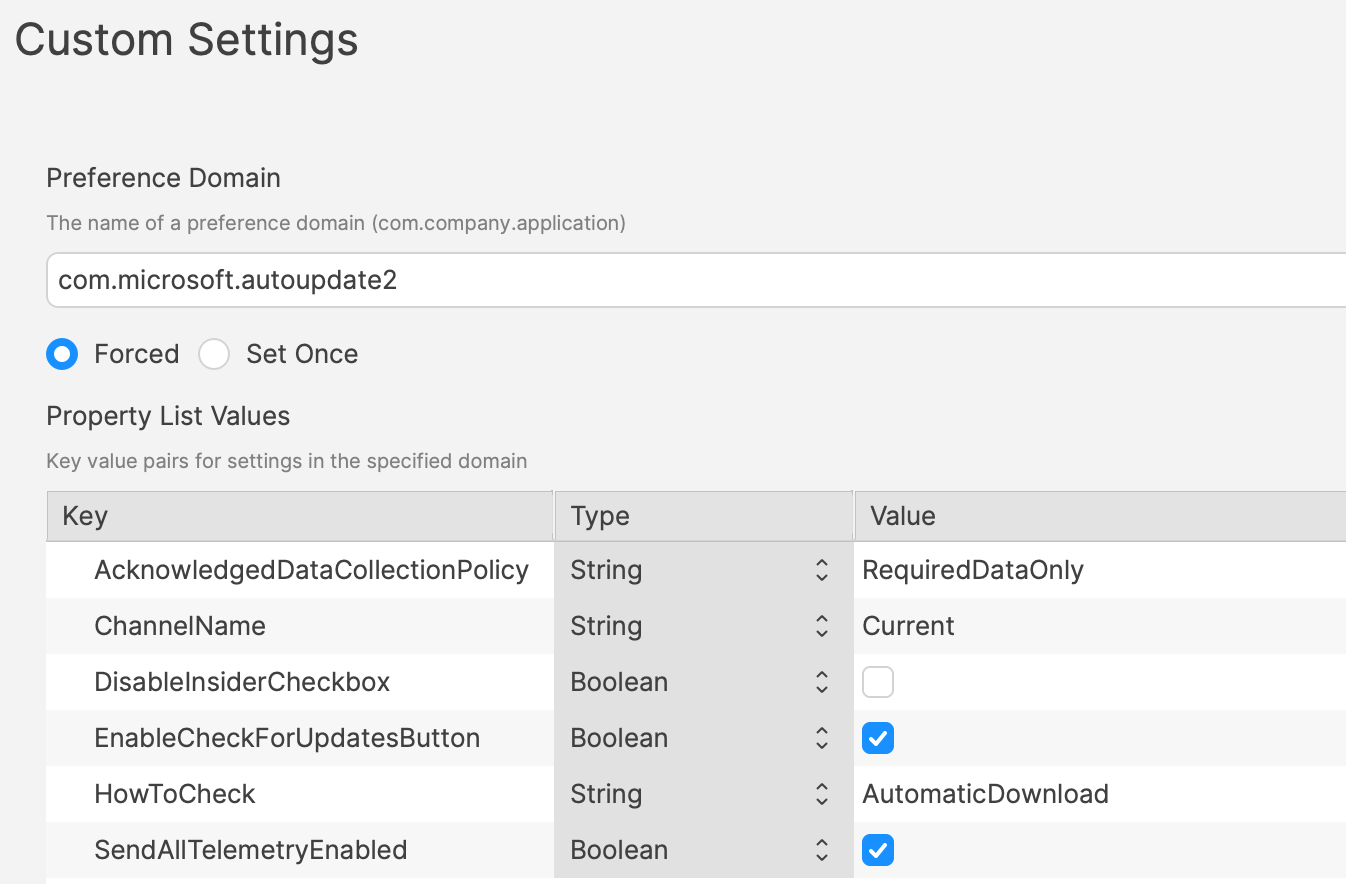
For software with an updater, first identify how the updater is configured. Then confirm how to disable it safely.
[](https://kb.filewave.com/uploads/images/gallery/2024-07/h3Pp8R4gzE06aTKW-image.png)
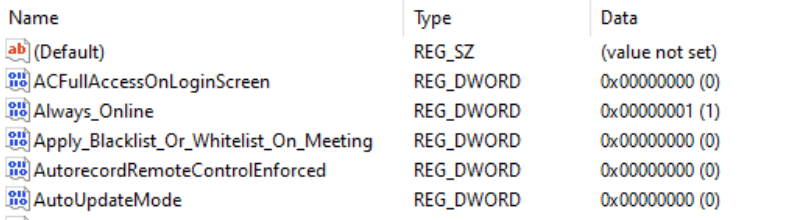
Many vendors expose update controls through a Windows registry value, a macOS plist preference, an enterprise policy, or an installer option. Vendor documentation or other admin posts may identify the setting. Some applications still require testing to confirm what changes.
[](https://kb.filewave.com/uploads/images/gallery/2024-07/hdX83Krp5wr5fRpI-image.png)
One practical method is to compare files and settings before and after changing the application's update preferences. Fileset Magic can help with that comparison. It takes a snapshot before the change and another snapshot afterward. You can then compare the two snapshots to see what changed.
### Allowing AutoUpdates
Not every application needs tightly controlled updates. For lower-risk apps, allowing vendor updates can reduce packaging work. Apple VPP apps are platform-managed, so they follow a different update path. Confirm that auto-updates are actually enabled. Also confirm they work when users do not have local admin rights.
If the updater fails for standard users, manage that application with the same FileWave-controlled update process you would use when blocking vendor updates.
## Considerations
For either method, there are some additional considerations, which mostly centre around self-healing.
### Denying Autoupdates
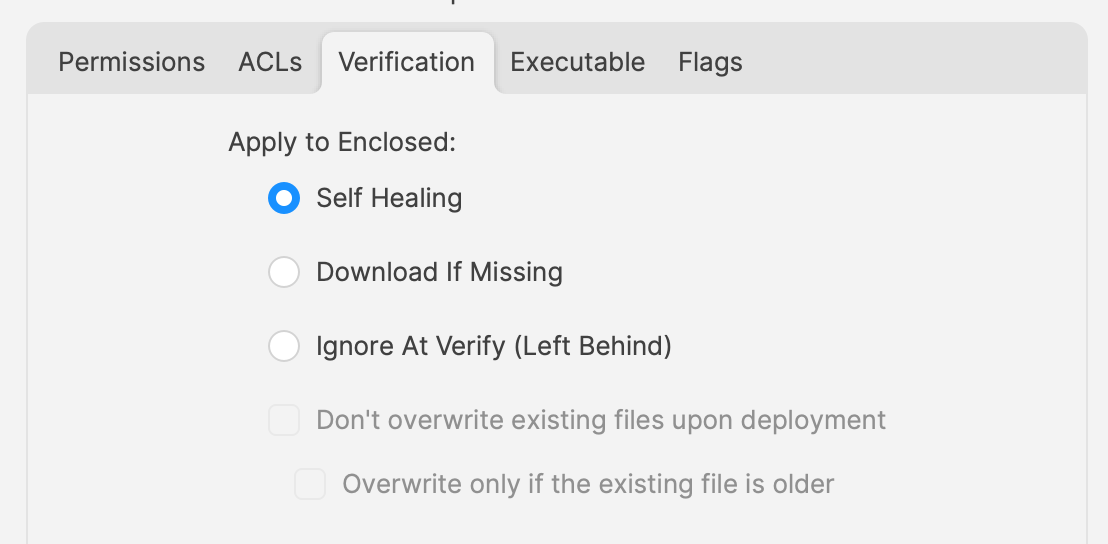
When using a file level Fileset to deploy software, files should be set as self-healing.
[](https://kb.filewave.com/uploads/images/gallery/2024-07/oT5bPs12NgBvoBAj-image.png)
Self-healing helps FileWave keep deployed files in their expected state. When you associate a new version in the same Model, disassociate the older version at the same time.
If both Filesets stay associated, FileWave may keep files from the older version while also adding files from the newer version. That can leave removed or renamed application files behind. Those leftovers can break an application if the newer version still finds and loads them.
### Allowing AutoUpdates
For software that is allowed to auto-update, file-level Filesets usually should not use self-healing for the application files.
When software updates itself, it changes files that FileWave originally deployed. If those files are set to self-heal, the next verification can replace updated files with the older Fileset copy. Self-healing can also restore files the updater removed. That can leave the application in a mixed state. For this update model, Ignore at Verify is usually the better choice.
[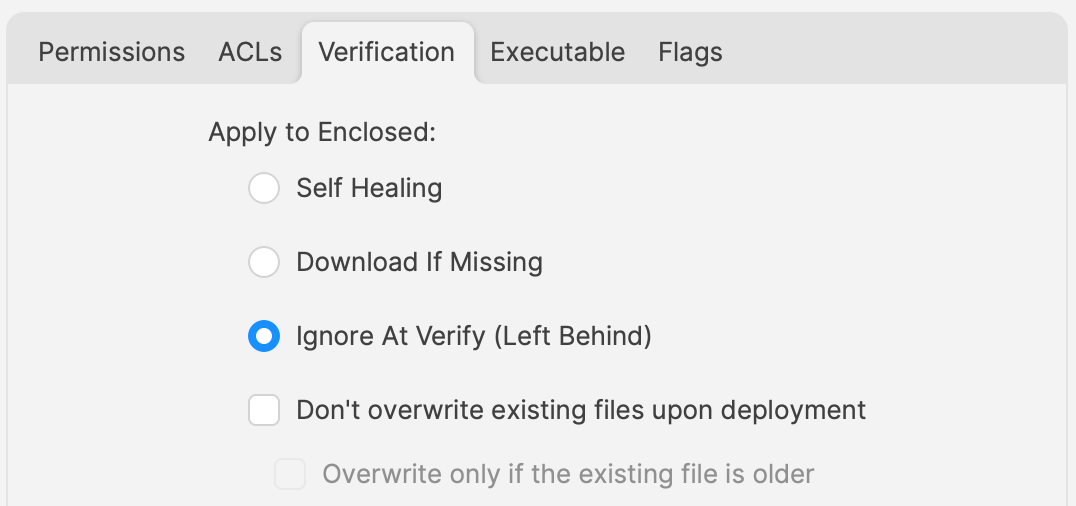](https://kb.filewave.com/uploads/images/gallery/2024-07/VbczMxuzp0TXAj9V-image.png)
Ignore at Verify creates two follow-up questions.
### Un-installing.
Uninstallers can take several forms. In the allowed auto-updater example, self-healing is not the removal method. Plan a separate uninstall path. FileWave can still handle that with an uninstall script or a dedicated removal Fileset.
### Rollback
When software auto-updates, FileWave may only have the original installer version available unless you also package later versions. If you need to roll back, you may need to build and test the rollback Fileset before it can be deployed.
## Overview
Choose the update model per application, document the uninstall and rollback path, and test with standard-user accounts before rolling it out broadly.