THIS SCRIPT WILL FORCE THE MACHINE TO RESTART. IF THAT IS NOT THE BEHAVIOR THAT IS DESIRED REMOVE THIS LINE FROM THE JOINDOMAIN.PS1 FILE: Restart-Computer -Force
THIS SCRIPT WILL DELETE ITSELF ONCE IT HAS RUN ON THE CLIENT MACHINE LOCALLY.
**Example**: 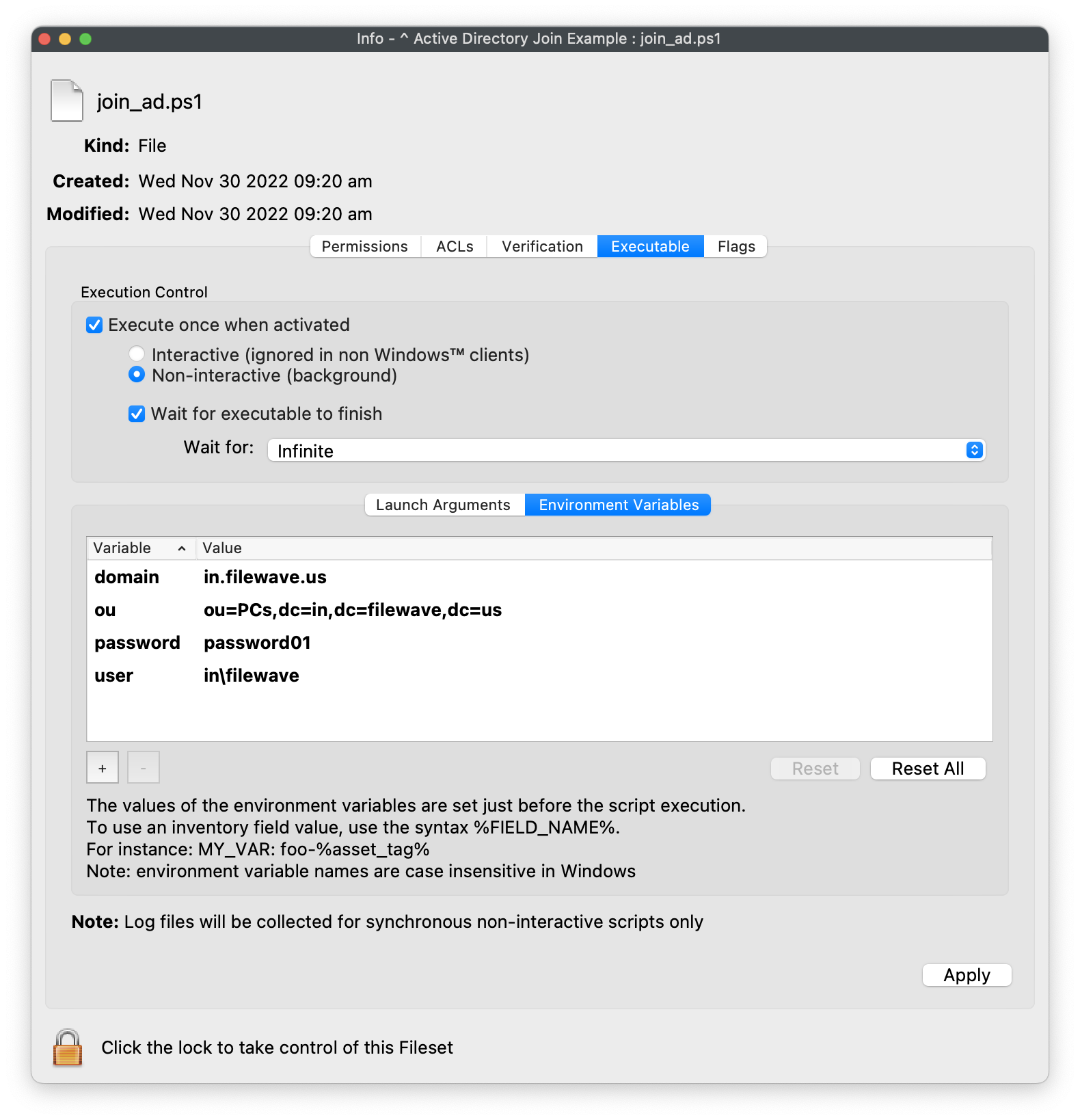For the user, please use full path like e.g. "domain\\username"
Save changes and associate the Fileset to either Windows 10 or 11 client machines! # Adding A Printer for All Users (Windows) The task at hand seems simple enough...install a printer for a Windows user for a printer on a Print Server. In our example, I'll use a print share called BigDill on a print server named Arkone. Easy, right? A quick web search for "powershell add printer" takes me to the add-printer cmdlet, and it is pretty easy to use for a print server. The command looks like this (don't use this example!): ```powershell import-module printmanagement add-printer -ConnectionName \\arkone\BigDill ``` I tested it locally outside of FileWave in the PowerShell ISE and it worked fine. I ran the command, and it added the printer for me. So, I created a fileset for the exact same thing and tried it out. The result: **nothing whatsoever**. The script seemed to run fine, but the user logged in didn't see a new printer! So, why did this happen? For two important reasons: 1. The Add-Printer cmdlet is great, but it **ONLY** adds a printer for the current user 2. When FileWave runs a script, it is always run under the context of the ***System*** account When I investigated further by opening a command prompt as system, I found that in fact my fileset had run fine, and added the printer, but only for the system account.**Testing Scripts for Use in FileWave** Review our KB [Script Best Practices](https://kb.filewave.com/books/filewave-general-info/page/script-best-practices "Script Best Practices") which demonstrates the use of psexec to run scripts on Windows as if they were run through FileWave (as System User and 32bit).
So, a little more research was required, and PowerShell in this instance is not the answer. Instead, we are going to use a command-line utility in a batch file called printui.exe. PrintUI can be used in many ways: [Microsoft PrintUI Documentation](https://docs.microsoft.com/en-us/windows-server/administration/windows-commands/rundll32-printui) We won't get into all of the options of this command here, but printui can add a printer globally for all users using the /ga command line option (/gd is a global delete if you happen to want to add a removal script as well). So our new batch file (Activation Script) code looks like this: ```text @echo off printui /ga /n\\arkone\BigDill exit 0 ``` And our results, in this case, were excellent...the printer is added for every user at their next login. (Given this, you may want to make this a reboot fileset) And, for completeness' sake, if we wanted to add a post-uninstallation script to "clean-up" if this fileset were removed, we could do: ```text @echo off printui /gd /n\\arkone\BigDill exit 0 ``` ## Related Content - [Script Best Practices](https://kb.filewave.com/books/filewave-general-info/page/script-best-practices "Script Best Practices") # Create local admin accounts on Windows ## Description Need to manage local admin accounts on your Windows devices? FileWave has you covered. Below is the recipe with Fileset to create your local admin account with username, password and full name. In addition, if needing to remove the local admin account, there is a removal script included. ## Ingredients - FW Admin - [Create Local Admin (Win).fileset.zip](https://kb.filewave.com/attachments/458) ## Directions 1. Download and unzip the Fileset 2. Import into your server via FileWave Admin 3. Highlight the Fileset and select "Scripts" for this Fileset 4. Select the create\_admin.ps1 to open the script properties[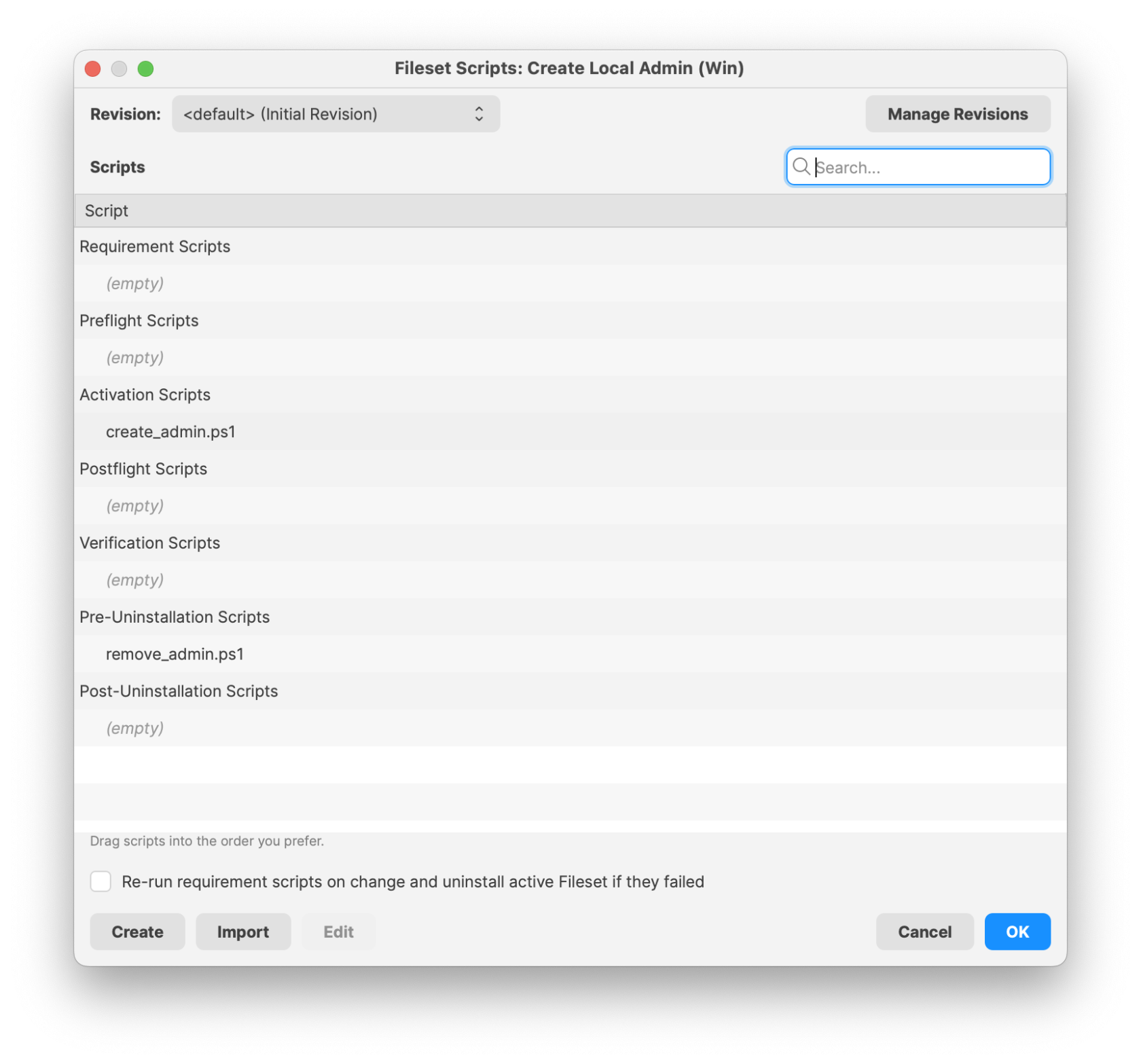](https://kb.filewave.com/uploads/images/gallery/2025-05/z14tpdmUAzWPceCJ-createlocaladminwindows1.png) 5. Enter in your local admin Username, Password and Full Name for the desired account[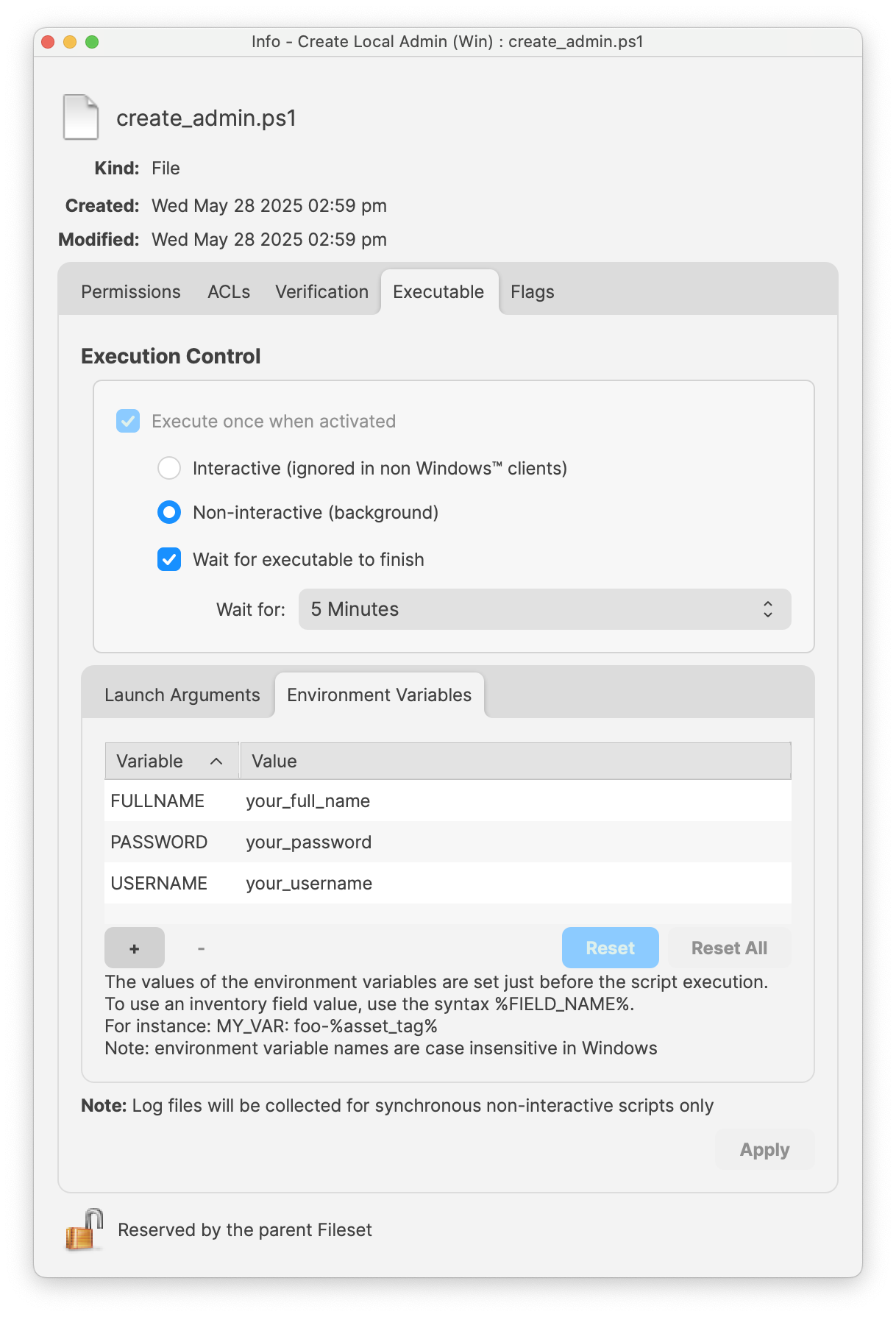](https://kb.filewave.com/uploads/images/gallery/2025-05/o0TrOjg4xVqrx9UA-createlocaladminwindows2.png) 6. Repeat the process for the remove\_admin.ps1 and enter in the desired Username to removeThe remove\_admin.ps1 script environment variable needs to match the Username found on the machine or in the create\_admin.ps1. If it does not match it will not successfully remove the admin account.
[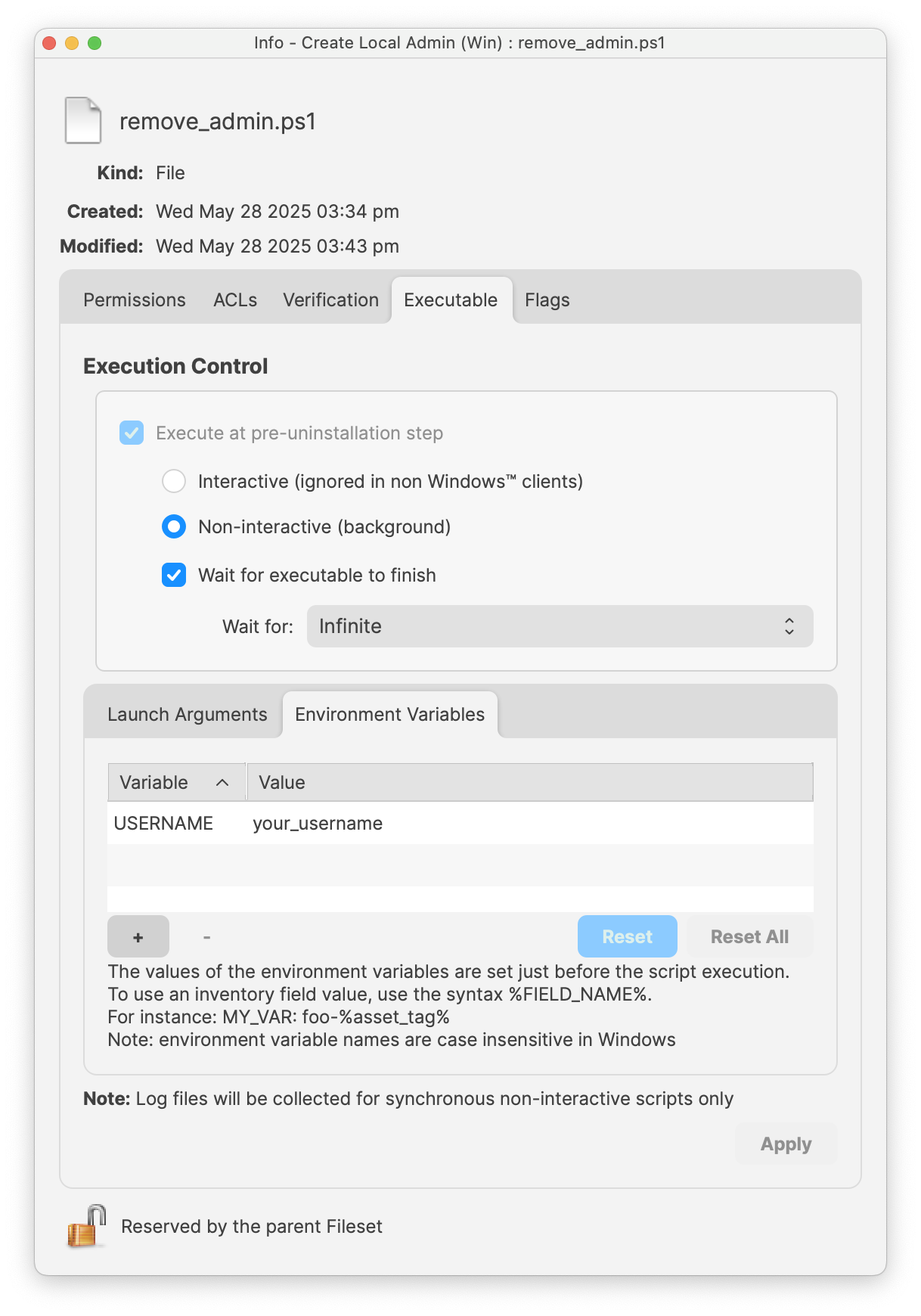](https://kb.filewave.com/uploads/images/gallery/2025-05/9nhmtCVgR3ZSi3H7-createlocaladminwindows3.png) 7. Close the Script window to Save 8. Assign to a test device 9. Perform a Model Update to deploy Confirmation of local admin created, you may open the Windows Settings > Accounts > Other Users to view the newly created local admin account.[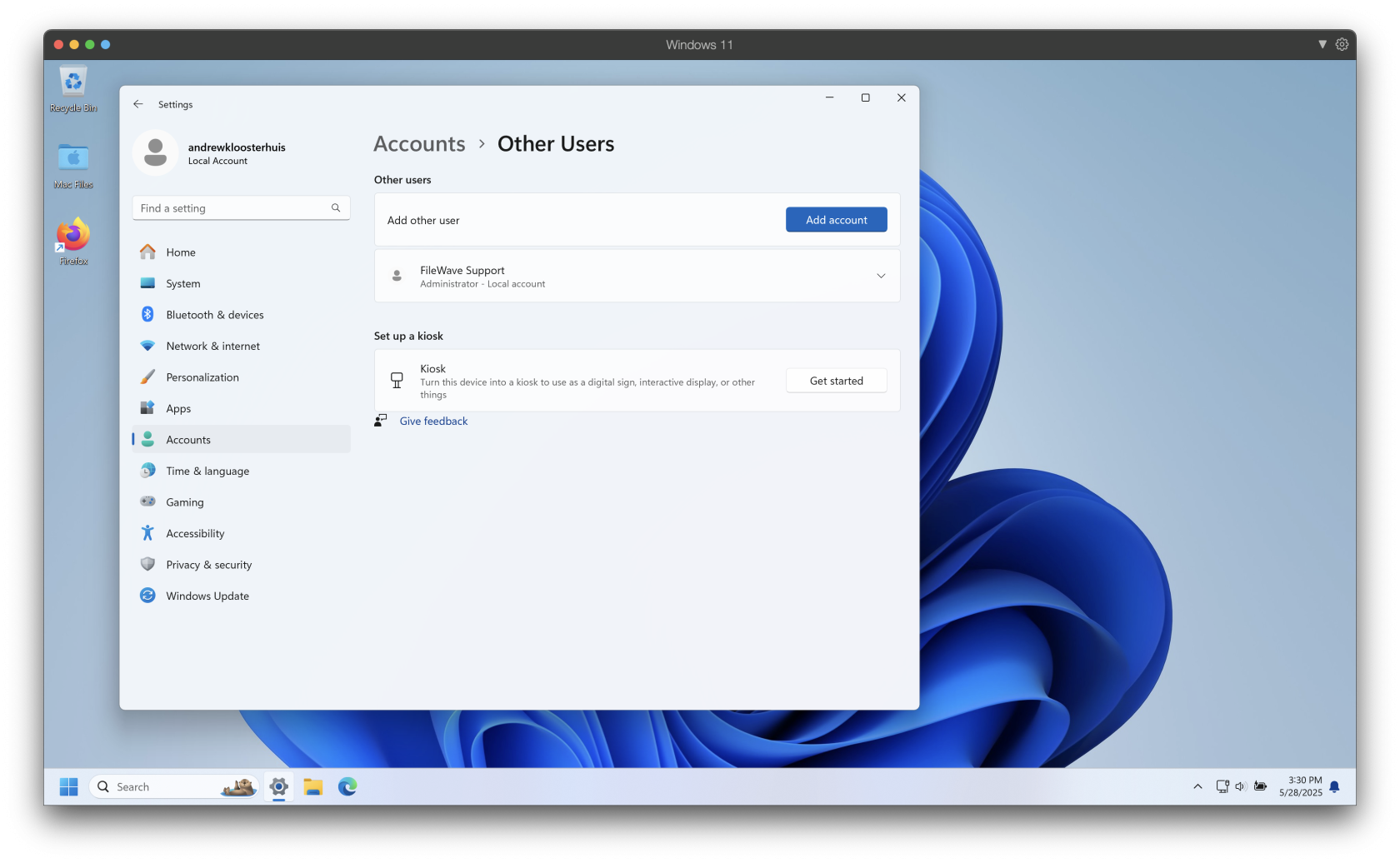](https://kb.filewave.com/uploads/images/gallery/2025-05/qgG47jNZwddxGLMb-createlocaladminwindows4.png) ## Notes Both scripts will output their executed tasks for detailed logging. These logs may be found in: ``` C:\ProgramData\FileWave\Logs\ ``` The create\_admin script log will be labeled: **CreateLocalUser\_FromEnv.log** **[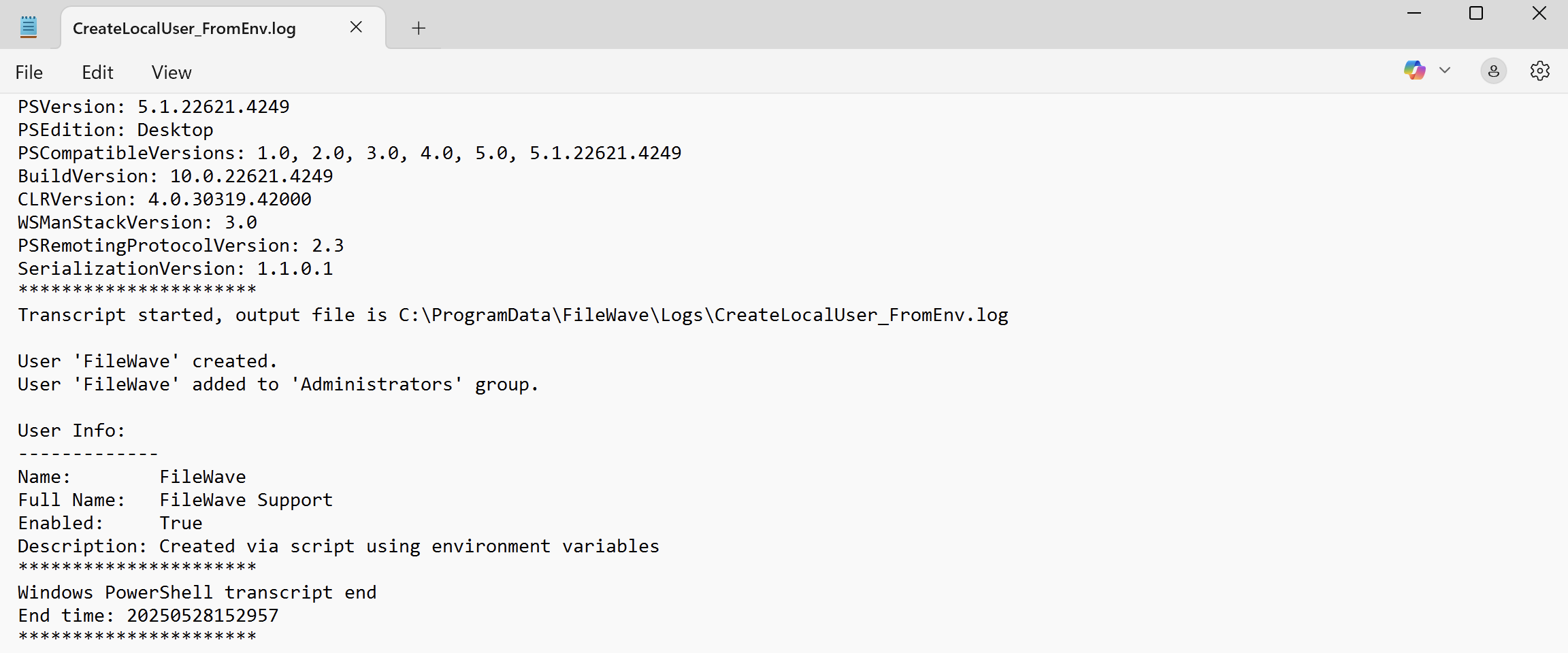](https://kb.filewave.com/uploads/images/gallery/2025-05/65j9SWZh97u34Mva-createlocaladminwindows8.png)** The remove\_admin script log will be labeled: **RemoveLocalUser\_FullCleanup.log** **[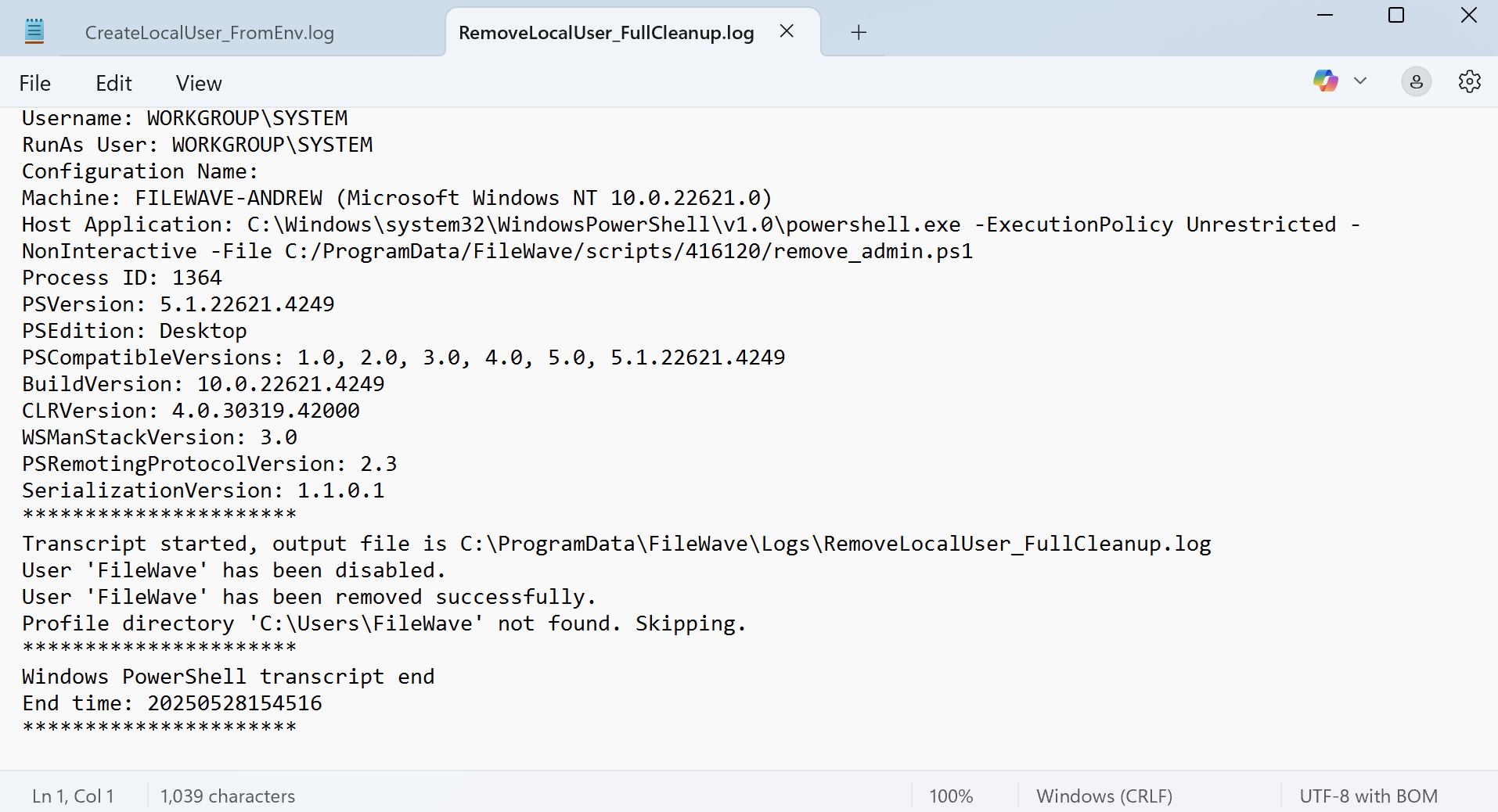](https://kb.filewave.com/uploads/images/gallery/2025-05/4OM4U2Shyj17QGbg-createlocaladminwindows6.png)** The create admin script will skip if there is an username already exists. [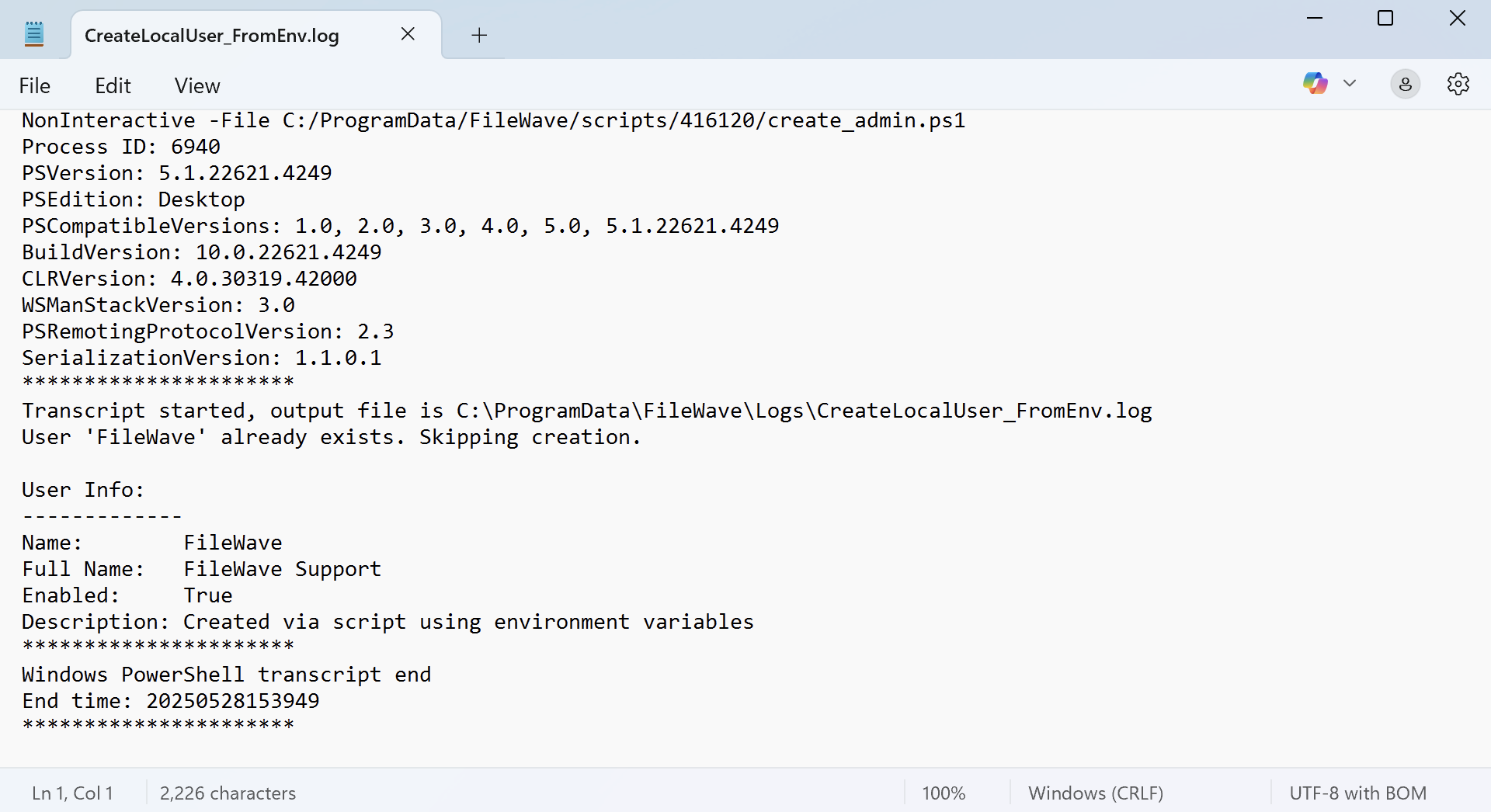](https://kb.filewave.com/uploads/images/gallery/2025-05/szix0dZGuPB2GaXD-createlocaladminwindows5.png) ## Related Content - [How to Create Local User Accounts on macOS](https://kb.filewave.com/books/macos/page/how-to-create-local-user-accounts-on-macos-1015) # Deploy SSL Certificates (Windows) Deploy SSL certificates to Windows "Trusted Root Certification Authorities" certificate store for use in secure services such as web content filters. ## Step-by-step guide - Download, unzip, and import the following Fileset Template into FileWave Central - [Windows - Install SSL Certificate.fileset.zip](https://kb.filewave.com/attachments/121) - Import the desired SSL certificate into the Fileset's "\\temp\\ssl\\" directory and delete "placeholder.pem".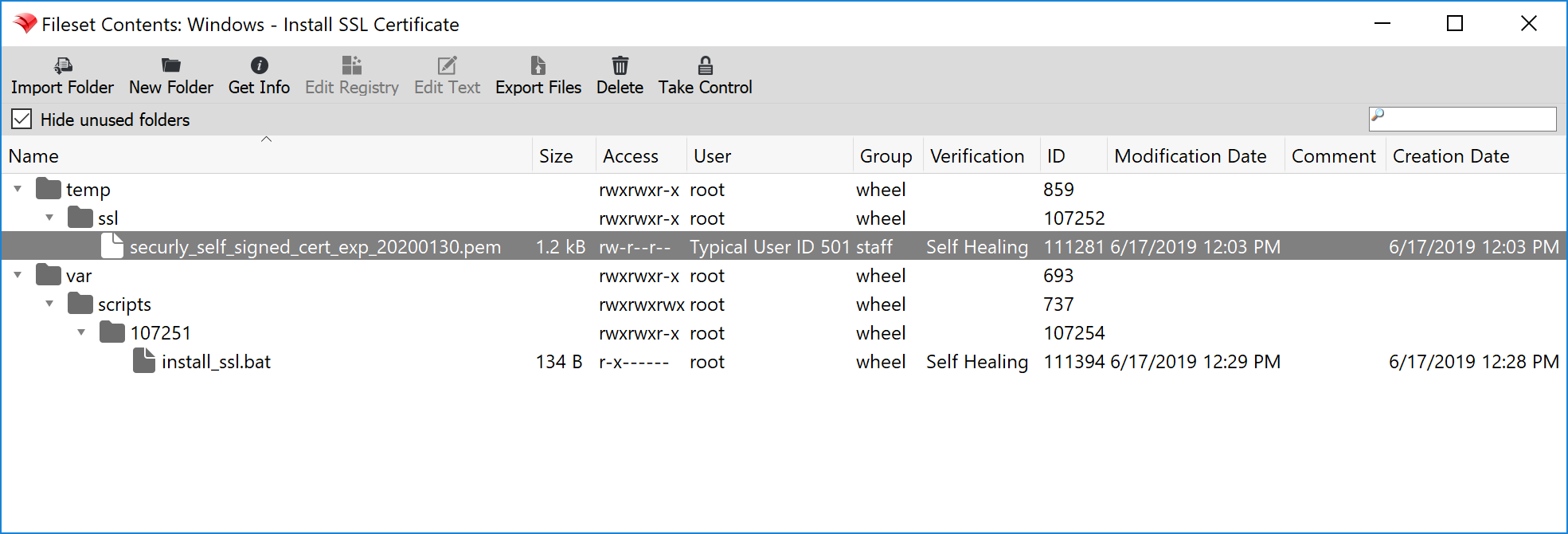 - Select the "install\_ssl.bat" file, click "Edit Text", and replace "placeholder.pem" with the full file name of the newly uploaded certificate. This script will add the desired SSL certificate to the Windows "Trusted Root Certification Authorities" certificate store for both the Local Machine (-enterprise) and the Current User (-user).
- Associate and deploy the Fileset to a test machine and verify the installation on the Windows machine. - Open "**certlm.msc**" for the Local Machine (-enterprise) Certificate Store or "**certmgr.msc**" for the Current User (-user) Certificate Store via Windows Run dialog (Win + R) or Command Prompt. - Navigate to "Trusted Root Certification Authorities>Certificates" and verify the name of the newly added certificate. 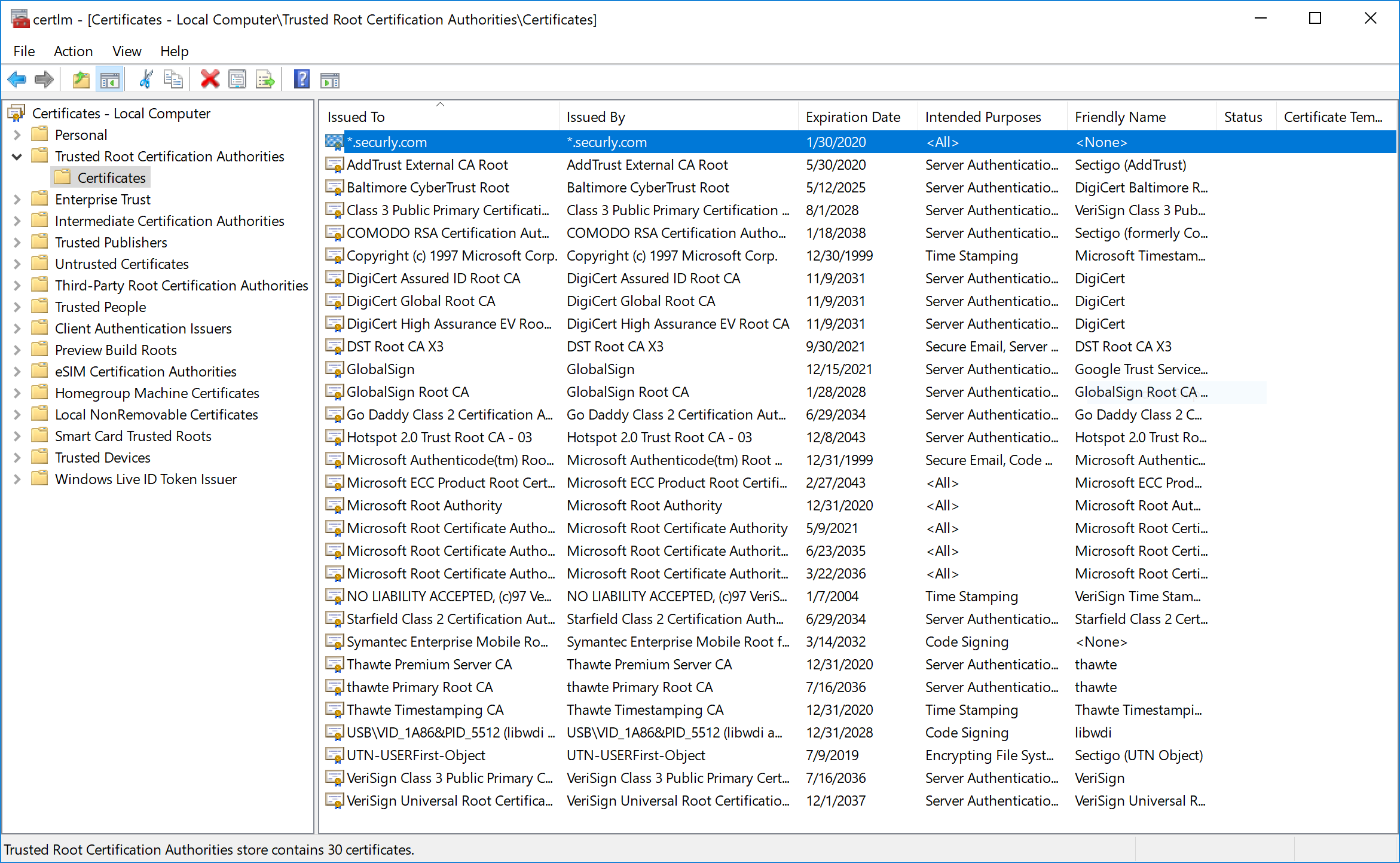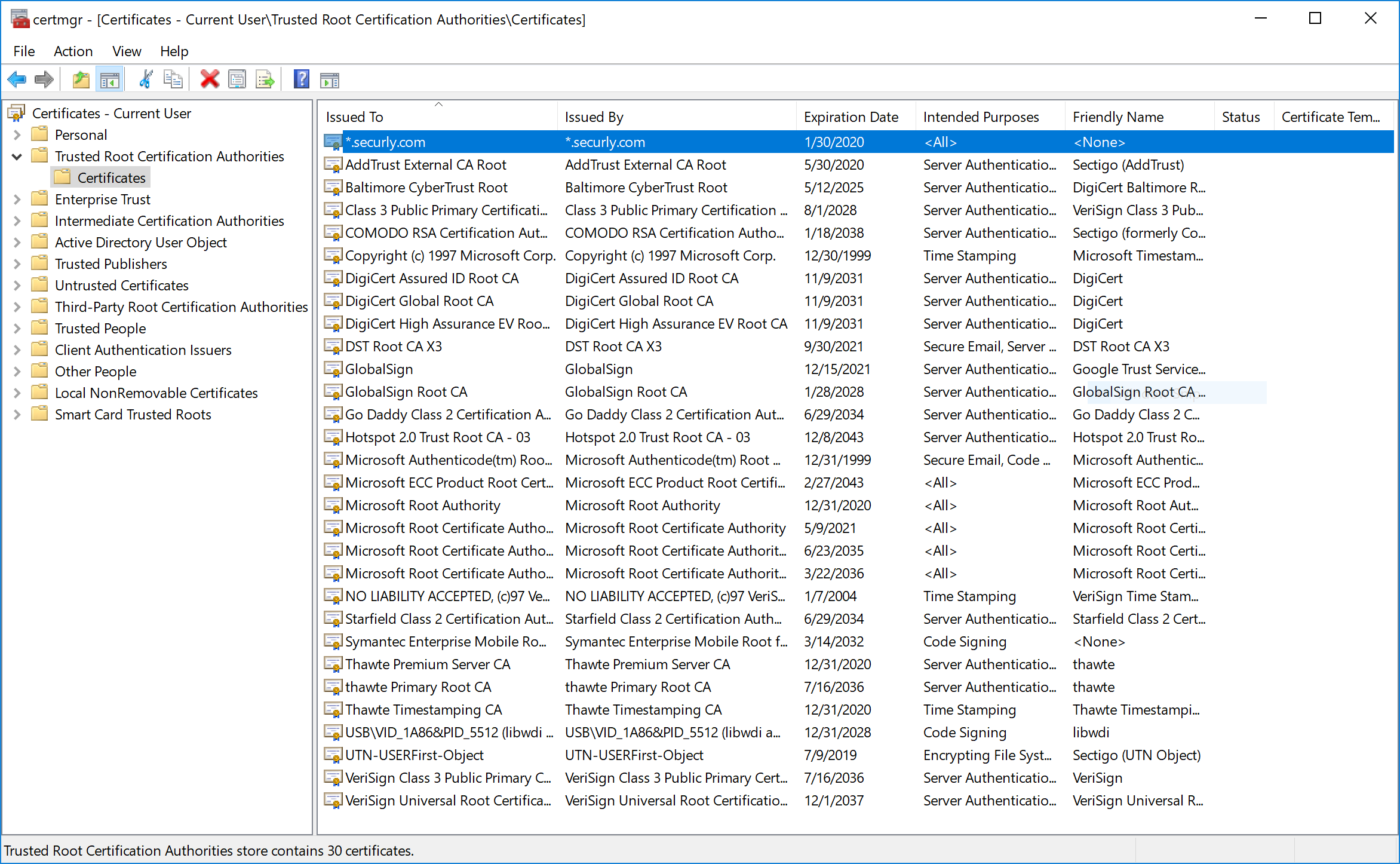**Additional Information** More information and options for the "certutil" program can be found on [Microsoft Docs](https://docs.microsoft.com/en-us/windows-server/administration/windows-commands/certutil).
## Related articles - [APNs Certificate Creation & Renewal on Windows Computers](https://kb.filewave.com/books/certificates/page/apns-certificate-creation-renewal-on-windows-computers "APNs Certificate Creation & Renewal on Windows Computers") # Installing Windows Fonts ### Description Installing a Windows font requires more than copying the font file into `C:\Windows\Fonts`. Windows also needs the matching registry entries. This Fileset installs TrueType fonts by copying the prepared font files into place and registering each one.Supported font type This Fileset was tested with TrueType (.ttf) fonts on Windows 10 Pro 1803 and 1903. Test the edited Fileset on your current Windows build before broad deployment.
Registry EditingThis Fileset edits the Windows registry. Follow the setup steps carefully so only the font files you intend to deploy exist in the suggested folder.
### Information Download and import the Fileset, then replace the placeholder with the fonts you want to deploy. ##### [Windows Instal Fonts.fileset.zip](https://kb.filewave.com/attachments/107) ### Description The Fileset consists of: - An activation script - A folder for the font files, with a placeholder file 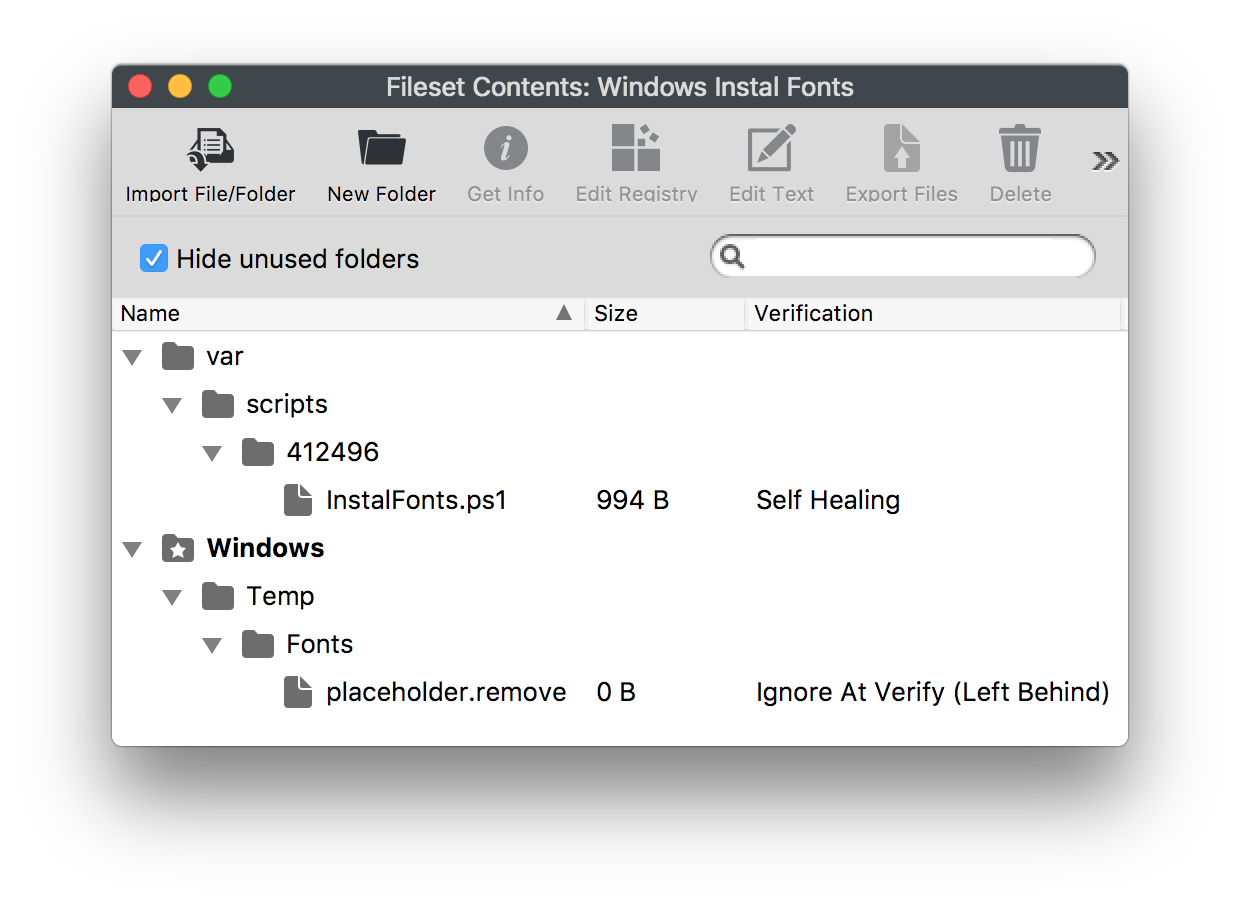 #### Adding Fonts - Select the font files in macOS Finder or Windows Explorer. - Drag them into the Fileset folder **Windows > Temp > Fonts**. - Select the Fonts folder in the Fileset, choose **Get Info > Verification**, then set **Ignore At Verify** and **Apply to Enclosed**. - Remove the `placeholder.remove` file. Example, Montserrat font: 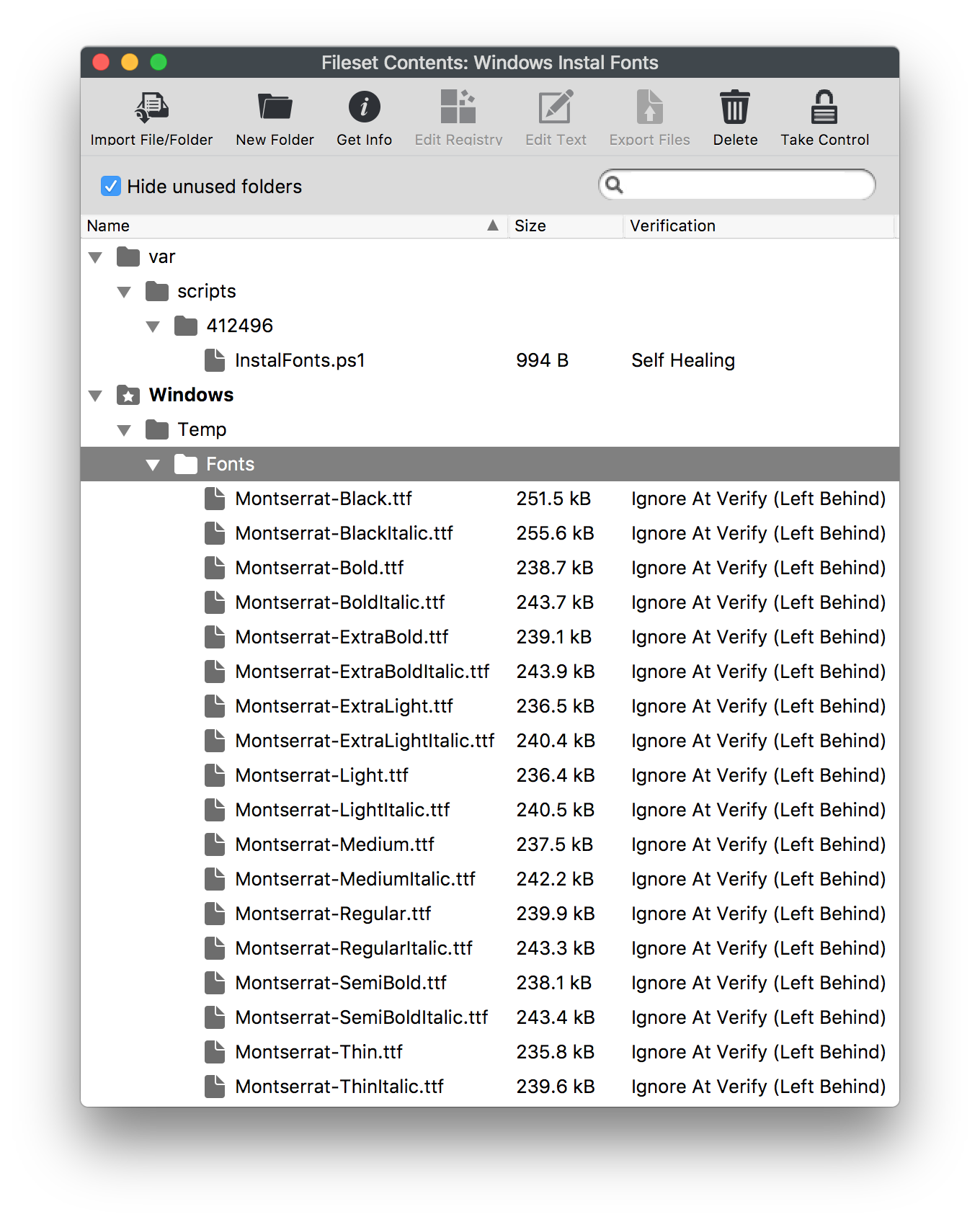 #### Deployment On association and activation, the script will: - Copy all files from `C:\Windows\Temp\Fonts` to `C:\Windows\Fonts` if they do not already exist. - Create a registry entry for each copied file if one does not already exist. - Remove each file from the temporary directory: `C:\Windows\Temp\Fonts`. #### Changing Temporary Folder To use a different temporary folder: - Drag the fonts to the desired location in the Fileset. - Change the launch argument to match: **InstalFonts.ps1 > Get Info > Executable**. 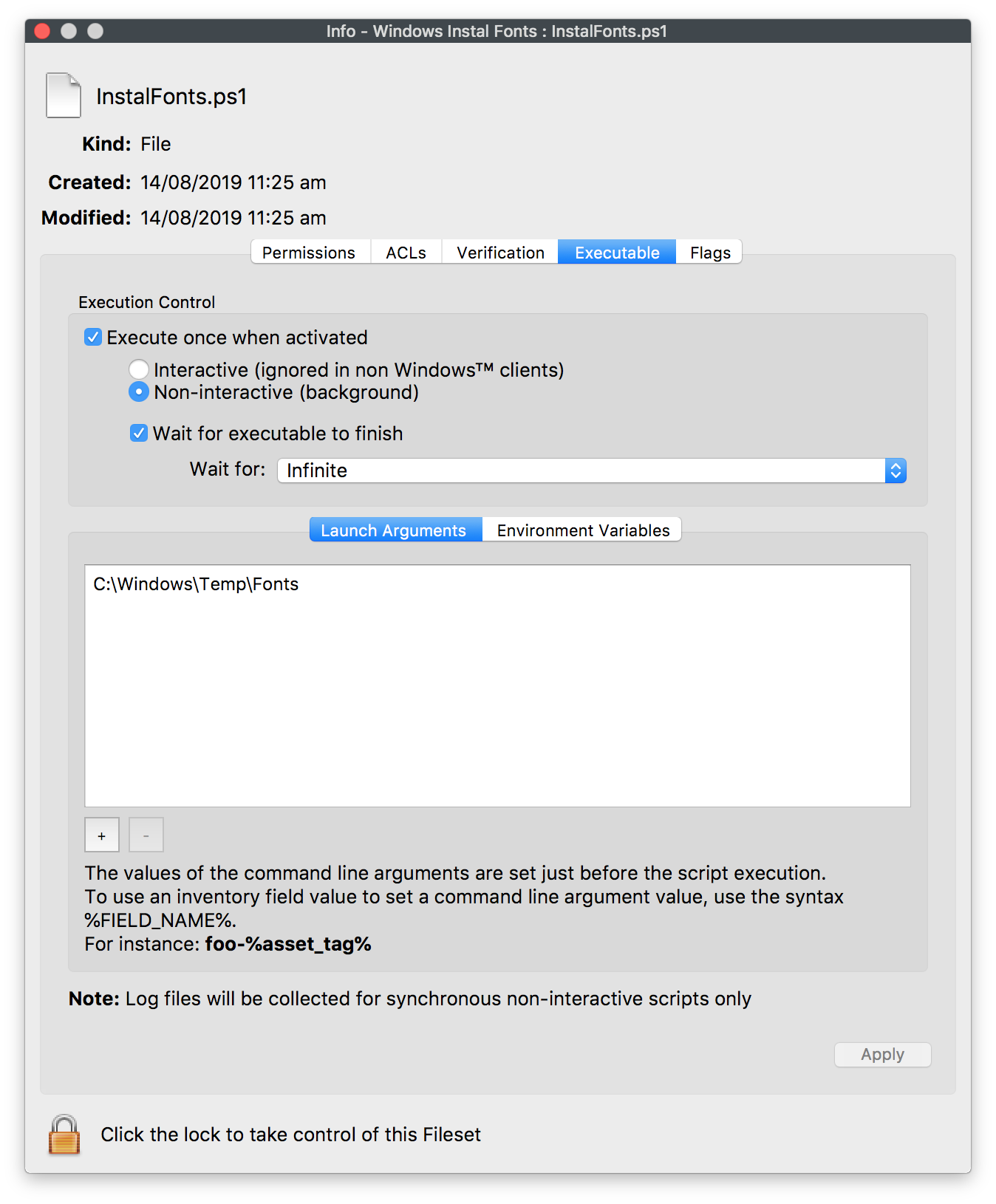 Test on a small group of appropriate Windows devices before deploying broadly. # Local Group Policy Object Utility (Windows EXE) ## What LGPO.exe is Microsoft’s Local Group Policy Object utility. It lets administrators import, export, and apply local Windows Group Policy settings from the command line. This can be useful when deploying security baselines or local policy settings to Windows devices that are not managed through Active Directory Group Policy. ## When/Why LGPO.exe can help apply required local policy settings to Windows devices so they meet your organization’s security and compliance requirements. Features: - Import settings into local group policy from GPO backups or from individual policy component files, including Registry Policy (registry.pol), security templates, and advanced auditing CSV files. - Export local policy to a GPO backup. - Parse a Registry Policy (`registry.pol`) file into readable “LGPO text.” The output can be redirected to a file, edited, and imported back into local policy. - Build a new Registry Policy (registry.pol) file from "LGPO text". - Enable group policy client-side extensions for local policy processing. ## Before you begin - Test LGPO changes on a non-production device first. - Run LGPO.exe with administrator privileges. - Back up the current local policy before applying new settings. - Policy changes may affect security, login behavior, Windows Update behavior, browser settings, or other system behavior depending on the imported policy. - Some changes may require `gpupdate /force`, a sign-out/sign-in, or a reboot. #### Example: Deploy LGPO.exe with FileWave 1. Download [LGPO.zip](https://kb.filewave.com/attachments/442). 2. Add the required policy files to the same Fileset, such as: - `registry.pol` - `GptTmpl.inf` - `Audit.csv` - `lgpo.txt` 3. Create a Windows script in the Fileset. 4. Use the LGPO command that matches the policy file you are deploying, for example: ``` LGPO.exe /m "%~dp0registry.pol" /v gpupdate /force ``` 5. Associate the Fileset with a test device first. 6. After validation, deploy to the intended device group. #### LGPO Policy Example Template Example Template Fileset: - [Example LGPO Template.fileset.zip](https://kb.filewave.com/attachments/521) Use the template variable examples below to apply or remove one Windows local policy value. You only need to set a few environment variables: - apply\_policy.ps1 applies the policy. - remove\_policy.ps1 removes the policy value. #### Example Fileset Contents Example contents: LGPO.exe, apply\_policy.ps1, and remove\_policy.ps1. GeneratedPolicy.txt is created by the script at runtime.FW\_POLICY\_TYPE and FW\_POLICY\_DATA are required when applying a policy. They are not required when removing a policy.
| **Variable** | **Example** | **Notes** |
|---|---|---|
| FW\_POLICY\_KEY | Software\\Policies\\Microsoft\\Windows\\Installer | Registry policy path. You may also use a full HKLM:\\... path. |
| FW\_POLICY\_VALUE | DisableMSI | Registry value name. |
| FW\_POLICY\_TYPE | DWORD | Required for apply. Common values: DWORD, SZ, QWORD, EXPAND\_SZ, MULTI\_SZ. |
| FW\_POLICY\_DATA | 2 | Required for apply. |
For User policies, include LGPO.exe and use LGPO text import. Direct registry fallback is intended for Computer policies because FileWave often runs scripts as LocalSystem.
| **Variable** | **Default** | **Notes** |
|---|---|---|
| FW\_POLICY\_SCOPE | Computer | Use Computer for HKLM policy or User for HKCU policy. |
| FW\_LGPO\_EXE | .\\LGPO.exe | Custom path to LGPO.exe. |
| FW\_LGPO\_TEXT\_PATH | .\\GeneratedPolicy.txt | Where the generated LGPO text file is written. |
| FW\_RUN\_GPUPDATE | true | Runs gpupdate.exe /force. |
| FW\_DIRECT\_REGISTRY\_FALLBACK | true | Directly writes simple Computer policies if enabled. |
| **Goal** | **Recommended Command** |
| Apply LGPO text policy | LGPO.exe /t path\\lgpo.txt |
| Apply a full GPO backup | LGPO.exe /g path |
| Apply machine policy settings | LGPO.exe /m path\\registry.pol |
| Apply user policy settings | LGPO.exe /u path\\registry.pol |
| Apply a security template | LGPO.exe /s path\\GptTmpl.inf |
| Apply advanced audit settings | LGPO.exe /a path\\Audit.csv |
| Export current local policy | LGPO.exe /b path \[/n GPO-name\] |
| Convert Registry.pol to readable text | LGPO.exe /parse /m path\\registry.pol |
| Build Registry.pol from LGPO text | LGPO.exe /r path\\lgpo.txt /w path\\registry.pol |
**Sync Computer Name** When a client is manually renamed in FileWave Admin, FileWave disables **Sync Computer Name** for that client. That allows the Fileset to apply the FileWave Client Name to Windows instead of having Windows immediately sync its old computer name back into FileWave.
# Store BitLocker Recovery Keys in a FileWave Custom Field This recipe uses a FileWave Custom Field client script to report the BitLocker recovery key for each protected Windows volume. Use it when you do not already escrow recovery keys in Microsoft Entra ID or another approved system. Recovery keys are sensitive, so restrict access to the Custom Field and any reports that display its values. ## Import the Custom Field 1. Download [BitLocker Key Custom Field.customfields](https://kb.filewave.com/attachments/120). 2. In FileWave Central, open **Assistants > Custom Fields > Edit Custom Fields > Import**, then select the downloaded file. 3. Save the changes in the Custom Fields dialog. 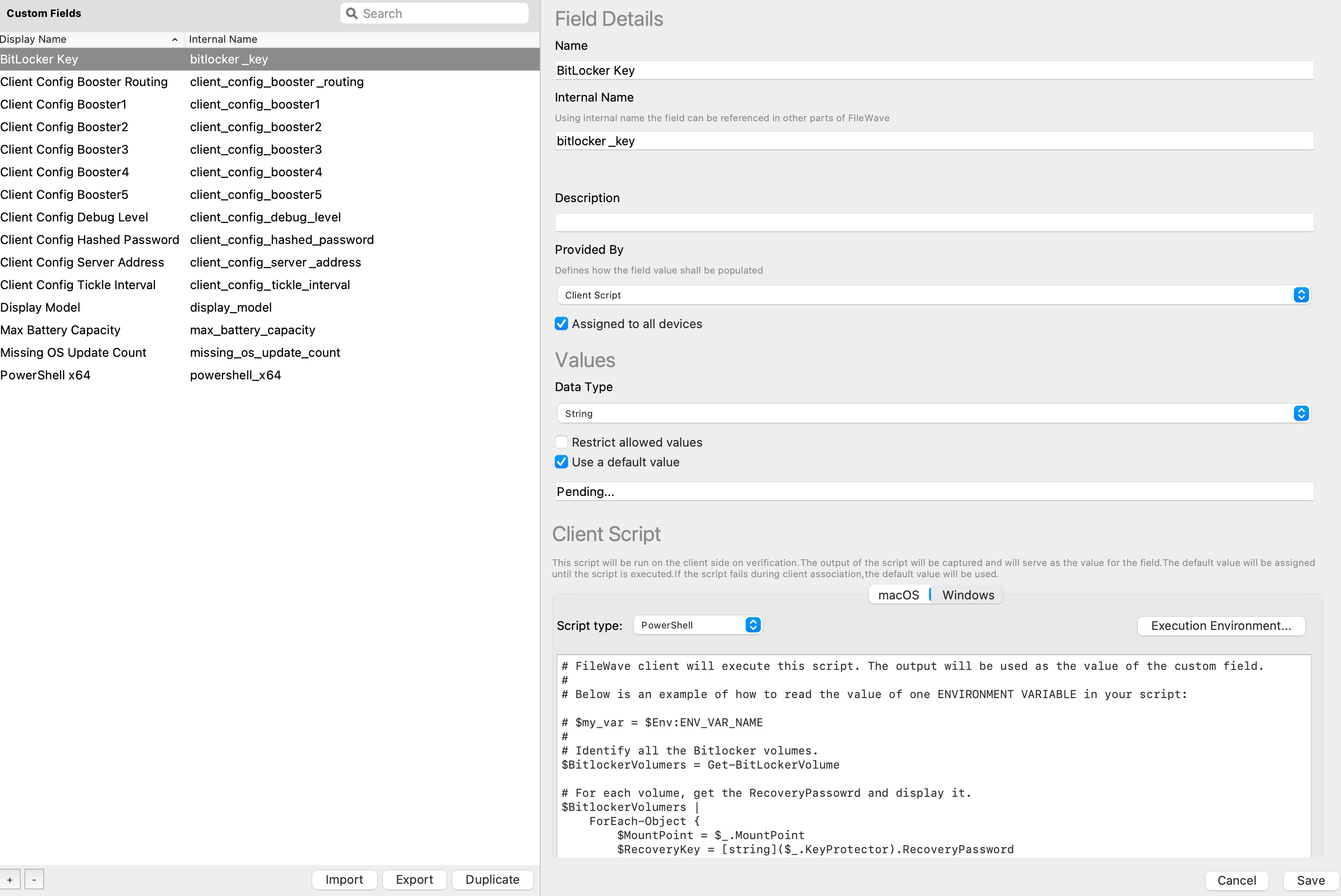 **Here is the script from the Custom Field:** ```powershell # FileWave client will execute this script. The output will be used as the value of the custom field. # # Below is an example of how to read the value of one ENVIRONMENT VARIABLE in your script: # $my_var = $Env:ENV_VAR_NAME # # Identify all the Bitlocker volumes. $BitlockerVolumers = Get-BitLockerVolume # For each volume, get the RecoveryPassowrd and display it. $BitlockerVolumers | ForEach-Object { $MountPoint = $_.MountPoint $RecoveryKey = [string]($_.KeyProtector).RecoveryPassword if ($RecoveryKey.Length -gt 5) { Write-Output ("$MountPoint,$RecoveryKey") } } exit 0 ``` ## Assign the Custom Field to devices 1. Start with a small set of Windows devices. In **Clients**, right-click a target device and select **Edit Custom Field(s) Associations**. 2. Enable the imported BitLocker Custom Field and wait for fresh inventory before checking the result. 3. For a wider rollout, associate it with a Smart Group whose criterion is **Client OS Platform \[equals\] Windows**. You can also select **Assigned to all Devices** in the Custom Field definition because only Windows devices run this client script. ## Check the results The value reports each mount point and recovery key as a comma-separated pair. Confirm that every expected encrypted volume appears on the pilot devices before assigning the field more broadly. 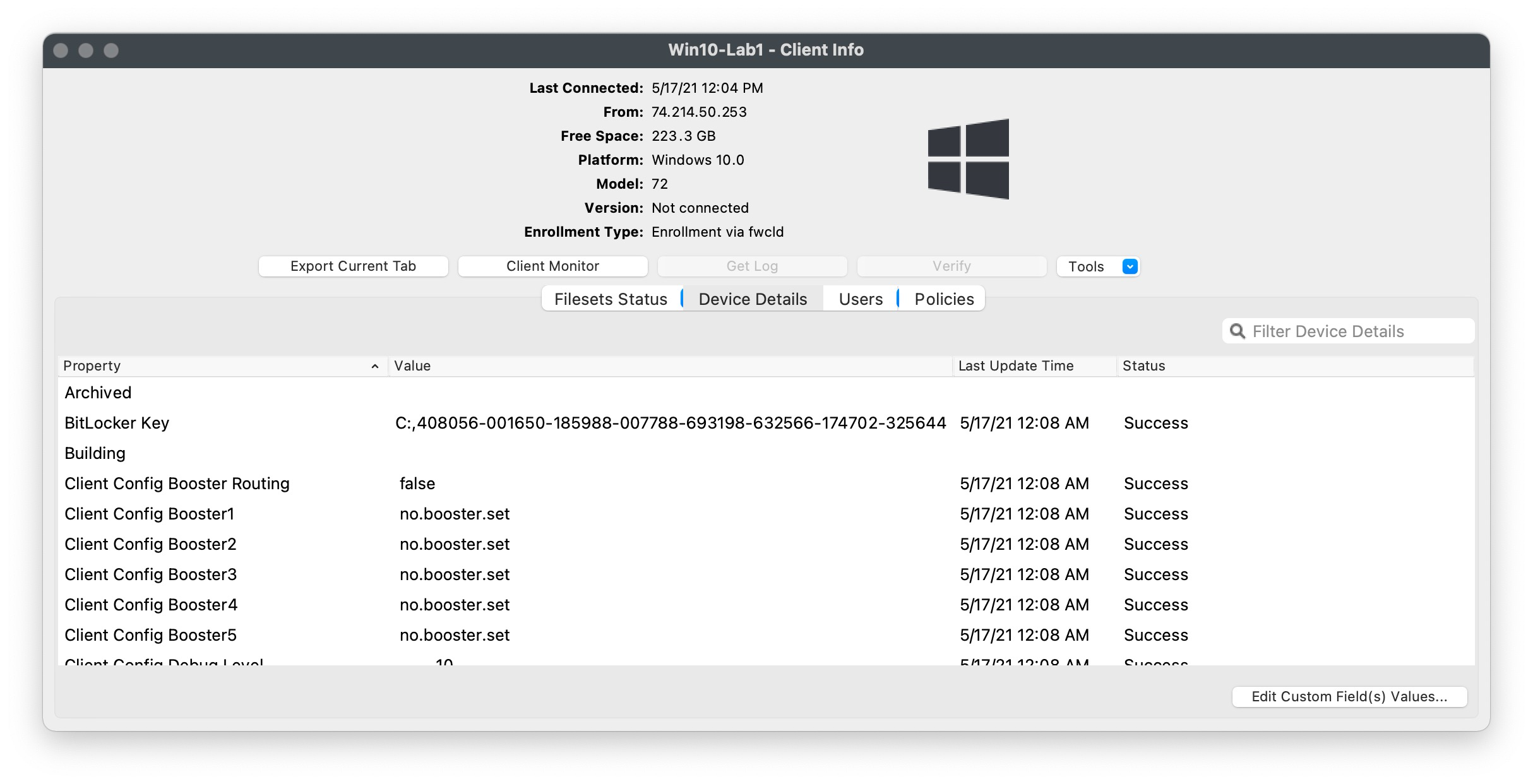 ## Related articles - [Securing FileWave Server on the Internet for Remote Device Management](https://kb.filewave.com/books/filewave-server/page/securing-filewave-server-on-the-internet-for-remote-device-management "Securing FileWave Server on the Internet for Remote Device Management") # Upgrade Windows 10 and 11 ### Description Although Software Updates are available as standard catalogue, Feature Updates are not. The following method may be used to update Windows devices using Feature Updates, e.g. 1909, 21H1. Last tested upgrading 20H2 to 21H1 #### Ingredients - Latest [Windows 10 ISO](https://www.microsoft.com/en-us/software-download/windows10ISO) or [Windows 11 ISO](https://www.microsoft.com/en-us/software-download/windows11) – If downloading from a Windows 10 device, please use the steps linked [here](https://www.howtogeek.com/427223/how-to-download-a-windows-10-iso-without-the-media-creation-tool/) to access the appropriate ISO download page. - Following Fileset Recipe:| ↓ Windows |
|---|
| [Windows - Feature Upgrade.fileset.zip](https://kb.filewave.com/attachments/113) |
Microsoft may change these options with differing versions. For example, there is a new argument /EULA which has been introduced for Windows 11, whilst the /DynamicUpdate argument has additional options available since Windows 10, 2004.
Examples could include Dynamic Updates or Compatibility (which have been included in the provided Fileset) Dynamic Updates (DynamicUpdate): [https://docs.microsoft.com/en-us/windows-hardware/manufacture/desktop/windows-setup-command-line-options#dynamicupdate](https://docs.microsoft.com/en-us/windows-hardware/manufacture/desktop/windows-setup-command-line-options#dynamicupdate) 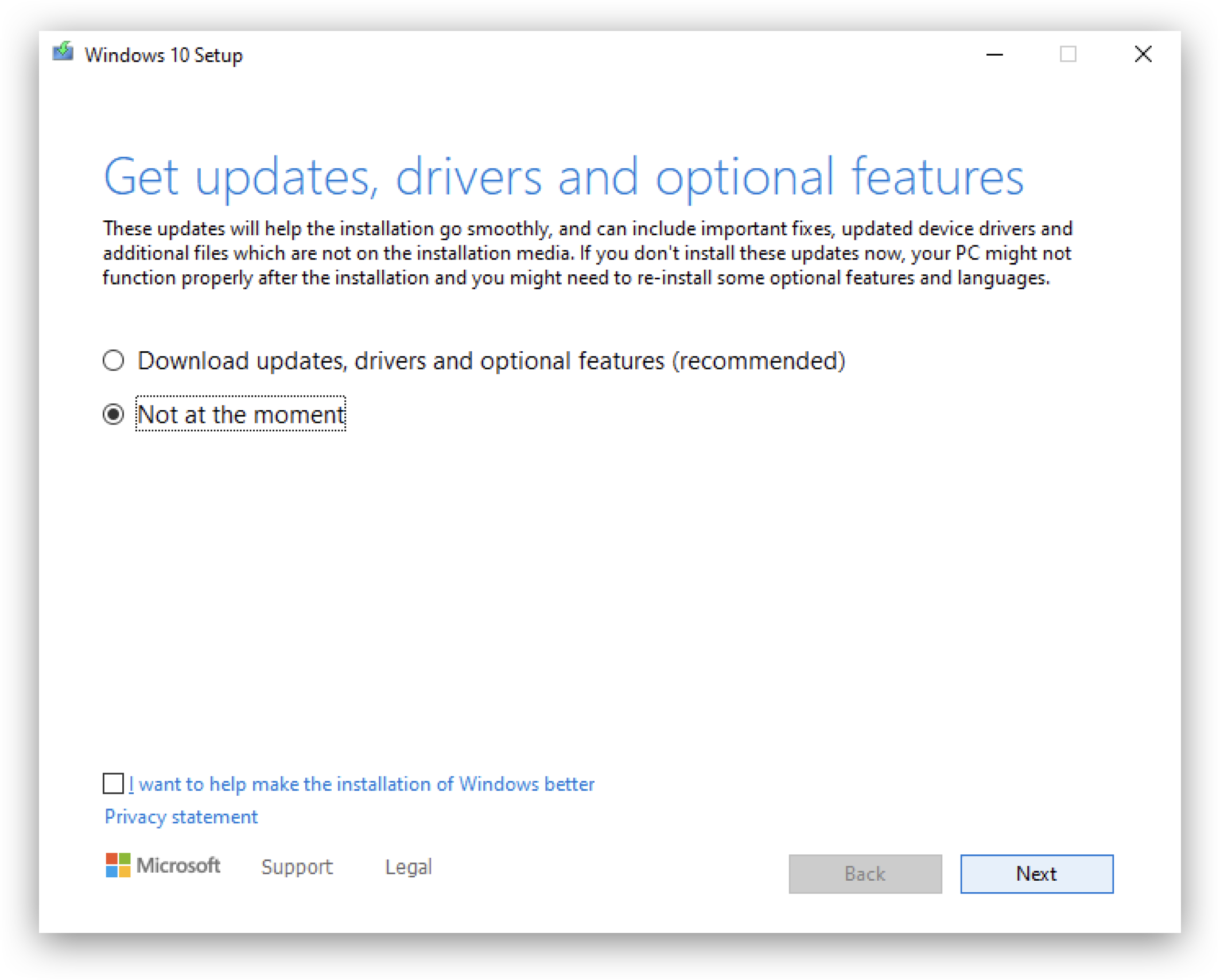 Compatibility (Compat): [https://docs.microsoft.com/en-us/windows-hardware/manufacture/desktop/windows-setup-command-line-options#compat](https://docs.microsoft.com/en-us/windows-hardware/manufacture/desktop/windows-setup-command-line-options#compat) 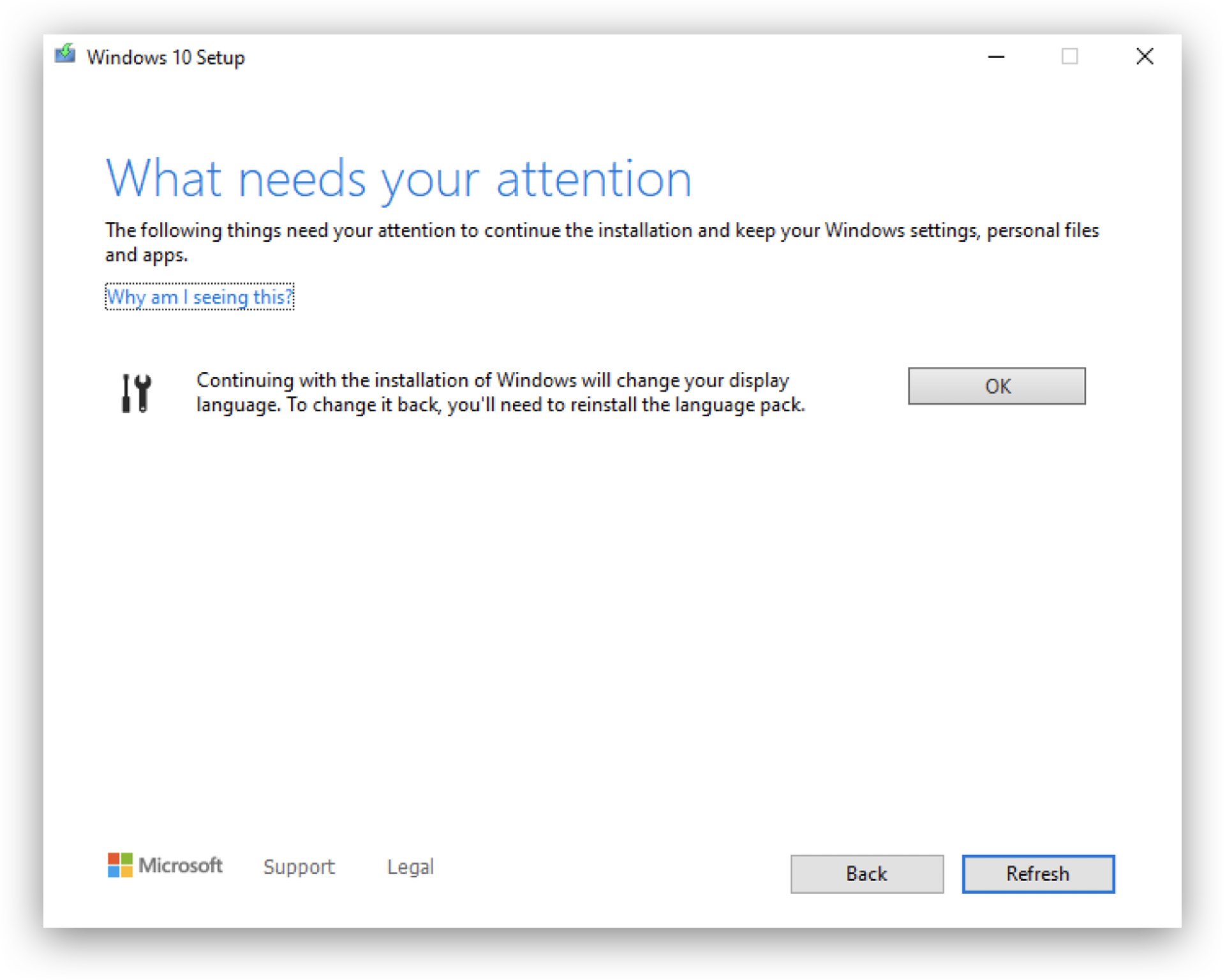Defining Dynamic Updates is optional (Microsoft default values will be applied if not supplied), but where warnings are received, if Compatibility is not defined, the Fileset will fail to instal the update.
1. Upload the provided Fileset using FileWave Admin 2. Upload the downloaded ISO into the same folder as the Placeholder within the Fileset; approximately 5GB in size. (The .placeholder\_windows\_iso file may be removed). **Ensure the ISO has the same name as the below screenshot: 'Windows\_Upgrade.iso"** 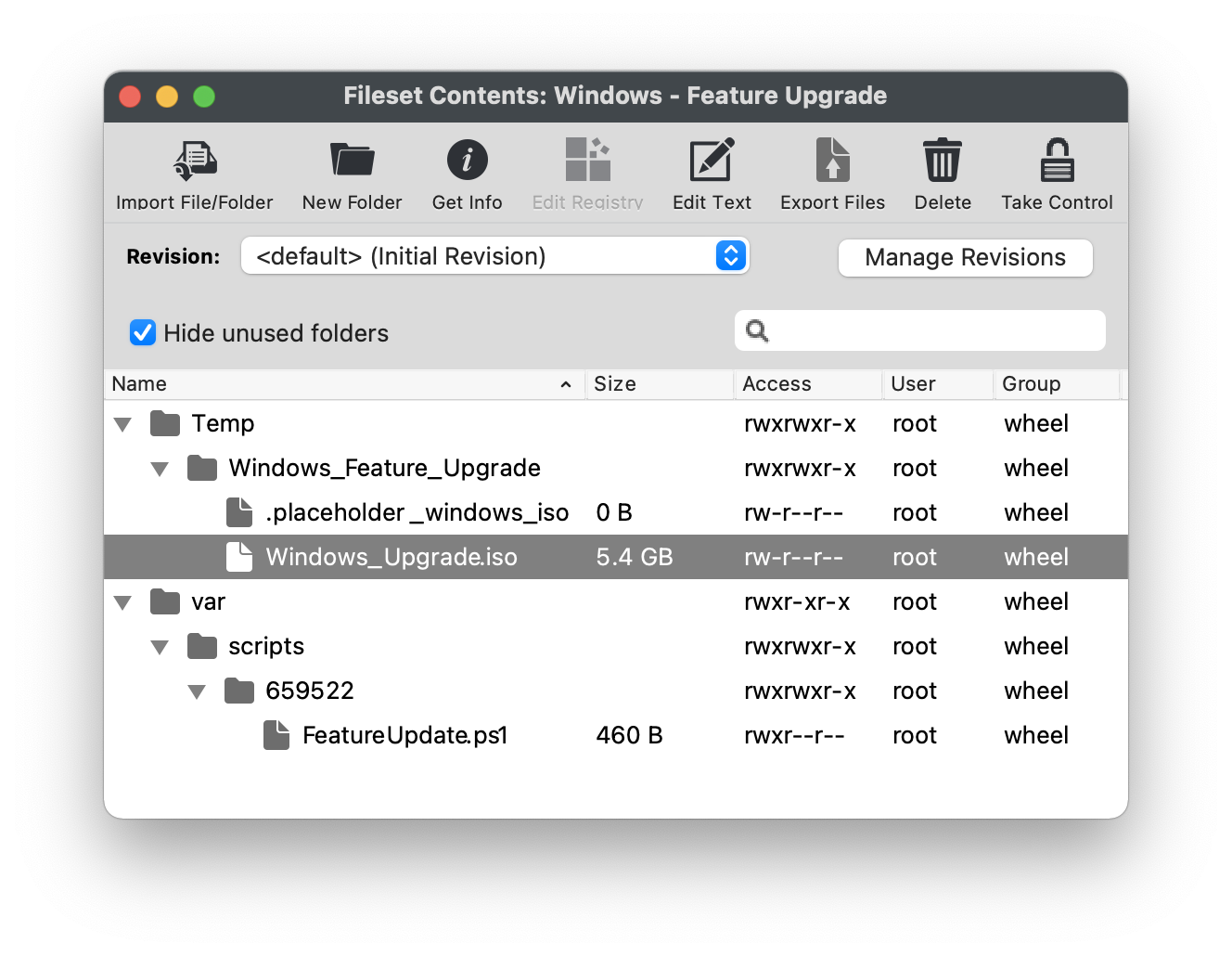 3. Select "FeatureUpgrade.ps1" from the Fileset contents and click "Get Info" from the top menu bar. 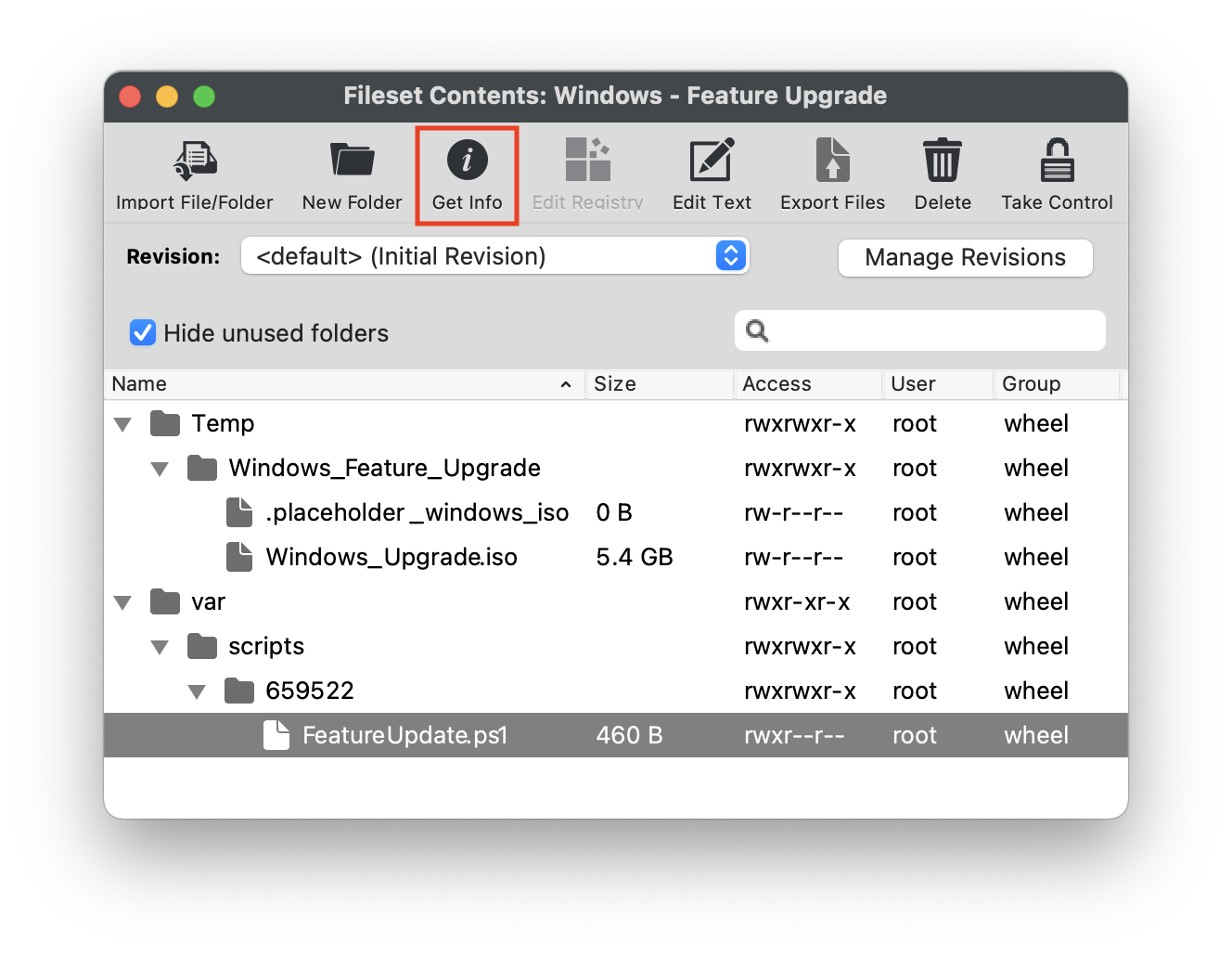 4. Select the "Executable" tab within the "Get Info" window. 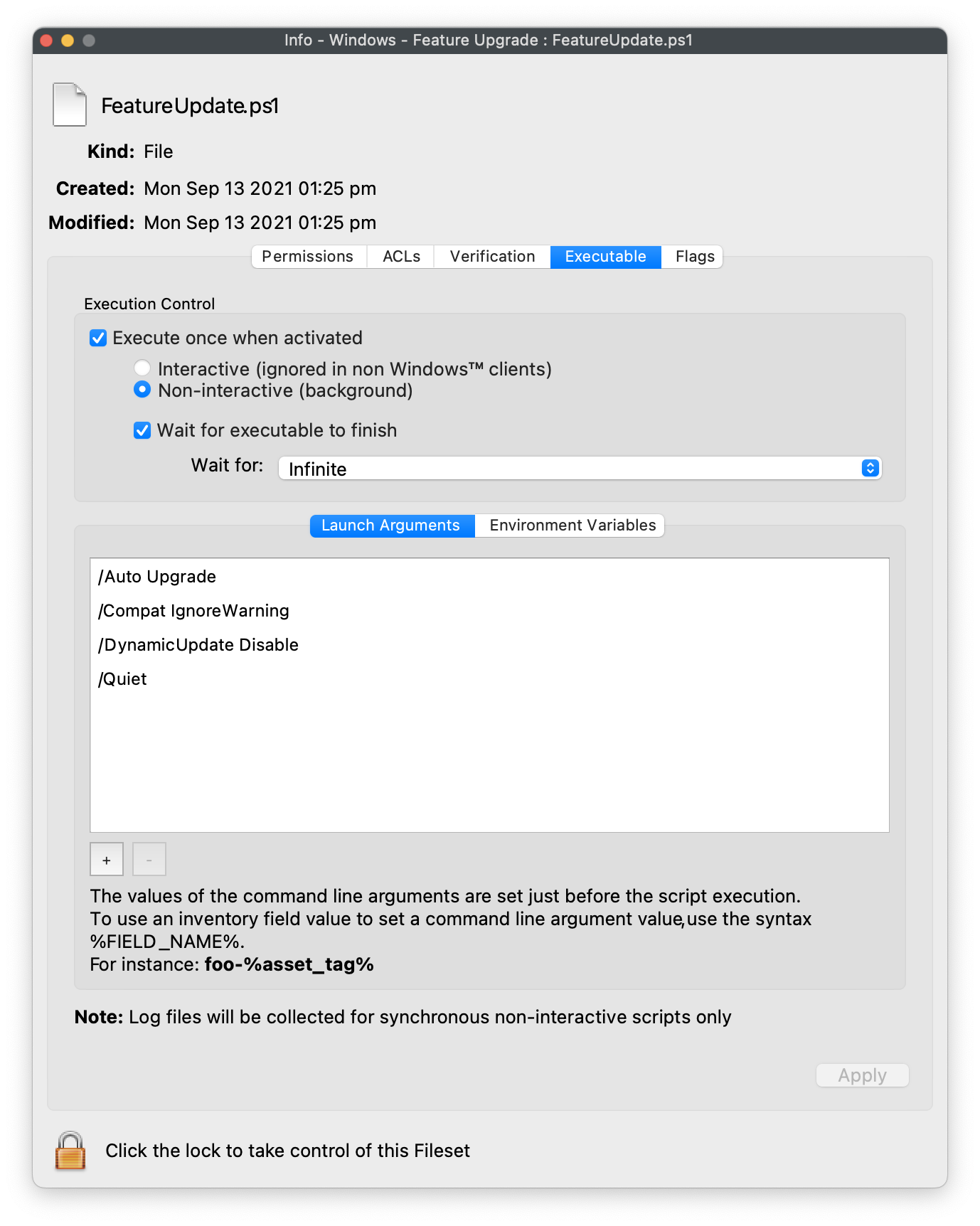 5. Modify the "Launch Arguments" as desired and click "Apply" to save changes. Remove any unwanted or add any additional arguments from Microsoft's above KB. Please consider the following: - Launch Arguments as a bare minimum: - /auto upgrade - /quiet - Launch Arguments for Windows 11: - /auto upgrade - /quiet - /noreboot - /eula accept - /dynamicupdate disable - /copylogs C:\\Temp\\win11upgradelogs - **IMPORTANT NOTE:** Compat mode will be required if warnings prevent the installer from completing. More details on Windows 11 Launch Arguments here: [Windows 11 Setup Command Line Options](https://learn.microsoft.com/en-us/windows-hardware/manufacture/desktop/windows-setup-command-line-options?view=windows-11) 6. Associate Fileset to machines and wait patiently for the upgrade to complete. #### Testing When testing, consider disabling the Reboot option in the Fileset properties, such that the Windows interface is still available during the initial process of the upgrade. Windows Task Manager will show "Modern Host Setup" process whilst upgrade is in progress. Timings will vary depending upon chosen options, device usage and network bandwidth. It could take 30-40 minutes or more before the device shows the Windows Update blue screen; as the update prepares the device and other possible updates. It should also be expected that the device may reboot multiple times.It could also be possible to have the ISO available via a network mount and adapt the script to mount the shared ISO rather than pushing the ISO via FileWave.
#### User Experience Due to the nature of how Microsoft Feature Updates work, there can be a substantial amount of time between the launch of the update and the device continuing to the Blue Updates Screen. Where the Reboot option is selected for the Fileset, this wait will not commence util the user accepts the update. As such the FileWave user prompt may be on the screen for a lengthy period of time. If the reboot option is not selected, although the user will not be impacted by this preliminary stage of the Feature Upgrade, once completed, the user will suddenly be dropped out of their user session, without warning, for the installation and reboots to take place. # Notify Users with a dialog (Windows) ## Description Use this Windows Fileset when you want FileWave to show users a notification while Filesets download, install, or finish activating. The example monitors the FileWave Client log and raises Windows Notification Center messages when the configured text patterns appear. 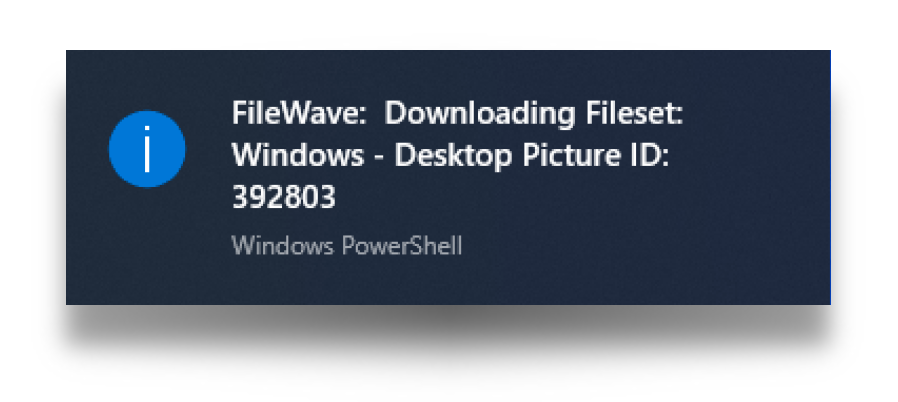 The Fileset is designed to: - Create a Windows service that monitors Fileset changes - When a Fileset changes, begin monitoring the FileWave Client log file - When configured text strings appear in the log file, send a notification to Windows Notification Center - Stop monitoring when the configured completion text appears The service starts automatically when the user logs in. If the Fileset is disassociated, its pre-uninstallation script removes the service so the watcher does not keep running. ## Ingredients - Provided Fileset:| ↓ Windows |
| [](https://kb.filewave.com/attachments/152) |
| **Example Wallpaper Fileset** |
| [](https://kb.filewave.com/attachments/475) |