Troubleshooting
IdP redirect URL port 20443
What
FileWave IdP device-enrollment redirect URLs use port 20443 for the device redirect endpoint. Older IdP configurations may still have that redirect URL on port 443 or may omit the port.
When/Why
This changed in FileWave 15.5.1 to support environments where clients enroll through IdP but port 443 is not exposed for that redirect. If your IdP setup was created before that change, check the redirect URLs stored in your IdP.
How
Review the IdP setup article for your provider, then check the third redirect URL. It should use port 20443 for current FileWave configurations.
FileWave 15.5.1 and newer use this URL format for the device redirect:
https://FWXSERVER:20443/auth/login_via_idp_redirect_for_device
FileWave configurations created before 15.5.1 may have used the same URL without a port, or with port 443:
https://FWXSERVER:443/auth/login_via_idp_redirect_for_device
To confirm the correct values for your server, repeat the IdP setup step where FileWave Anywhere shows the URLs to copy. The other two redirect URLs remain on port 443.
Related Content
Why Apple Device Enrollment Prompts for an IdP Login
Why the login prompt appears
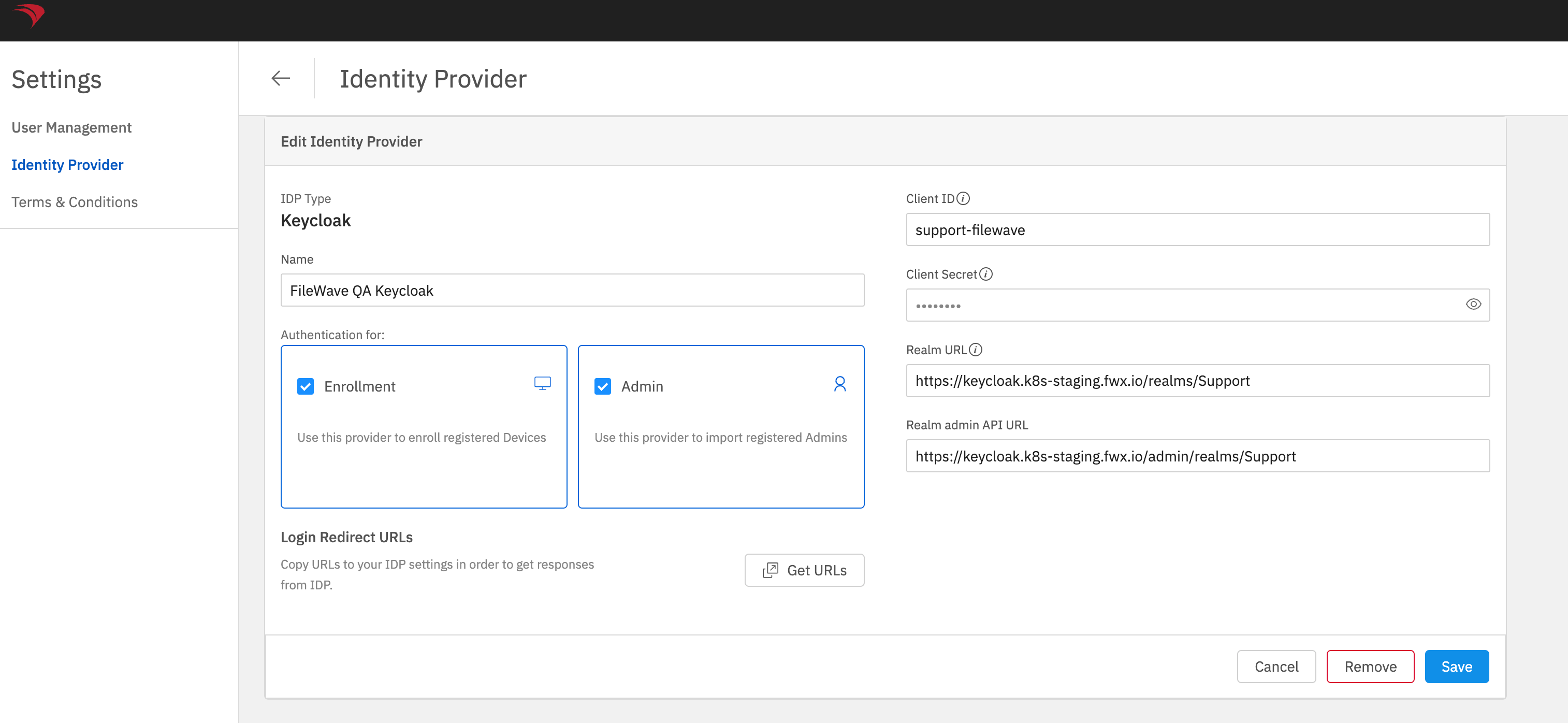
An identity-provider login prompt during macOS, iOS, or iPadOS enrollment is expected when the FileWave IdP configuration has Enrollment enabled. The prompt can use Google, Keycloak, Okta, or Microsoft Entra ID, depending on the configured provider.
What the Enrollment setting controls
The Enrollment checkbox tells FileWave to require authentication through that IdP as part of device enrollment.
Change the setting
In FileWave Anywhere, open Settings and edit the IdP configuration. Clear Enrollment to stop using that provider for enrollment authentication, or select it to require the login prompt. Save the IdP configuration after changing the setting.