Find Macs Compatible with macOS 27 Using Inventory Reports
Description
Use the included FileWave Inventory Reports to identify managed Macs that Apple lists as compatible or incompatible with macOS 27.
Prerelease information: macOS 27 is currently in preview. Apple may change the supported-device list before the final release. Review Apple’s macOS 27 compatibility page before making final upgrade or replacement decisions.
Apple’s macOS 27 compatibility list
Apple’s current list contains only Apple-silicon Macs:
- MacBook Neo (2026)
- MacBook Air with Apple silicon (2020 and later)
- MacBook Pro with Apple silicon (2020 and later)
- iMac with Apple silicon (2021 and later)
- Mac mini with Apple silicon (2020 and later)
- Mac Studio (2022 and later)
- Mac Pro (2023 and later)
The significant change from macOS 26 is that macOS 27 drops the remaining Intel-based Macs, including Intel MacBook Pro, iMac, and Mac Pro models that could run macOS 26.
How the reports classify Macs
Both definitions are limited to inventory records whose operating-system type is OSX.
- Compatible: the Mac reports Is Apple Silicon = true, matches a known Apple-silicon model identifier, or is already running macOS 27.
- Incompatible: the record is a Mac and none of the compatible checks match.
The model-identifier fallback covers early Apple-silicon inventory such as MacBookAir10,*, MacBookPro17,*, MacBookPro18,*, iMac21,*, Macmini9,*, and Mac13,* through Mac18,*. It also includes the MacBook Neo identifier Mac17,5.
Scope: These reports classify Apple’s published hardware compatibility only. They do not evaluate free disk space, application compatibility, backup readiness, or FileWave support for prerelease macOS builds.
Ingredients
- FileWave Central access with permission to manage Reports.
- The compatible and incompatible JSON files below.
| Report | Download | Purpose |
|---|---|---|
| macOS 27 Compatible | macos27_compatible.json | Find managed Macs matching Apple’s current macOS 27 hardware list. |
| macOS 27 Incompatible | macos27_incompatible.json | Find managed Macs that do not match the current list. |
Historical reference: The previous macOS 26 Custom Field remains in this page’s Attachments panel. Use the macOS 27 JSON files above for current compatibility planning.
Directions
Import in FileWave Central (recommended)
- Download both JSON files from the table above.
- Open Reports in FileWave Central.
- Choose Import Reports in the toolbar, or right-click within the report list and choose Import Report.
- Select
macos27_compatible.jsonand complete the import. - Repeat the import with
macos27_incompatible.json. - Open the imported reports and compare the results with your managed Mac inventory.
- Validate representative Apple-silicon and Intel Macs before using the results for upgrade planning.
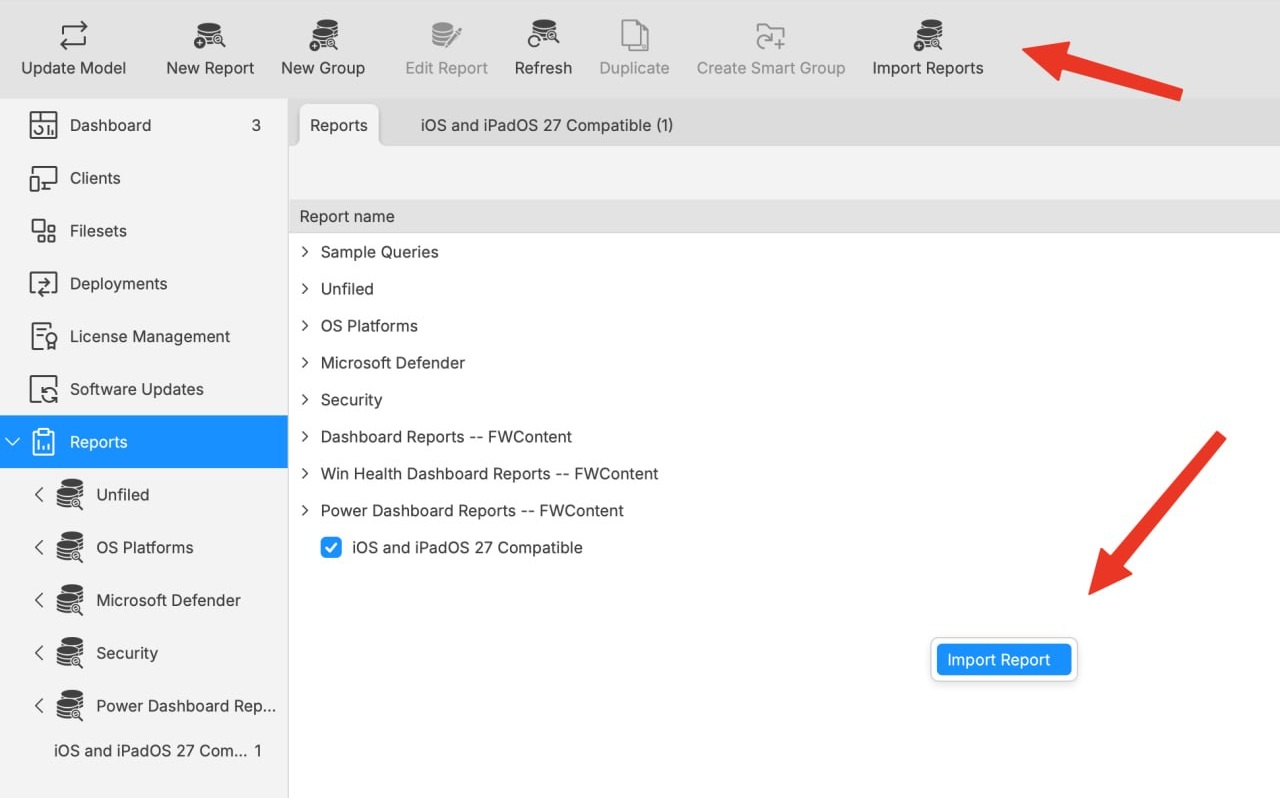
Both controls open the report-import workflow. The toolbar uses the label Import Reports; the right-click action uses Import Report.
For general report import and export guidance, see Exporting & Importing Inventory Reports.
For automated JSON deployment, see Command Line API (v1): Import an Inventory Report definition from JSON.
Validation notes
- Apple Silicon Macs should appear in the compatible report even when running macOS 26 or earlier.
- Intel Macs should appear in the incompatible report.
- A Mac already running macOS 27 remains compatible even if its model identifier is newer than the report’s fallback list.
- Windows devices are excluded, including Windows installations running on Apple hardware.