
Add Student Photos to FileWave for Apple Classroom
DoStudent youphotos wantcan student images to show upappear in Apple'sApple Classroom tool?when YouFileWave havecan comebuild toa theURL right place.
Overview
Requirements
%user_identifier% for the roster identifier and %size% large or small in the FileWave URL template.
Images
ManyBefore photographyprocessing companieshundreds willof namefiles, ask the school photographer whether it can deliver the required names and resizesizes. imagesAlso to whatever you need. Try contacting them before spending too much time creating perfect images.It might also be work checking outcheck how youthe SISstudent and/or Library checkoutinformation system store(SIS) andor sharelibrary images,system youalready stores photos; an existing managed image export may justsave besubstantial ablepreparation to share that folder.work.
Image Name
Student image files have three requirements.
- %user_identifier% = SIS/Student ID
- %size% = large or small
- extension = png or jpg
%user_identifier%
If I was looking at ASM (Apple School Manager), and my students were showing with IDs like S0001, S0002 etc.

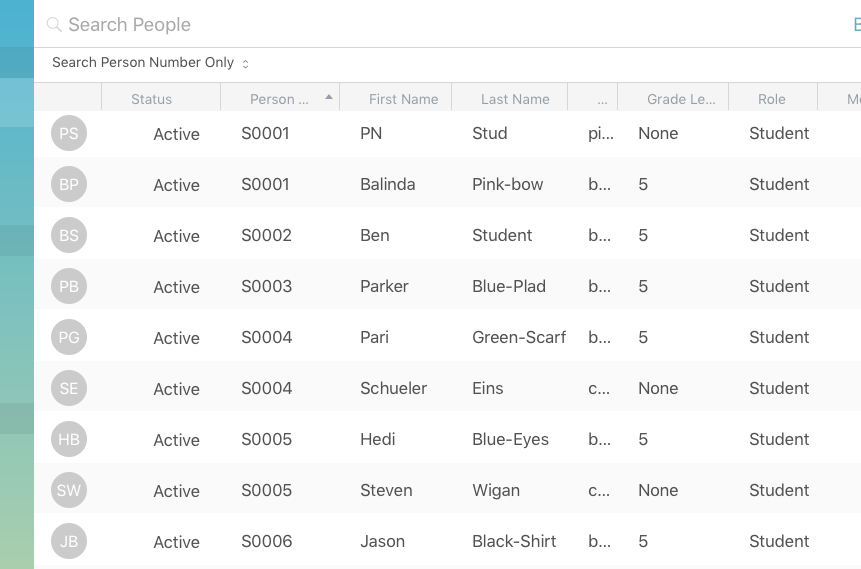
Then I would know that S0001 should be used for %user_identifier%
Be Careful: Apple School Manager lists "Person Number" and "Person ID" and you want to use "Person Number" when naming the images
%size%
As of the writing of this document, Apple has specified small and large versions of images are needed, but not the size.
FileWave's recommendation regarding image size are:
Small: 675x1024 pixels
Large: 2700x4100 pixels
Test a few before deploying hundreds of images to ensure that these sizes work well with your student devices.
Web Server
ThereA areweb twoserver maincan waysexpose tothe listphotos andfrom share images (with some minor variation)either:
- A
webdirectoryservercontainingwiththea directory(folder) ofprepared student images AAnwebapplicationserverthatrunningreturnssomeanscriptsimage(likeforpython,thejava)requested identifier and size
WeThis willarticle onlydocuments talkthe aboutsimpler optiondirectory onemethod. here,A ifscripted youapplication arecan advanceduse enoughthe tosame programURL optionpattern, two,but youits probablyimplementation don'tand needaccess FileWave'scontrols help.depend on the chosen web platform.
What if I don't know which one to do?
If you don'tdo knownot whichalready oneoperate isan bestimage orservice, youstart canwith do.a Aprotected directory ofand imagestest isa byfew farstudents before expanding the easiest. But always feel free to contact support with further questions and help.workflow.
Directory
In this setup you typically have a flat structure (meaning images are not in folders, just one folder will all student images in it), and would look something like:

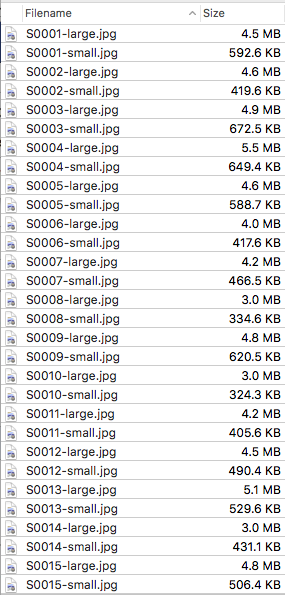
Setup for your web server will vary depending on which one you selected. But if you can navigate via a browser to a URL simular to
https://fwusa.filewave.com/images/stu/S0001-small.jpg
Then you are ready to move on
Security
Student images are personally identifiable pieces of information and are important to maintain privacy. You will want to give reasonable assurance that you have done your best to prevent these images being released into the wild.
Below could be considered minimum recommendation, but always make things as secure as you can.
Setup will vary depending on the web server selected, so please refer to best practice or hardening guides of the respective server solution.
Internal only
This web server should not be accessable from outside your network. So using the main district web server, a computer sitting in a Firewall's DMZ or a hosted server are all insecure solutions.
You could start up a virtual machine running a free linux OS, enable server.app's webserver on an macOS computer, or use windows. Whichever you do, use something that will always have the same IP/domain name, and is always running.
HTTPS
These days there are few excuses for not doing https. Certificates are cheap or free, and using a secure connections helps prevent data interception from source to destination. Just do https (Port 443/TCP), and even disable http (Port 80/TCP)
Password Protected
Many web servers can enable password protection for a whole site or even just a section of a site. If using apache an .htaccess file simular to this:
AuthType Basic
AuthName "Protected Student pictures"
AuthBasicProvider file
AuthUserFile /var/www/.htpasswd
Require valid-user
Can be placed inside the student images folder to password protect it.
(see https://httpd.apache.org/docs/current/howto/htaccess.html for more info on apache .htaccess files including setup and use)
And a user can be created by something like:
htpasswd -c /var/www/.htpasswd picture_user
Note: that the password file is the same /var/www/.htpasswd in both .htaccess and htpasswd (see https://httpd.apache.org/docs/current/programs/htpasswd.html for usage).
Constructing the URL for Admin Preferences
If we were able to access the images via browser at a URL like
https://fwusa.filewave.com/images/stu/S0001-small.jpg
Then we can use that as our template
https://fwusa.filewave.com/images/stu/S0001-small.jpg


Would become:
https://fwusa.filewave.com/images/stu/%user_identifier%-%size%.jpg
Note how the - needed to stay in the URL, and that it was an https server.

