
Let's Encrypt Setup for FileWave Server (Debian)
What
This Knowledge Base (KB) article covers a Debian-focused shell script that automates Let's Encrypt SSL certificate setup for a FileWave server on Debian 12/13.
The script now supports two challenge methods:
- HTTP-01 (standalone certbot)
- DNS-01 (Cloudflare)
Both paths handle certificate request, FileWave certificate injection, and renewal automation.
When/Why
FileWave administrators use this when they need a trusted SSL certificate for secure communication.
- Use HTTP-01 when port 80 can be reached from the internet.
- Use DNS-01 (Cloudflare) when port 80 is blocked/unavailable or you prefer DNS validation.
This documented process is for Debian 12/13. If you are a Hosted customer, FileWave can handle certificate management for you: SSL Certificate Management for Custom Domains (FileWave-Hosted Servers).
How
Prerequisites
- FileWave server on Debian 12 or 13
- Root/sudo access
- Public DNS name (FQDN) for the FileWave server
- If using DNS validation: Cloudflare API token with DNS edit permissions for the zone
Challenge method guidance
- HTTP-01: requires inbound TCP/80 reachability for Let's Encrypt validation.
- DNS-01 (Cloudflare): does not require inbound TCP/80.
If TCP/80 is not available, select DNS-01 (Cloudflare) during install.
Install steps
-
Download the script with
wget:wget -O filewave-letsencrypt-debian.sh https://kb.filewave.com/attachments/413 -
Make it executable:
chmod +x filewave-letsencrypt-debian.sh -
Run install:
sudo ./filewave-letsencrypt-debian.sh --install -
Follow prompts for:
- Hostname (FQDN)
- Validation method:
1= HTTP-012= DNS-01 (Cloudflare)
- If DNS-01
chosen:is selected: Cloudflare API token
-
Confirm values when prompted.
-
Verify output for success messages and final summary.
What the script does
- Validates Debian
+and root execution
/usr/local/bin/fwcontrol, /usr/local/filewave/certs)
Validates hostname and email
Validates DNS resolution (tries 8.8.8.8, then system resolver fallback)
Backs up existing certs under /usr/local/filewave/certs/backup-<timestamp>/
Installs/validates certbot
Requests a new certificate using selected challenge method
For DNS-01 (Cloudflare): creates /etc/letsencrypt/secrets/cloudflare.ini automatically (no manual pre-creation required)
Updates FileWave mdm_cert_trusted DB flag
Creates renewal deploy hook:
/etc/letsencrypt/renewal-hooks/deploy/filewave-server-cert.sh
/etc/cron.daily/letsencrypt-filewave
Uninstall
To remove integration files created by the script:
sudo ./filewave-letsencrypt-debian.sh --uninstall
This removes FileWave renewal hook + cron job and (if present) Cloudflare credentials file. The script intentionally leaves certbot installed.
Troubleshooting
1) FileWave server prerequisites failed
If script reports missing FileWave binaries/paths:
/usr/local/bin/fwcontrol exists.
Verify /usr/local/filewave/certs exists.
Re-run on the FileWave server host.
2) Certificate request failed (HTTP-01)
Ensure inbound TCP/80 is reachable, then retry:
sudo certbot -n --agree-tos --standalone certonly -d "<FQDN>" -m "<EMAIL>"
sudo certbot renew --force-renewal
2)3) Certificate request failed (DNS-01 Cloudflare)
Ensure token permissions and retry:
sudo certbot -n --agree-tos --dns-cloudflare --dns-cloudflare-credentials /etc/letsencrypt/secrets/cloudflare.ini certonly -d "<FQDN>" -m "<EMAIL>"
sudo certbot renew --force-renewal
3)4) FileWave UI shows old certificate behavior
If older behavior persists, verify mdm_cert_trusted is set in PostgreSQL:
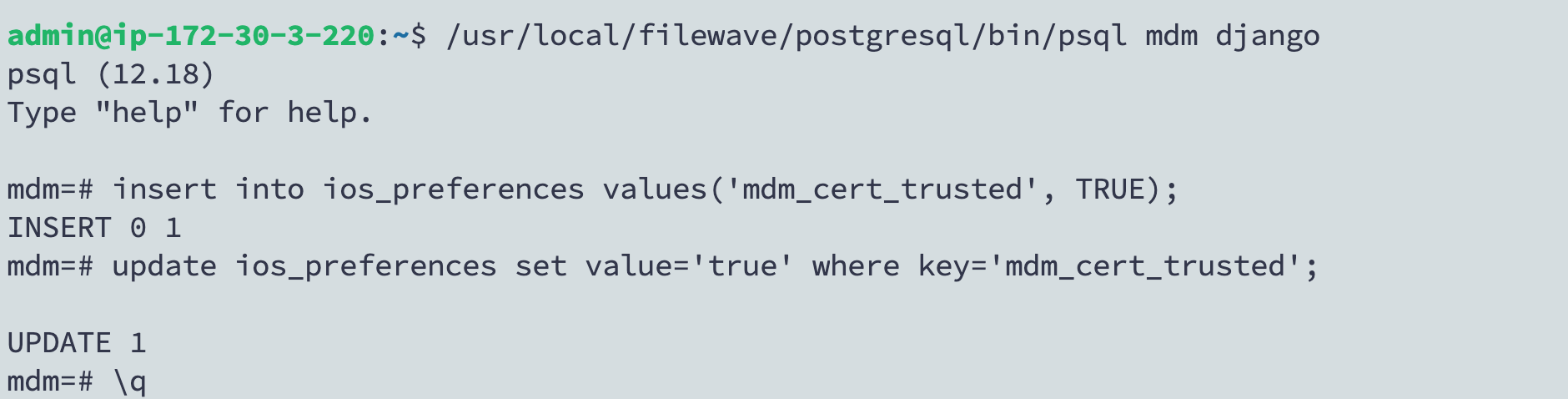
/usr/local/filewave/postgresql/bin/psql -d mdm -U django

insert into ios_preferences values('mdm_cert_trusted', TRUE); on conflict (key) do nothing;

update ios_preferences set value='true' where key='mdm_cert_trusted';

\q