Restart ChromeOS Devices
What
ForSend Restart from FileWave Central or FileWave Anywhere to reboot one or more managed Chromebooks. Use it after an MDMupdate (Mobilethat Devicerequires Management)a administratorrestart managingor ChromeOSas devices,a targeted troubleshooting step.
Before you restart a Chromebook
Plan around the abilityactive to remotely send a reboot command is a powerful tool for device maintenance and troubleshooting. This command ensures that devices are running smoothly, updates are applied, and any minor issues are resolved without the need for manual intervention.
When/Why
Understanding the Reboot Commanduser
Purpose:RestartTheinterruptsrebootthecommandcurrentallowssession,administratorssotonotifyremotelyusersrestartbeforeChromeOSadevices,plannedwhichmaintenanceisrestart.
PracticalGood Usereasons Casesto restart
ApplyingAnUpdates:installedToChromeOSensureupdatedevicesishavewaitingthe latest features and security patches.
TipsVerify forthe MDM Administratorsresult
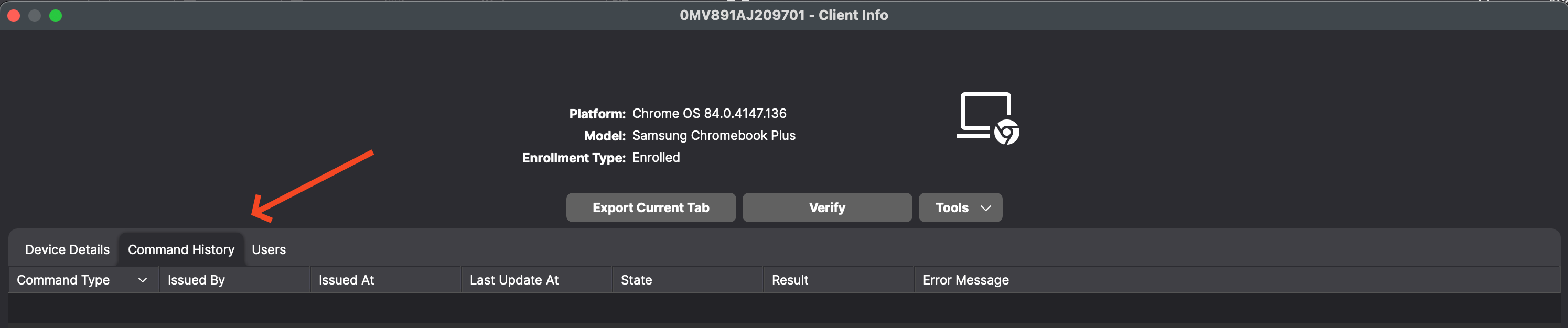
- Open the Chromebook's
UserCommandCommunicationHistory:Notifytabusersandaboutreviewscheduledthereboots,commandespeciallystate,ifresult,theyandareanyduringerrorworking hours.message. Scheduling: Plan reboots during timesConfirm thatwill least impact users, like after-hours or during known downtime.
ByA leveragingsuccessful command confirms that FileWave delivered the rebootrestart commandrequest. throughContinue yourtroubleshooting MDM solution, you can maintain control overif the ChromeOSChromebook devicesreturns withinwith yourthe organization,same ensuring they remain secure, up-to-date, and operate without issues. This command is a straightforward yet essential part of device management that helps keep everything running smoothly.symptom.
HowRestart
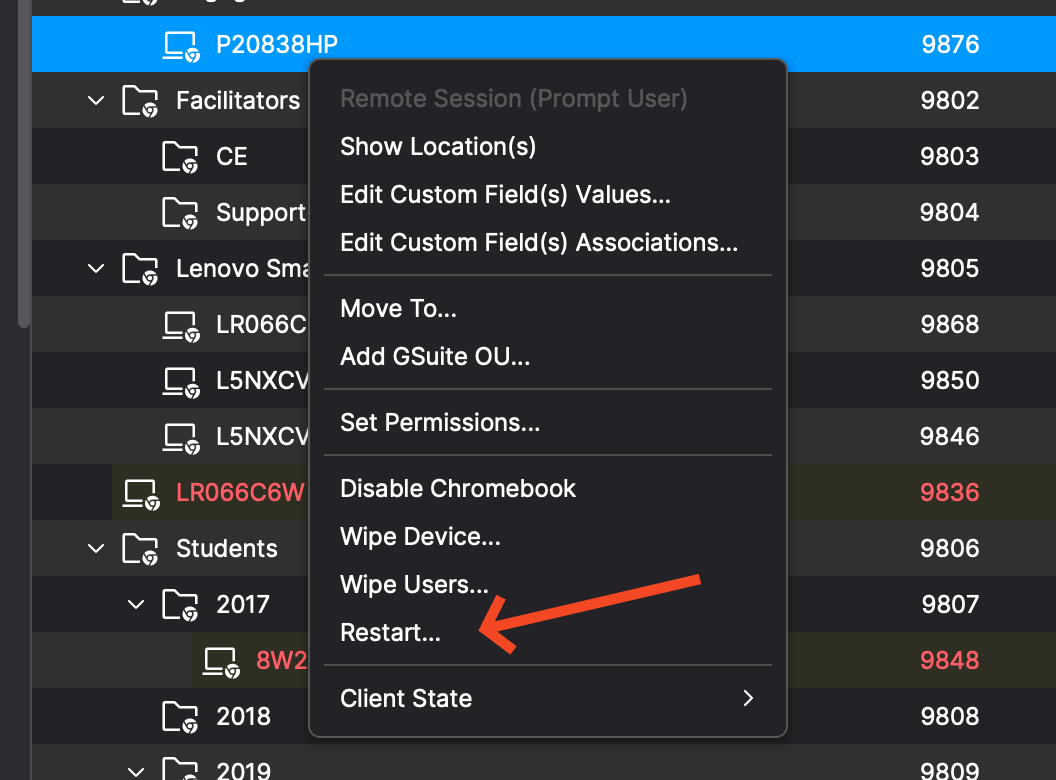
This command is executed by right clickingSelect one or more ChromebooksChromebooks, andopen pickingthe device action menu or right-click the selection, then choose Restart... as shown below.
REBOOT
Restart Command
command details
-
Description:Command:IntroducingFileWave sends the ChromeOSREBOOTcommand,commandenablingwhensystemyouadministratorschooseto reboot devices for troubleshooting remotely and applying system updates.Restart.... -
Execution:Scope:InitiatesThetheactionremoteappliesreboot process onto the selecteddevices.Chromebook or Chromebooks. -
Access:
-
The
REBOOT commandaction isaccessible through the Central as well as Anywhere Adminavailable for ChromeOSdevices.devices in FileWave Central and FileWave Anywhere. -
FindThethe command in the dropdownvisible menulabeledlabel"Reboot.is Restart...". -
ReadIfpermissionsRestart... is unavailable, check that theonlyadministratorrequirement.role can view the Chromebook and send device actions.
-
Check Command History tab
-
The Chromebook's
Description:Command HistoryUserstabcanrecordsnowREMOTE_POWERWASH,view all information related to sending REMOTE_POWERWASH, WIPE_USERS,WIPE_USERS, andREBOOTCommandscommandsinwith theCommandissuer,Historytimestamps,tabstate,forresult,Chromebookanddevices.errorAs shown below you can see this when looking at device details for a Chromebook.message.