
Running Built-in PowerShell Commands with Custom Fields
InCurrent FileWave,FileWave Windows PowerShellclients commandsare run64-bit, fromand Windows client-script Custom Fields can run in a 64-bit execution context. In the Custom Field editor, leave On Windows, run as 64-bit enabled when the script uses 64-bit PowerShell modules, 64-bit Windows components, or registry locations that are redirected for 32-bit context.processes.
Older built-inCustom cmdletsFields requiremay still be configured to run as 32-bit after an upgrade. FileWave preserves that setting so existing scripts continue to behave the same way. If an older field, or a field intentionally configured for 32-bit execution, needs to call 64-bit PowerShell, souse youone need to launchof the 64-bitpatterns executable explicitly.below.
The example below lists the members of the local Administrators group. IfFor youa Custom Field running in the normal 64-bit context, run it directly as a PowerShell Custom Field, it may fail because FileWave starts it in 32-bit PowerShell.script:
Get-LocalGroupMember -Group 'Administrators' | Select Name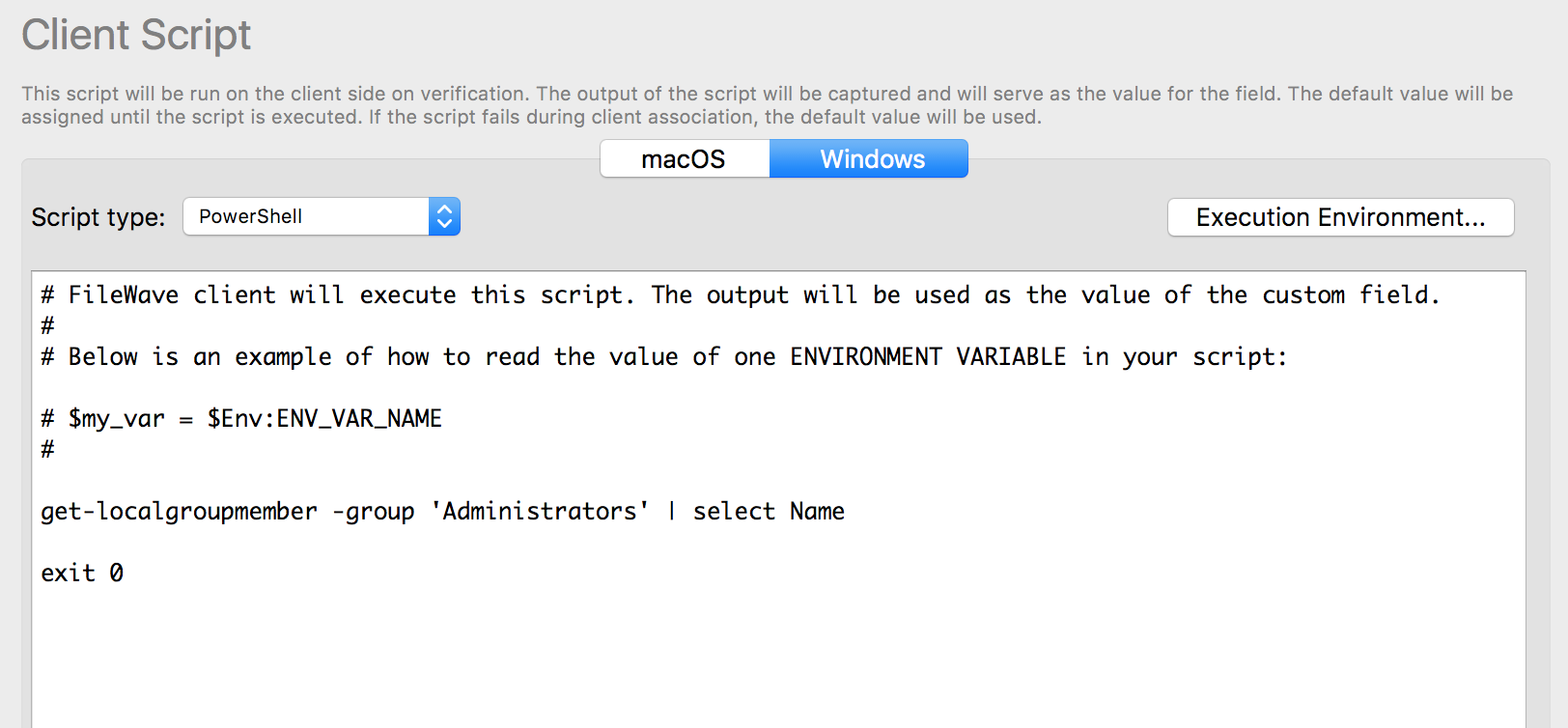
ToIf the Custom Field is configured to run the command in 64-a 32-bit PowerShell,context, some built-in cmdlets and modules may not be available. In that case, create the Custom Field as a BAT script and call the 64-bit executable first.explicitly. Use the Sysnative path when the command is launched from a 32-bit process on a 64-bit Windows device.
C:\Windows\sysnative\windowsPowerShell\v1.0\powershell.exe "Get-LocalGroupMember -Group 'Administrators' | Select Name"
exit 0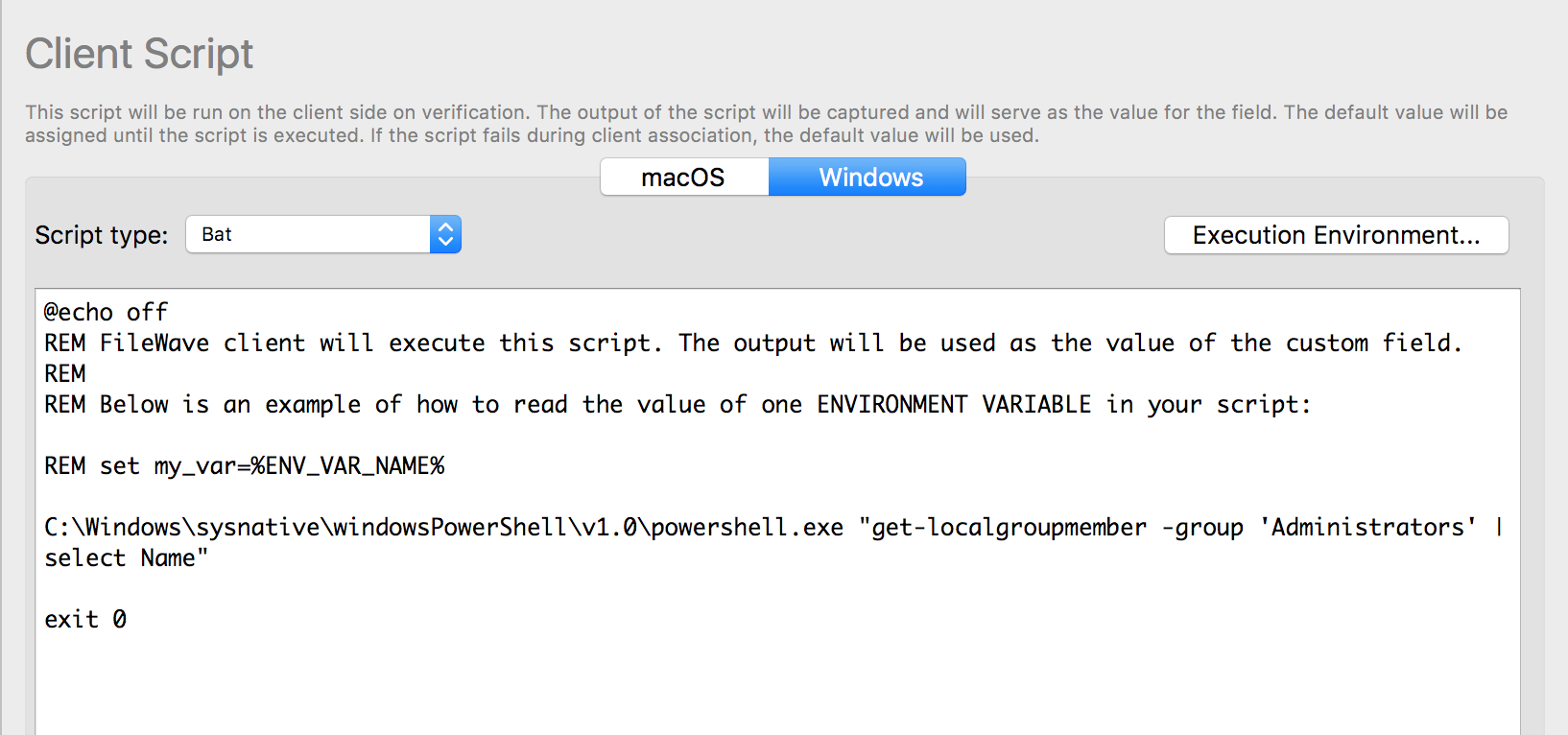
If you need an entire PowerShell script needs to relaunch initself thefrom nativea environment,32-bit PowerShell process into 64-bit PowerShell, use the following wrapper:
#############################################################################
# If PowerShell is running the 32-bit version on a 64-bit machine, we
# need to force PowerShell to run in 64-bit mode.
#############################################################################
if ($env:PROCESSOR_ARCHITEW6432 -eq "AMD64") {
    # write-warning "Take me to 64-bit....."
    if ($myInvocation.Line) {
        &"$env:WINDIR\sysnative\windowspowershell\v1.0\powershell.exe" -NonInteractive -NoProfile $myInvocation.Line
    } else {
        &"$env:WINDIR\sysnative\windowspowershell\v1.0\powershell.exe" -NonInteractive -NoProfile -file "$($myInvocation.InvocationName)" $args
    }
    exit $lastexitcode
}

# Main script
# Uncomment the next line to prove that we are always in 64-bit
#[Environment]::Is64BitProcess

# Your 64-bit script here.

#############################################################################
# End
#############################################################################