View macOS Background Tasks with DDM
What
FileWave can inventory the launch agents, launch daemons, login items, applications, and other background tasks that a managed Mac reports through Apple Declarative Device Management (DDM).
DDM reportstatus canreporting includeis declarative. When the taskdevice type,management state,service bundlesubscribes ID,to usera ID,status label,object, the device reports its current state and teamlater identifier.
WhenFileWave totherefore usereceives it
Usedevice-reported background-task inventorystatus wheninstead youof needrepeatedly polling each Mac to answer questions such as:
Which launch agents or daemons are present on a Mac?Is an expected security or management component running?Which devices report an unfamiliar task label or team identifier?
The values come fromdiscover the statussame data reported by the device. Available fields can vary by task.information.
Requirements and results
Apple supports the DDM Background tasks status report on macOS 14 and later. OnThe supported,Mac must be enrolled Macs,so FileWave receivescan receive the status data. Available fields can vary by task, and makesa field may be blank when the device does not return a value for it.
What FileWave reports
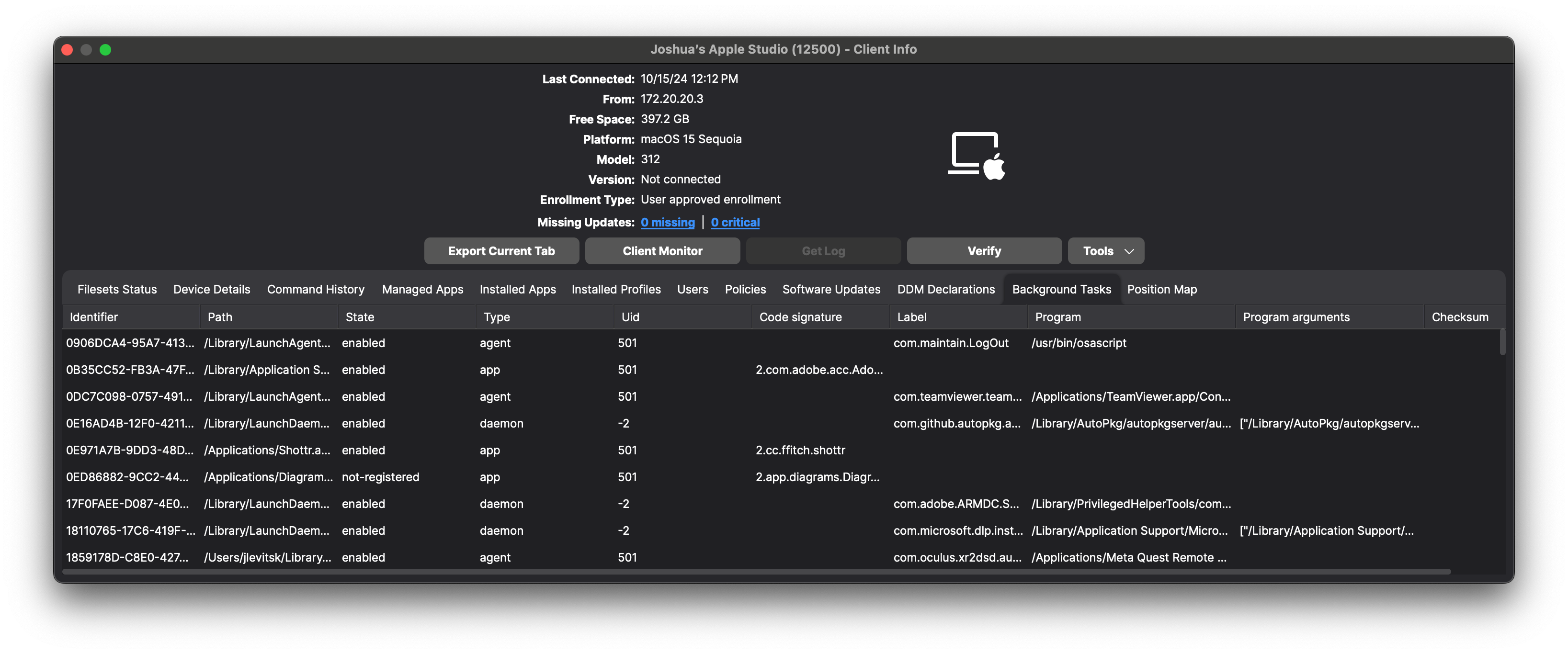
Apple's Background tasks status can include the task type, state, bundle ID, user ID (UID), label, and team identifier. In FileWave Central, the Background Tasks view can provide the following operational detail:
| Field | What it helps identify |
|---|---|
| Identifier | The identifier associated with the reported task record |
| Path | The application, LaunchAgent, LaunchDaemon, or other path associated with the task |
| State | The reported state, such as enabled or not-registered |
| Type | The task category, such as agent, daemon, or app |
| UID | The user or system context under which the task is reported |
| Code signature | Code-signing information returned for the task, when available |
| Label | The launchd or service label that can identify the component |
| Program | The executable or program launched by the task |
| Program arguments | Arguments supplied to the program, when reported |
| Checksum | The reported checksum value, when available |
How to view and report the data
- In FileWave Central, open the managed Mac and its Client Info window.
- Select the Background Tasks tab. Scroll horizontally to inspect fields that are outside the initial view.
- Use Inventory Reports when you need to compare returned background-task values
availableacross multiple Macs rather than inspect one device at a time.
When to Inventoryuse Reports.it
Background-task inventory can help you:
- Confirm that an expected security, management, or support component is present and reporting the expected state.
- Find Macs that report an unfamiliar task label, executable path, code signature, or team identifier.
- Investigate login-item, launch-agent, launch-daemon, application-launch, performance, or battery-life concerns by seeing what the device reports.
- Compare task types and states across a device group for troubleshooting or policy review.
- Document the device-reported state as part of a security or compliance investigation.
A background-task record is evidence of what the Mac reported; it is not proof by itself that a component is safe, malicious, required, or compliant. Validate unfamiliar values against your approved software inventory, vendor documentation, and device investigation before taking action.