
Create and Update PKG and MSI Filesets
What
SpecialFileWave can create installer-aware Filesets mayfor be created formacOS PKG and Windows MSI installers.packages. The TheseFileset will automatically instalruns the softwareinstaller onwhen its deployment activation. activates.
Why
ItUse isthis usualFileset type for Adminsa tostandard just simply require PKGsPKG or MSIsMSI tothat instaldoes onnot activation.need Tocustom simplifyinstall arguments or extra orchestration. Use an empty Fileset when the process,installer FileWaveneeds cancustom automaticallycommands, createsupporting files, or a specialdifferent Filesetuninstall to handle this process.workflow.
How
UsingIn theFileWave Central, choose New Fileset, option withinselect the FileWave Central Admin App, it is possible to choose PKG or MSI Fileset.Fileset Fromtype, and choose the pop-upinstaller. view,FileWave selectcreates the installerinstaller-aware andFileset FileWavefor will create this auto installing Fileset. you.
MoreYou easily,can ifalso drag a PKG or MSI installer file is dragged into the FileWaveFilesets Centralview Filesetto view,create the same automated Fileset should be created, without the need to use the New Fileset view.type.
DraggingDrop the installer file onto a desired Fileset Group willwhen causeyou thiswant the new Fileset to be created withinin that group.
Consider renamingBefore the installer beforefirst upload, suchconsider thatremoving the version number is not included. Instead, addfrom the nameinstaller filename and versionputting numberit toin the revision name.name Theinstead. belowThis sectionmakes onlater revisionsin-place shouldinstaller makereplacement this clear why this would be a good idea.easier.
Information
Opening a PKG or MSI Fileset will show the contents similar to the below:
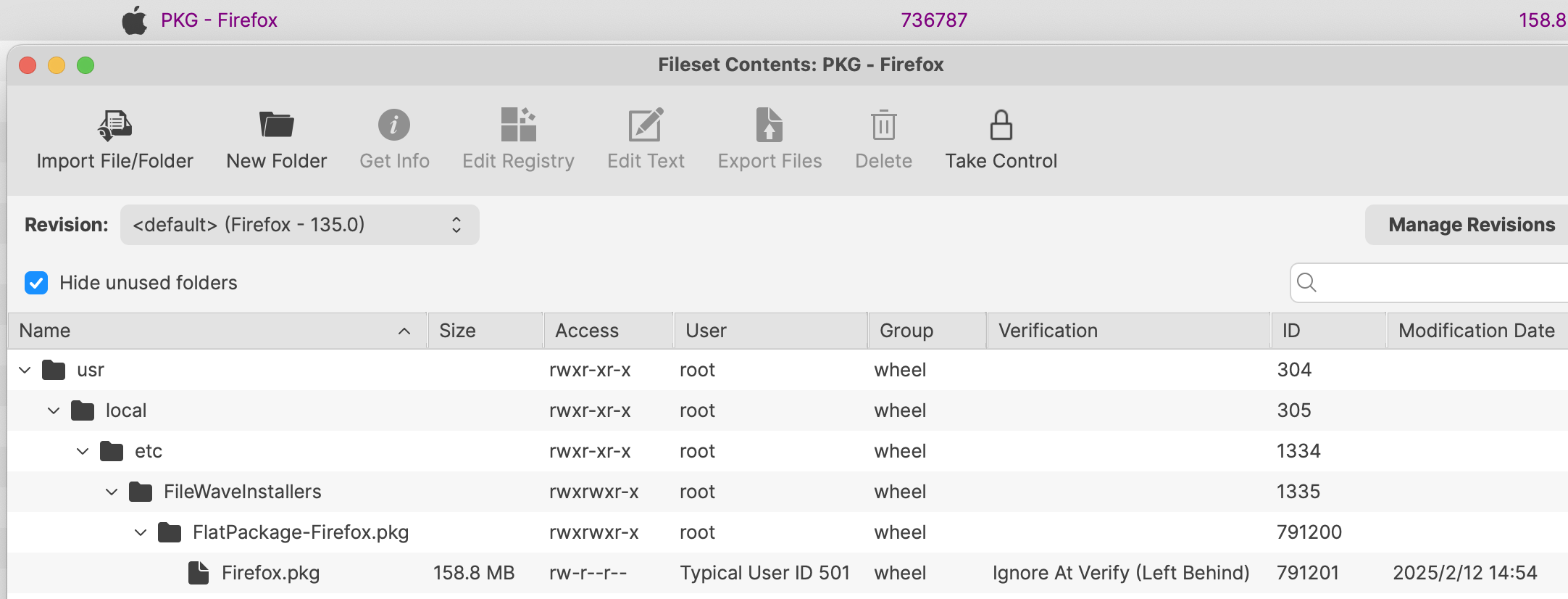
From creation, this specialThe Fileset isrecords expecting anthe installer offilename used when it was created.
When you replace the named PKG or MSI from initial upload to the server.
Ifinstaller manually alteringinside a PKG or MSI Fileset, to upload a newer version of an installer, it is therefore necessary that the replaced installernew file MUSTmust haveuse the same namefilename as the installer beingit replaced.replaces.
Revisions
In some ways,Use revisions simplifyto test a newer installer while preserving the processcurrent ofdeployment updatingand theits additional Fileset with newer installers.content.
There are two ways to create a new revision:
- Drag and drop a new installer onto the existing Fileset
- Open the existing Fileset, choose the option to Manage Revisions and from the button to add a new revision, choose to duplicate
Drag & Drop
When dragging a PKG installer onto a current PKG Fileset or an MSI onto a current MSI Fileset, a prompt similar to the below should be shown:
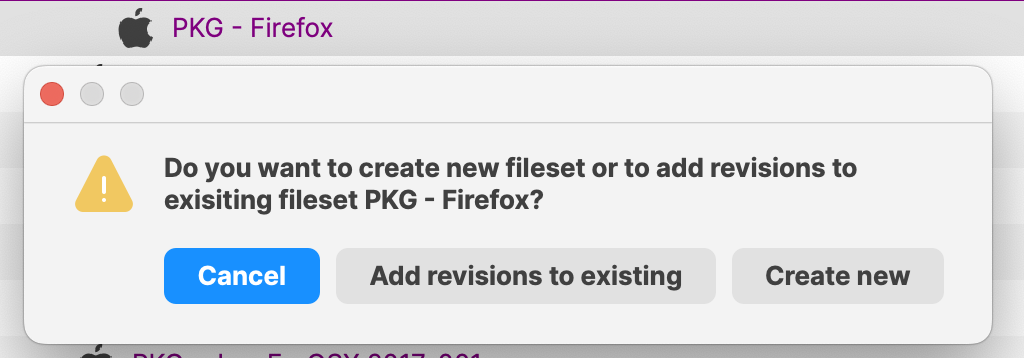
ChoosingChoose the option to 'Add revisions to existing'existing willto automatically generatecreate a revision with the new installer. The installer reaches devices only after you assign that revision or make it the default revision for the applicable associations.
Name the new revision with this new installer. Assigning this new revision to devices or setting this new revision as the new default should then trigger this new installer to activate on devices.
After the new revision is created, consider opening the Fileset to set the name of the new revision, such that the name includes the version numberso ofadministrators thecan installer.tell which package each assignment uses.
Duplication
When choosing to Manage Revisions from within the Fileset, there is the option to duplicate a revision of choice. On doing so, everything from the prior Revision can be copied over to this new revision.
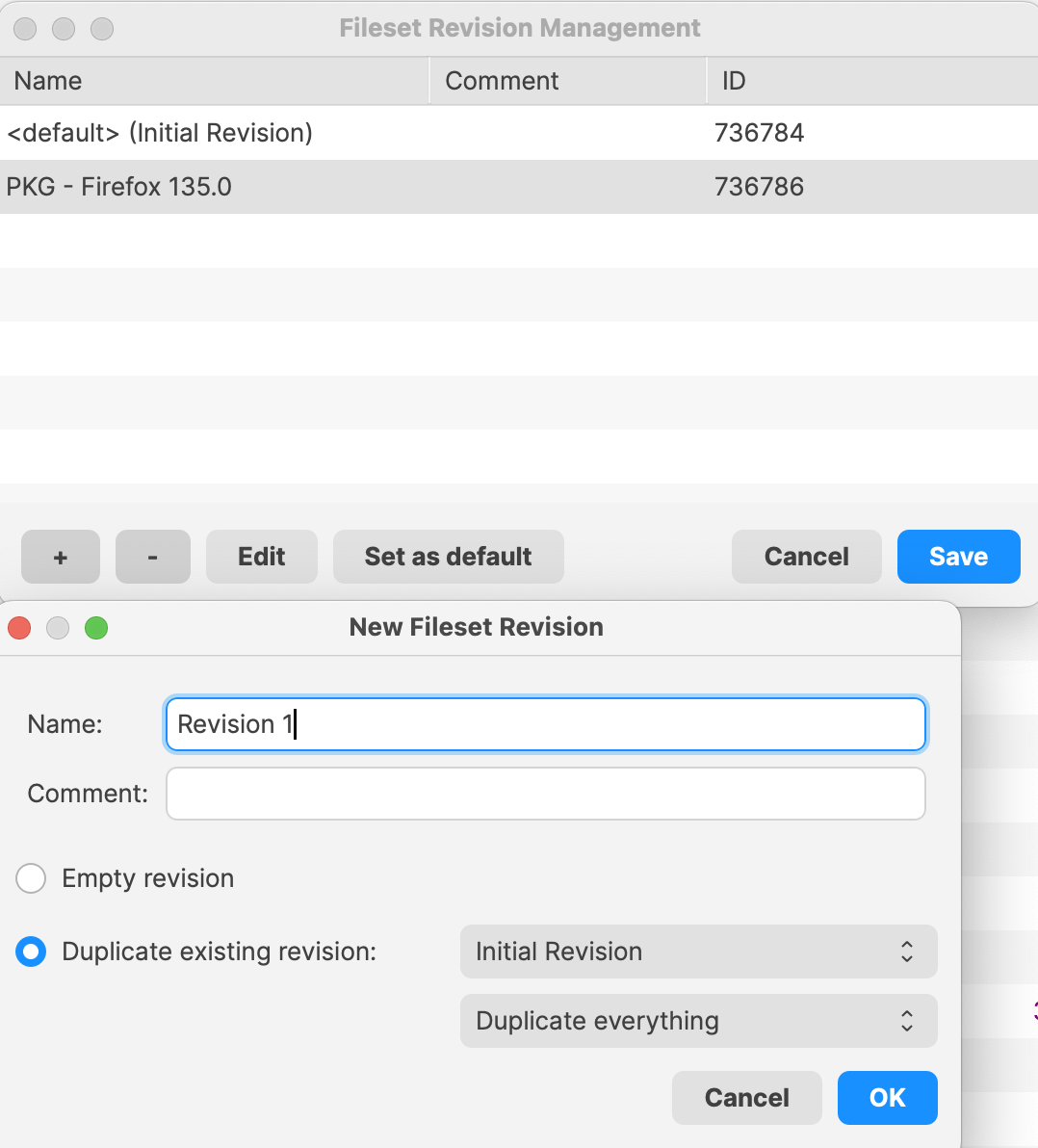
This is useful when there are multiple additional items added intoDuplicate a PKG or MSI Fileset. However, there is an important considerationrevision when using this method.
As highlighted above, when manually replacing a PKG or MSI installer, the installer name with the Fileset mustincludes match.supporting Hence,files duplicatingor asettings revision,that withshould thecarry ideaforward. ofThe installer filename rule still applies.
When replacing the currentinstaller in a duplicated revision, the new installer withfilename amust newmatch version,the whilstfilename maintainingalready additionalstored files,in forcesthe this requirement.Fileset.
Before creating the first Fileset for a given installer, rename the installer to exclude the version number before uploading. Instead, add the version number into the name of the revision instead.
The name of the installer to be uploaded does not need to match, but the name of the installer within the Fileset must match. If the name of the installer file does not match before upload, 'copy' the name from within the Fileset, upload the new installer into the same folder as the original installer, delete the original installer and rename the new installer using 'paste'.
If the name of the initial installer uploaded includes the version number, when manually altering the revision, since the name must match, the newly uploaded version would have to be misnamed with a version number that does not make sense.
File Level Filesets (including PKG and MSI Filesets) can be exported for transfer to another FileWave server. They can also be compressed and stored for future use or archived.
Most installers only handle upgrade, not downgrade. If there is a desire to rollback to an older revision, it is likely the currently installed version on the device will need to be deleted beforehand.
After a successful installation, theFileWave .msi is removed locally fromremoves the machine.local If.msi youstaging needfile. toUninstalling removeFilesets explains the application at a later date, please refer here for details on the 'Use MSI uninstaller'uninstaller checkbox.option. IfUse youan requireempty specificFileset when installation or removal requires custom switches or other custom parameters for installation and uninstallation, using an empty fileset may provide better flexibility for deployment.commands.