
Windows Registry
Windows registry files can be included in a Windows Fileset and reviewed in FileWave before deployment. This is useful when a Windows application, driver, or FileWave Client setting is controlled by documented registry keys and there is not a better native policy, installer option, ADMX setting, or application configuration file to manage the same behavior.
Quick answer: Use a Windows Registry Fileset when you need FileWave to deliver registry keys or values to Windows clients. Review the registry path, value type, and data before assigning the Fileset, especially when the setting affects application behavior, security, Windows policy, or FileWave Client behavior.
What is the Windows Registry?
The Windows Registry is a hierarchical database that Windows and many applications use for configuration. Registry content is organized into keys and values. A value has a name, a type such as REG_SZ, REG_DWORD, or REG_BINARY, and the data Windows or the application reads.
HKEY_LOCAL_MACHINE / HKLM stores machine-wide settings.
HKEY_CURRENT_USER / HKCU stores settings for the currently loaded user profile.
On 64-bit Windows, settings for 32-bit applications may appear under HKLM\SOFTWARE\Wow6432Node.
For more background, see Microsoft’s Structure of the Registry, Windows registry information for advanced users, and Registry Redirector articles.
How FileWave helps
FileWave shows registry entries in the Fileset so you can inspect the tree, the value names, the registry types, and the data before deployment. That review step matters because a small path or type mistake can make a setting do nothing, apply to the wrong registry view, or change behavior more broadly than intended.
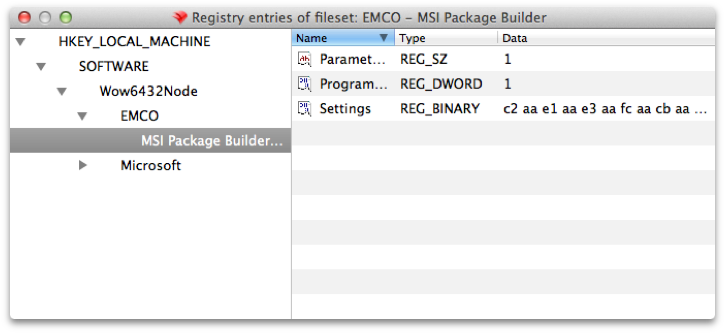
When this is helpful
HKLM\SOFTWARE\Vendor\Product or, for 32-bit apps on 64-bit Windows, HKLM\SOFTWARE\Wow6432Node\Vendor\Product.
Support asks you to apply a documented troubleshooting value to a scoped group instead of editing every endpoint manually.
Example: scoped FileWave Client troubleshooting
One practical example is temporarily changing a documented FileWave Client configuration value for a small Windows pilot group. FileWave Client settings on Windows are stored in the registry; for FileWave 15.5.0 and higher, the client settings are documented under HKLM\Software\FileWave\WOW6432\WinClient. If Support asks you to adjust a value such as debugLevel while troubleshooting, a Windows Registry Fileset can apply that change consistently to the pilot group. Keep a rollback Fileset or documented manual steps ready so the value can be restored after testing.
Use the exact path and supported values from FileWave Client Configuration Settings. Do not guess at FileWave Client registry values or leave troubleshooting-level logging enabled longer than needed.
Before you deploy
HKLM for device-wide settings. Treat HKCU carefully because it is tied to a specific loaded user profile.
Confirm the value type, not just the value name. REG_DWORD value 1 is not the same thing as text value "1".
Avoid broadly deploying machine-specific values, user SIDs, license secrets, one-time tokens, or copied binary blobs unless the vendor explicitly documents that approach.
Assign the Fileset to a small pilot first, verify the application or Windows