LDAP Preferences
FileWave supports connecting an LDAP directory, such as Active Directory, Open Directory, or eDirectory, to your FileWave Server. FileWave can use that directory information in Smart Groups and parameterized profiles. LDAP can also be used for enrollment authentication, which lets you track which LDAP user enrolled a device.
Creating an LDAP server entry in Preferences
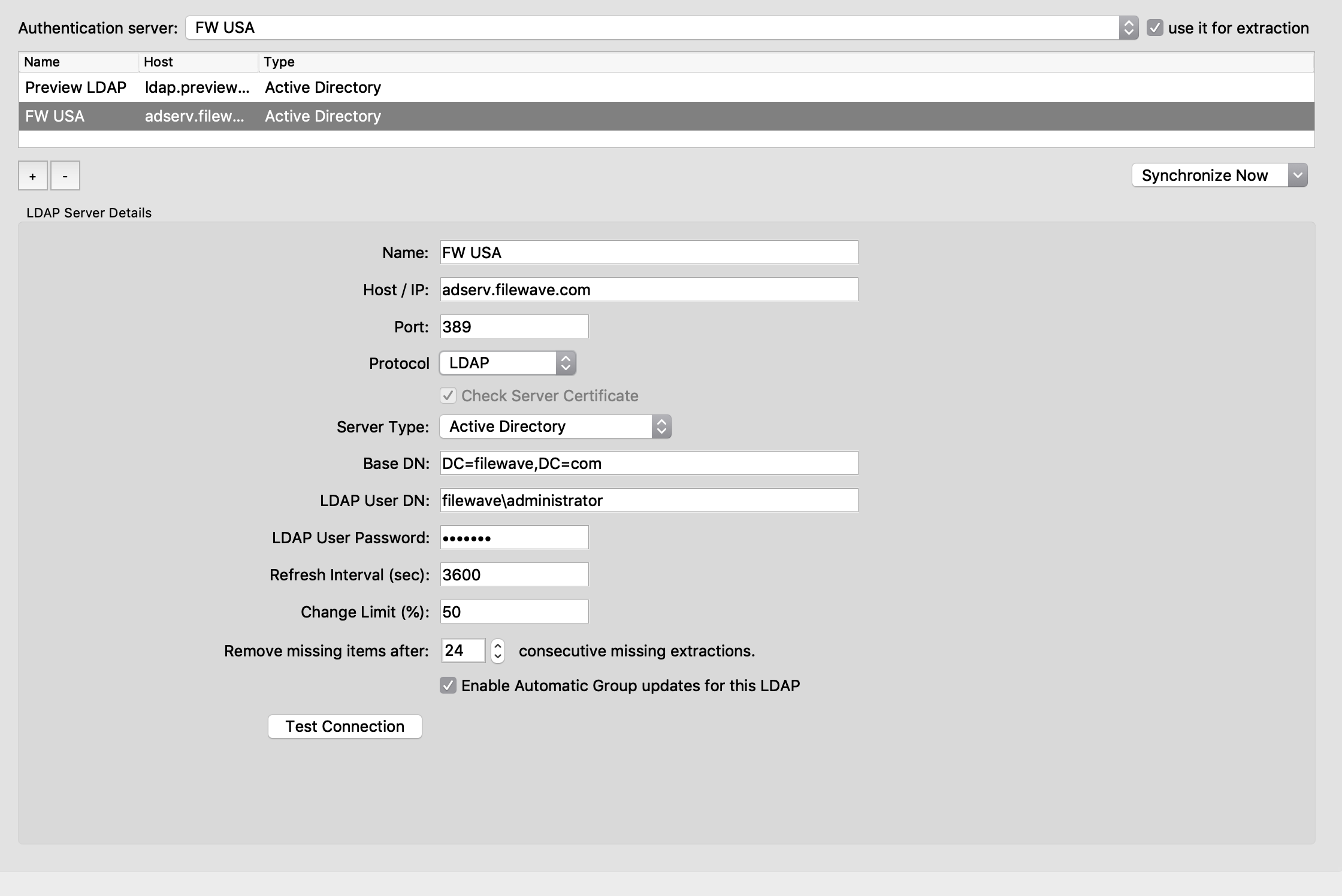
- Name - a reference name you use to tell LDAP servers apart
- Host / IP - the FQDN or IP address of the LDAP server
- Port - the TCP port FileWave should use to reach the LDAP server; check with your network team if you are not sure
- Protocol – select LDAP, LDAPS, or STARTSSL.
- For LDAPS and STARTSSL, the Check Server Certificate option controls whether FileWave checks the LDAP server certificate against the computer's trust store.
|
For LDAPS or STARTSSL, use a trusted LDAP certificate whenever possible. |
- Server Type - choose Active Directory, Open Directory, or eDirectory
- Base DN - the primary distinguished name (DN) for the LDAP server, using domain components separated by commas. If the LDAP server is on the same system as the FileWave Server, the Base DN may be as simple as dc=home,dc=local. If the LDAP server is on another system, it may use a more specific value such as dc=tanner,dc=filewave,dc=net.
- LDAP User DN - for authenticated binds, enter a user account that is allowed to bind to the LDAP server. Leave this blank for anonymous binds.
- LDAP User Password - the password for the LDAP bind account; not needed for anonymous binds
- Refresh Interval (sec) - how often, in seconds, the FileWave Server contacts the LDAP server to refresh available data. During setup and testing, a short interval such as 120 seconds can be useful. In production, a 24-hour interval is usually safer: 86,400 seconds.
- Change Limit (%) - prevents LDAP-related items from being removed when more than the specified percentage disappears after a sync. This protects FileWave from large unintended removals caused by a bad LDAP configuration.
|
For example, if a missing OU represents 25% of the LDAP directory, FileWave will not initially accept those removals when Change Limit is set from 1% through 25%. If Change Limit is set to 26%, FileWave can accept that removal. The next setting, Remove Missing items after, can still require multiple syncs before removals occur. |
- Remove Missing items after - 0 means records that are no longer found in LDAP, but are still present in FileWave, are removed immediately.
|
For safety, set this to a value equivalent to 24 hours. |
Enable Automatic Group updates for this LDAP creates visible Smart Groups in the Clients pane under an LDAP designator. FileWave updates these Smart Groups at the configured refresh interval.
The LDAP information shown in the Clients pane is a one-way view of the directory server. Changes made on the LDAP server are reflected in FileWave, but changes made in FileWave Central do not change the LDAP directory.
|
Automatic Group updates can put heavy load on the LDAP server in environments with more than a few hundred records. Enable it deliberately and watch LDAP server performance after the first sync. |
The Test Connection button checks whether the server is online, but it does not verify every LDAP setting. Use an LDAP browser tool to verify the directory path and bind account before relying on the configuration.
You can create entries for multiple LDAP servers. An LDAP server can also run on the same device or VM as the FileWave Server.
An LDAP server can be chosen as the Authentication server. In that case, FileWave uses that directory for profiles that support parameterized settings. Selecting use it for extraction adds the directory information to the FileWave database. You can view LDAP settings in Assistants > LDAP Browser in FileWave Central.
|
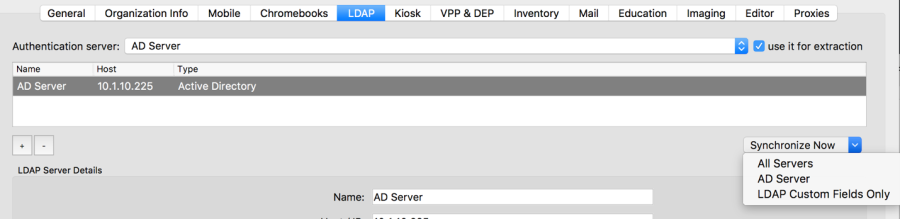
The Synchronize Now option at the bottom-right of the LDAP server pane lets you synchronize all LDAP servers, one LDAP server, or only LDAP Custom Fields.
|