
Change a Legacy FileWave Appliance Root Password in Webmin
When you setup a new FileWave instance, you most certainly don't want to leave the password for the root user as filewave. This document walks you through changing the password using the included Webmin interface (on v 12.x and higher virtual appliances only). Note that in 15.5.0 we introduced a forced password change and moved away from logging in as root. On 15.5.0 and newerlater you'llappliances loginuse asthe "fwadmin" asaccount and force a password change at first login. Do not use this legacy Webmin root-password workflow on those releases.
Use this procedure only for a FileWave virtual appliance from version 12.x through 15.4.x. It changes the userappliance's default or current root password through Webmin. Perform the change from a trusted administrator workstation and "filewave"do asnot leave the default password in place.
Change the password butin itWebmin
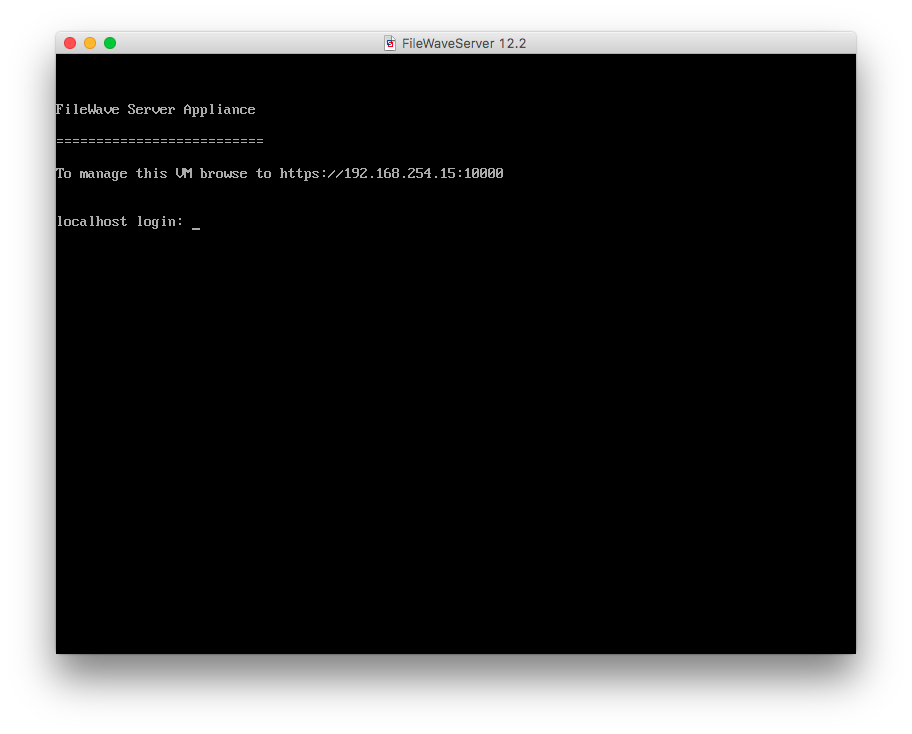
2. Open the displayed address in a browser. A factory appliance can present a self-signed certificate warning. Before proceeding, confirm that the hostname or IP address matches the appliance console and that you toare changeon the intended administrative network.
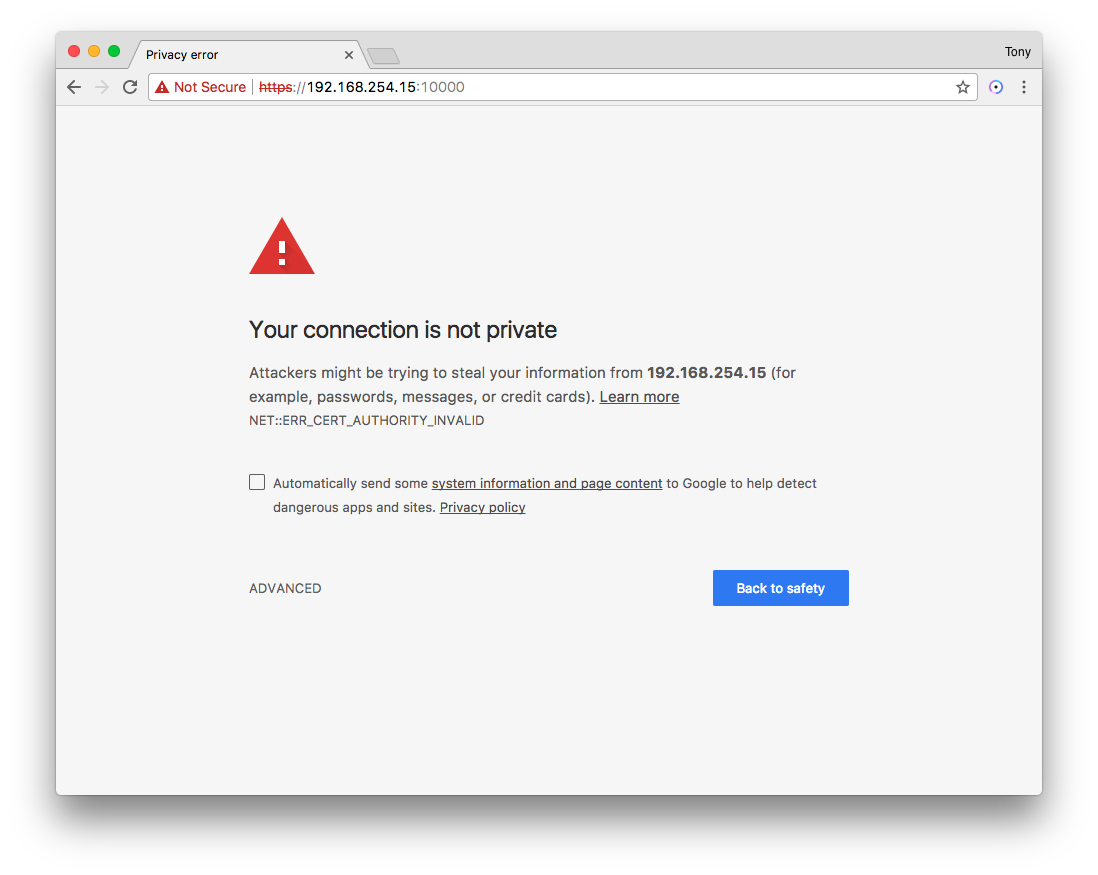
Webmin uses TCP port 10000. Allow access only from the administrator workstation or trusted management network, and remove any temporary firewall rule after the password onchange.
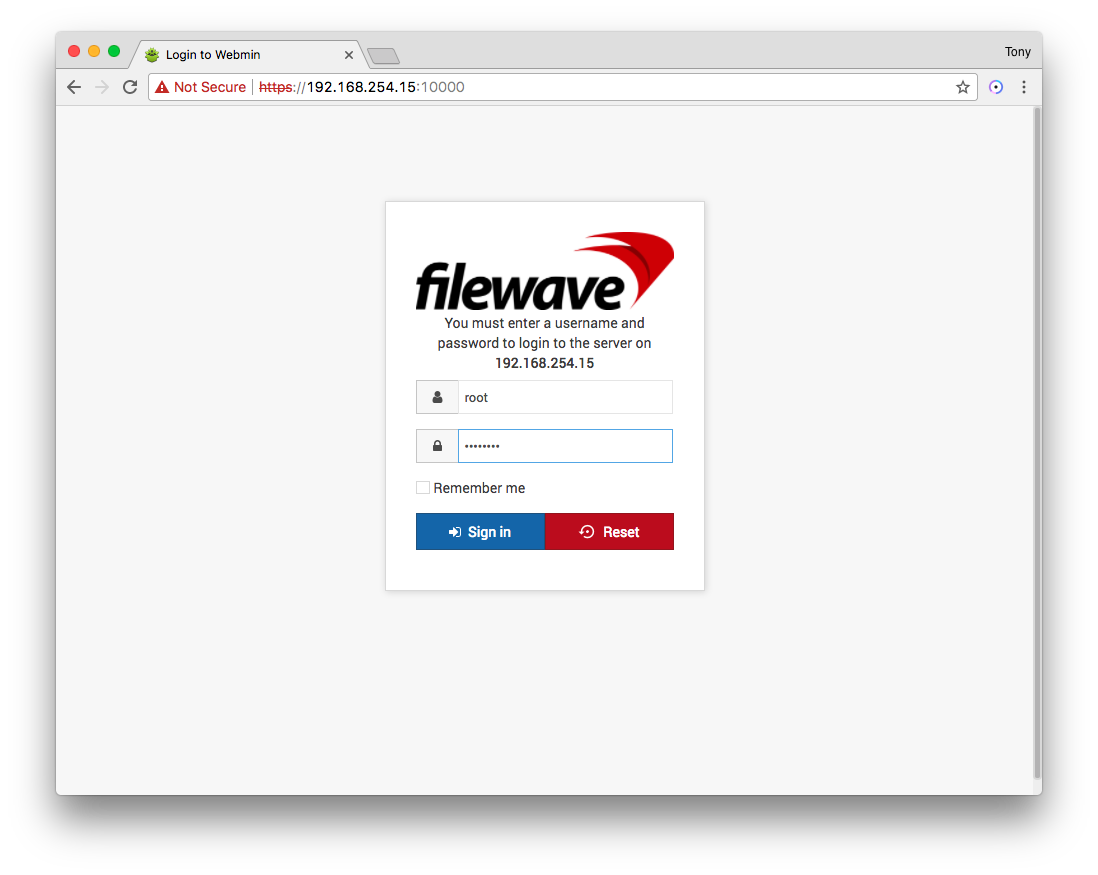
3. login.Sign in as root with the appliance's current password. An appliance whose legacy default was never changed uses filewave; replace it immediately through the remaining steps.
Step-by-step
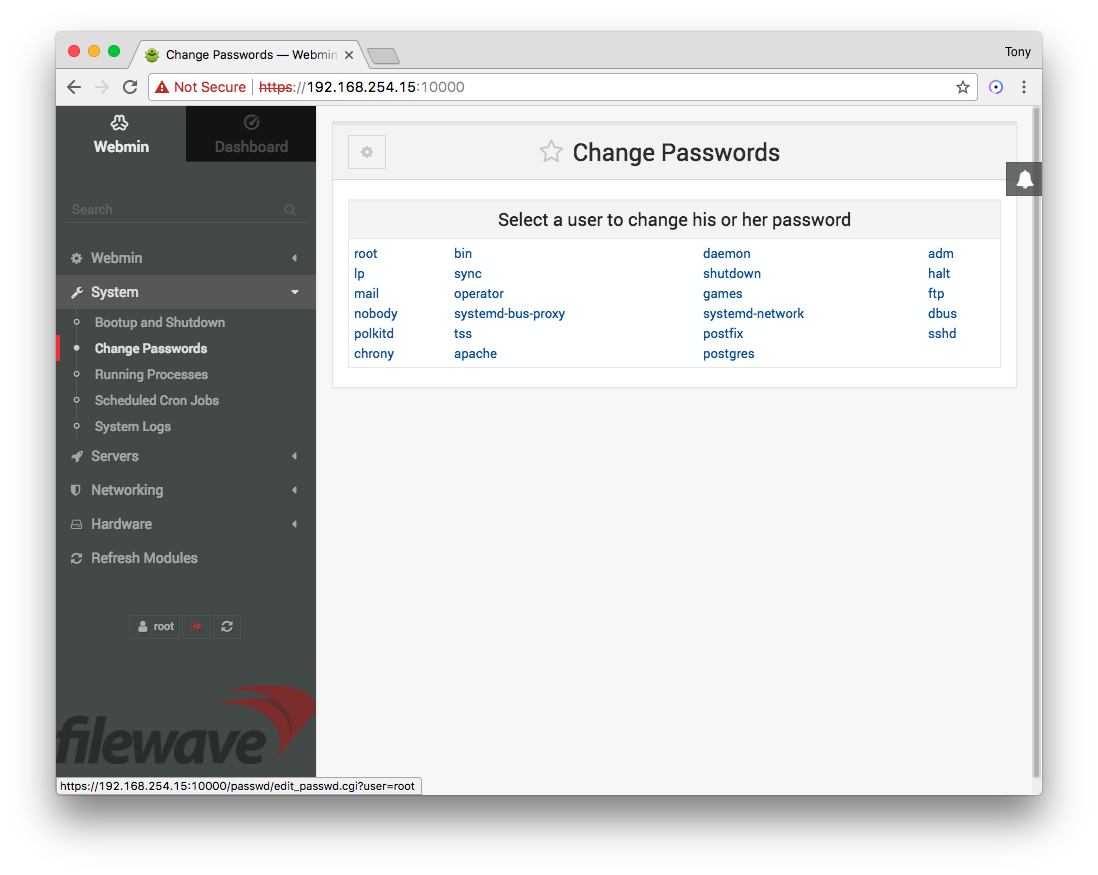
4. guideOpen
5. login toSelect the Webminroot interface through your browser of choice. You'll be able to find the address to use from the VM window itself as shown below:
2.
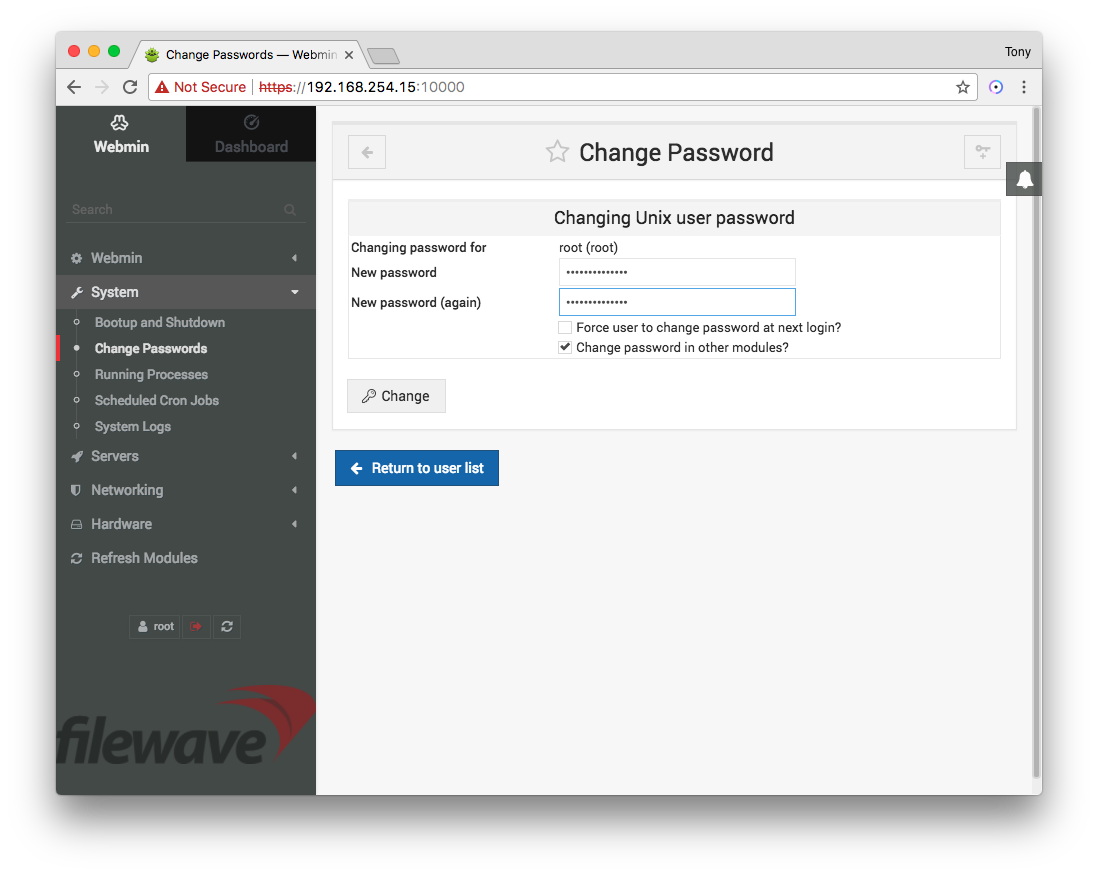
6. Now, take that addressEnter and placeconfirm a unique password, then select Change. Store it in your browser.organization's approved Notecredential manager.
7. Confirm that you'll get a warning about the certificate...this is simply because it is a self-signed cert. You can ignore that warning and proceed to the site:
Note that the Webmin interface is on port 10000, so that port will have to be open from your workstation to the server for the website to work correctly.
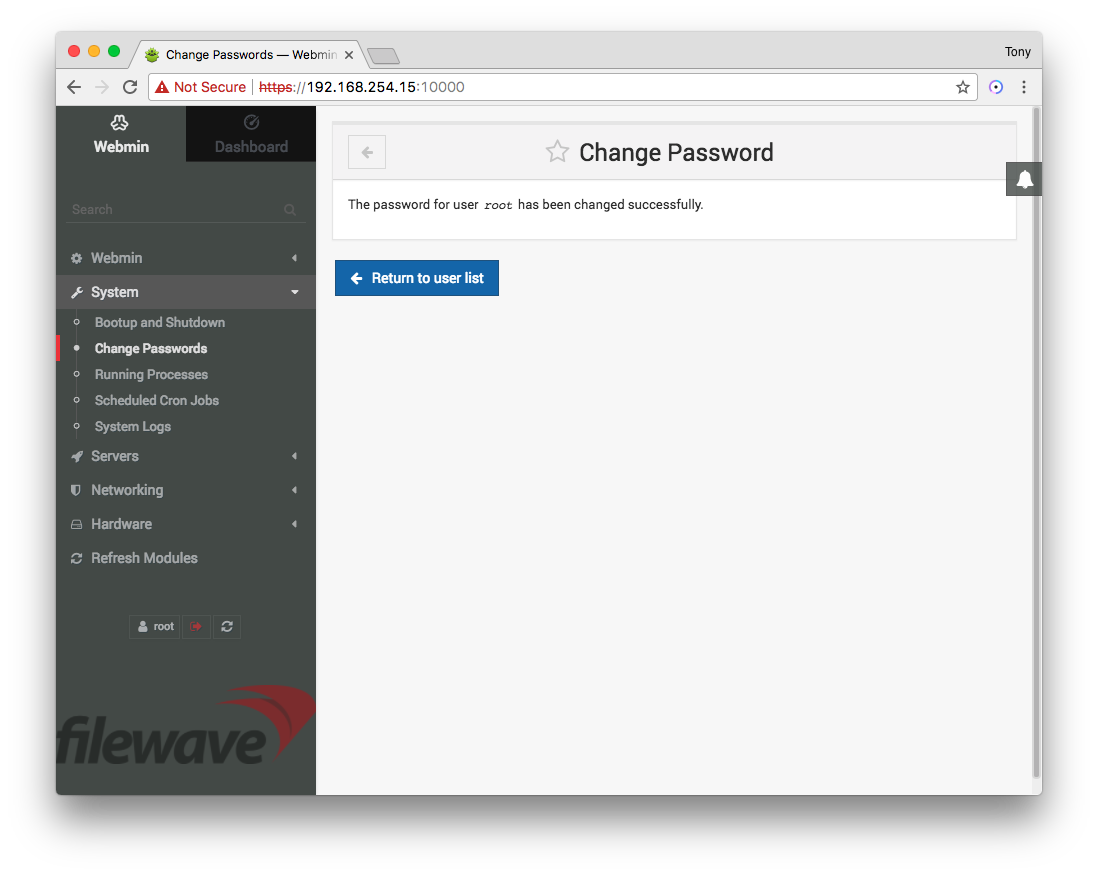
3. When you first get to the site, you'll be presented with a login window. The user will be root, andreports the password will be filewavechange as the default (or a password you have already changed it to):successful.
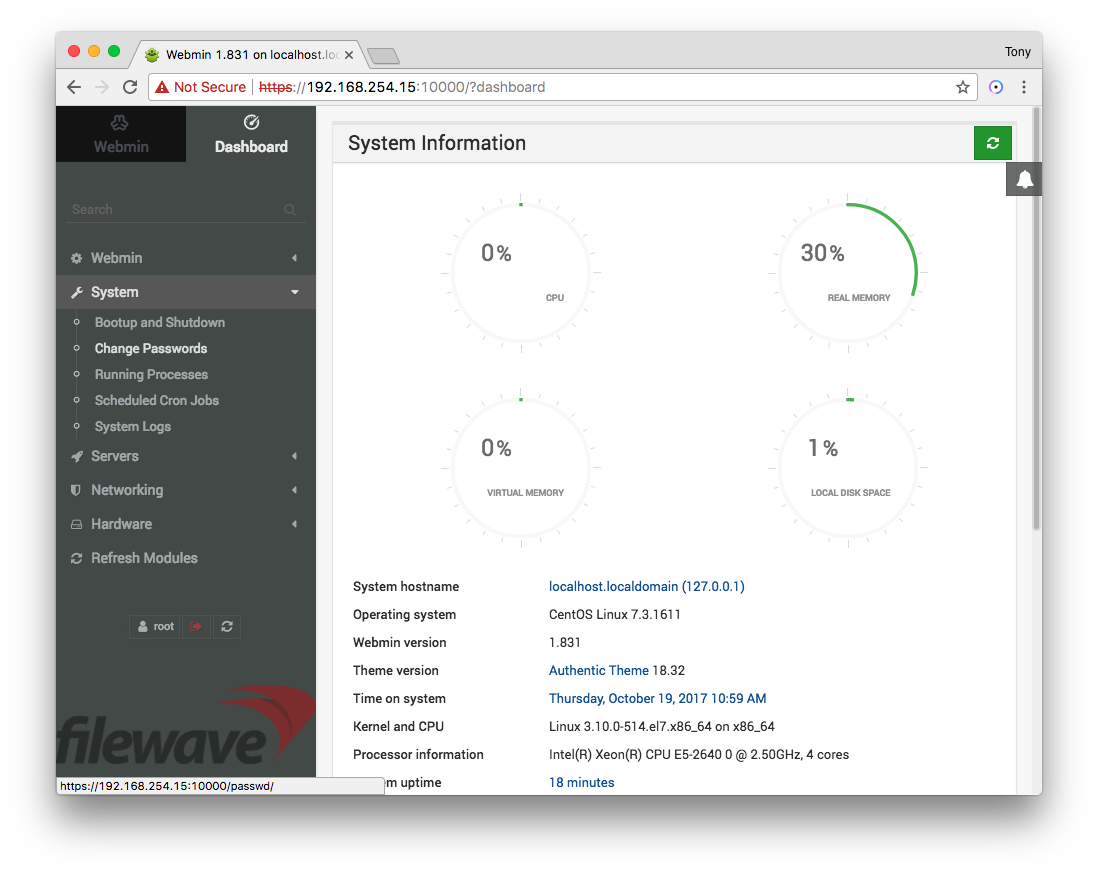
4. Once logged in, we'll go to the System section, and click on the link to Change Passwords:
5. Then, we'll choose the root user:
6. Just enter and confirm your new password, then click the Change button:
7. You'll get a confirmation that the password was successfully changed:
8. That'sSign it!out, Youthen haveverify successfullythe reset/changednew yourpassword FileWavethrough the normal appliance rootadministration password.path before closing the maintenance window.