
Use LDAP Groups for FileWave Central Administrator Access
ThisFileWave documentCentral willcan walkgrant youadministrator access to users through thean processLDAP group account. Use this to map an Active Directory, Open Directory, or eDirectory group to a defined set of integrating your LDAP admin accounts into the FileWave Admin.permissions. This will allow you to log into the FileWave Admin Console as an admin account located in your AD, OD, or eDir environment. Keep in mind onlyOnly Active Directory is able to detectsupports recursive membership.group FileWavemembership willin notthis be able to detectworkflow; nested groups inare annot resolved for Open Directory or eDirectory LDAP directory.eDirectory.
PleaseBefore note:starting, This guide is not a replacement for the manual,configure and assumes you have already setup your FileWave Management Server. This document also assumes that your FileWave server hastest the LDAP sectionconnection in FileWave Server preferences. The steps below assume the preferencesdirectory filledconnection outis andalready connecting properly.working.
Steps for setup:
-
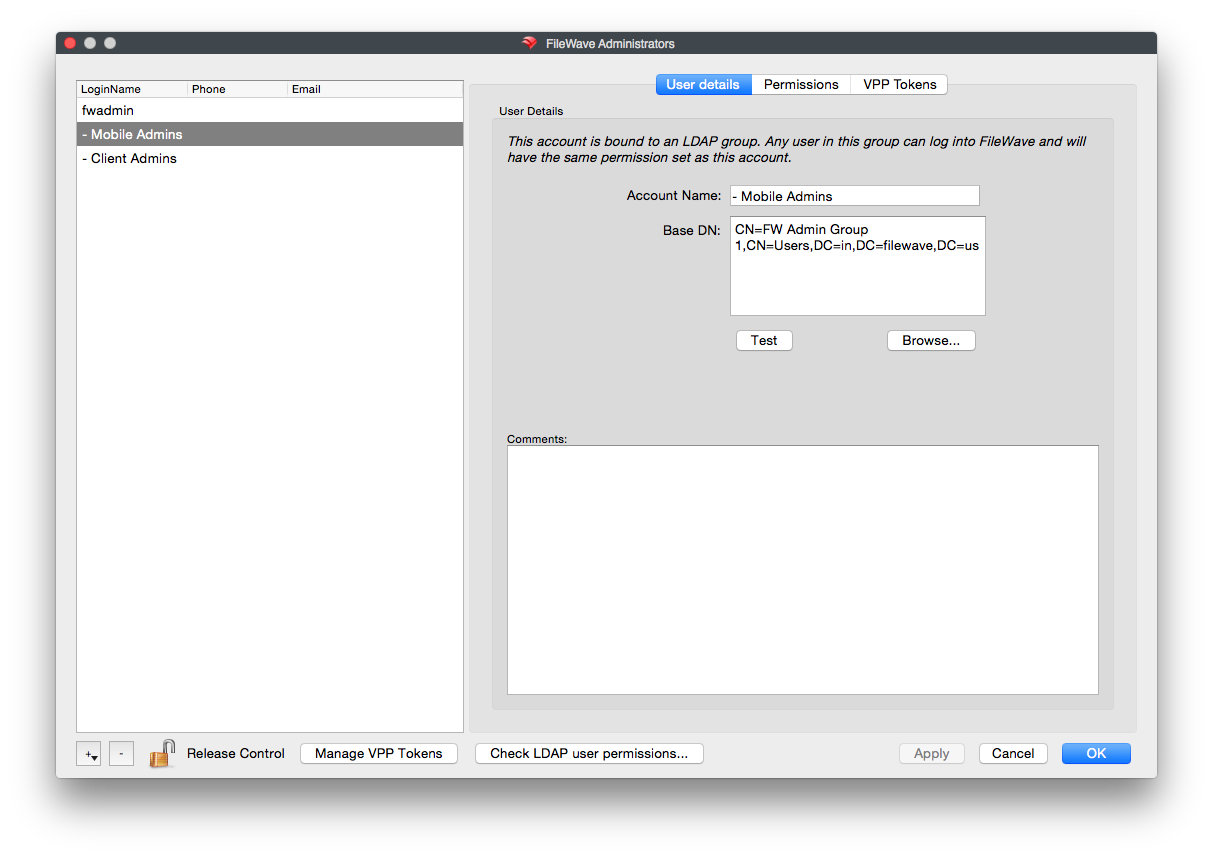
OpenIn FileWave Central, open Assistants > Manage Administrators. In the FileWave Administratorswindowwindow,by navigating toselect theAssistants menu, and then selecting Manage Administrators. Once in the FileWave Administrators window, hit the "+"button at thebutton left of the window.bottom-left.
-
Select LDAP Group Account

-
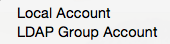
NewFileWave creates an accountwill then be creatednamed"Untitled-1"1.feelRenamefreeittosonameadministratorsthiscanwhateveridentifyyouthelike.mapped LDAP group.
Once you have named your account, locate and click the Browse... button at the bottom right of the Base DN: pane
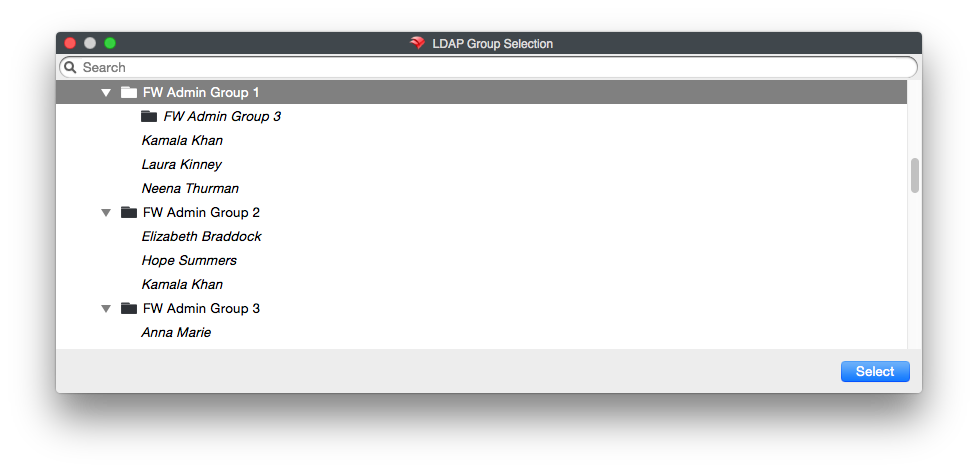
You will now be prompted with the LDAP browser where you can now find and hit Select for the group you want to associate. This will associate all the users in your specified group. As an added feature, most Active Directory environments also allows other groups, which are a members of the group you selected to, be included. This allows users in those "sub-groups" to be associated as well.

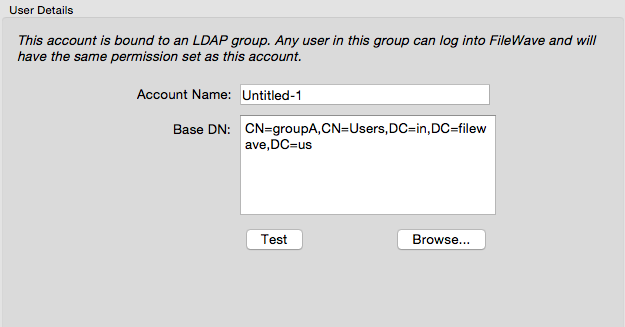
After the group was selectednaming the Baseaccount, DN:select paneBrowse... will now be changed tobeside the Base DN of the group

HittingIn the TestLDAP buttonbrowser, atfind the administrator group and select Select. FileWave associates users from that group with this pointLDAP willGroup tellAccount. youIn ifActive Directory, recursive membership can also include users from nested groups.
Confirm that Base DN now contains the distinguished name of the selected group.
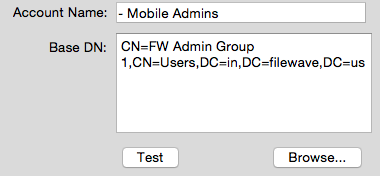
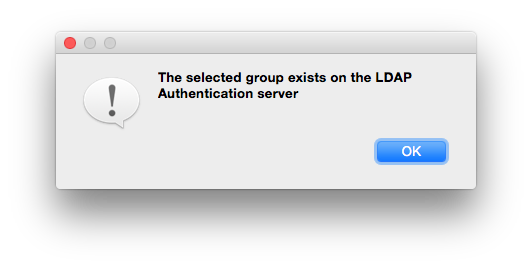
Select Test to confirm that FileWave can find the group exists or not on the LDAP server.

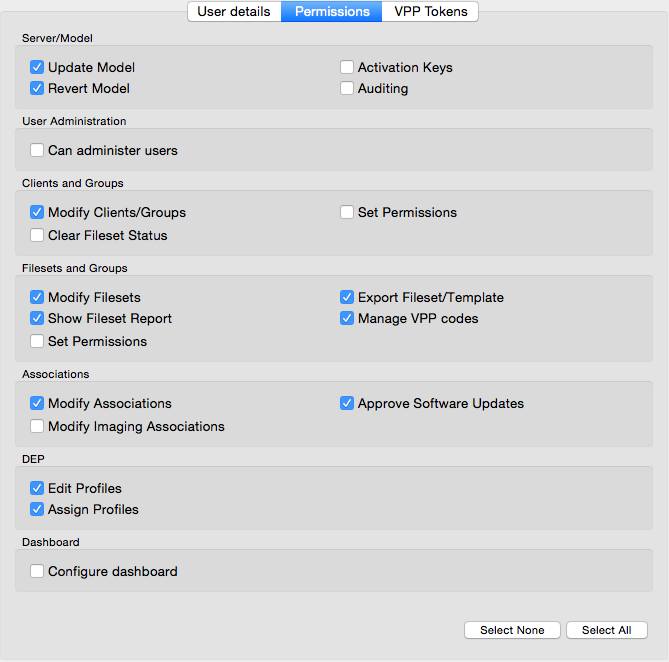
The next step is to createAssign the FileWave permissions you would likethat every user inresolved thethrough group you added fromthis LDAP toGroup haveAccount inshould FileWave.receive.

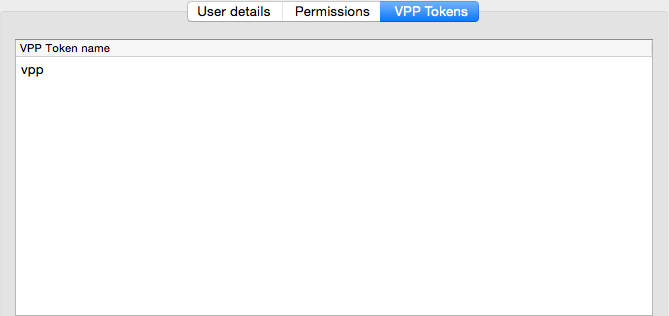
The final tab is called VPP Tokens. These will be the VPP Tokens that this group of users can manage in FileWave. To add or remove VPP token access for users and groups, click Manage VPP Tokens, and hit the check box for each token you want each user to manage.

YouSelect can then check whichCheck LDAP usersPermissions... areto associatedlook withup ana directory user and confirm which LDAP Group Account ingrants FileWavetheir by hitting the "Check LDAP Permissions..." button at the bottom of the window.access.
In the "Check LDAP User Permissions..." window, simply type the account you would like to find into the search bar in the top left of the window. Once you hit enter, locate the account you want, and select it. You will see the LDAP Group Account name in the bottom left hand pane, and the permissions the account has in FileWave on the right.
Please Note: If you have one account in multiple groups and it gets into more than one LDAP Group account in FileWave, they will receive the cumulative permissions of those groups.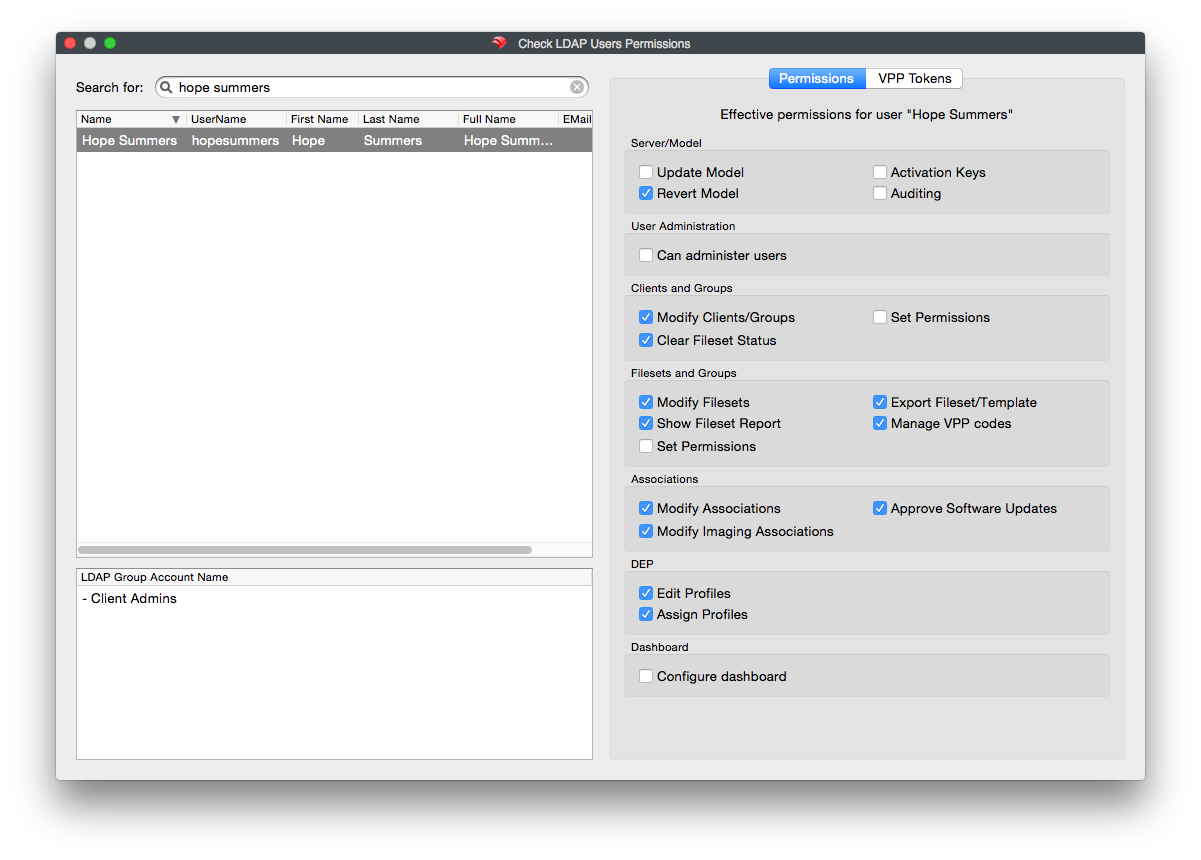
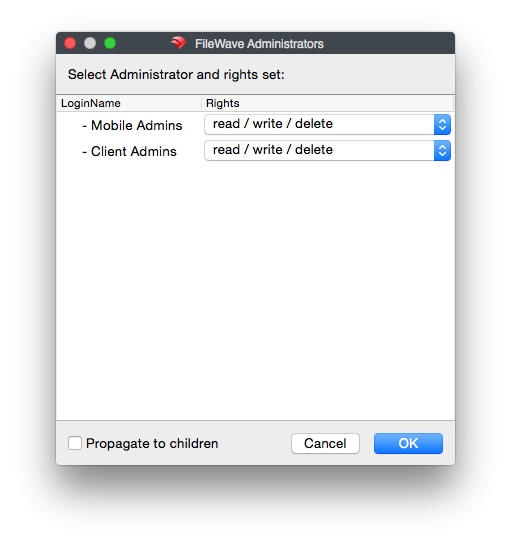
- Now that you have completed the setup of these groups and accounts, you can now assign permissions throughout FileWave for what the accounts can manage regarding Filesets and Client, group and objects. Simply find your object or group (both standard or smart groups), right click then select Select Permissions.

Congratulations!Test Youwith havea nowmember integratedof yourthe LDAP Adminsgroup intoand FileWave!confirm that the account receives only the intended administrator permissions and VPP token access.