
Find iOS and iPadOS 27-Compatible Devices with Inventory Reports
Description
Use the included JSON definitions to import two Inventory Reports (formerly Queries) that identify managed iPhone and iPad devices in Apple’s published iOS 27 and iPadOS 27 compatibility lists. One report lists compatible devices; the other lists managed iPhone and iPad devices that fall outside the published list. Import the files directly in FileWave Central using the Reports interface; the Command Line API remains available as an optional method for automation.
iOS 27 and iPadOS 27 are prerelease. These report definitions use Apple’s compatibility lists published with the June 2026 previews. Apple may revise support before the public release, so check the linked Apple pages again before approving a broad upgrade.
The compatible report includes devices whose hardware identifier is on the published list or whose reported operating-system version already begins with 27. This means newly released hardware that ships with iOS or iPadOS 27 still appears as compatible before its hardware identifier is added to the report. The incompatible report is limited to iPhone and iPad inventory and intentionally excludes Apple TV and tvOS.
Apple’s published compatibility list
- iPhone: iPhone 11 and later, including iPhone SE (2nd generation and later).
- iPad Pro: 12.9-inch (4th generation and later), 11-inch (2nd generation and later), and M4 or later models.
- iPad Air: 4th generation and later, including supported 11-inch and 13-inch M-series models.
- iPad: 9th generation and later, including iPad (A16).
- iPad mini: 6th generation and iPad mini (A17 Pro).
The iPhone compatibility floor is unchanged from iOS 26. For iPadOS 27, Apple no longer lists iPad Pro 11-inch (1st generation), iPad Pro 12.9-inch (3rd generation), iPad Air (3rd generation), iPad (8th generation), or iPad mini (5th generation).
The reports match the current FileWave inventory identifiers iPhone12,* through iPhone18,*, iPad8,9 through iPad8,12, and iPad12,* through iPad17,*. The four supported iPad8 identifiers are listed individually because a broad iPad8,* match would also include older iPad Pro models that are not on Apple’s iPadOS 27 list.
Sources: Apple: iOS 27 Preview and Apple: iPadOS 27 Preview.
Ingredients
AFileWaveapplicationCentraltokenaccess with permission tocreate Inventorymanage Reports- The compatible and incompatible iOS/iPadOS 27 Inventory Report JSON files
Compatible report |
Incompatible report |
Historical reference: The original iOS 16 and iOS 17 JSON definitions remain available in this page’s Attachments panel. Use the iOS/iPadOS 27 files above for current compatibility planning.
Directions
Import in FileWave Central (recommended)
- Download
bothios27_compatible.jsonJSONandfilesios27_incompatible.jsonfrom the table above. UploadOpeneachFileWavedefinitionCentralthroughand select Reports.
ios27_compatible.json and complete the import.
Repeat the import for ios27_incompatible.json.
Open the imported reports in FileWave Central or FileWave Anywhere and compare the results with your current device inventory.
Before scheduling upgrades, confirm Apple’s final compatibility lists and pilot iOS/iPadOS 27 on representative hardware.
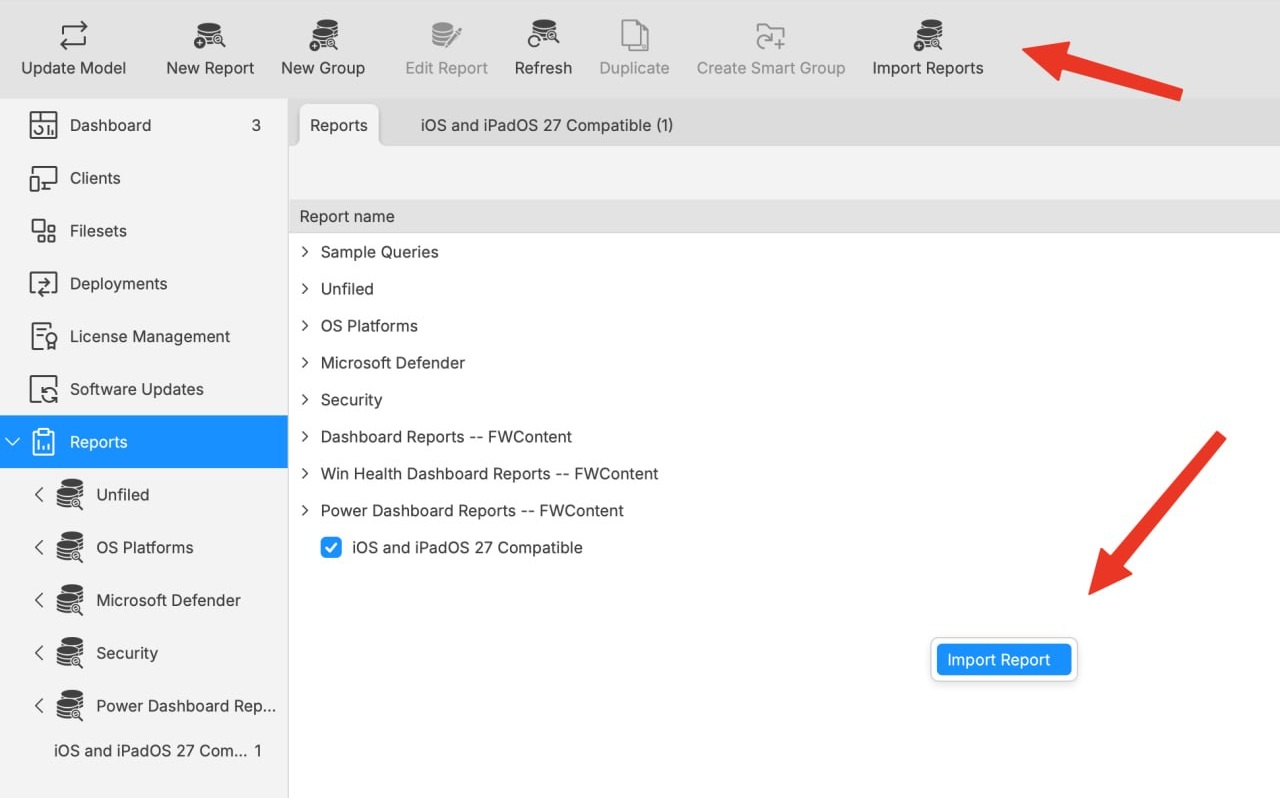
Both controls open the report-import workflow. The toolbar label is Import Reports; the right-click action is Import Report.
Import through the Command Line API (optional)
Use the API method when automating report deployment or when the direct import control is not available in the Central environment you are using.
The FileWave interface calls this feature Reports, but the Command Line API route retains /query/.
Set your FileWave application token in an environment variable and replace filewave-server.example with your server address. Keep production tokens out of scripts and command history.
Command Line API POST
Run the command from the directory that contains ios27_compatible.json. Use ios27_incompatible.json for the second report.
The examples keep TLS certificate verification enabled. Do not add -k to production commands.
Shell script
: "${FILEWAVE_TOKEN:?Set FILEWAVE_TOKEN before running this command}"

curl --fail --silent --show-error \
  -H "Authorization: $FILEWAVE_TOKEN" \
  -H "Content-Type: application/json" \
  -X POST \
  --data-binary @ios27_compatible.json \
  https://filewave-server.example:20445/inv/api/v1/query/
PowerShell
$uri = 'https://filewave-server.example:20445/inv/api/v1/query/'

if (-not $env:FILEWAVE_TOKEN) { throw 'Set FILEWAVE_TOKEN before running this command.' }

$headers = @{
    'Authorization' = $env:FILEWAVE_TOKEN
    'Content-Type' = 'application/json'
}

$body = Get-Content -Raw -Path 'ios27_compatible.json'
$response = Invoke-RestMethod -Uri $uri -Headers $headers -Method Post -Body $body
$response