
FileVault 2 enabled on macOS ADE enrollment
What
After you have configured FileVault management in FileVault - Getting Started, you can require FileVault during Automated Device Enrollment for supported macOS devices.
When/Why
FileVault protects data at rest on macOS devices. Requiring FileVault during enrollment helps ensure a Mac is encrypted before it is put into regular use, which is especially important for laptops assigned to staff who may handle sensitive data.
As of FileWave 15.2.0 andOn macOS 14.0,0 or later, FileWave can enable Apple's Setup Assistant FileVault enforcement during ADE enrollment.
How
Before enabling this option, complete the FileVault configuration described in FileVault - Getting Started. You needUse a supported FileWave version at least 15.2.0,release, target devices running macOS 14.0 or later, and a FileVault disk encryption profile available for the enrollment workflow.
- In FileWave Central, go to Assistants > DEP Association Management.
- Create or edit the DEP/ADE enrollment profile you want to use.
- On the profile's Requirements tab, enable Force Setup Assistant to enable FileVault.
- Select the FileVault disk encryption profile that should be used during enrollment.
- Assign the enrollment profile as the default profile or apply it only to the devices that should use this workflow.
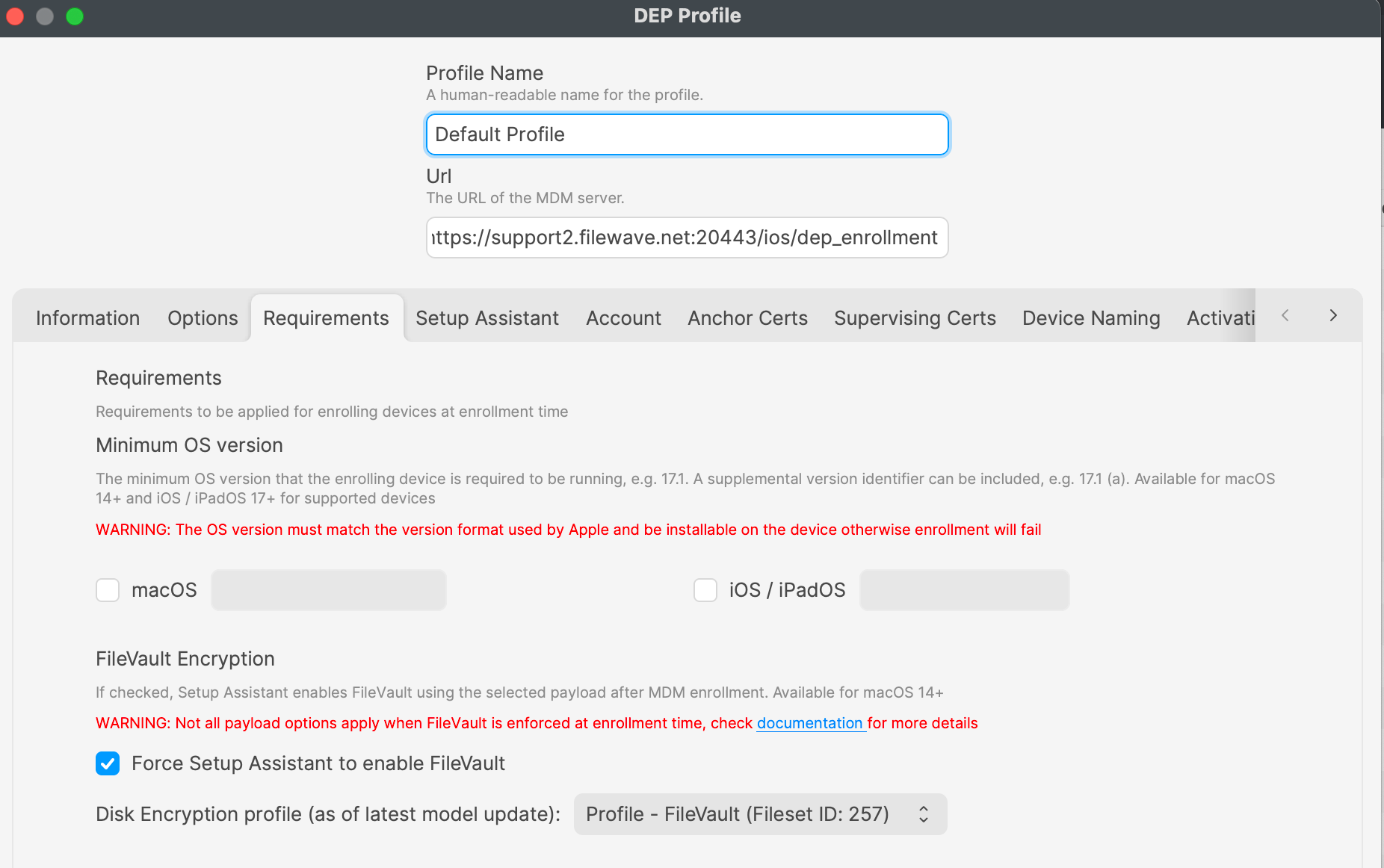
Test with one device before wider rollout. Confirm that the FileVault prompt appears during Setup Assistant and verify that your recovery-key workflow works as expected before assigning the profile broadly.