
Uninstalling a package with WinGet
What
WinGet is a command-line tool for managing applications on Windows 10 and 11.
When/Why
After you install a WinGet package, you may need to remove it later. FileWave can handle that removal through a pre- or post-uninstall script within a payload/Fileset.
How
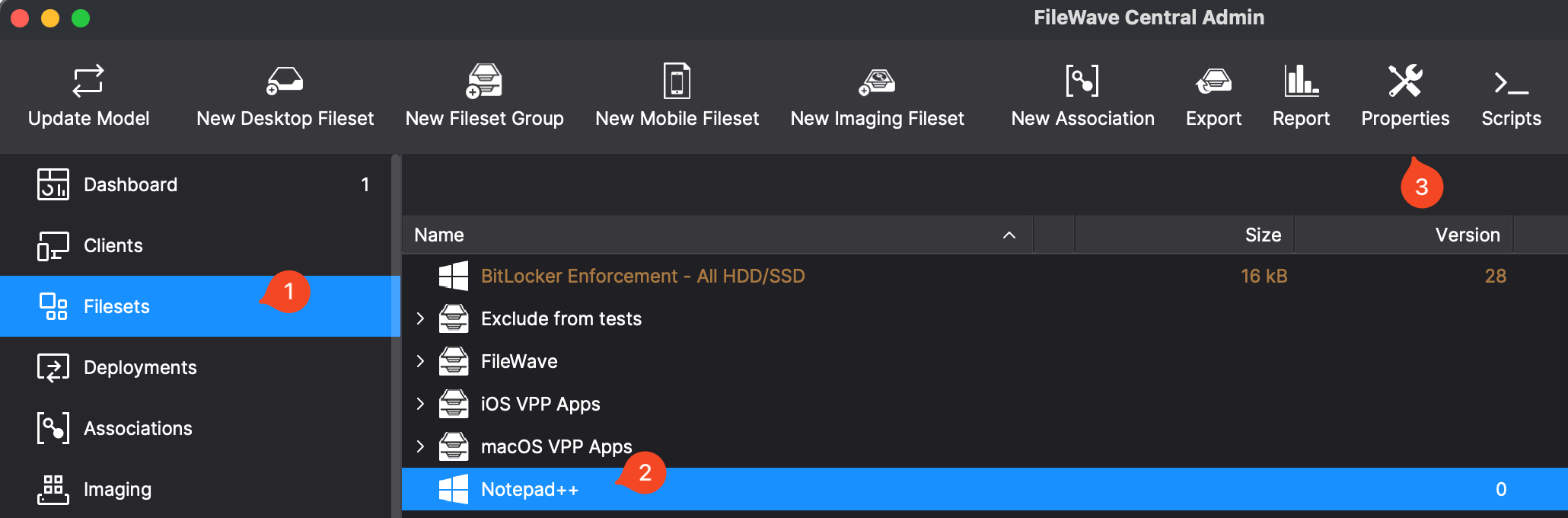
Removing a WinGet package follows the same general pattern as installing or upgrading one. Click the Fileset, then click Properties in the toolbar. The Fileset properties control whether FileWave removes the WinGet application when the Association or Deployment is removed.
Below is the properties dialog for the Fileset.
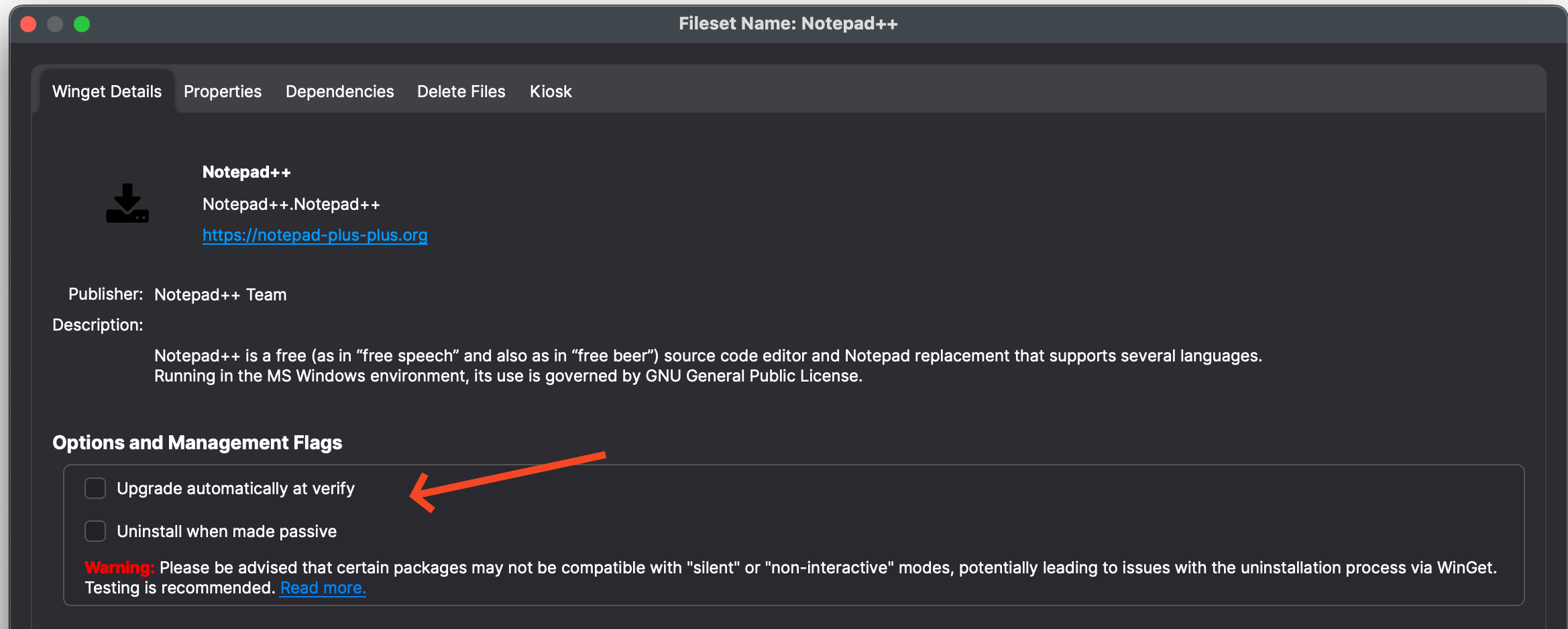
Things to check in the properties dialog:
- Name - Confirm this is the package you intended to remove.
- URL - Confirm the publisher/source is the one you expected.
- Uninstall when made passive - Enable this if you want FileWave to uninstall the software when the Association or Deployment is removed.
Some software does not uninstall silently, so test before enabling this option in production. Silent uninstall behavior depends on the software vendor. In testing, uninstall is silent only when the third-party app includes a QuietUninstallString in HKLM/Software/Microsoft/Windows/CurrentVersion/Uninstall. Firefox, for example, provides an UninstallString but not a QuietUninstallString, so its normal uninstall prompts the user.
Digging Deeper
If the default uninstall is not silent, you may still be able to make it silent with a vendor-supported switch. Firefox's uninstall string calls helper.exe, and running that executable with /S uninstalls Firefox silently. If you need that behavior, place the command in an Activation script on a separate Fileset instead of relying on the WinGet uninstall command.