Creating Windows Driver Filesets
Description
This recipe is to walk youwalks through the simple process of finding Windows OSdriver driverspacks and uploading them into FileWave.FileWave Windows drivers are used in ourfor Network Imaging process.Imaging.
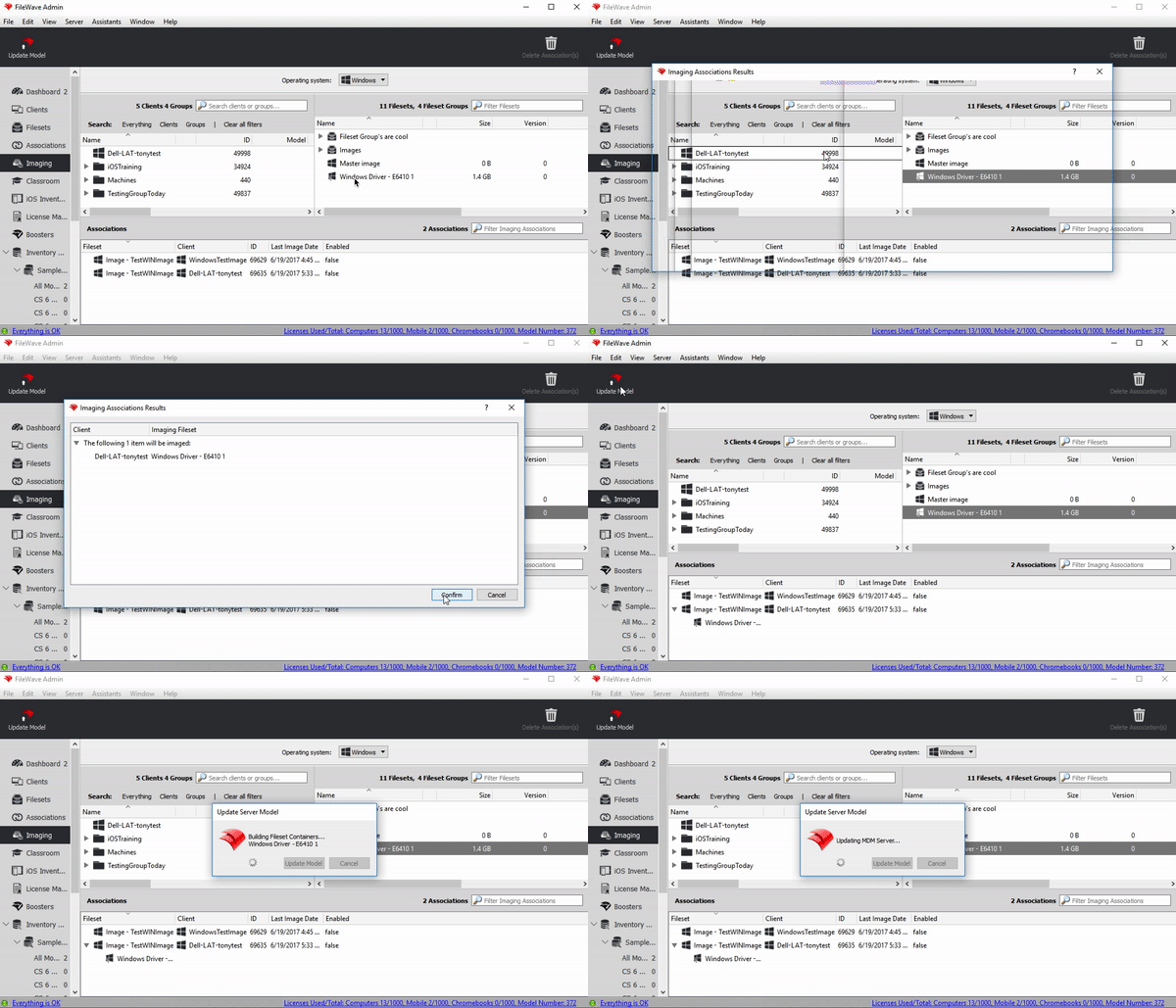
You can only assign a driver Fileset only after an image association has been made.
To learn more about FileWave network imaging with WindowsWindows, and the full process ofincluding creating, assigning, and deploying an imageimage, see:see the Network Imaging Guide.
Ingredients
FWFileWaveAdminCentral- Internet
Connectionconnection - An unarchiving
tooltool,(likesuch as 7-zip)Zip
Directions
-
Find
yourthe driverpackspack from themanufacture.manufacturer. Youwillusually needtothefinedriver package that contains the.CABor.files. In the screenshotINIINFbelowbelow,IasimplyGooglegooglesearchsearchedfor "Dell Latitude E6410 driver pack"andleads to a Dell driver pack download where thesecond result find me the back below where I downloaded the.CABfile can be downloaded.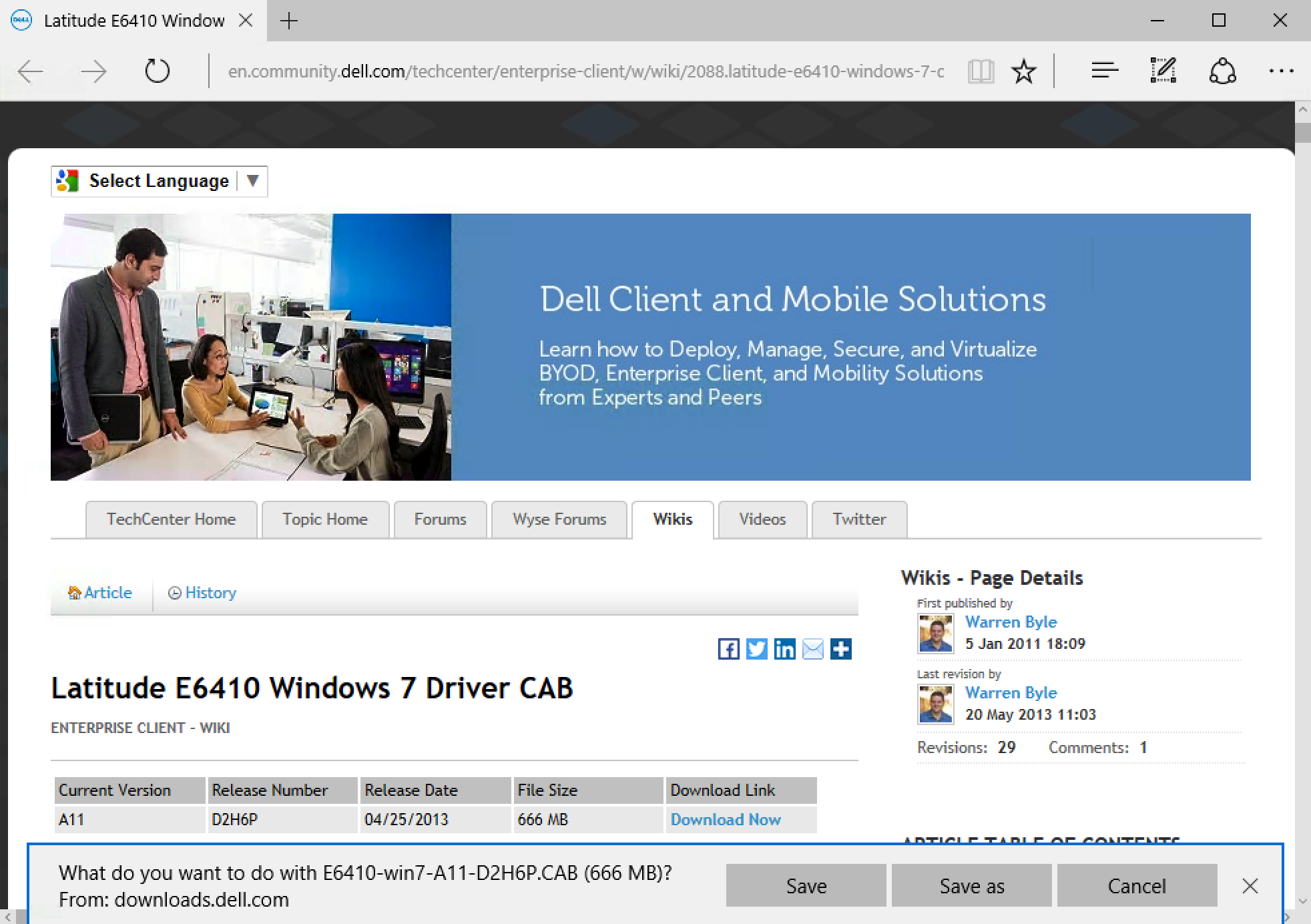
-
OnceAfter youhavedownloadlocatedthe driver pack, extract it. Right-click the.CABfile anddownloadeduseyour driver pack it is time7-Zip to extractit. Right click onthe.CAB file and have 7-zip extract the filefiles.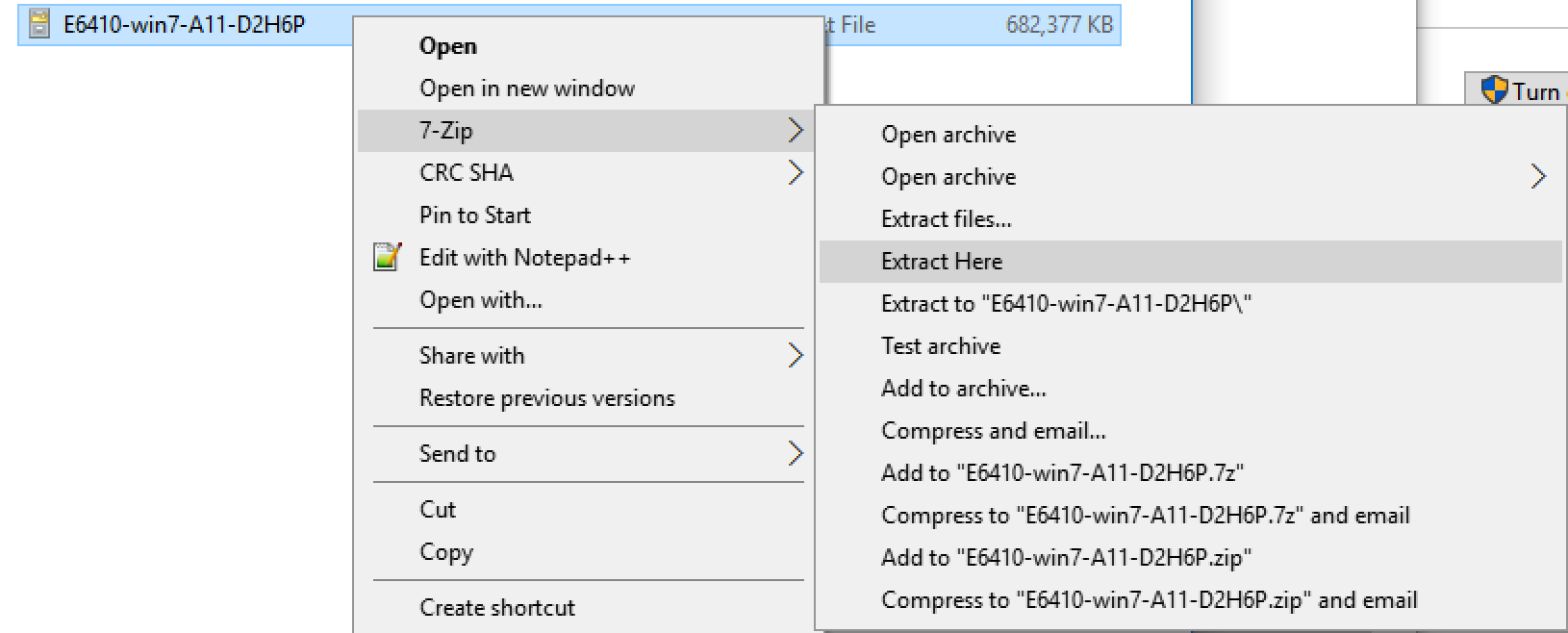
-
AfterAfter the driversare extractedareyou can nowextracted, upload the wholedriversdriver folder into FileWave. -
Log
intoin to FileWaveAdminCentral, go totheFilesetssection,, and selecttheNew Image Filesetoption.atIn thetop. You will be prompted with theCreate New Filesetwindowwithwindow,threechooseoption, selectWindows Drivers.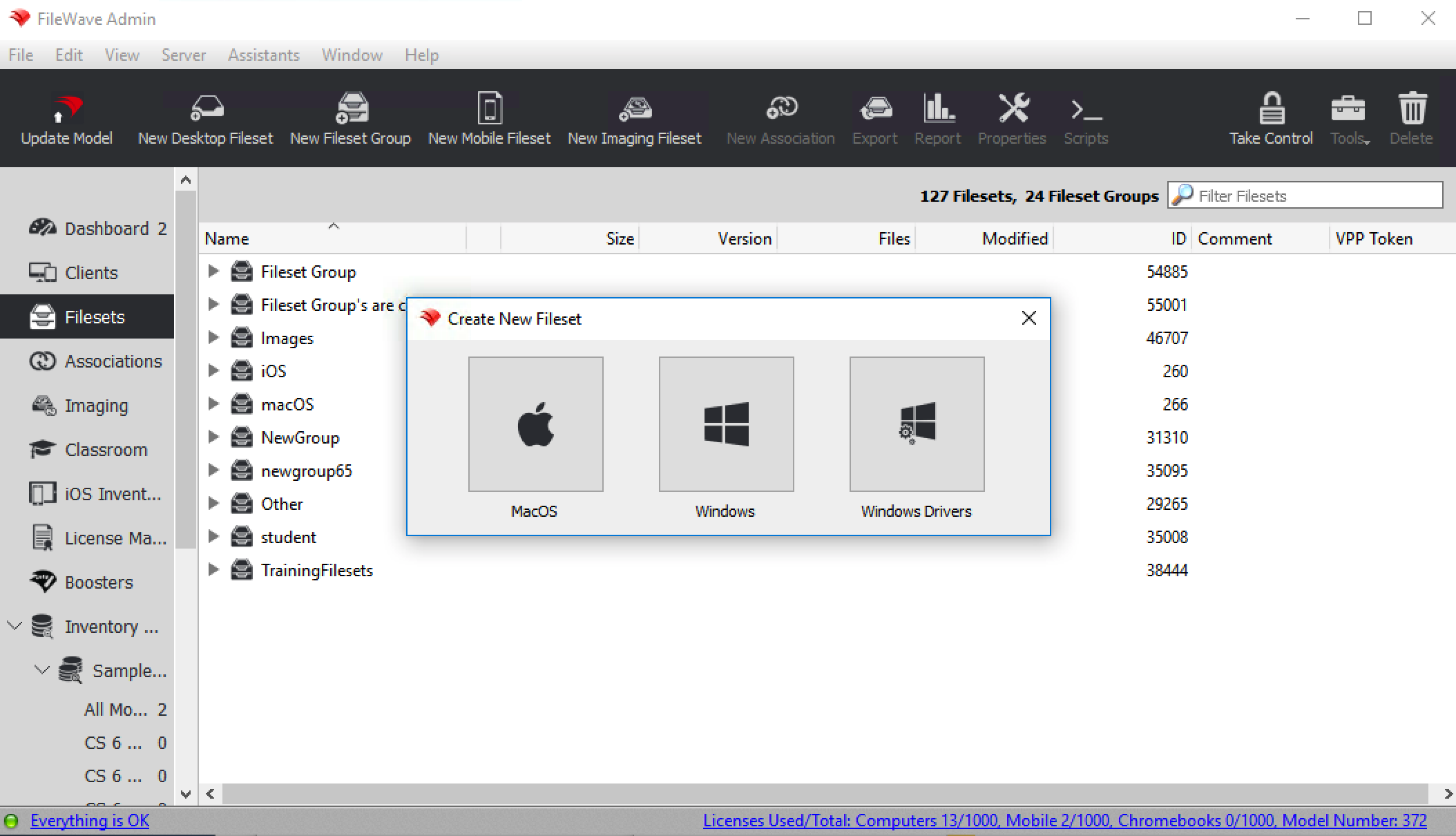
-
Now simply findSelect the extracted folder from the.CABfile andbringimport it into FileWave. The Windows driverfilesetFilesetwill be visibleappears intheboth the FilesettheImagingsection.sections. Itwill remainremains red untilit has completedthe importinto FileWave.finishes. -
When the
filesetFilesethasturnsturnedblack,black you can now associatedassociate the drivers inthethe Imaging section.TheseFileWave sends these driverswill be sent outtoyourthedevice(s)device during the network imaging process. -
OnceIninthetheImagingsectionsection, findyourthedevice,device or device groupof devices, onin the leftpane.paneFindandyourfinddriverstheondriver Fileset in the right pane.Simplyclick,drag,Click,anddrag, and drop thedriversdriveronFilesettopontooftheyour device,device orgroup of devices.group.The drivers
will be deployed alongdeploy withanthe image thatyou haveis already assigned to thedevice(s)
device.