
Expanding the IVS Disk Drive - VMware


Imaging Appliance - VMware Resize HD
ThisUse guidethis willworkflow helpwhen youa extendVMware-hosted theFileWave Imaging Virtual ServersServer (IVS) hardneeds drivemore spacedisk space. First expand the virtual disk in VMware, then run imaging-control increase harddrive on Imagingthe forIVS VMware.so the appliance grows the filesystem.
For VMware
The following steps will help you resize the virtual hard drive for the FileWave Imaging Appliance running on VMware.
1. Power off the virtual machine.
2. Edit the virtual machine settings and extend the virtual disk size. The screenshots below screen shots show thewhere viewto for extendingincrease the available spacedisk onsize VMWare.in VMware. 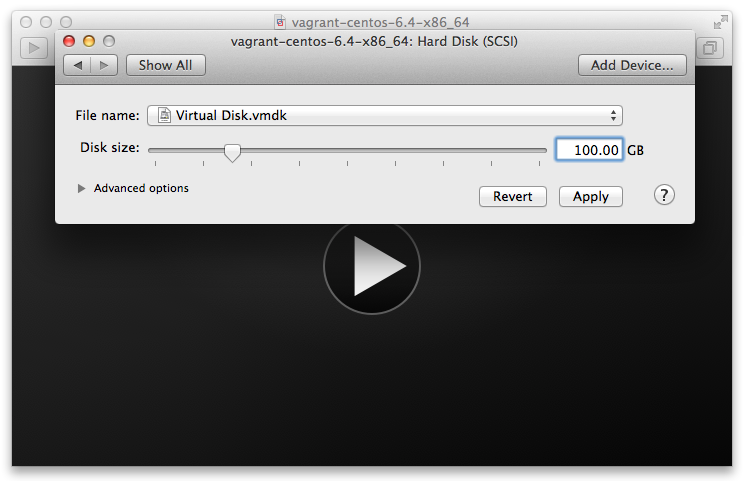
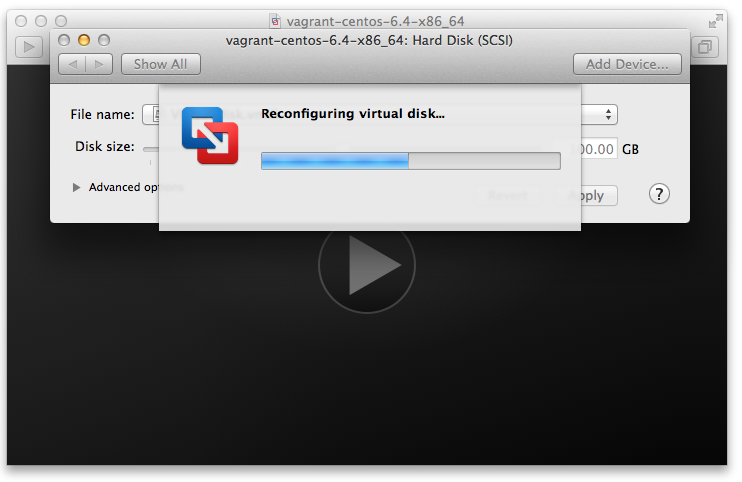
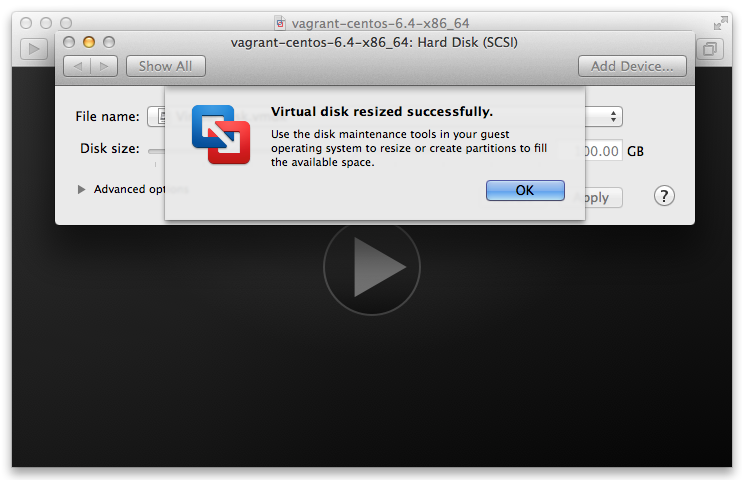
3. In FileWave Imaging we created a imaging-control command for extending the virtual hard drive size. Power on the IVS and login.log in. FileWave Imaging includes an imaging-control command to expand the appliance filesystem after the VMware disk is larger.
4. Run the command below imaging-control command to increase the hard drive.
imaging-control increase harddrive5. YouWhen willprompted be askedwith "Have you extended the hard drive in the VM settings?"., Answeranswer "y".
6. YouPress willEnter thenwhen selectprompted. "ENTER", and it will restart yourThe IVS restarts with the increasedlarger Hardhard Drive.drive available.
7. After thisthe youIVS arerestarts, done.confirm the extra space is available before resuming imaging work.