
Sysprep not able to validate Windows installation
Quick answer: If Sysprep fails with an Appx validation error, check %WINDIR%\System32\Sysprep\Panther\setuperr.log, identify the package named in the error, remove that app for each affected user, and then run Sysprep again. Sysprep remains mandatory for FileWave Windows disk imaging; Microsoft explains the disk-duplication policy here.
- Removes computer-specific information from a Windows installation. Duplicated computer-specific information can cause Windows functionality to behave incorrectly across multiple PCs.
- Generates a new computer SID
- Sets a new computer name
- Clears out event logs
- Runs mini setup to deal with hardware differences
- Performs a full Windows shutdown when the "/shutdown" switch is specified, which is required on Windows 8 and 10 - Starting with Windows 8, Microsoft added a fast startup feature that helps your PC start up faster after shutdown, even faster than hibernate. Windows does this by saving an image of the Windows kernel and loaded drivers to C:\hiberfil.sys upon shutdown so when you start your PC again, Windows simply loads the C:\hiberfil.sys file into memory to load Windows instead of starting from scratch. When it does this, Windows leaves the main partition hosting Windows in a state that prevents FileWave from properly capturing it. When you sysprep with the "/shutdown" parameter, it performs a full shutdown without generating a hiberfil.sys file and leaves the partition hosting Windows in a state that allows FileWave to capture it.
Sysprep can occasionally fail with a validation error when a provisioned Microsoft Store Appx app has been updated for one user but not for all users on the reference system.
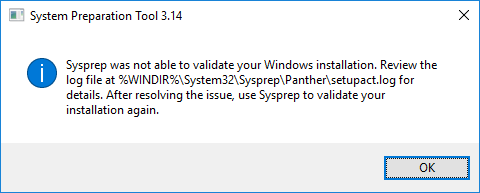
Sysprep has an additional provider in Windows 8 and 10 to clean Microsoft Store Appx packages and generalize the image. This provider will fail if an all-user package is updated for one of the users on this reference computer, which Windows will do automatically if it is connected to the internet long enough. To minimize the chance of this happening on the reference system, keep it disconnected from the internet as much as possible until the image is ready.
The error message you'll see in %WINDIR%\System32\Sysprep\Panther\setupact.log, and more importantly in setuperr.log, when sysprep fails under these circumstances is that "an app was installed for a user, but not provisioned for all users".
<Date> <Time>, Error SYSPRP Package <PackageFullName> was installed for a user, but not provisioned for all users. This package will not function properly in the sysprep image.
<Date> <Time>, Error SYSPRP Failed to remove apps for the current user: 0x80073cf2.
<Date> <Time>, Error SYSPRP Exit code of RemoveAllApps thread was 0x3cf2.
<Date> <Time>, Error [0x0f0082] SYSPRP ActionPlatform::LaunchModule: Failure occurred while executing 'SysprepGeneralize' from C:\Windows\System32\AppxSysprep.dll; dwRet = 0x3cf2
<Date> <Time>, Error SYSPRP ActionPlatform::ExecuteAction: Error in executing action; dwRet = 0x3cf2
<Date> <Time>, Error SYSPRP ActionPlatform::ExecuteActionList: Error in execute actions; dwRet = 0x3cf2
<Date> <Time>, Error SYSPRP SysprepSession::Execute: Error in executing actions from C:\Windows\System32\Sysprep\ActionFiles\Generalize.xml; dwRet = 0x3cf2
<Date> <Time>, Error SYSPRP RunPlatformActions:Failed while executing SysprepSession actions; dwRet = 0x3cf2
<Date> <Time>, Error [0x0f0070] SYSPRP RunExternalDlls:An error occurred while running registry sysprep DLLs, halting sysprep execution. dwRet = 0x3cf2
<Date> <Time>, Error [0x0f00a8] SYSPRP WinMain:Hit failure while processing sysprep generalize internal providers; hr = 0x80073cf2
Follow the steps below to remove the offending apps causing sysprep to fail before sysprepping again.
-
Check
%WINDIR%\System32\Sysprep\Panther\setuperr.logfor errors like the ones above and note the<PackageFullName>of the app, for example9E2F88E3.Twitter_5.4.1.0_x86_wgeqdkkx372wm. -
Launch PowerShell as an administrator and remove the Microsoft Store Appx app in question. In this example,
<PackageName>isTwitter.Remove-AppxPackage *<PackageName>* -
If sysprep continues to fail because of the same app, it means the app is installed for another user on the system. Log into this other user account and repeat step 2 to remove the app for that user.
-
Sysprep again.
-
Repeat steps 1–4 until Sysprep is successful.