
Windows Sysprep Guide


This Guide will prepare your Windows devices ready to be captured and deployed with FileWave Network IVS.
Computer Imaging is an important part of Life Cycle Management. Creating and deploying Windows images requires running the System Preparation (Sysprep) tool. Sysprep removes system-specific data from WindowsWindows, ensuring a successful restoration of the image, and creates a "generalized" Windows installation that will then be ready for configuration at the next bootup.
If your organization requires an answer filefile, below is a step-by-step guide on creating an answer file for Sysprep to completely automate the Windows setup.
Creating a Sysprep unattended answer file
Tested on Windows 7, 8.1, 10 and 11
At this pointpoint, you can either
It is highly recommended that generated answer files arebe used with matching Windows releases, e.gg, 190921H2 answer file with Windows 1011 1909,21H2, etc. If preparing a newer Windows 10 release, e.g. 2004, generate a new matching 2004 answer file.
Answer File Generator
Tested on Windows 10 1909 and 2004
- 3rd Party Answer File Generator (AFG) tool: https://schneegans.de/windows/unattend-generator/
3rd Party Tool
The following are example links to online tools that will generate the XML:
Manually
Installing the Windows Automated Installation Kit for Windows
First we'll need to install the Windows Automated Installation Kit (Win AIK) on your technician machine. Follow the on screen prompts for your Windows AIK version.
Check Disk
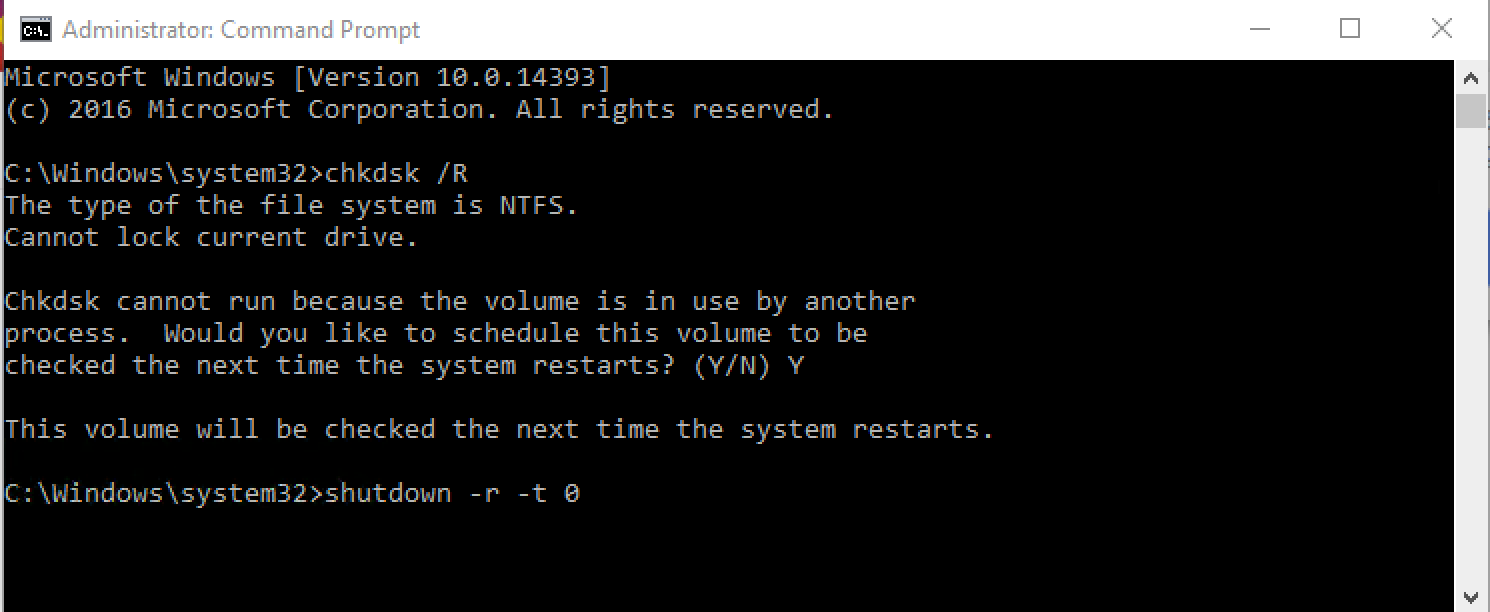
Run the Check Disk command before your Sysprep the image. This will ensure the disk is cleared of any errors. The below commands are run in Command Prompt run as administrator.
chkdsk /R
shutdown -r -t 0
Use a administrator command prompt to run the commands and reboot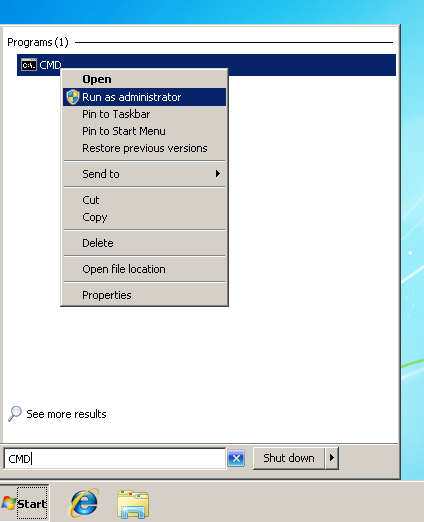
System Prepare with Sysprep
Once Check Disk (chkdsk) has completed and the machine is back in Windows, run the command below (if you have no unattend XML file you may use the second command) with Command Prompt as administrator to Sysprep your machine:
C:\Windows\System32\Sysprep\sysprep.exe /generalize /oobe /shutdown /unattend:PATH TO SYSPREP ANSWER FILE XML
or
C:\Windows\System32\Sysprep\sysprep.exe /generalize /oobe /shutdown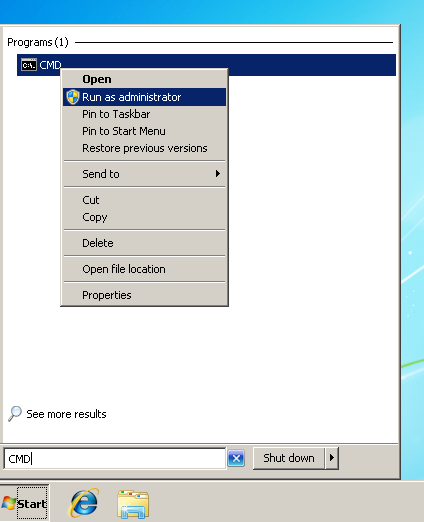
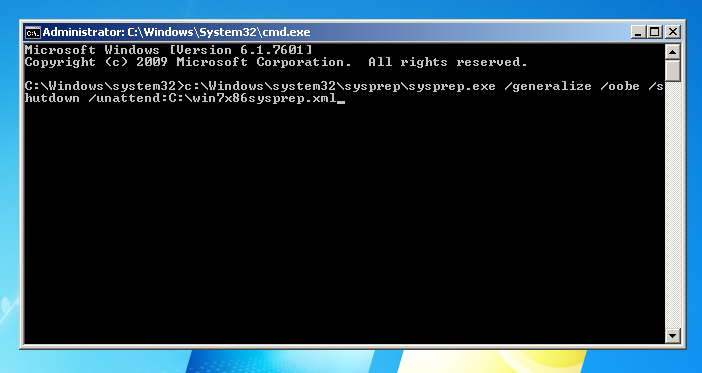
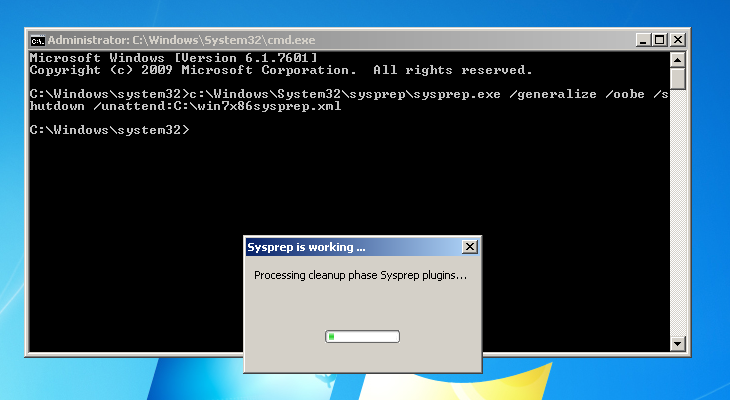
Sysyprep will prepare the machine to be copied and shutdown. You are now ready to upload your Master Image to the FileWave Imaging Appliance.
To continue this workflow and capture this as a Master Image see: Windows Network Imaging - PXE Booting