
Cisco Secure Client Installation (macOS)
Description
Need to install the Cisco Secure Client on your macOS devices? FileWave has you covered! Below are the steps to download the FileWave template, upload your CSC package, and get ready to deploy to your macOS devices.
Ingredients
-
FW Admin
-
Cisco Secure Client DMG file, example file name from your Cisco portal:
-
cisco-secure-client-macos-<version>-predeploy-k9.dmg
InstallOlderCiscoSecureClient.fileset.zipmacOS versions for Kernel Extension TCC profile:- Profile -
ApprovedCisco Secure Client Kernel Extensions.fileset.zip
Directions
-
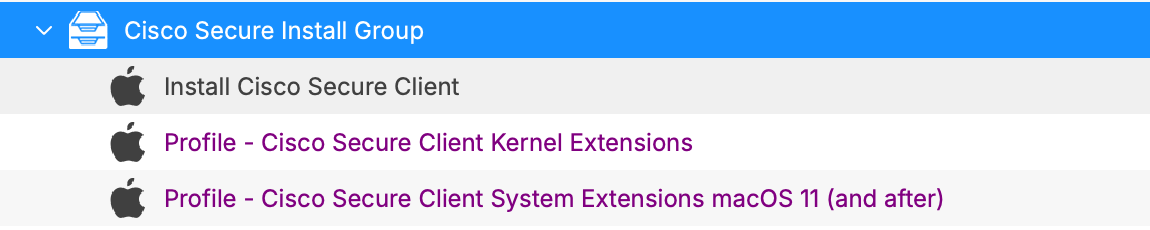
Download and import the two files into FileWave and create a Fileset Group labeled Cisco Secure Client Install or similar
-
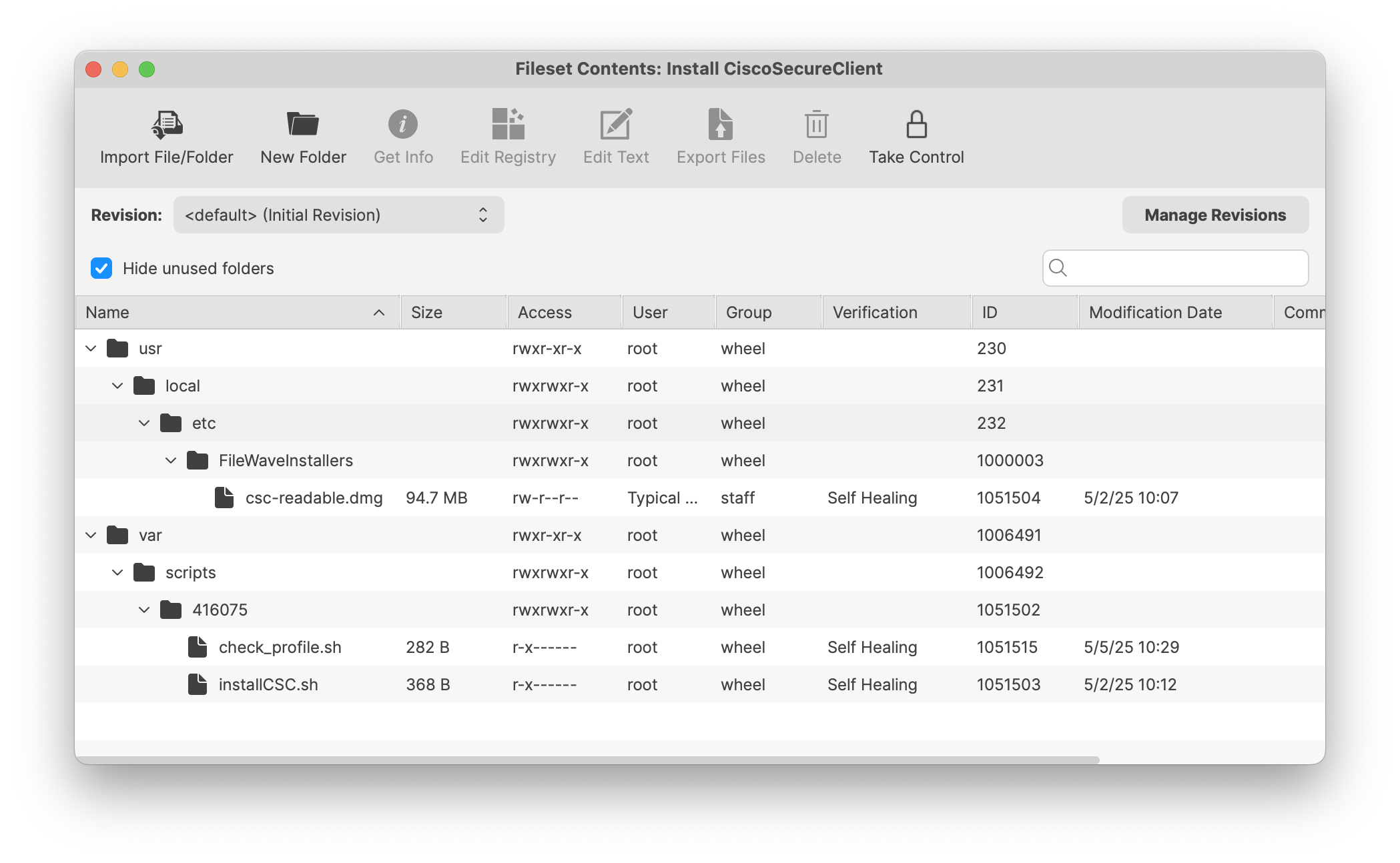
Open the Fileset Install CiscoSecureClient to view its contents.
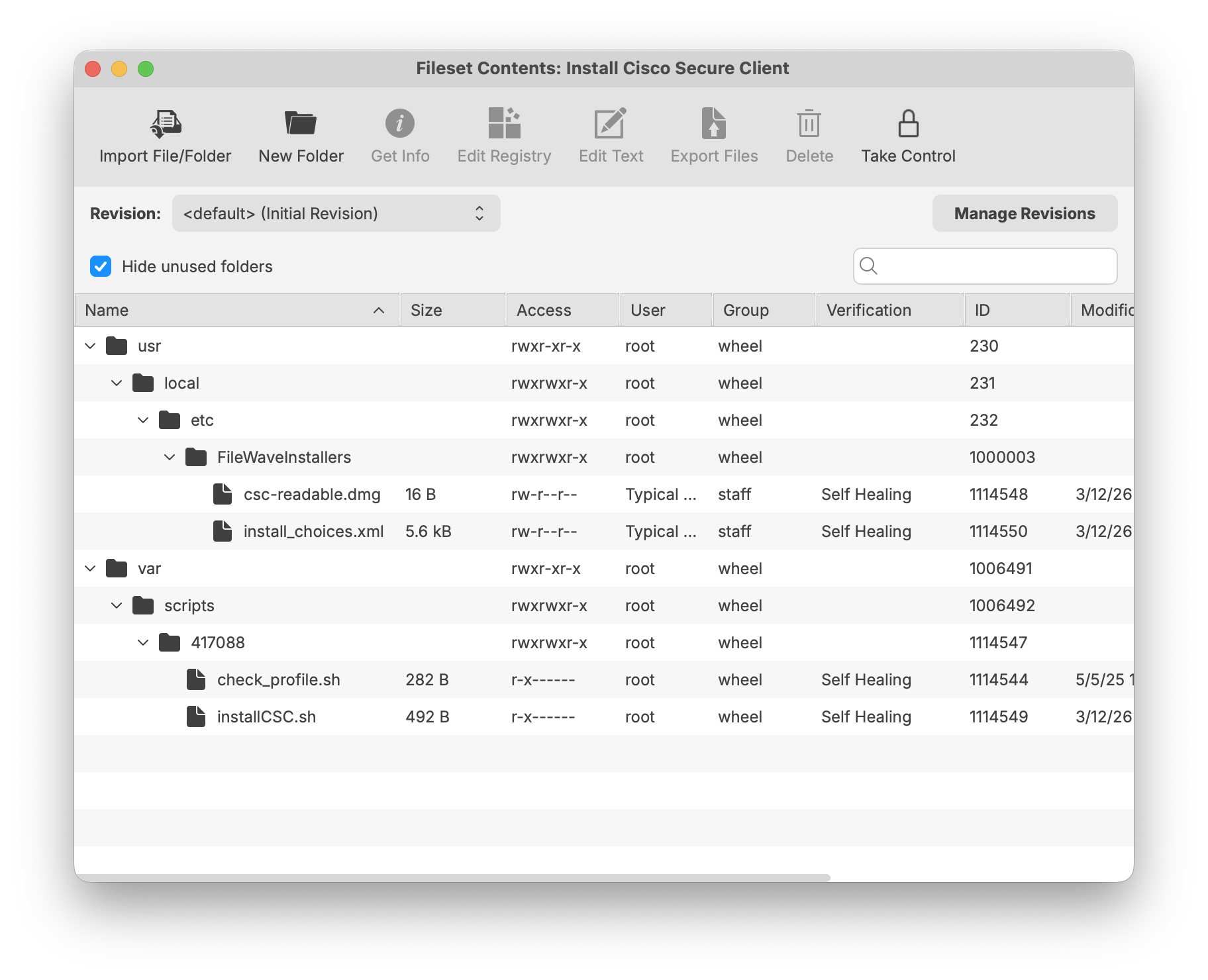
YouTheshouldFilesetseeincludesthreetwoitems - the .dmg placeholderscripts and twoscripts.placeholders for your customized dmg and xml file.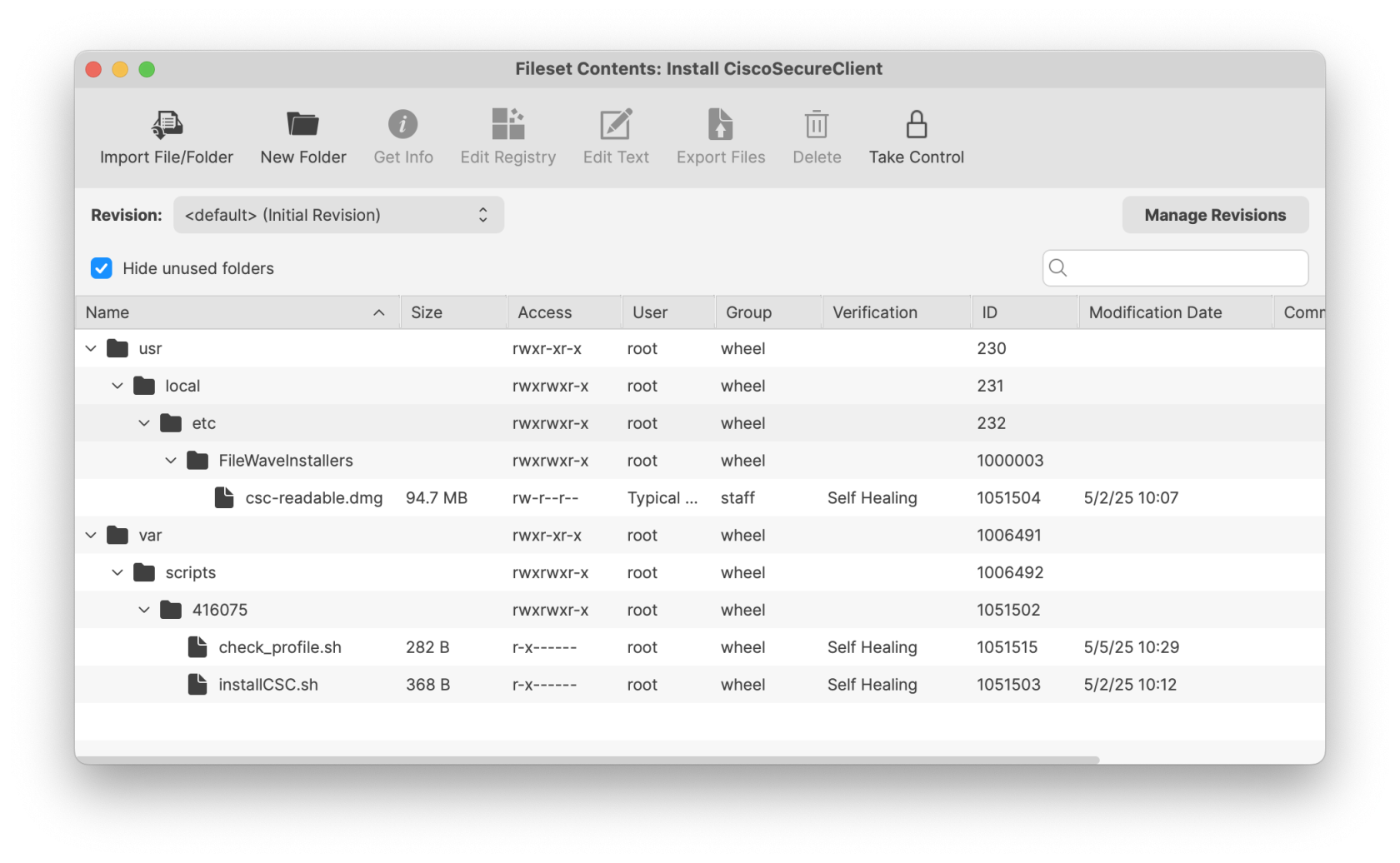
-
Proceed through the Cisco process of creating your CSC-readable DMG file. You may follow the updated steps on Cisco's KB documentation here: Customize macOS Installation of Cisco Secure Client. The one in the template Fileset is an example and
does notcontainyouran example XML profileconfigurations.configuration. Please refer to Related Content below to create your Cisco CSC-readable DMGfile.file along with customized modules to install. -
After the completion of the CSC-readable DMG, replace the one in the Fileset with yours
-
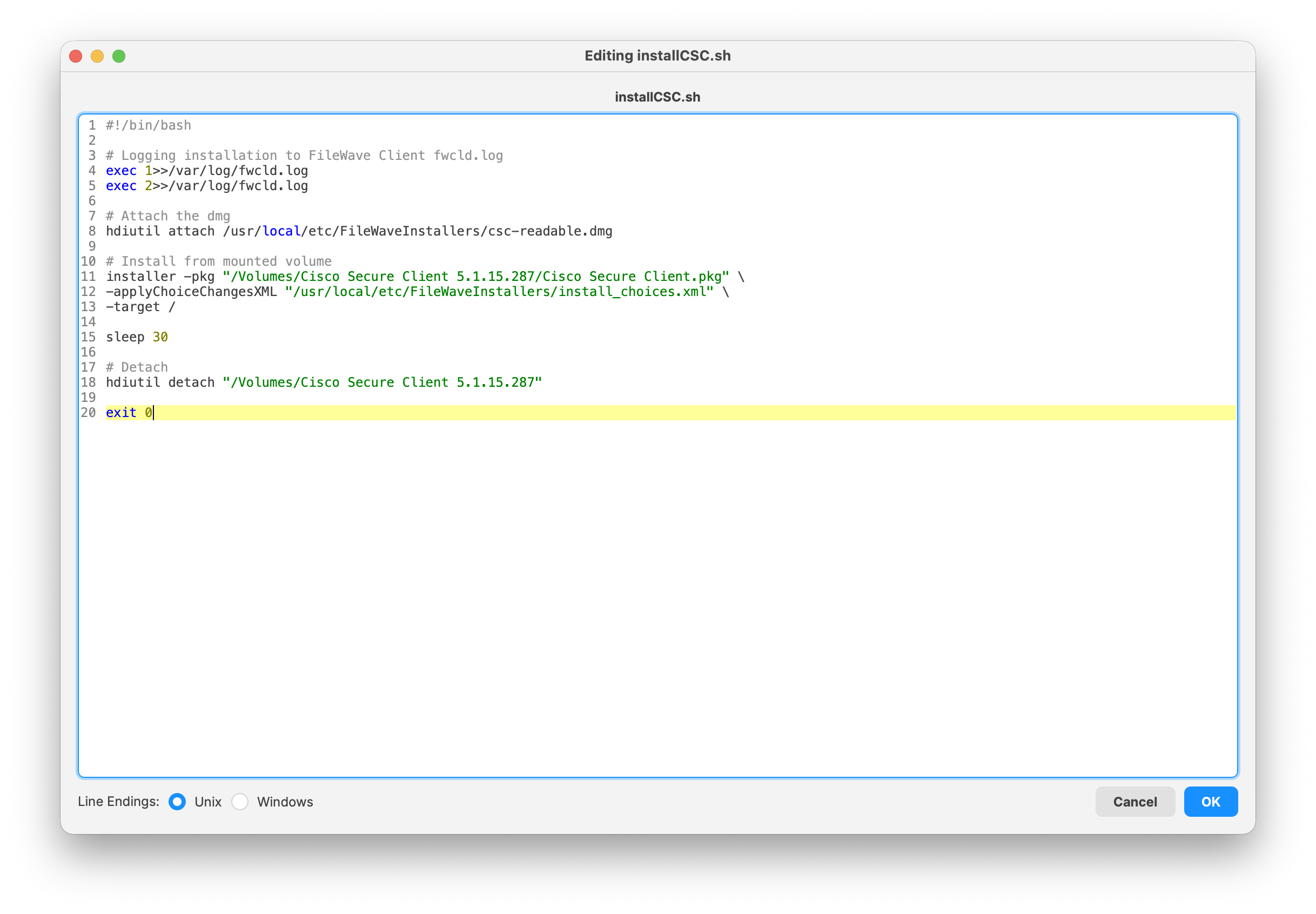
Open the install CSC script to modify the names of the updated CSC-readable DMG and the Cisco Secure Client version number PKG installer to match what you have. If there are spaces, use the correct syntax (i.e., Cisco\ Secure\ Client.pkg).
The script will attach the DMG to the volume of the machine, locate the PKG installer, and extract it to the root directory (you are welcome to change to a different directory, if desired). If you have a customized install_choices.xml file be sure it has been updated and replaced in the Fileset Contents. Then the script will sleep for6030 seconds to allow installation of the client and detach the DMG from the machine.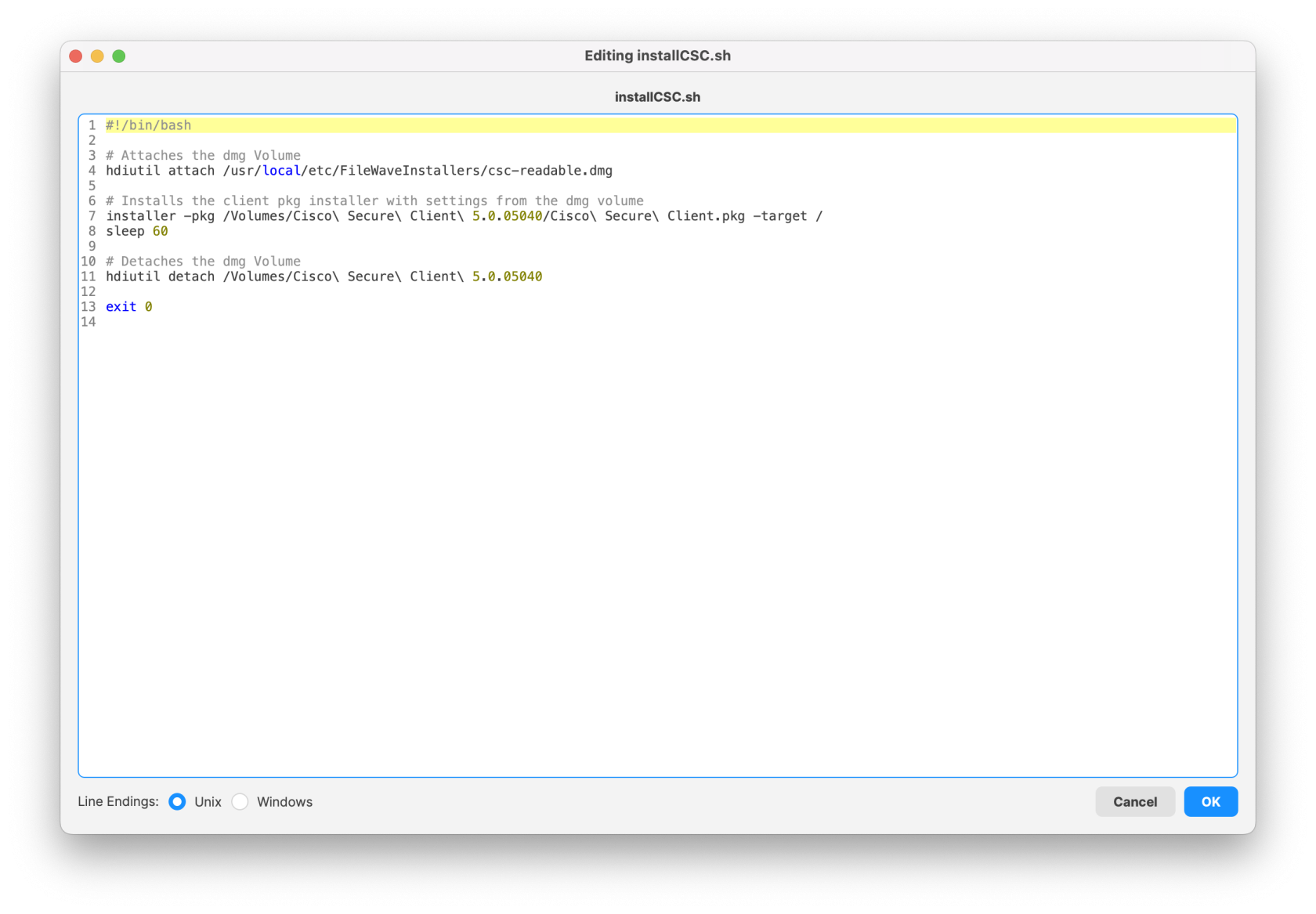
-
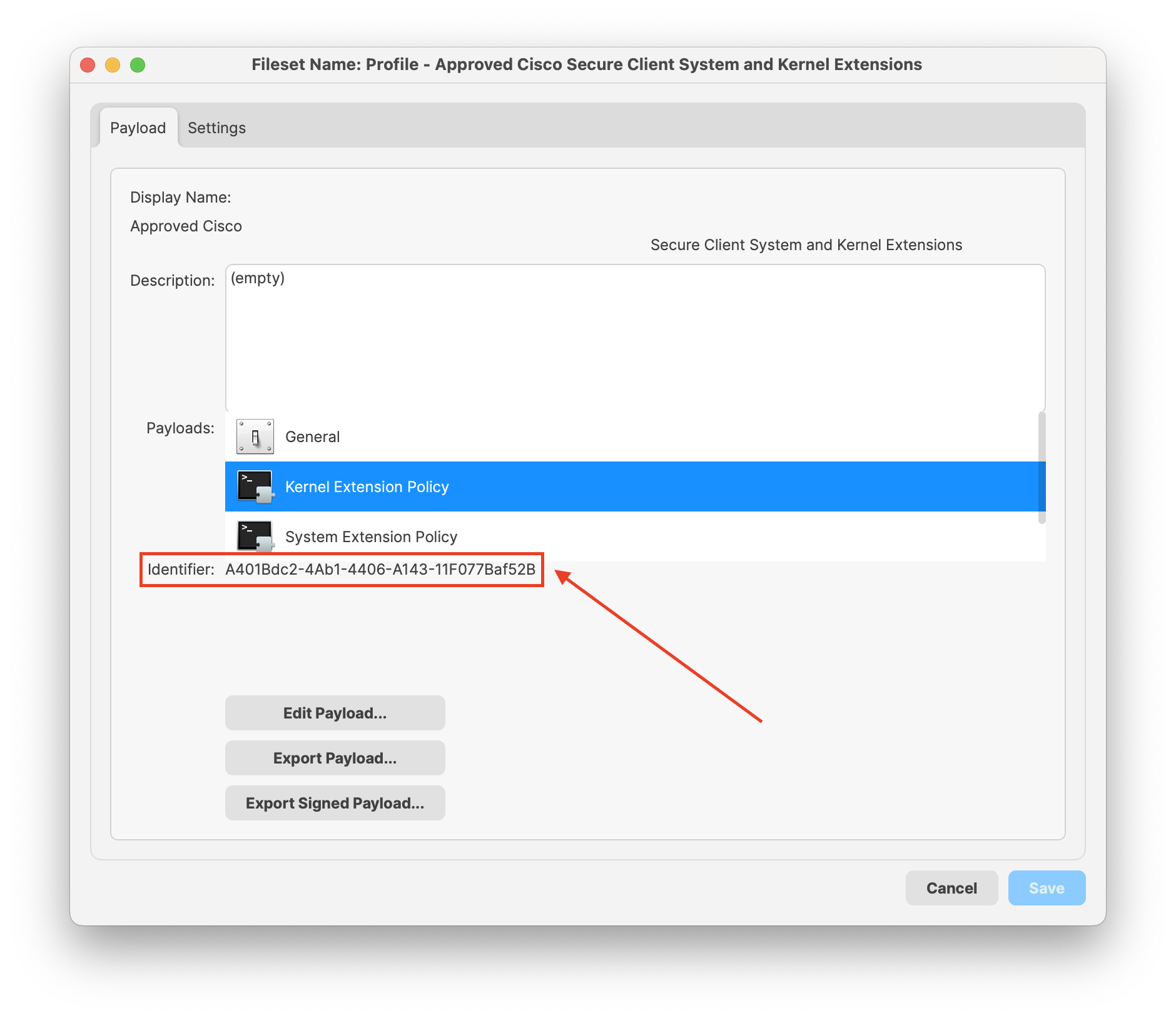
There are two profiles: one for System Extensions for macOS 11 (and later) along with Web Content Filter and Managed Login Items and another containg only the older macOS versions for Kernel Extensions. Be sure you are deploying to the correct macOS version in your enivornment.
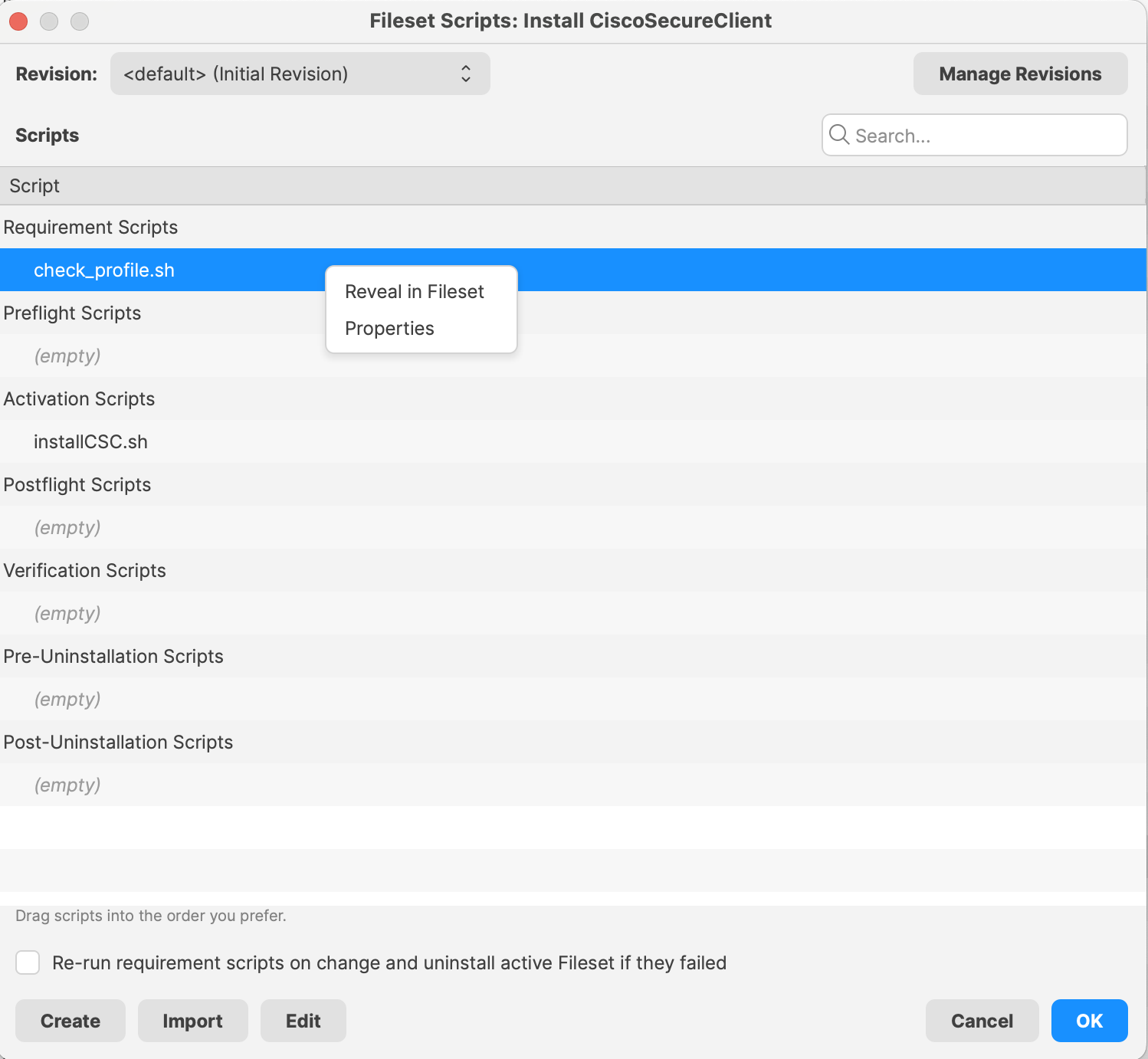
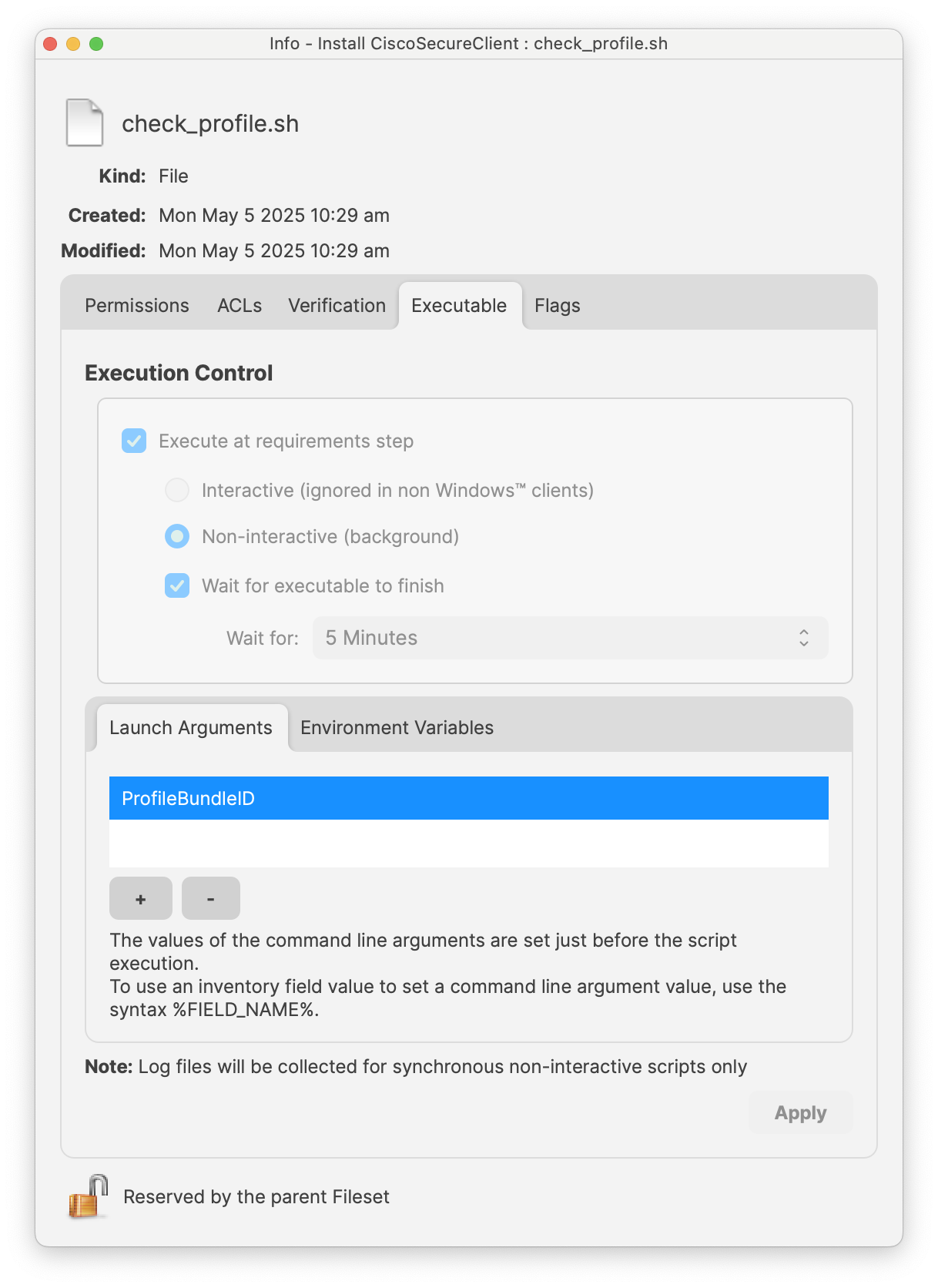
Modify the check_profile script and its launch argument to ensure it matchestheeither both profile bundleID.IDsDouble-clickorto openjust theProfilemacOS 11 (andcopylater). The Template Fileset contains only the macOS 11 (and later) Profile bundle ID.
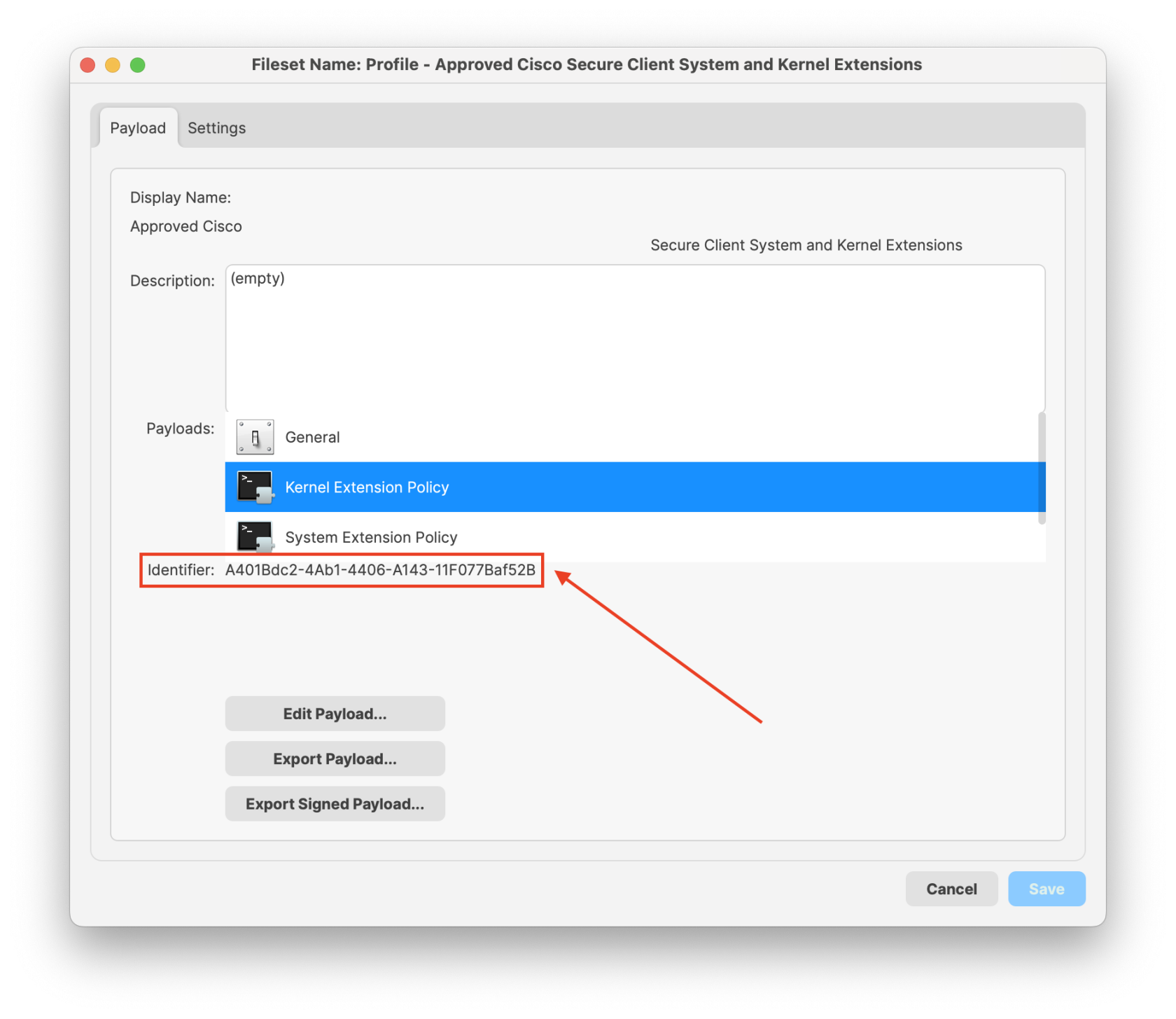
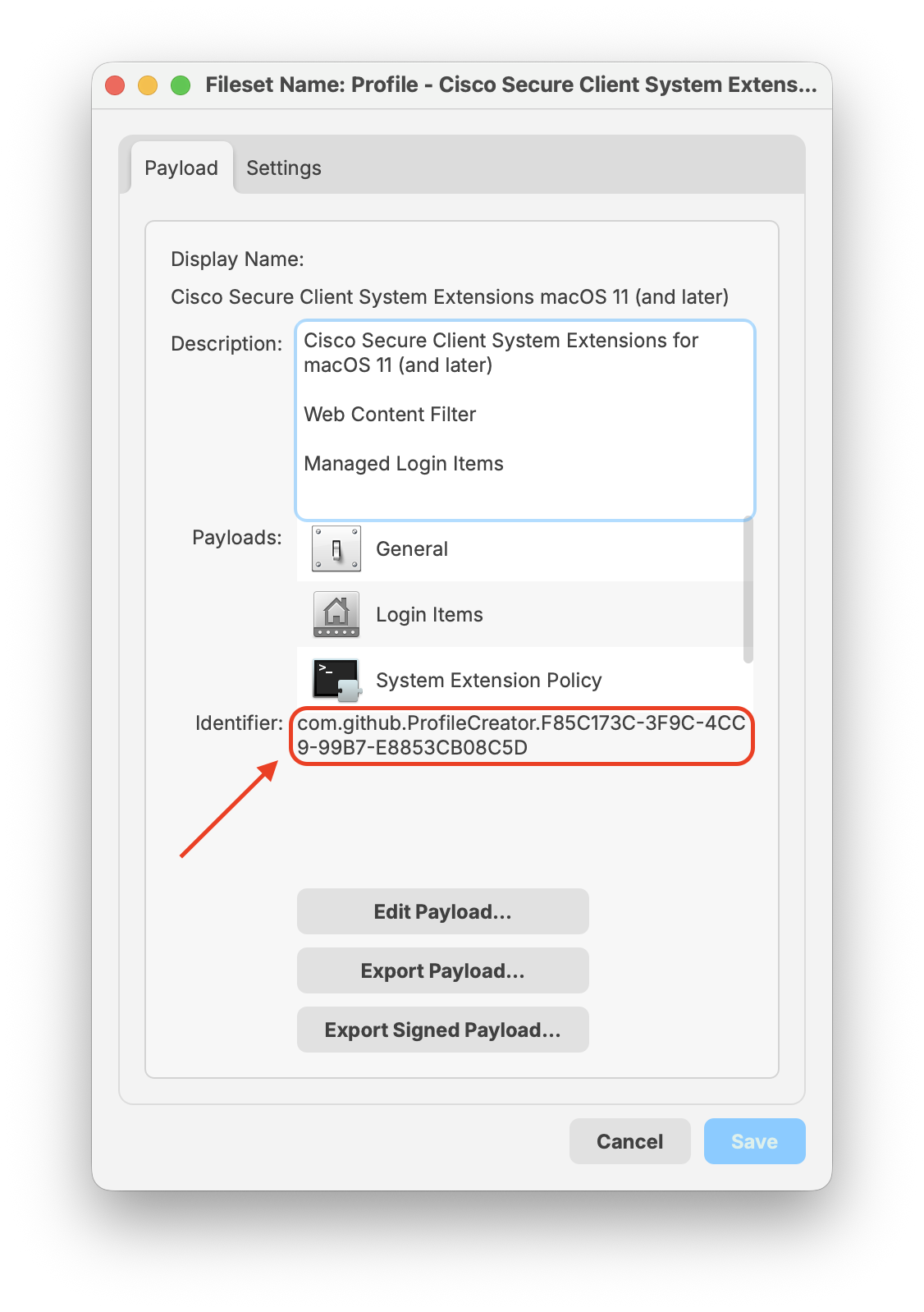

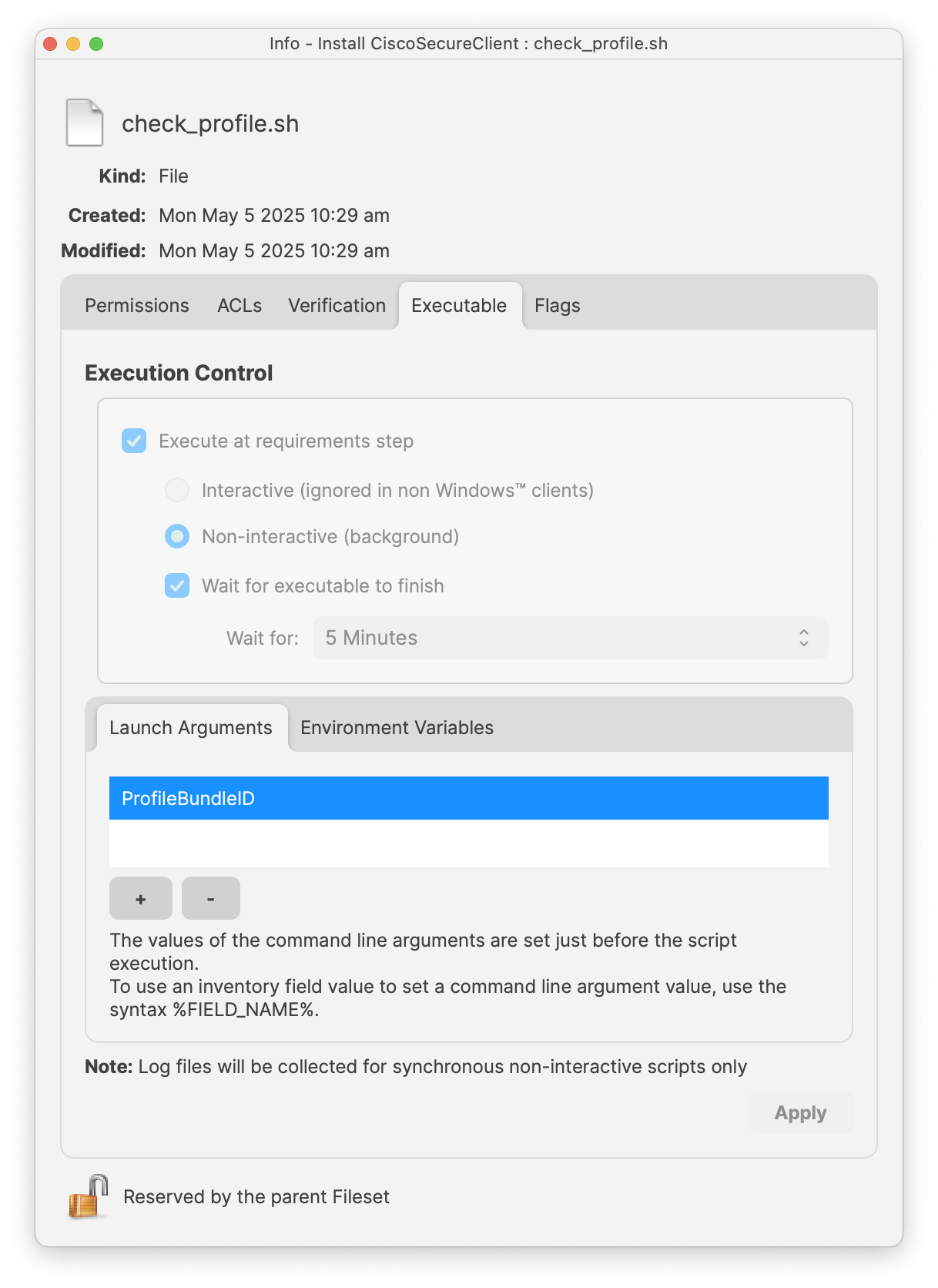
-
Save the contents and assign the Fileset group with
bothyour Fileset andprofileprofile(s) to a few test devices. The Fileset Group will deployboth profileprofile(s) andFileset,theandFileset; once the profile has beeninstalled,installed successfully, the Fileset with your Cisco Secure Client will be installed.


Notes
Be sure to test with a few devices before mass-deploying to your production devices. It's always a good habit to test on a few devices to confirm the proper installation and configuration of the Cisco Secure Client.
Related Content
Customize macOS Installation of Cisco Secure Client
Creating MDM approved System/Kernel Extensions Guide