
Microsoft Office Deployment for Windows: Office 2019/2021, Office LTSC 2024, and Microsoft 365 Apps
Description
Need to deploy Microsoft Office to Windows devices with FileWave? This recipe covers deployment of current Click-to-Run Office packages, including:
- Microsoft 365 Apps for enterprise / business
- Office LTSC Professional Plus 2024
- Office LTSC Standard 2024
- Office LTSC 2021 / Office 2019 volume-license deployments
- Optional Project and Visio deployments
This recipe uses the Microsoft Office Deployment Tool, also called ODT, to download Office installation files, create an offline/local deployment source, and silently install or uninstall Office through a FileWave Fileset.
Microsoft recommends using the latest Office Deployment Tool and the Office Customization Tool to build the configuration XML
Note the Fileset below is based on the Microsoft Article listed here: https://learn.microsoft.com/en-us/office/ltsc/2024/deploy
Ingredients
This Fileset utilizes scripts to install and uninstall Office. After the Fileset is deployed and activated it can take a few minutes for the Office installation to be completed. When the Office Fileset is removed from the device (by removing the association in FileWave) a script will start that will uninstall Office from the clients.
Do not mix 32-bit and 64-bit Office on the same device. If Office is already installed and your XML specifies a different architecture, the installation can fail unless you intentionally use architecture migration options.
Set up and Configurations
For silent deployment, use:
<Display Level="None" AcceptEULA="TRUE" />Microsoft documents that Level="None" suppresses the Office installation UI and that administrators should set AcceptEULA="TRUE" for silent installations.
Common Office product IDs and channels
| Deployment type | Product ID example | Channel example |
|---|---|---|
| Microsoft 365 Apps for enterprise | O365ProPlusRetail |
Current, MonthlyEnterprise, or SemiAnnual |
| Microsoft 365 Apps for business | O365BusinessRetail |
Current, MonthlyEnterprise, or SemiAnnual |
| Microsoft 365 Apps enterprise, no Teams | O365ProPlusEEANoTeamsRetail |
Current, MonthlyEnterprise, or SemiAnnual |
| Microsoft 365 Apps business, no Teams | O365BusinessEEANoTeamsRetail |
Current, MonthlyEnterprise, or SemiAnnual |
| Office LTSC Professional Plus 2024 | ProPlus2024Volume |
PerpetualVL2024 |
| Office LTSC Standard 2024 | Standard2024Volume |
PerpetualVL2024 |
| Project Professional 2024 | ProjectPro2024Volume |
PerpetualVL2024 |
| Project Standard 2024 | ProjectStd2024Volume |
PerpetualVL2024 |
| Visio Professional 2024 | VisioPro2024Volume |
PerpetualVL2024 |
| Visio Standard 2024 | VisioStd2024Volume |
PerpetualVL2024 |
| Office LTSC Professional Plus 2021 | ProPlus2021Volume |
PerpetualVL2021 |
| Office Professional Plus 2019 | ProPlus2019Volume |
PerpetualVL2019 |
Microsoft’s supported product ID list includes Microsoft 365 product IDs, Office 2024 volume product IDs, Project 2024, Visio 2024, and Office 2021 IDs. Microsoft also documents that Office LTSC 2024 uses PerpetualVL2024, Office LTSC 2021 uses PerpetualVL2021, and Office 2019 uses PerpetualVL2019.
Recommended Fileset structure
Create one Fileset per Office deployment type, for example:
Office-2024-ProPlus-Windows.fileset
Office-365-Apps-Enterprise-Windows.fileset
Office-365-Apps-Business-Windows.fileset
Office-2024-Visio-Project-Windows.fileset
Inside the Fileset, use a consistent folder path such as:
C:\ProgramData\FileWave\Installers\OfficeRecommended Fileset contents:
C:\ProgramData\FileWave\Installers\Office\setup.exe
C:\ProgramData\FileWave\Installers\Office\configuration.xml
C:\ProgramData\FileWave\Installers\Office\Data
C:\ProgramData\FileWave\Installers\Office\install-office.ps1
C:\ProgramData\FileWave\Installers\Office\uninstall-office.ps1
The Office folder is created by ODT when using /download. Microsoft notes that after a download, the source folder should contain an Office folder with a Data subfolder and versioned download content.
Directions
Step 1: Download the Office Deployment Tool
Download the latest Office Deployment Tool from Microsoft and extract it to a working folder on your technician machine, for example:
C:\OfficeDeployment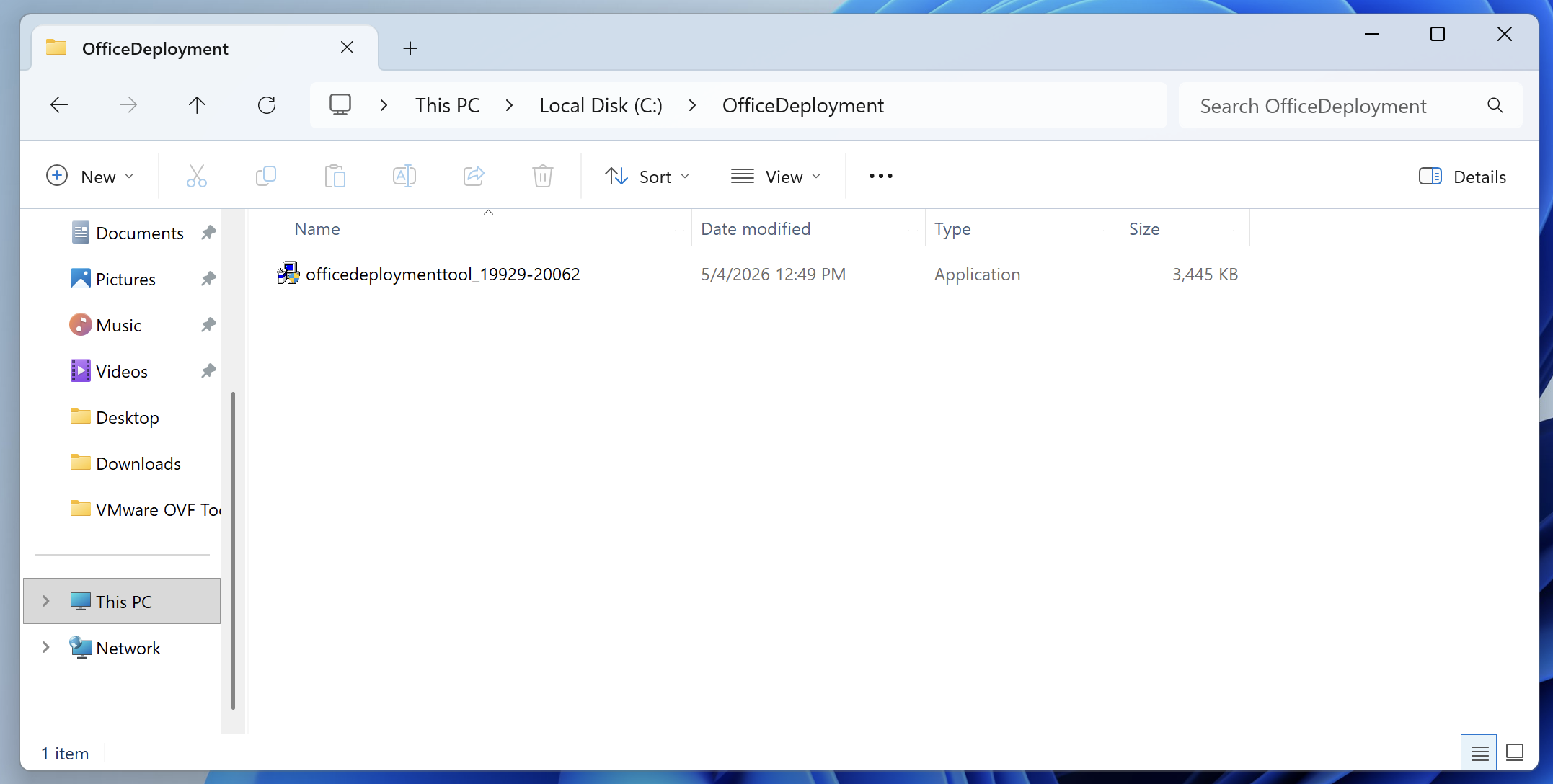
After extraction, the folder should contain:
setup.exe
configuration.xml or configuration-Office365-x64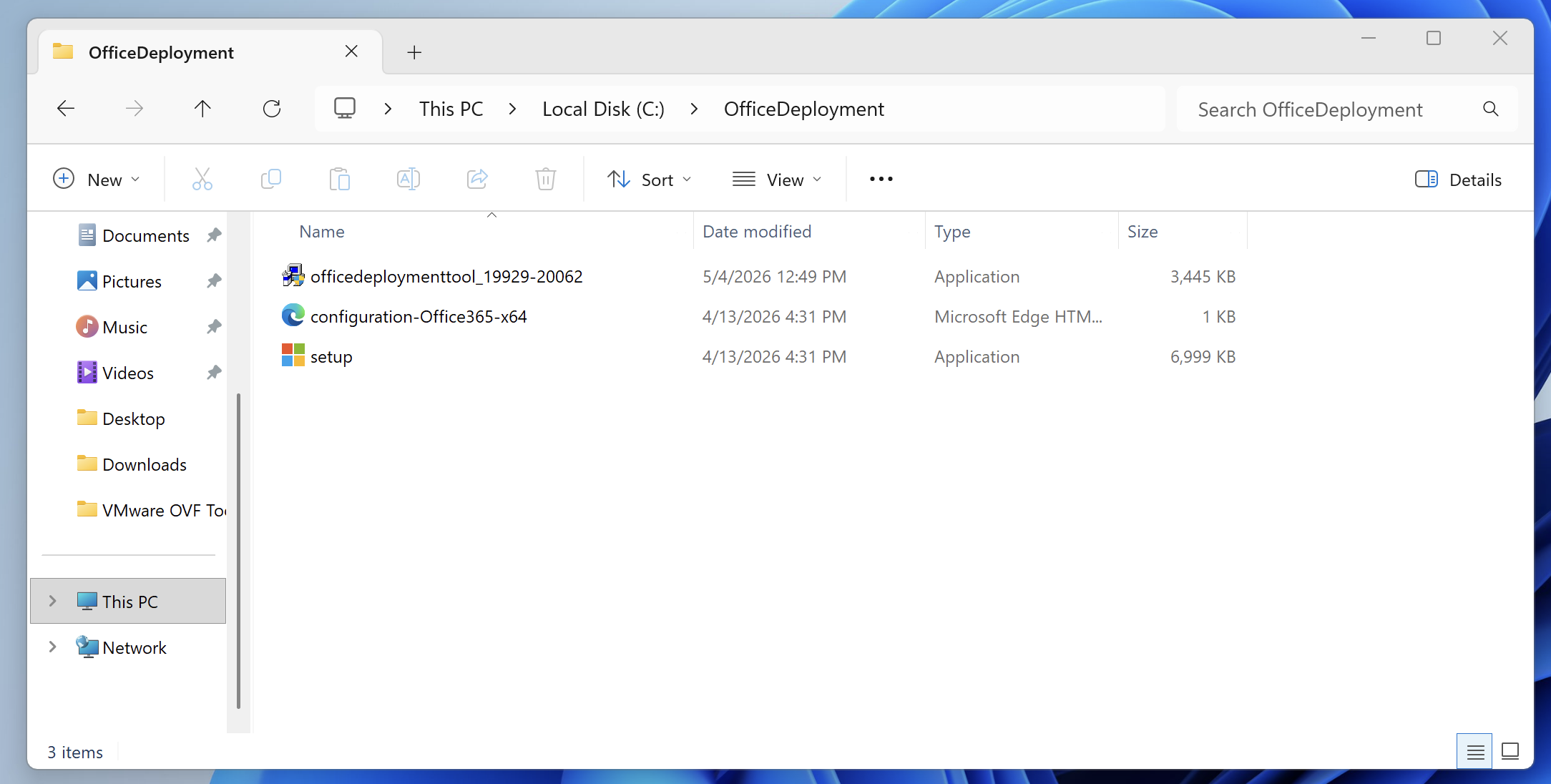
The setup.exe file is the Office Deployment Tool command-line executable which we will use later in Step 3.
Step 2: Create the configuration XML
Use Microsoft’s Office Customization Tool to generate your XML. Microsoft recommends using the Office Customization Tool rather than manually writing XML, because it helps define products, languages, update behavior, display behavior, and licensing settings.
When creating the XML, confirm the following:
- Product matches the license type.
- Channel matches the Office family.
- Architecture is correct, usually 64-bit.
- Display level is set to hidden/silent.
- EULA is accepted.
- Previous MSI versions are removed if needed.
- Source path points to the local Fileset path or is omitted if installing from the CDN.
Source path example:
C:\ProgramData\FileWave\Installers\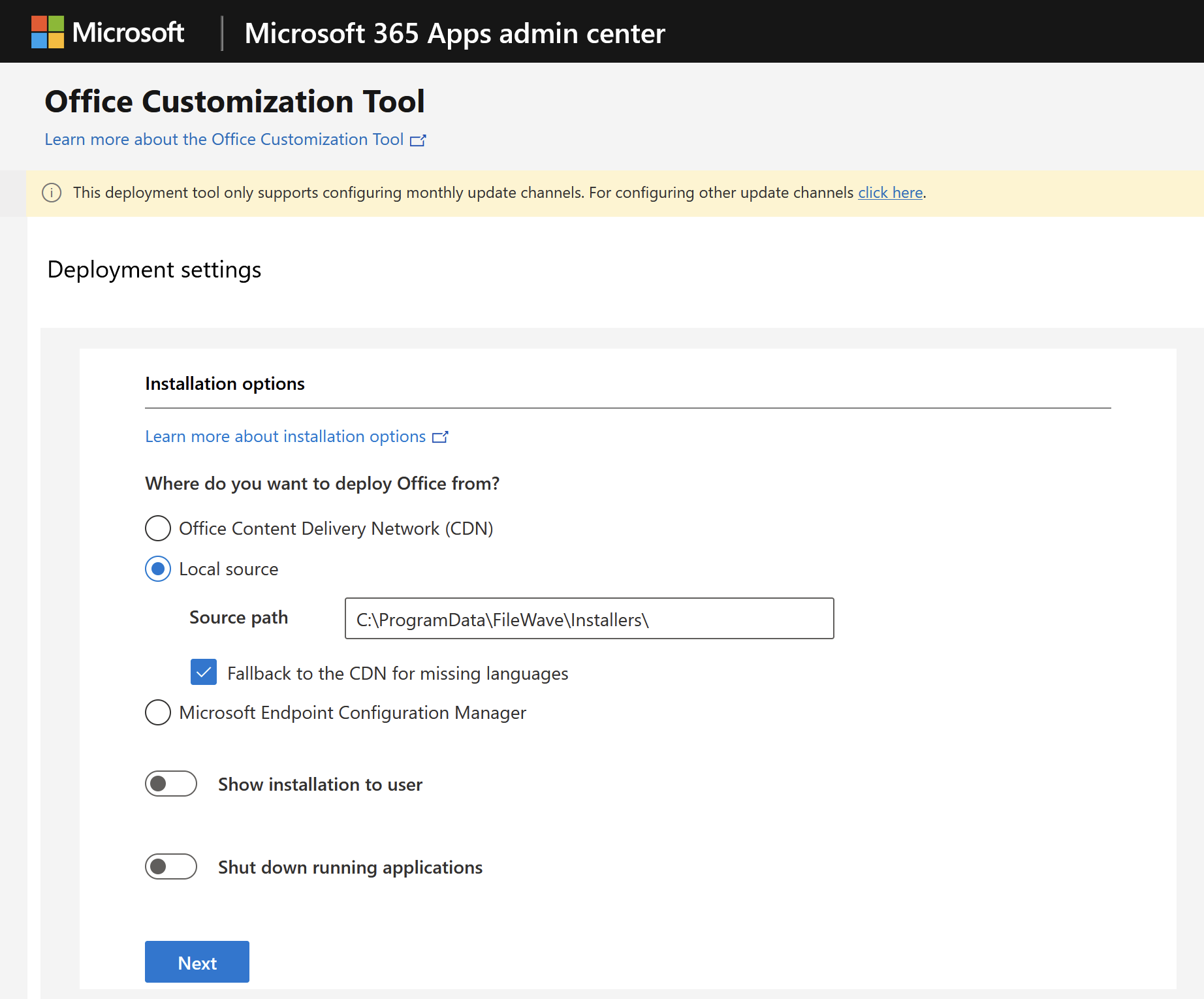
Example XMLs:
Office LTSC Professional Plus 2024
Use this style of XML for Office LTSC 2024 volume-license deployments:
Office LTSC Professional Plus 2024
<Configuration>
  <Add OfficeClientEdition="64" Channel="PerpetualVL2024" SourcePath="C:\ProgramData\FileWave\Installers\Office">
    <Product ID="ProPlus2024Volume">
      <Language ID="en-us" />
      <!-- Optional exclusions -->
      <!-- <ExcludeApp ID="Access" /> -->
      <!-- <ExcludeApp ID="Publisher" /> -->
    </Product>
  </Add>

  <RemoveMSI />

  <Display Level="None" AcceptEULA="TRUE" />

  <!-- For MAK activation, add your MAK key if required:
  <Property Name="PIDKEY" Value="XXXXX-XXXXX-XXXXX-XXXXX-XXXXX" />
  -->

  <Property Name="AUTOACTIVATE" Value="1" />
</Configuration>
Office LTSC Standard 2024
Office LTSC Standard 2024
<Configuration>
  <Add OfficeClientEdition="64" Channel="PerpetualVL2024" SourcePath="C:\ProgramData\FileWave\Installers\Office">
    <Product ID="Standard2024Volume">
      <Language ID="en-us" />
    </Product>
  </Add>

  <RemoveMSI />
  <Display Level="None" AcceptEULA="TRUE" />
  <Property Name="AUTOACTIVATE" Value="1" />
</Configuration>
Microsoft 365 Apps
Use this style of XML for Microsoft 365 Apps deployments:
Microsoft 365 Apps for enterprise
<Configuration>
  <Add OfficeClientEdition="64" Channel="MonthlyEnterprise" SourcePath="C:\ProgramData\FileWave\Installers\Office" AllowCdnFallback="True">
    <Product ID="O365ProPlusRetail">
      <Language ID="en-us" />
      <!-- Optional exclusions -->
      <!-- <ExcludeApp ID="Access" /> -->
      <!-- <ExcludeApp ID="Publisher" /> -->
      <!-- <ExcludeApp ID="Teams" /> -->
      <!-- <ExcludeApp ID="OutlookForWindows" /> -->
    </Product>
  </Add>

  <RemoveMSI />

  <Updates Enabled="TRUE" Channel="MonthlyEnterprise" />

  <Display Level="None" AcceptEULA="TRUE" />
</Configuration>
AllowCdnFallback="True" can help when language files are missing from the local source, because ODT can retrieve missing language content from Microsoft’s CDN.
Microsoft 365 Apps for business
<Configuration>
  <Add OfficeClientEdition="64" Channel="Current" SourcePath="C:\ProgramData\FileWave\Installers\Office" AllowCdnFallback="True">
    <Product ID="O365BusinessRetail">
      <Language ID="en-us" />
    </Product>
  </Add>

  <RemoveMSI />
  <Updates Enabled="TRUE" Channel="Current" />
  <Display Level="None" AcceptEULA="TRUE" />
</Configuration>
Export the configuration xml file, label as configuration.xml or your desired name. Make sure to update the XML file to match this exported file name within the install-office.ps1 script.
Step 3: Download the Office installation files
From an elevated Command Prompt or PowerShell window on your technician machine, run:
C:\OfficeDeployment\setup.exe /download C:\OfficeDeployment\configuration.xml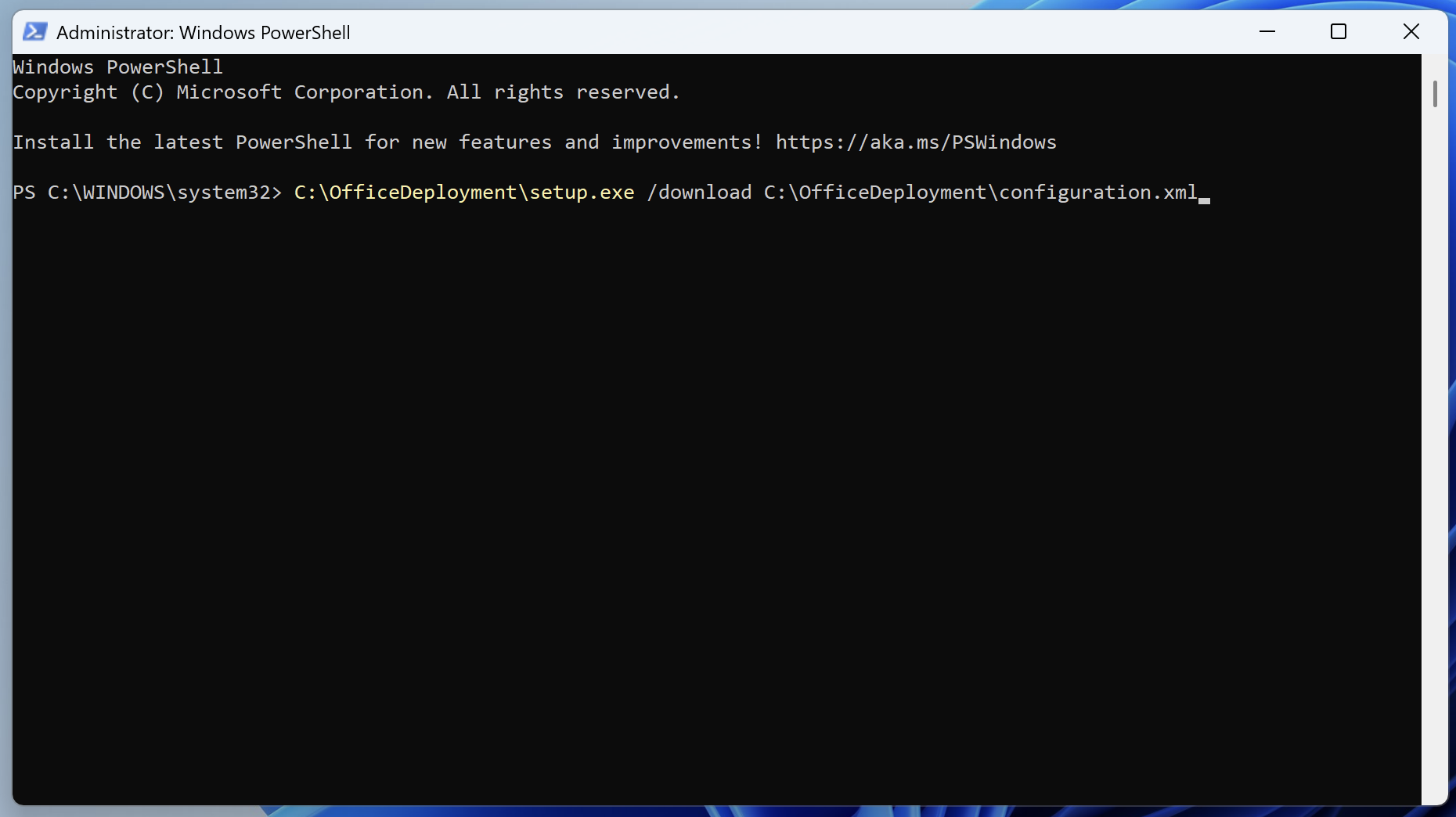
This downloads the Office source files into the path defined by SourcePath from the configuration xml file. If SourcePath is omitted, ODT downloads the files to the same folder where setup.exe is located. Microsoft documents /download for downloading Office LTSC 2024 files and /configure for installing from the XML.
After the download completes, confirm that an Office folder exists:
C:\ProgramData\FileWave\Installers\Office\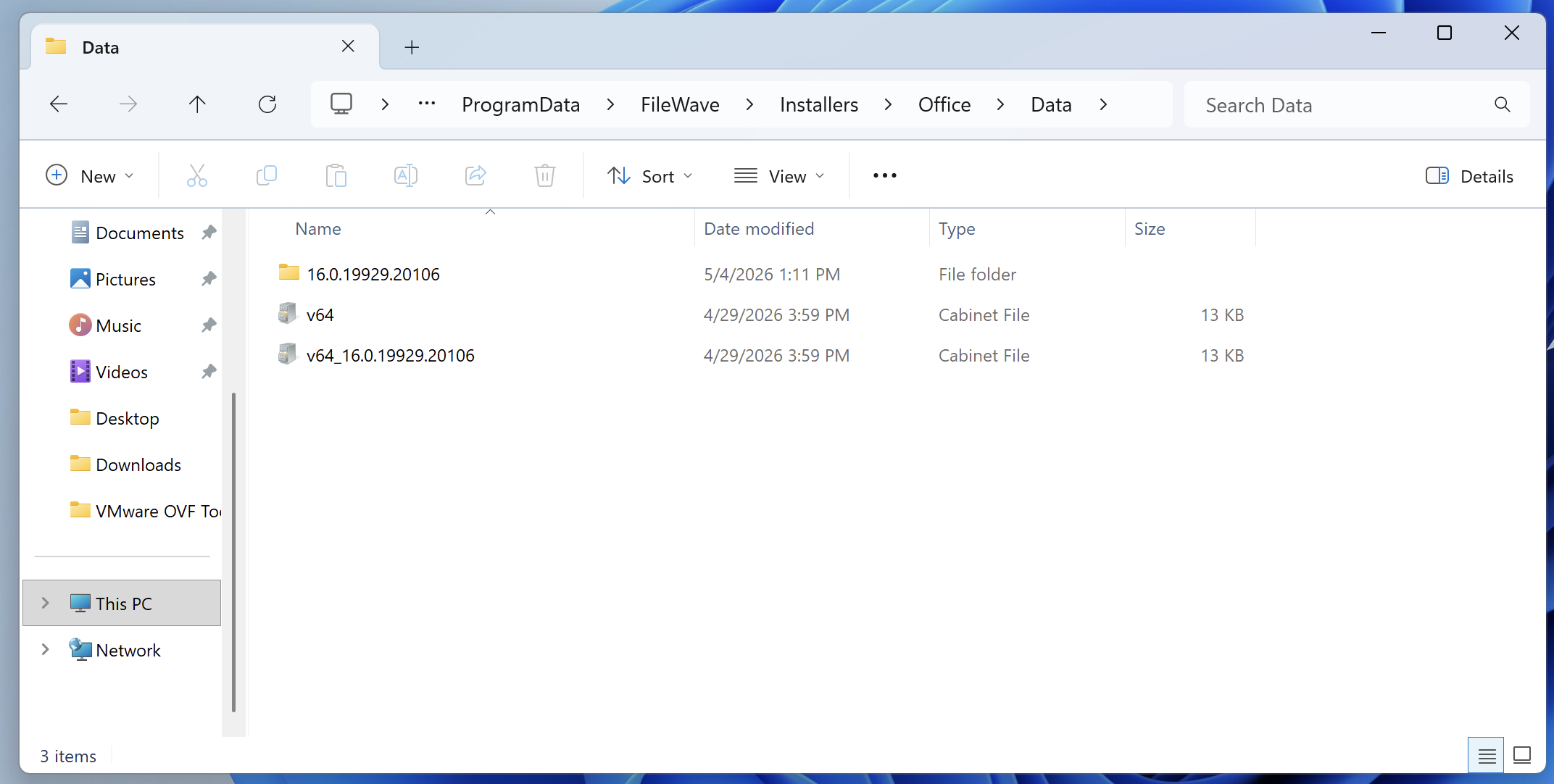
The completedsource downloadedfolder should contain an Office filesfolder arewith storeda withinData thesubfolder Officeand folder.versioned download content.
Step 4: Build the FileWave Fileset
Upload the following into the Fileset:
Office\
setup.exe
configuration.xml
install-office.ps1
uninstall-office.ps1
Place them under:
C:\ProgramData\FileWave\Installers\Office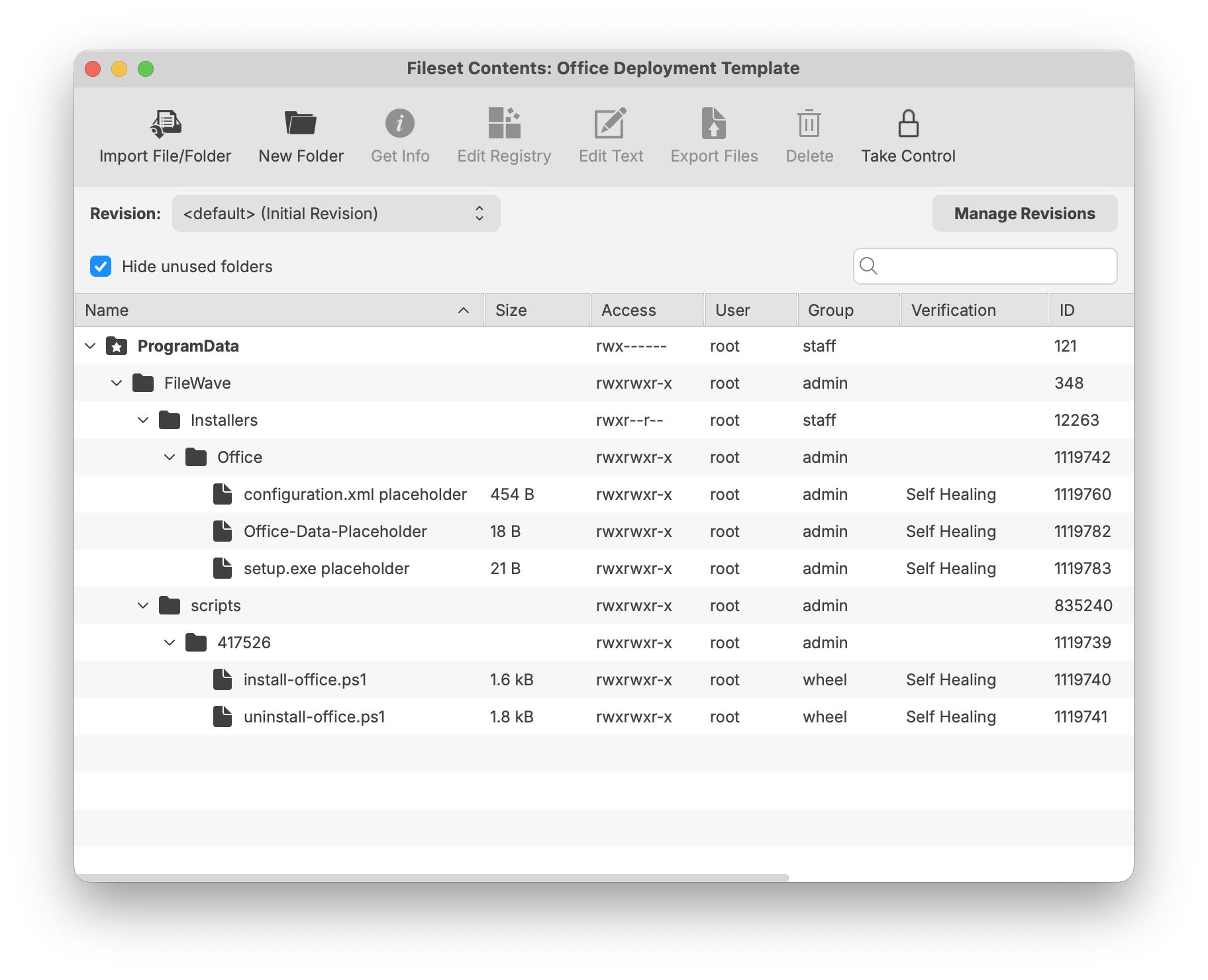
Step 5: Add the installation script
Use a PowerShell activation script with the following:
install-office.ps1
# install-office.ps1
# Installs Microsoft Office using the Office Deployment Tool and the configuration XML
# included in this FileWave Fileset.

$OfficeRoot = "C:\ProgramData\FileWave\Installers\Office"
$SetupExe = Join-Path $OfficeRoot "setup.exe"
$ConfigXml = Join-Path $OfficeRoot "configuration.xml"
$LogRoot = "C:\ProgramData\FileWave\Logs"
$LogFile = Join-Path $LogRoot "office-install.log"

# Ensure logging directory exists.
if (-not (Test-Path $LogRoot)) {
    New-Item -Path $LogRoot -ItemType Directory -Force | Out-Null
}

function Write-Log {
    param (
        [string]$Message
    )

    $Timestamp = Get-Date -Format "yyyy-MM-dd HH:mm:ss"
    "$Timestamp $Message" | Tee-Object -FilePath $LogFile -Append
}

Write-Log "Starting Microsoft Office installation."

# Validate required files before attempting installation.
if (-not (Test-Path $SetupExe)) {
    Write-Log "ERROR: setup.exe not found at $SetupExe"
    exit 1
}

if (-not (Test-Path $ConfigXml)) {
    Write-Log "ERROR: configuration.xml not found at $ConfigXml"
    exit 1
}

try {
    $Process = Start-Process -FilePath $SetupExe `
        -ArgumentList "/configure `"$ConfigXml`"" `
        -Wait `
        -PassThru `
        -WindowStyle Hidden

    Write-Log "Office Deployment Tool exited with code $($Process.ExitCode)."

    if ($Process.ExitCode -ne 0) {
        Write-Log "ERROR: Office installation failed."
        exit $Process.ExitCode
    }

    Write-Log "Microsoft Office installation completed successfully."
    exit 0
}
catch {
    Write-Log "ERROR: $($_.Exception.Message)"
    exit 1
}
Step 6: Add the uninstallation script
Use a pre-uninstallation script with the following:
uninstall-office.ps1
# uninstall-office.ps1
# Removes Click-to-Run Office products using the Office Deployment Tool.
# This script is intended to run as a FileWave pre-uninstallation script
# when the Office Fileset association is removed.

$OfficeRoot = "C:\ProgramData\FileWave\Installers\Office"
$SetupExe = Join-Path $OfficeRoot "setup.exe"
$RemoveXml = Join-Path $OfficeRoot "remove-office.xml"
$LogRoot = "C:\ProgramData\FileWave\Logs"
$LogFile = Join-Path $LogRoot "office-uninstall.log"

if (-not (Test-Path $LogRoot)) {
    New-Item -Path $LogRoot -ItemType Directory -Force | Out-Null
}

function Write-Log {
    param (
        [string]$Message
    )

    $Timestamp = Get-Date -Format "yyyy-MM-dd HH:mm:ss"
    "$Timestamp $Message" | Tee-Object -FilePath $LogFile -Append
}

Write-Log "Starting Microsoft Office removal."

if (-not (Test-Path $SetupExe)) {
    Write-Log "ERROR: setup.exe not found at $SetupExe"
    exit 1
}

# Remove all Click-to-Run Office products installed by ODT, including Office, Project, and Visio.
# Use a more targeted Remove XML if you only want to remove a specific product.
$RemoveXmlContent = @"
<Configuration>
  <Remove All="TRUE" />
  <Display Level="None" AcceptEULA="TRUE" />
</Configuration>
"@

$RemoveXmlContent | Out-File -FilePath $RemoveXml -Encoding utf8 -Force

try {
    $Process = Start-Process -FilePath $SetupExe `
        -ArgumentList "/configure `"$RemoveXml`"" `
        -Wait `
        -PassThru `
        -WindowStyle Hidden

    Write-Log "Office Deployment Tool exited with code $($Process.ExitCode)."

    if ($Process.ExitCode -ne 0) {
        Write-Log "ERROR: Office removal failed."
        exit $Process.ExitCode
    }

    Write-Log "Microsoft Office removal completed successfully."
    exit 0
}
catch {
    Write-Log "ERROR: $($_.Exception.Message)"
    exit 1
}
Microsoft documents the Remove element and notes that All="TRUE" removes Microsoft 365 Apps products and languages, including Project and Visio.
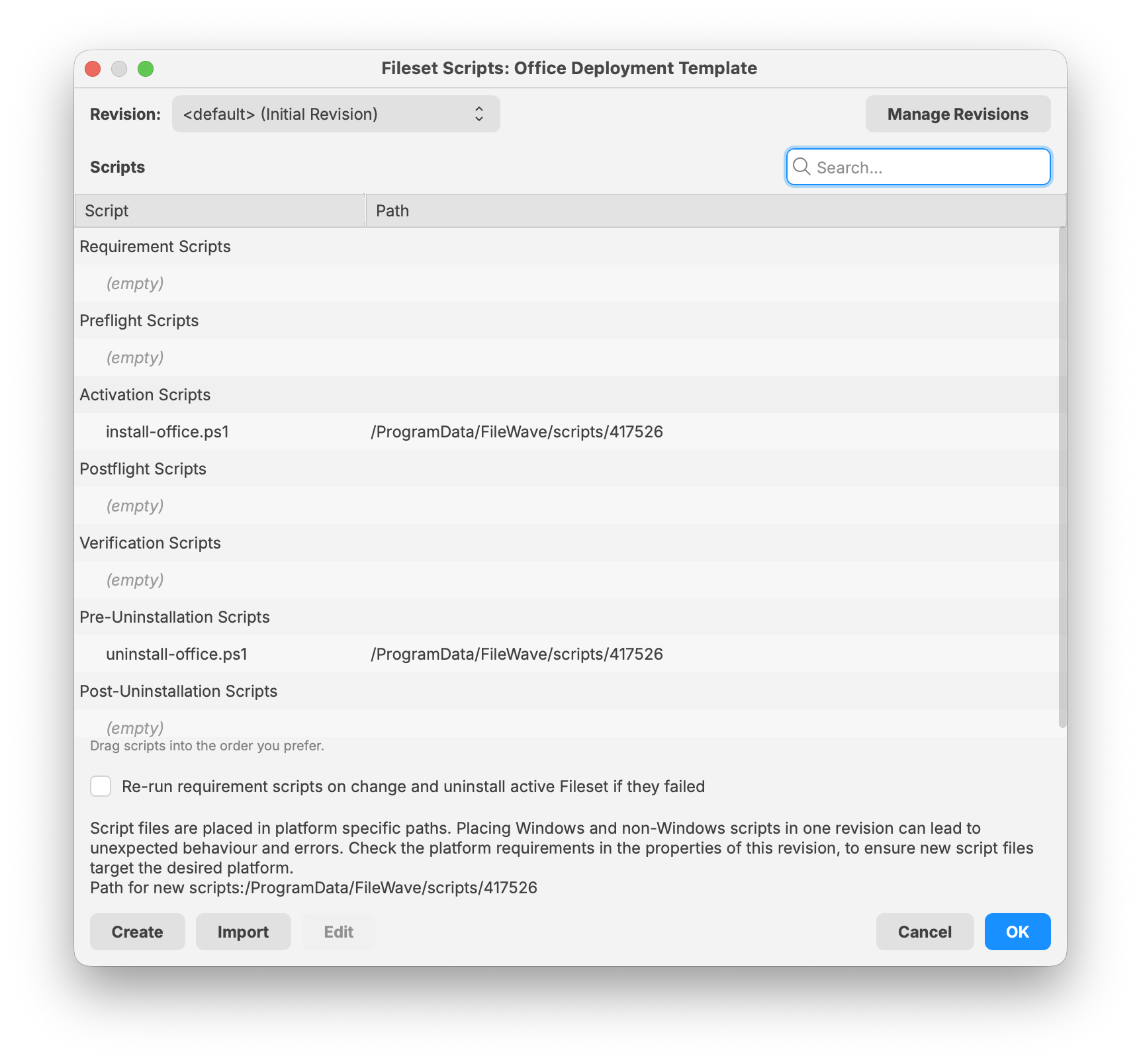
Step 7: Deploy the Fileset
Deploy the Office Fileset to a target Windows device.
After the Fileset activates, the install script runs:
setup.exe /configure configuration.xmlOffice installation can take several minutes depending on hardware, network speed, Office edition, language count, and whether the content is being installed from local Fileset content or Microsoft’s CDN.
Check the target Windows device for new installations of Micrsoft's Office applications.
Troubleshooting
Office 2024 does not install
Confirm that the XML uses:
Channel="PerpetualVL2024"and one of the correct Office LTSC 2024 product IDs, such as:
<Product ID="ProPlus2024Volume">or:
<Product ID="Standard2024Volume">Microsoft 365 Apps installs the wrong channel
Confirm both the <Add> channel and <Updates> channel. The channel on the <Add> element controls the channel used during installation, while the <Updates> element can control update behavior after installation.
Installation fails on devices with existing Office
Confirm whether the existing Office install is:
- MSI-based Office
- Click-to-Run Office
- 32-bit Office
- 64-bit Office
- Retail Office
- Volume Office
- Microsoft 365 Apps
Use <RemoveMSI /> for older MSI-based Office. For Click-to-Run Office 2019/2021/2024 or Microsoft 365 Apps, use a targeted <Remove> configuration or <Remove All="TRUE" /> when a full Office removal is intended.
32-bit to 64-bit migration fails
Do not simply change OfficeClientEdition from 32 to 64 on an existing Office installation. Microsoft documents the MigrateArch attribute for changing the architecture of an existing Microsoft 365 Apps installation.
Missing language files
If you use a local source and support multiple languages, make sure every required language was downloaded. For Microsoft 365 Apps, consider using:
AllowCdnFallback="True"so ODT can retrieve missing language content from Microsoft’s CDN when needed.
Updating Office source files later
For Microsoft 365 Apps, re-run ODT /download periodically using the same XML to refresh the Office source files. Microsoft notes that ODT conserves bandwidth by downloading only missing files when the target folder already contains the same build and language content.
For Office LTSC 2024, keep the source current according to the organization’s update strategy. Office LTSC 2024 can receive updates from the Office CDN by default or from a defined local update path.