Fileset to block Apple Install macOS applications
Description
As described, this only blocks macOS Installer Applications. Preventing users from using Software Updates can only be achieved with Defer Apple OS Updates and you should consider this because Software Update is capable or running the upgrade even with this solution in place.
Apple automatically instals the latest installer application on devices, allowing users to upgrade to the next major release of macOS. The following provides a method to prevent users from running the application, ensuring administrators have the required time to prepare the business.
The provided Fileset includes an unaltered version of the Open Source Software Pashua, which is licensed under the 3-Clause BSD License.
The attached Fileset uses Pashua configuration files such as warning_en.txt and warning_de.txt to control the warning window text and placement. If the warning title and message overlap on newer macOS releases, adjust those Pashua layout values in the Fileset and test on the target macOS version before redeploying.
Information
The attached Fileset prompts users with a message, including alternate languages. There is also allowance for control over which versions of macOS Installers are blocked. The only requirements are the following Filesets:
If running macOS 13 or higher, this profile is also required.
A requirement script is included to ensure the profile is installed first, before downloading and installing the blocker.
Optionally the following Custom Field may be used to monitor the quantity of times users attempt to upgrade devices:
macOSAppInstallerBlockAttempts.customfields.zip
The above installs launchd services. Disassociation of the Fileset will unload these services as well as remove all files.
macOS 13+ Login Items: The user-visible notifier runs from the LaunchAgent label com.filewave.blockmacosinstall.notifier. To prevent standard users from disabling that background item, deploy a macOS Managed Login Items profile for that label where supported. The attached notification profile only controls notifications; it is not a Managed Login Items profile.
Directions
The Fileset is currently configured to block Install macOS Ventura.app and future versions of the macOS installer app; it would also stop beta installer apps in that version range. Version control is managed by the plist file in /usr/local/etc/block_macos_updates/:
com.filewave.blockmacosinstaller_user.plistContents of the file:
<?xml version="1.0" encoding="UTF-8"?>
<!DOCTYPE plist PUBLIC "-//Apple//DTD PLIST 1.0//EN" "http://www.apple.com/DTDs/PropertyList-1.0.dtd">
<plist version="1.0">
<dict>
<key>MinimumBlockedVersion</key>
<integer>18</integer>
</dict>
</plist>
Version of App to Block
Edit the file as required for the following:
- Key - MinimumBlockedVersion
- Value - Integer
Set MinimumBlockedVersion to the installer app major version that should be blocked. The blocker script reads the first component of the installer app's CFBundleShortVersionString,. soThis useis the installer app versionversion, valuenot rather than athe Darwin/kernel version and not always the same as Apple's marketing macOS version. For example, Tahoe is marketed as macOS 26, but the Tahoe installer app version is 21.x, following Sequoia installer apps at 20.x.
Example alternatives:
2621 - Block Tahoe and above- 20 - Block Sequoia and above
- 19 - Block Sonoma and above
- 18 - Block Ventura and above
- 17 - Block Monterey and above
- 15 - Block Catalina and above
- 14 - Block Mojave and above
The script defines a version to block (and versions above) in the case that no plist file is found. This is set to 15, since this should never be the case and is a capture to prevent unwanted updates in this unexpected instance.
Message Localisation
When the installed service blocks the App, a message is reported to the user. Examples have been provided for English and German.
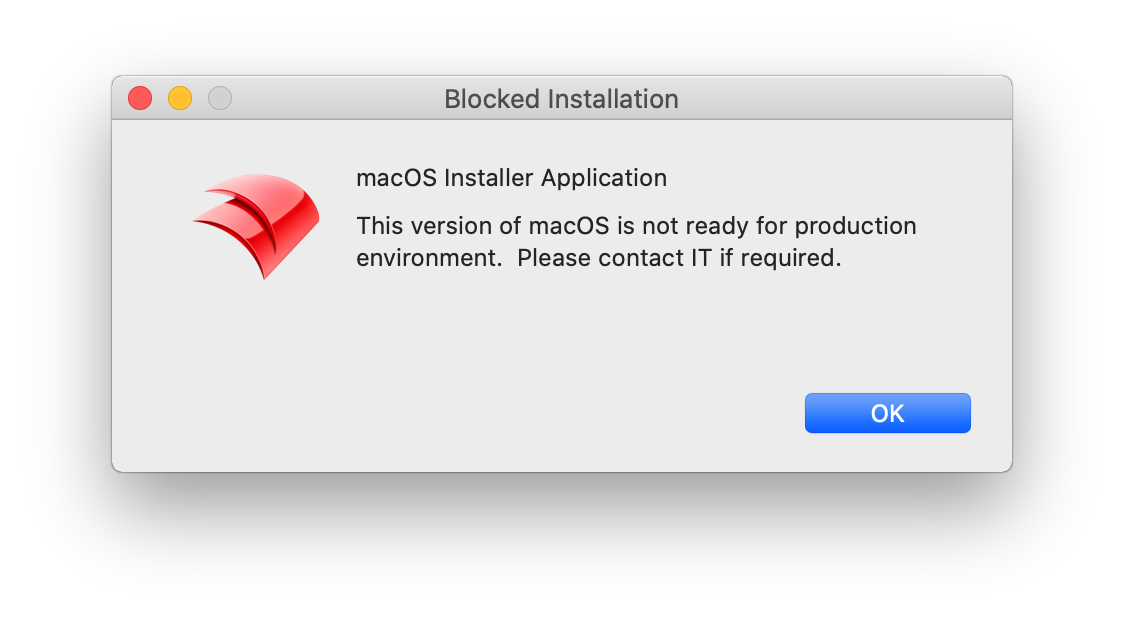

The language is determined by the first two characters from the following command:
$ defaults read -g AppleLanguages | awk -F "\"" '/\"/ {print $2; exit}'
en-GB
As such en-GB, en-US, en-AU, etc will all result in an English version.
Language template files are stored in the path:
/usr/local/etc/block_macos_updates/English and German respectively:
- warning_en.txt
- warning_de.txt
Copy and edit the files appropriately for additional languages.
Example to add French
User has French language set:
$ defaults read -g AppleLanguages | awk -F "\"" '/\"/ {print $2; exit}'
fr-FR
Based upon this, create a copy warning file (note the suffix '_fr'):
- warning_fr.txt
Edit '*.title' and default message 'txt1.default' appropriately:
# Set window title
*.title = Installation bloquée

# Introductory text
txt.type = text
txt.default = macOS Installer Application
txt.height = 100
txt.width = 310
txt.x = 100
txt.y = 120

txt1.type = text
txt1.default = Cette version de macOS n'est pas prête pour l'environnement de production. Veuillez contacter le service informatique si nécessaire.
txt1.height = 100
txt1.width = 310
txt1.x = 100
txt1.y = 50

img.type = image
img.x = 20
img.y = 70
img.maxwidth = 64
img.path = /usr/local/etc/FileWave_Icon.png
Text content will impact the view. Consider changing height, x and y values if the view does not appear as intended.
Upload and replace the 'img.path' as your own company logo for customisation.
Logging
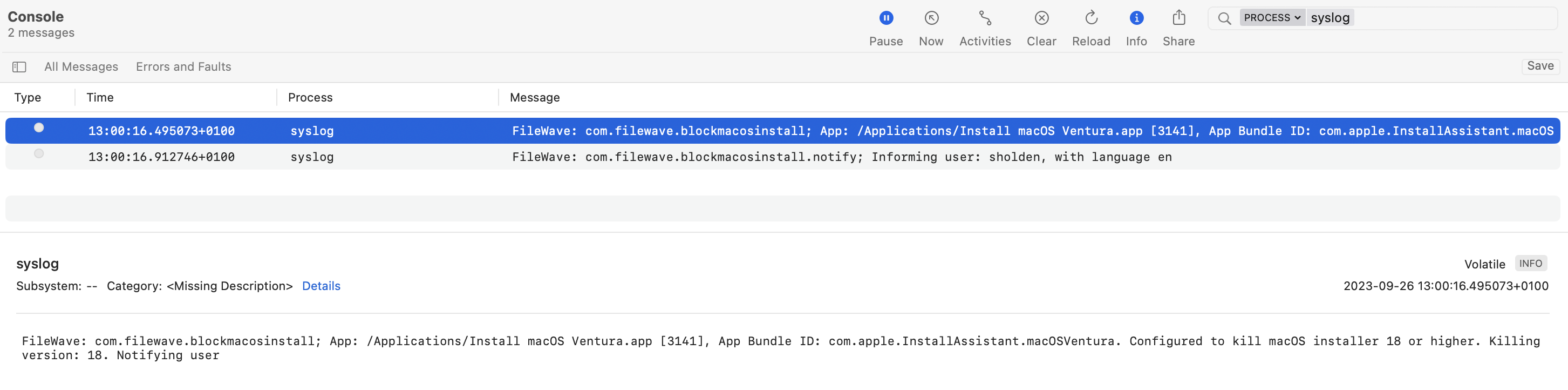
The launchd scripts have additional logging which will be available in Apple's Console (Debug level Info). For example: