
macOS Erase and Install Fileset (Erase Optional)
Description
Upgrading macOS or refreshingperforming an erase-and-install workflow both require a full macOS frominstaller erasingapp. requires the macOS Install App. The following provides aThis Fileset is designed to handlesupport either of these casescase.
Historically, twothese KBsworkflows were providedsplit toacross handletwo eachKB of these options.articles. This newer Fileset allowscan for activation ofhandle either option from one Fileset.Fileset, Certainand fundamentalit changesalso haveremoves beensome made,older forrequirements, example,such as the hidden upgrade file in /var/db is no longer required.db.
Ingredients
- Custom Field – "macos_instal_flag"
- Full Apple macOS Installer App
- Provided Recipe
- Provided Custom Field
Fileset:
|
↓ macOS |
|
|

Custom Field:
|
↓ macOS |
|
|

|
Full installer Confirm the installer app is the 'Full' installer before continuing. If the app is relatively small e.g. 50MB, re-download the Install macOS Monterey.app. A full installer may be downloaded through Terminal on macOS 10.15+ devices. Example to download the 12.0 full installer to the Applications directory:
Typically Apple only provides the latest point release of each Major OS version: 10.13.6, 10.14.6, etc. For a full list of available updates, use the following command:
|
Directions
Fileset
- Download and import the provided Fileset
- Download the desired version of the macOS Installer App
- Add the macOS
InstallerinstallerAppappintoto the same folder as the .placeholderfie;file. You can remove the .placeholder filemay be removedafterward if desired - Select the
InstalInstall macOSAppapp > Get Info > Verification,selectchoose Ignore AtVerifyVerify, and then Apply to Enclosed - Edit the Environment Variables for both the Activation Script and the Requirements Script
Fileset Contents

Environment Variables
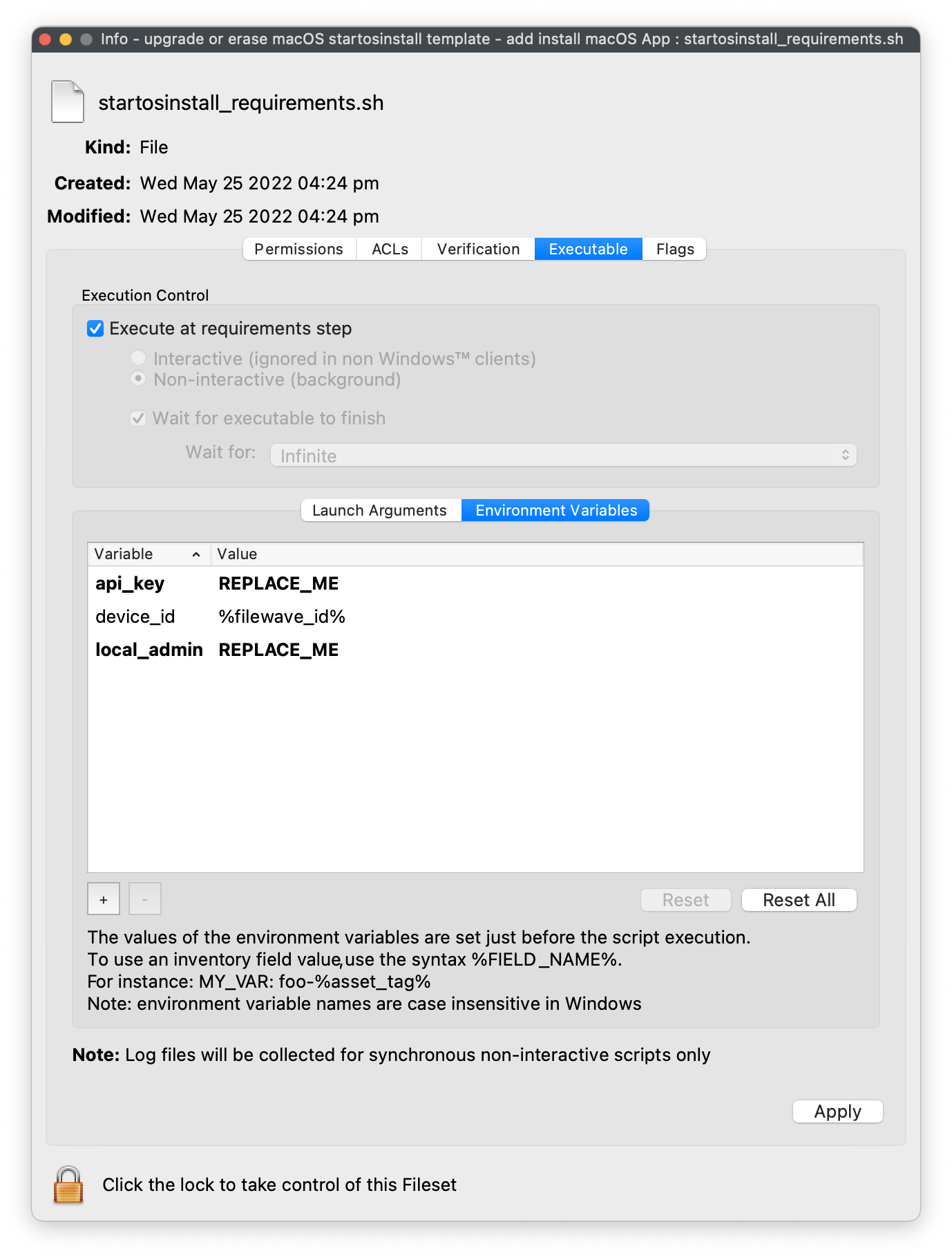
The Environment Variables must be edited, providing appropriate values
- M1 devices
provideadd anadditionalextracomplicationrequirement whenchoosing to scriptscripting the installation of macOSInstalinstallerApps.apps. Inthisthatinstance,case, a local macOSAdministratoradministratorUsernameusername andPasswordpassword must be passed to the script.TheUpdatetwotheVariables 'local_admin'local_admin and'admin_pass'admin_passshouldvariableshave their Values adapted respectively.accordingly. Inteldevice has no such consideration and willdevices ignore these values if they are set.
|
Requirement Script – statosinstall_requirements.sh Key values that require editing (in bold):
|
Activation Script – startosinstal_m1&intel.sh
Key values that require editing (in bold):
'installer_name' in Fileset is also set as REPLACE_ME, but the value is left as 'Install macOS Monterey' as an example in the Fileset image. |

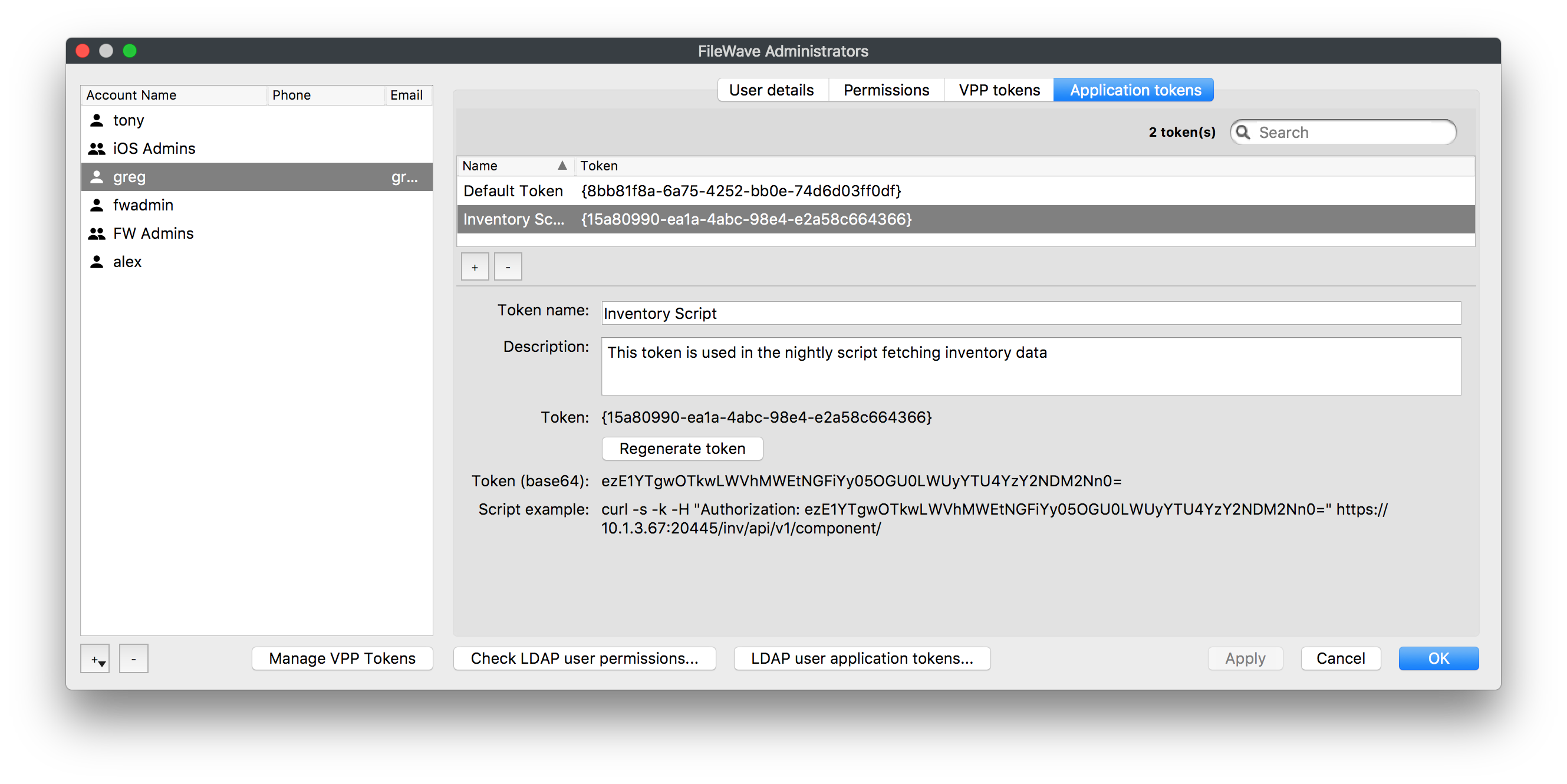
Application Token Location
The FileWave Administrator's Application Token (base64) can be found under FileWave Central -> Assistants -> Manage Administrators.
Custom Field
Custom Field has 4 options:

- NA – default value, the Fileset will not do anything with this setting
- ERASE – the device will have the OS erased and install the provided version of macOS
- INSTAL – the device will upgrade to the provided version of macOS
- FAILED – the device will update the Custom Field flag to FAILED if something unexpected occurs. No further attempts to run the Fileset will action anything whilst this is still the case
Either 'Assign to all devices' or select appropriate devices to associate the Custom Field.
Consider making Smart Group associations based upon the Custom Field value
Activation
Create a Smart Group based upon macos_instal_flag value being either ERASE or INSTAL
Set the associated Custom Field for a device to one of these two values depending upon the experience you would desire.
Selecting a group of devices to associate and/or alter the Custom Field value, will action that new value for all devices currently within that group. The video shows an example of setting the Custom Field value as INSTAL, with the 2 devices within the macOS 10.13 group.
Using a group in this way will have no impact on the Custom Field values for devices leaving or joining the group afterward.
Since it is likely a subsequent installation attempt will be desired upon failure (once the reason for failure has been addressed, e.g. not enough disk space), a Smart Group could be set with the Custom Field value of FAILED if desired.
To re-run a failed attempt, after addressing the reason for the failure (e.g. freeing up disk space), reset the Custom Field value to the appropriate ERASE or INSTAL value and choose to 'Reinstall Fileset'
Notes
ThatWhy seemeddoes quitethis complex,Fileset why?use a Custom Field?WhilstWhile the Fileset is associatedassociated, it may trigger the workflow again. After an action. When a device is erased,erase, for example, anythe referencedevice tono longer retains local state about the original installation takingattempt. placeWithout isanother now lost. The consequence of this is thatcontrol, the device willcould attempttry to reinstallrepeat the Filesetworkflow overafter andit overcomes again.back. The Custom FieldsField areprevents rescuingrepeat theerase process,or byupgrade ensuring thatattempts once the process hasis beencomplete, completed,and thereit willalso beprovides noa re-attemptsimple way to upgradetrack or erase the device again since the association will no longer be in place.failures.
By creating a FAILED Custom Field value, devices arecan also automaticallyreport reportingunsuccessful anyattempts suchautomatically, failure,which andmakes it easier to build queries or groupsSmart mayGroups befor pre-built to observe and address any such experience.follow-up.
By setting the macOS Installer App as leave behind, if the installation has not been completed, but is no longer associated, this will ensure the installer remains on the device for subsequent attempts. Additionally, since Apple automatically removes the macOS Installer App after an upgrade, if the Fileset were still associated there would be no re-attempt to download the installer.
Filesets that error will automatically re-attempt installation as standard. The requirement script is designed to report an exit code of 210 to overrule this. Even if the Requirement Script fails, it will report success and will neither continue download/activation nor will it re-attempt without intervention. In this case, the client will update the Custom Field instead to report the failure. The script log should show the output of the command.
Example log message:
/usr/local/etc/macos_instal.log
|main|CUSTOM|CLIENT|startosinstall_requirements Exiting. Flag set as:
In this example, the Custom Field Flag reported has no value. This should either mean the Custom Field is not associated with the device or the script has failed to read the value. If the latter, check the Environment Variables to ensure they are correct.