
White Labeling Apple OTA Enrollment and MDM Profiles
Getting Started
FileWave can apply your organization’s branding to the Apple over-the-air (OTA) enrollment profile, the installed MDM profile, and the App Portal Web Clip. The templates control selected names and descriptions shown during enrollment and in the device’s profile details.
To customize these items, copy the provided example templates on the FileWave Server, remove .example from each working filename, and edit the copies with a plain-text editor. The MDM service reads the customized files, and they persist across FileWave Server upgrades.
Hosted FileWave customers: These templates live on the FileWave Server filesystem. Self-managed customers with server access can edit the files directly. If your FileWave Server is hosted by FileWave, contact FileWave Technical Support for assistance with hosted-server template changes.
All templates are located in the following directory on the server:
- macOS and Linux:
/usr/local/filewave/django/user_templates
The user_templates directory contains these reference templates:
- enrolment_ios.example.plist
- enrolment_macos.example.plist
- mdm_profile.example.plist
Copy only the template you intend to customize and remove .example from the copy. For example, copy enrolment_ios.example.plist to enrolment_ios.plist in the same directory, then edit the new file.
For the purpose of demonstrating the feature, we will use the fake company name "Argon5".
OTA enrollment profiles
The operating system displays the OTA profile during the first stage of MDM enrollment. Customize the template for the platform you enroll:
enrolment_ios.example.plistfor iOS, iPadOS, and Apple TVenrolment_macos.example.plistfor macOS
These files are plists that look like this:
<?xml version="1.0" encoding="UTF-8"?>
<!DOCTYPE plist PUBLIC "-//Apple Inc//DTD PLIST 1.0//EN" "http://www.apple.com/DTDs/PropertyList-1.0.dtd">

<!--
Note: define your values to substitute the OTA enrolment profile here.
Values present on the enrolment profile and not here will not be substituted.
Every key/value set here is final: they will be present on the enrolment profile.
-->

<plist version="1.0">
    <dict>
        <key>PayloadIdentifier</key>
        <string>com.argonfive.mobileconfig.profile-service</string>
        <key>PayloadDisplayName</key>
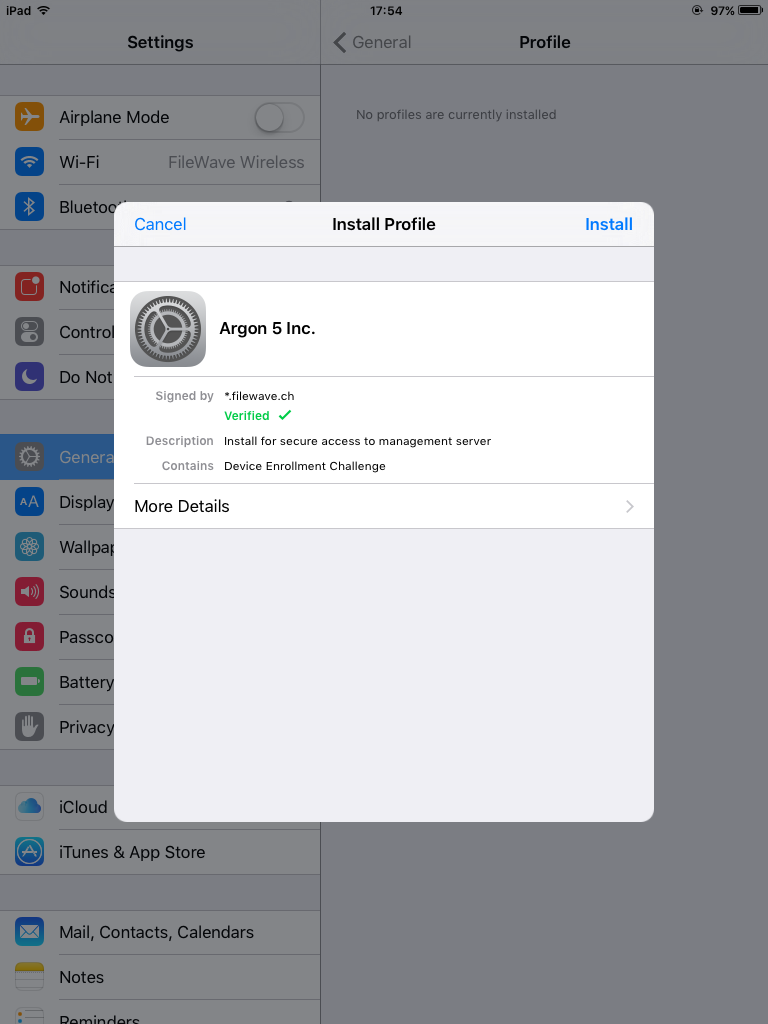
        <string>Argon 5 Inc.</string>
    </dict>
</plist>
To customize the profile, replace the strings with the value that you would like to see displayed. If you don't want to customize any key, it can safely be removed from the .plist file. This will cause the default value (with FileWave theming) to be sent instead.
The result can be seen while enrolling an iOS device:
Apple TV Enrollment Profile
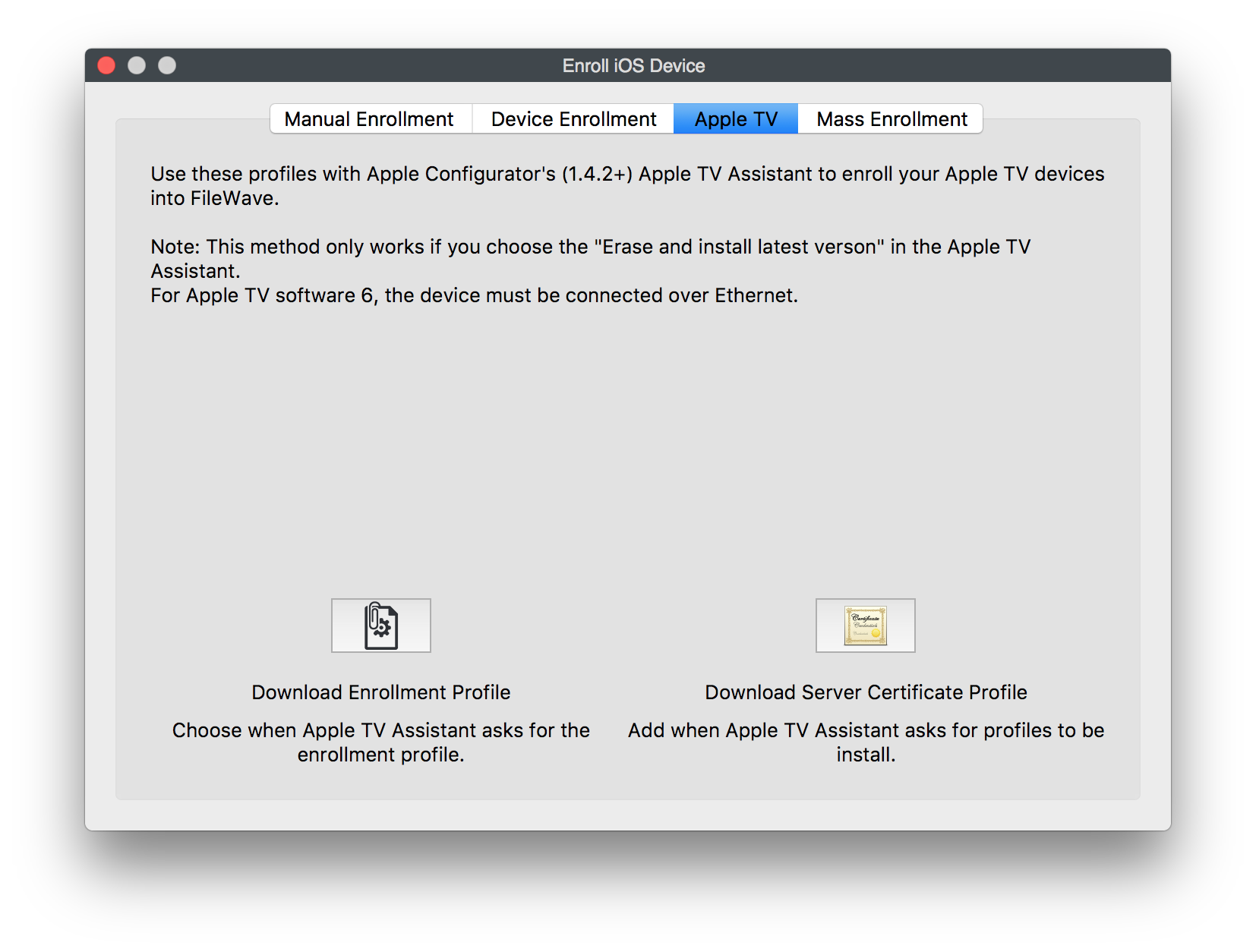
The customized enrolment_ios.plist file also applies to Apple TV enrollment through Apple Configurator.
MDM profile
Basic customization
The MDM profile template file is "mdm_profile.example.plist". You can replace any keys in the same way as explained in the previous section.
Sample customized MDM profile
<?xml version="1.0" encoding="UTF-8"?>
<!DOCTYPE plist PUBLIC "-//Apple Inc//DTD PLIST 1.0//EN" "http://www.apple.com/DTDs/PropertyList-1.0.dtd">

<!--
Note: define your values to substitute the MDM profile here.
Values present on the MDM profile and not here will not be substituted.
Every key/value set here is final: they will be present on the MDM profile.
-->

<plist version="1.0">
<dict>
    <key>PayloadContent</key>
    <array>
        <dict>
            <key>PayloadContent</key>
            <dict>
                <key>Name</key>
                <string>Argon5 SCEP</string>
                <key>Subject</key>
                <array>
                    <array>
                        <array>
                            <string>O</string>
                            <string>Argon5 SCEP</string>
                        </array>
                    </array>
                    <array>
                        <array>
                            <string>CN</string>
                            <string>argonfivemdm</string>
                        </array>
                    </array>
                </array>
            </dict>
        </dict>
        <dict>
            <key>PayloadDescription</key>
            <string>Installs the Root certificate for the Argon5 MDM solution.</string>
        </dict>
    </array>
    <key>PayloadDescription</key>
    <string>This profile allows this device to be securely managed by the Argon5 MDM Server.</string>
    <key>PayloadDisplayName</key>
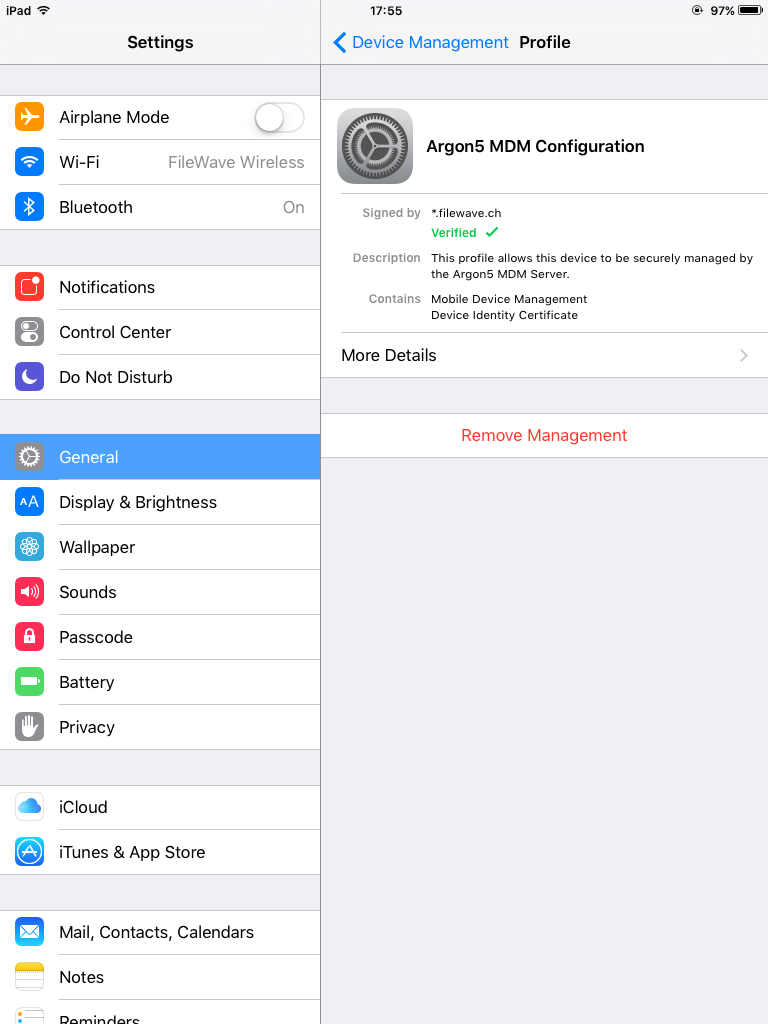
    <string>Argon5 MDM Configuration</string>
</dict>
</plist>
The customized MDM profile appears in iOS as shown below:
Consent text
An additional key that you might want to add is "ConsentText". When this key is defined, iOS and macOS display a consent text during the enrollment process. The consent text must be explicitly accepted by the user. This can be used to request the user to accept terms and conditions before continuing with the enrollment. If this key is missing, this step will be skipped.
Here is an example of how to add the ConsentText at the end of the MDM profile:
...
    <key>ConsentText</key>
    <dict>
        <key>default</key>
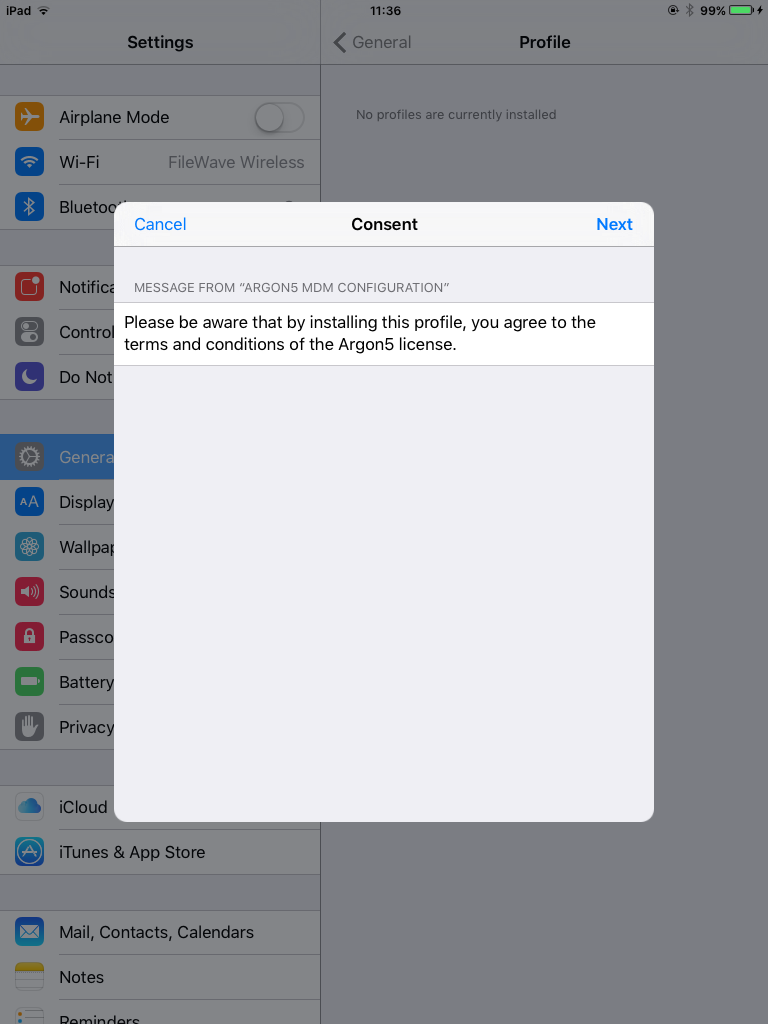
        <string>Please be aware that by installing this profile, you agree to the terms and conditions of the Argon5 license.</string>
    </dict>
</dict>
</plist>
This consent text will be displayed by iOS like this:
No comments to display
How to implement this feature with a hosted server?
In reply to #1
Support would likely have to help on any of these things that require direct server access. We're working on moving away from edits that need this access so over time you should see this get better.
No comments to display