
Local Group Policy Object Utility (Windows EXE)
What
LGPO.exe is Microsoft’s Local Group Policy Object utility. It lets administrators import, export, and apply local Windows Group Policy settings from the command line. This can be useful when deploying security baselines or local policy settings to Windows devices that are not managed through Active Directory Group Policy.
When/Why
LGPO.exe can help apply required local policy settings to Windows devices so they meet your organization’s security and compliance requirements.
Features:
- Import settings into local group policy from GPO backups or from individual policy component files, including Registry Policy (registry.pol), security templates, and advanced auditing CSV files.
- Export local policy to a GPO backup.
- Parse a Registry Policy (
registry.pol) file into readable “LGPO text.” The output can be redirected to a file, edited, and imported back into local policy. - Build a new Registry Policy (registry.pol) file from "LGPO text".
- Enable group policy client-side extensions for local policy processing.
Before you begin
- Test LGPO changes on a non-production device first.
- Run LGPO.exe with administrator privileges.
- Back up the current local policy before applying new settings.
- Policy changes may affect security, login behavior, Windows Update behavior, browser settings, or other system behavior depending on the imported policy.
- Some changes may require
gpupdate /force, a sign-out/sign-in, or a reboot.
Example: Deploy LGPO.exe with FileWave
- Download LGPO.zip.
- Add the required policy files to the same Fileset, such as:
registry.polGptTmpl.infAudit.csvlgpo.txt
- Create a Windows script in the Fileset.
- Use the LGPO command that matches the policy file you are deploying, for example:
LGPO.exe /m "%~dp0registry.pol" /v gpupdate /force - Associate the Fileset with a test device first.
- After validation, deploy to the intended device group.
LGPO Policy Example Template
Example Template Fileset:
Use the template variable examples below to apply or remove one Windows local policy value.
You only need to set a few environment variables:
- apply_policy.ps1 applies the policy.
- remove_policy.ps1 removes the policy value.
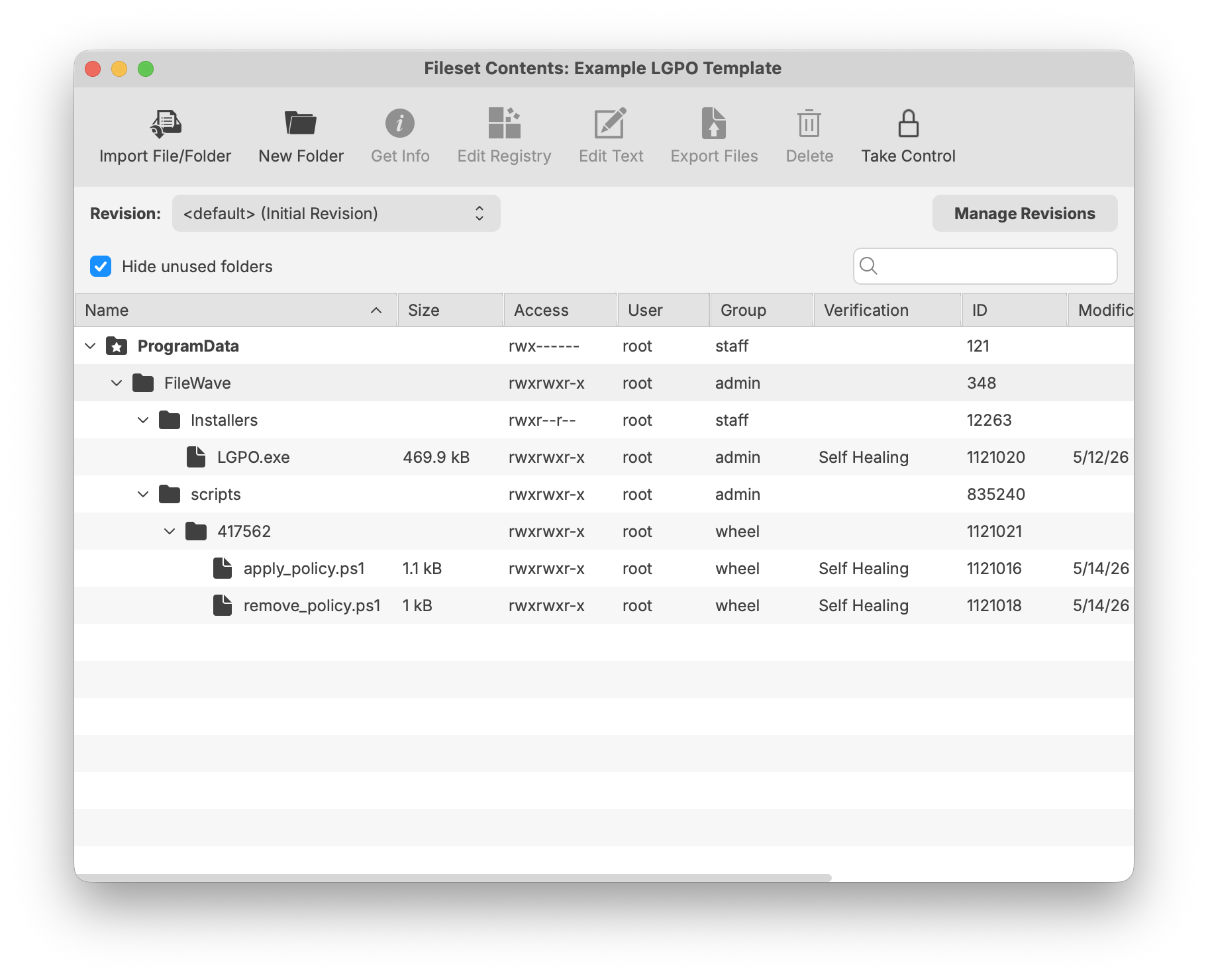
Example Fileset Contents
Example contents: LGPO.exe, apply_policy.ps1, andremove_policy.ps1, remove_policy.ps1GeneratedPolicy.txt is created by the script at runtime.
Required Variables
FW_POLICY_TYPE and FW_POLICY_DATA are required when applying a policy. They are not required when removing a policy.
| Variable | Example | Notes |
|---|---|---|
| FW_POLICY_KEY | Software\Policies\Microsoft\Windows\Installer | Registry policy path. You may also use a full HKLM:\... path. |
| FW_POLICY_VALUE | DisableMSI | Registry value name. |
| FW_POLICY_TYPE | DWORD | Required for apply. Common values: DWORD, SZ, QWORD, EXPAND_SZ, MULTI_SZ. |
| FW_POLICY_DATA | 2 | Required for apply. |
Optional Variables
For User policies, include LGPO.exe and use LGPO text import. Direct registry fallback is intended for Computer policies because FileWave often runs scripts as LocalSystem.
| Variable | Default | Notes |
|---|---|---|
| FW_POLICY_SCOPE | Computer | Use Computer for HKLM policy or User for HKCU policy. |
| FW_LGPO_EXE | .\LGPO.exe | Custom path to LGPO.exe. |
| FW_LGPO_TEXT_PATH | .\GeneratedPolicy.txt | Where the generated LGPO text file is written. |
| FW_RUN_GPUPDATE | true | Runs gpupdate.exe /force. |
| FW_DIRECT_REGISTRY_FALLBACK | true | Directly writes simple Computer policies if enabled. |
Example: Disable Windows Installer
$env:FW_POLICY_KEY = "Software\Policies\Microsoft\Windows\Installer"
$env:FW_POLICY_VALUE = "DisableMSI"
$env:FW_POLICY_TYPE = "DWORD"
$env:FW_POLICY_DATA = "2"

.\apply_policy.ps1$env:FW_POLICY_KEY = "Software\Policies\Microsoft\Windows\Installer"
$env:FW_POLICY_VALUE = "DisableMSI"
.\remove_policy.ps1The attached zip contains LGPO.exe, Microsoft’s Local Group Policy Object utility: LGPO.zip
| Goal | Recommended Command |
| Apply a full GPO backup | LGPO.exe /g path |
| Apply machine policy settings | LGPO.exe /m path\registry.pol |
| Apply user policy settings | LGPO.exe /u path\registry.pol |
| Apply a security template | LGPO.exe /s path\GptTmpl.inf |
| Apply advanced audit settings | LGPO.exe /a path\Audit.csv |
| Export current local policy | LGPO.exe /b path [/n GPO-name] |
| Convert Registry.pol to readable text | LGPO.exe /parse /m path\registry.pol |
| Build Registry.pol from LGPO text | LGPO.exe /r path\lgpo.txt /w path\registry.pol |
LGPO.exe has four modes:
- Import and apply policy settings;
- Export local policy to a GPO backup;
- Parse a registry.pol file to "LGPO text" format;
- Build a registry.pol file from "LGPO text".
To apply policy settings, use one or more of the following LGPO.exe options. Each option can be repeated as needed:
/g path                             import settings from one or more GPO backups under "path"
/m path\registry.pol     import settings from registry.pol into machine config
/u path\registry.pol      import settings from registry.pol into user config
/s path\GptTmpl.inf     apply security template
/a[c] path\Audit.csv     apply advanced auditing settings; /ac to clear policy first
/t path\lgpo.txt              apply registry commands from LGPO text

/e <name>|<guid>       enable GP extension for local policy processing; specify a GUID, or one of these names:
              **  "zone" for IE zone mapping extension
              **  "mitigation" for mitigation options, including font blocking
              **   "audit" for advanced audit policy configuration

/boot                                reboot after applying policies
/v                                       verbose output
/q                                       quiet output (no headers)
To create a GPO backup from local policy:
LGPO.exe /b path [/n GPO-name]

/b path                       Create GPO backup in "path"
/n GPO-name           Optional GPO display name (use quotes if it contains spaces)
To parse a Registry.pol file to LGPO text (stdout):
LGPO.exe /parse [/q] {/m|/u} path\registry.pol

/m path\registry.pol         parse registry.pol as machine config commands
/u path\registry.pol          parse registry.pol as user config commands
/q                                           quiet output (no headers)
To build a Registry.pol file from LGPO text:
LGPO.exe /r path\lgpo.txt /w path\registry.pol [/v]

/r path\lgpo.txt              Read input from LGPO text file
/w path\registry.pol     Write new registry.pol file
Validate the policy
After deployment, you can validate the result on the Windows device using one or more of the following:
gpupdate /force
gpresult /h C:\Temp\gpresult.html /f
You can also review the relevant local policy settings using the Local Group Policy Editor, where applicable.
Troubleshooting
- Confirm the script is running as administrator or LocalSystem.
- Confirm paths are correct. When deploying through FileWave, use paths relative to the script location when possible.
- Use
/vfor verbose output during testing. - Check whether the policy is machine-based or user-based before choosing
/mor/u. - Reboot the device if the policy requires it.
- Test rollback or backup procedures before broad deployment.