
Deploying Google Play Web Apps
SometimesManaged Google Play web apps, sometimes called a web clips,clips theseor arewebsite itemsshortcuts, thatplace lookan app-like apps,icon buton an Android device and open tothe webpages.URL you specify.
Creating the Fileset
You need to have the Google Chrome appmust be installed orand allowed on the target devices for managed web apps to work.open.
In
FromFileWave Central, open the Filesetsview
view.Select New Mobile Fileset.
Select Play Store.
Select "New Mobile Fileset"
Select "Play Store"
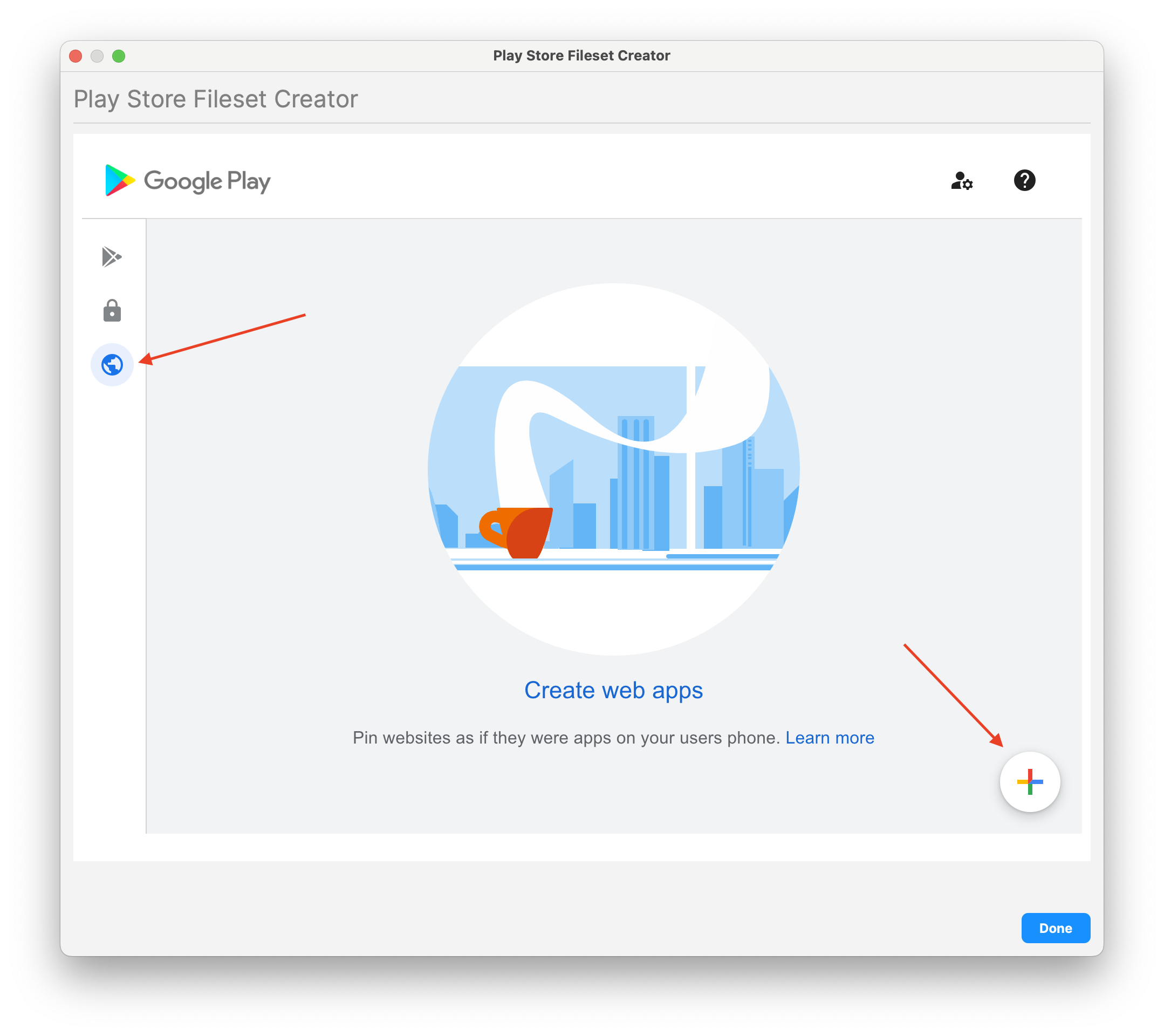
On the left, select the globe (icon for Web app) andapps, then click onselect the plus icon in the bottomlower-right right
corner.
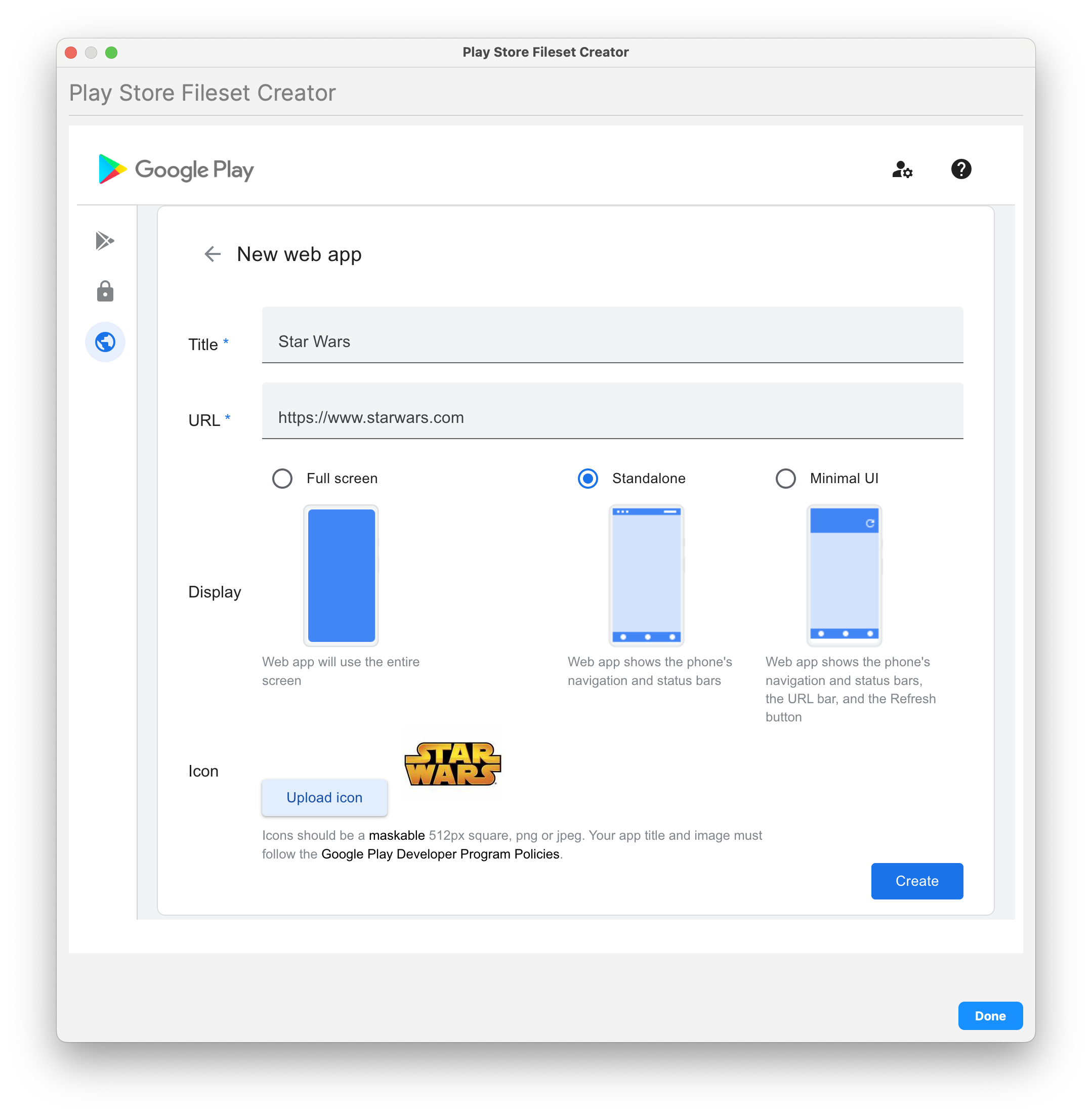
- Enter Name/Label
- Enter URL
- Choose Display (Full Screen, Standalone, or Minimal UI)
- Icon image (optional)
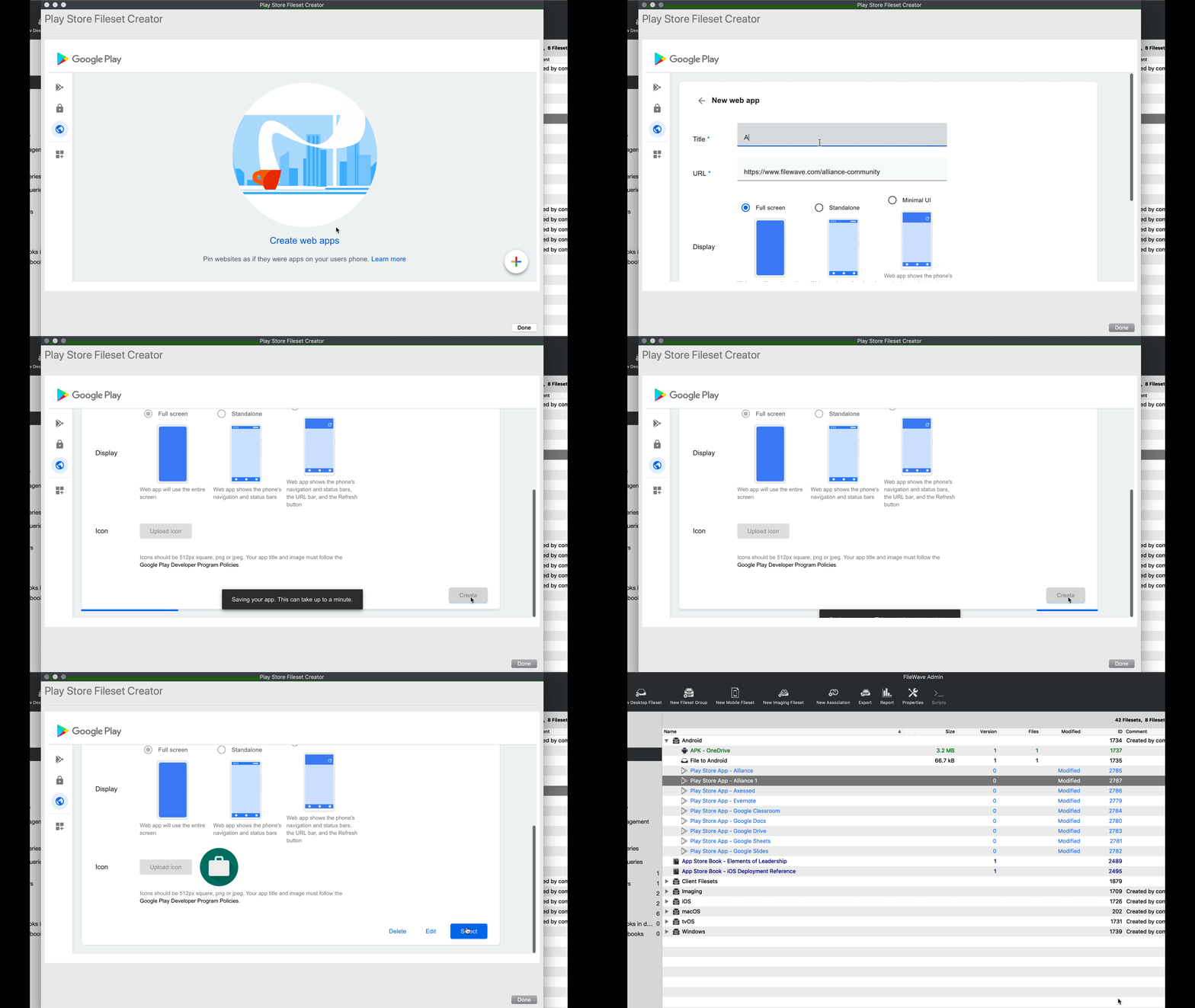
Select.
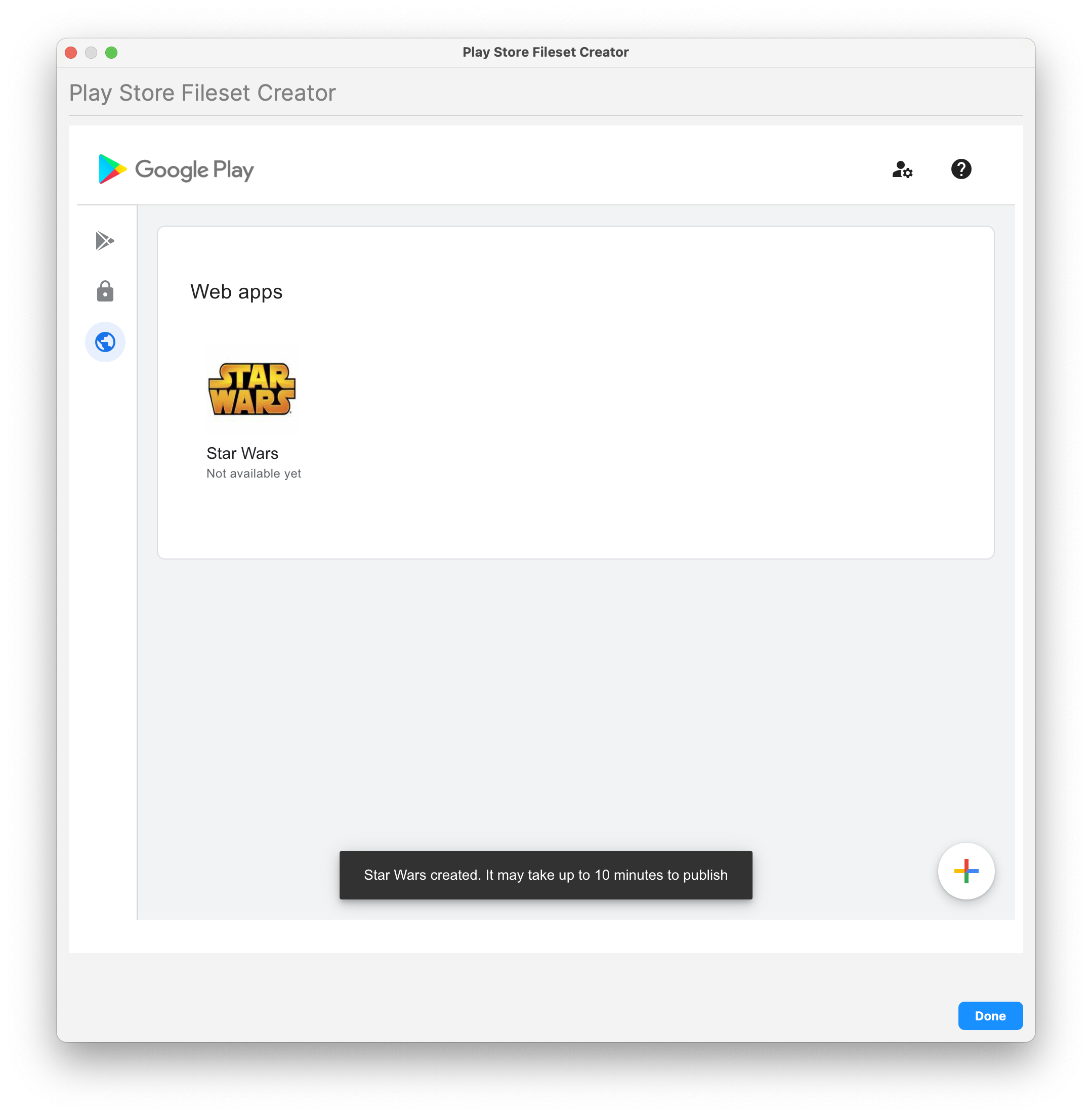
FileWave will createcreates the Fileset in the background and leaveleaves Managed Google Play open so you can add another app or close the window open. You are welcome to create another Web app, search for additional apps to create or close.window.
| Create new Web app | Enter and Customize your Web app | Select |
 |
 |
 |
See: Using Associations with Filesets forexplains stepshow onto creatingtarget associationsthe finished web app.